
One-tap autofill authentication templates | Developer Documentation
One-tap autofill authentication templates
Updated: Feb 6, 2026
Upcoming deprecation: Starting April 15, 2026, the
PendingIntent-based handshake method for authentication templates will be deprecated. If you are currently using PendingIntent to initiate handshakes or verify app identity, the OTP Android SDK is the preferred way to migrate.One-tap autofill authentication templates allow you to send a one-time password or code along with an one-tap autofill button to your users. When a WhatsApp user taps the autofill button, the WhatsApp client triggers an activity which opens your app and delivers it the password or code.
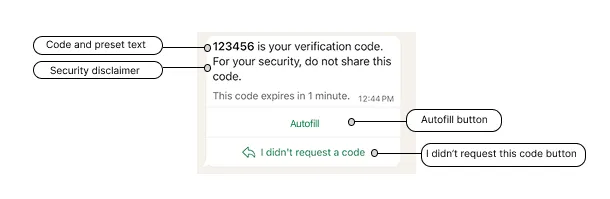
One-tap autofill button authentication templates consist of:
Preset text: <VERIFICATION_CODE> is your verification code.An optional security disclaimer: For your security, do not share this code.An optional expiration warning (optional): This code expires in <NUM_MINUTES> minutes.A one-tap autofill button.
Note: The OTP Android SDK features a simplified workflow for implementing one-tap and zero-tap authentication templates. You can learn how to use it below.
Limitations
One-tap autofill buttons are only supported on Android. If you send an authentication template to a WhatsApp user who is using a non-Android device, the WhatsApp client will display a copy code button instead.
URLs, media, and emojis are not supported.
App signing key hash
You must include your app signing key hash in your post body.
To calculate your hash, follow Google’s instructions for computing your app’s hash string.
Alternatively, if you follow Google’s instructions and download your app signing key certificate (step 1), you can use your certificate with the sms_retriever_hash_v9.sh shell script to compute the hash. For example:
./sms_retriever_hash_v9.sh --package "com.example.myapplication" --keystore ~/.android/debug.keystoreSupported apps
The
supported_apps array allows you define pairs of app package names and signing key hashes for up to 5 apps. This can be useful if you have different app builds and want each of them to be able to initiate the handshake:Alternatively, if you are using Graph API version 20.0 or older and have only a single app, you can define the app’s package name and signing key hash as
buttons object properties, but this is not recommended as we will stop supporting this method starting with version 21.0:Handshake
You must signal to the WhatsApp client to expect imminent delivery of a password or code. You can do this by initiating a “handshake”.
A handshake is an Android intent and public class that you implement but that the WhatsApp client can start.
When a user in your app requests a one-time password or verification code and chooses for it to be delivered to their WhatsApp number, first perform the handshake, then call our API to send the authentication template message. When the WhatsApp client receives the message, it will perform an eligibility check, and if there are no errors, start the intent and display the message to the user. Finally, when the user taps the message’s one-tap autofill button, we automatically load your app and pass it the password or code.
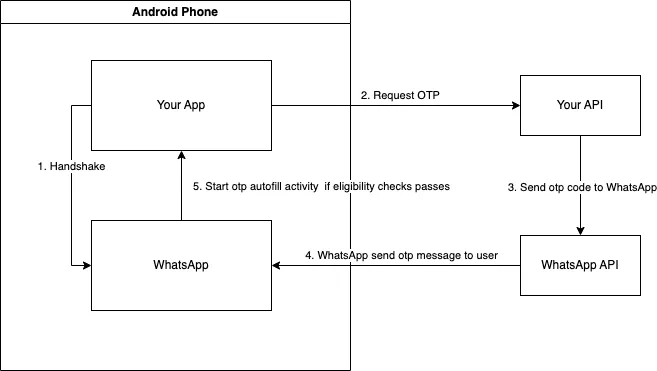
If you do not perform a handshake before sending the message, or the message fails an eligibility check, the delivered message will display a copy code button instead of a one-tap button.
Eligibility check
The WhatsApp client performs the following checks when it receives an authentication template message. If any check fails, the one-tap autofill button will be replaced with a copy code button.
The handshake was initiated no more than 10 minutes ago (or no more than the number of minutes indicated by the template’s code_expiration_minutes property, if present).The package name in the message (defined in the package_name property in the components array upon template creation) matches the package name set on the intent. The match is determined through the getCreatorPackage method called in the PendingIntent object provided by your application.None of the other apps that you included in the template’s list of supported_apps initiated a handshake in the last 10 minutes (or the number of minutes indicated by the template’s code_expiration_minutes property, if present).The app signing key hash in the message (defined in the signature_hash property in the components array upon template creation) matches your installed app’s signing key hash.The message includes the one-tap autofill button text.Your app has defined an activity to receive the password or code.
Android notifications
Android notifications indicating receipt of a WhatsApp authentication template message will only appear on the user’s Android device if:
The user is logged into the WhatsApp app or WhatsApp Business app with the phone number (account) that the message was sent to.The user is logged into your app.Android OS is KitKat (4.4, API 19) or above.Show notifications is enabled (Settings > Notifications) in the WhatsApp app or WhatsApp Business app.Device level notification is enabled for the WhatsApp app or WhatsApp Business app.Prior message threads in the WhatsApp app or WhatsApp Business app between the user and your business are not muted.
Using the SDK
The OTP Android SDK can be used to perform handshakes, as well as other functions in both one-tap and zero-tap authentication templates.
To access SDK functionality, add the following configuration to your Gradle file:
dependencies {…
    implementation 'com.whatsapp.otp:whatsapp-otp-android-sdk:1.0.0'…}
To your repositories, add
mavenCentral():repositories {…
mavenCentral()…}Activity
Declare an activity and intent filter that can receive the one-time password or code. The intent filter must have the action name
com.whatsapp.otp.OTP_RETRIEVED.<activityandroid:name=".ReceiveCodeActivity"android:enabled="true"android:exported="true"android:launchMode="standard"><intent-filter><actionandroid:name="com.whatsapp.otp.OTP_RETRIEVED"/></intent-filter></activity>This is the activity that the WhatsApp app or WhatsApp Business app will start once the authentication template message is received and it passes all eligibility checks.
Activity class
Using the SDK (Preferred)
Define the activity public class and instantiate a
WhatsAppOtpIncomingIntentHandler object to handle the intent. The .processOtpCode() method validates the handshake ID against the expected value you stored during handshake initiation and handles errors.publicclassReceiveCodeActivityextendsAppCompatActivity{@Overrideprotectedvoid onCreate(Bundle savedInstanceState){super.onCreate(savedInstanceState);WhatsAppOtpIncomingIntentHandler incomingIntentHandler =newWhatsAppOtpIncomingIntentHandler();// Retrieve the expected handshake ID that was stored during handshake initiationString expectedHandshakeId = retrieveStoredHandshakeId();
incomingIntentHandler.processOtpCode(
getIntent(),
expectedHandshakeId,(code)->{// The handshake ID has been validated by the SDK
validateCode(code);},// call your function to handle errors(error, exception)-> handleError(error, exception));}Without the SDK
Define the activity public class that can accept the code once it has been passed to your app. The activity should validate the
request_id (handshake ID) to ensure the OTP code is coming from a legitimate handshake initiated by your app.publicclassReceiveCodeActivityextendsAppCompatActivity{@Overrideprotectedvoid onCreate(Bundle savedInstanceState){super.onCreate(savedInstanceState);Intent intent = getIntent();// Extract the handshake ID from the intentString incomingRequestId = intent.getStringExtra("request_id");// Retrieve the previously stored handshake IDString storedRequestId = retrieveStoredRequestId();// Validate the handshake ID matchesif(storedRequestId !=null&& storedRequestId.equals(incomingRequestId)){// use OTP codeString otpCode = intent.getStringExtra("code");// ...}}}Initiating the handshake
Using the SDK (Preferred)
Performing a handshake can be done by instantiating the
WhatsAppOtpHandler object and passing in your context to the .sendOtpIntentToWhatsApp() method. The method returns a UUID (handshake ID) that must be stored and used to validate the incoming OTP code later:WhatsAppOtpHandler whatsAppOtpHandler =newWhatsAppOtpHandler();
UUID handshakeId = whatsAppOtpHandler.sendOtpIntentToWhatsApp(context);// Store handshakeId to validate the received OTP code laterWithout the SDK
This example demonstrates one way to initiate a handshake with the WhatsApp client. The handshake includes a
request_id (UUID) that must be stored and validated when receiving the OTP code.privateString currentRequestId;publicvoid sendOtpIntentToWhatsApp(){// Generate a unique handshake ID
currentRequestId = UUID.randomUUID().toString();// Store this ID for later validation when receiving the OTP
storeRequestId(currentRequestId);// Send OTP_REQUESTED intent to both WA and WA Business App
sendOtpIntentToWhatsApp("com.whatsapp", currentRequestId);
sendOtpIntentToWhatsApp("com.whatsapp.w4b", currentRequestId);}privatevoid sendOtpIntentToWhatsApp(String packageName,String requestId){/**
* Starting with Build.VERSION_CODES.S, it will be required to explicitly
* specify the mutability of PendingIntents on creation with either
* (@link #FLAG_IMMUTABLE} or FLAG_MUTABLE
*/int flags =Build.VERSION.SDK_INT >=Build.VERSION_CODES.S ? FLAG_IMMUTABLE :0;PendingIntent pi =PendingIntent.getActivity(
getApplicationContext(),0,newIntent(),
flags);// Send OTP_REQUESTED intent to WhatsAppIntent intentToWhatsApp =newIntent();
intentToWhatsApp.setPackage(packageName);
intentToWhatsApp.setAction("com.whatsapp.otp.OTP_REQUESTED");// WA will use this to verify the identity of the caller app.Bundle extras = intentToWhatsApp.getExtras();if(extras ==null){
extras =newBundle();}
extras.putParcelable("_ci_", pi);// Add the handshake ID for secure validation
intentToWhatsApp.putExtra("request_id", requestId);
intentToWhatsApp.putExtras(extras);
getApplicationContext().sendBroadcast(intentToWhatsApp);}Checking if WhatsApp is installed on Android
You can check WhatsApp installation before offering WhatsApp as an option if you expect both WhatsApp and your app to be on the same device.
First, you need to add the following to your
AndroidManifest.xml file:<queries>
<packageandroid:name="com.whatsapp"/>
<packageandroid:name="com.whatsapp.w4b"/>
</queries>
Using the SDK (Preferred)
Instantiate the
WhatsAppOtpHandler object:WhatsAppOtpHandler whatsAppOtpHandler =newWhatsAppOtpHandler();Check if the WhatsApp client is installed by passing the
isWhatsAppInstalled method as the clause in an If statement:If(whatsAppOtpHandler.isWhatsAppInstalled(context)){// ... do something}Without the SDK
if(this.isWhatsAppInstalled(context)){// ... do something}publicboolean isWhatsAppInstalled(final@NonNullContext context){return isWhatsAppInstalled(context,"com.whatsapp")||
           isWhatsAppInstalled(context,"com.whatsapp.w4b");}publicboolean isWhatsAppInstalled(final@NonNullContext context,final@NonNullString type){finalIntent intent =newIntent();
    intent.setPackage(type);
    intent.setAction("com.whatsapp.otp.OTP_REQUESTED");PackageManager packageManager = context.getPackageManager();List<ResolveInfo> receivers = packageManager.queryBroadcastReceivers(intent,0);return!receivers.isEmpty();}}
Checking if WhatsApp is installed on iOS
Use the following code in your iOS application to check if WhatsApp is installed
let schemeURL = URL(string:"whatsapp://otp")!let isWhatsAppInstalled =UIApplication.shared.canOpenURL(schemeURL)Error signals
See Error Signals that can help with debugging.
Handshake ID error codes
The following error codes may be returned when using the SDK with handshake ID validation:
| Error Code | Description |
|---|---|
HANDSHAKE_ID_MISSING |
The handshake ID was not included in the intent from WhatsApp |
HANDSHAKE_ID_INVALID_FORMAT |
The handshake ID is not a valid UUID format |
HANDSHAKE_ID_MISMATCH |
The handshake ID in the intent does not match the expected value |
Sample app
See our WhatsApp One-Time Password (OTP) Sample App for Android on Github. The sample app demonstrates how to send and receive OTP passwords and codes via the API, how to integrate the one-tap autofill and copy code buttons, how to create a template, and how to spin up a sample server.
No comments to display
No comments to display