
Image messages | Developer Documentation
Prepare and check a WhatsApp image attachment
Use this checklist for a product photo, delivery image or other picture sent from a CRM or help desk connected to ChatArchitect. Image attachment support depends on the integration. In Bitrix24, Kommo/amoCRM, RetailCRM, Microsoft Teams, Slack or your other connected tool, check which attachment options are available for the WhatsApp conversation. Ask ChatArchitect support if the option is missing or its behavior is unclear.
Choose the reply and image
For an ordinary image reply, check that the customer's 24-hour service window is open. If the window has closed, use the approved template workflow supported by your integration. A regular attachment is not itself an approved template. Use the text reply checklist to check the recipient, accompanying wording and service window.
- Select the actual image to share. Open the file, confirm that it belongs to the right customer or item and check that the important part is visible.
- Export a supported image. Meta's image message reference currently lists JPEG (
image/jpeg) and PNG (image/png), with a 5 MB maximum per image. Images must be 8-bit RGB or RGBA. Use an image editor to convert another format; changing the filename extension does not change the file's contents. - Check the tool's upload limit. Your CRM or help desk may accept a smaller file. Resize or compress the image if needed, then reopen the exported copy and check its readability.
- Review the accompanying text. If your tool offers a caption, check the actual field limit and final text. If it sends a separate text message, check the order in which the recipient sees the explanation and image.
For a photo showing a parcel reference, for example, keep the reference readable in the exported file. Use a permitted sample for testing rather than relying on the thumbnail in the sending tool.
Inspect the received image
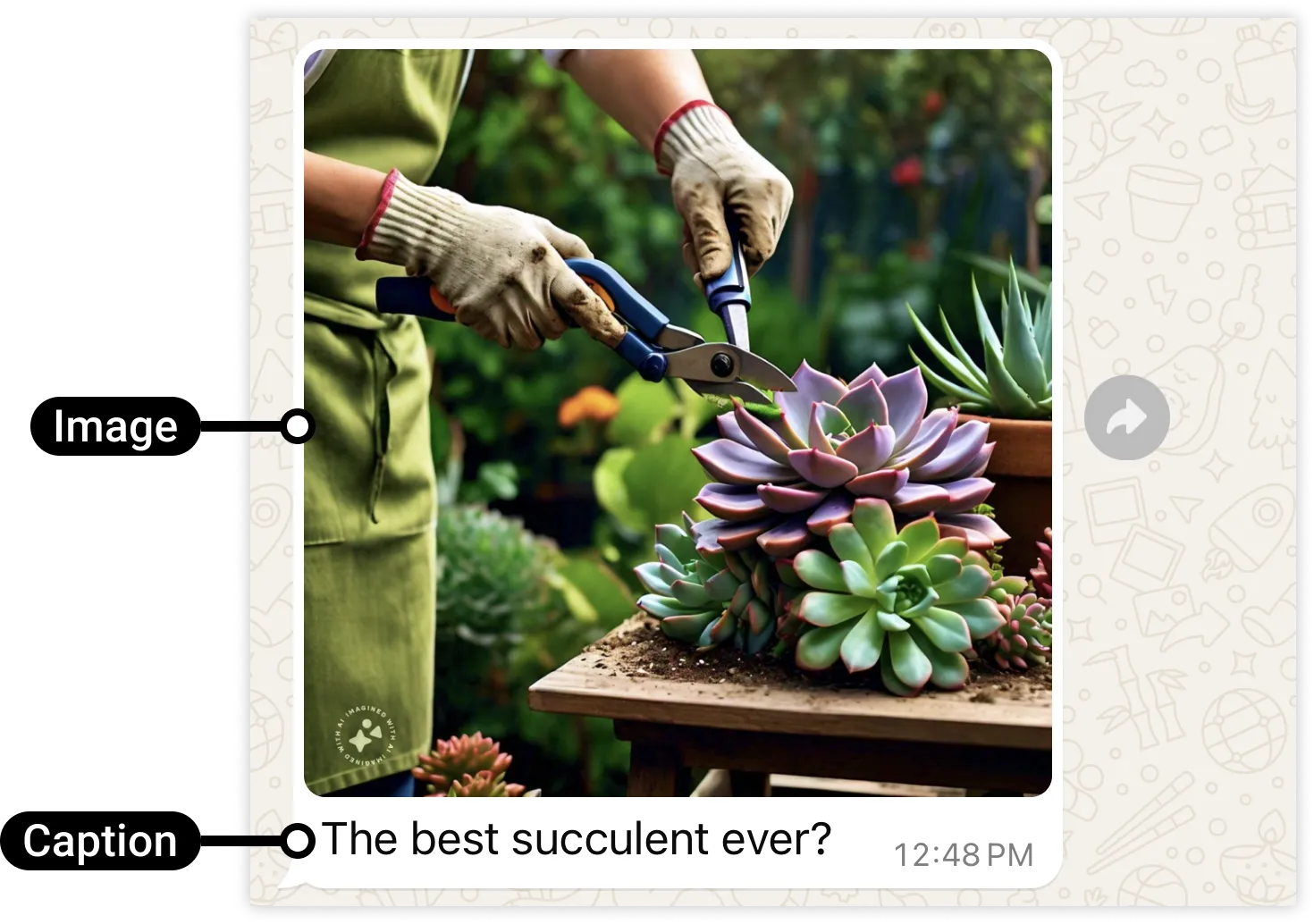
Send a test to a permitted contact while the service window is open. Check the received image on the recipient's WhatsApp client at a useful size: the intended subject, orientation and any essential text should be readable. Check the accompanying text as well.
If exact pages or a document layout matter, use the document attachment checklist for a supported document route. This guide does not promise lossless image delivery or identical presentation in every client.
Locate a failed image attempt
| Observed result | Next check |
|---|---|
| The tool rejects the upload. | Check its supported formats and limit, then verify the actual file type, size and exported color mode. |
| The upload succeeds but the message fails. | Check the conversation window, selected business number and any available sending error. Keep the message reference with the attempt. |
| The image arrives but essential detail is unreadable. | Compare the exported source and received version. Prepare a clearer sample and test the same sending route again. |
| The outcome is unknown. | Check any later delivery result or ask support before creating repeated attempts. |
For support, record the connected tool, business number, attempt time with time zone, file type/size/color mode if known, exact error and received result. A nonconfidential sample that reproduces the issue is more useful than a screenshot of an upload progress bar. Keep App key and Secret out of the report.
The format limits above describe Meta's underlying image-message type. Check the attachment options offered by your ChatArchitect integration; direct Meta media IDs, Graph API versions and access tokens are not customer form fields in this guide.
No comments to display
No comments to display