
Single-product messages | Developer Documentation
Single-product messages
Updated: Mar 3, 2026
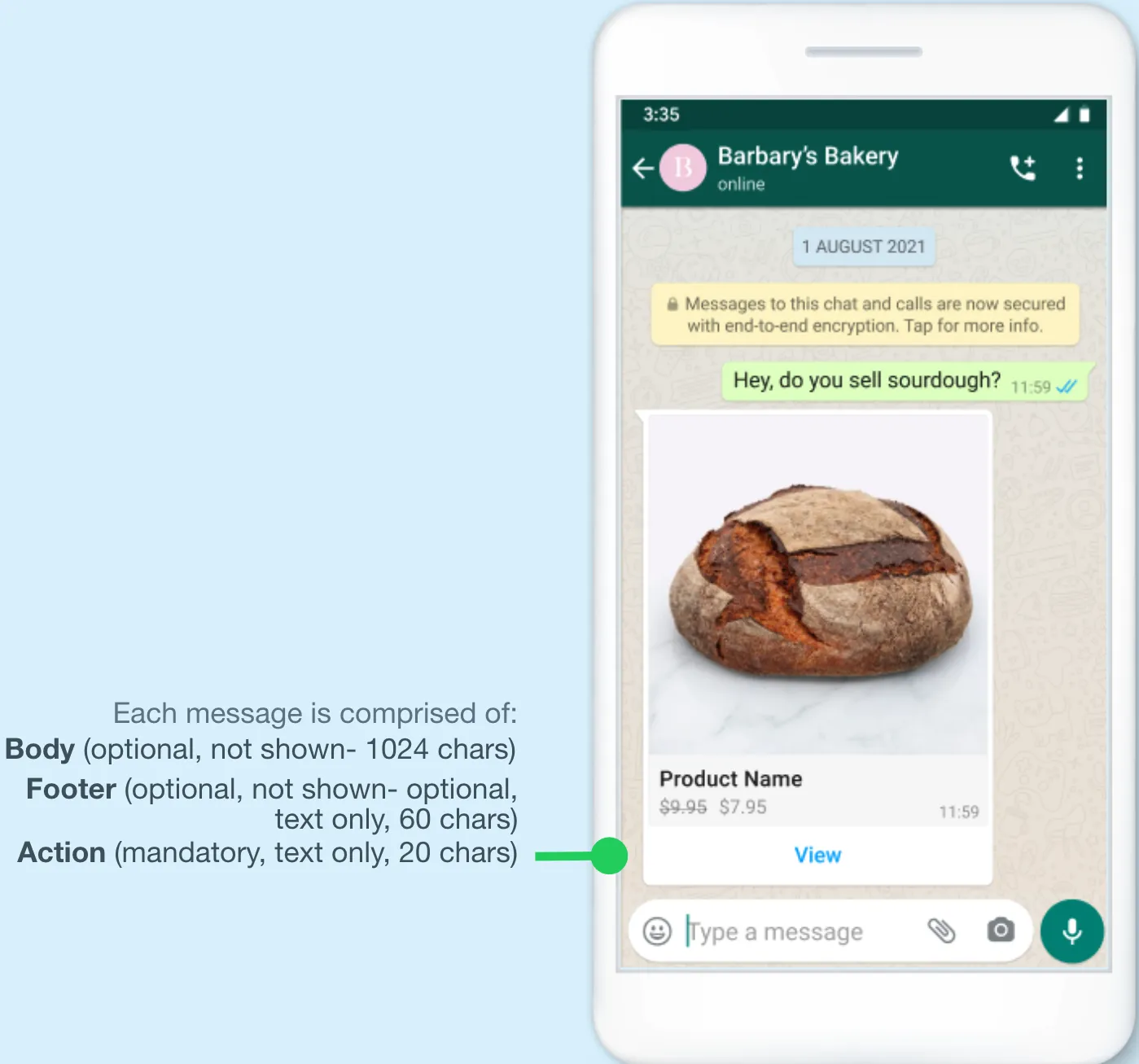
Single-Product Messages are interactive messages that display a single product from your catalog, allowing customers to view product details, add the item to a cart, and send an order — all within WhatsApp.
Single-Product message example:
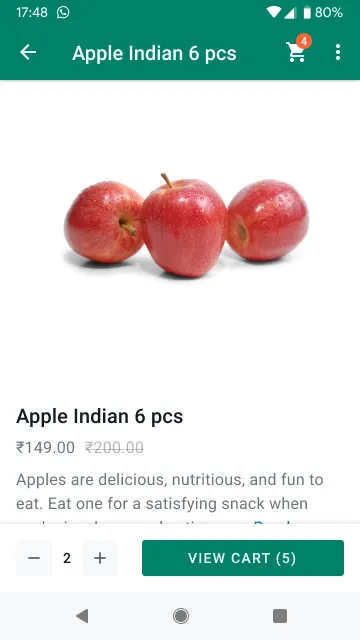
Product Detail Page example:
Overview
Customers that receive Single-Product Messages can perform 3 main actions:
View the product: Whenever a customer clicks on the item, the product’s latest info is fetched and the product displays in a Product Detail Page (PDP) format. Currently, PDPs only support product images — any videos or GIFs added to the product won’t be displayed in the PDP.Add the product to a cart: Whenever a user adds a product to the shopping cart, the item’s latest info is fetched. If there has been a state change, a dialog saying “One or more items in your cart have been updated” is displayed — see Product updates for more information. A cart persists in a chat thread between you and your customer until the cart is sent to you — see Shopping cart experience for details.Send a shopping cart to you: After adding items, customers can send their cart to you. After that, you can define the next steps, such as requesting delivery info or giving payment options.
If your customer has multiple devices linked to their account, Single-Product Messages will be synced between devices. However, the shopping cart is local to each specific device. See Shopping cart experience for details.
Currently, Single-Product Messages can be received on the following platforms:
iOS: 2.21.210Android: 2.21.19Web: The web client supports this feature.
If the customer’s app version does not support Single-Product Messages, they will instead receive a message explaining that they were unable to receive a message because they are using an outdated version of WhatsApp. You also receive a webhook notification indicating the message was unable to be delivered due to the customer using an outdated version of WhatsApp.
Expected behavior
Single-Product Messages can be:
Forwarded by one user to another.Reopened by a user within the same chat thread.
Single-Product Messages cannot be:
Sent as notifications. They can only be sent as part of existing chat threads.
Use cases
Single-Product Messages are best for guiding customers to one specific item from your inventory, offering quick responses from a limited set of options, such as:
Responding to a customer’s specific request.Providing a recommendation.Reordering a previous item.
Single-Product Messages can also be used as part of a human agent flow. However, you need to build the tooling to allow the human agent to generate a Single-Product Message in thread.
Why you should use them
Single-Product Messages lend themselves best to user experiences that are simple and personalized, where it’s a better experience to guide the customer to a specific item most relevant to them, rather than browsing your full inventory.
No templates
Interactive messages do not require templates or pre-approvals. They are generated in real-time and will always reflect the latest item details, pricing and stock levels from your inventory.
Send a single-product message
Before sending product messages, follow the get started best suited for your needs:
Direct developersSolution providers
All API calls mentioned in this guide must be authenticated with an access token. You can authenticate your API calls with the access token generated in the App Dashboard > WhatsApp > API Setup panel. If you are a solution provider, you must authenticate with an access token with the whatsapp_business_messaging permission.
Step 1: Assemble the interactive object
To send a Single-Product Message, assemble an
interactive object of type product with the following components:| Required Components | Optional Components |
|---|---|
|
Action Object — Must include both catalog_id and product_retailer_id. |
Body ObjectFooter Object |
See Messages, Interactive Object for full information. By the end of the process, the interactive object should look something like this:
If none of the items provided in the API call matches a product from your product catalog, an error message is sent and the Single-Product Message is not sent to the user.
No comments to display
No comments to display