
Contextual replies | Developer Documentation
Check a reply that quotes a customer's message
When a customer sends several questions, a quoted reply can identify the message your answer refers to. In a conversation connected to ChatArchitect, first check whether your sending tool supports that reply mode and whether the quoted context is delivered to WhatsApp. A reply box in the CRM does not establish that every message sent from it contains a quote.
Select the question you are answering
- Confirm the conversation. Check the customer, connected business number and the specific incoming question. Read the later messages as well before answering an earlier item.
- Check the service window. Use the text reply guide to determine whether an ordinary response is appropriate. Quoting an earlier message does not reopen the window.
- Use the documented quote or reply action if available. Select the intended message and inspect any quoted context shown by the tool. Check its documentation or ask ChatArchitect support if it is unclear whether that context is sent to WhatsApp.
- Make the answer understandable. State the relevant item or next step in the reply text as well. The recipient should be able to understand the answer if the quoted context is unavailable.
For example, if the customer asks about delivery and then about an invoice, answer with an explicit reference such as About the invoice for order 1042: we will send the corrected copy here tomorrow. This is illustrative wording; replace it with an accurate reference and a next step your team can complete.
Check the received quote
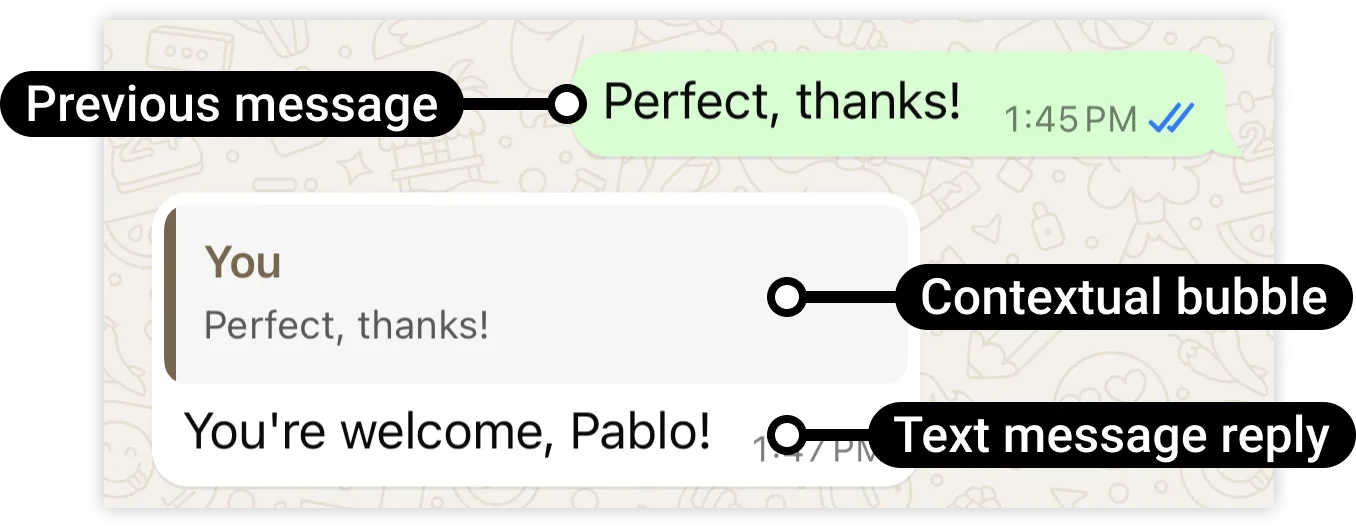
Use a permitted test contact to send two clearly different questions while the service window is open. Select one question in the tool, use its supported reply action and send a short answer. On the recipient's WhatsApp client, check whether the quote appears, whether it refers to the intended message and whether the actual answer is correct. Keep this result separate from a preview displayed only in the CRM.
If the tool does not support sending quoted context, write an ordinary reply with a clear reference to the relevant question. You can still make the answer understandable without claiming a WhatsApp quote was sent.
Check message-type limitations
Meta's contextual reply reference describes the quoted bubble and limits its appearance for some message types and clients. It says the bubble does not appear for template replies and can be unavailable when the earlier message was deleted or moved out of the available context.
If you need an approved template because the service window has closed, check its content and received result without expecting the ordinary reply's quoted bubble. The window and template rules still apply.
A visible history in the sending tool is not a guarantee that WhatsApp can display the same older context. This guide does not set a retention period for your CRM or a message archive in ChatArchitect; see the message data guide for the confirmed ChatArchitect storage scope.
If the quote is wrong or missing
- Compare the selected source message with the received quote. A quote pointing to a different question should be investigated as a context selection issue.
- Distinguish a missing quote from a failed message: the answer text may have arrived even when the context did not appear.
- Record the connected tool, business number, message type, attempt time with time zone, source question, any message reference and the received result. Give support a nonconfidential example that reproduces the problem without connection secrets.
No comments to display
No comments to display