
Video Messages | Developer Documentation
Prepare and check WhatsApp video attachments with ChatArchitect
Use this checklist if your connected CRM, help desk or other sending tool supports video attachments through ChatArchitect. Check the available file types, size limit and caption controls in your specific integration. Prepare a short compatible clip, send one test and confirm that it plays in the recipient's WhatsApp app.
Availability depends on both the ChatArchitect integration and the sending system's own features. Check your particular Kommo/amoCRM, RetailCRM, Bitrix, Slack or MS Teams connection; other integrations can also differ. Voice-note sending is available only where the connected system and integration support it.
Before uploading
- Use the first-message guide to confirm the connected business number and sending tool.
- For a test, send a message from a separate personal WhatsApp account to the business number and reply in that conversation within the 24-hour customer service window.
- Play the source video locally. Check that it is the intended clip, its full duration is present, the image is readable and any intended sound is audible.
- Check the integration's upload limit and video option. If the option is absent, ask ChatArchitect support about your integration name and version before trying another file.
Check the customer's agreement to receive messages. Outside the customer service window, use the template guide; wait for the customer to reply before sending an ordinary video attachment in the reopened window. This checklist covers ordinary video attachments.
Export a compatible video
Meta currently lists the following containers and a maximum of 16 MB per video. Your connected tool can impose a smaller limit or accept fewer formats.
| Format | Extension | MIME type | Meta maximum |
|---|---|---|---|
| MP4 | .mp4 | video/mp4 | 16 MB |
| 3GPP | .3gp | video/3gpp | 16 MB |
- Use H.264 video encoding. A filename ending in .mp4 identifies the container; check the codec in your editor or file information.
- If the clip has sound, use AAC with one audio stream. Meta also permits a video with no audio stream.
- For broad playback compatibility, Meta recommends H.264 Baseline, or Main without B-frames. Its reference describes Android playback problems with High profile and B-frames.
- If your exporter offers fast start or streaming optimization for MP4, use it to place playback metadata before the video data, as recommended by Meta.
If the file exceeds the applicable limit, shorten the clip or reduce its export bitrate or resolution. Check the new copy's size and play it again to confirm readable details and intended sound.
Send and inspect the received clip
- Open the intended conversation in the connected tool and attach the prepared video using its available controls.
- If your tool provides a caption, add a short explanation of what the customer should look for. Check the selected file and accompanying text.
- Send one test. Record the time with time zone and the result shown by the sending tool.
- In the personal WhatsApp account, open the message and play the clip through to the end. Check the correct video, full duration, picture, any intended audio and caption if you supplied one.
- If the clip needs to work on several recipient devices, check the exported copy on the relevant devices before using it with customers.
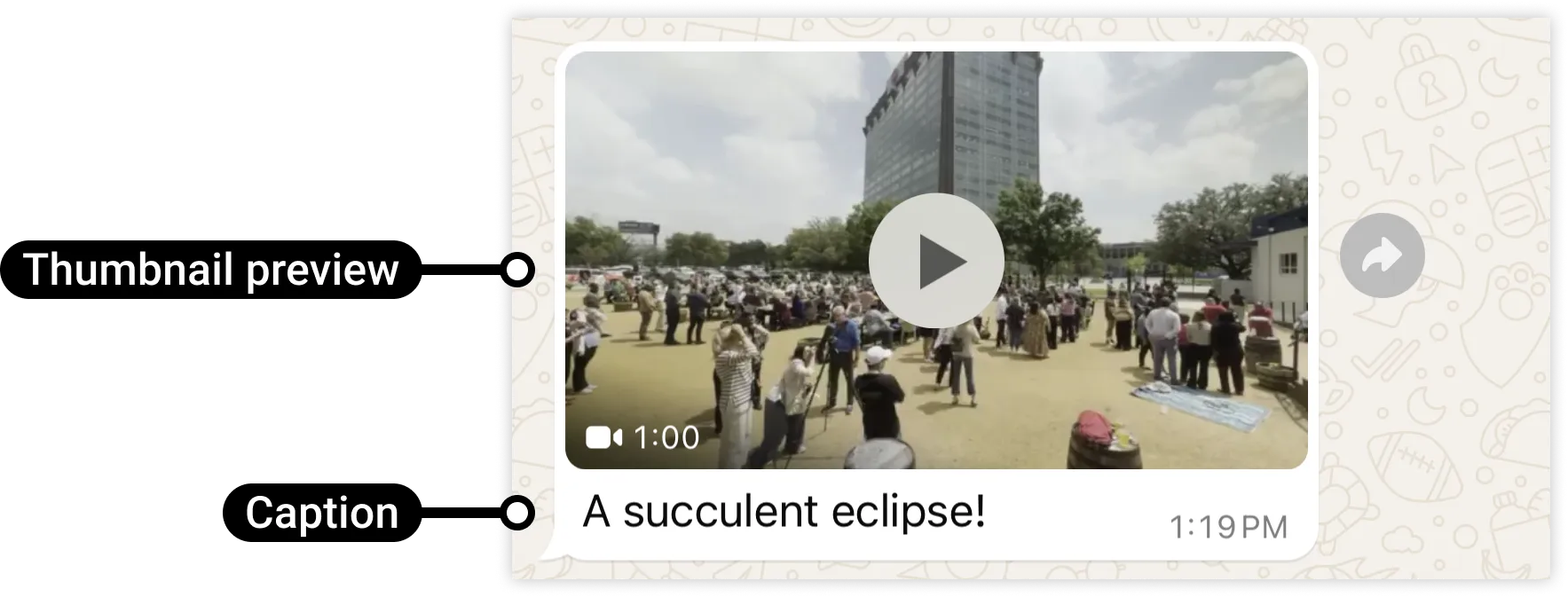
Use the delivery-status guide for the result exposed by your sending tool. Confirm successful playback separately from message delivery.
If upload, delivery or playback fails
| Observed result | Next check |
|---|---|
| Video option missing | Ask support which video attachments your specific integration supports. |
| Upload rejected | Check the integration's limit, file size, container, actual codecs and MIME type. Export a supported copy if needed. |
| Send fails after upload | Record the exact error; check the business number, recipient and open customer service window. |
| Message arrives but video will not play | Check H.264 encoding, profile and B-frames, and AAC audio with a single stream if present. Try a small compatible exported copy and check it on the affected device. |
| Picture plays but sound is missing | Check whether the source has an audio stream, its codec and local playback. Compare with the received clip. |
| Caption missing or incomplete | Check whether the integration offers a caption and how it sent your text. If needed, send the explanation as a separate text reply while the window is open. |
Give support the integration name and version, business number, file extension and size, codecs if available, test time with time zone, exact error and whether failure occurs during upload, delivery or playback. Include the affected device when the issue is playback. Share a sample only when appropriate for its content.
Keep the original file in your own system according to your organization's rules. ChatArchitect does not store customer message texts or attachments; see the data-handling guide.
No comments to display
No comments to display