How to use Multi-Solution Conversations (MSC) | Developer Documentation
How to use Multi-Solution Conversations (MSC)
Updated: Feb 24, 2026
Overview
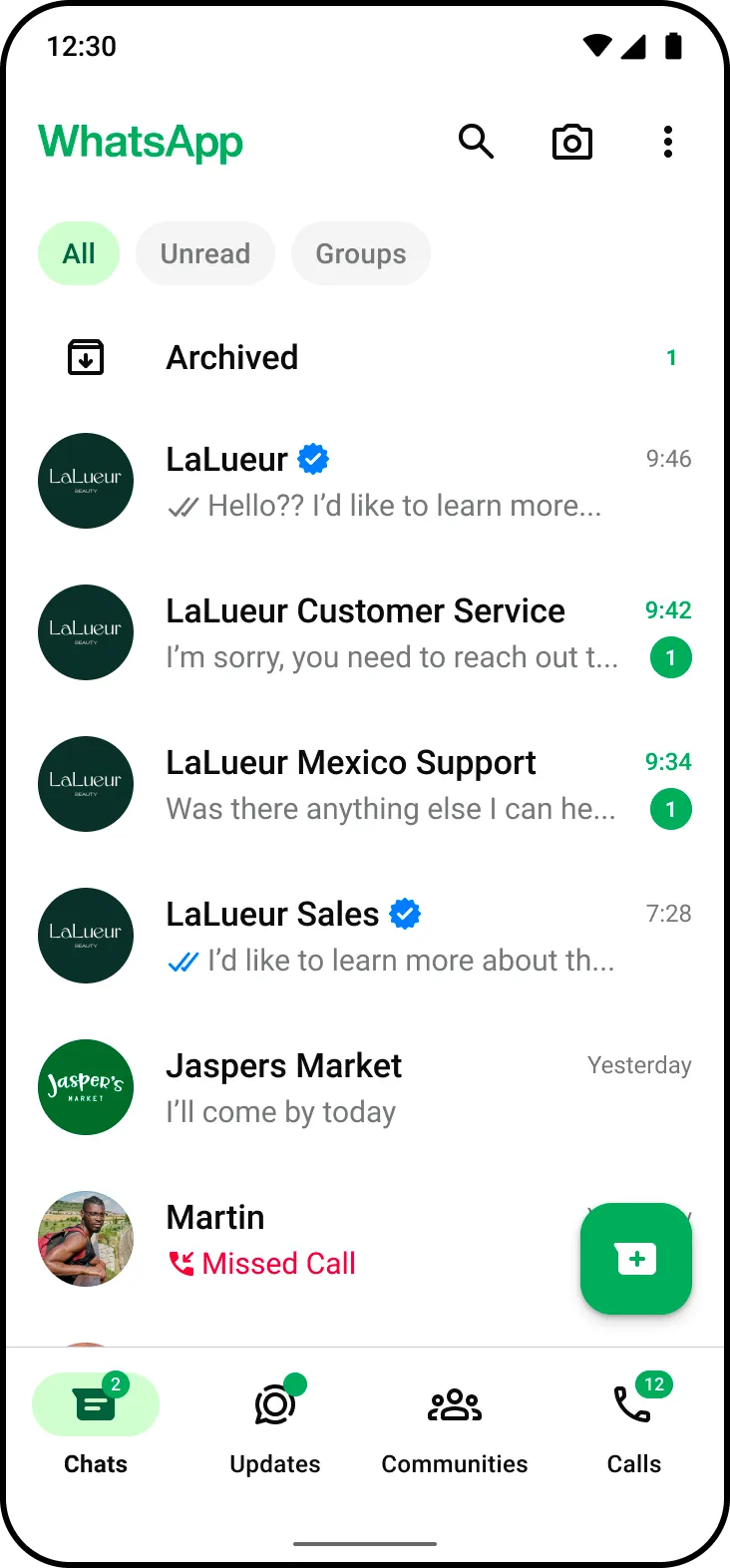
Multi-Solution Conversations allows businesses to use multiple partners and solutions on the same phone number, creating a seamless chat thread experience for their customers.

Requirements
Features
Limitations
Since this feature is still in beta, some functionality may not work as expected. See Beta Product Testing Terms.
How Multi-Solution Conversations work

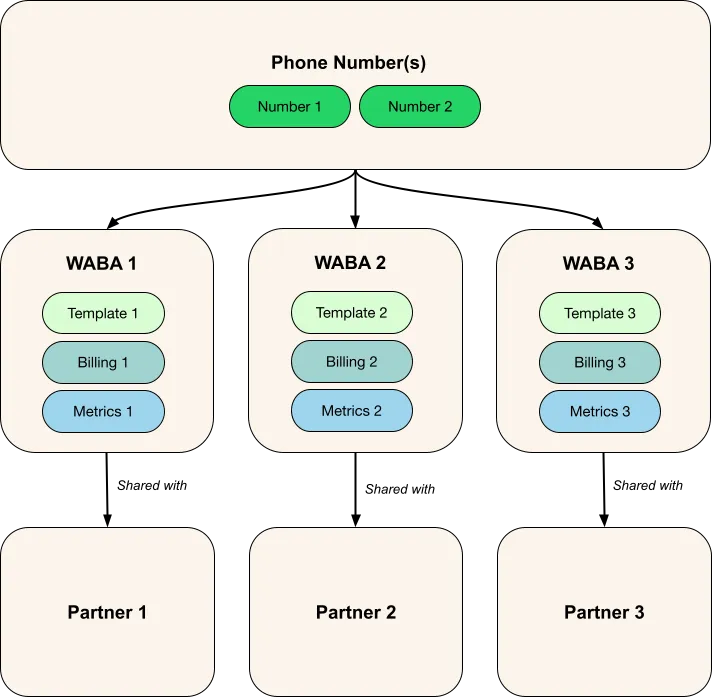
The chart above illustrates a new WABA shared with each integrated partner, and assets separated per WABA.
Supported APIs and usage
Businesses can use a single phone number across one or multiple partners across the following APIs and uses:
Additional limitations
MSC does not currently support:
General limitations
Phone number sharing limitations
The business cannot share a phone number with the same partner more than once via different WABAs.
For example, the business has a phone number linked to WABA 1 and then shares WABA 1 with Partner 1. If you have the same phone number linked to WABA 2, you cannot also share WABA 2 with Partner 1. If you try to share the phone number, you may receive an error.
How messaging, calling, and account management works when using MSC
Use the following table to understand how different features and APIs work when using MSC as a partner or business.
Onboarding
Value: Use an existing phone number across multiple partners and solutions.
| Business Experience | Partner Experience |
|---|---|
The business onboards an existing phone with more than one partner via Embedded Signup. | Partners can see the new WABA shared with them within Meta Business Suite settings. |
Account management
Value: Account management as usual
Business Experience | Partner Experience |
|---|---|
You can perform account management operations via the usual pathways (WhatsApp Manager, API, and so on) based on permissions granted. | |
API usage
Value: Enable messaging and calling functions across multiple partners on a single phone number
| Feature | Business Experience | Partner Experience |
|---|---|---|
Not applicable | Send messages: All partners can send messages via API on the shared phone number(s). Receive messages: All partners will receive all incoming webhooks on the shared phone number(s). | |
Not applicable | Partners onboarded to the Calling API can make business-initiated calls, and receive user-initiated calls. | |
Not applicable | Partners can create templates as usual by using the new WABA, either through the API or WhatsApp Manager. | |
Conversation Routing and Management | Currently, all parties the phone number is shared with receive incoming webhooks. Businesses must work with partners to manage response handling. | Currently, all parties the phone number is shared with receive incoming webhooks. Businesses must work with partners to manage response handling. |
Billing
Value: Simplified, siloed billing ownership per WABA
| Business Experience | Partner Experience |
|---|---|
Businesses can add a payment method to any of the WABAs created and shared with partners. | Partners add their own payment methods to the WABA shared with them, the same as they do today. Each partner is billed only for the messages sent through their app. |
Asset management
Value: Simplified, siloed asset management per WABA
Feature | Business Experience | Partner Experience |
|---|---|---|
Templates | The business can create and see templates on all WABAs shared with partners. | Partners can only create templates on the WABAs that are shared with them. Partners are not able to see other Partners’ templates |
Phone numbers | Phone numbers are a shared resource. Whether the end business or partner adds the phone number, it will be visible to all in WhatsApp Manager. Any new phone numbers added to WABAs using MSC are shared with all partners with access to these MSC WABAs. | |
Offboarding
Value: The business has full control of what partners, assets, and accounts they retain.
Role/Asset | Business Experience | Partner Experience | Partner Experience |
|---|---|---|---|
WABA | The business can delete the WABA. | Partners cannot delete the WABA shared with them. | |
Phone number | Both the business and partner can delete a phone number. | ||
Partner | The business can remove the partner. | Not applicable. | |
How violations and bans work with MSC
Decision appeals continue to function as they do today.
Onboarding for MSC (Embedded Signup flow)
Only available to businesses with a messaging limit of at least 1,000 business-initiated conversations in a rolling 24 hour period.
Once a business meets the eligibility requirements, the MSC flow for Embedded Signup is automatically displayed in the Embedded Signup flow (v2 and above). Partners don’t need to configure anything in Embedded Signup for this to work.
When businesses sign up to a partner through Embedded Signup, they see the flow below and can choose to share their existing business phone numbers. This onboards them to MSC. Embedded Signup has two experiences, and a given business may see either one randomly. Both experiences are described below.
Once the business completes the Embedded Signup flow, the partner does not need to re-register with the business.
Embedded Signup flow for businesses (experience 1)
The Notes column calls out any MSC-specific notes for each screen.
| Screen | Notes |
|---|---|
No changes | |
No changes | |
Here, you can select a WhatsApp Business account that is already shared with other partner(s) | |
Select ‘Use a new or existing WhatsApp number’, then click on the dropdown ‘Add a new WhatsApp number’, then select existing WhatsApp Business Account you want to share with current partner | |
No changes | |
No changes |
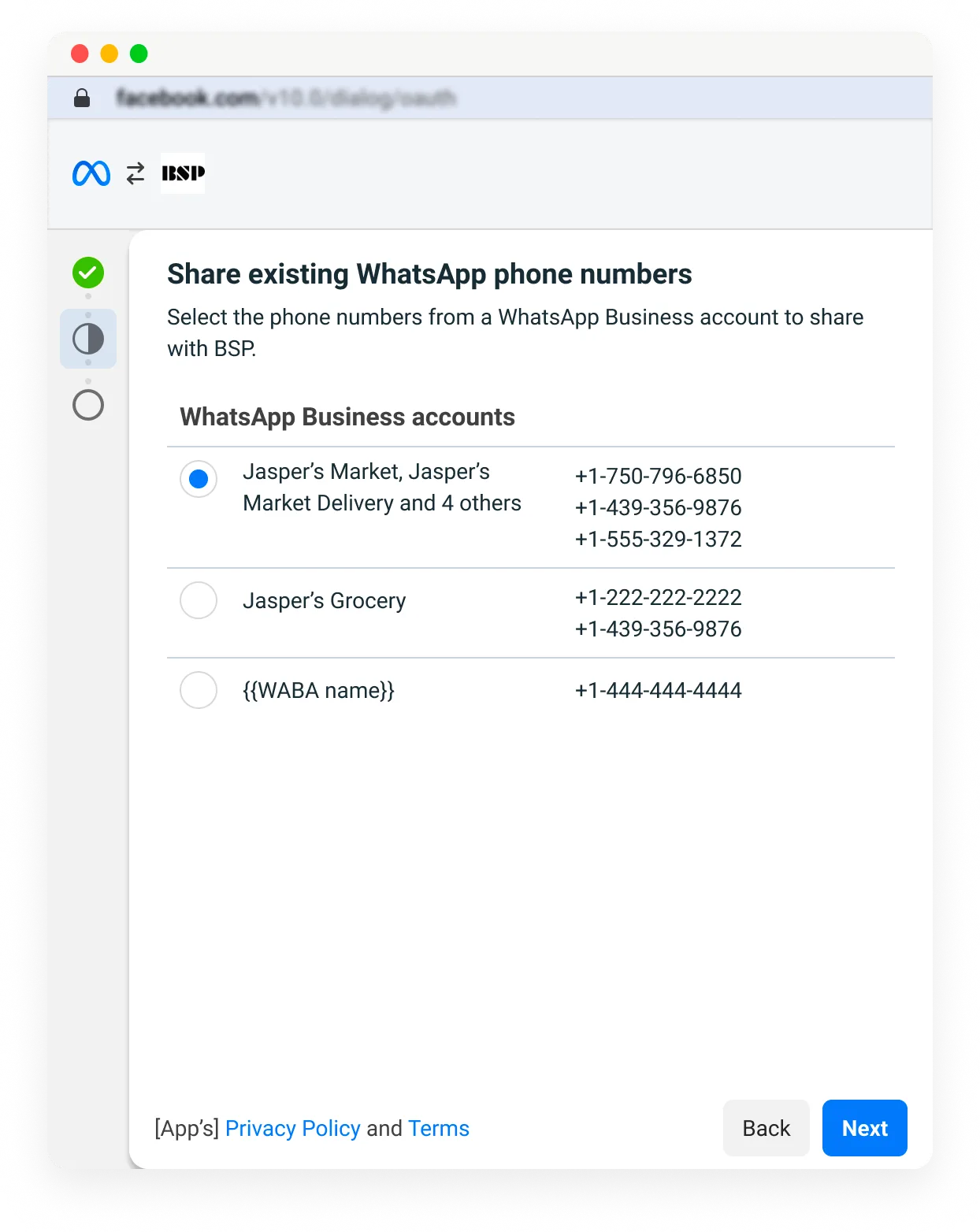
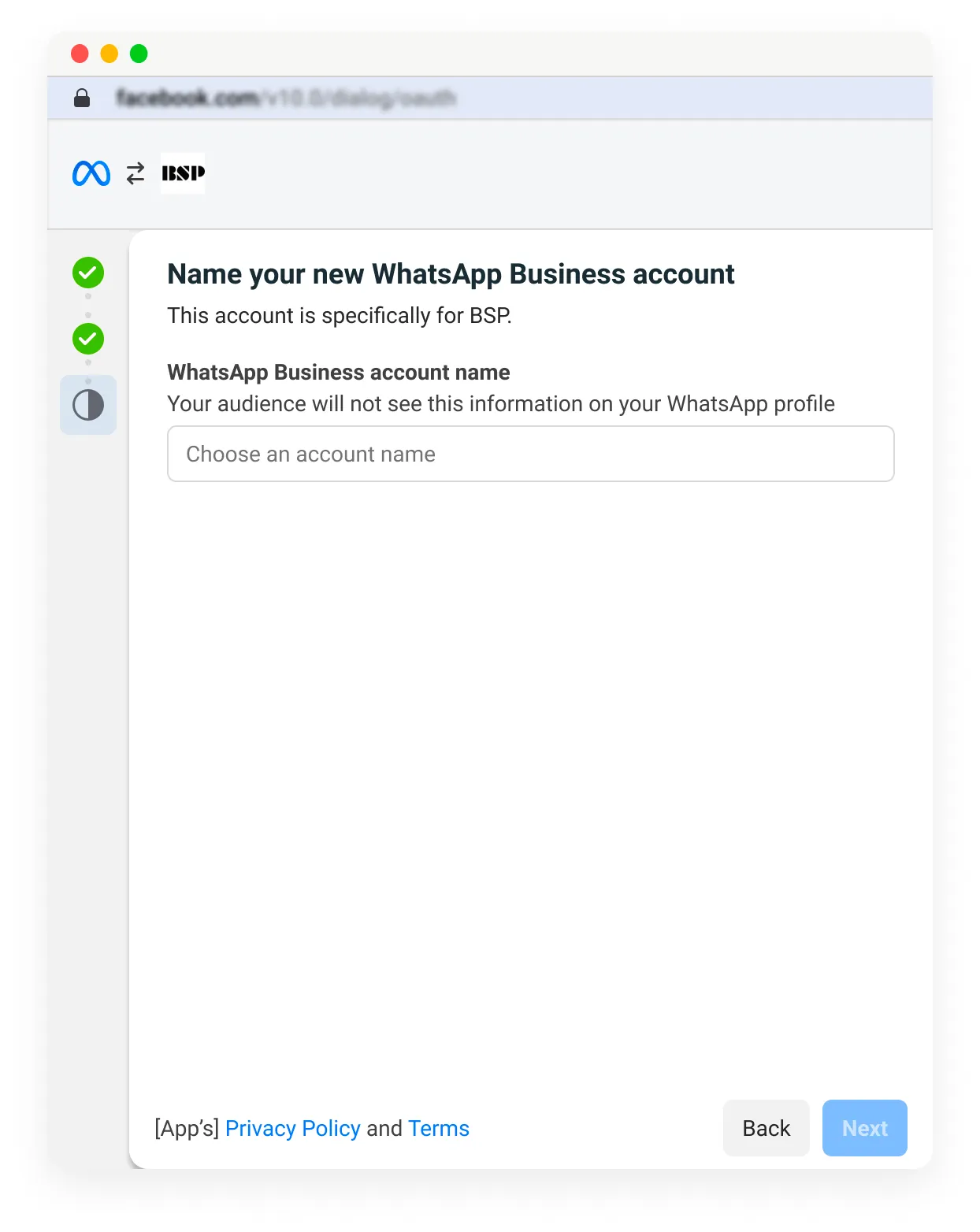
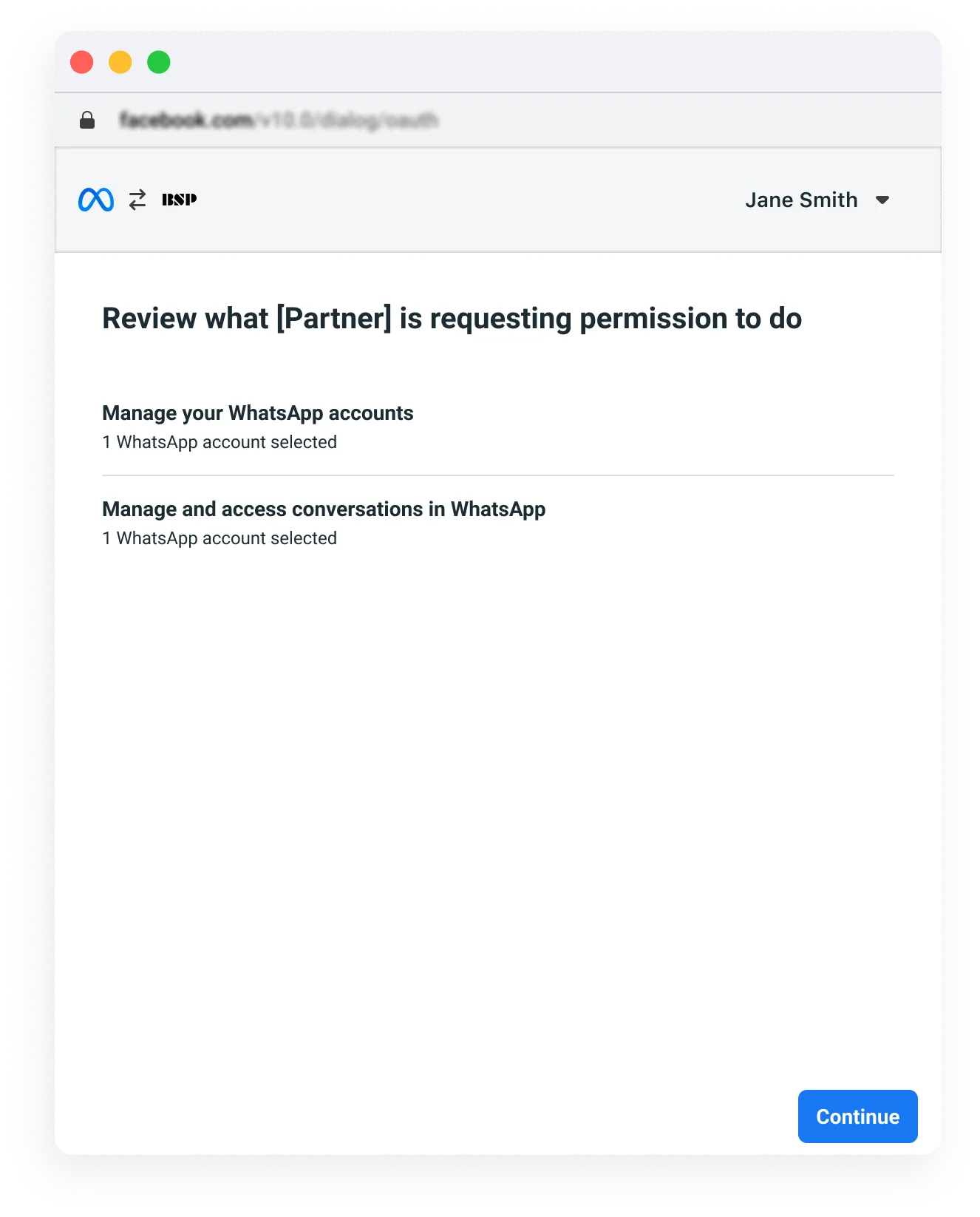
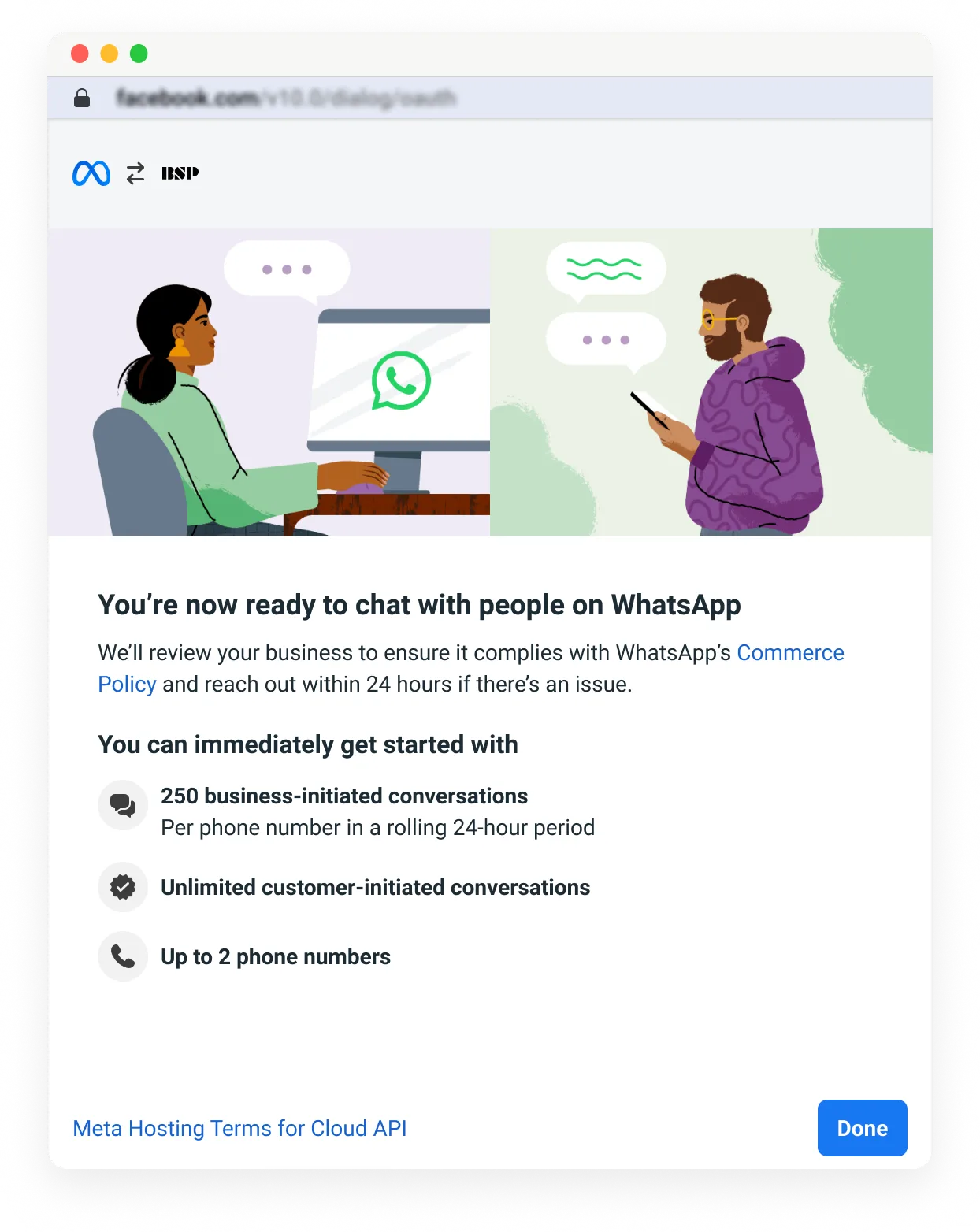
Embedded Signup flow for businesses (experience 2)
Businesses onboard to MSC by using the Embedded Signup flow. Note that these screenshots may differ as the product evolves.
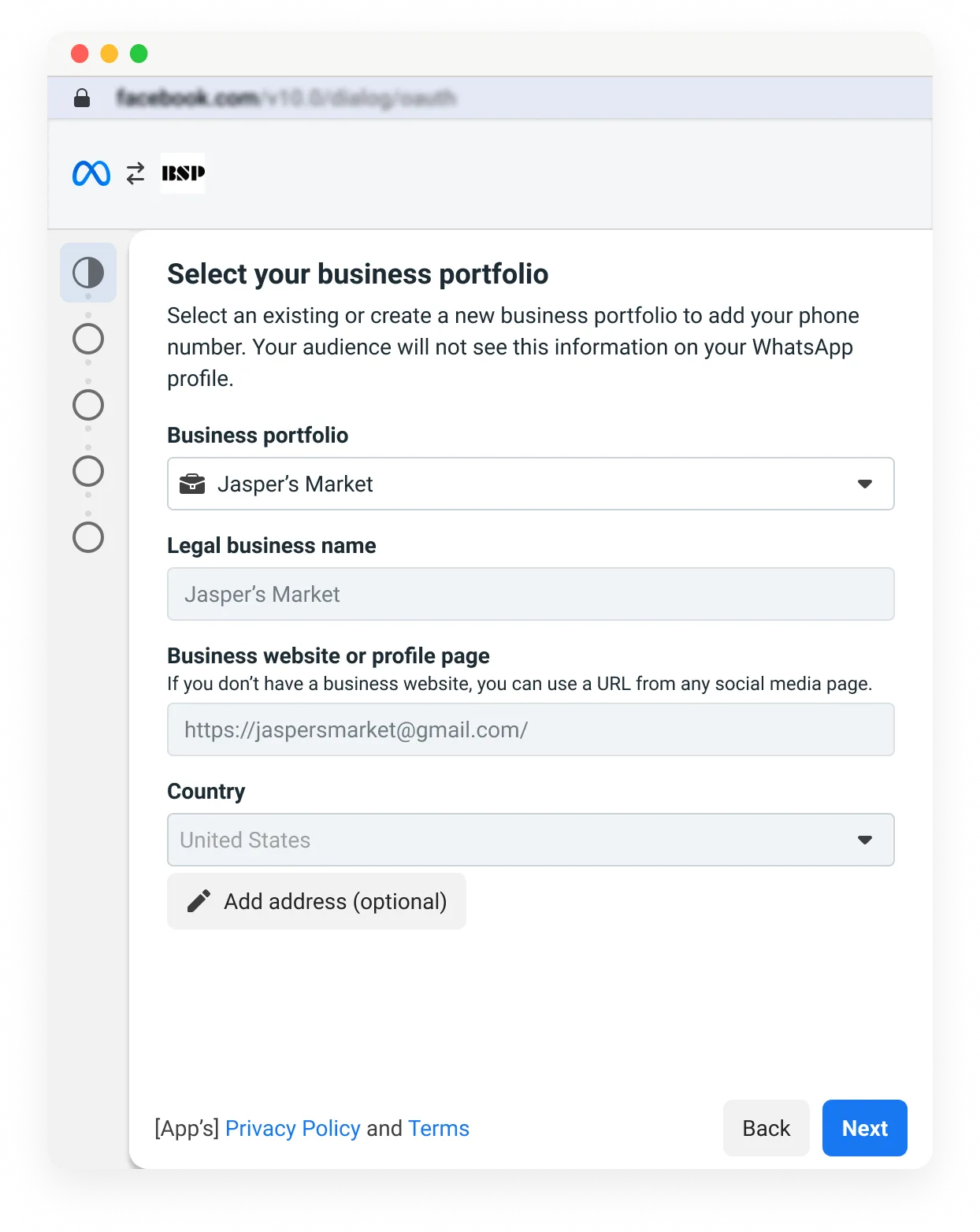
Step 1: Select the business portfolio.

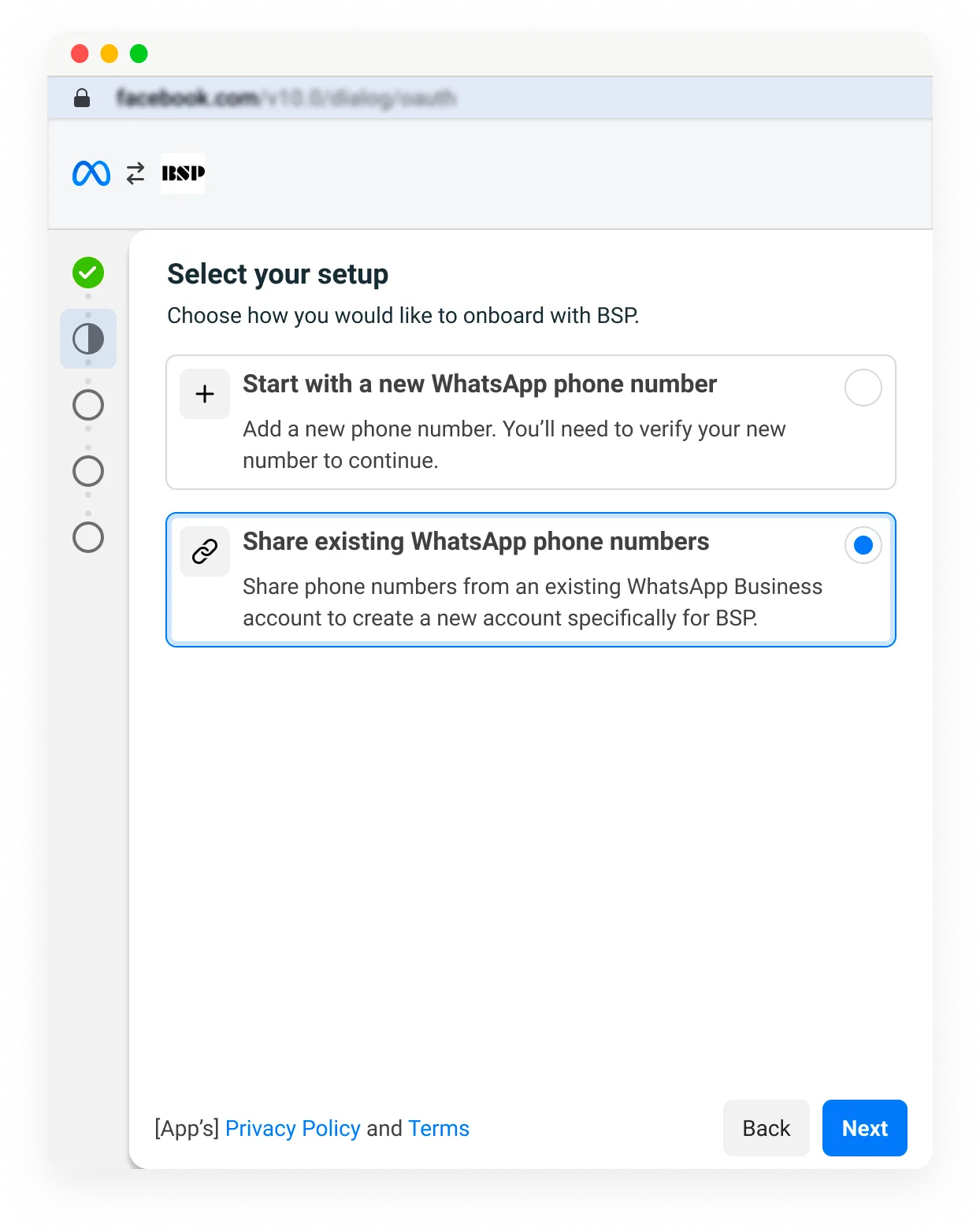
Step 2: Select Share existing WhatsApp phone numbers.

Step 3: The business selects the WABA with the phone number(s) they would like to share. Note that these numbers are only selectable if they have not been shared already with this partner.

Step 4: Create a name for the new WhatsApp Business Account being created.

Step 5: Verify permission information.

Step 6: Verify signup information and finish.

Troubleshooting
The “Share existing WhatsApp phone numbers” option is greyed out
This can happen for several reasons:
What can I do if the business phone number goes offline?
Rarely, a phone number can go offline. To solve this issue, try the following:
Frequently asked questions
How do I get support?
For support concerning Multi-Solutions Conversations, choose the WABiz: Onboarding topic when opening a Direct Support ticket.
How can I offboard from MSC?
To offboard from MSC:
Is MSC supported for Tech Providers, Tech Partners, and Multi-Partner Solutions?
Yes.
Will a partner be able to see how many partners a client is using and the specific services/capabilities each partner provides?
No.
Does every partner need to register a given business phone number to onboard it to MSC?
No, only one partner needs to register it. Once the number has been registered, it is ready to be used with new partners without the need to re-register it.
What happens if a business tries to onboard without having previously registered their phone number(s)?
An error will be displayed in Embedded Signup, prompting the business to register their number(s).
If multiple partners respond to messages within the same conversation window, who will be charged?
Per-message pricing applies.
What happens if two partners send messages at the same time? Will I get billed twice?
Per-message pricing applies.
When will MSC become generally available?
Mid-2026.
No comments to display