
Business profiles | Developer Documentation
Complete your WhatsApp Business profile after connecting ChatArchitect
Your WhatsApp Business profile gives customers context about the number they are messaging. It can show a profile photo, description, business category, address, contact email and website. The profile is separate from the display name you choose when connecting the number.
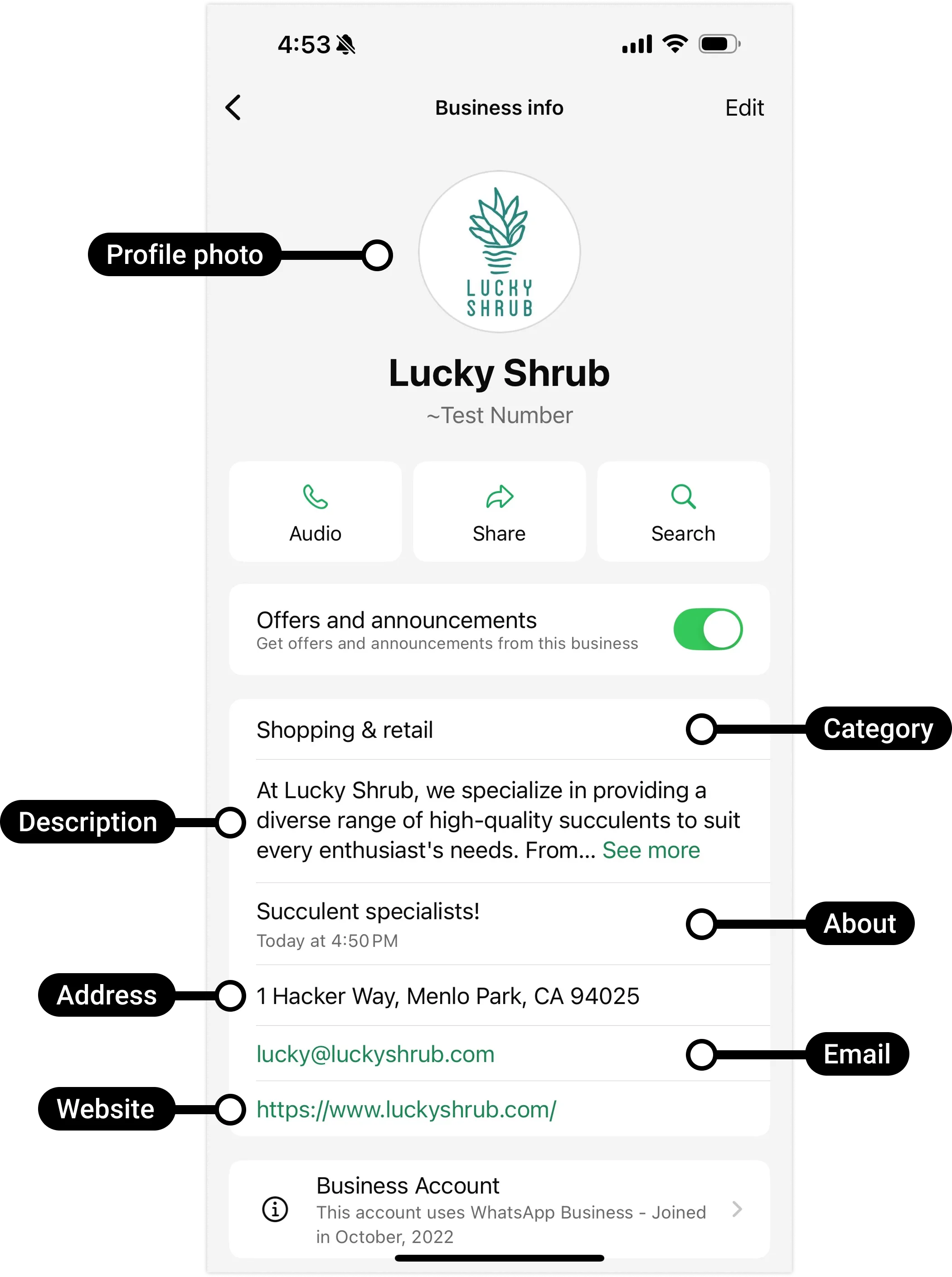
Prepare the details
- Use the same business identity that customers see on your website and in your messages.
- Write a short description of what the business does. Check the address, email and website before saving them; customers may use these details to contact you.
- Choose a recognizable profile photo, such as your current logo, and check how it appears at a small size.
Update the profile in WhatsApp Manager
- Connect the phone number with ChatArchitect, if you have not done so already.
- Open WhatsApp Manager for the business portfolio that owns the number. Go to Account tools → Phone numbers, select the connected number, and open Profile.
- Review the business information, enter or correct the fields you need, and save the changes.
- Open a conversation with the number from a different WhatsApp account and check the customer-facing profile. If a field does not appear or cannot be edited, contact ChatArchitect support with the number and the field you want to update.
The display name is managed separately from the other profile details in WhatsApp Manager. Changing the description or website does not rename the number.
For the platform's profile fields, see Meta's WhatsApp Business Platform API reference. ChatArchitect clients do not need to call Meta's API directly for this task.
No comments to display
No comments to display