
Location messages | Developer Documentation
Send and verify a WhatsApp map location with ChatArchitect
ChatArchitect supports location messages through its API. Few ready-made CRM and help desk integrations expose this message type. Check your connector's actual location-message controls, or use a custom ChatArchitect API integration with the current request format.
Use a location message to share a fixed map point, such as an office entrance or collection point. Prepare the correct coordinates and useful place details, then confirm that the received map opens at the intended point.
Choose your sending route
- Custom API integration: follow the ChatArchitect API quick start for credentials, connection testing and delivery results. Obtain the current location-message request format from support before implementing this type.
- Ready-made connector: check whether it can send a WhatsApp map location and which point, name and address controls it provides. Ask ChatArchitect support about the specific connector if the action is absent.
- Text fallback: in an open service window, send a text reply with a clear address, entrance directions and a checked map link when useful.
The API quick start demonstrates text and template requests; it does not include a location payload example. Confirm the ChatArchitect field names and validation for this message type before wiring coordinates into your application.
Prepare the point and place details
| Value to prepare | What to verify |
|---|---|
| Latitude | Use decimal degrees for the intended point. A valid latitude is between -90 and 90; preserve the sign. |
| Longitude | Use decimal degrees for the same point. A valid longitude is between -180 and 180; preserve the sign and keep it distinct from latitude. |
| Place name | If your route supports it, use a recognizable name identifying the destination or pickup point. |
| Address | If supported, provide the physical address matching the point, with a building or entrance detail when needed. |
Meta's location message uses latitude and longitude, with optional name and address. The table lists values to prepare; use the request format confirmed for ChatArchitect when sending through its API.
- Open the intended place in a map application and choose the useful arrival point. For a large site, check whether the customer needs a particular entrance.
- Copy or select the point using your sending route's supported controls. If entering coordinates manually, check their order, signs and decimal format.
- Open the prepared coordinates in a map before sending. Confirm that the marker, place name and address refer to the same destination.
- Prepare any access instructions the customer needs as accompanying text within the service window.
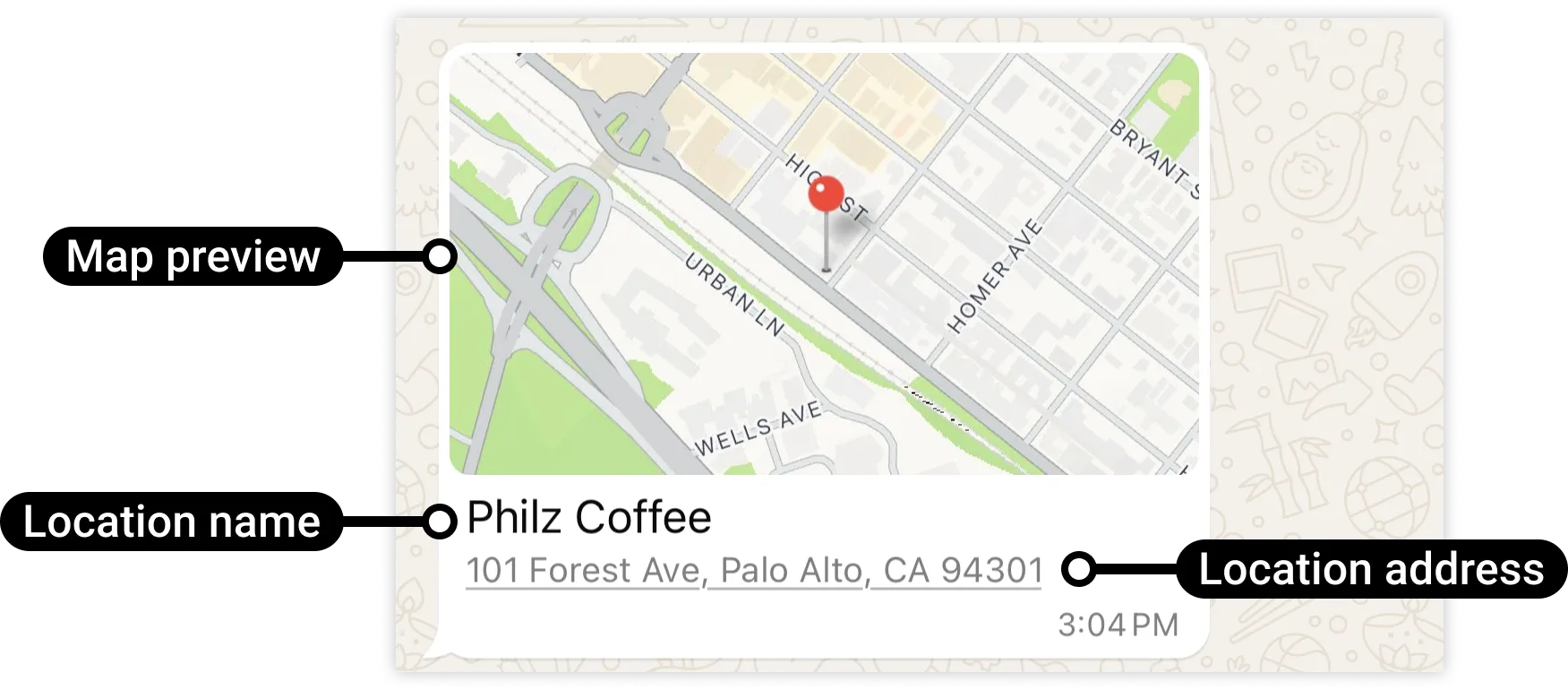
Send one test and open the received map
- Confirm the intended business number and connection using the first-message guide.
- From a separate personal WhatsApp account, message the business number and use that conversation for a test within the 24-hour customer service window.
- Send one location using the supported ChatArchitect API request, or the confirmed location action in your connector. Check the recipient and prepared destination.
- Record the time with time zone and result shown by the sender. Use the delivery-status guide for the later outcome.
- Open the received message and its map. Verify that the point is the intended arrival location and that any place name, address and accompanying text are correct.
Confirm the map result on the recipient's device even if the sending tool shows a successful delivery state. For customers, check agreement to receive messages. Outside the service window, follow the template workflow and wait for a customer reply before sending an ordinary location message in the reopened window.
If the point or message is wrong
| Observed result | Next check |
|---|---|
| No location-message control in the CRM | Check support for the specific connector. Use the text-and-map-link fallback, or plan a custom API integration. |
| API request rejected | Compare the exact error and outgoing values with the current ChatArchitect contract. Check credentials, recipient and customer service window. |
| Map opens in the wrong area | Compare outgoing coordinates with the prepared pair; check latitude/longitude order, negative signs and decimal parsing. |
| Map point is near the site but at the wrong entrance | Select the useful arrival point, update the data used for sending and repeat a small recipient test. |
| Address or name disagrees with the marker | Correct the coordinates and text at their source, then check that all supplied place details match the same destination. |
| Map details absent on receipt | Check which values the sender supplied and which the recipient app displays. Put essential directions in a text reply. |
For support, provide the sending route, connector or application version, business number, test time with time zone, attempt reference if available, exact error and which point was intended. If the point is incorrect, include the coordinate pair and received result needed to reproduce the issue. Use the data-handling guide for your connected systems.
For sharing a person's or team's contact information, use the contact-card guide. See Meta's location-message reference for platform details.
No comments to display
No comments to display