
Template Messages | Developer Documentation
When to use a WhatsApp template message with ChatArchitect
A template is a reusable message that Meta reviews before it can be sent. Use an approved template when a connected ChatArchitect tool needs to start a conversation or message a customer after the 24-hour customer service window has closed. Create it in wtargeted.com, then select the approved template in a supported sending workflow.
Choose a template or a service reply
- A customer has messaged you and the 24-hour window is open: you can send a non-template service reply. The window affects what you may send; it does not guarantee that every reply is free. See the current cost guide.
- You are starting a conversation or the window has closed: prepare an approved template. Use Utility for a non-promotional order or account update, Marketing for an offer, or Authentication for a verification code. See the category guide.
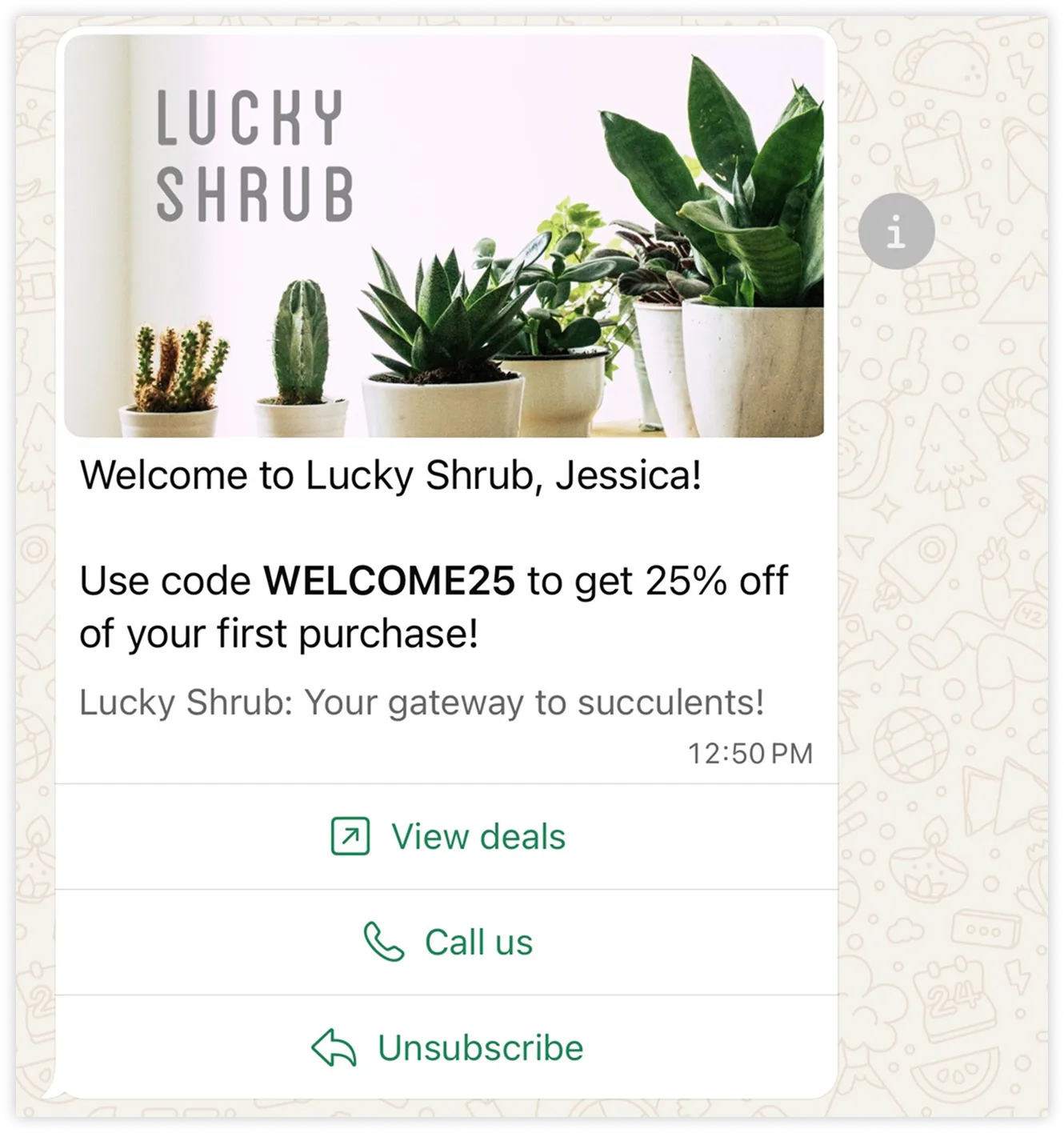
Create and send
- Follow the ChatArchitect template guide to sign in to wtargeted.com with your integration's App key and Secret, choose a category and language, and submit the text for review.
- After review, refresh Approved templates. Check the final text and category before selecting the template in your connected tool.
- Send a test to a recipient who has agreed to receive the message. Confirm variable values, buttons and the final delivery status in that tool. The exact sending steps depend on the integration.
If the template is absent, rejected or paused, use the review guide and pausing guide. Approval does not guarantee delivery. For the amount payable, use your ChatArchitect plan and cost guide; message category and delivery matter.
No comments to display
No comments to display