
Pre-verified phone numbers | Developer Documentation
Pre-verified phone numbers
Updated: Dec 12, 2025
This document explains how to offer your business customers pre-verified business phone numbers. Pre-verified business phone numbers are WhatsApp business phone numbers that have already been verified by you, eliminating the need for customers to have to contact you for a one-time password.
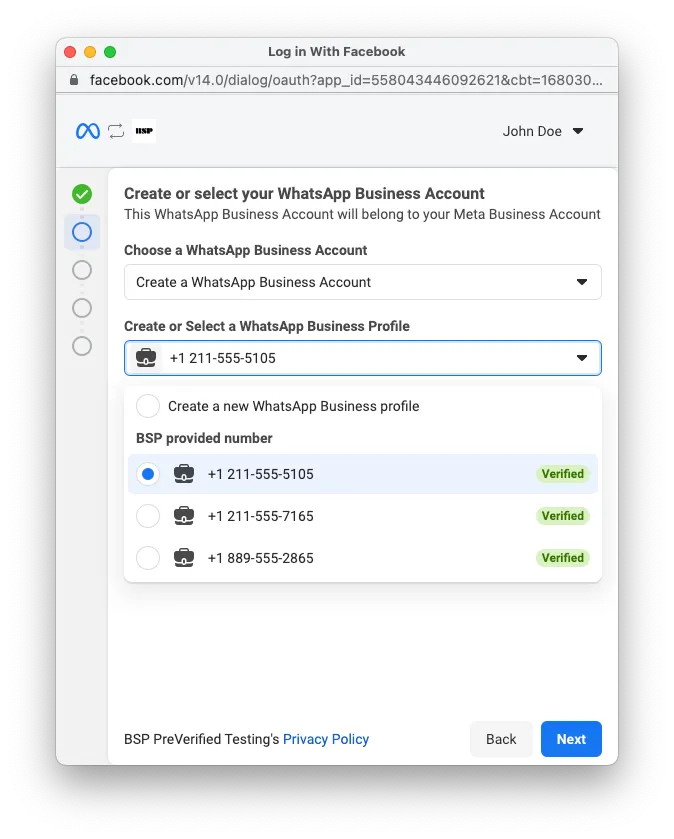
Note that pre-verified business phone numbers are represented by WhatsApp Business Pre-Verified Phone Number objects, which are temporary. When a business customer selects one of these numbers and completes the Embedded Signup flow, the temporary object will be replaced by a valid WhatsApp Business Phone Number object. You must get this new object's ID and use it to register the number within 90 days.
Requirements
Limitations
verification_expiry_time field.If you add a phone number to your pool of pre-verified business phone numbers (Step 1) but do not verify it within 90 days (Step 3), it will be removed from your pool and you will have to add it again.Once a business customer claims a pre-verified business phone number, you have 90 days to register it.
Displaying pre-verified numbers in Embedded Signup
You can display pre-verified business phone numbers in the Embedded Signup flow using pre-filled form data. To do this, add a
preVerifiedPhone object with an ids property to the setup object and assign the IDs of your pre-verified business phone numbers as an array of strings to the ids property:{
scope: '<SCOPE>',
extras: {
feature: '<FEATURE>',
setup: {
preVerifiedPhone: {
ids: [<IDS>]
}
}
}
}For example:
{
  scope: 'business_management,whatsapp_business_management',
  extras: {
    feature: 'whatsapp_embedded_signup',
    version: 2,
    setup: {
  business: {
    name: 'Acme Inc.',
    email: 'johndoe@acme.com',
    phone: {
      code: 1,
      number: '6505551234'
        },
    website: 'https://www.acme.com',
        address: {
          streetAddress1: '1 Acme Way',
          city: 'Acme Town',
          state: 'CA',
          zipPostal: '94000',
          country: 'US'
        },
        timezone: 'UTC-08:00'
      },
      phone: {
        displayName: 'Acme Inc.',
        category: 'ENTERTAIN',
        description: 'Gears and widgets'
      },
      preVerifiedPhone: {
        ids: ['106540352242922','105954558954427']
      }
    }
  }
}
Note that if a pre-verified business phone number with a status of
VERIFIED is not claimed within 90 days of verification, its status will be set to UNVERIFIED but it will still appear in the Embedded Signup flow. If a business customer attempts to claim an unverified number, they must complete verification on their own, which means they must request a one-time password from you.To prevent this experience, we recommend that you keep track of when you verified a number and re-verify it before it reverts to an unverified state.
If you don't know when you last verified a given pre-verified business phone number, request the
code_verification_time and verification_expiry_time fields on the pre-verified business phone number ID. These fields indicate its most recent verification time and its verification expiration time.Determining if a number has been claimed through Embedded Signup
Getting and registering claimed phone numbers
Once a business customer claims a pre-verified business phone number, it will be replaced with a verified WhatsApp business phone number (a WhatsApp Business Phone Number object with a
code_verification_status set to VERIFIED).You will have 90 days to register this number using its ID. If you do not register it within this time frame, it will revert to an
UNVERIFIED status and you will have to request a new verification code and use the code to verify the WhatsApp business phone number again.Getting claimed numbers via session logging
If you are using session logging, the ID will be returned in a message event and captured by your event listener. Send this ID to your server and then use it to register the WhatsApp business phone number.
Getting claimed numbers via API
Parse for the
display_phone_number property on each object returned in the result set. If an object in the result set has a display_phone_number value that matches a number you used to create a pre-verified business phone number, the object represents the WhatsApp business phone number that has replaced the pre-verified business phone number. Copy this object's ID and use it to register the WhatsApp business phone number.Alternatively, you can use the same endpoint with
field expansion to request the display_phone_number field and specify the display phone number. For example:Get pre-verified business phone numbers
Results are automatically sorted in order of creation time. You can also use field expansion to request the
code_verification_status field to have the API only return pre-verified business phone numbers with the indicated verification state:Registering pre-verified numbers programmatically
If you have customized Embedded Signup to bypass the phone number addition screen, you can register pre-verified business phone numbers on an onboarded business customer's WhatsApp Business Account programmatically. To do this, first complete all of the steps to create a pre-verified number, then use the pre-verified number ID to complete Step 1 and Step 4 in the Register Phone Numbers document.
No comments to display
No comments to display