
Limited-time offer templates | Developer Documentation
Communicate a time-limited offer with ChatArchitect
Use an approved Marketing text template to state when an offer ends and what the customer must do before then. ChatArchitect's Submit template form at wtargeted.com does not provide an offer countdown or the special copy-code button. Put the deadline and essential conditions in the body.
Define the deadline and the action
| Decision | What to check before submission |
|---|---|
| Offer end | The exact date, time and time zone used by the service that accepts the order or booking. |
| Required action | Whether the customer must order, pay, book or enter a code before that deadline. |
| Availability and restrictions | The actual eligible items or customers, capacity and other important conditions. |
| Sending schedule | When the connected workflow submits messages and whether delays can make the information stale. |
For an illustrative workshop offer, the body could say:
Bookings for the October workshop close at {{1}}. Reserve your place while spaces remain.
Supply a complete sample for review, such as 21 October 2026, 18:00 UTC. Use this example only for a real workshop with that closing time and limited capacity. Avoid an ambiguous date or a relative promise such as “ends tonight” when messages may arrive later or recipients use different time zones.
Create and check the text template
- Use the marketing template guide to choose the available language and Marketing type in Submit template.
- Enter the complete offer, deadline and necessary conditions. If the deadline is a variable, provide a meaningful sample and check which source value supplies it when sending.
- Add an available button only if it helps the recipient complete the action. Test its destination or behavior in the intended integration. The template parts guide explains the supported preparation steps.
- Refresh Approved templates after review and check the final text, category and language. If it is missing or rejected, follow the review guide.
- Test the received wording and values using the template checklist. Verify that the destination service shows the same conditions and that the action is still possible.
If the offer uses a coupon, also check the code and redemption conditions with the coupon guide.
Plan delivery before the offer ends
Record the deadline, sender, selected template and language, schedule and workflow owner. Use the message validity checklist to distinguish the business deadline from local queue timing and WhatsApp delivery validity. Writing an expiry in the message does not configure TTL or automatically cancel pending attempts.
Review the available delivery results while the campaign runs. If a delay makes the offer unusable, stop new submissions in the relevant workflow and ask support or its owner how already submitted attempts are handled. Check the original outcome before an agreed retry; do not resend expired terms.
When conditions change
Check the approved body and any variables against the new offer before sending again. If the fixed text no longer fits, use the editing guide and confirm the current approved version. Update sending references and test the received result before restarting affected workflows.
Meta's special offer format
Meta's limited-time offer format can display dedicated expiry details and a countdown. The illustration below shows that Meta format for reference. ChatArchitect's Submit template form does not provide those countdown and copy-code controls.
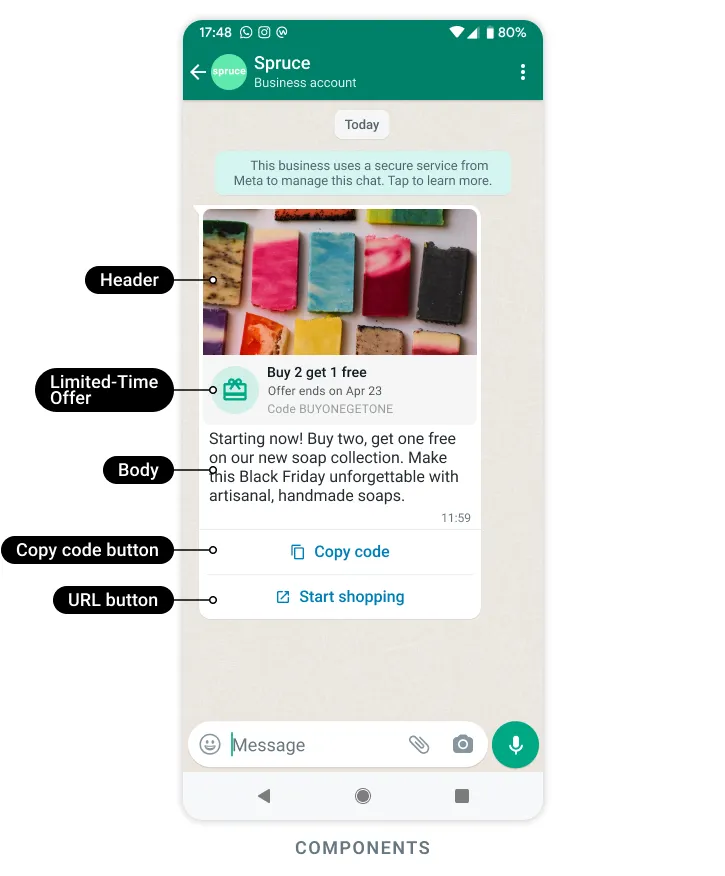
Meta reference illustration: the expiry panel and special controls shown here are not the ChatArchitect Submit template interface.
No comments to display
No comments to display