
WhatsApp Business API for Bitrix24: Installation and sending the first message.
Step by step instruction
1. Go to Bitrix24 Market (1)
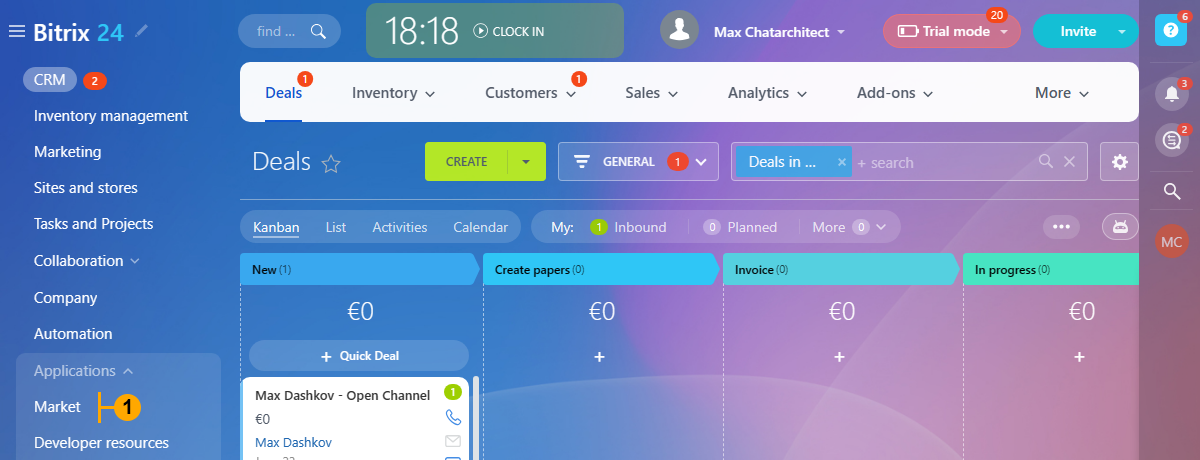
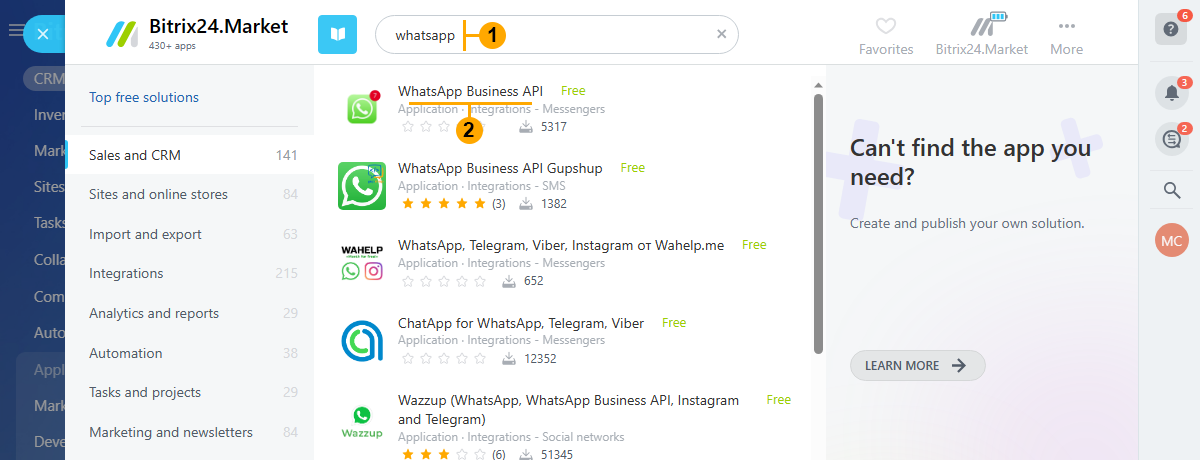
2. Click on the “Search” field and type “whatsapp” (1). Find our app “WhatsApp Business API” (2) and click on it.
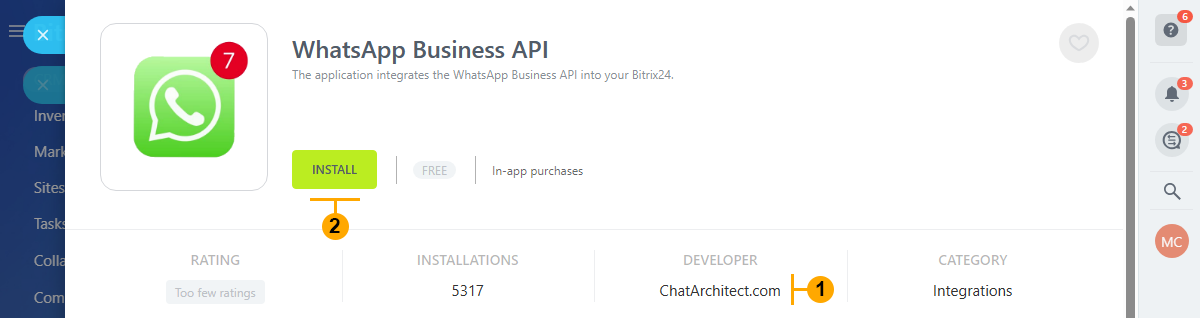
3. In the appeared window check the correct developer - ChatArchitect.com (1) and click the “Install” button
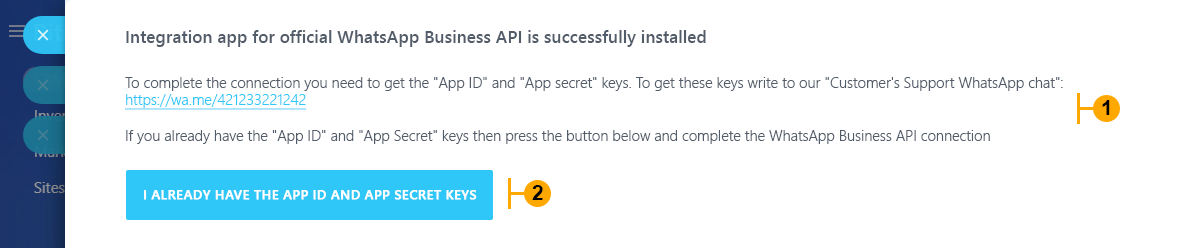
4. Follow the instructions (1) to get your App ID and App Secret keys. When done press the button (2)
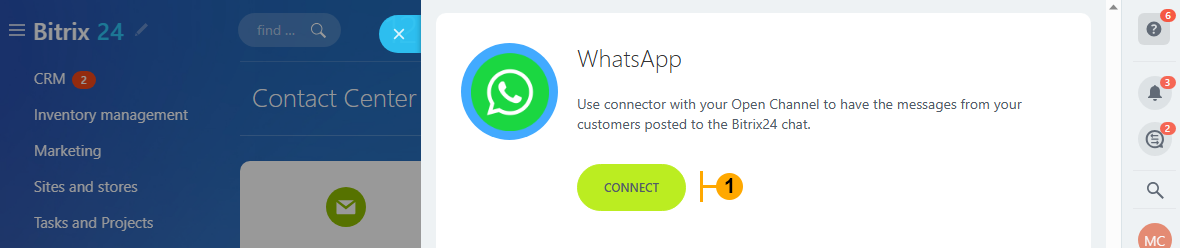
5. Press the “Connect” button (1)
NOTE: In very rare cases you wouldn’t see this window. If you face this situation please go to step 6 and then return to step 5
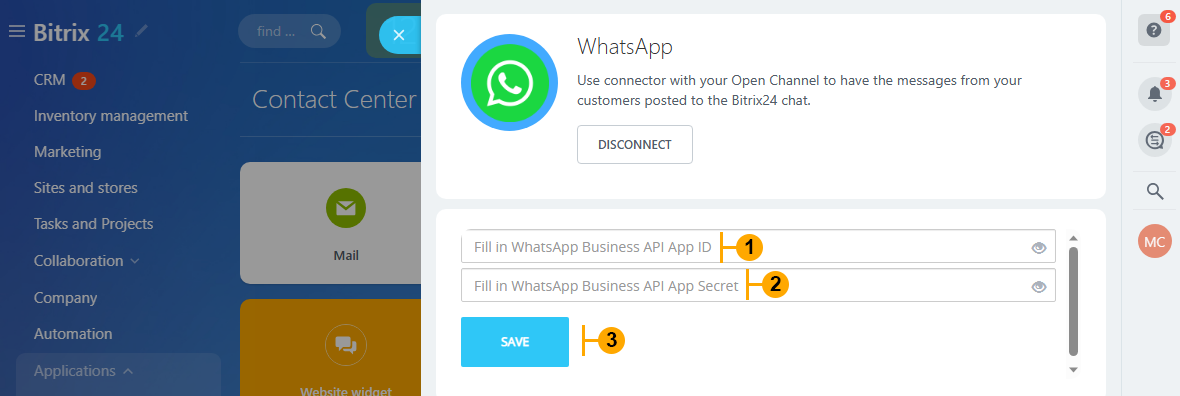
5.1 Enter your “App ID” (1) then enter your “App Secret” (2), and press the “Save” button (3)
NOTE: To get these keys write to our "Customer's Support WhatsApp chat": https://wa.me/421233221242 ;
5.2 Congratulations! You can write your first message from WhatsApp to your WhatsApp Business API number
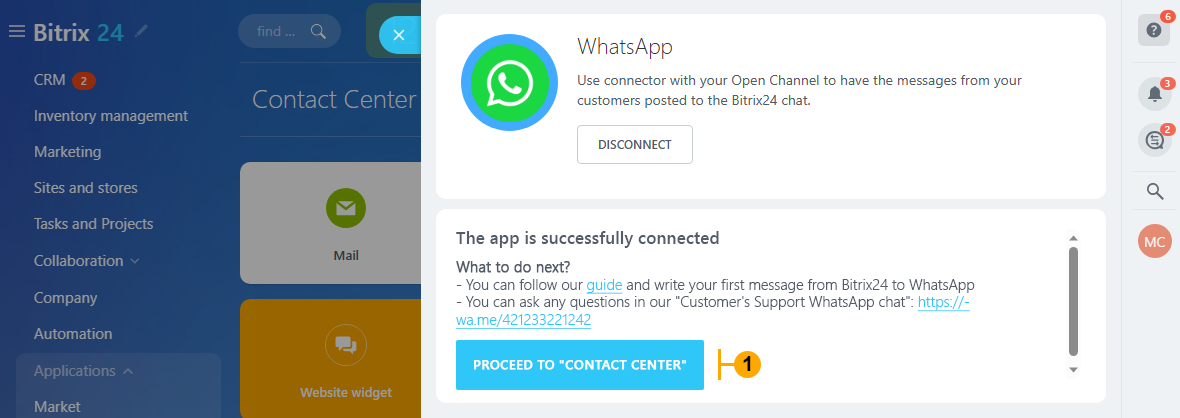
6. Optional: If you somehow managed to skip steps 5-5.2 or can’t find “Contact center” in your menu to complete app connection then follow the next steps:
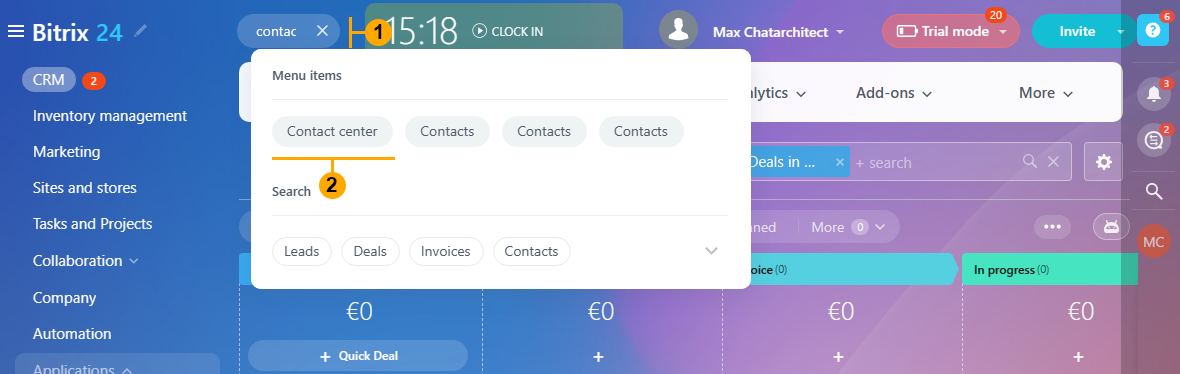
6.1 Find the “Search” field in the header (1) type “contact” then choose “Contact center” in the search results (2)
NOTE: Step 6.1 is an optional Step and must be skipped if steps 5-5.2 are done!
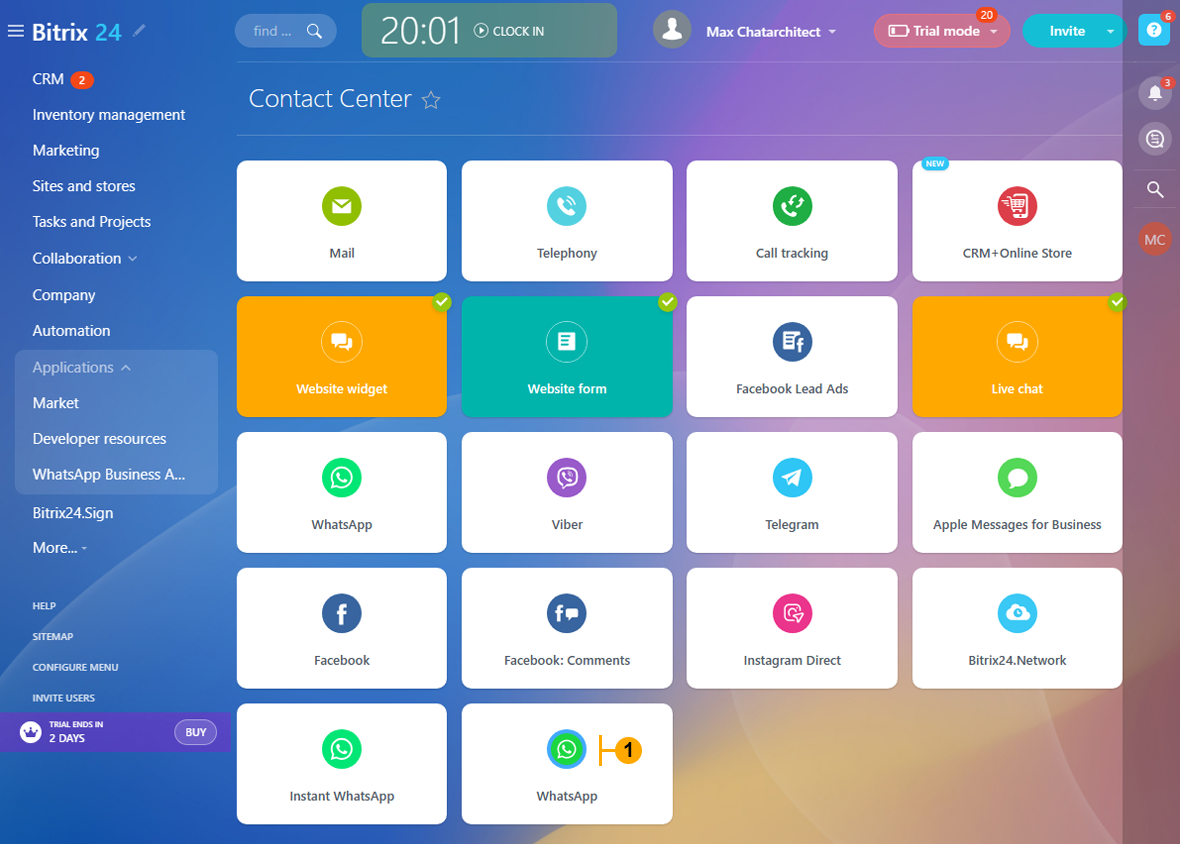
6.2 In the “Contact center” section click on the WhatsApp tile (1) IMPORTANT: Green icon with the blue stroke!
NOTE: Step 6.2 is an optional Step and must be skipped if steps 5-5.2 are done!
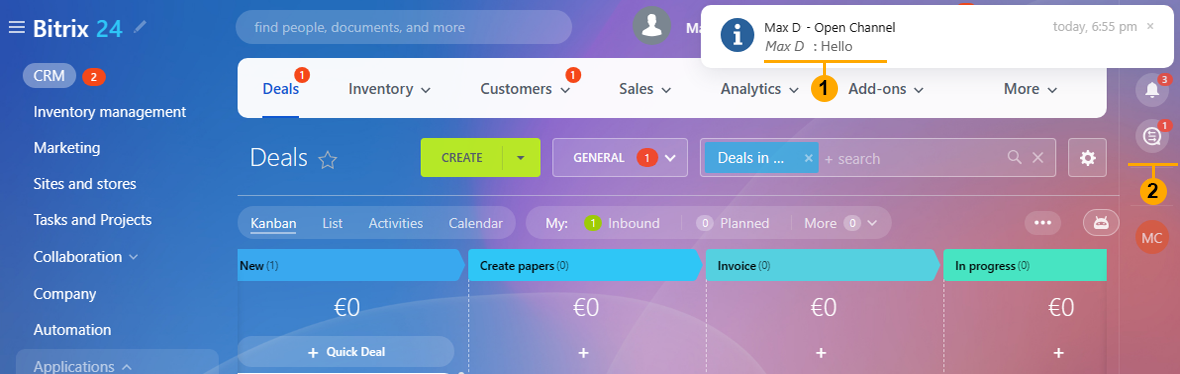
7. Write your first message from WhatsApp to your WhatsApp Business API number. When you do it Bitrix24 should show you a popup with the message (1). To go into chats you can click this popup or press the “View open channel chat” button (2)
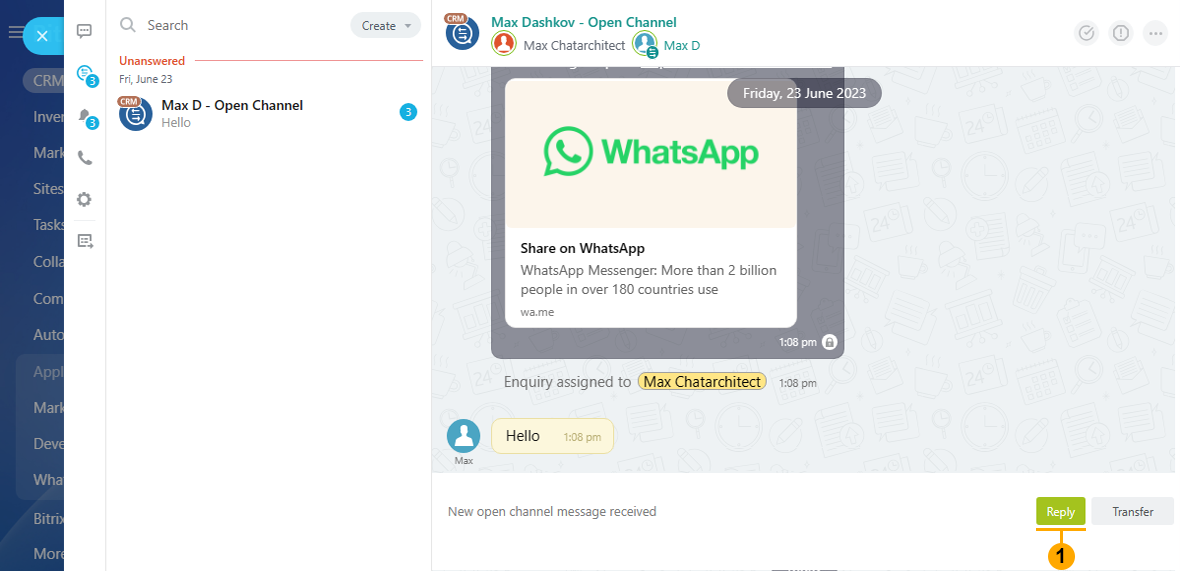
7.1 In the opened chat window click the “Reply” button (1) and write your answer
No comments to display
No comments to display