
How to create a template for WhatsApp Business API
Step-by-step instructions how to create a template in our app
1. First of all, you need to open wtargeted.com/ and click on the "Facebook Login" button or "Google Login" button
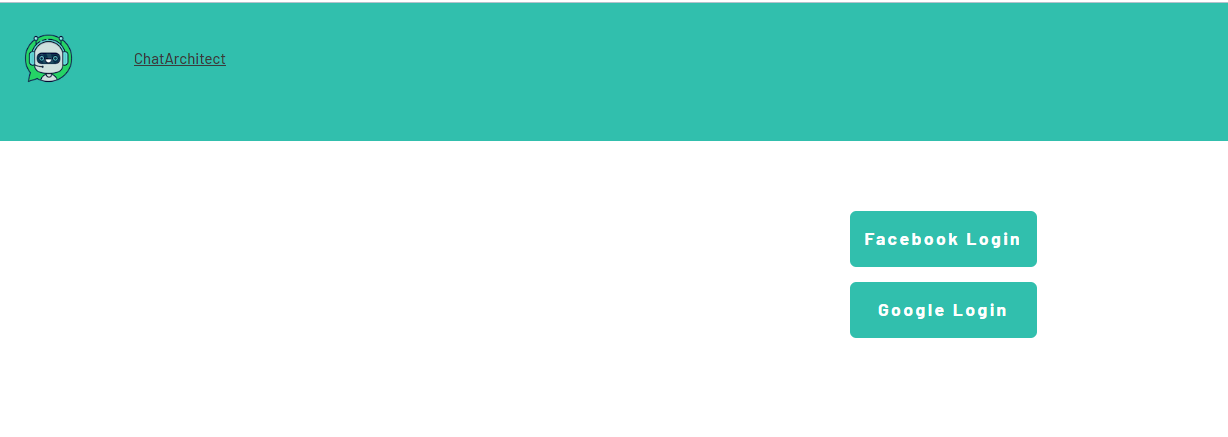
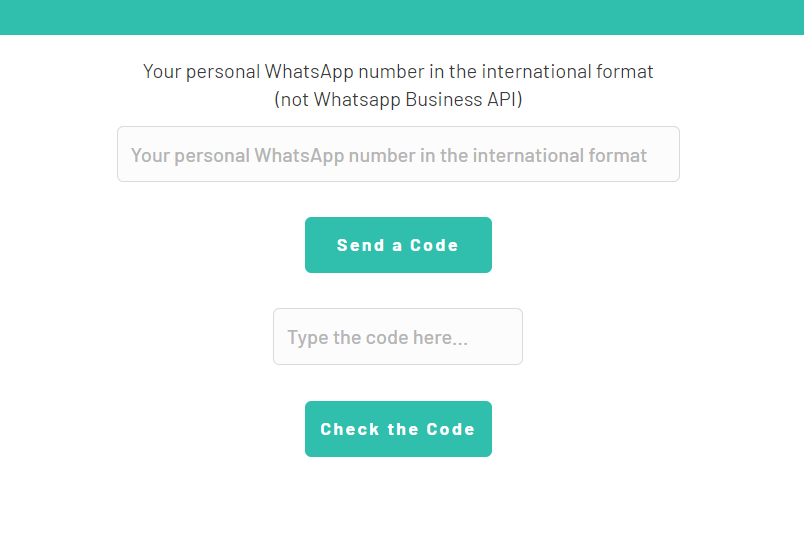
2. After you have logged in to your google \ facebook account, you must enter your PERSONAL phone number on which there is a WhatsApp application, a verification code will be sent to it (not to be confused with the number that you connected with us)
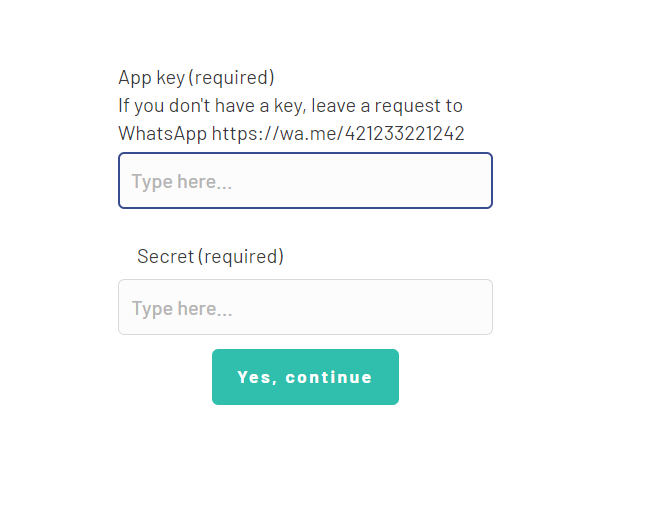
3. Put your App key and Secret and press "Yes, continue".
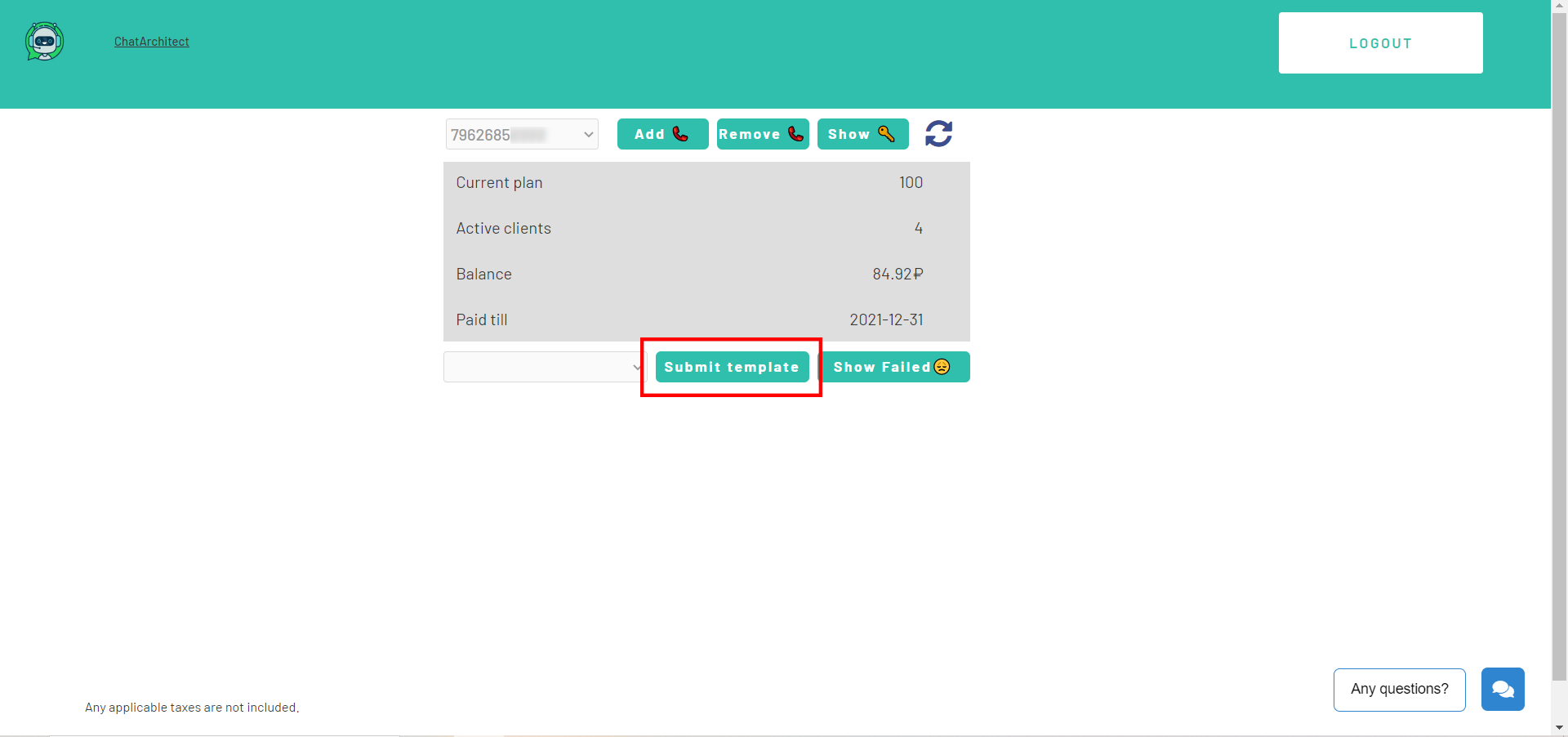
4. After this, an app menu will be opened. Click on the "Submit template" button.
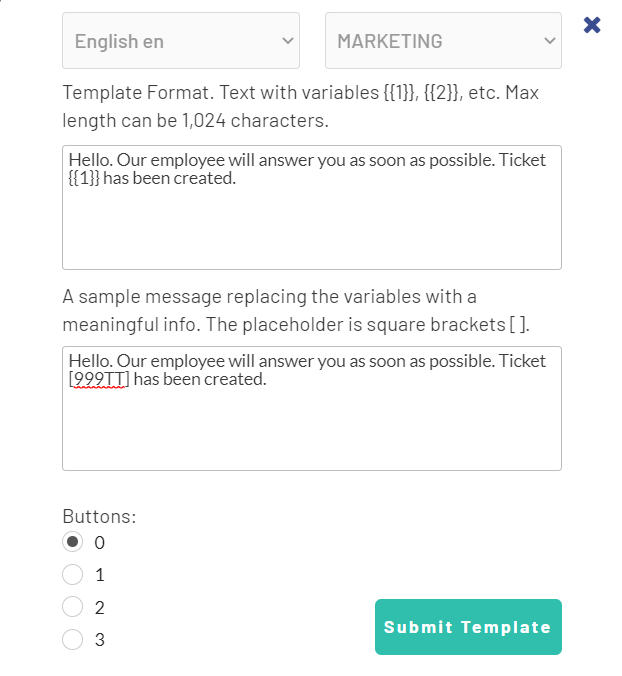
5. Select the desired language and template type.
Write your message with variables in the first column. For example, "Hello, our employee will answer you as soon as possible. Ticket {{1}} has been created." Variables should be in braces {{}}.
Write a sample message replacing the variables with meaningful information in the second column. For example, "Hello, our employee will answer you as soon as possible. Ticket [999TTT] has been created.". The placeholder is square brackets [].
Then click "Submit Template".
6. After review, your template will appear in "Approved templates".
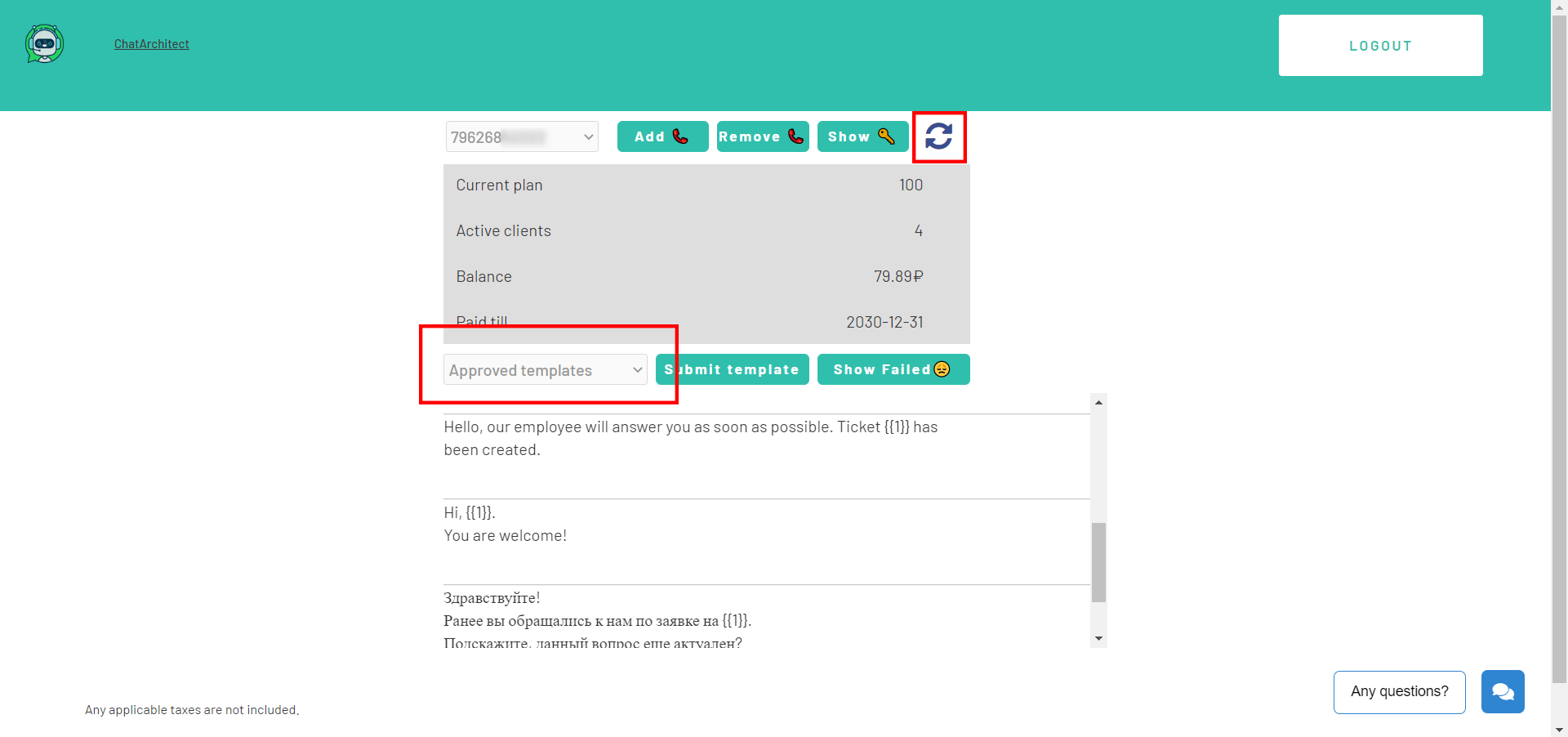
Don't forget to click on the "refresh" button.
No comments to display
No comments to display