
Sending messages | Developer Documentation
Sending messages
Updated: Nov 4, 2025
This document describes how to use the API to send messages to WhatsApp users.
Message types
You can use the API to send the following types of messages.
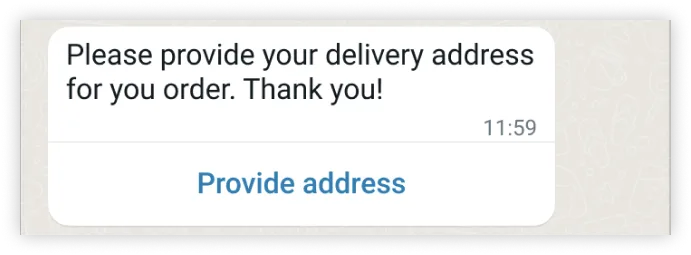
Address messages allow you to easily request a delivery address from WhatsApp users.
Audio messages display an audio icon and a link to an audio file. When the WhatsApp user taps the icon, the WhatsApp client loads and plays the audio file.

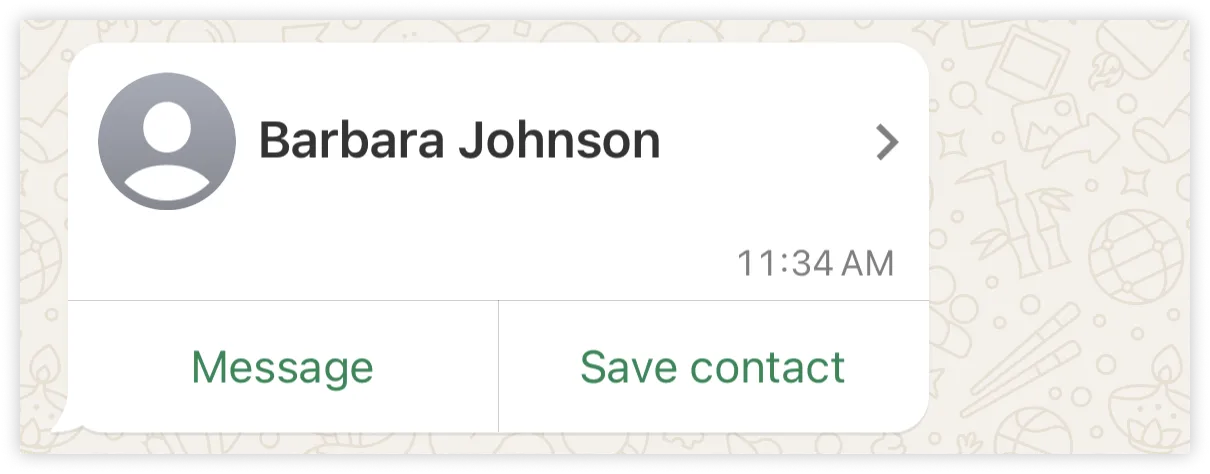
Contacts messages allow you to send rich contact information directly to WhatsApp users, such as names, phone numbers, physical addresses, and email addresses.
Document messages display a document icon, linked to a document that a WhatsApp user can tap to download.
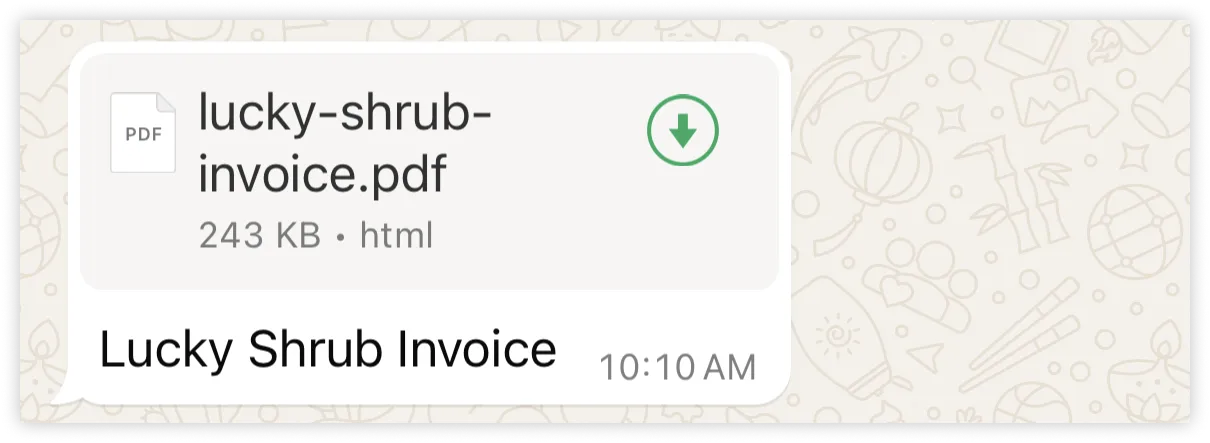
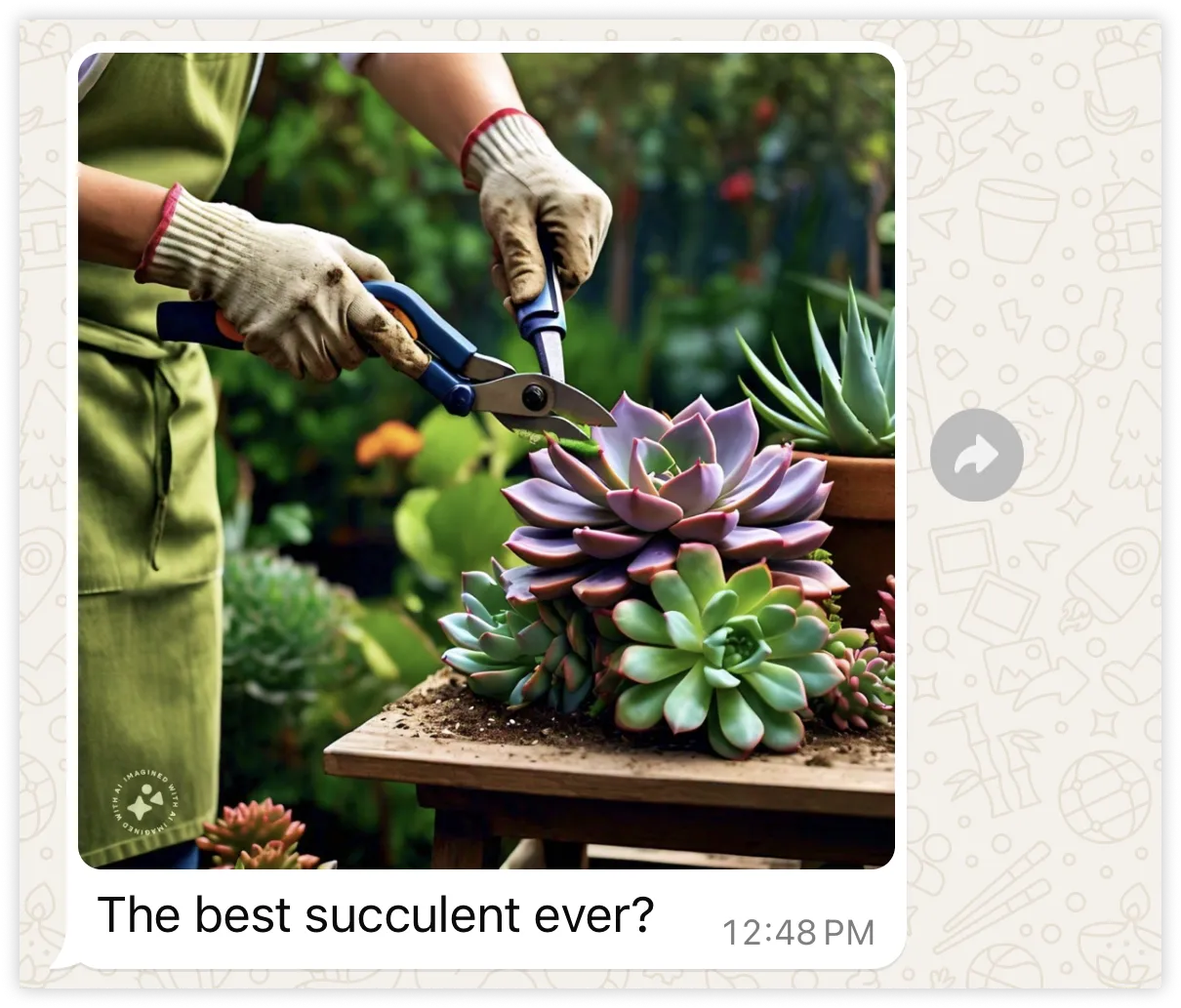
Image messages display a single image and an optional caption.
Interactive CTA URL button messages allow you to map any URL to a button, so you don’t have to include lengthy or obscure raw URLs in the message body.
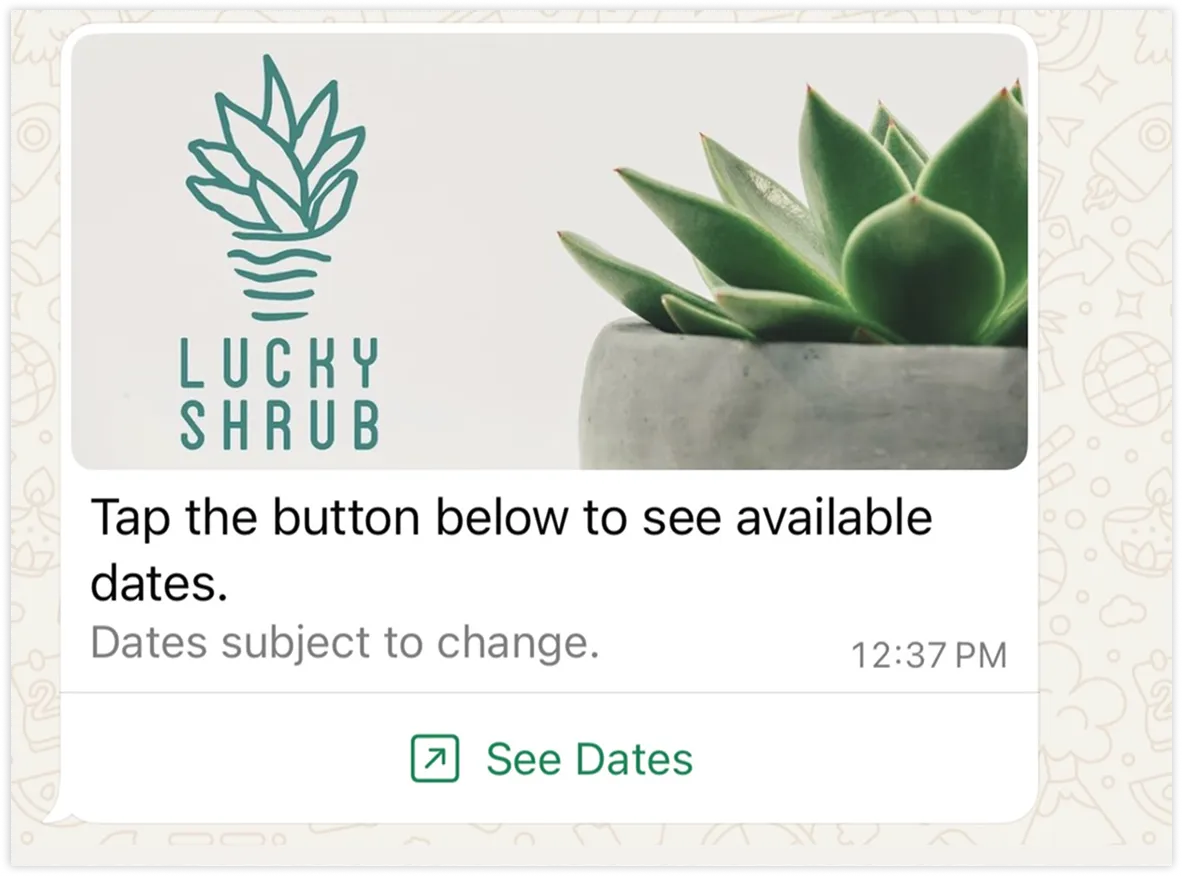
Interactive voice call messages allow you to trigger WhatsApp call from users.
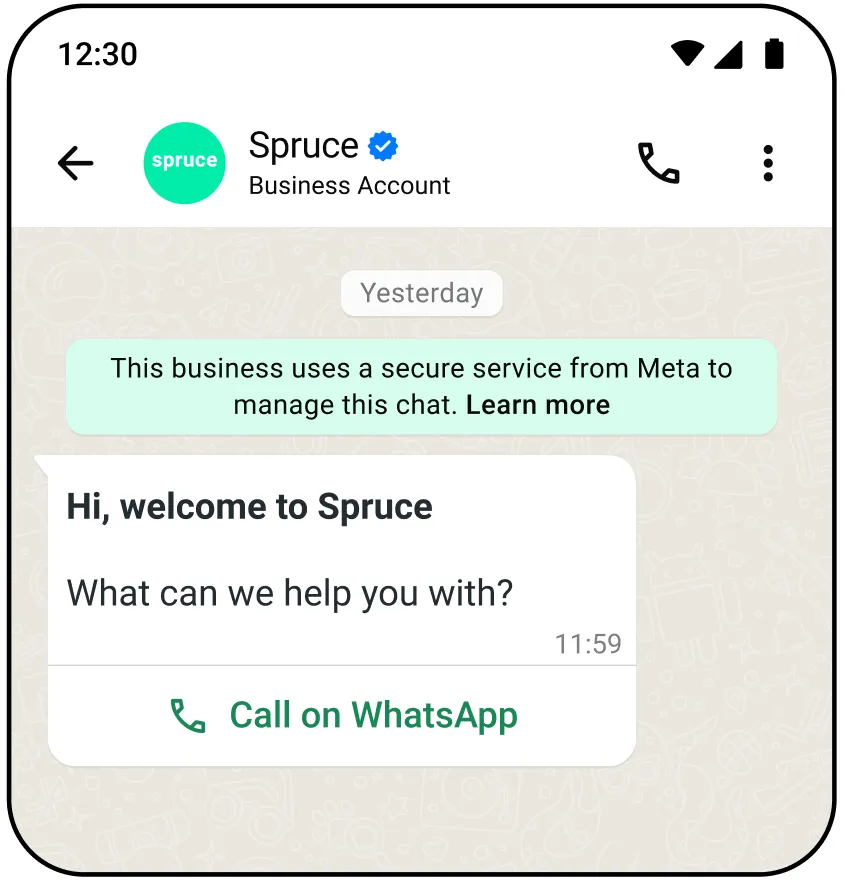
Interactive Flow messages allow you to send structured messages that are more natural or comfortable for your customers. For example, you can use WhatsApp Flows to book appointments, browse products, collect customer feedback, get new sales leads, or anything else.
Interactive Flow messages are documented in our WhatsApp Flows documentation set.
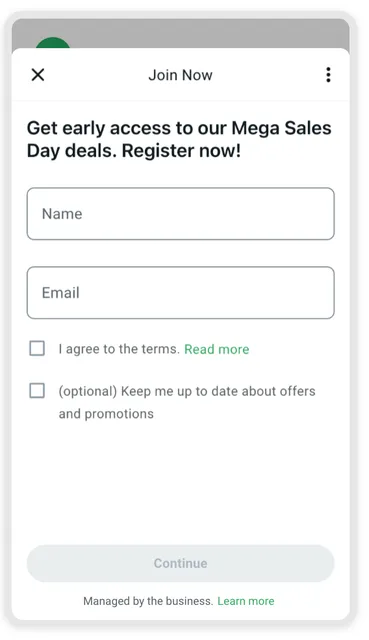
Interactive list messages allow you to present WhatsApp users with a list of options to choose from.
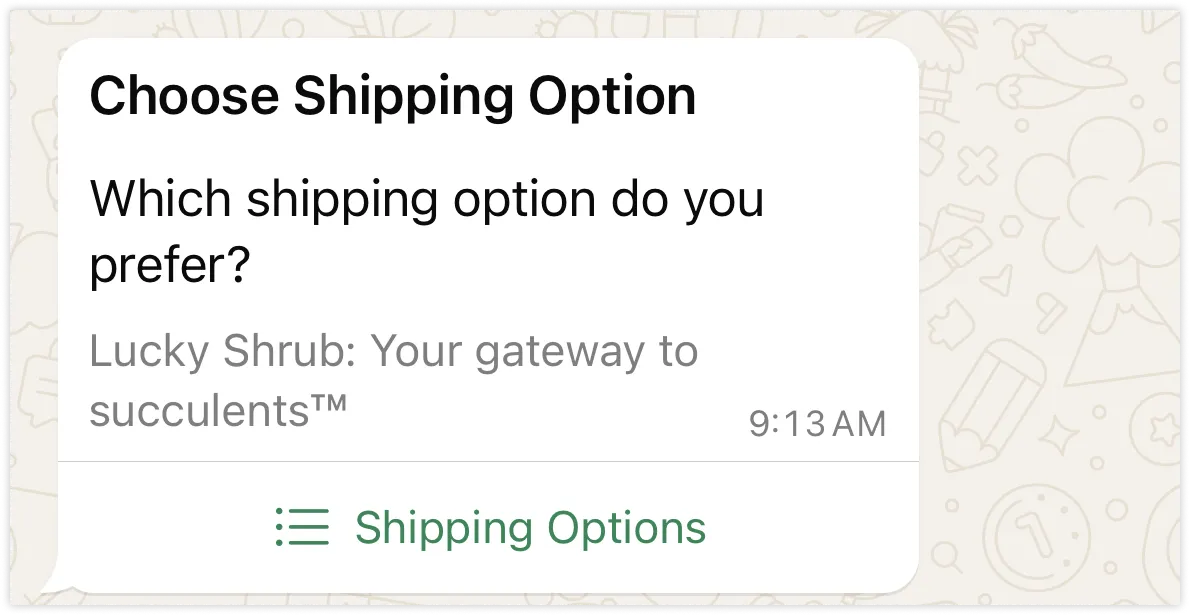
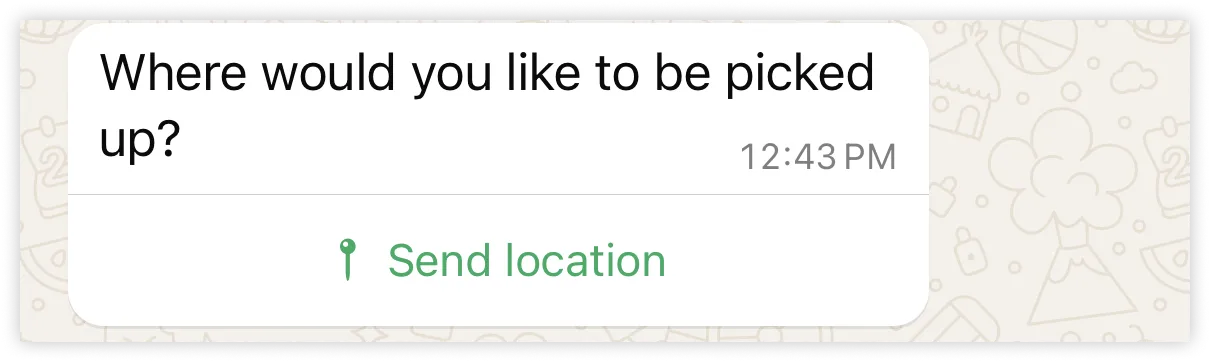
Interactive location request messages display body text and a send location button. When a WhatsApp user taps the button, a location sharing screen appears which the user can use to share their location.
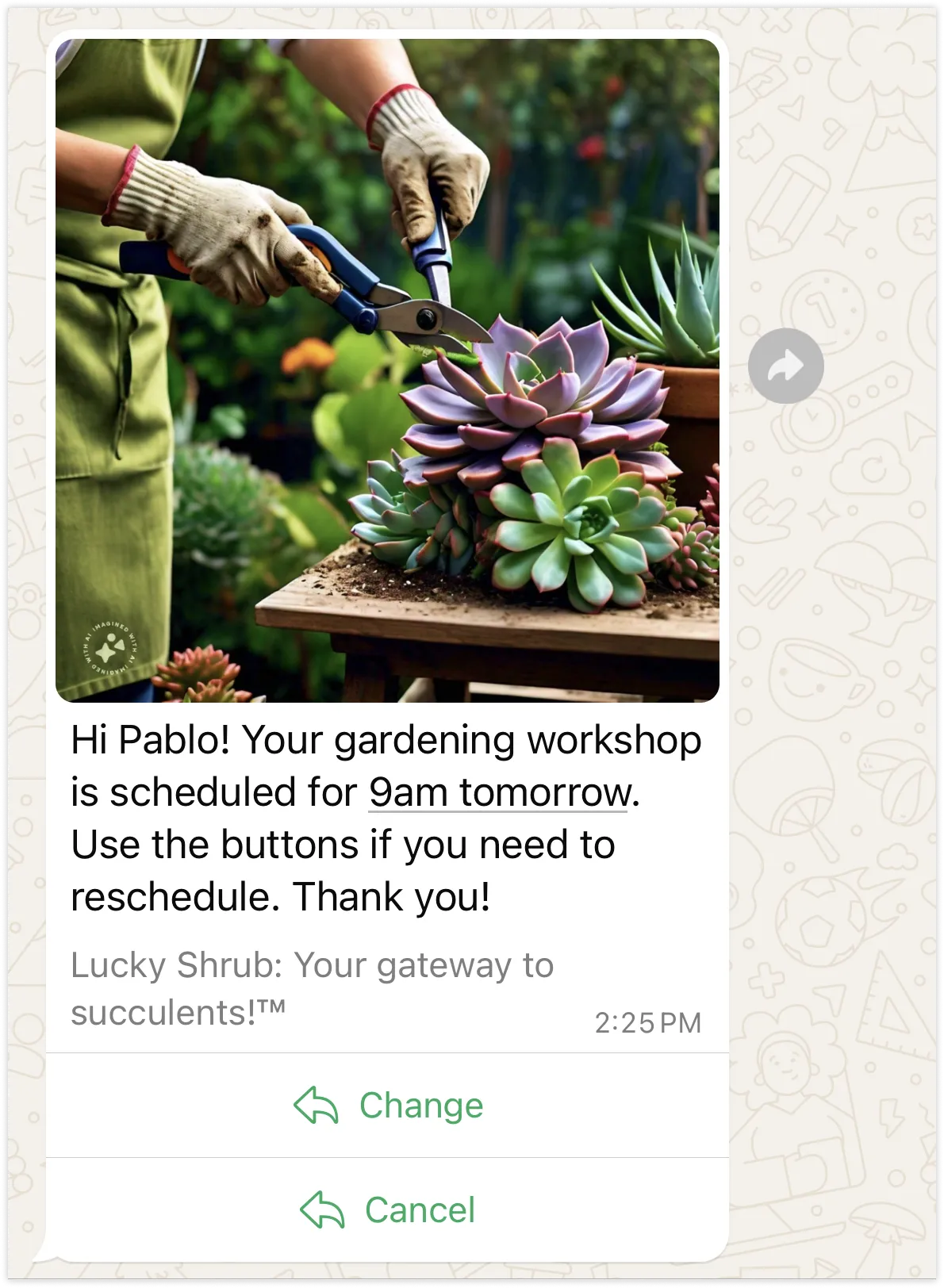
Interactive reply buttons messages allow you to send up to three predefined replies for users to choose from.
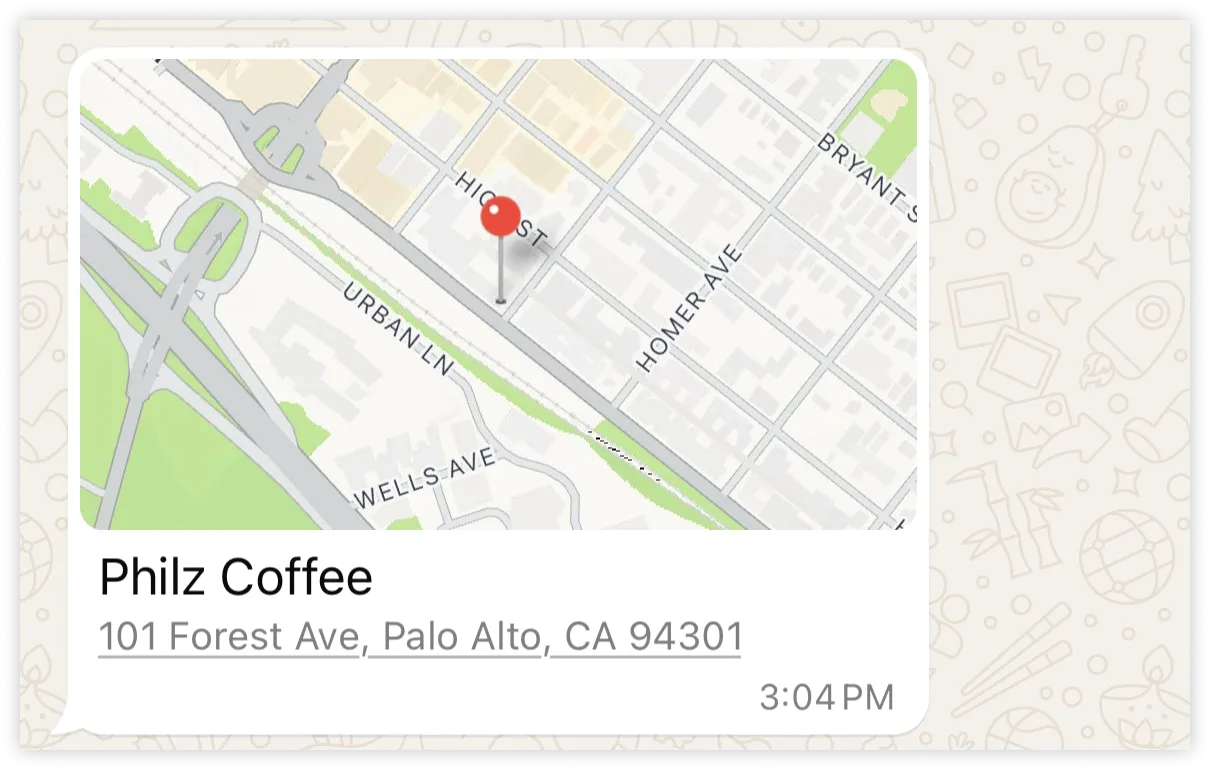
Location messages allow you to send a location’s latitude and longitude coordinates to a WhatsApp user.
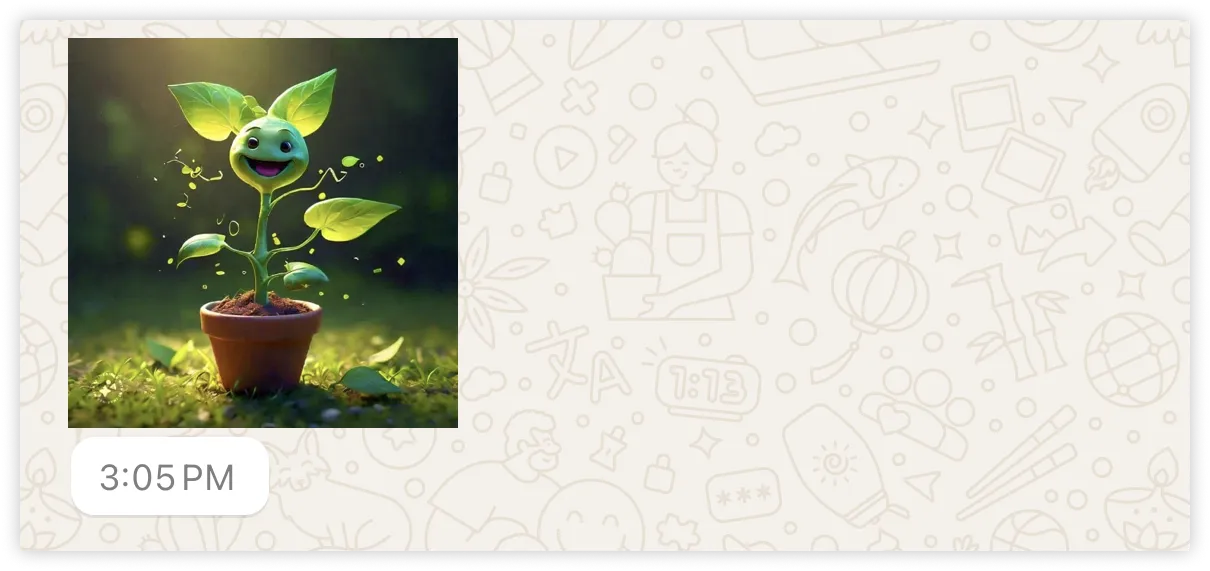
Sticker messages display animated or static sticker images in a WhatsApp message.
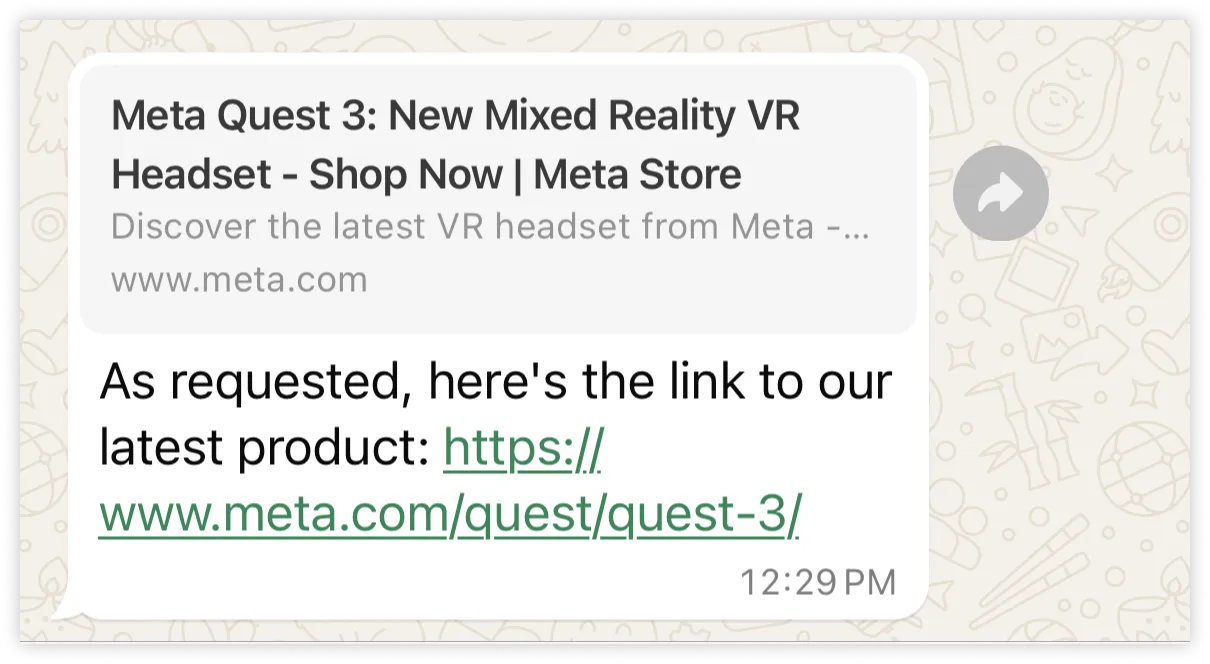
Text messages are messages containing only a text body and an optional link preview.
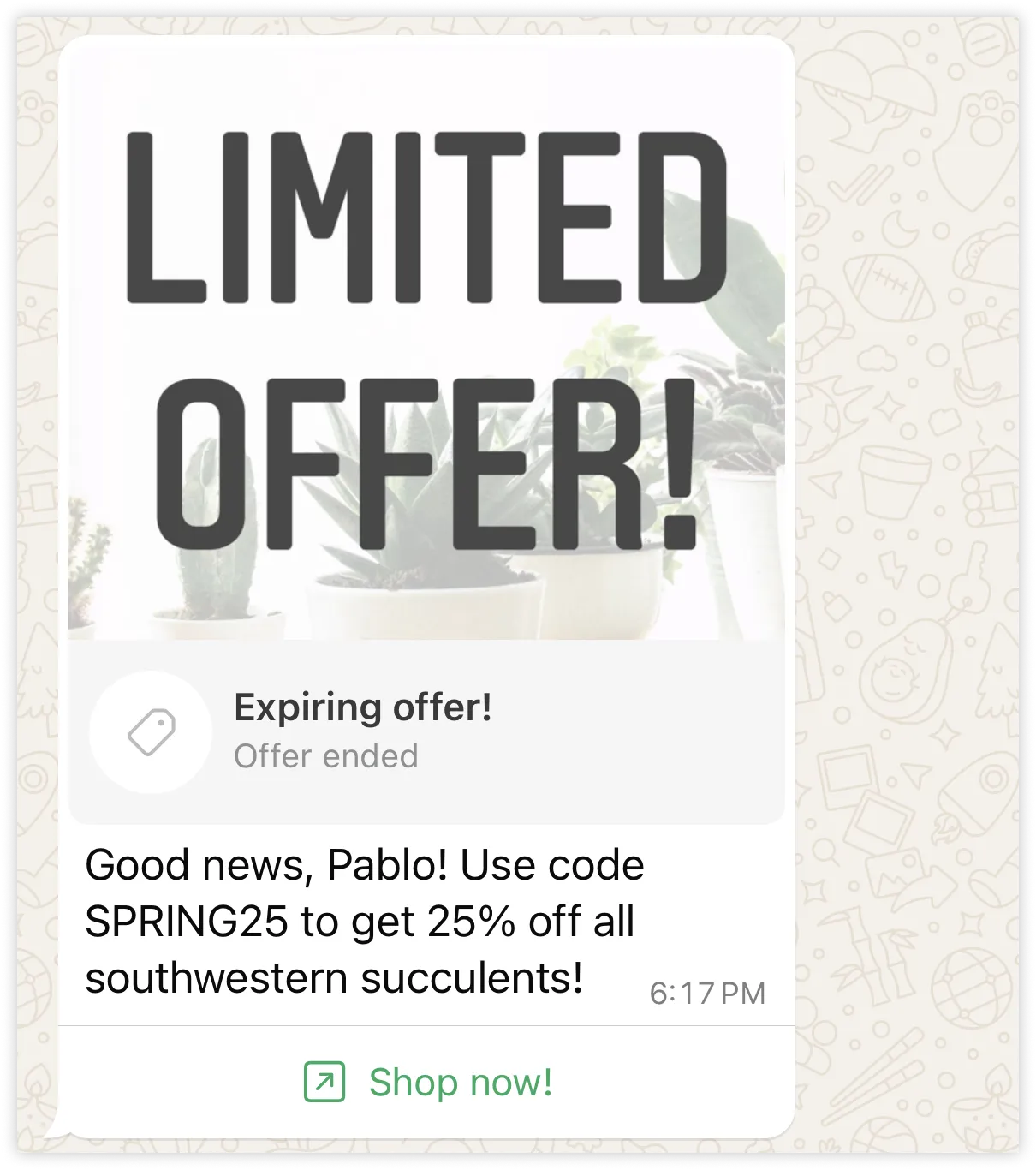
Template messages allow you to send marketing, utility, and authentication templates to WhatsApp users. Unlike all other message types, template messages do not require a 24-hour customer service window to be open between you and the message recipient before the message can be sent.
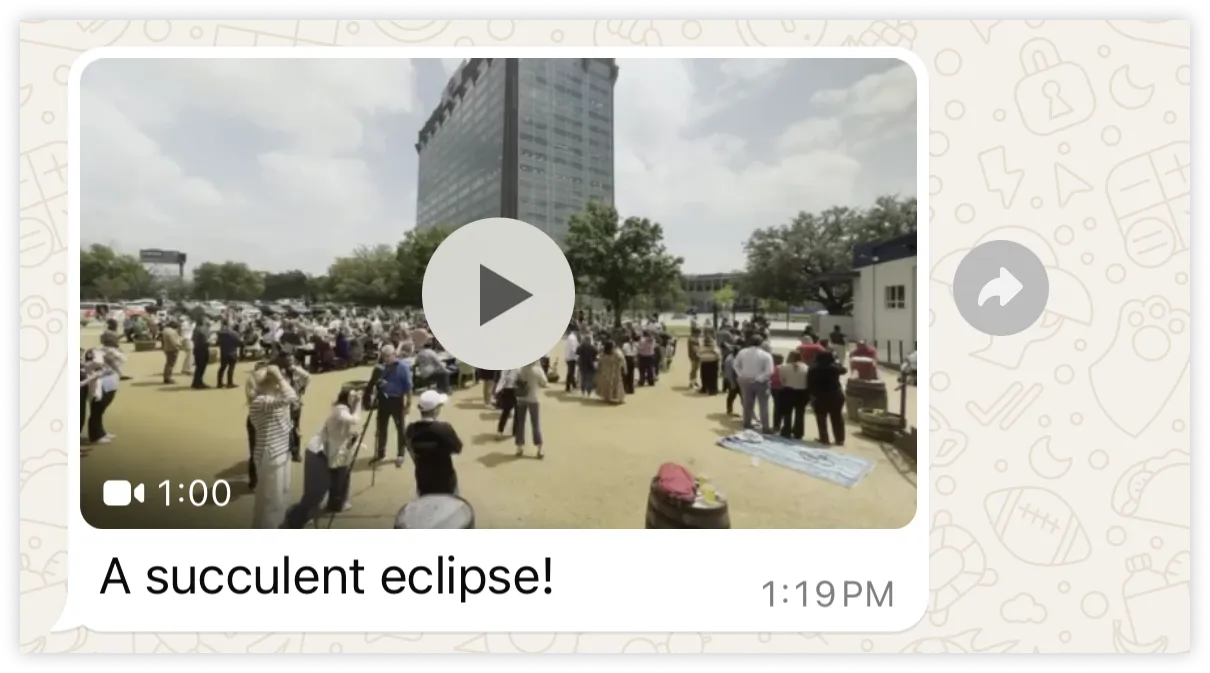
Video messages display a thumbnail preview of a video image with an optional caption. When the WhatsApp user taps the preview, it loads the video and displays it to the user.
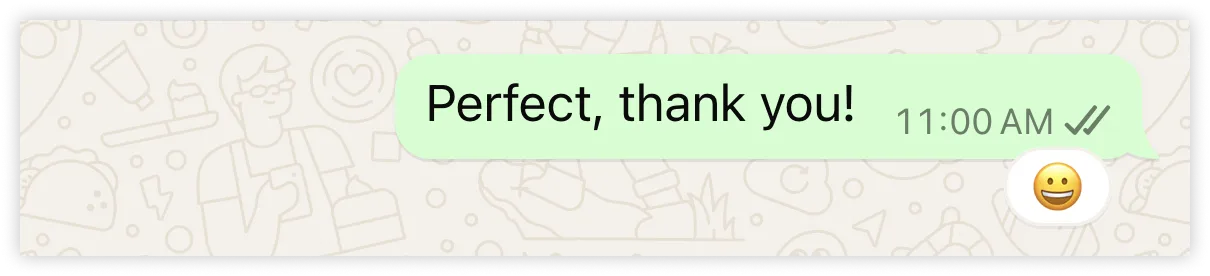
Reaction messages are emoji-reactions that you can apply to a previous WhatsApp user message that you have received.
Message quality
Your message quality is based on how messages have been received by WhatsApp users over the past seven days and is weighted by recency. It is determined by a combination of user feedback signals like blocks, reports, mutes, archives, and reasons users provide when they block you.
Guidelines for sending high-quality messages:
Your business phone number’s status, quality rating, and messaging limits are displayed in the WhatsApp Manager > Account tools > Phone numbers panel.
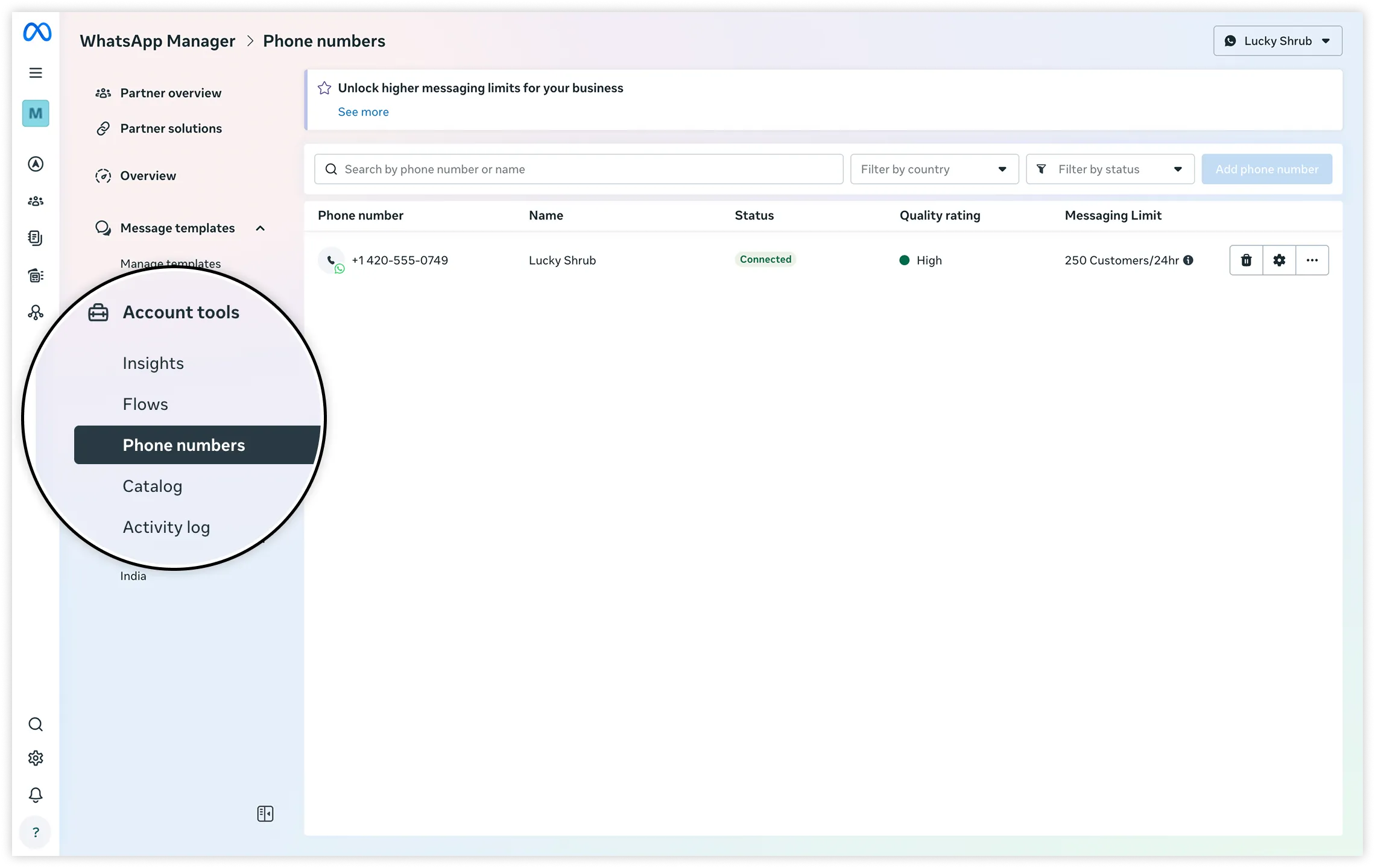
Note that it is normal for numbers with high traffic to experience quality changes within short intervals (even within minutes).
Customer service windows
Whenever a WhatsApp user messages you or calls you, a 24-hour timer called a customer service window starts (or refreshes if one has already been started).
When a customer service window is open between you and a user, you can send any type of message to the user. If a window is not open between you and the user, you can only send template messages to the user, as template messages are the only type that can be sent outside of a customer service window.
As a reminder, you can only send messages to users who have opted-in to receiving messages from you.
Known issue: In rare cases, you may receive a message from a user but be unable to respond within the customer service window. We apologize for the inconvenience.
Commerce messages
Commerce messages are interactive messages used in conjunction with a product catalog. See Share Products With Customers to see how to use these types of messages.
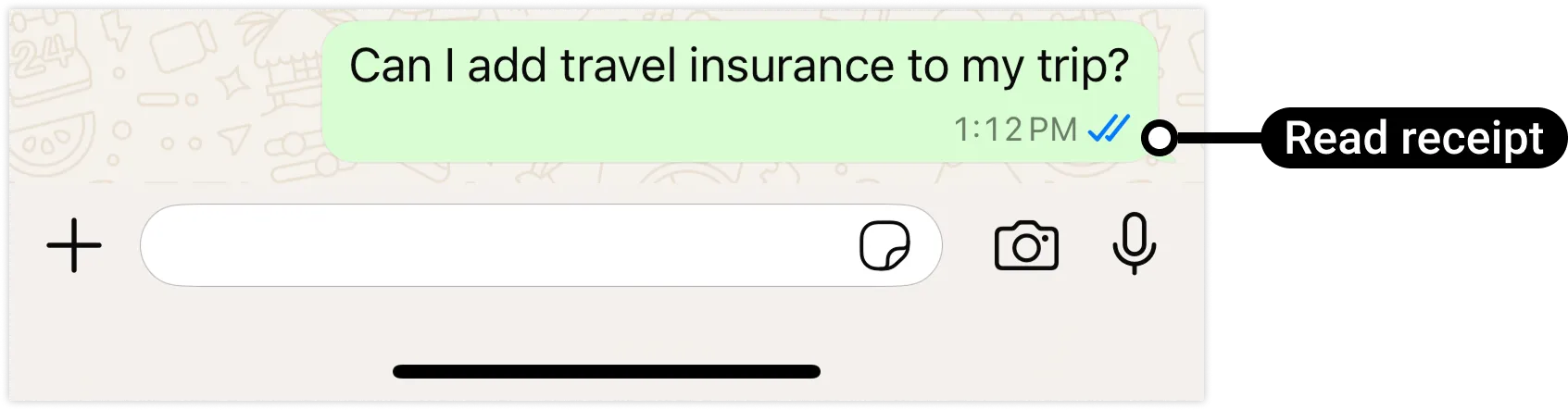
Read receipts
You can let a WhatsApp user know you have read their message by marking it as read, which causes two blue check marks (called “read receipts”) to appear below the user’s message:
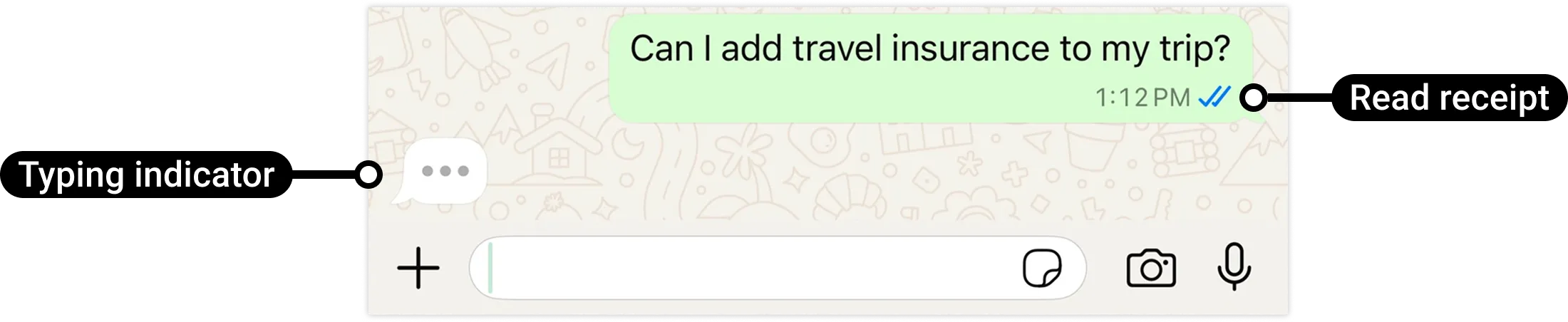
Typing indicators
If it may take you a few seconds or more to respond to a WhatsApp user, you can let them know that you are preparing a response by display a typing indicator and read receipts in the WhatsApp client:
Contextual replies
You can send a message to a WhatsApp user as a contextual reply, which quotes a previous message in a contextual bubble:
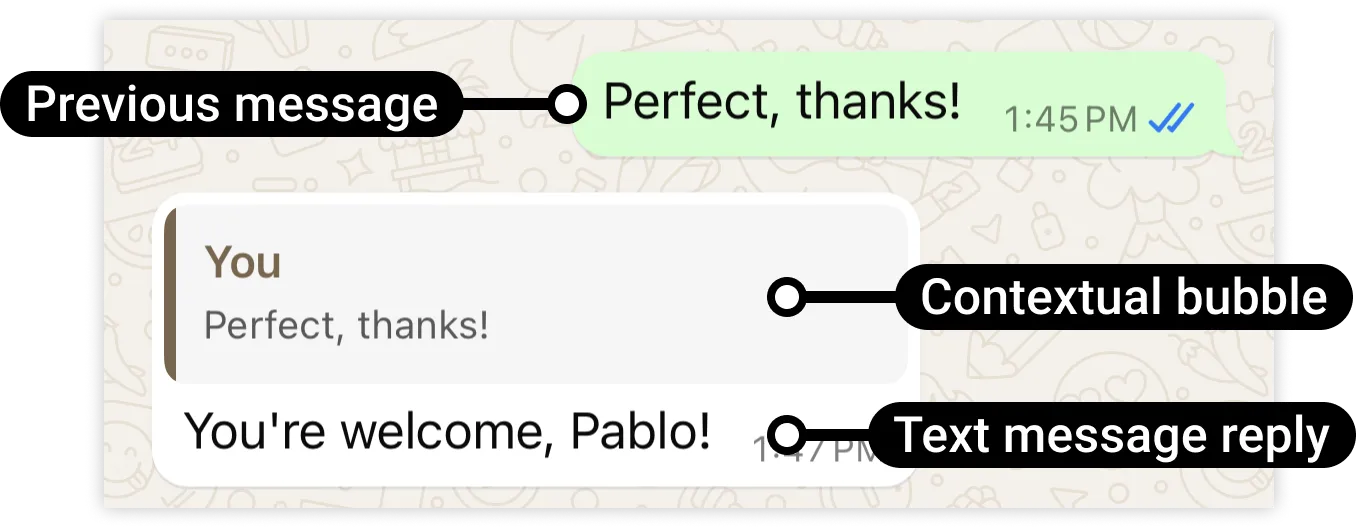
This makes it easier for the user to know which specific message you are replying to.
WhatsApp user phone number formats
Plus signs (
+), hyphens (-), parenthesis ((,)), and spaces are supported in send message requests.We highly recommend that you include both the plus sign and country calling code when sending a message to a customer. If the plus sign is omitted, your business phone number’s country calling code is prepended to the customer’s phone number. This can result in undelivered or misdelivered messages.
For example, if your business is in India (country calling code
91) and you send a message to the following customer phone number in various formats:| Number In Send Message Request | Number Message Delivered To | Outcome |
|---|---|---|
+16315551234 |
+16315551234 |
Correct number |
+1 (631) 555-1234 |
+16315551234 |
Correct number |
(631) 555-1234 |
+916315551234 |
Potentially wrong number |
1 (631) 555-1234 |
+9116315551234 |
Potentially wrong number |
Note: For Brazil and Mexico, the extra added prefix of the phone number may be modified by the Cloud API. This is a standard behavior of the system and is not considered a bug.
Media caching
If you are using a link (
link) to a media asset on your server (as opposed to the ID (id) of an asset you have uploaded to our servers), WhatsApp Cloud API internally caches the asset for a static time period of 10 minutes. We will use the cached asset in subsequent send message requests if the link in subsequent message send payloads is the same as the link in the initial message send payload.If you don’t want us to reuse the cached asset in a subsequent message within the 10 minute time period, append a random query string to the asset link in the new send message request payload. We will treat this as a new asset, fetch it from your server, and cache it for 10 minutes.
For example:
https://link.to.media/sample.jpg — asset fetched, cached for 10 minutesAsset link in 2d send message request: https://link.to.media/sample.jpg - use cached assetAsset link in 3rd send message request: https://link.to.media/sample.jpg?abc123 - asset fetched, cached for 10 minutes
Delivery sequence of multiple messages
When sending a series of messages, the order in which messages are delivered is not guaranteed to match the order of your API requests. If you need to ensure the sequence of message delivery, confirm receipt of a
delivered status in a status messages webhook before sending the next message in your message sequence.Message Time-To-Live (TTL)
If we are unable to deliver a message to a WhatsApp user, we will retry the delivery for a period of time known as a time-to-live, TTL, or the message validity period.
Default TTL
Customizing TTL for templates
You can customize the default TTL for authentication and utility templates, and for marketing templates sent using the Marketing Messages API for WhatsApp. See our Time-to-live document to learn how.
When TTL is Exceeded: Dropped messages
Messages that are unable to be delivered within the default or customized TTL are dropped.
If you do not receive a status messages webhook with
status set to delivered before the TTL is exceeded, assume the message was dropped.If you send a message that fails (
status set to failed), there could be a minor delay before you receive the webhook, so you may wish to build in a small buffer before assuming the message was dropped.Troubleshooting
If you are experiencing problems with message delivery, see Message Not Delivered.