
Set up a WhatsApp bot based on Albato.com
Step by step instruction
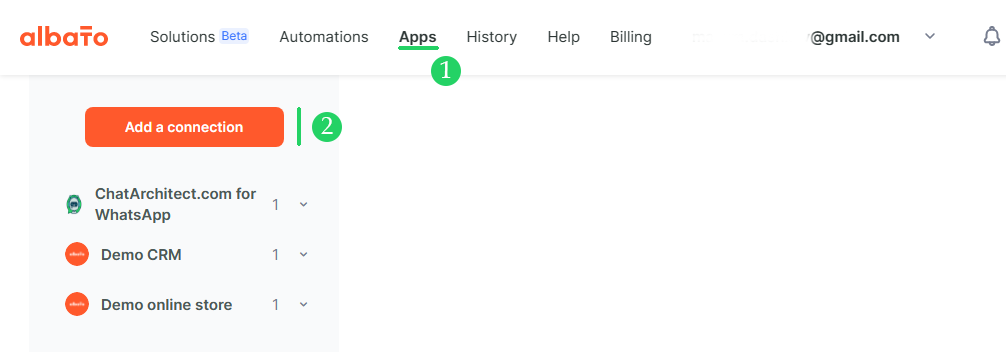
1.1 Create an account on Albato.com and go to the Apps section
1.2 Add a connection to ChatArchitect.com for WhatsApp by clicking the Add a connection button
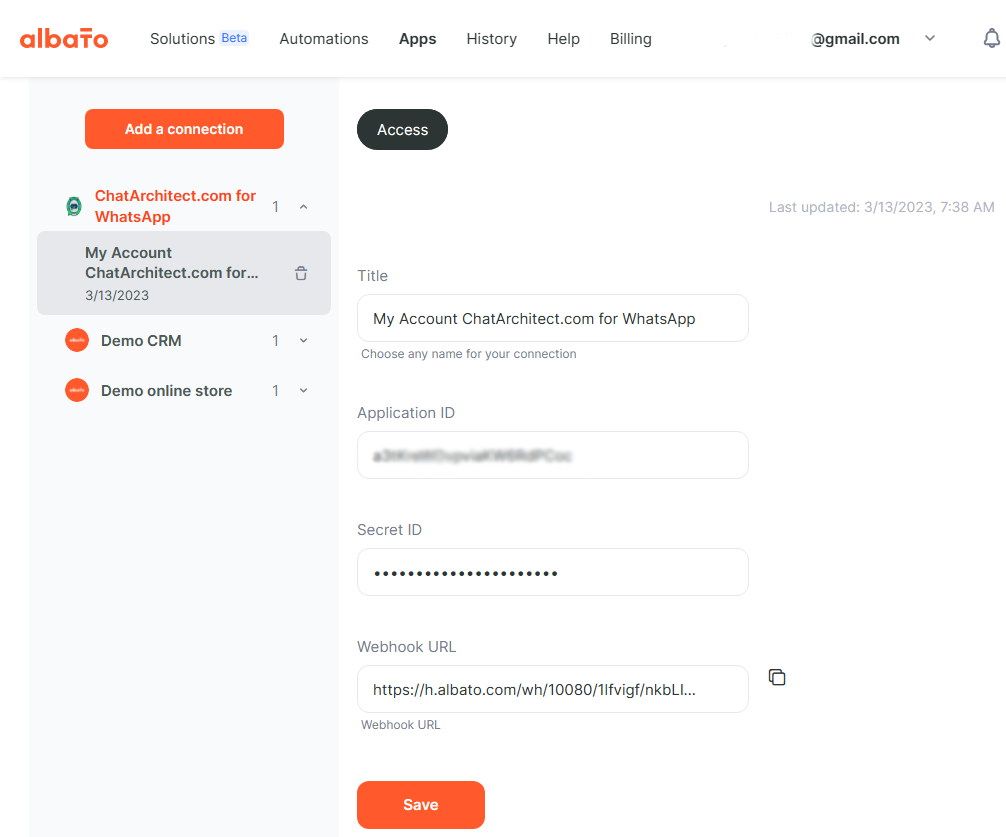
1.3 Add App ID and Secret ID
1. Making a bot using Albato tools without third-party integrations
2.1 We approve the message template on app.chatarchitect.com.
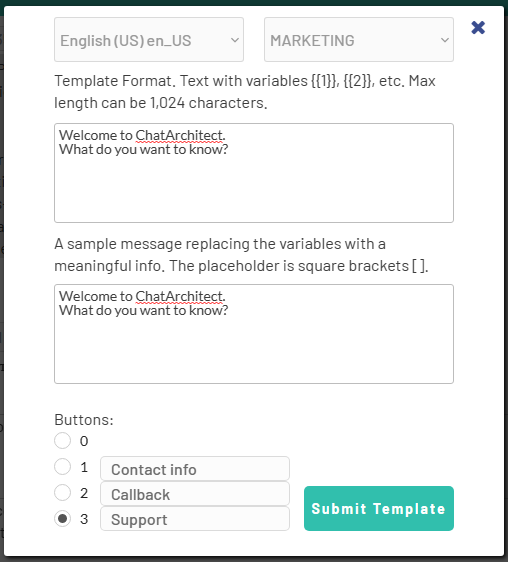
2.2 Add approved template in Albato automation. This message will be sent to all customers who contact us by default (i.e. if the keywords [Contact info], [Callback] or [Support] are not found)
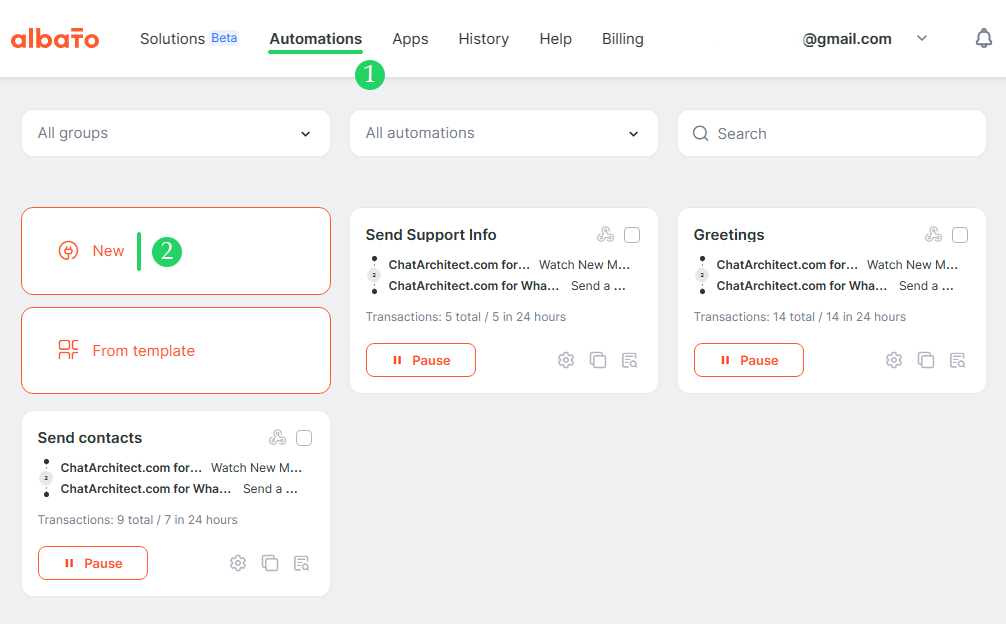
2.3 To do this, go to the "Automations" section and click the "New" button
2.4
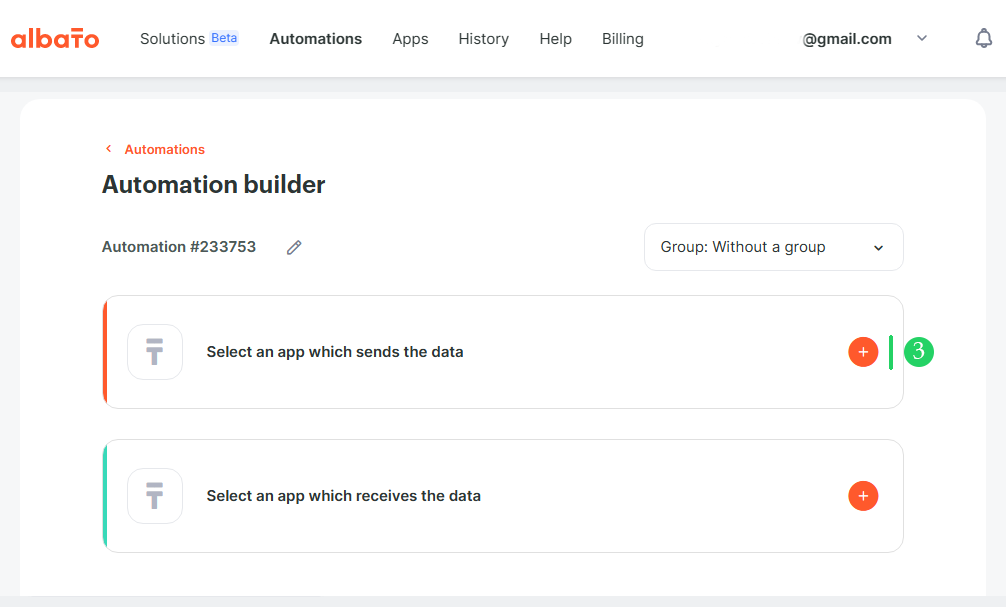
2.5
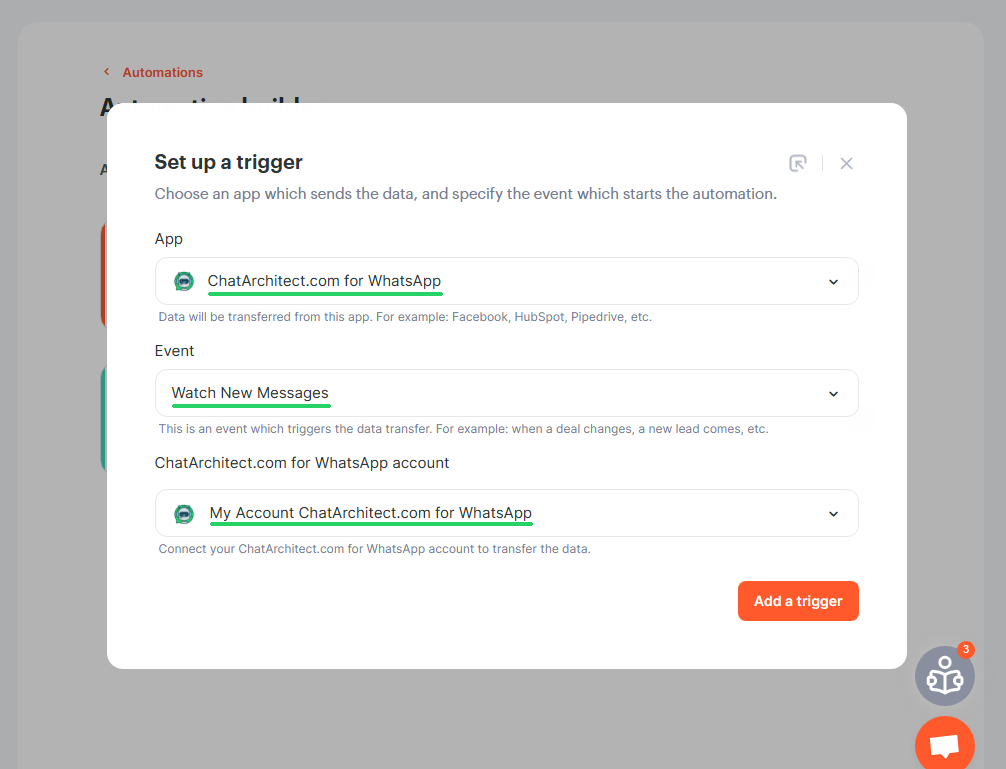
2.6
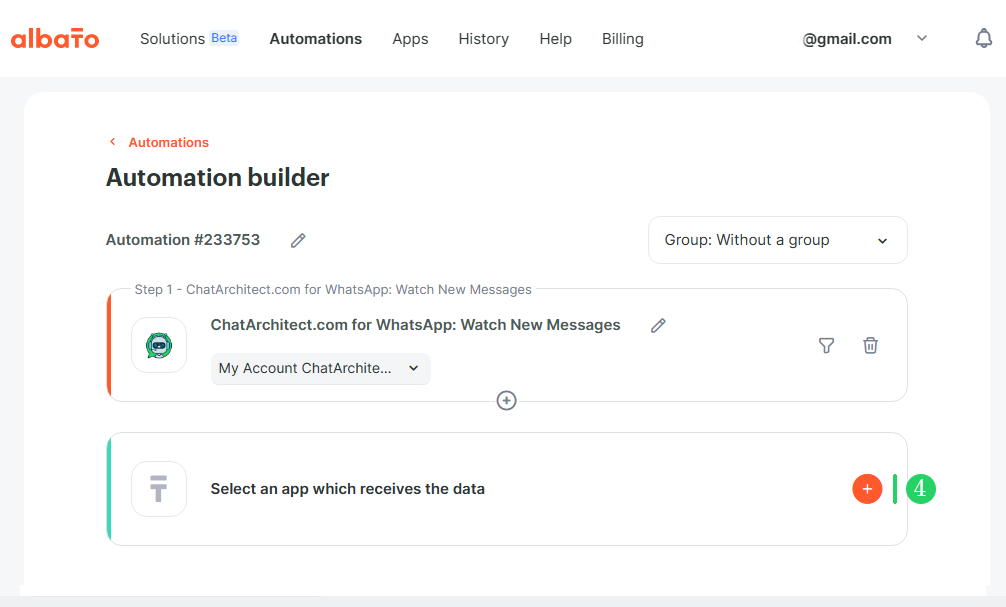
2.7
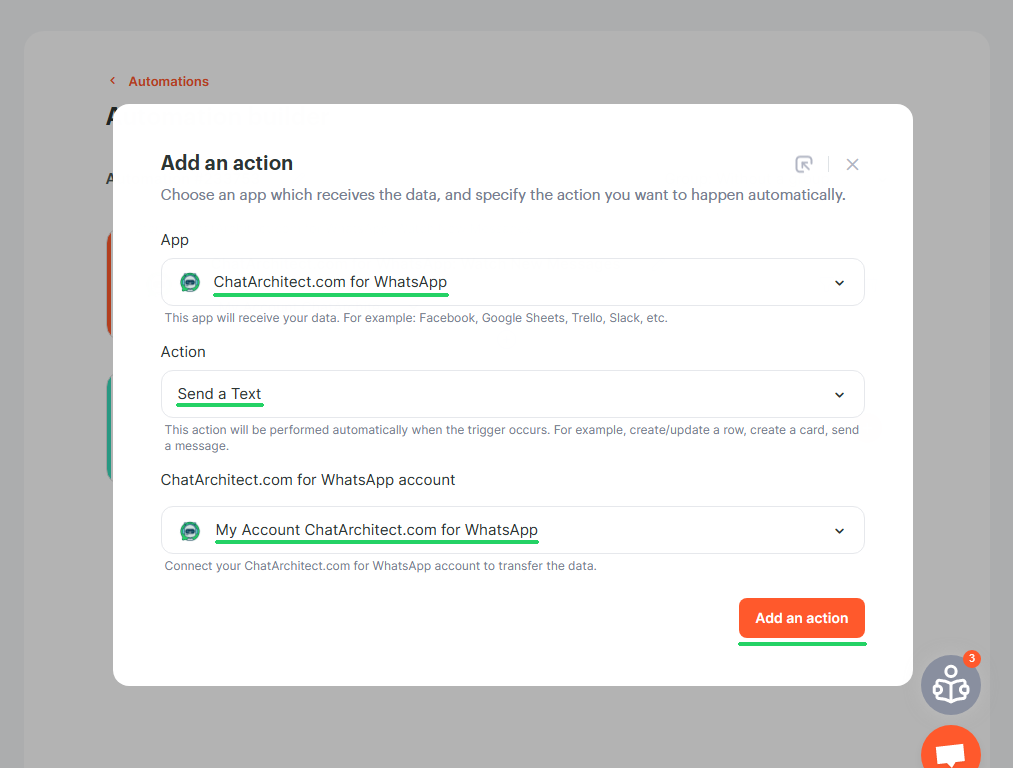
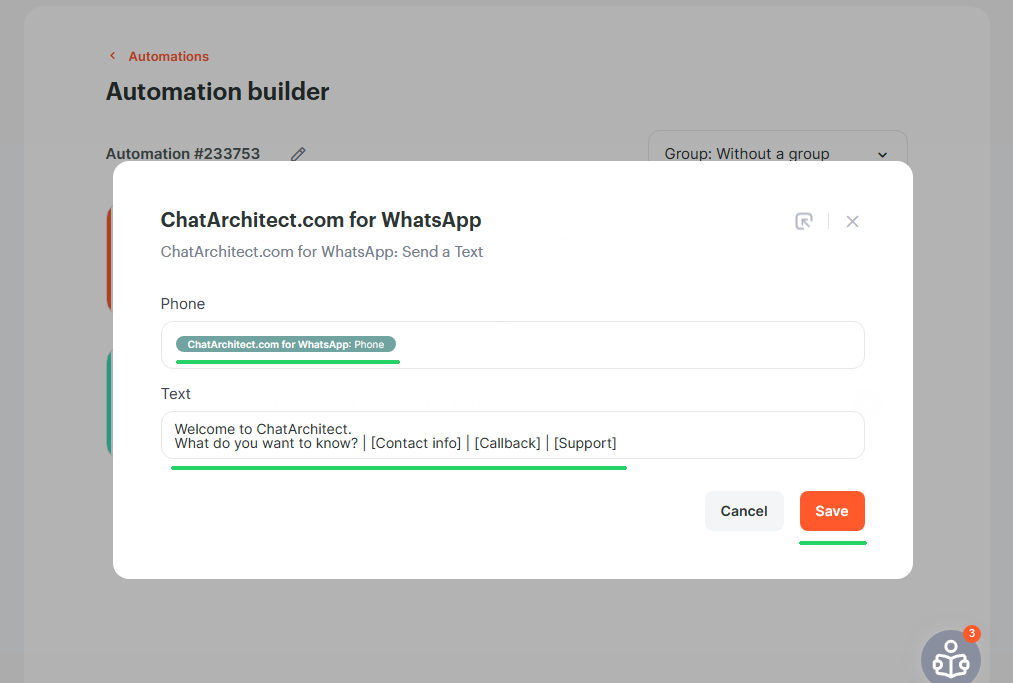
2.8 Add a rule to return a message to the number from which the message came to us and insert the text of the message
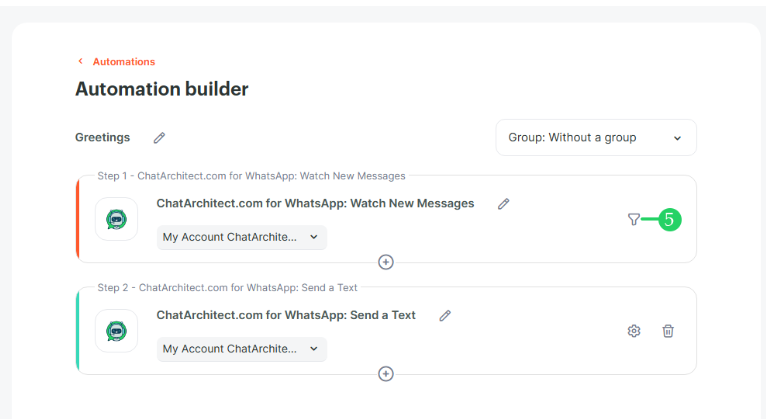
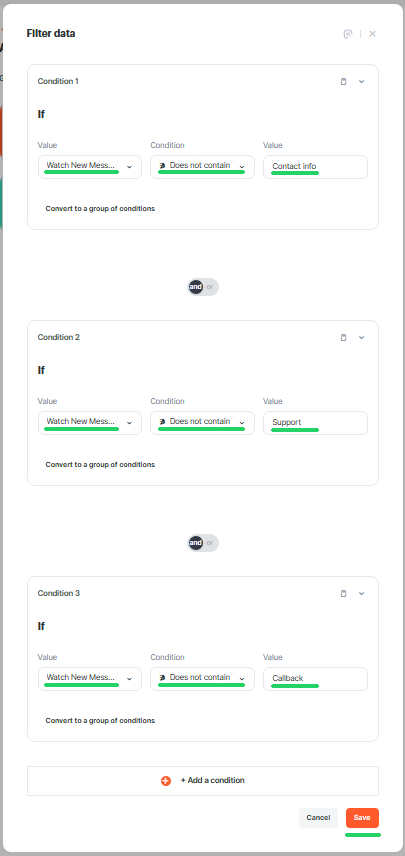
2.9 Add a filter for keywords, at the meeting of which the template will not be sent by default. In our case, these words are Contact info, Callback and Support.
2.10 Just do the same as in the screenshot
2.11 Add automation to send help messages according to the buttons pressed by customers. In the example, we will create a rule for the phrase "Contact info" (clicking the [Contact info] button by the client), the principle is the same for other key phrases / buttons.
Repeat steps 2.3 - 2.8. Only in paragraph 2.8 we add another text with contact information2.12 Click the filter button
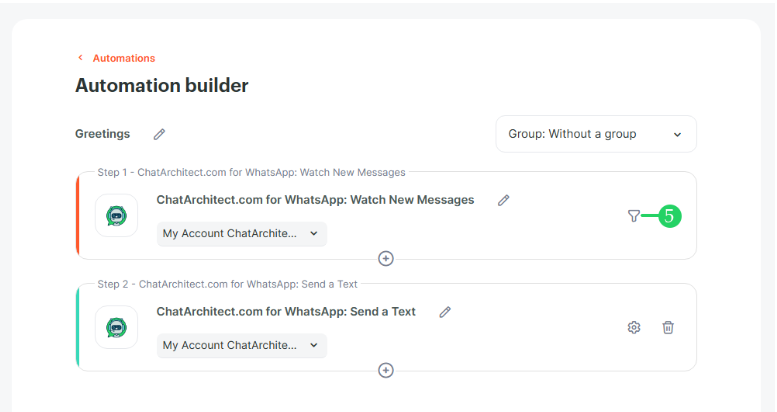
2.13 Set up a filter for our keyword "Contact info"
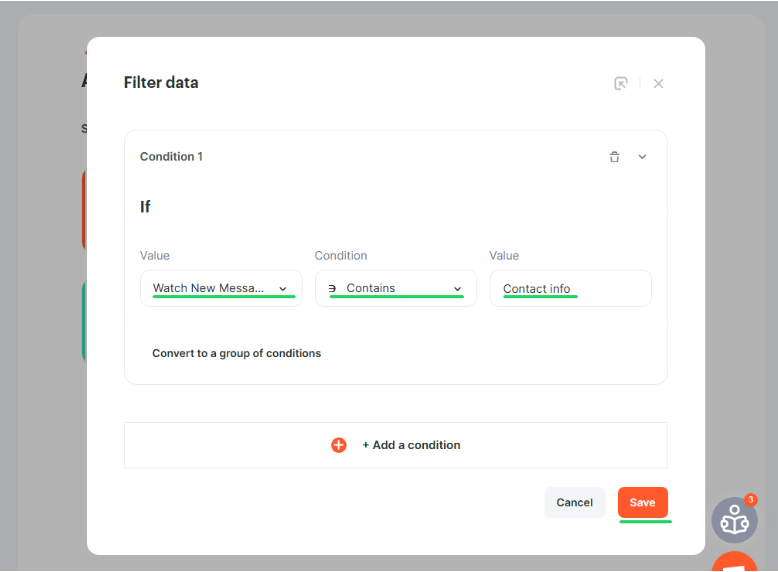
We return to point 2.2 and do the same for the keywords [Callback] and [Support]
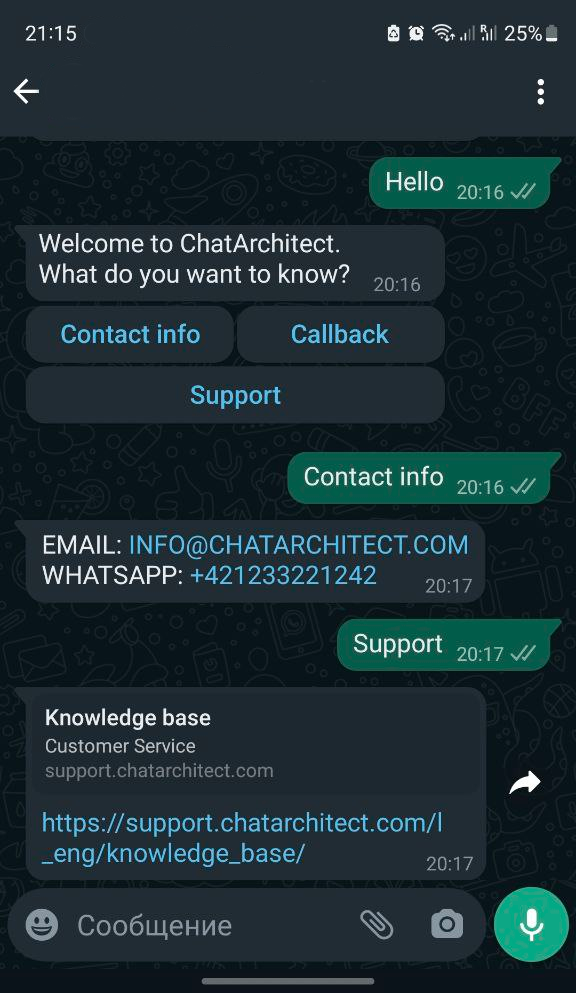
As a result, we will get such a bot:
No comments to display
No comments to display