
Sending messages from Google Sheets to WhatsApp via Albato.com
0. To connect your number and receive an access key, please write to our WhatsApp https://wa.me/421233221242
Or you can fill the form on our website https://www.chatarchitect.com/whatsapp/
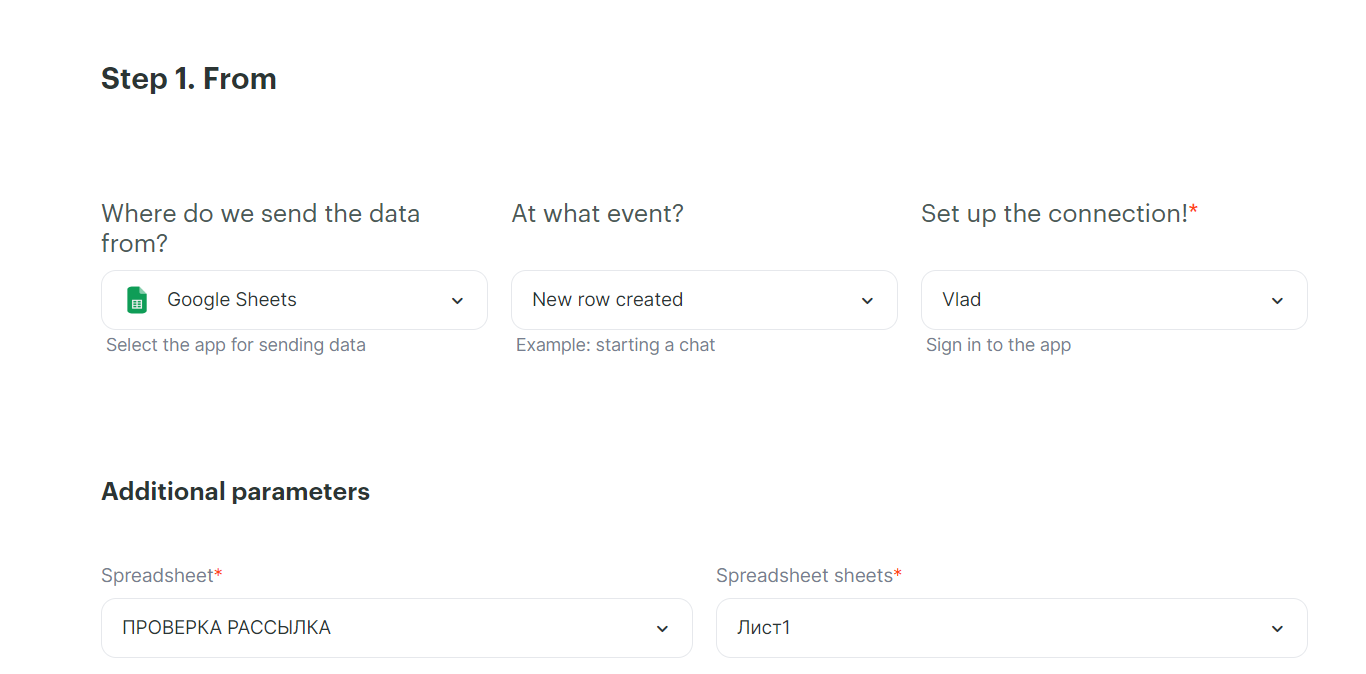
1. Select Google Sheets, Event - New Row Created, select the desired table.
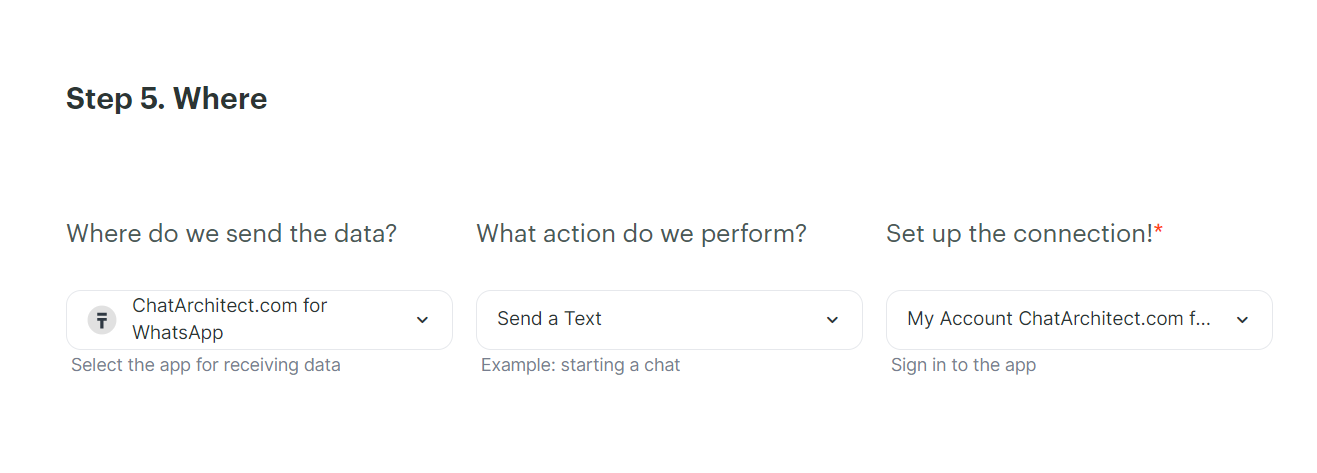
2. Adding our application ChatArchitect.com, Event - Send a Text. Add your ChatArchitect account (you must enter the app id and app secret that you received after connecting)
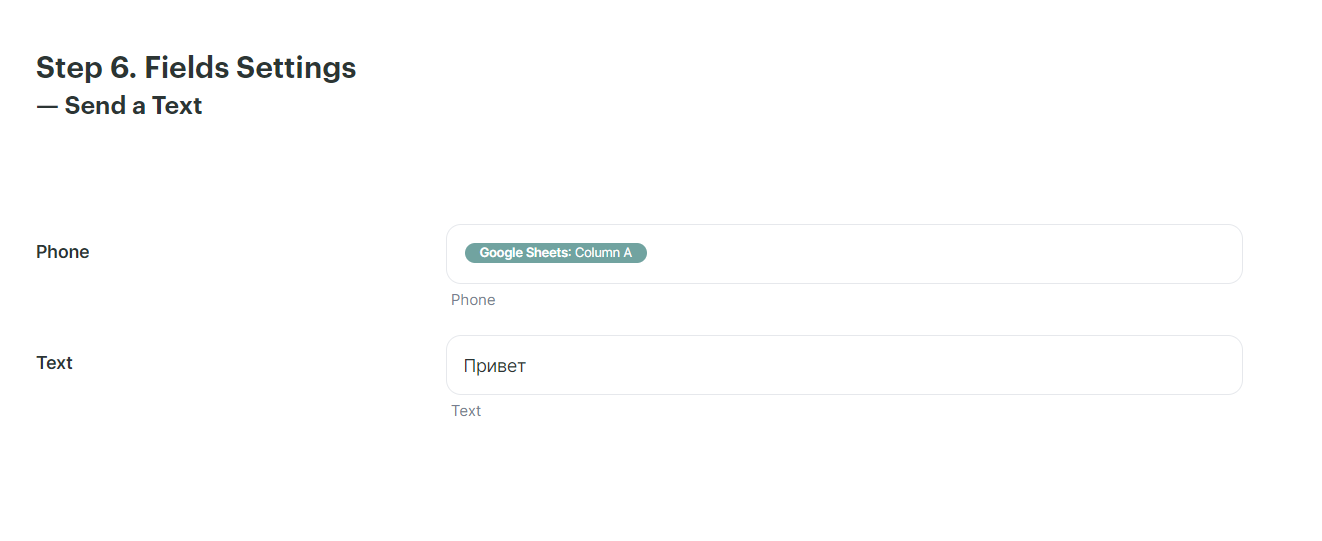
3. Specify from which column the numbers will be pulled up, in the Text field enter the text of a submitted template
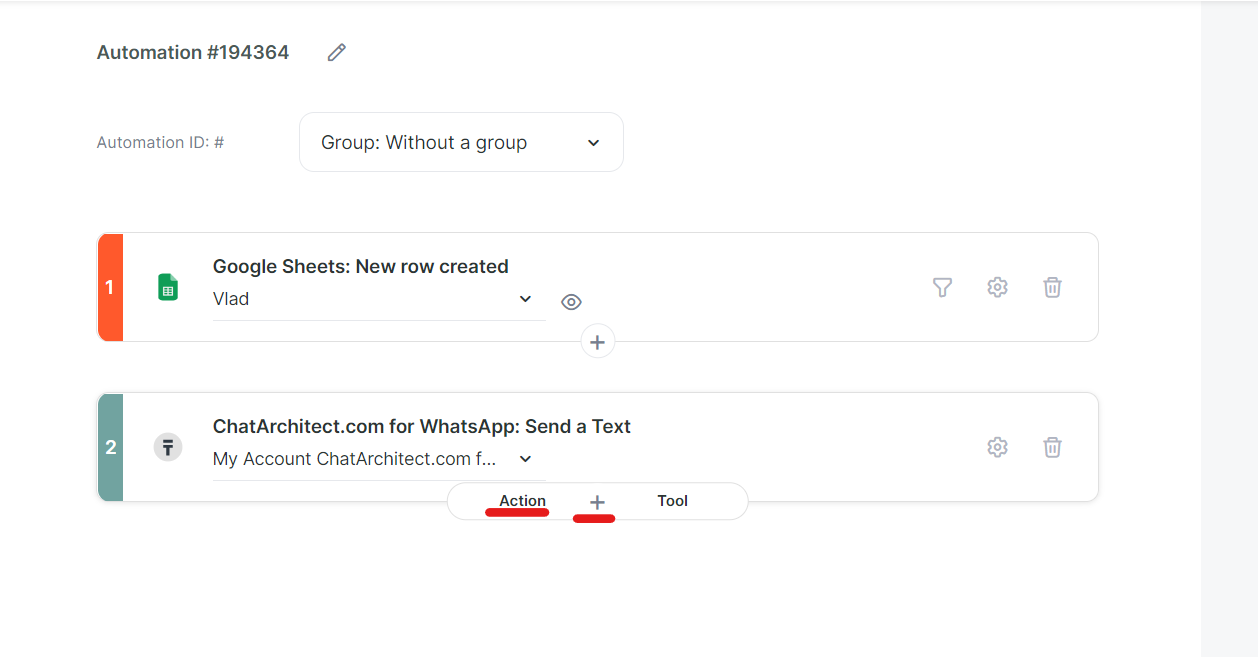
4. After that, click on the "+" and select "Action"
5. Once again select Google Sheets, Action - Update a row by number, then add the same table as in the first case.
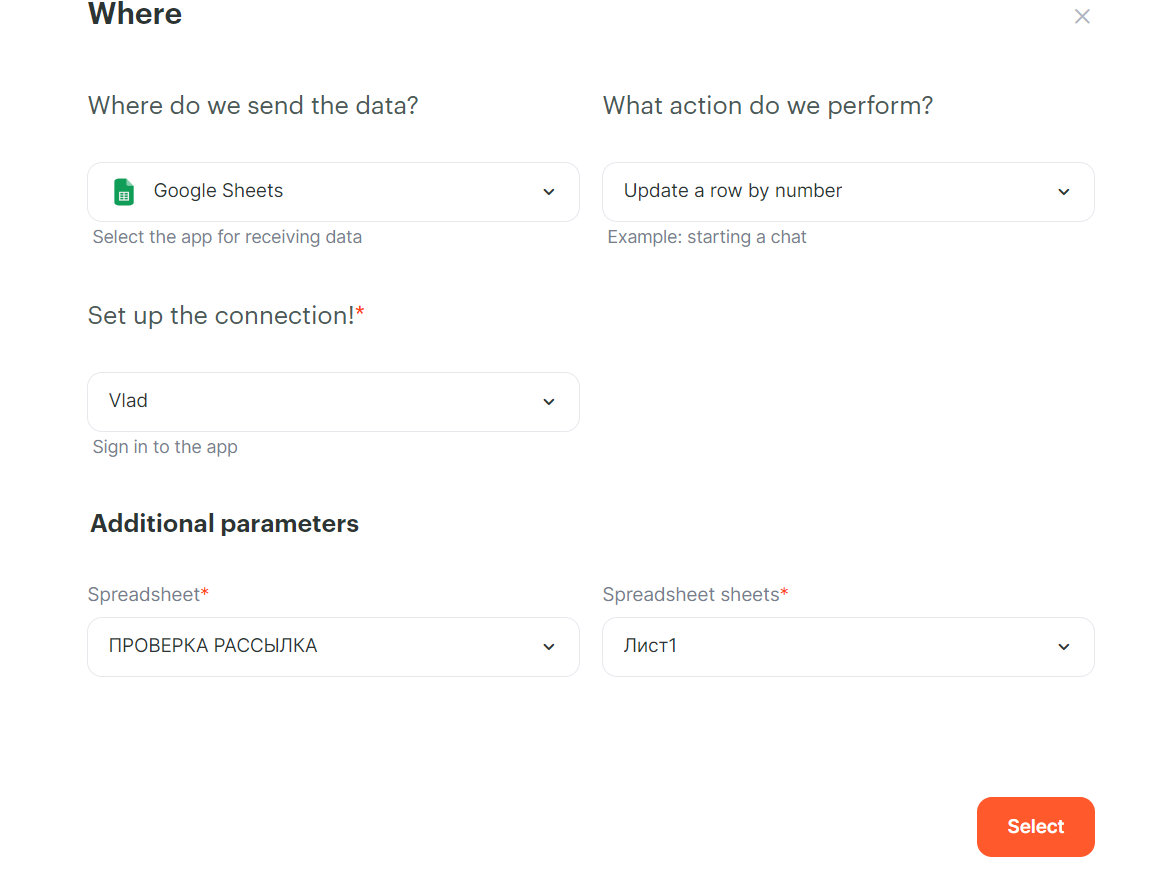
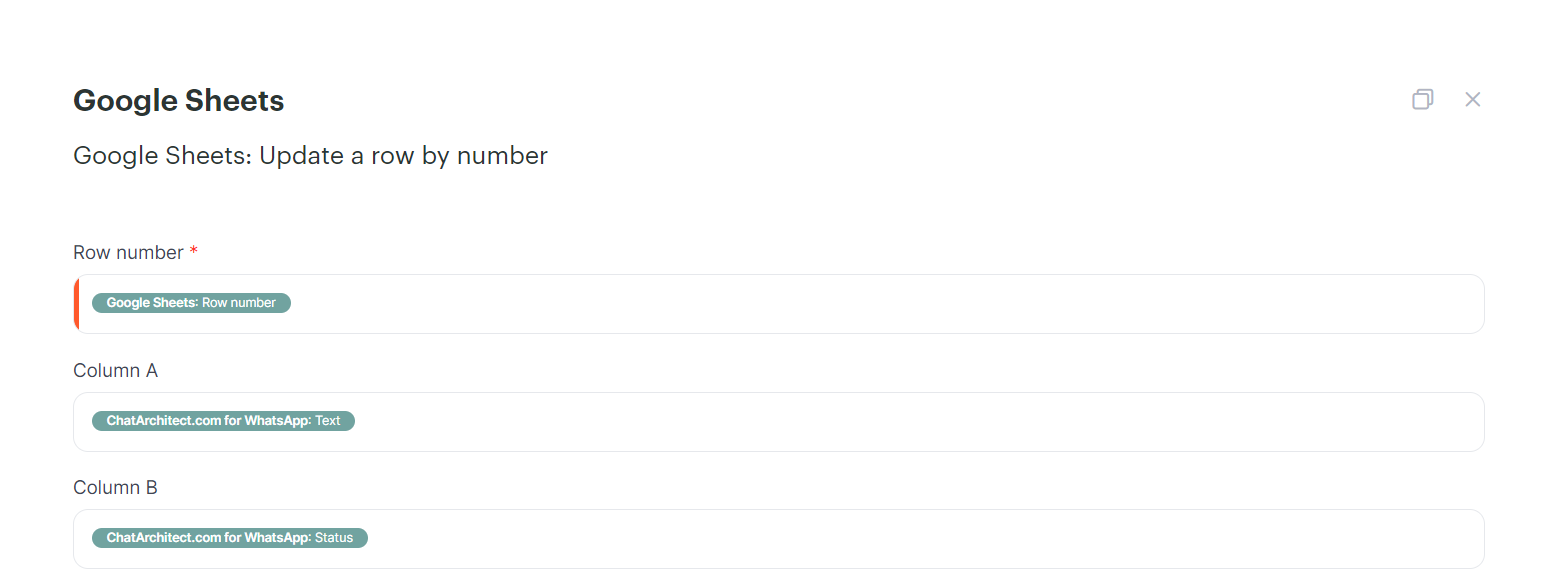
6. Then choose as in the screenshot:
1. Row number - Google Sheets: Row number
2. Column A - ChatArchitect.com for Whatsapp: Text
3. Column B - ChatArchitect.com for WhatsApp: Status
You can change the columns according to what you need.
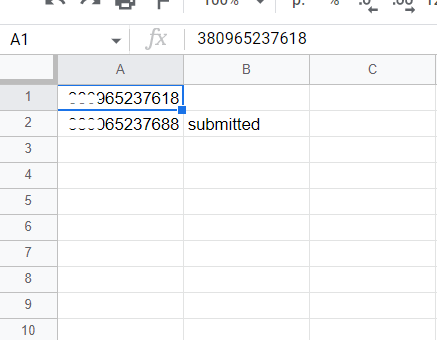
7. After that, launch Albato; after launching, send a test message to your WABA number and check if the table has been updated.
It should look like this:
No comments to display
No comments to display