
Sending messages via Node Red
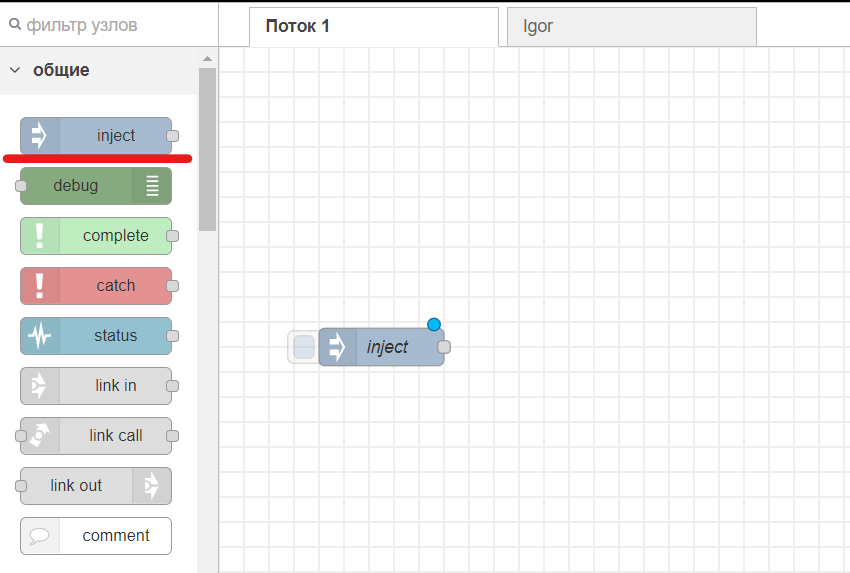
1. First, let's add the inject function
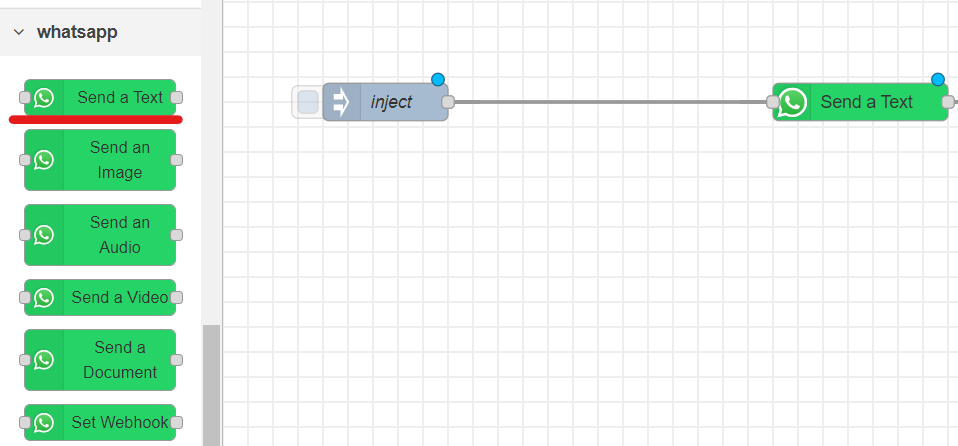
2. Next, in the WhatsApp tab, select the "Send a text" function
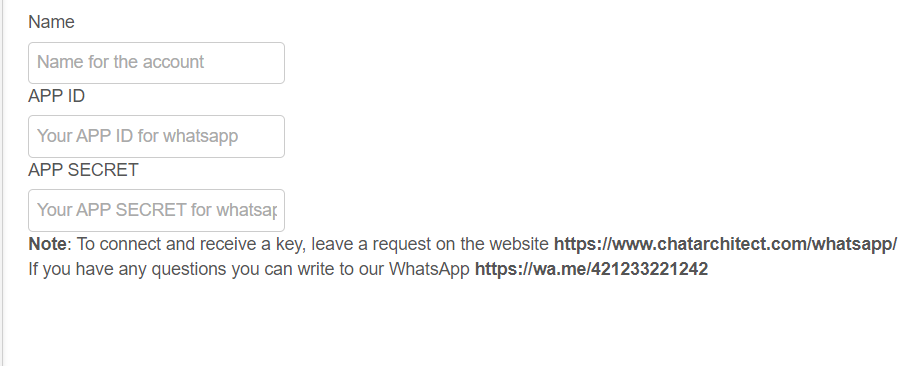
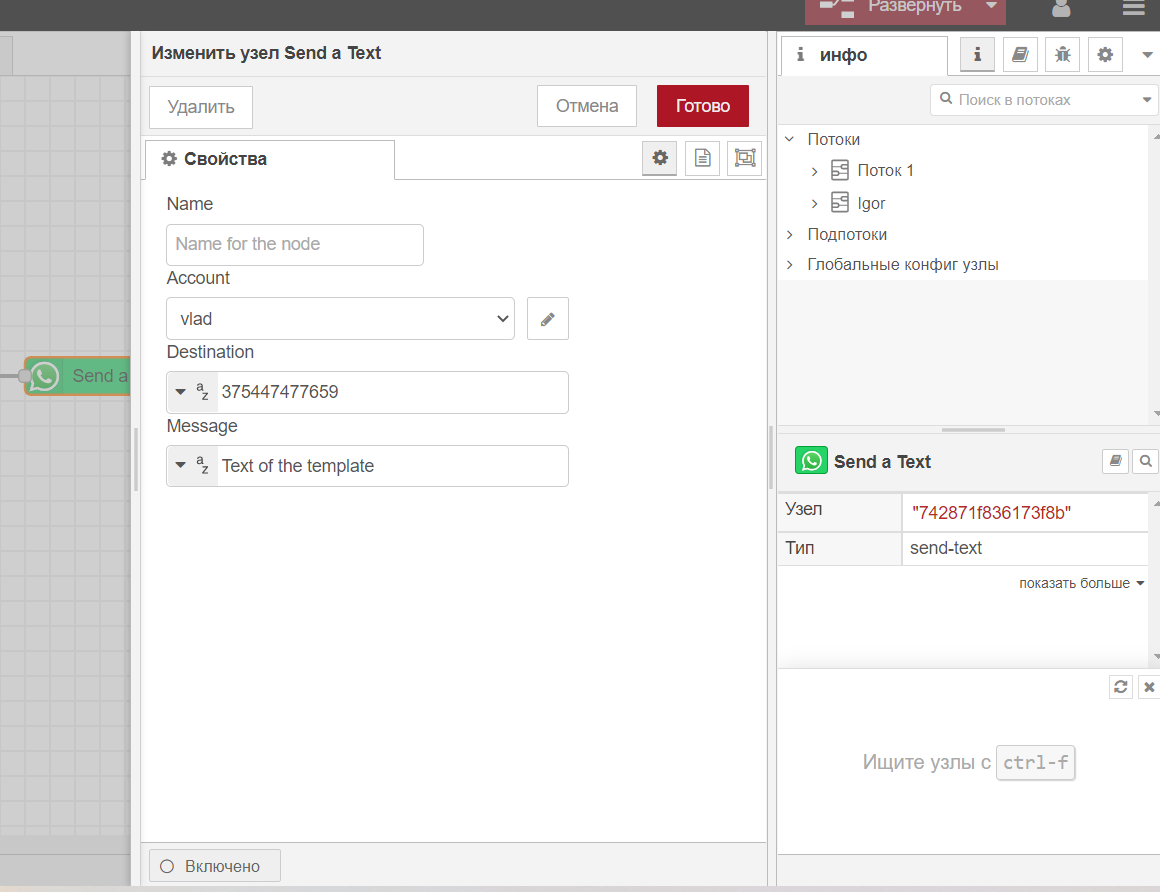
3. After adding a function to the working field, double-click on it. In the account tab, add your account using the keys that we will send you after the connection is completed. In the Destination tab, enter the recipient's phone number, in the "Message" tab - the text of the template message.
4. Next, add the Debug tab
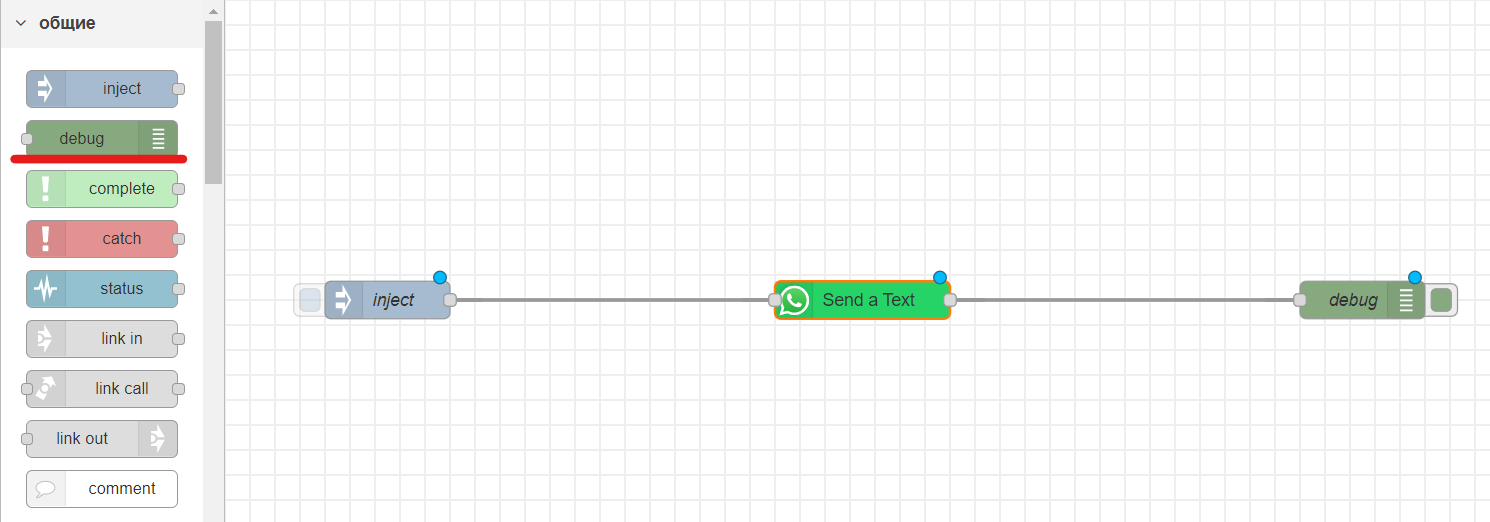
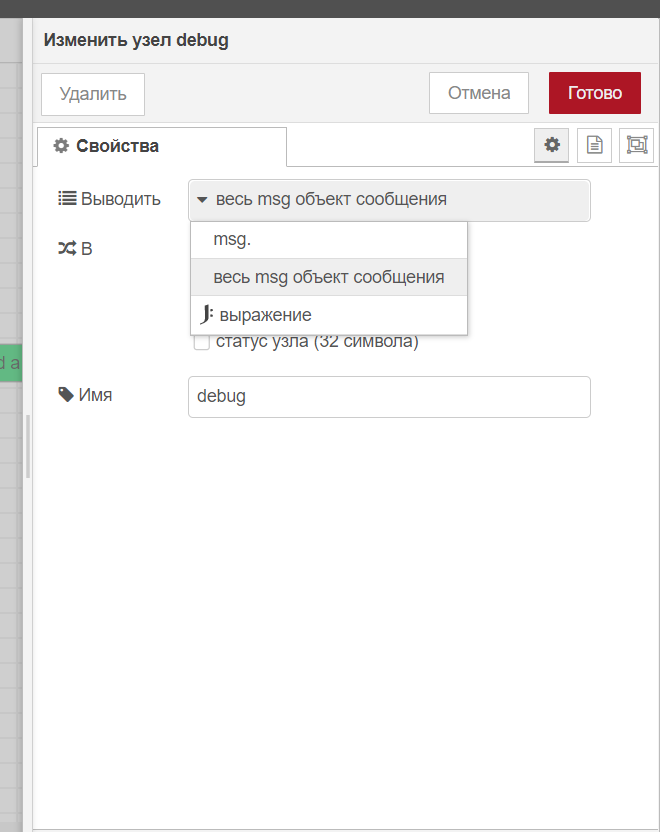
5. After adding it to the working field, double-click on it and set the settings, as in the screenshot
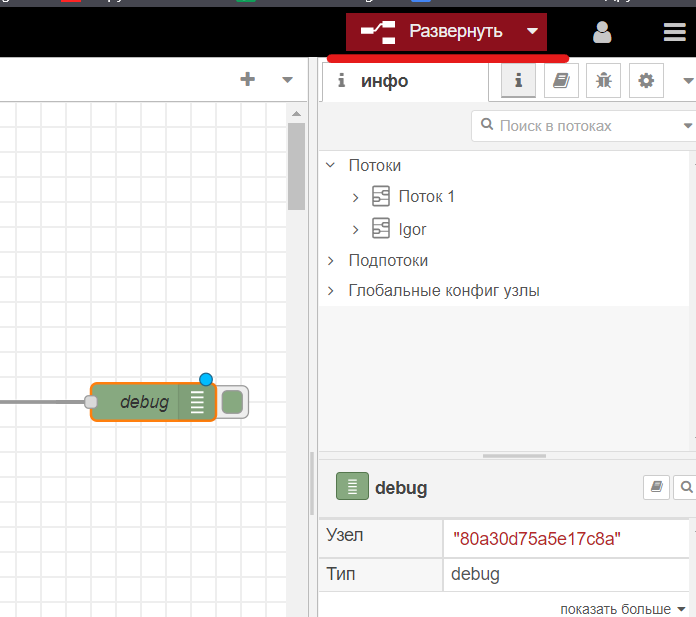
6. Then click "Expand" at the top right.
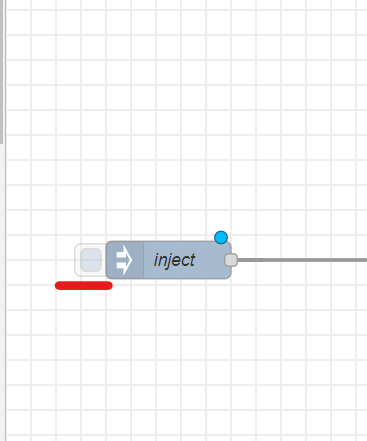
7. To send a message, use the square next to the "Inject" function
No comments to display
No comments to display