
Integration Integromat.com (Make.com) with Google Sheets
In this guide, you will learn how to install our WhatsApp Business API integration in Make and send messages using a database from Google Sheets.
1. After registering with Make, you need to install our app https://www.make.com/en/hq/app-invitation/80e6a64b2b12c4476413627b22551fb7
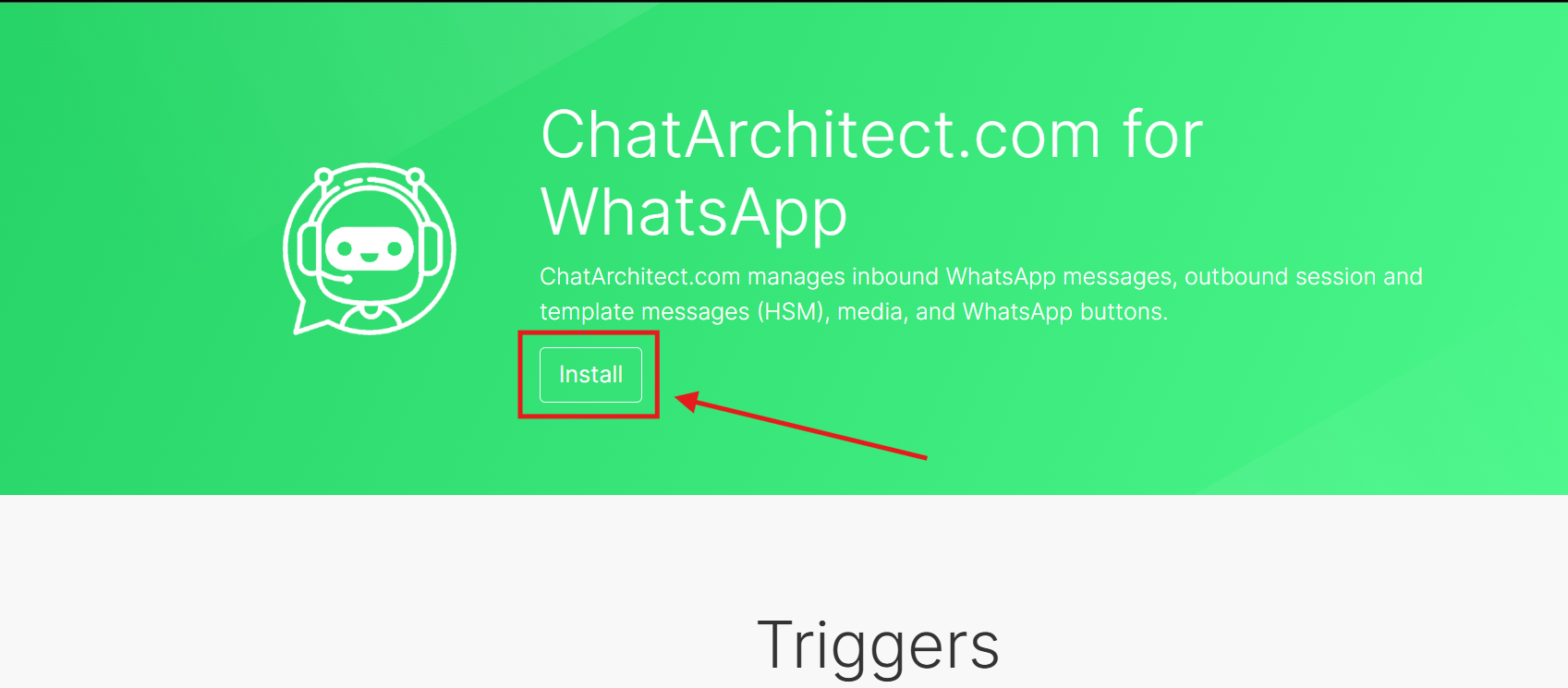
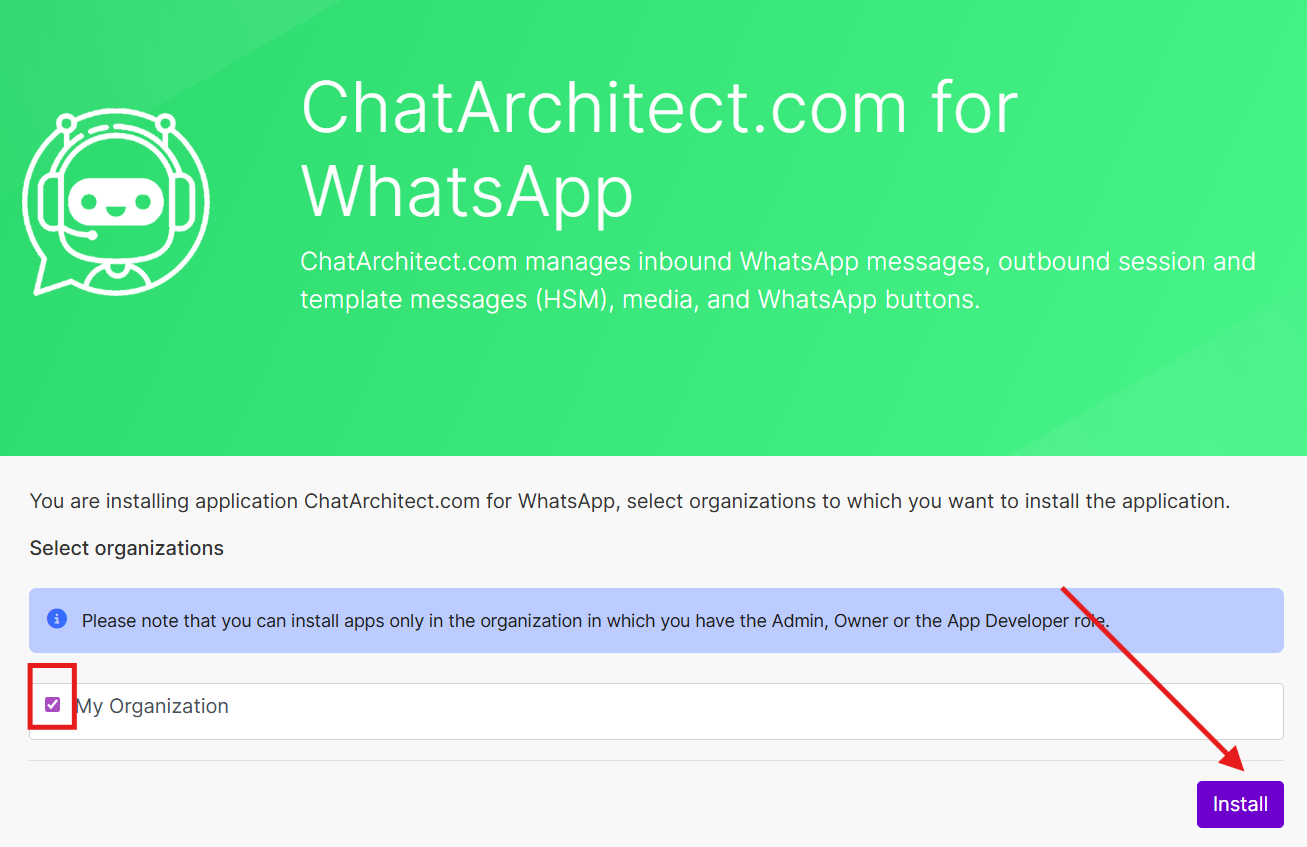
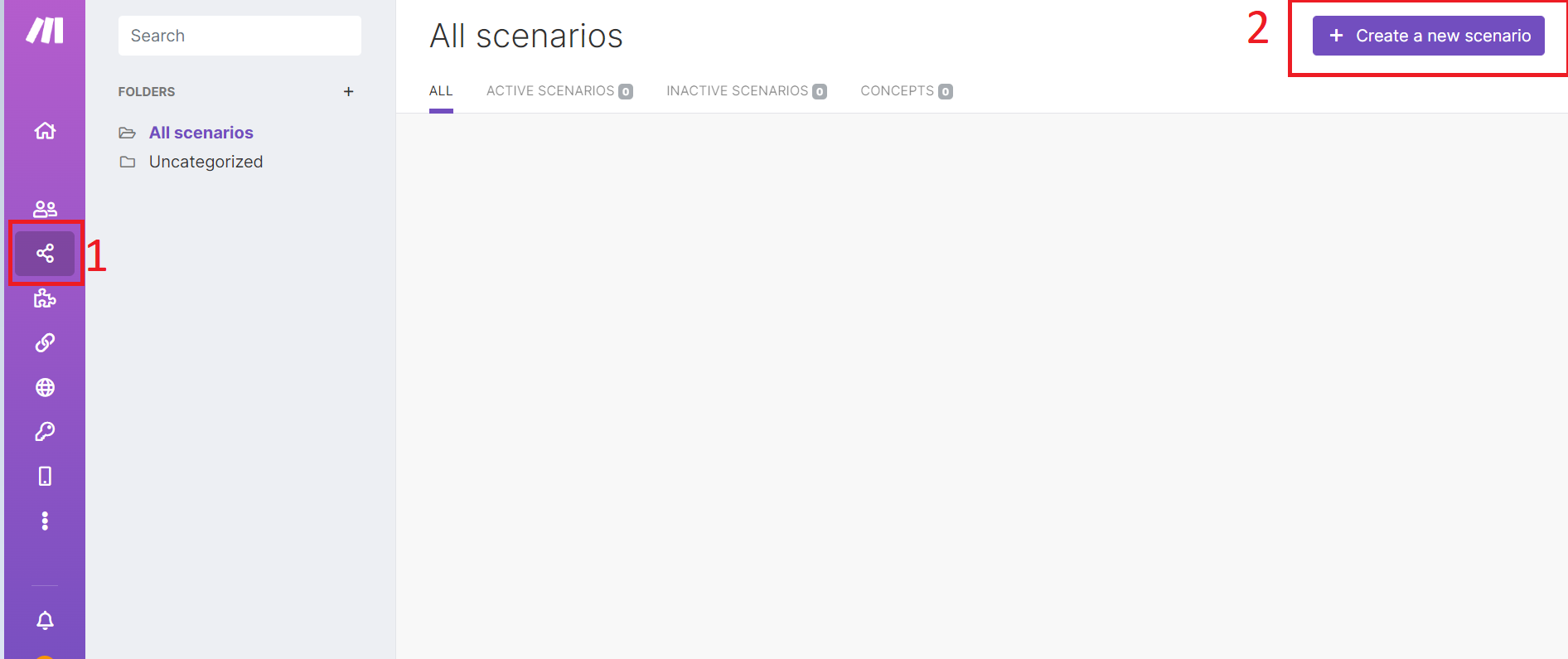
2. Then go to the "Scenarios" tab and click on the "+Create a new scenario" button
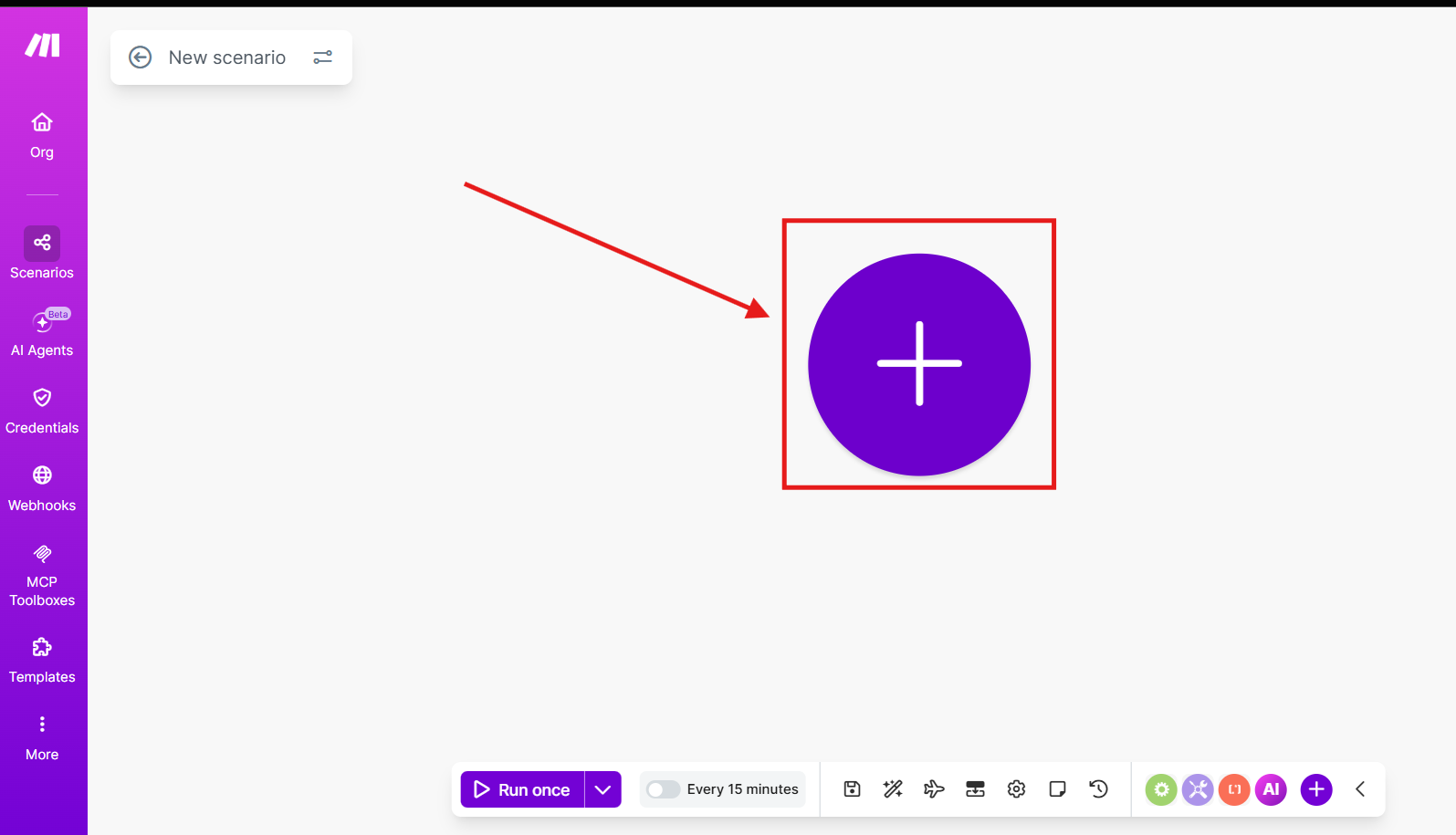
2. Press on this "Plus" button
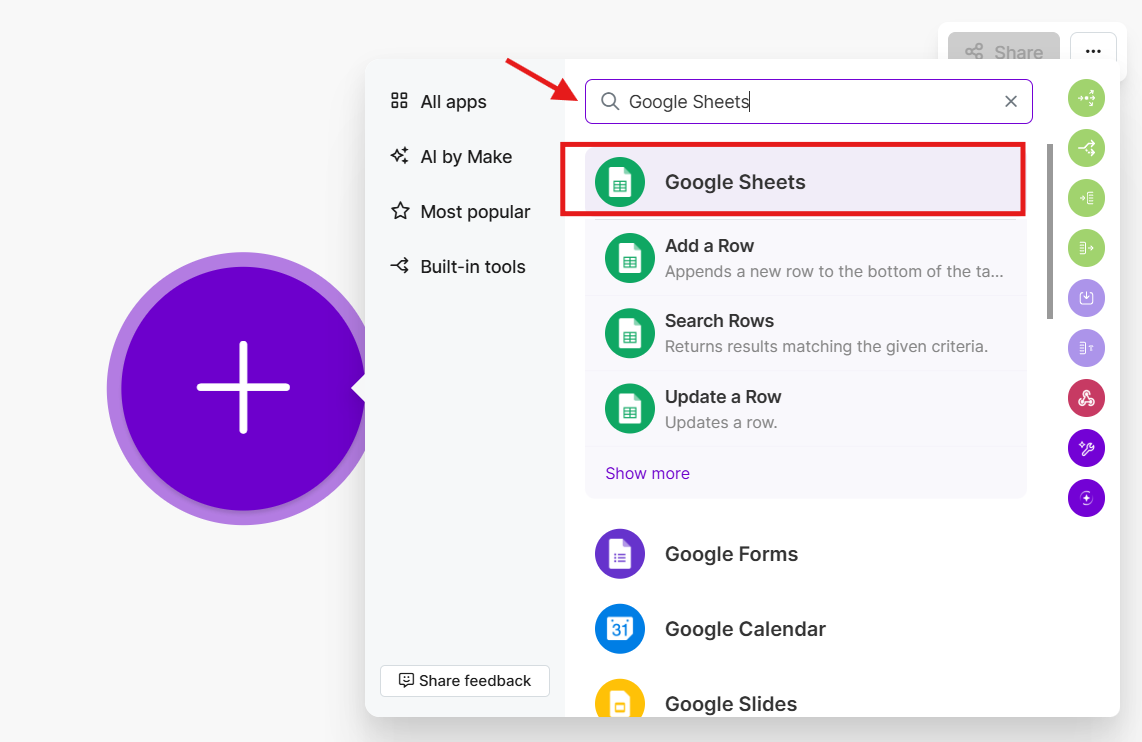
3. Search "Google Sheets"
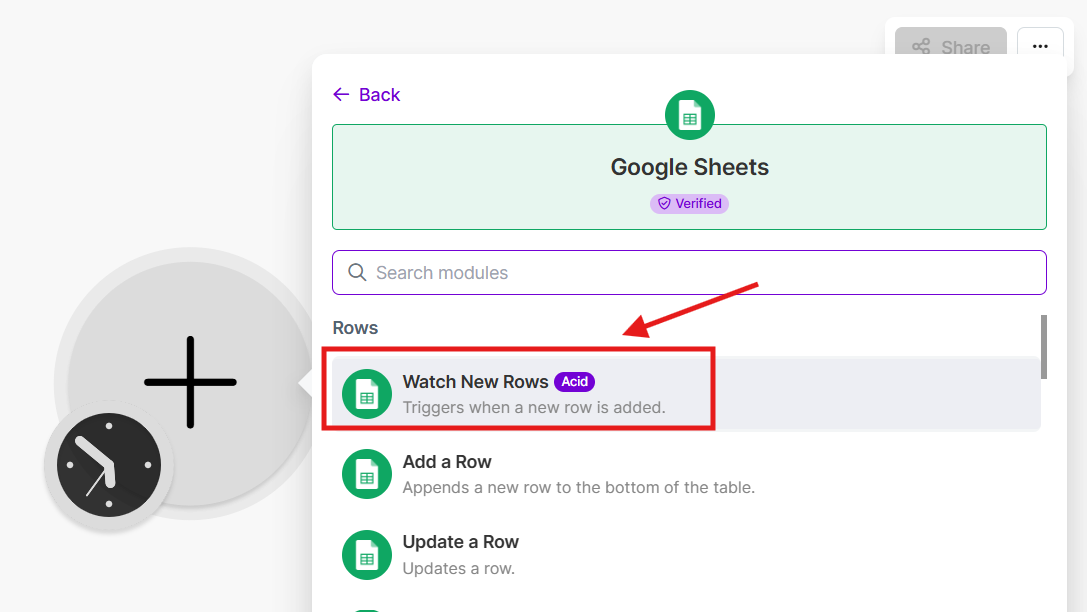
4. Then choose "Google Sheets" and choose trigger "Watch Rows"
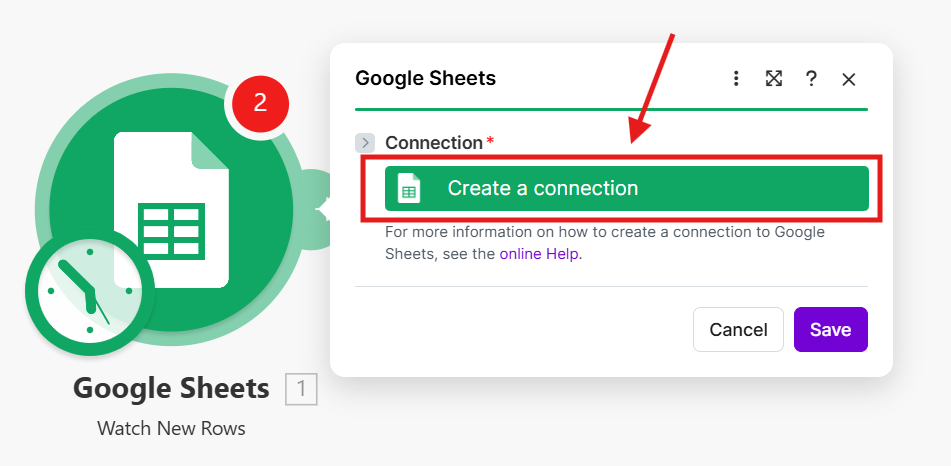
5. Add your Google Account
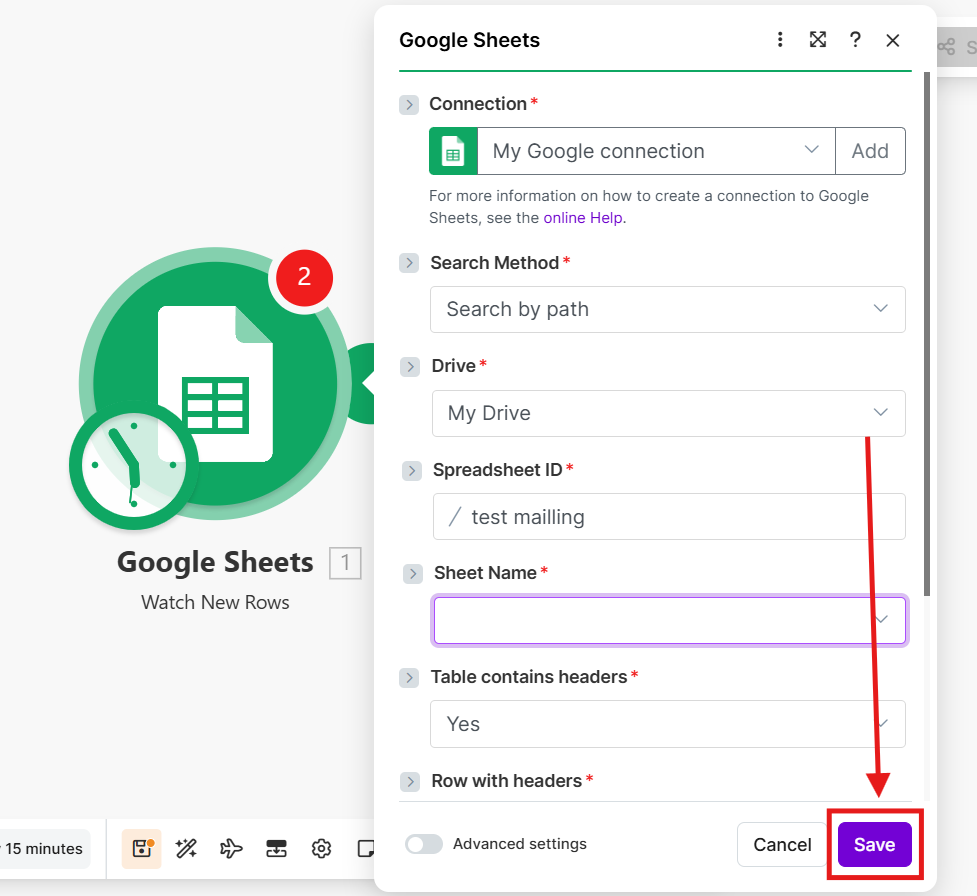
6. Choose "Connection"; "Drive"; "Spreadsheet ID" and "Sheet Name";
After that press "Save" button
7. Then you need to press "Add module" and choose our integration ChatArchitect.com for WhatsApp and choose "Send a Text"
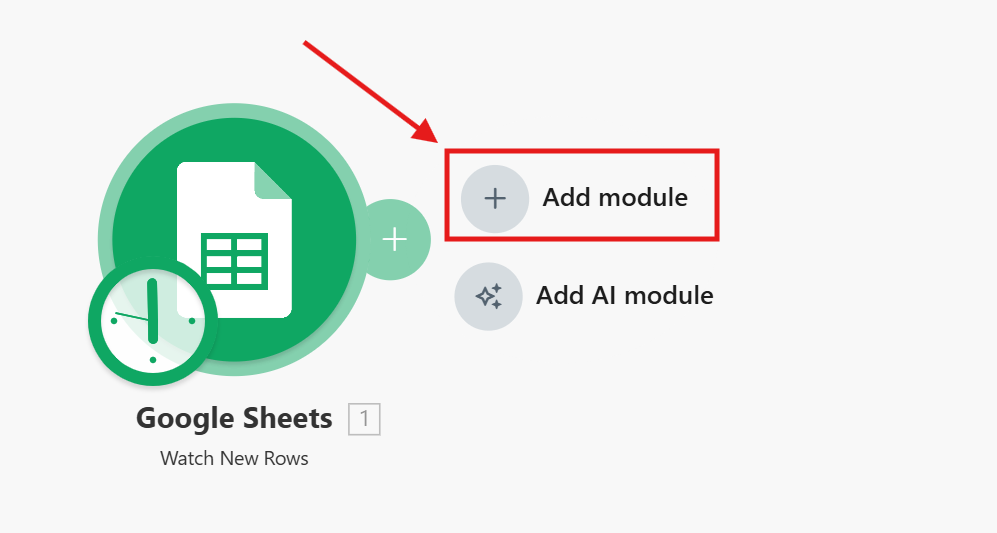
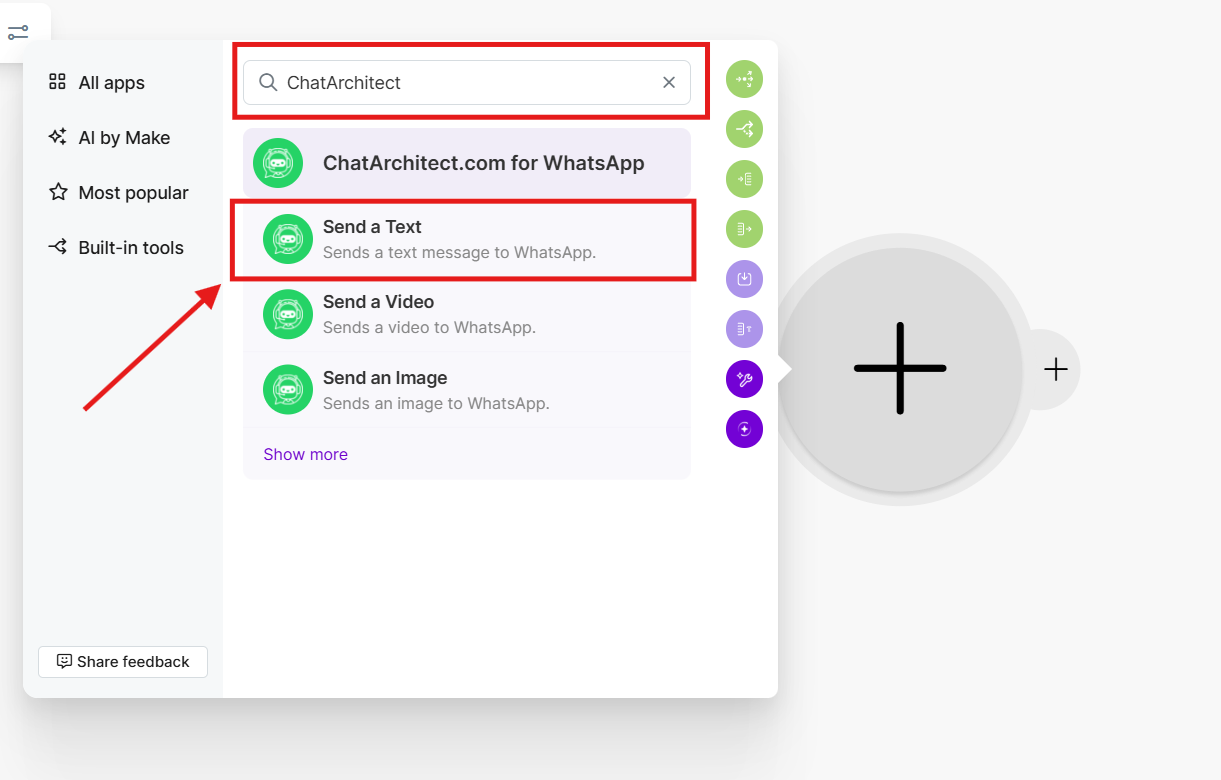
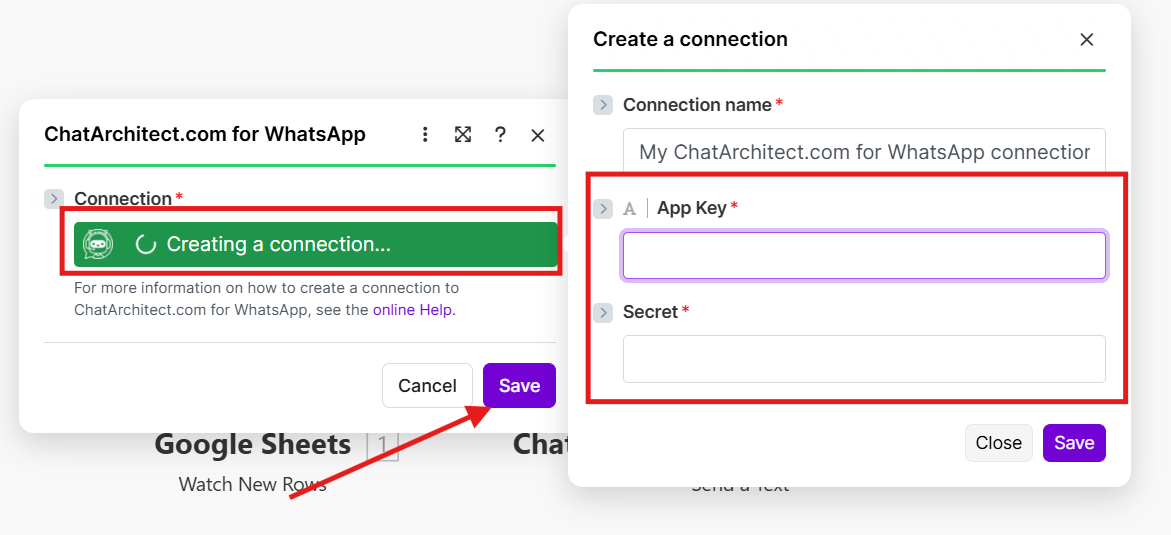
8. Select "Create a connection" -> add your APP ID and APP SECRET;
After that press "Save" button
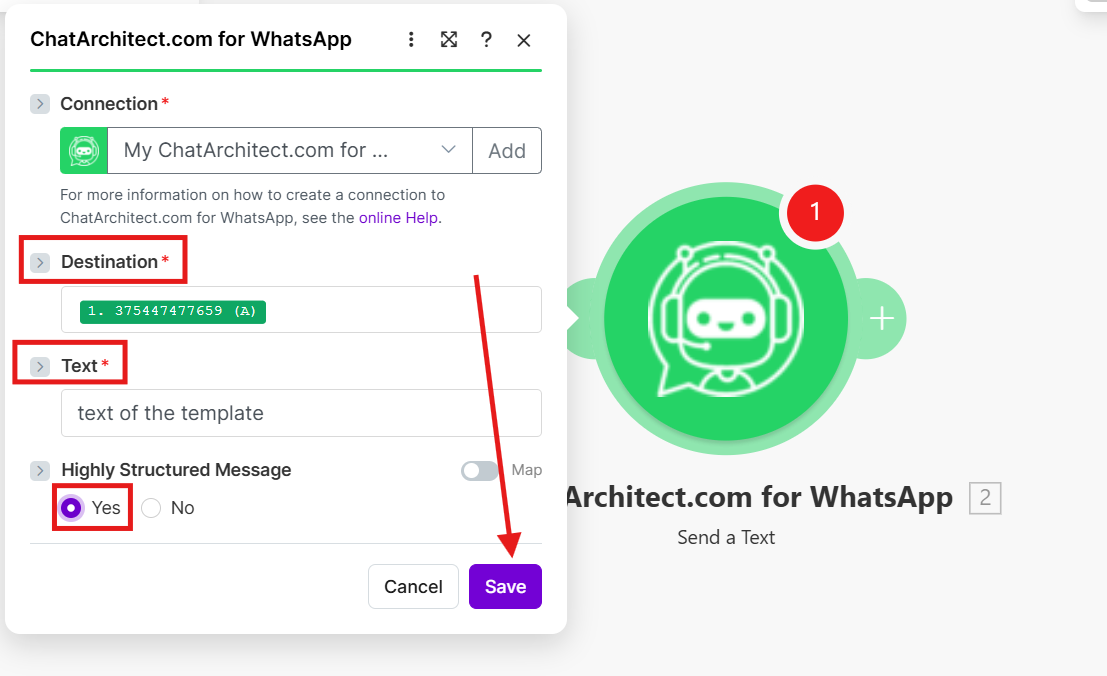
9. Choose destination from your table;
In the text field you need to enter the text of the template that you want to send;
Highly Structured Message: Yes
and press "Save" button
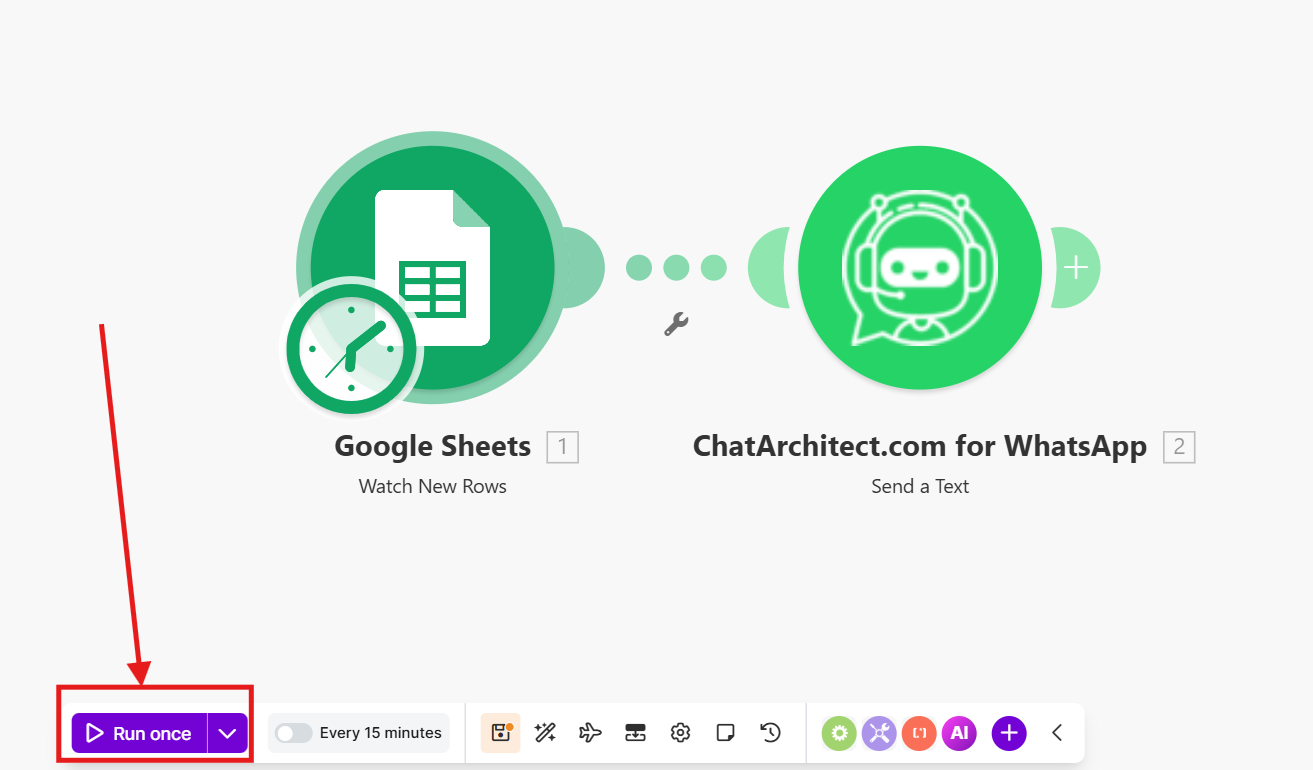
10. Test your connection by using "Run once" button
11. If the message was successfully delivered to your test numbers, you can include "Scheduling" and add numbers to the table (It is important to add numbers for mailing after activating "Scheduling", because Make works to add rows to the table)
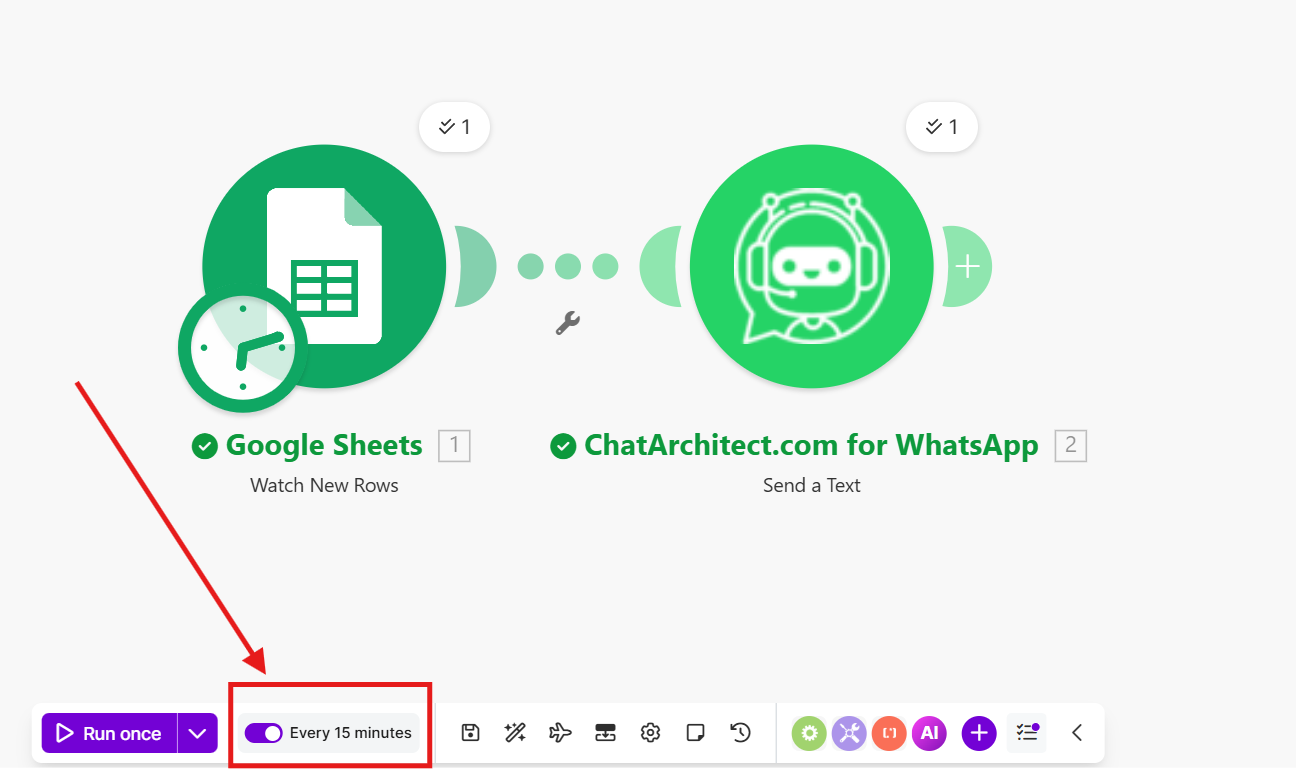
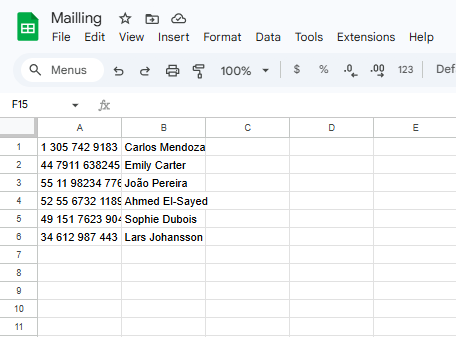
To be noted: Make will work on new numbers within 15 minutes❗️
No comments to display
No comments to display