
WhatsApp Business API + Facebook Business Manager Checklist
🏢 1. Prepare Your Business
Before starting, your company must be officially registered and properly documented.

Make sure you have:
- A registered legal entity (LLC, Ltd., etc.)
- A valid registration number (EIN, VAT, OGRN, etc.)
- A consistent official company name used across all platforms
Consistency is critical — even small mismatches can lead to verification failure.
🌐 2. Create a Website
A website is a key trust signal for Meta and is strongly recommended (often required in practice).


At minimum, your website should include:
- A clear description of your business
- Contact details (email, phone number)
- A footer with:
- Legal company name
- Registration number
- Business address
Even a simple one-page landing page is sufficient if it looks professional and complete.
⚙️ 3. Set Up Facebook Business Manager
Next, create and configure your Business Manager account under Meta.


You must fully complete:
- Legal company name
- Registered address
- Phone number
- Website
Incomplete or inaccurate information is one of the most common reasons for rejection.
📄 4. Verify Your Business
Business verification is a required step to access WhatsApp Business API.


Prepare the following documents:
- Business registration certificate
- Tax ID (if applicable)
- Proof of address (utility bill, bank statement, or lease agreement)
Requirements:
- Documents must be clear and readable
- Information must match your Business Manager exactly
- Some documents must be issued within the last 3–6 months
🔐 5. Verify Your Domain (Recommended)
While not always mandatory, domain verification significantly improves your chances of approval.


Steps:
- Add your domain in Business Manager
- Verify it via DNS, HTML file upload, or meta tag
This step increases trust and strengthens your business profile.
📱 6. Prepare a Phone Number
You’ll need a dedicated phone number to connect to WhatsApp Business API.
Requirements:
- Not actively used in a regular WhatsApp account (or ready for migration)
- Able to receive SMS or voice calls
- Dedicated for business communication
🔌 7. Connect WhatsApp Business API
You will:
- Connect your phone number
- Complete SMS or voice verification
- Link your number to your Business Manager account
💬 8. Set Up Messaging and Automation
After connection, you can configure how you communicate with customers.
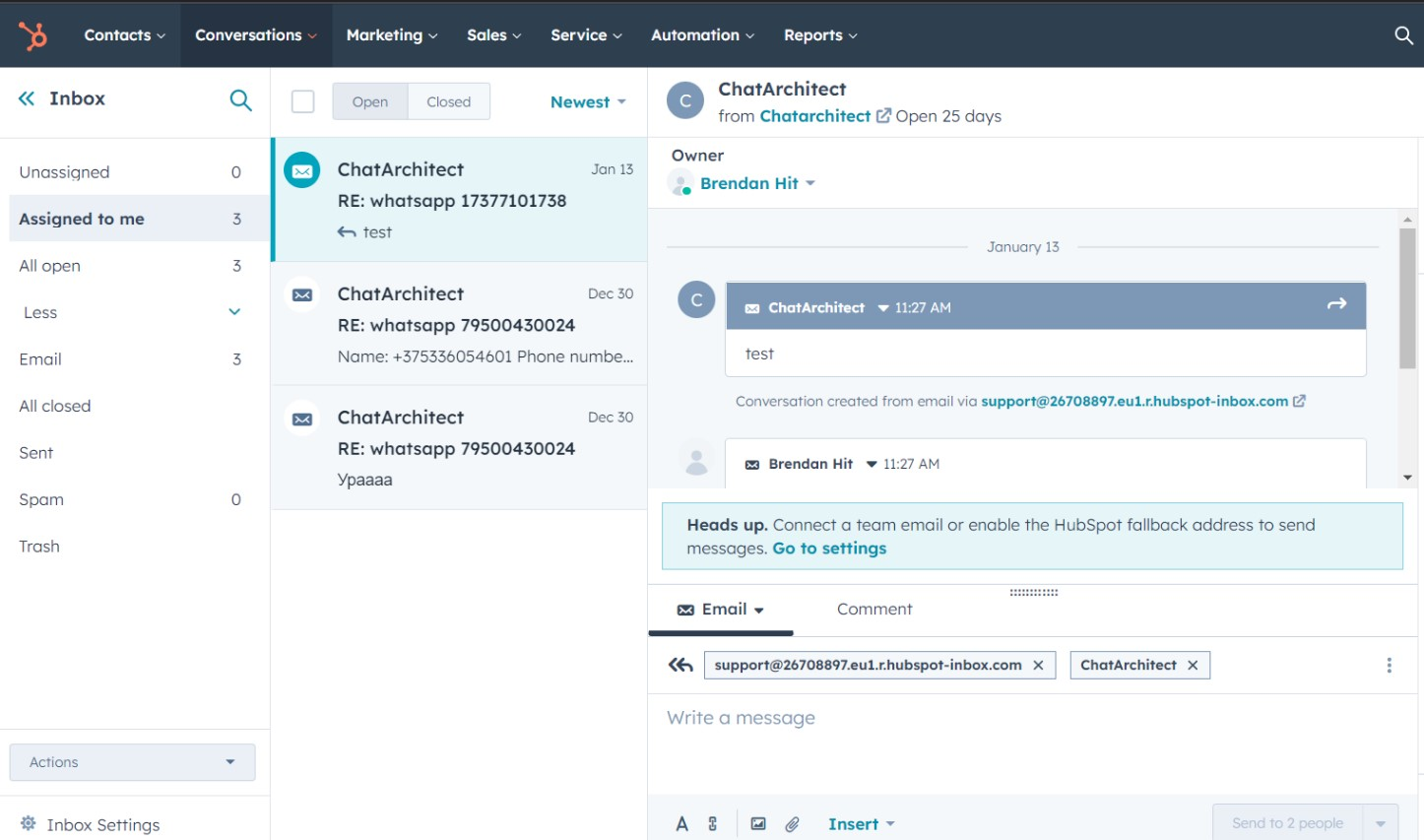
Set up:
- Message templates (required for outbound messages)
- CRM or messaging inbox
- Auto-replies or chatbots (optional)
This is where you unlock the full power of WhatsApp automation.
⚠️ Final Checklist Before Submission
Before starting verification, double-check everything:
- All company data matches across documents and Business Manager
- Website is live and complete
- Documents are high quality and up to date
- Business Manager profile is fully
- Phone number is ready for connection
🚀 Final Result
Once everything is properly set up, you’ll be able to:
- Send and receive messages via WhatsApp API
- Automate customer communication
- Integrate WhatsApp with your CRM (Kommo, HubSpot, etc.)
💡 Conclusion
Connecting WhatsApp Business API is not complicated — but it requires attention to detail. Most issues arise from inconsistencies, missing information, or weak business presence.
By following this checklist step by step, you can complete the setup quickly and avoid unnecessary delays.
No comments to display
No comments to display