
Obtain User Call Permissions | Developer Documentation
Obtain User Call Permissions
Updated: Nov 13, 2025
As of November 3, 2025, permanent permissions is now available. Users can now grant a business ongoing permission to call. Users can review and change calling permission for a business at any time in the business profile.
Call permission related features are available only in regions where business initiated calling is available.
Overview
If you want to place a call to a WhatsApp user, your business must receive user permission first. When a WhatsApp user grants call permissions, they can be either temporary or permanent.
Business does not have control over this permission as it is only granted by the user and can only be revoked by the user, at any time. Permanent permission data will be stored until it is revoked.
You can obtain calling permission from a WhatsApp user in any of the following ways:
Send a call permission request to the user — Send a free-form or templated message requesting calling permission from the user. User has the option to choose between temporary or permanent.Callback permission is provided by the WhatsApp user — The WhatsApp user automatically provides temporary call permissions by placing a call to the business. The callback setting must be enabled on the business phone number.WhatsApp user provides call permission via Business Profile — The WhatsApp user provides call permissions to the business through their business profile.
Limits (Per business + WhatsApp user pair)
These limits are in place to protect WhatsApp users from unwanted calls.
When you test your WhatsApp Calling integration using public test numbers (PTNs) and sandbox accounts, Calling API restrictions are relaxed.
Call permission request basics
You may proactively request a calling permission from a WhatsApp user by sending a permission request message, either as a:
Free form interactive messageTemplate message
The WhatsApp user may approve (temporary or permanent), decline, or simply not respond to a call permission request.
With permissions, the WhatsApp user is in control. Even if the user provides calling permission, they can revoke that granted permission request at any time. Conversely, if the user declines a permission request, they can still grant calling permission, up until the permission request expires.
A call permission request expires when any of the following occurs:
The WhatsApp user interacts with a subsequent new call permission request from the business7 days after the permission was accepted or declined by the consumer7 days after the permission was delivered if the consumer does not respond to the request
To ensure an optimal user experience around business initiated calling, the following limits are enforced:
When sending a calling permission request message Maximum of 1 permission request in 24hMaximum 2 permission requests within 7 days. These limits reset when any connected call (business-initiated/user-initiated) is made between the business and WhatsApp user.These limits apply toward permissions requests sent either as free form or template messages.When business-initiated calls go unanswered or are rejected 2 consecutive unanswered calls result in a system message to reconsider an approved permission4 consecutive unanswered calls result in an approved permission being automatically revoked. The user may again update this if they so choose.
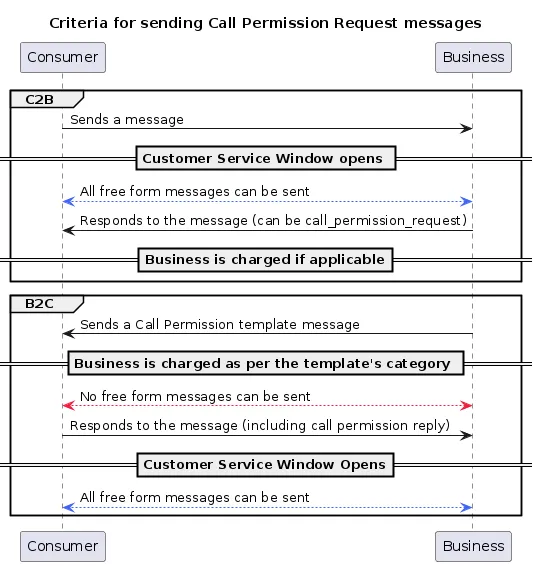
Free form vs template call permission request message
Call permission request messages are subject to messaging charges
A call permission request message can be sent to users in one of the following ways:
Send a free form message
When you are within a customer service window with a WhatsApp user, you can send a free form message with a call permission request.Although a text body will be optional, you should send one to build context with the user. In the case of free form calling permission request messages, header and footer sections are not supported.Since the customer service window is open, there is no need to create a conversation window.
Create and send a template message
Sending a template message allows you to initiate a user conversation with a call permission request.Context (that is, a text body) is required when sending a template message with a call permission request.With template messages, you can further customize your permission request by adding a message header and footer.
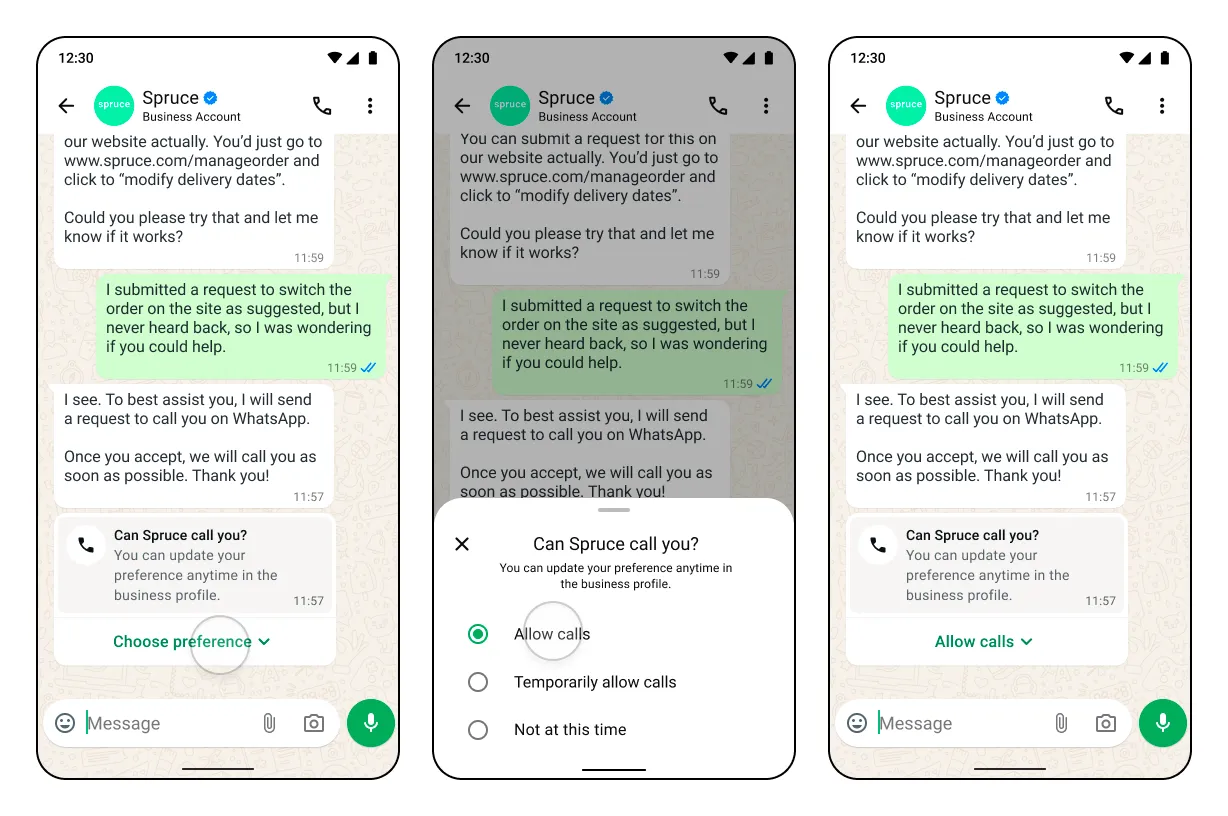
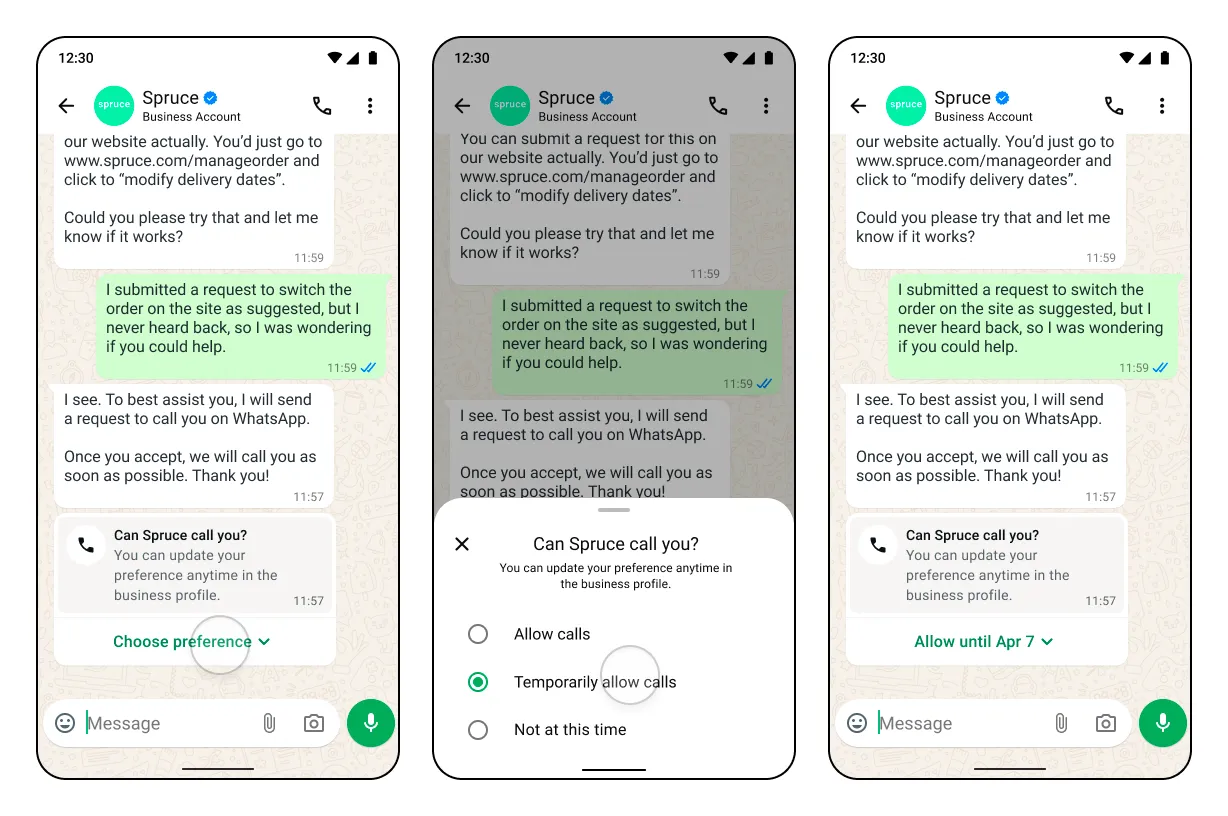
Client application UI experience
Call permission request flow and sample messages
Allow calls
Temporarily allow calls
Template message
With header, footer and body 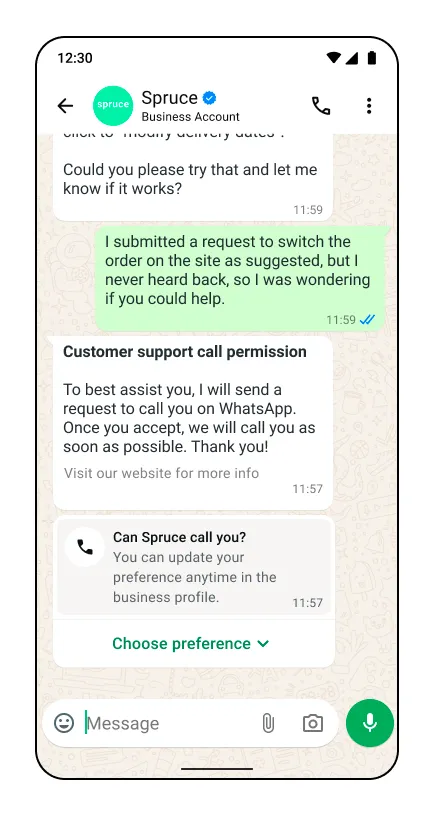
With body only 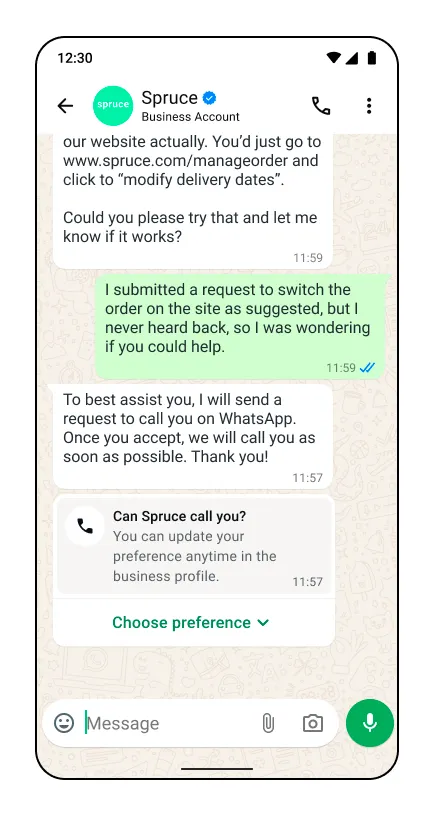
With no text body 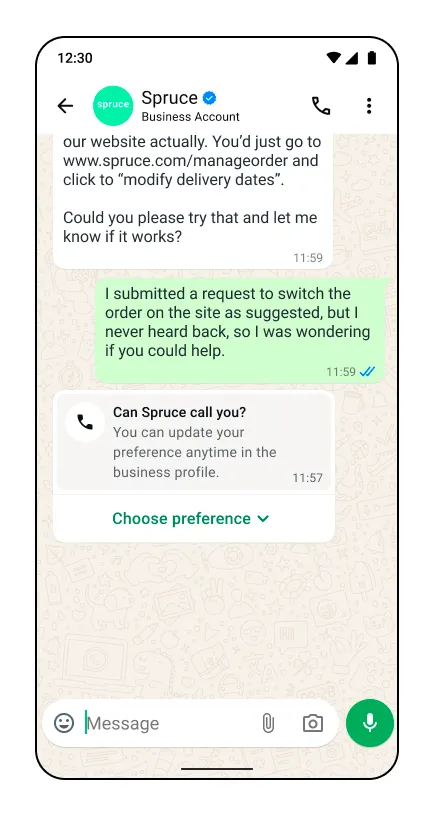
Free form message types
With no text body 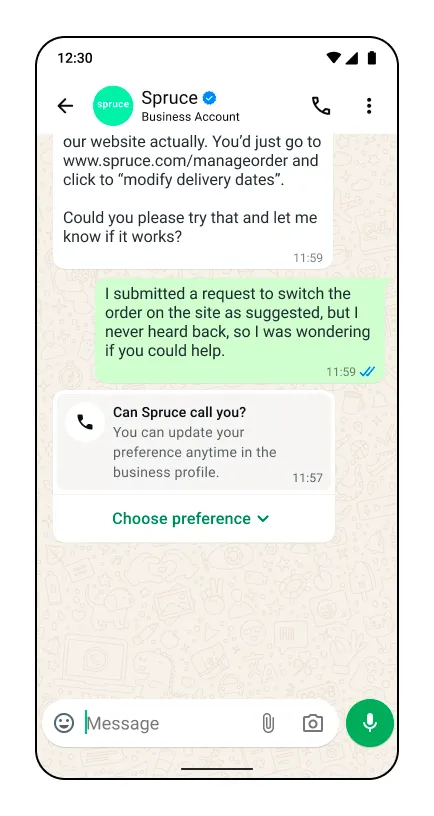
With text body only 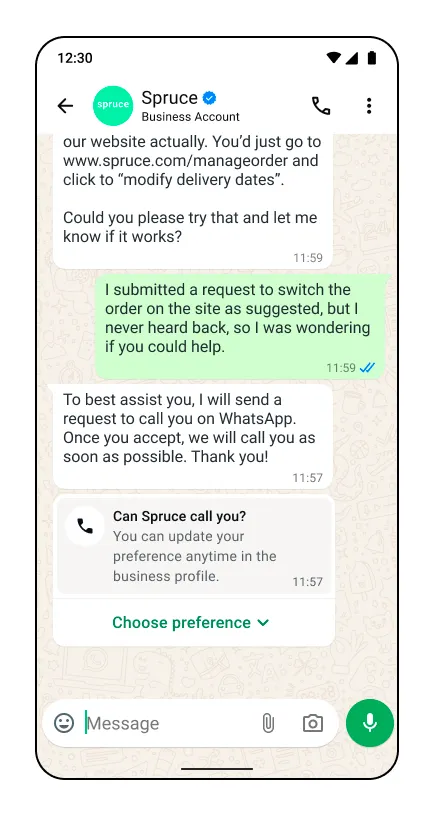
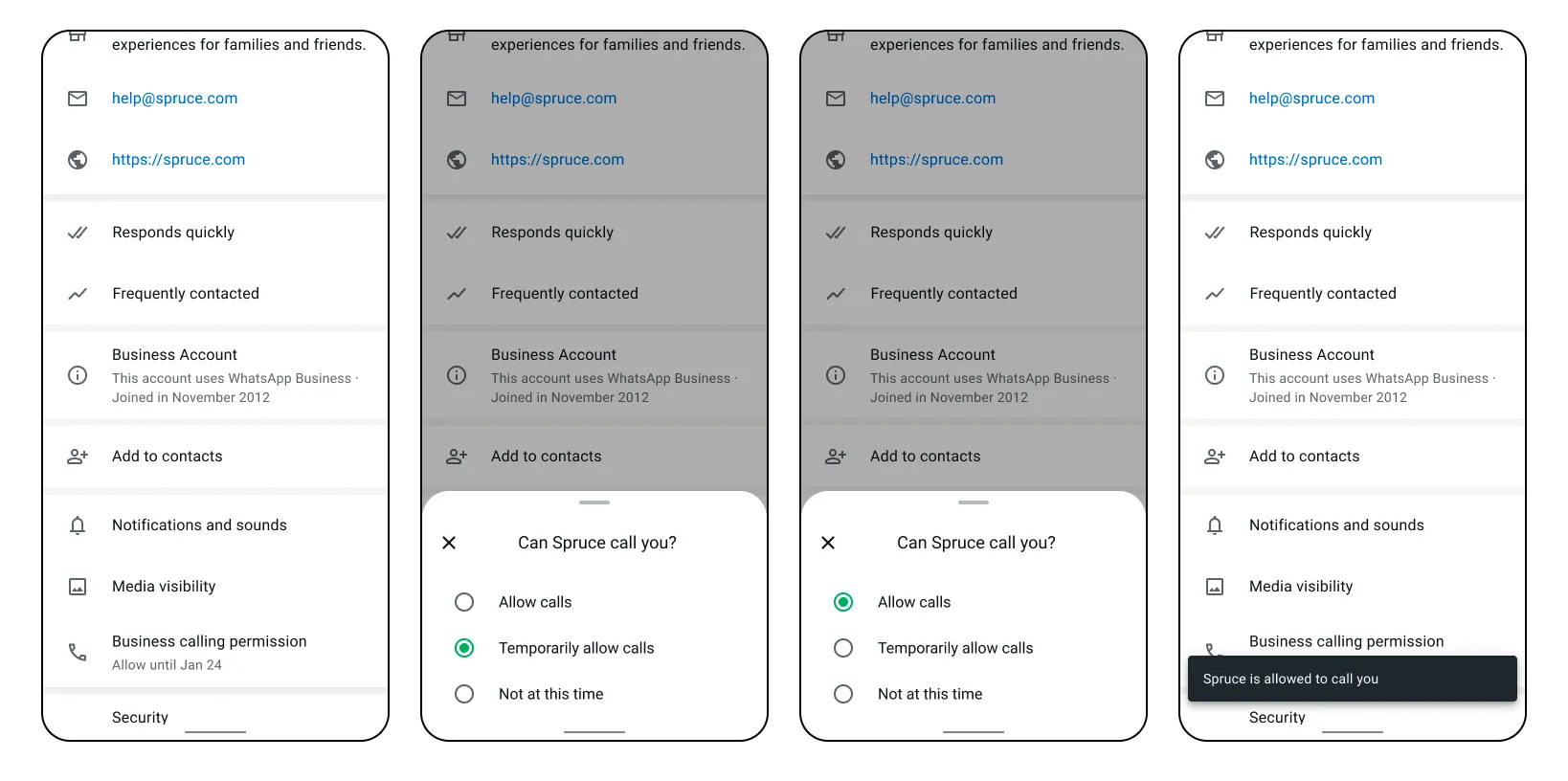
Updating call permission on business profile
Users always have the option to change the permission using a new option on the business profile.
| Update call permission on business profile |
|---|
 |
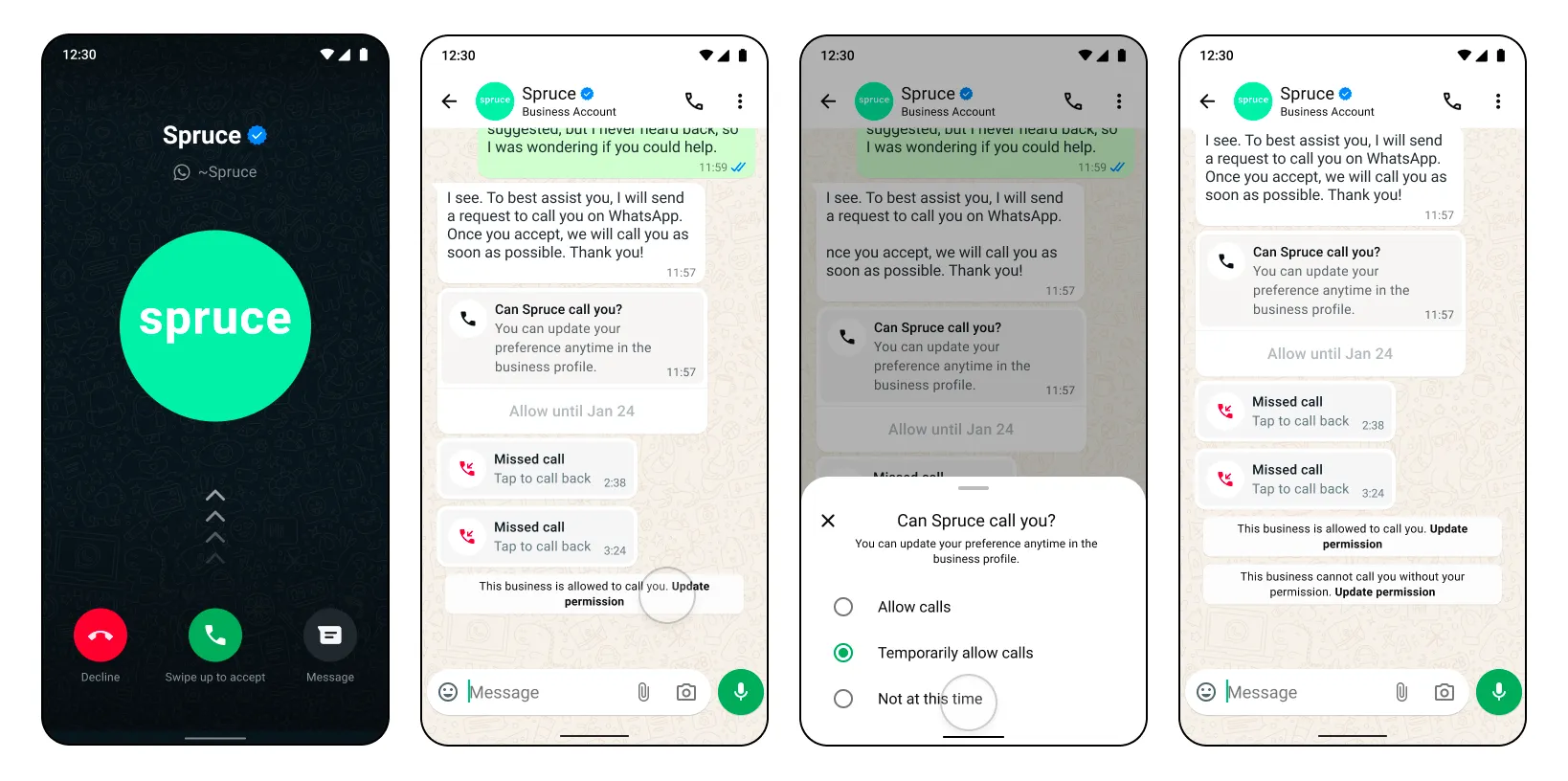
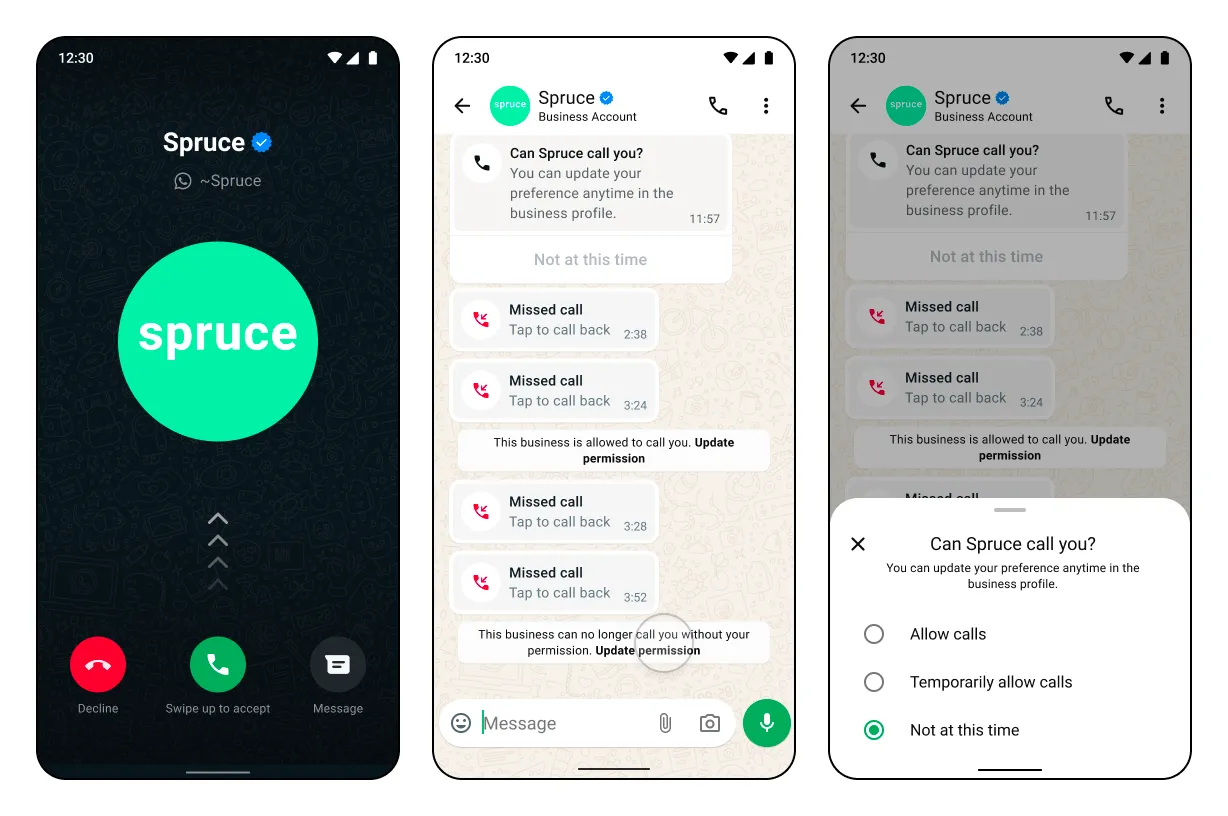
Consecutive unanswered calls
| Consecutive unanswered calls |
|---|
|
2 consecutive unanswered calls — System message for user to update permission
 |
|
4 consecutive unanswered calls — Permissions automatically revoked
 |
Call permission request expiration scenarios
Permission request expires after 7 days — User interacts with request 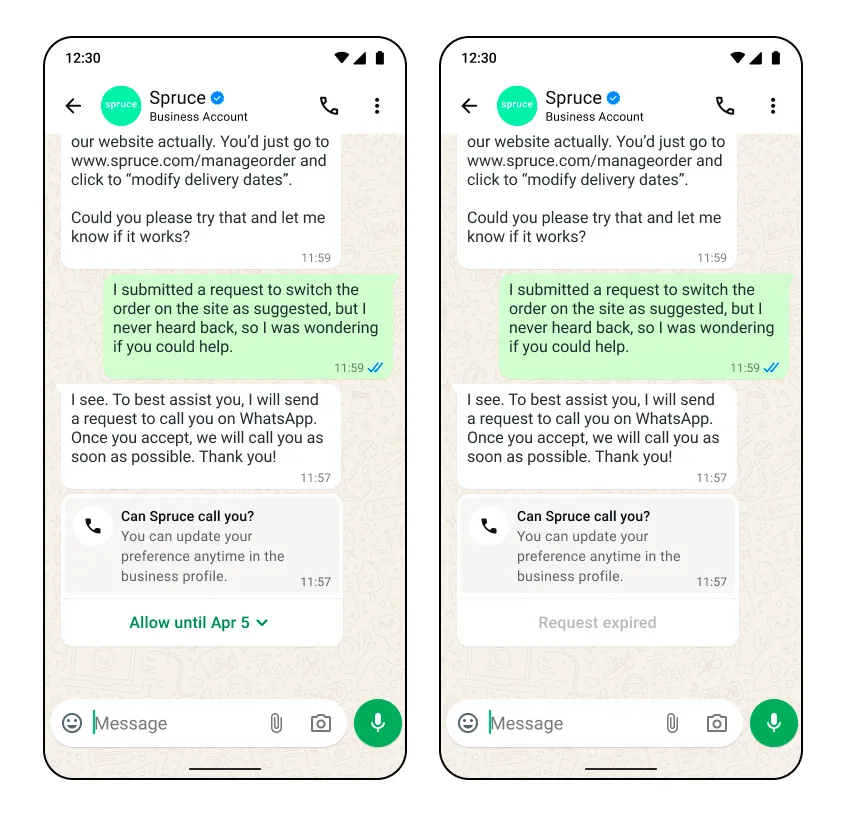
Permission request expires after 7 days — User does not interact 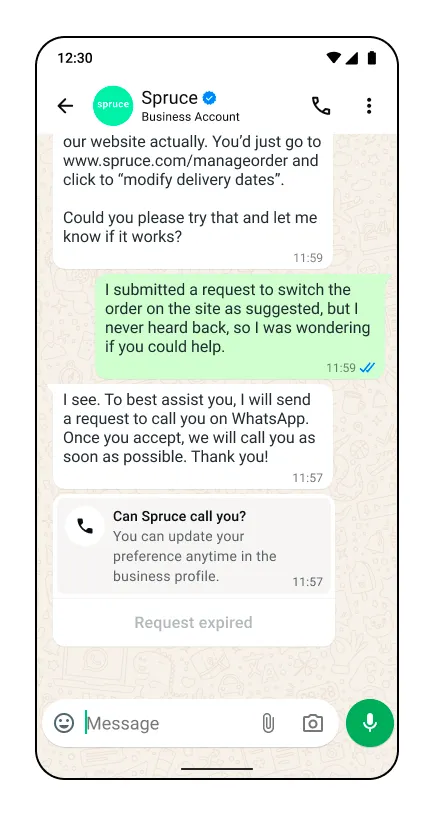
Previous permission request expires immediately — User does not interact / New call permission request is received 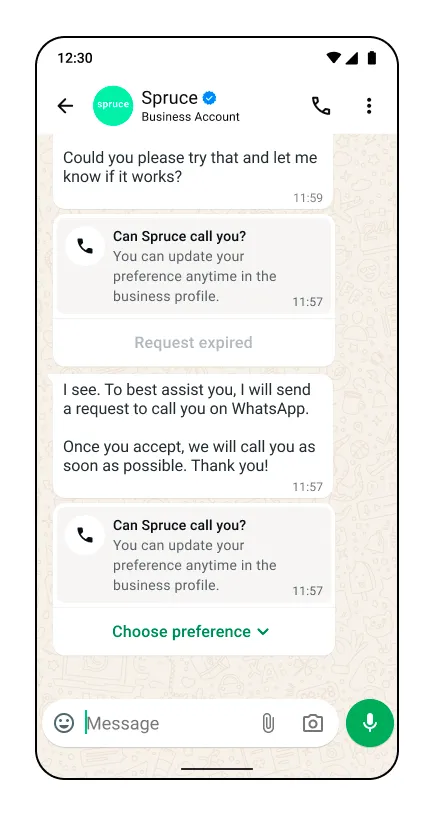
Previous permission request expires immediately — User allows / Interacts with the new request 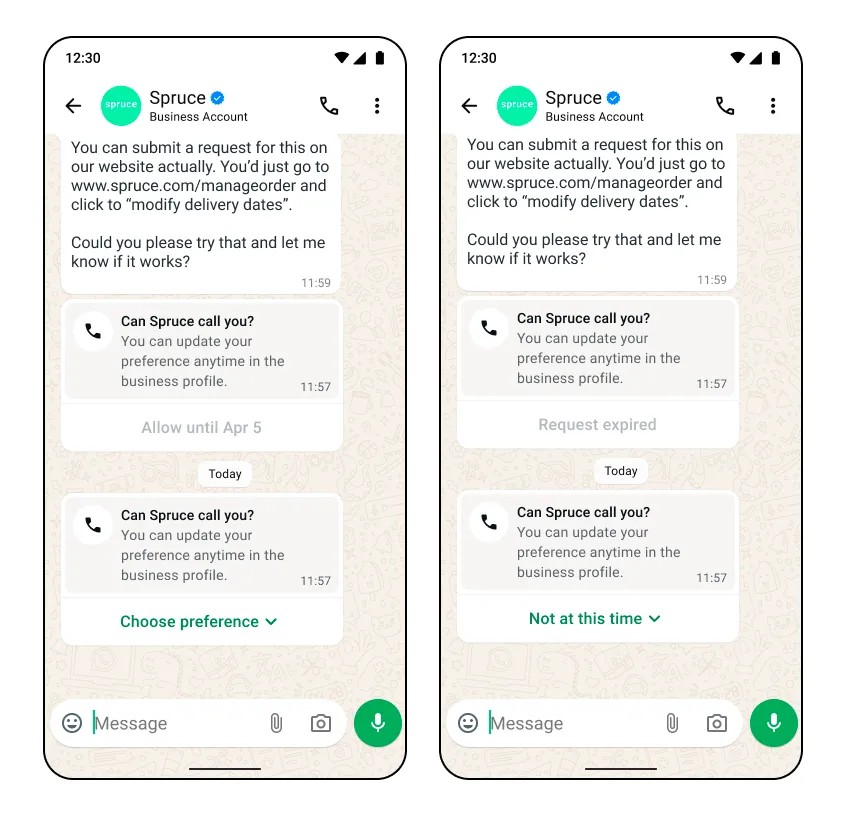
Send free form call permission request message
Call permission request messages are subject to messaging charges
Use this endpoint to send a free form interactive message with a call permission request during a customer service window. A standard message status webhook will be sent in response to this message send.
Note: The call permission request interactive object cannot be edited by the business. Only the message body can be customized.
Body parameters
| Parameter | Description | Sample Value |
|---|---|---|
toInteger |
Required
The phone number of the WhatsApp user you are messaging |
+17863476655 |
typeString |
Required
The type of interactive message you are sending. In this case, you are sending a
call_permission_request. |
“call_permission_request” |
actionString |
Required
The action of your interactive message. Must be call_permission_request. |
“call_permission_request” |
bodyString |
Optional
The body of your message. Although this field is optional, it is highly recommended you give context to the WhatsApp user when you request permission to call them. |
"Allow us to call you so we can support you with your order." |
Success response
Error response
Possible errors that can occur:
Invalid phone-number-idPermissions/Authorization errorsRate limit reachedSending this message to users on older app versions will result in error webhook with error code 131026Calling not enabledCalling restriction errors
Create and send call permission request template messages
Call permission request messages are subject to messaging charges
Use these endpoints to create and send a call permission request message template.
Once your permission request template message is created, your business can send the template message to the user as a call permission request outside of a customer service window.
Create message template
Use this endpoint to create a call permission request message template.
Body parameters
Creating and managing template messages can be done both through Cloud API and the WhatsApp Business Manager interface.
When creating your call permission request template, ensure you configure
type as call_permission_request.| Parameter | Description | Sample Value |
|---|---|---|
typeString |
Required
The type of template message you are creating. In this case, you are creating a call_permission_request. |
“call_permission_request” |
Template status response
Error response
Possible errors that can occur:
Invalid WABA idPermissions/Authorization errorsTemplate structure/component validation alerts
Get current call permission state
Use this endpoint to get the call permission state for a business phone number with a single WhatsApp user phone number.
Request parameters
| Parameter | Description | Sample Value |
|---|---|---|
<PHONE_NUMBER_ID>String |
Required
The business phone number you are fetching permissions against. |
+18762639988 |
<CONSUMER_WHATSAPP_ID>Integer |
Required
The phone number of the WhatsApp user who you are requesting call permissions from. |
+13057765456 |
Error response
Possible errors that can occur:
Invalid phone-number-idIf the consumer phone number is uncallable, the api response will be no_permission.Permissions/Authorization errors.Rate limit reached. A maximum of 100 requests in a 1 second window can be made to the API.Calling is not enabled for the business phone number.
User call permission reply webhook
This webhook is delivered whenever a user selects or updates their calling permissions. It could be in response to a call permission request sent by the business or it could be the user proactively making a decision.
The webhook fields values change depending on the circumstances of the user permission decision:
the user accepts or rejects the requestthe user approves permission by responding to a request or by calling the businessthe user permission is an automatic callback permission in response to a user-initiated callthe user permission is automatically revoked in response to 4 consecutive unanswered business-initiated calls
Lastly, the user can grant permanent calling permission to the business, which is represented in the
is_permanent parameter.No webhook is sent when a temporary permission expires. The
expiration_timestamp field included in the accepted permission webhook indicates the time this permission will expire. Alternatively the current permission state can be queried from the get current call permission state endpoint.Webhook sample
Webhook values
| Placeholder | Description |
|---|---|
customer_phone_numberString |
The phone number of the customer |
context.idString |
Can be either of two values Message ID of the permission request message sent by the business to the customer number. Shows when a permission decision is made by the user in response to a call permission request.Call ID of the missed call placed by the business to the customer number. Shows when callback permission is enabled in settings and the user calls the business. |
responseString |
The WhatsApp users response to the call permission request message
Can be accept or reject |
is_permanentBoolean |
Indicates if the permission is permanent or not. For temporary permission this will always be false. |
expiration_timestampInteger |
Time in seconds when this call permission expires if the WhatsApp user approved it |
response_sourceString |
The source of this permission
Possible values for accepted call permissions are: user_action: User approved or rejected the permissionautomatic: An automatic permission approval due to the WhatsApp user initiating the call |
Webhook sample scenarios
| Scenario | Webhook sample |
|---|---|
|
The WhatsApp user approves a temporary call permission from a call permission request message |
|
|
The WhatsApp users approves a permanent call permission from a call permission request message |
|
|
The WhatsApp users approves a permanent call permission from the business profile |
|
|
The WhatsApp users rejects a call permission after receiving a call permission request message |
|
|
An automatic temporary callback permission is granted to the business when the WhatsApp user calls the business |
|
|
A call permission is automatically revoked when a business makes 4 consecutive unanswered calls to the WhatsApp user |