
Viewing metrics | Developer Documentation
Viewing metrics
Updated: Feb 10, 2026
Marketing Messages API for WhatsApp (formerly known as Marketing Messages Lite API) is now generally available.
Conversion metrics will be solely available in the WhatsApp Manager UI and WhatsApp Business Management API that businesses use with Cloud API in October 2025.
As a result, the following conversion metrics will be depreciated:
Businesses that use Marketing Messages API for WhatsApp can view metrics from 4 surfaces:
Messages sent, delivered, read
Y
Y
Total amount spent
Y
Y
Cost per delivery
Y
Y
CTA URL link clicks
Y
Y
Cost per click
Y
Y
CTA URL link click rate
N
Y
Add to cart (Web + App)
Y
Y
*Checkout initiated (Web + App)
Y
Y
*Purchase, purchase value (Web + App)
Y
Y
*App Activations
Y
Y
*Quick Replies
Y
Y
* Requires a business to report this conversion event via Meta Pixel or Conversions API for App Events see Get started with the Meta Pixel and Conversions API.View metrics via UIs
After sending Marketing Messages via Marketing Messages API for WhatsApp, view read-only metrics on sends, clicks, and conversions from two UIs:
Marketing Messages API for WhatsApp metrics, can be viewed in WhatsApp Manager on both Phone Number and Template screens:
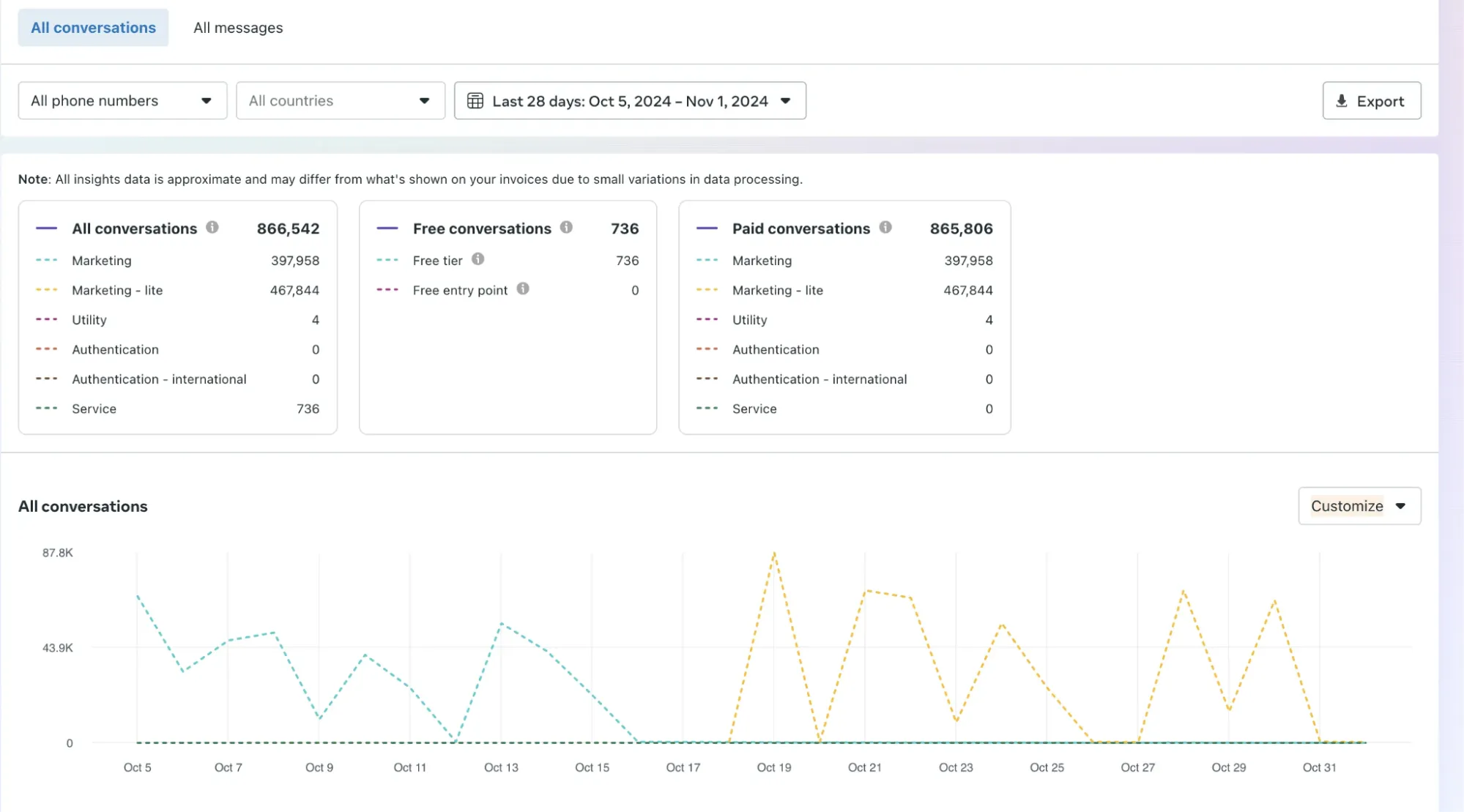
Benchmarks and recommendations metrics
Benchmark metrics provide insights into how your business is performing compared to similar businesses in your industry. These metrics are based on data from the past 30 days and take into account various factors that define similar businesses. Based on the benchmark metrics, we provide personalized recommendations to help you improve your template’s performance. If your template’s read rate or click rate falls below the benchmark, we provide suggestions to boost engagement.
Calculating benchmarks
To calculate benchmark metrics, we consider the following characteristics:
We then calculate two key benchmark metrics:
Understanding your ranking and how to use benchmark metrics
When you view your benchmark metrics, you will see a ranking that indicates how your template performs compared to templates in the same category. This ranking is calculated by comparing your template’s performance with the read rate or click rate performance of peer templates with high engagement over the past 30 days.
Use the benchmark metrics to compare your template’s performance to templates from similar businesses over the past 30 days. Benchmarks are calculated daily, with a delay of up to 2 days. This ensures that you have access to updated and relevant data to inform your business decisions.
To access the benchmark and recommendations metrics:
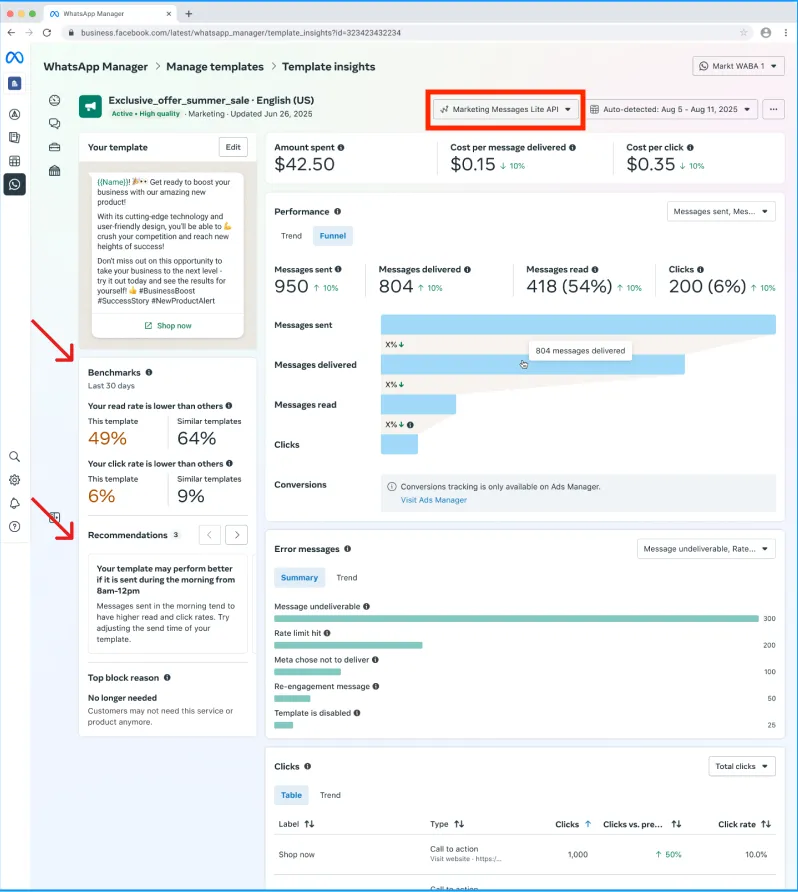
Error metrics
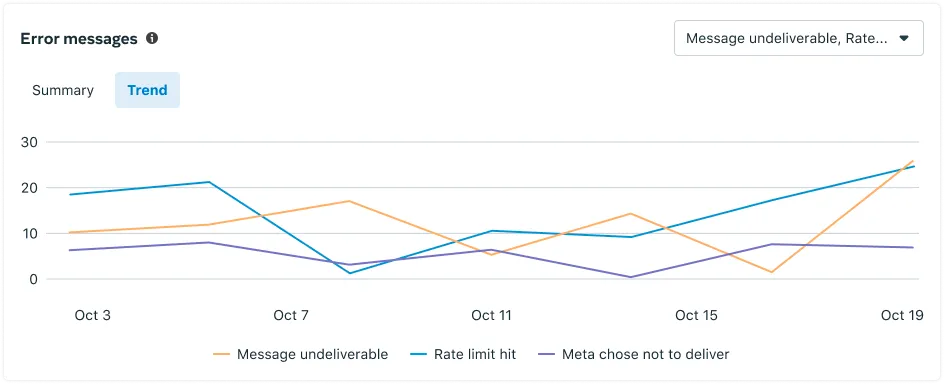
You can see a summary of error messages your template encountered within a given period of time by navigating to the WhatsApp Manager > Message templates > Manage templates panel and clicking on the template. Errors are displayed in the Error messages section.
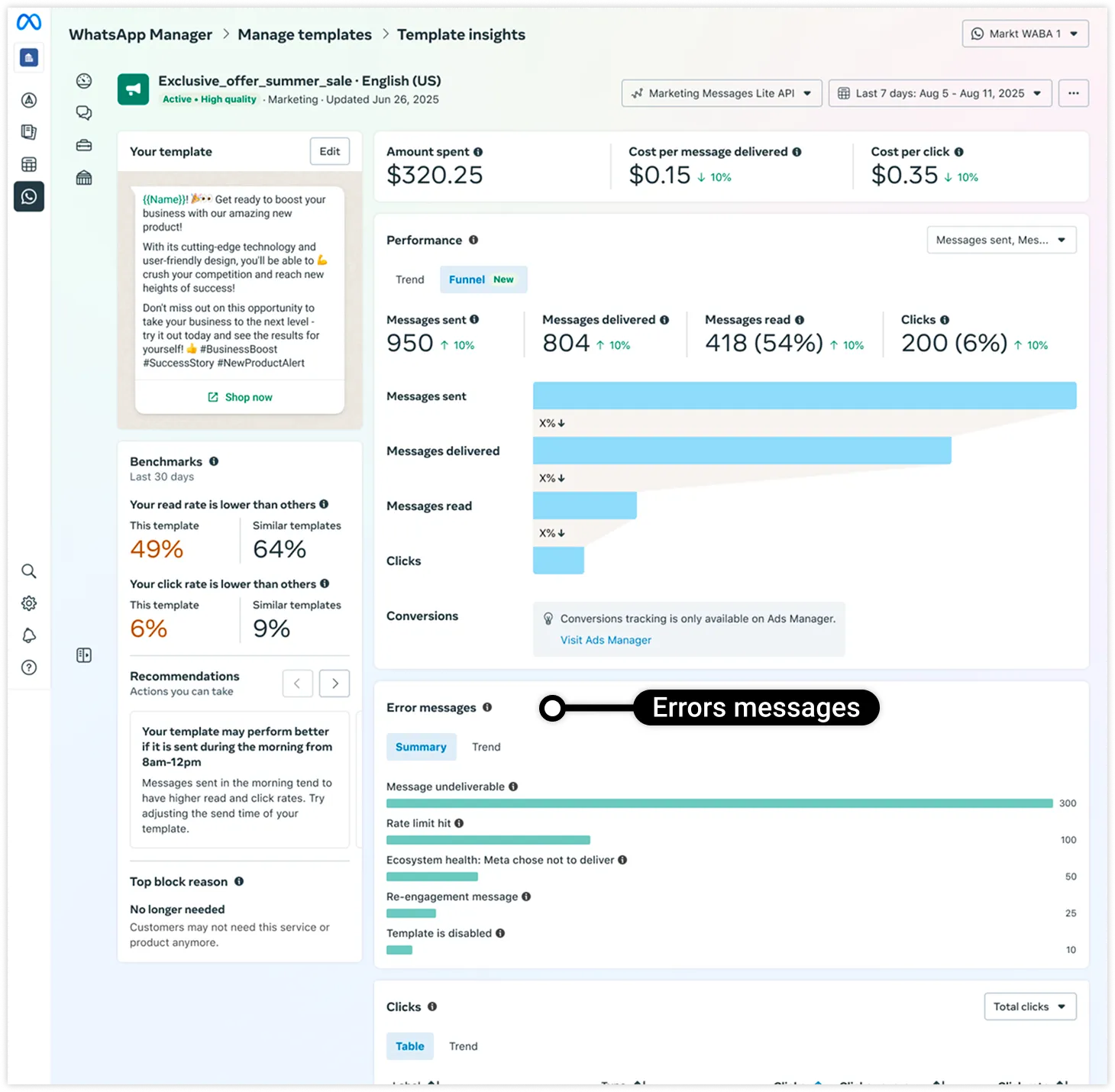
The period of time can be defined using the date selector dropdown at the top of the page. See Cloud API error codes for a list of error codes and their descriptions.
The most frequently encountered message delivery errors are displayed in the Summary tab:
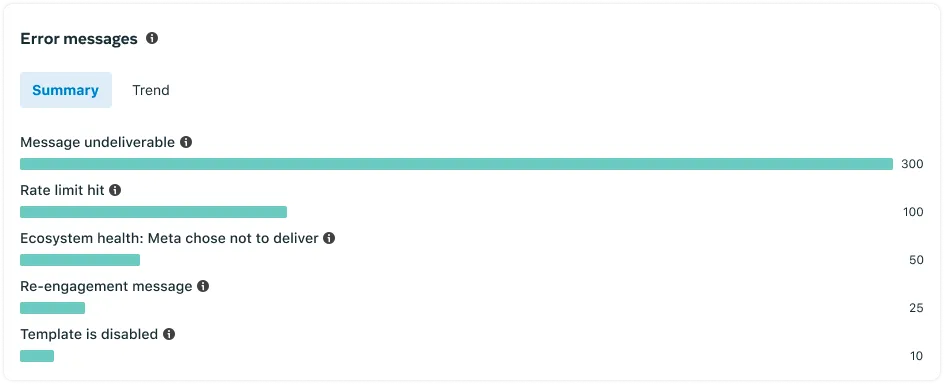
This information is also displayed as trend lines in the Trend tab:
View metrics via APIs
Benchmark metrics
marketing_messages_read_rate_benchmarkmarketing_messages_click_rate_benchmarkSyntax
curl'https://graph.facebook.com/<API_VERSION>/<AD_GROUP_ID>/insights?fields=<METRICS>' \-H 'Authorization: Bearer<ACCESS_TOKEN>'
Example query
curl'https://graph.facebook.com/v17.0/120229306178900226/insights?fields=marketing_messages_read,marketing_messages_read_rate,marketing_messages_read_rate_benchmark,marketing_messages_link_btn_click,marketing_messages_link_btn_click_rate,marketing_messages_click_rate_benchmark'\-H'Authorization: Bearer EAACE...'
Example response
{"data": [{"date_start":"2025-05-11","date_stop":"2025-06-09","marketing_messages_read":"265","marketing_messages_read_rate":"481.818182","marketing_messages_read_rate_benchmark":"70.27","marketing_messages_link_btn_click":"59","marketing_messages_link_btn_click_rate":"107.272727","marketing_messages_click_rate_benchmark":"18.74"}],"paging": {"cursors": {"after":"MAZDZD","before":"MAZDZD"}}}
Measuring ROI with the Marketing API “Insights API” endpoint (richer analytics, recommended)
Step 1: Fetch Ad IDs for Templates, using the Templates endpoint
ad_idad_account_idad_campaign_idad_adset_id | |
GET/<WHATSAPP_BUSINESS_ACCOUNT_ID>/message_templates?fields=category,ad_id,ad_adset_id,ad_campaign_id,ad_account_id
| |
GET/<TEMPLATE_ID>?fields=category,ad_id,ad_adset_id,ad_campaign_id,ad_account_id
Step 2: Call the Insights API using the Ad IDs
| |
Example Request
curl--verbose-s-G-d"access_token=${ACCESS_TOKEN}"https://graph.facebook.com/v19.0/${AD_ACCOUNT_ID|CAMPAIGN_ID|AD_SET_ID|AD_ID}/insights?fields=marketing_messages_sent%2Cmarketing_messages_read"
Example Response
{"data": [{"marketing_messages_sent":"2","marketing_messages_read":"1","date_start":"2023-09-24","date_stop":"2023-10-23"}],"paging": {"cursors": {"before":"MAZDZD","after":"MAZDZD"}}}
Measuring ROI with the WhatsApp Business Management API “Template Analytics” endpoint (basic analytics)
| |
GET/WHATSAPP_BUSINESS_ACCOUNT_ID/?fields=conversation_analytics.start(<START_TIMESTAMP>).end(<END_TIMESTAMP>).granularity(DAILY).conversation_categories(MARKETING_LITE).dimensions(["CONVERSATION_CATEGORY"])