
WhatsApp Business API for Zapier: Installation guide
In this guide, you will learn how to install our WhatsApp Business API integration in Zapier.
1.
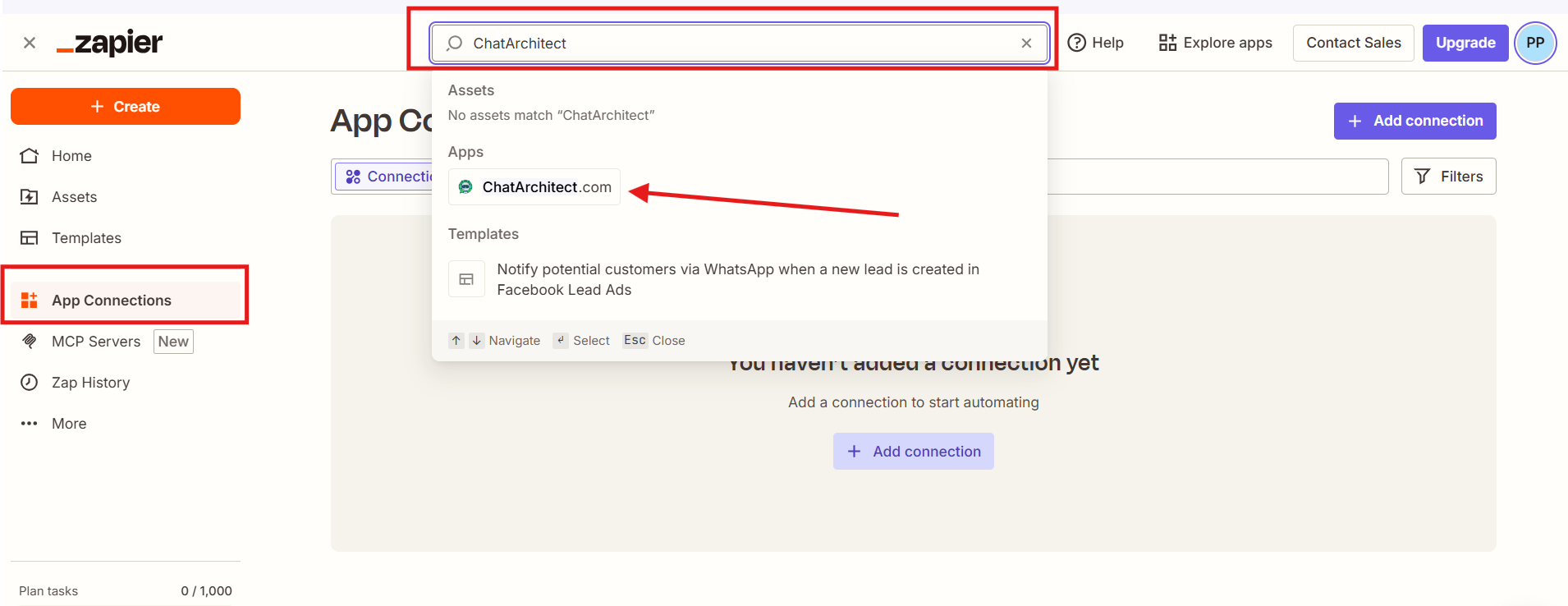
InstallationGo to the "App Connections" -> in the search field write "ChatArchitect" and choose our app.
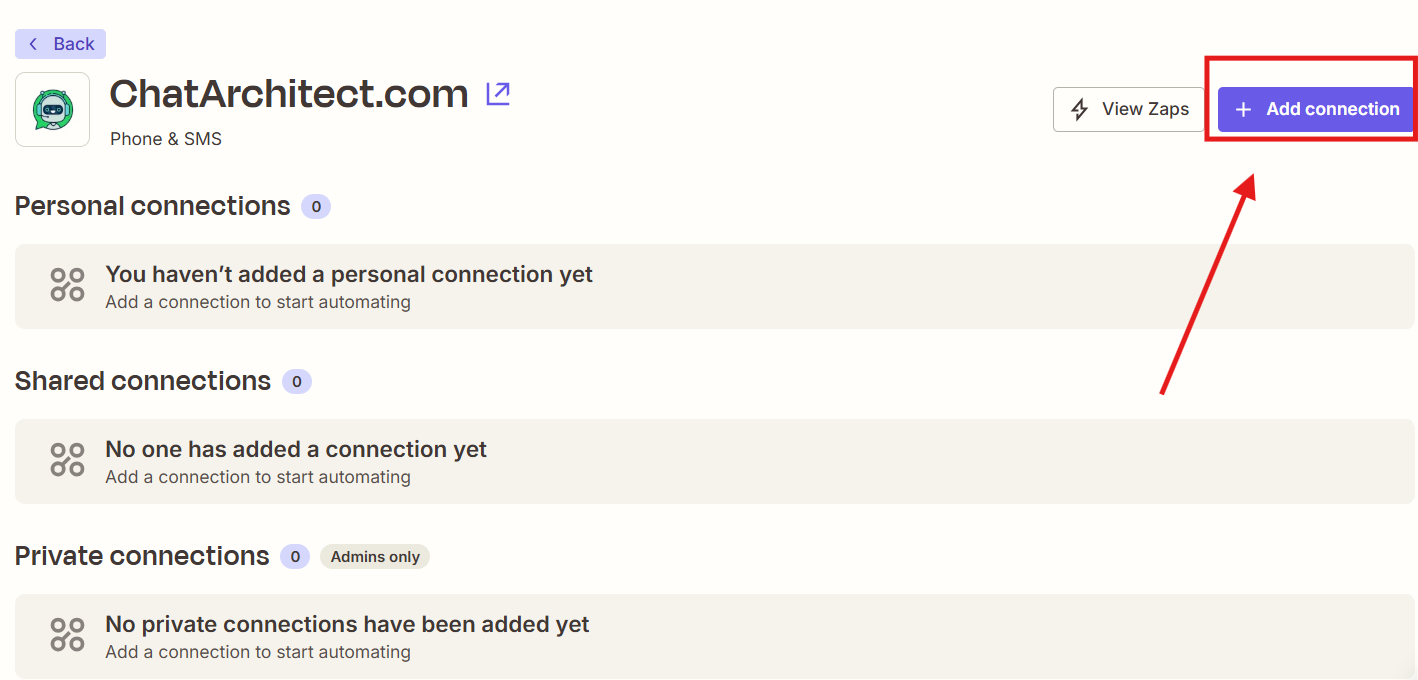
2. Press "Add connection"
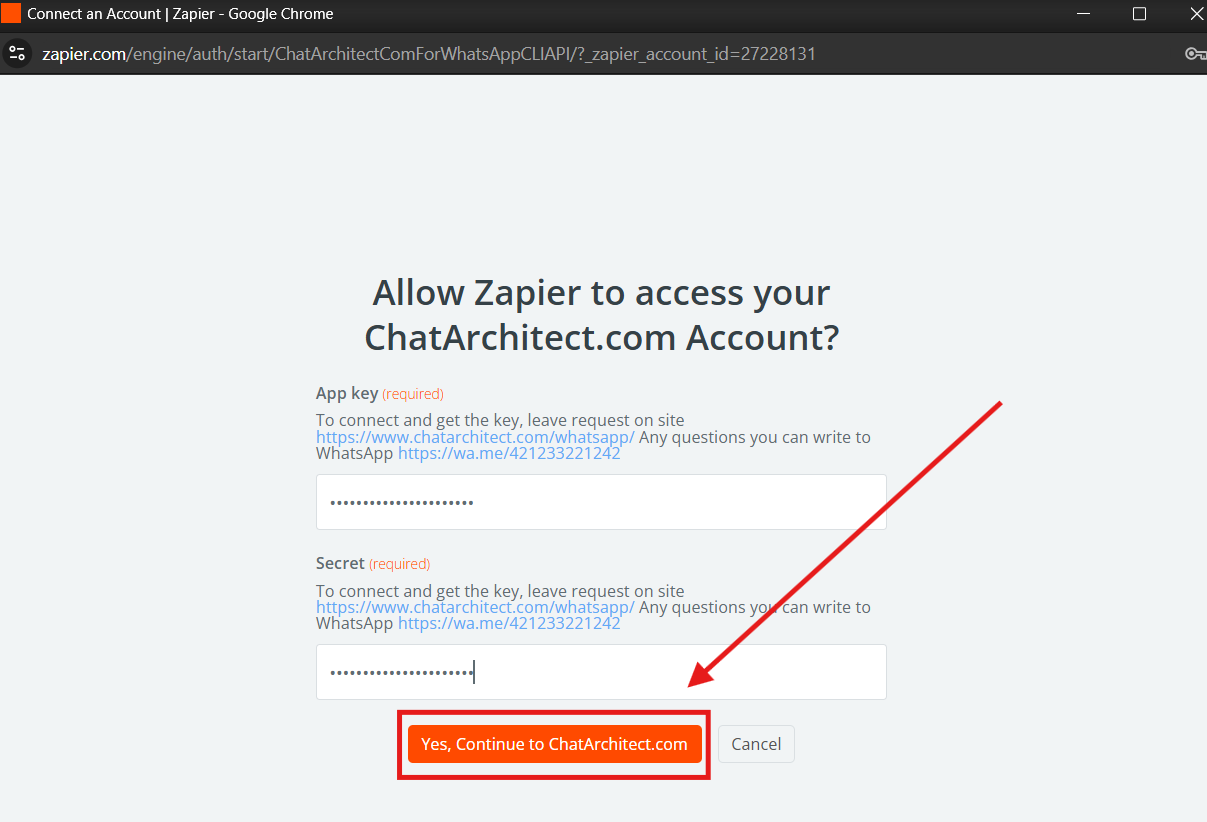
3. Fill in your APP ID and APP SECRET and press "Yes, continue to ChatArchitect.com"
1)Done. Our integration is now installed in your Zapier.
https://zapier.com/apps/chatarchitect/integrations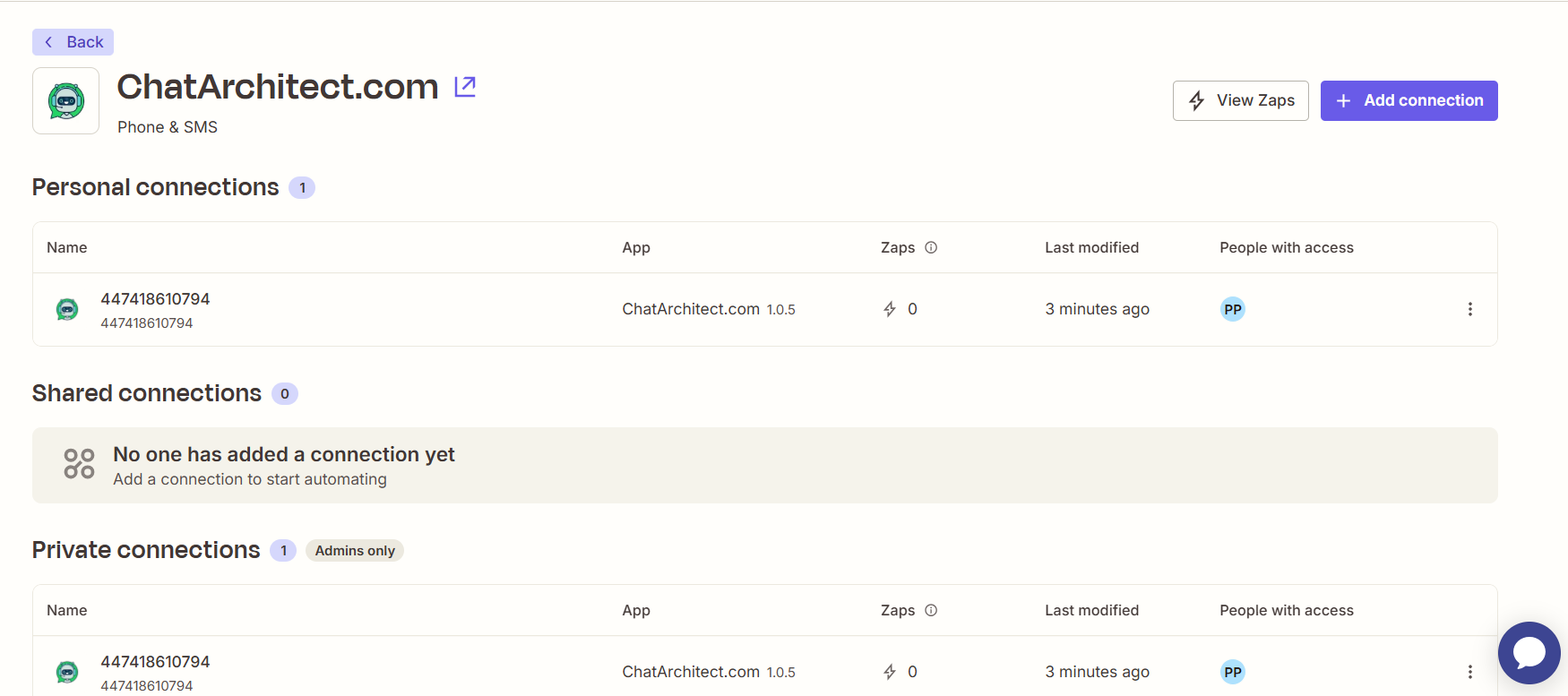
2)

3) Select our app

4) APP ID and APP SECRET

Receiving events from AmoCRM and Bitrix24
1)
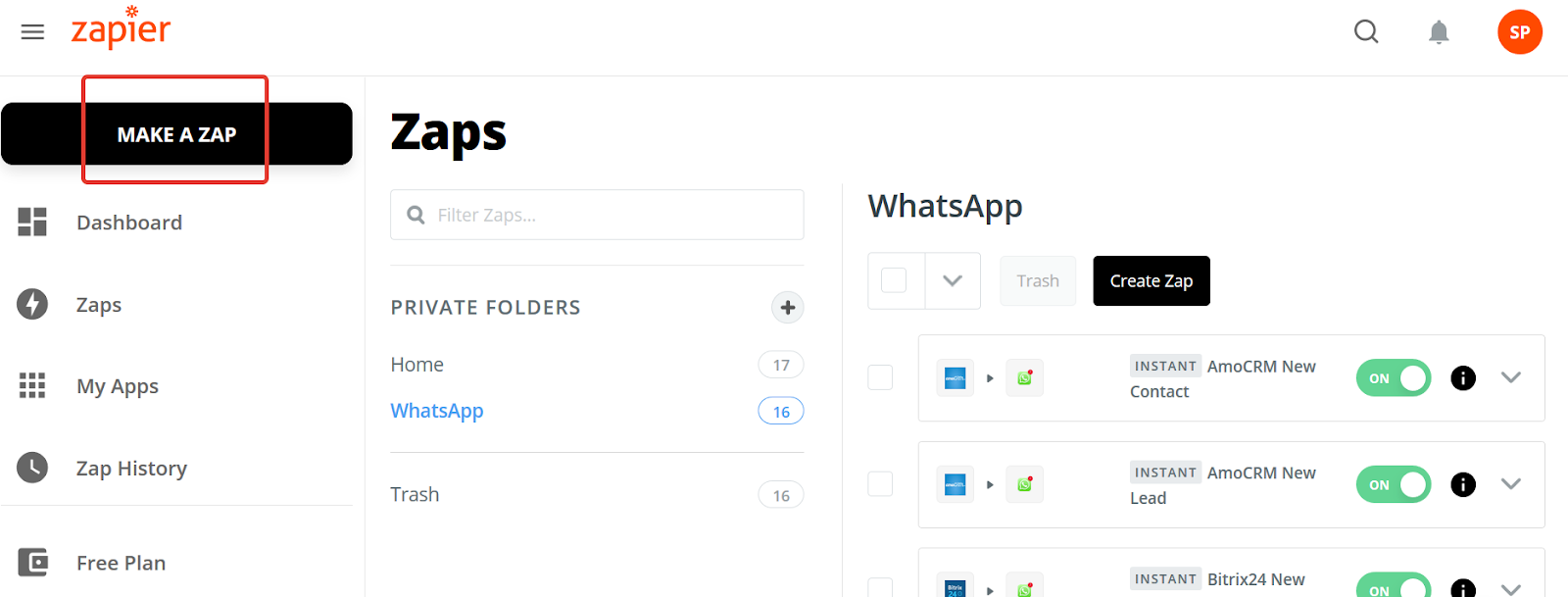
2)
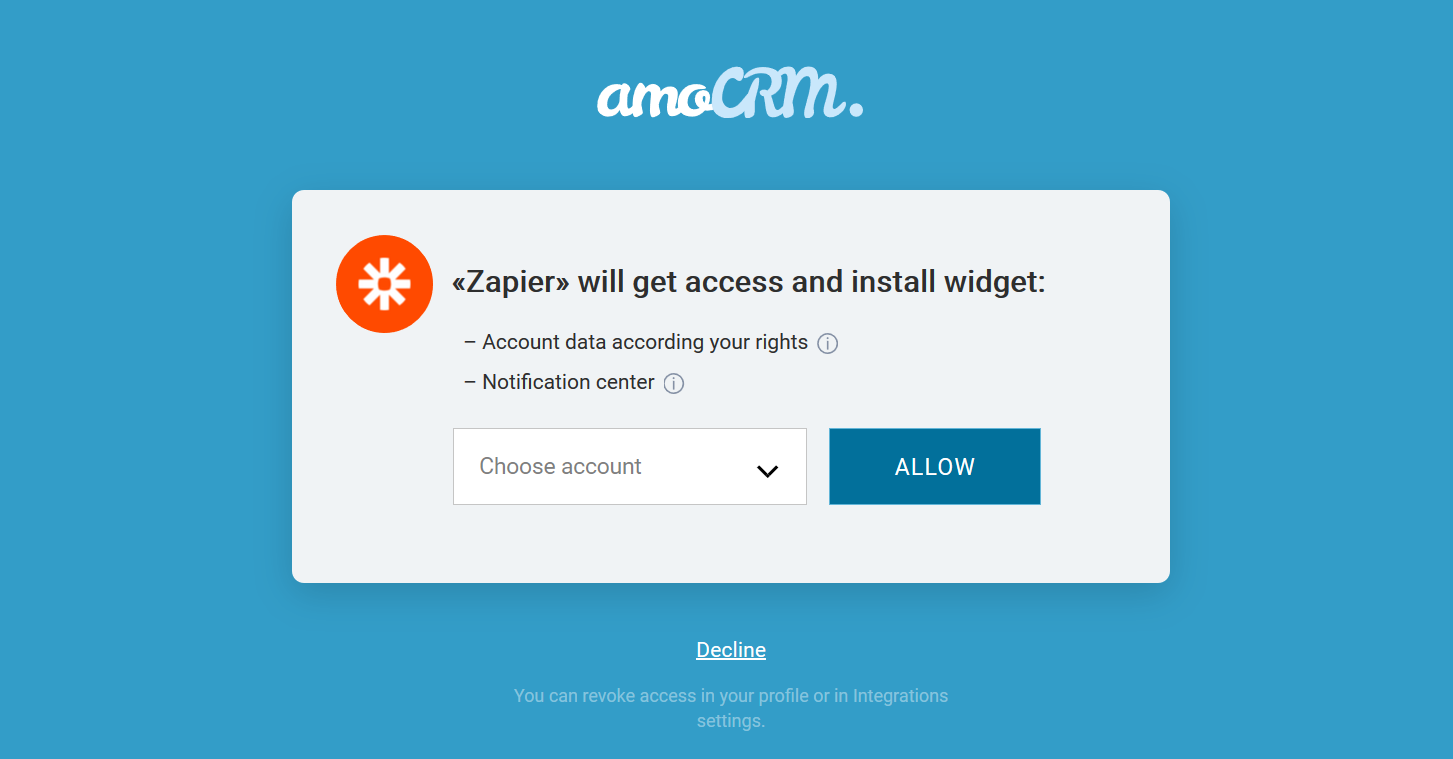
Select the application to be the source of events
AmoCRM is published in Zapier.
For Bitrix24, install the Zapier application from the Bitrix24 marketplace
https://www.bitrix24.ru/apps/?app=integrations24.zapierbitrix24crm
And use the invitation in Zapier:
https://zapier.com/developer/public-invite/22809/d455113bc06d43e114e7427457536223/

3) Choose a New Contact

4)
Sending a manual opt-in to WhatsApp
1) Search ChatArchitect

2) Choose Manual Opt-In

3)
For AmoCRM, the field is called Work
For Bitrix24, look for Phone

4)

Sending a message using a template
1)

2)
