
Integration Zapier with Google Sheets
1.Integration After registeringZapier with Zapier,Google youSheets
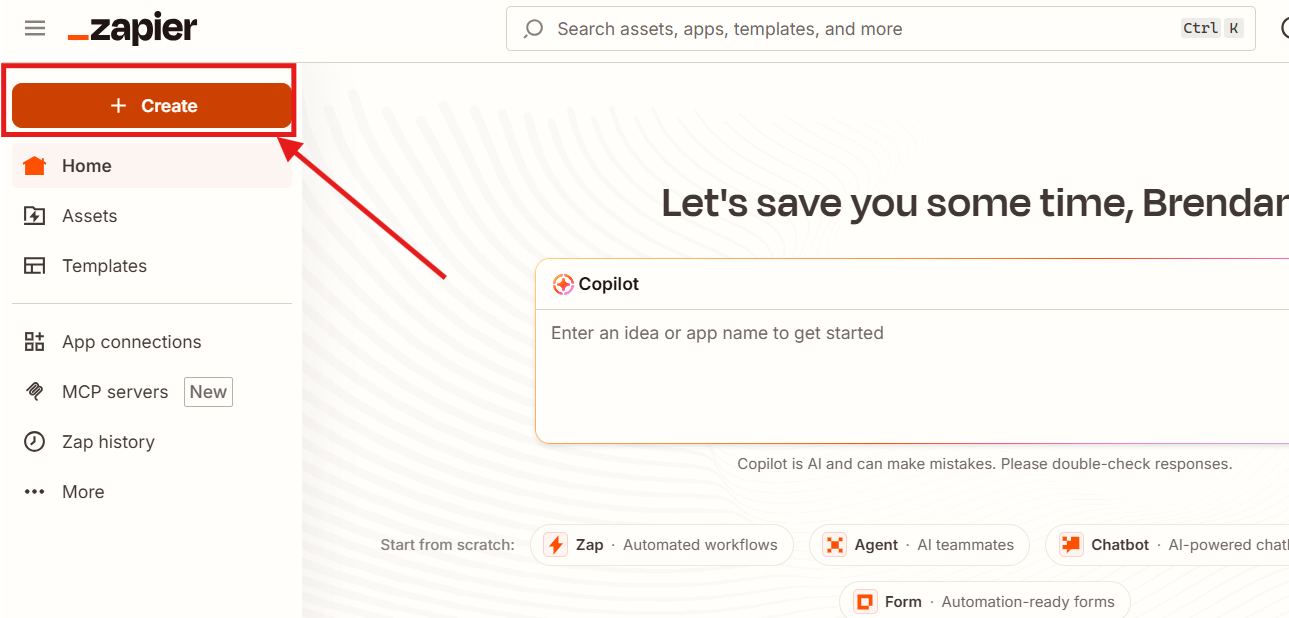
1. need to go to thePress "My+Create"

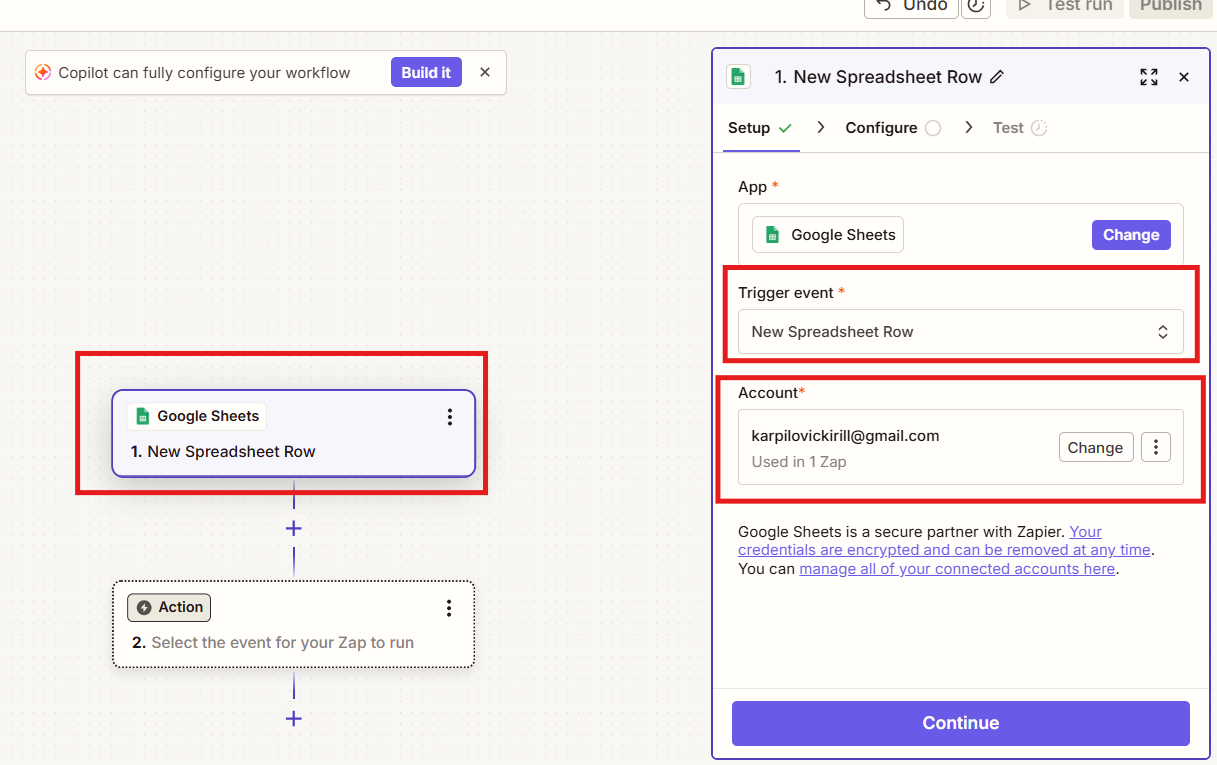
2. InChoose theGoogle windowSheets thatas opens,a selecttrigger; the
Trigger desiredevent "New Spreadsheet Row"
And log in to your Google account

3. Return to "My apps", in the search bar find our application ChatArchitect.com, click "Connect"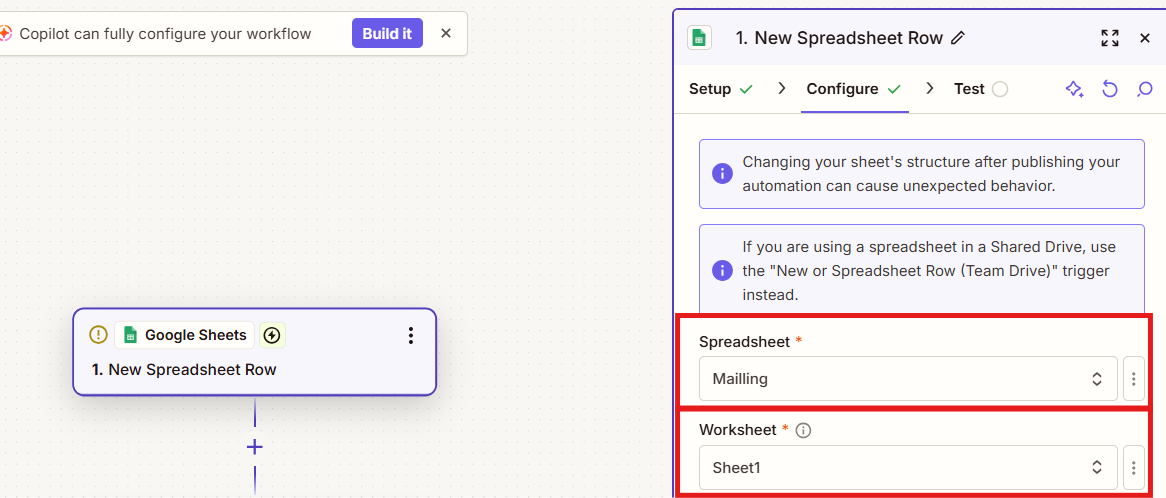

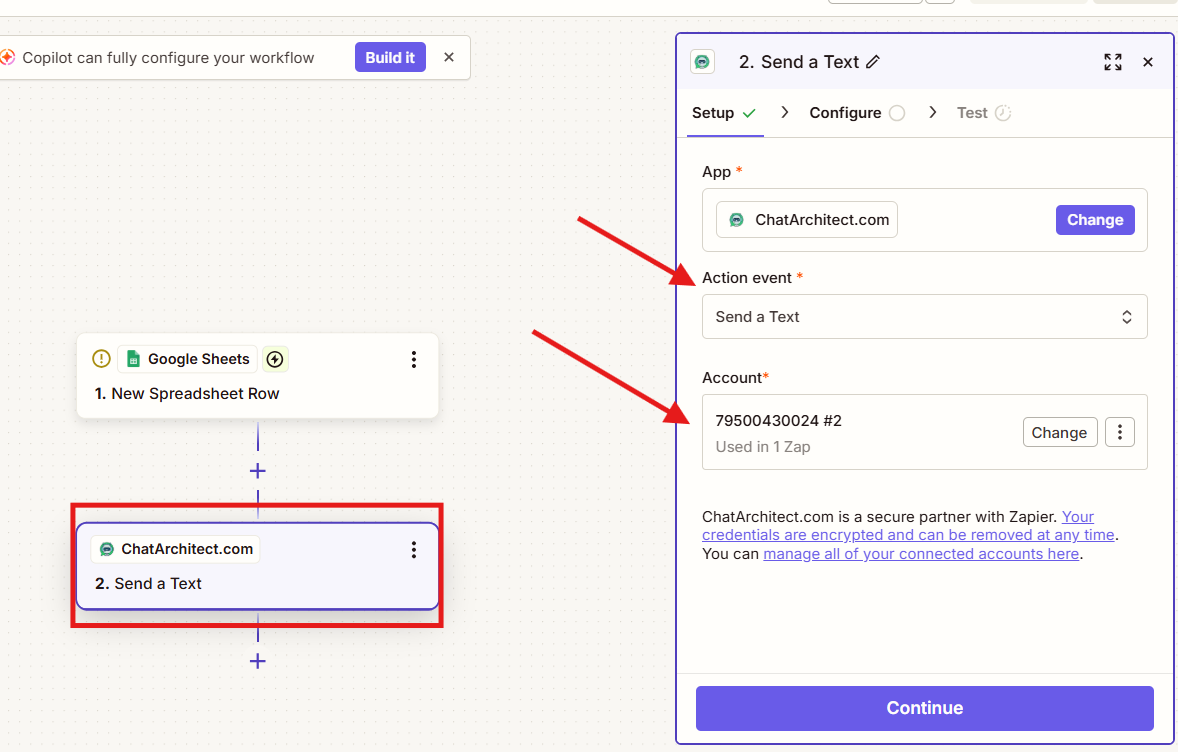
4. In the windowaction thatadd opensour writeapp "ChatArchitect.com";
Action event - "Send a text"
And add your APPChatArchitect.com IDaccount

5. We return to the main Zapier page, click +Create zap

6. To configure the Trigger( in the search we are looking for Google sheets,

7. In the "Event" select New Spreadsheet Row, thentext you will need to select a Google account, after selecting an account, you will need to choose which table Zapier will take data from.


8. Next, select "Spreadsheet A/B" (most often, in Spreadsheet Row A it will be possible to pull up only the phone number. In Spreadsheet Row B, you can pull up the number and name

9. Next, in the action we select our application and select "Event", in our case it is Send a Text

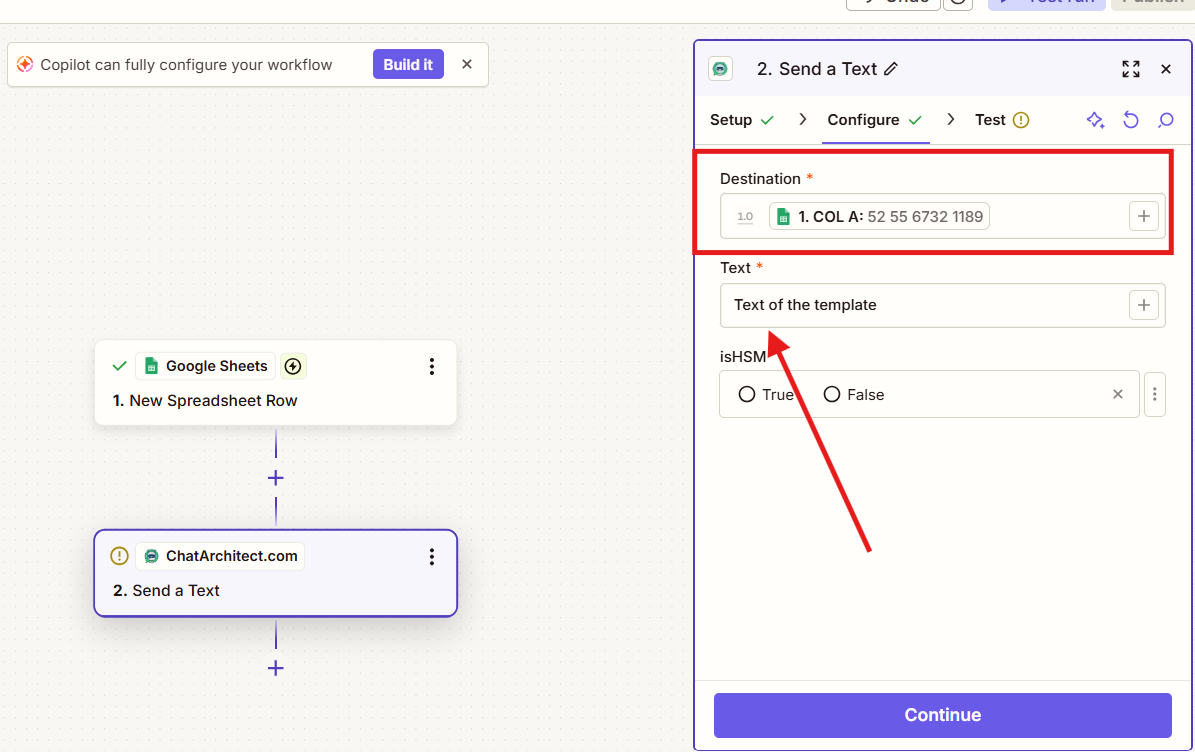
10. Next, select our account in chatarchitect and go to the "Set up action" setting. In "Destination" we select data from your table, in the Text tab - write theuse text of your template, in isHSM - True. After that, conduct a test send and you can start the mailingtemplate list.message)

11. We add numbers to the table after we have activated ZAP!!!

12.6. Add numbers to the table, ZAP will work on them within 15 minutes

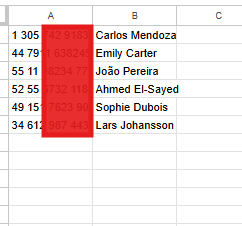
!!! Zapier works by adding a new column to the table, i.e. in order for it to send out mailings to the numbers you need, they must be added to the table only after activating Zap !!!