
Multi-Partner Solutions | Developer Documentation
Multi-Partner Solutions
Updated: Feb 27, 2026
This document explains how to set up Multi-Partner Solutions (“solutions”) and how to use them with Embedded Signup.
Multi-Partner Solutions allow Solution Partners and Tech Providers to jointly manage customer WhatsApp assets in order to provide WhatsApp messaging services to their customers. For example, if you are a Tech Provider and are unable to offer custom or full WhatsApp messaging services to your customers, you can work with a Solution Partner to offer your customers the Solution Partner’s services.
Once created and accepted via API or App Dashboard, the solution’s ID can be used to customize the Embedded Signup flow. Any customers onboarded via the customized flow can grant asset access to all of the solution’s partners.
Note that solutions can also be set up via an embedded button that triggers an interface that gathers app information from Tech Providers. This flow and the API calls involved are described in the Multi-Partner Solution — Embedded Creation document, but the information below is still relevant and should be read first.
Requirements
You must be an approved Solution Partner, a Tech Provider who has completed the steps in our Get Started for Tech Providers document appropriate for your intended usage, or a Tech Provider who has been upgraded to a Tech Partner.
If your app will be calling our APIs to access onboarded customer data:
The app must be the same app whose token will be used in API requests.The app must have undergone App Review and been approved for the whatsapp_business_management and whatsapp_business_messaging permissions.The app must be subscribed to the account_updates webhooks field and be able to successfully digest webhooks for onboarded customers.
Creating Multi-Partner Solutions
Use the App Dashboard > WhatsApp > Partner Solutions panel to create, accept, and manage solutions.
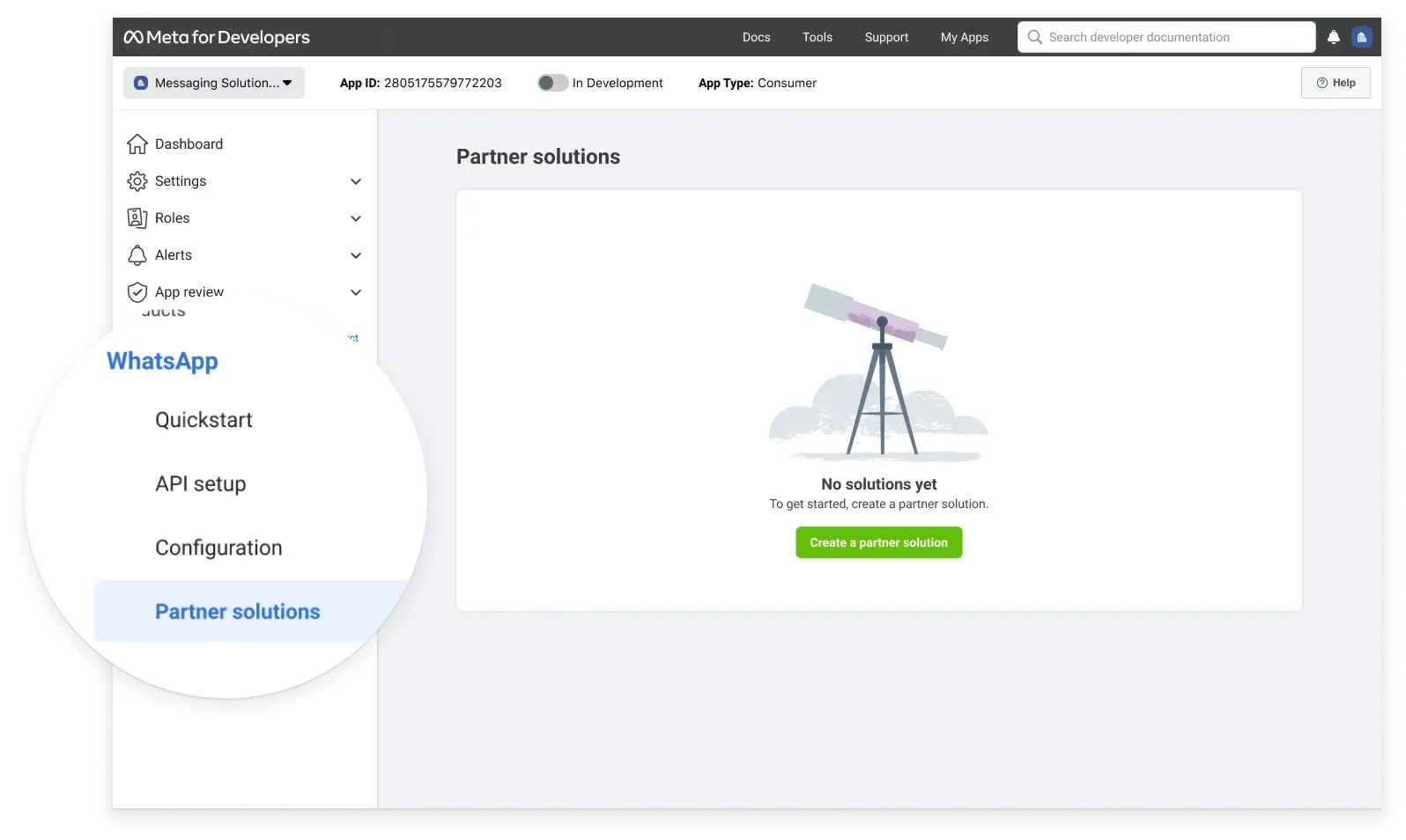
Solutions can be created by either partner of the solution. Once created, a solution request is sent to the invited partner, who can then use the panel in their App Dashboard to accept or decline the request. Once accepted, either partner can use the solution ID to customize the Embedded Signup flow and onboard business customers.
Solution States
Solutions states are displayed in the Partner solutions panel. Solutions can have the following states:
| State | Description |
|---|---|
|
Active |
The solution has been accepted by the invited party and can be used to configure Embedded Signup for customer onboarding. |
|
Deactivated |
The solution has been deactivated.
Customers who attempt to access Embedded Signup configured for a solution in this state will see an error informing them that it cannot be used for onboarding at this time. |
|
Draft |
The solution has been initiated and saved, but you have not sent it to your partner.
Customers who attempt to access Embedded Signup configured for a solution in this state will see an error informing them that it cannot be used for onboarding at this time. |
|
Inactive |
The solution request was declined by your partner.
Customers who attempt to access Embedded Signup configured for a solution in this state will see an error informing them that it cannot be used for onboarding at this time. |
|
Pending |
Solution has not been accepted or declined by your partner.
Customers who attempt to access Embedded Signup configured for a solution in this state will see an error informing them that it cannot be used for onboarding at this time. |
|
Pending deactivation |
Your partner has requested to deactivate the solution. You can accept or decline this request. |
Onboarding Limits
Tech Providers who are part of a solution can onboard up to 200 total new customers in a rolling one week period. Only customers who are new to the WhatsApp Business Platform count against this limit.
Embedded Signup
Embedded Signup can be configured and hosted by either of the solution’s partners, or both partners. Once implemented, customers who access it will see a customized version of the Embedded Signup flow, which makes it clear that by completing the flow they are granting WhatsApp data access to both partners:
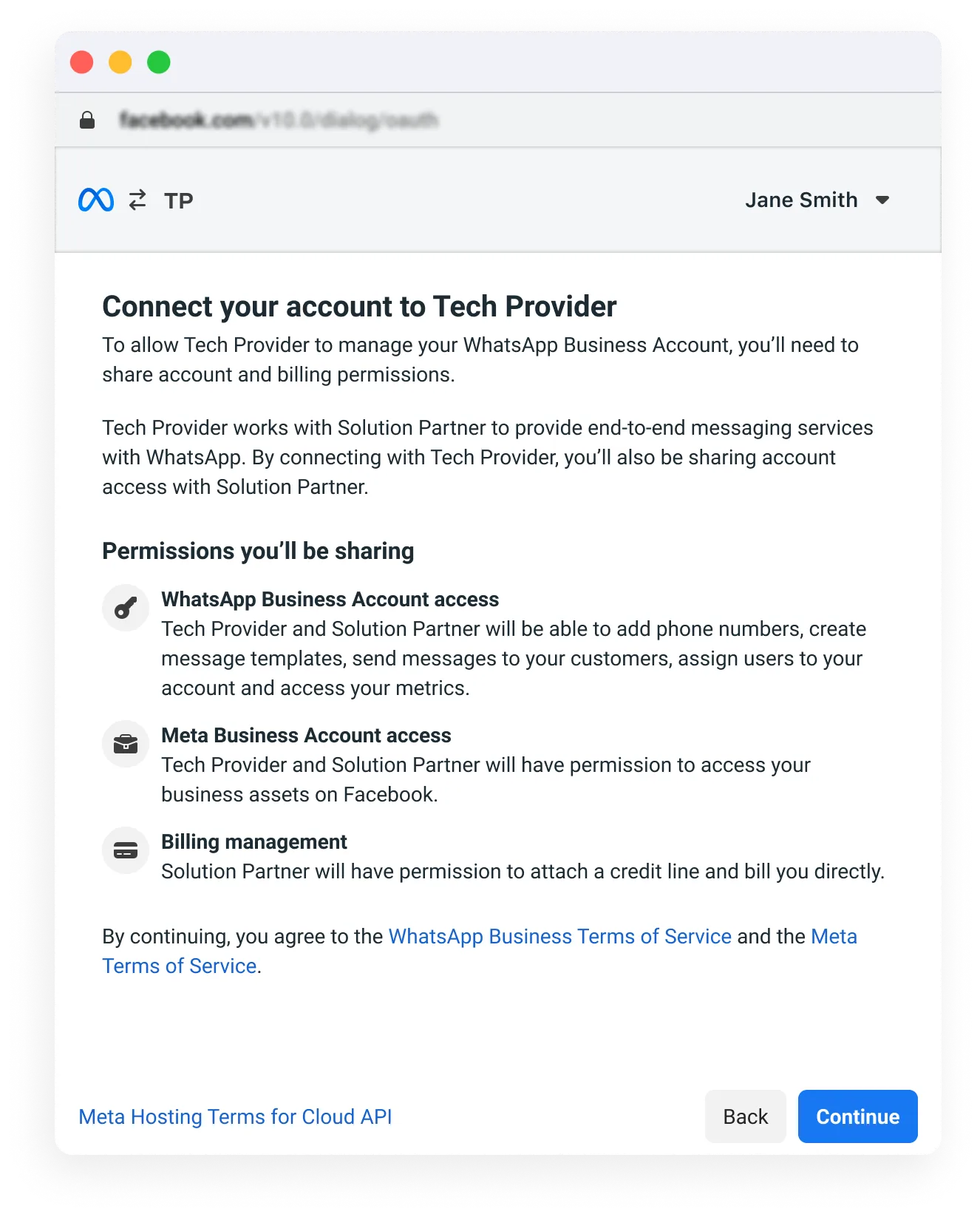
When a customer completes the flow, all of the customer’s WhatsApp assets that we need are automatically generated, and access to those assets is granted to both partners of the solution.
Billing
Customers onboarded via Embedded Signup configured with a solution ID share the credit line of the Solution Partner associated with the solution.
Step 1: Determine Solution Details
Contact your potential partner and work together to determine:
A solution name. The solution name will appear in the Partner Solutions panel in the App Dashboard for both you and your partner, so you should both agree on a name that can be distinguished from other solutions you may initiate or accept.Who will create and initiate the solution request. Either partner can do this. If you are initiating the request, you will need your partner’s app ID.Who will host Embedded Signup configured with the solution ID. Either or both partners can do this.Anything else, such as contracts, service level agreements, services provided, billing processes, etc. This is left to the discretion of you and your partner, subject to each of your separate agreements with Meta.
Step 2: Subscribe to Webhooks
Subscribe to the account_update and partner_solutions webhooks fields. These webhooks will inform you when new business customers are onboarded, and when partner solutions that you are associated with are created or edited.
See the Webhooks section below for example payloads and what to look for when you receive any of these webhooks.
Step 3: Create a Solution
If you are creating the solution, navigate to the App Dashboard > WhatsApp > Partner solutions panel and click the Create a partner solution button.
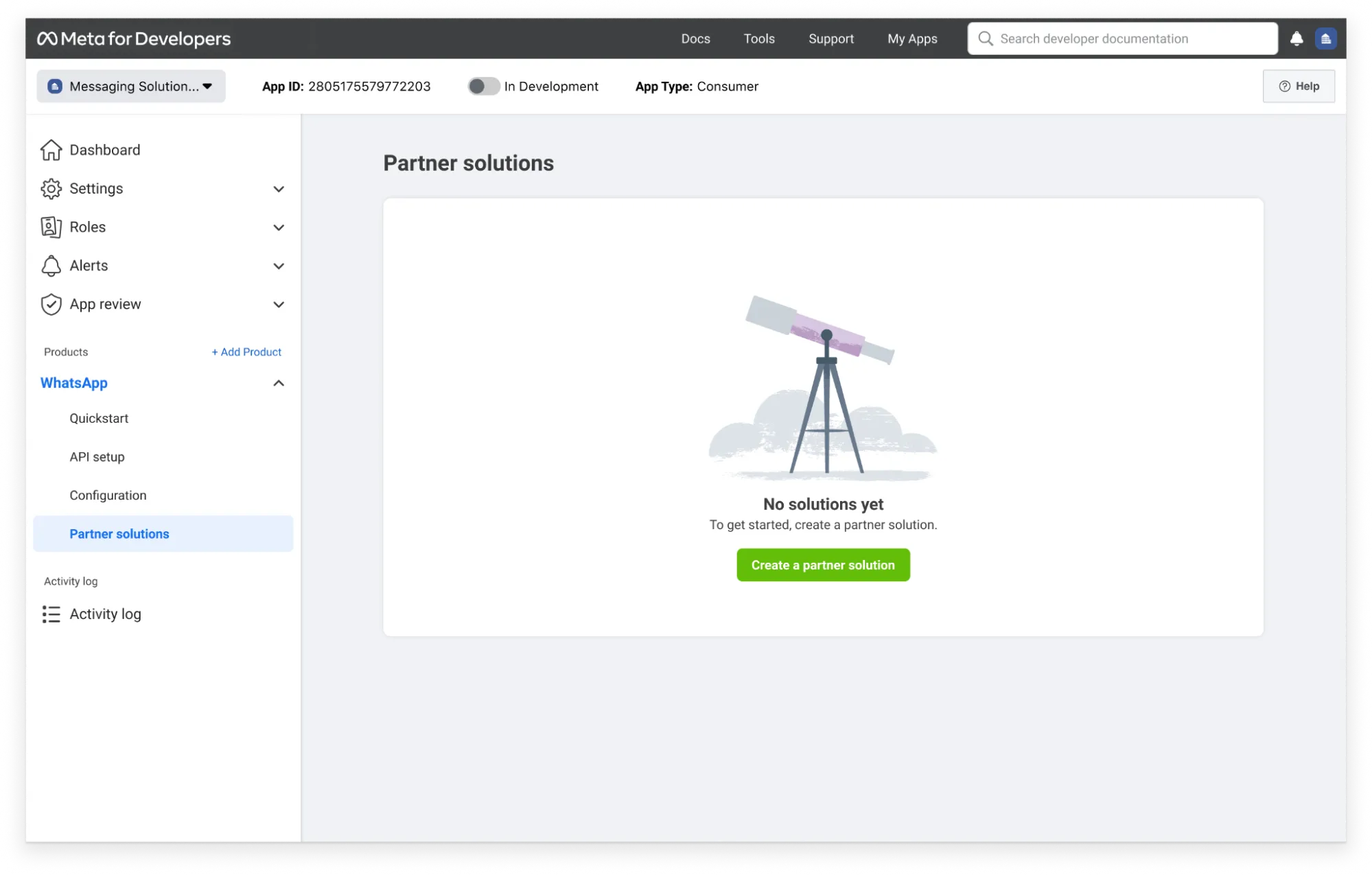
Use your partner’s app ID to complete the flow. As part of the creation flow you can designate which solution partner apps can be used by onboarded business customers to send messages (Only me, Only my partner).
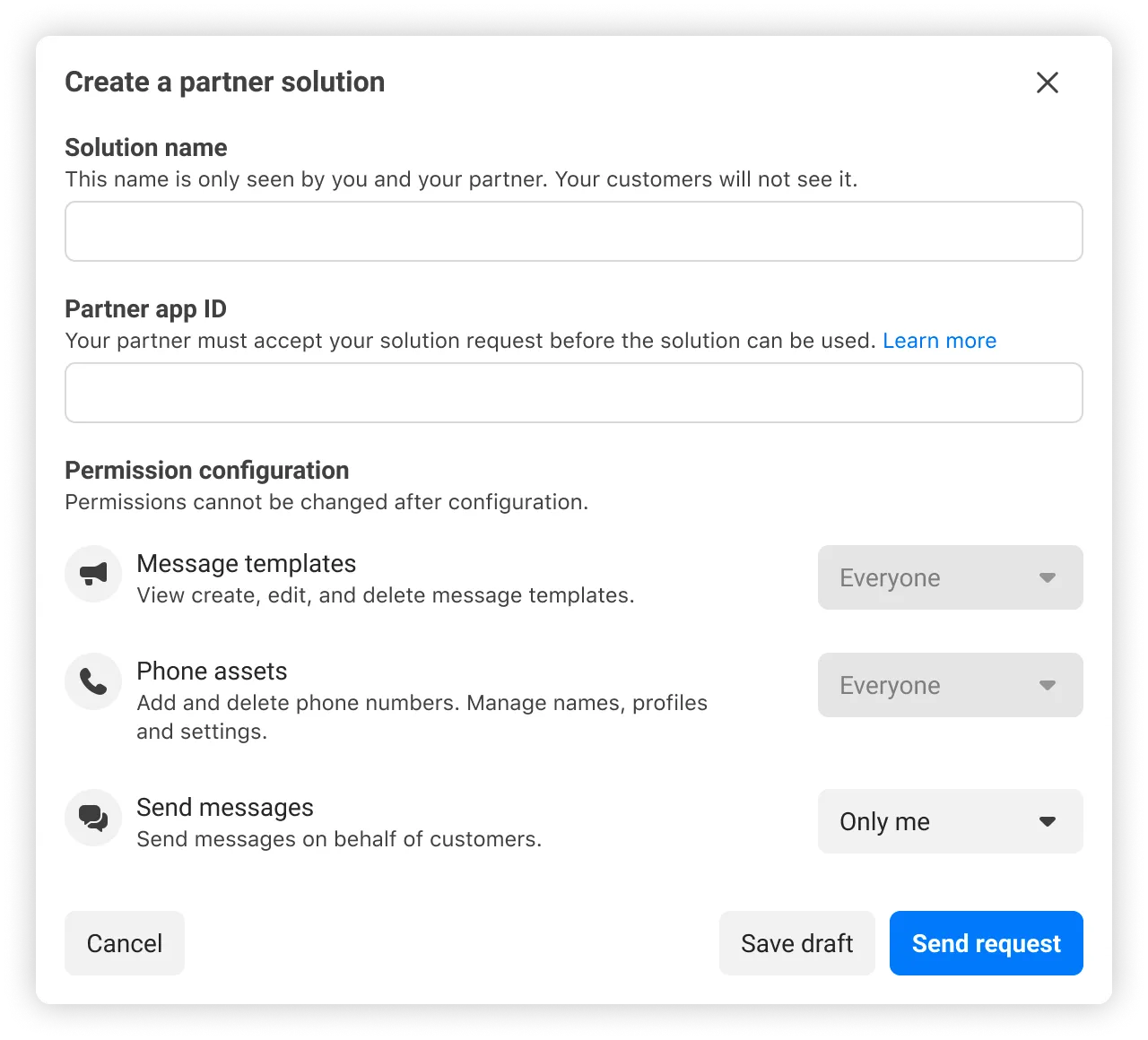
Upon creation, an email and Meta Business Suite notification will be sent to your partner, and a partner_solutions webhook will be triggered.
The partner solution will appear in the Partner solutions panel with a Pending status until accepted by your partner. If accepted, its status will change to Active. If declined, its status will change to Inactive.
Step 5: Configure Embedded Signup
Assign the solution ID to the
solutionID property in the extras.setup object within the launch method and callback registration portion of the Embedded Signup code.// Launch method and callback registration
const launchWhatsAppSignup = () => {
FB.login(fbLoginCallback, {
config_id: '<CONFIGURATION_ID>', // your configuration ID goes here, ensure it is in quotes
response_type: 'code',
override_default_response_type: true,
extras: {
setup: {
solutionID: '<SOLUTION_ID>' // add solution ID here, ensure it is in quotes
},
featureType: '',
sessionInfoVersion: '3',
}
});
}Both you and your partner’s business portfolio (Business Settings > Business Info) will appear throughout the Embedded Signup flow.
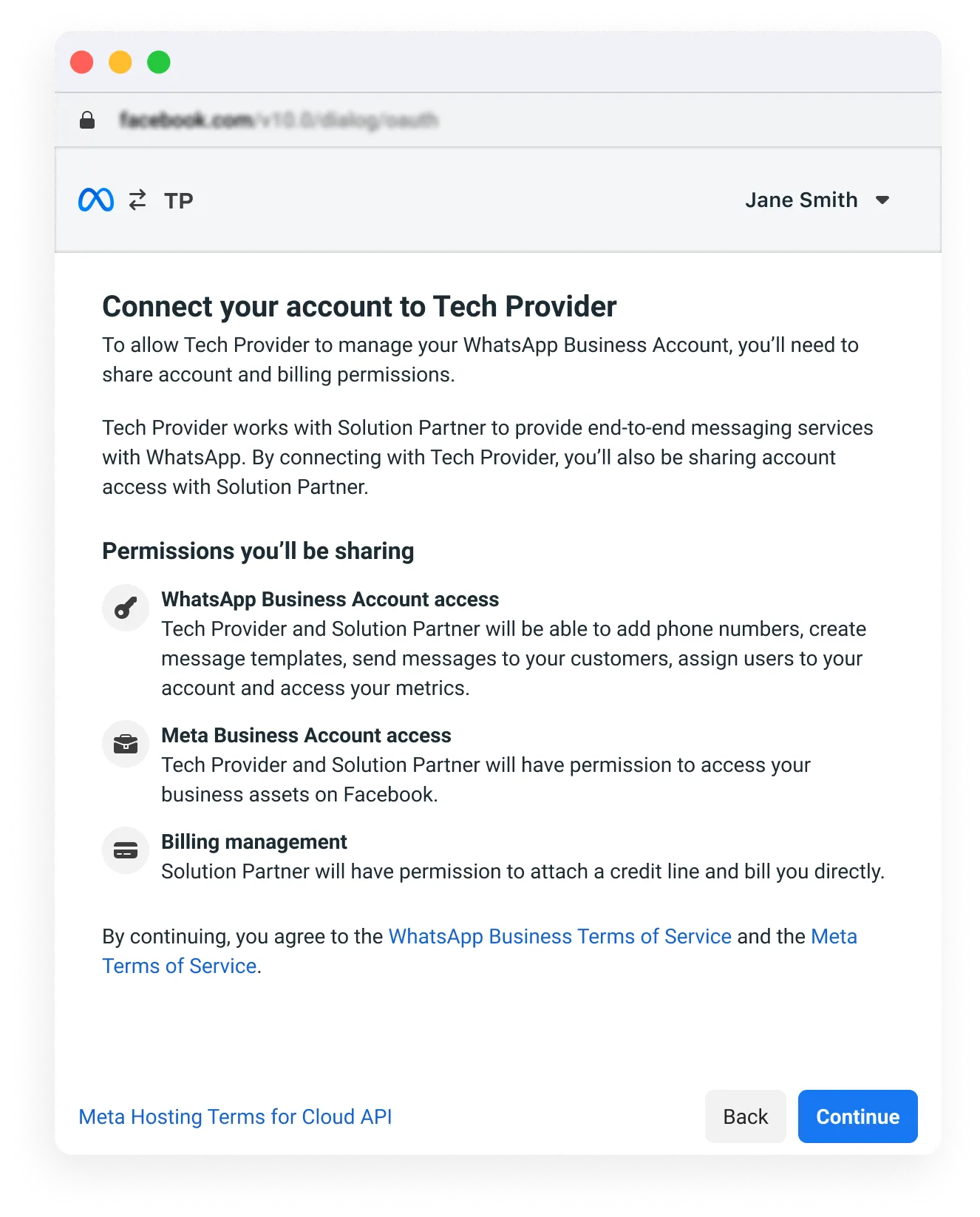
Once configured, surface the customized Embedded SIgnup flow to customers on your platform wherever you feel it is appropriate. Note that if you have multiple active partner solutions, it is your responsibility to inject the correct solution ID into your Embedded Signup configuration and surface it to your intended customers, otherwise a customer could be onboarded using the wrong solution.
Step 6: Listen for Onboarded Business Customers
To listen for onboarded customers, your app must be subscribed to the account_update webhook field.
In addition, we will send an email to admins of the business portfolio that owns the app, and a Meta Business Suite notification to the business portfolio that owns the app.
If you are a Solution Partner, share your line of credit with any business customers newly onboarded via the partner solution.
Note: If you are a Solution Partner trying to add a user to a WhatsApp Business Account that is shared with you, you would need to account for the following scenarios:
If you are not granted the MESSAGING permission on the solution, then you need to decide which granular tasks you need when adding the user to the shared WhatsApp Business Account: DEVELOP, MANAGE_TEMPLATES, MANAGE_PHONE, VIEW_COST, MANAGE_EXTENSIONS, VIEW_PHONE_ASSETS, MANAGE_PHONE_ASSETS, VIEW_TEMPLATES, VIEW_INSIGHTS, MANAGE_USERS, and MANAGE_BILLING.In this scenario, also note that MANAGE_BILLING is needed for credit line sharing.MANAGE will only work if you are given Full access on the solution, i.e. including MESSAGING.
Editing or Deactivating Solutions
You can use the App Dashboard or API to edit or deactivate a solution.
When you request deactivation, the solution’s status will change to Pending deactivation and your partner will be notified by email and Meta Business Suite notification. In addition, a partner_solutions webhook will be triggered with
event set to SOLUTION_UPDATED and solution_status set to PENDING_DEACTIVATION. Your partner can then accept or reject your request.Note that partner solutions can still be used to onboard customers until your partner accepts the deactivation request.
If the deactivation request is rejected, the solution will remain in an Active state and can continue to be used to onboard customers.
If the deactivation request is accepted, the solution status will be set to Deactivated and can no longer be used to onboard business customers, so make sure that neither you nor your partner are surfacing it to business customers.
Limitations
Via App Dashboard
Use the App Dashboard > WhatsApp > Partner solutions panel to edit or deactivate a solution. Note that you can only edit solutions that were initiated by you.
| State | Permitted actions |
|---|---|
|
Active |
You may edit the solution name, or deactivate the solution. |
|
Deactivated |
Solutions in this state cannot be edited. |
|
Draft |
You may edit the solution name. |
|
Inactive |
You may edit the solution name. |
|
Pending |
Solutions in this state cannot be edited until accepted or declined by your partner. |
|
Pending deactivation |
You may accept or decline the partner’s deactivation request. |
Via API
Migrating business customer assets among solutions
You have several options for migrating business customer assets to and from Multi-Partner Solutions. See Migrating business customer assets.