
Configure Call Settings | Developer Documentation
Configure Call Settings
Updated: Mar 23, 2026
Calling is not enabled by default on a business phone number
Use the endpoint to enable Calling API features on a business phone number.
POST /<PHONE_NUMBER_ID>/settingsCalling Eligibility
To qualify for Calling API features, your business must have a messaging limit of at least 2000 business-initiated conversations in a rolling 24-hour period.
When you test your WhatsApp Calling integration using public test numbers (PTNs) and sandbox accounts, Calling API restrictions are relaxed.
Overview
Use these endpoints to view and configure call settings for the WhatsApp Business Calling API.
You can also configure session initiation protocol (SIP) for call signaling instead of using Graph API endpoint calls and webhooks.
Configure/Update business phone number calling settings
Use this endpoint to update call settings configuration for an individual business phone number.
WhatsApp clients reflecting latest calling config
After you update call configuration, WhatsApp users may take up to 7 days to reflect those changes. Most users refresh much sooner. You can force an immediate refresh in WhatsApp by entering the chat window with business and open the chat info page. Regardless of WhatsApp client behavior, the semantics of settings are still honored on the server side.
Endpoint parameters
| Placeholder | Description | Sample Value |
|---|---|---|
<PHONE_NUMBER_ID>Integer |
Required
ID of the business phone number for which you are updating Calling API settings. |
106540352242922 |
Calling status
When the
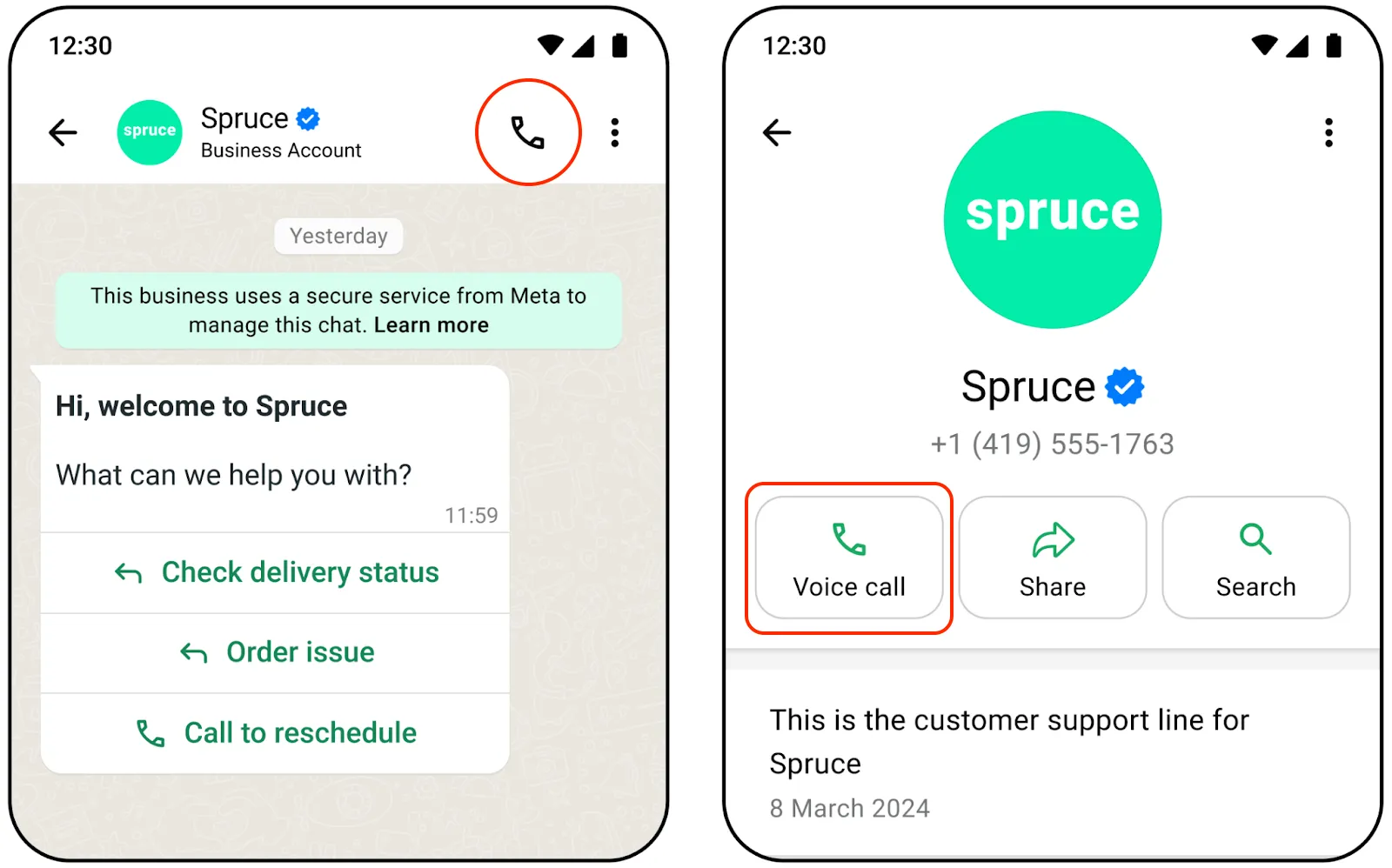
status parameter is set to “ENABLED”, calling features are enabled for the business phone number. WhatsApp client applications will render the call button icon in both the business chat and business chat profile.When the
status parameter is set to “DISABLED”, calling features are disabled, and both the business chat and business chat profile do not display the call button icon.Updates to
status will update the call button icon in existing business chats in near real-time when the business phone number is in the WhatsApp user’s contacts.Otherwise, updates are real-time for a limited number of users in conversation with the business, and are eventual for the rest of the conversations.
When Calling API features are enabled for a business number, you can still choose whether to show the call button icon or not by using the
call_icon_visibility parameter. Note: Disabling call button icon visibility does not disable a WhatsApp user’s ability to make unsolicited calls to your business.The behavior for supported options is as follows:
DEFAULTThe Call button icon will be displayed in the chat menu bar and the business info page, allowing for unsolicited calls to the business by WhatsApp users.
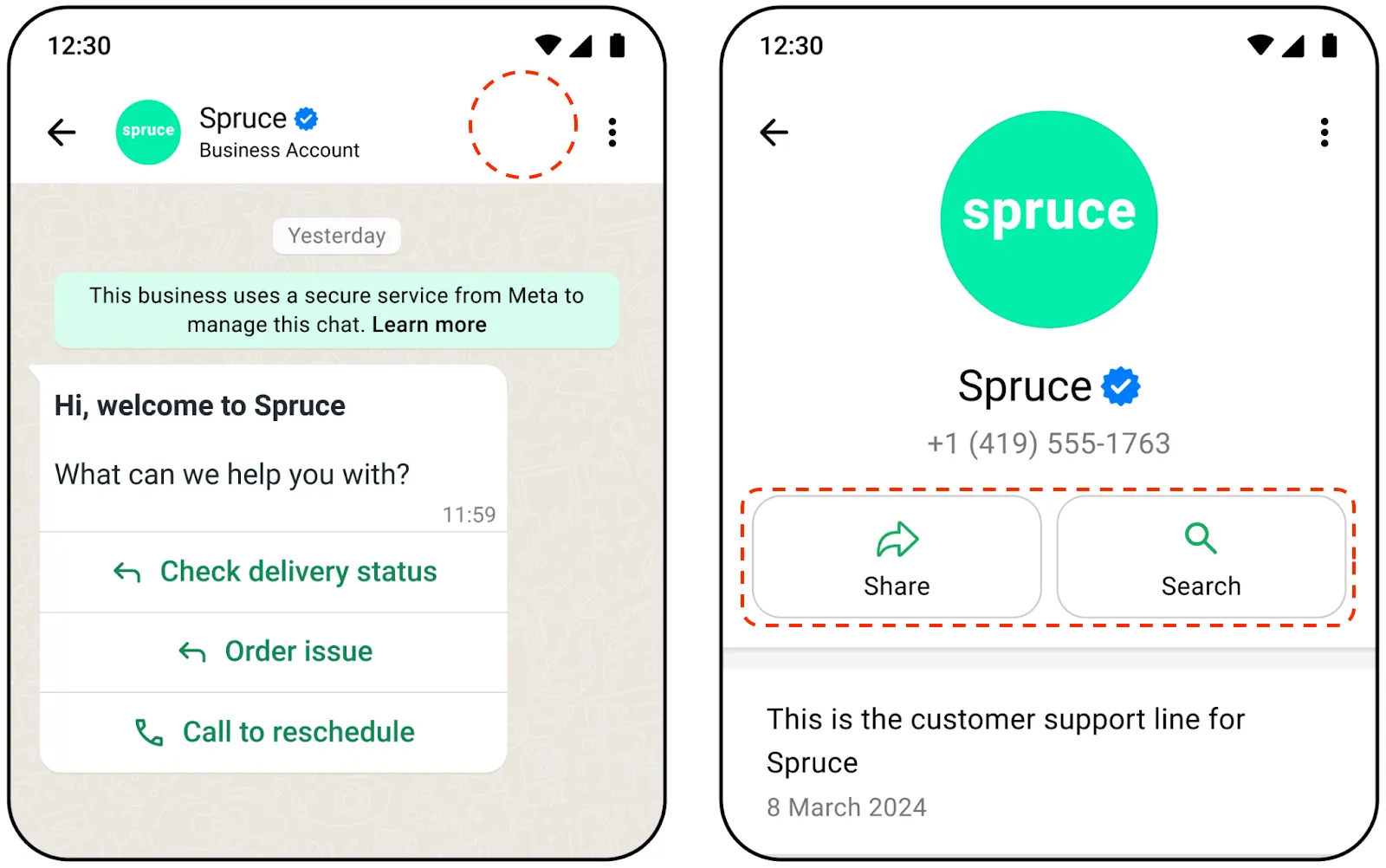
DISABLE_ALLThe call button icon is hidden in the chat menu bar and the business info page, and all other entry points external to the chat are also disabled. Consumers cannot make unsolicited calls to the business.
Your business can still send interactive messages or template messages with a Calling API CTA button.
Callback permissions
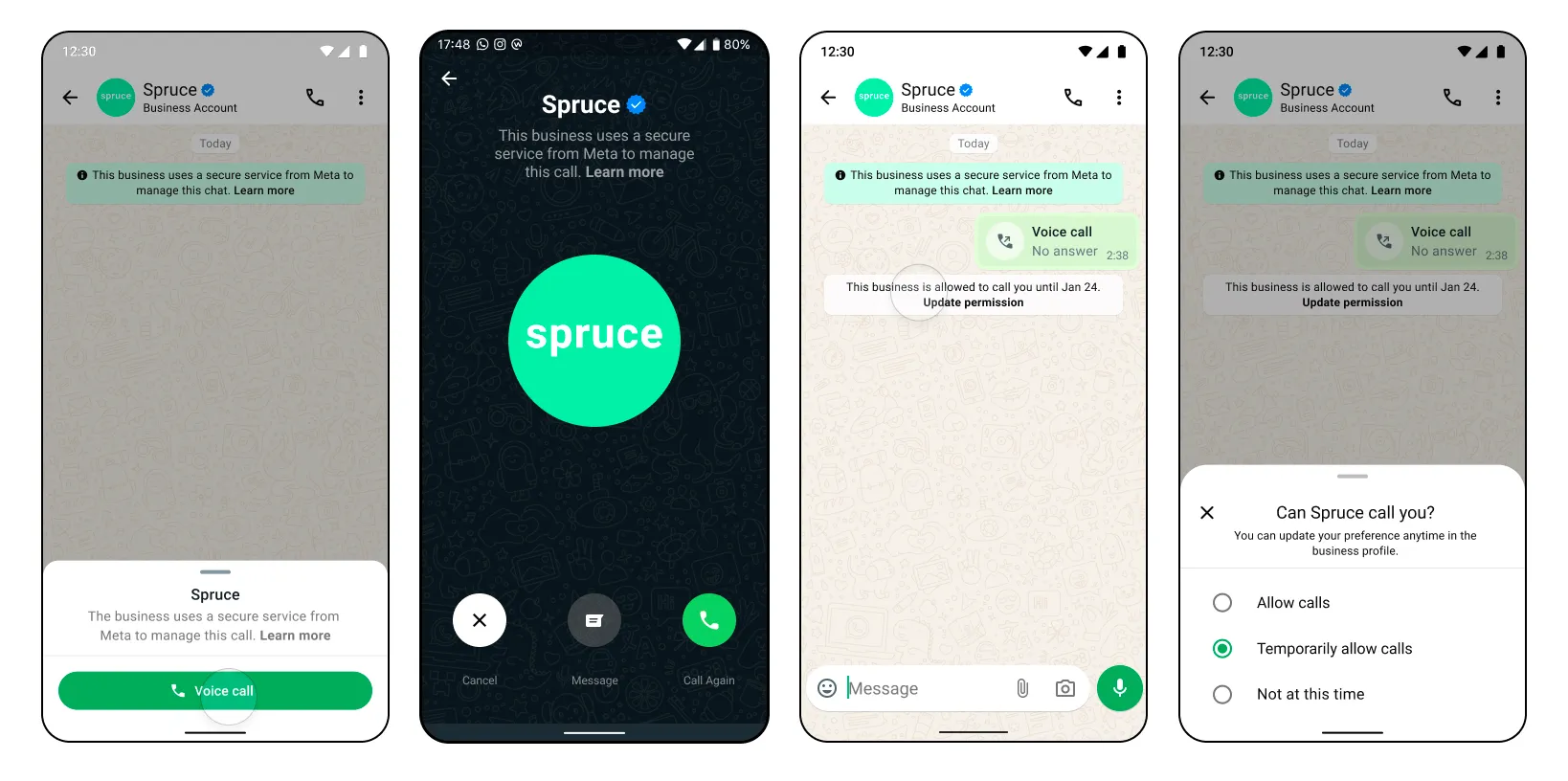
Calling a WhatsApp user requires explicit permission from the user. One way to obtain calling permissions is to request permission when a WhatsApp user calls your business.
You can configure the call permission UI to automatically show in the WhatsApp user’s client app when they call your business number. The user may change their permission selection at any time.
Call icons
With the
call_icons setting, you can specify the countries where these icons should show up.Audio codec
Opus is the default audio codec for all WhatsApp calls. You can enable G.711 (PCMA/PCMU) codecs for interoperability with legacy telephony systems or PSTN gateways.
Guidelines and considerations
Success response
{"success": true}
Error response
Possible errors that can occur:
call_hoursHoliday given in call_hours is a past dateTimezone is invalid in call_hoursweekly_operating_hours in call_hours cannot be emptyDate format in holiday_schedule for call_hours is invalidMore than 2 entries not allowed in weekly_operating_hours schedule in call_hoursOverlapping schedule in call_hours is not allowed
Get phone number calling settings
Use this endpoint to check the configuration of your Calling API feature settings.
This endpoint can return information for other Cloud API feature settings.
Endpoint parameters
| Parameter | Description | Sample Value |
|---|---|---|
<PHONE_NUMBER_ID>Integer |
Required
ID of the business phone number for which you are getting Calling API settings. |
106540352242922 |
App permission required
whatsapp_business_management: Advanced access is required to use the API for end business clientsError response
Possible errors that can occur:
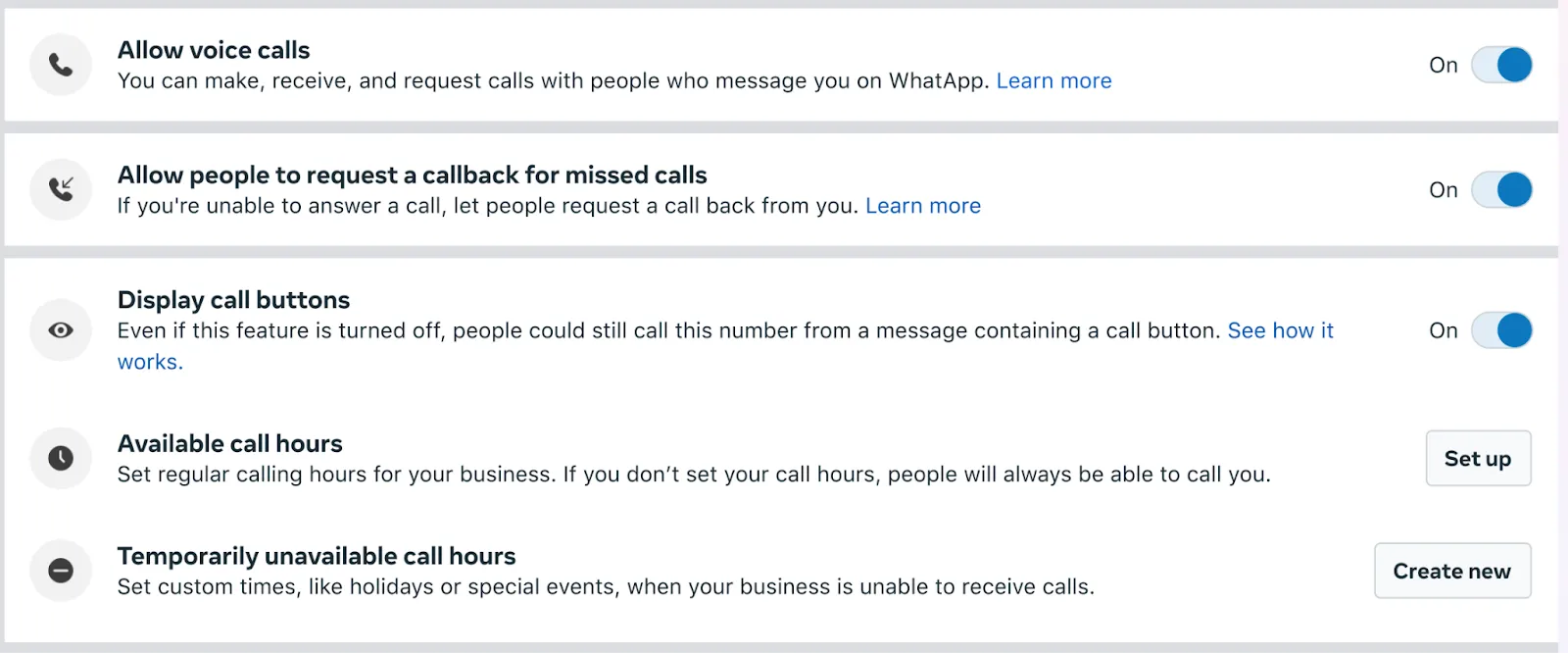
Call settings in WhatsApp Manager
You can also control your call settings via WhatsApp Manager.
To access calling controls in WhatsApp Manager:
Configure and use call signaling via session initiation protocol (SIP)
Session Initiation Protocol (SIP) is a signaling protocol used for initiating, maintaining, modifying, and terminating real-time communication sessions between two or more endpoints. You can send and receive call signals using SIP instead of Graph API endpoints.
Calling restrictions for user feedback
If your calls receive a high negative user feedback, such as blocks and reports, business initiated calling, user initiated calling, or both functionalities on your phone number can be restricted.
Early warning
You will be notified when the business phone number is close to being paused as an early warning. The early warning notifications will be communicated via below channels
Enforcement emails are sent to the email addresses of all users and admins associated with the business. If you did not receive an email, confirm which email you have designated as the contact email for your app and make sure that it is active, can receive new email, and does not flag the email as junk or spam mail.
Pause in calling functionality
Once the negative user feedback reaches a threshold, Cloud API will automatically restrict calling functionality on your phone number for a period of 7 days. While paused the calling phone number will be unable to
Once your phone number has been paused, notifications will be communicated via below channels.
Note: Any call permissions approved or declined by the users while paused, will still be valid.
Enforcement emails are sent to the email addresses of all users and admins associated with the business. If you did not receive an email, confirm which email you have designated as the contact email for your app and make sure that it is active, can receive new email, and does not flag the email as junk or spam mail.
Pause in user initiated calling functionality
Once the negative user feedback reaches a threshold, Cloud API will automatically restrict user initiated calling functionality on your phone number for a period of 7 days. While paused the calling phone number will be unable to
Once your phone number has been paused, notifications will be communicated via below channels.
Enforcement emails are sent to the email addresses of all users and admins associated with the business. If you did not receive an email, confirm which email you have designated as the contact email for your app and make sure that it is active, can receive new email, and does not flag the email as junk or spam mail.
Calling restrictions for low call pickup rates
When calling is enabled on your business phone number, you are expected to pick up calls that users place to you.
If a significant number of calls placed to your calling-enabled business phone number are not picked up, you will be notified and expected to make a change.