
Zero-tap authentication templates | Developer Documentation
Zero-tap authentication templates
Updated: Feb 6, 2026
Upcoming deprecation: Starting April 15, 2026, the
PendingIntent-based handshake method for authentication templates will be deprecated. If you are currently using PendingIntent to initiate handshakes or verify app identity, the OTP Android SDK is the preferred way to migrate.Zero-tap authentication templates allow your users to receive one-time passwords or codes via WhatsApp without having to leave your app.
When a user in your app requests a password or code and you deliver it using a zero-tap authentication template, the WhatsApp client simply broadcasts the included password or code and your app can capture it immediately with a broadcast receiver.
From your user’s perspective, they request a password or code in your app and it appears in your app automatically. If your app user happens to check the message in the WhatsApp client, they will only see a message displaying the default fixed text: < code > is your verification code.
Like one-tap autofill button authentication templates, when the WhatsApp client receives the template message containing the user’s password or code, we perform a series of eligibility checks. If the message fails this check and we are unable to broadcast the password or code, the message will display either a one-tap autofill button or a copy code button. For this reason, when you create a zero-tap authentication template, you must include a one-tap autofill and copy code button in your post body payload, even if the user may never see one of these buttons.
Note: The OTP Android SDK features a simplified workflow for implementing one-tap and zero-tap authentication templates. You can learn how to use it below.
Limitations
Zero-tap is only supported on Android. If you send a zero-tap authentication template to a WhatsApp user who is using a non-Android device, the WhatsApp client will display a copy code button instead.
URLs, media, and emojis are not supported.
Best practices
Here are some examples that make it clear to an app user that their code will automatically appear in the app. 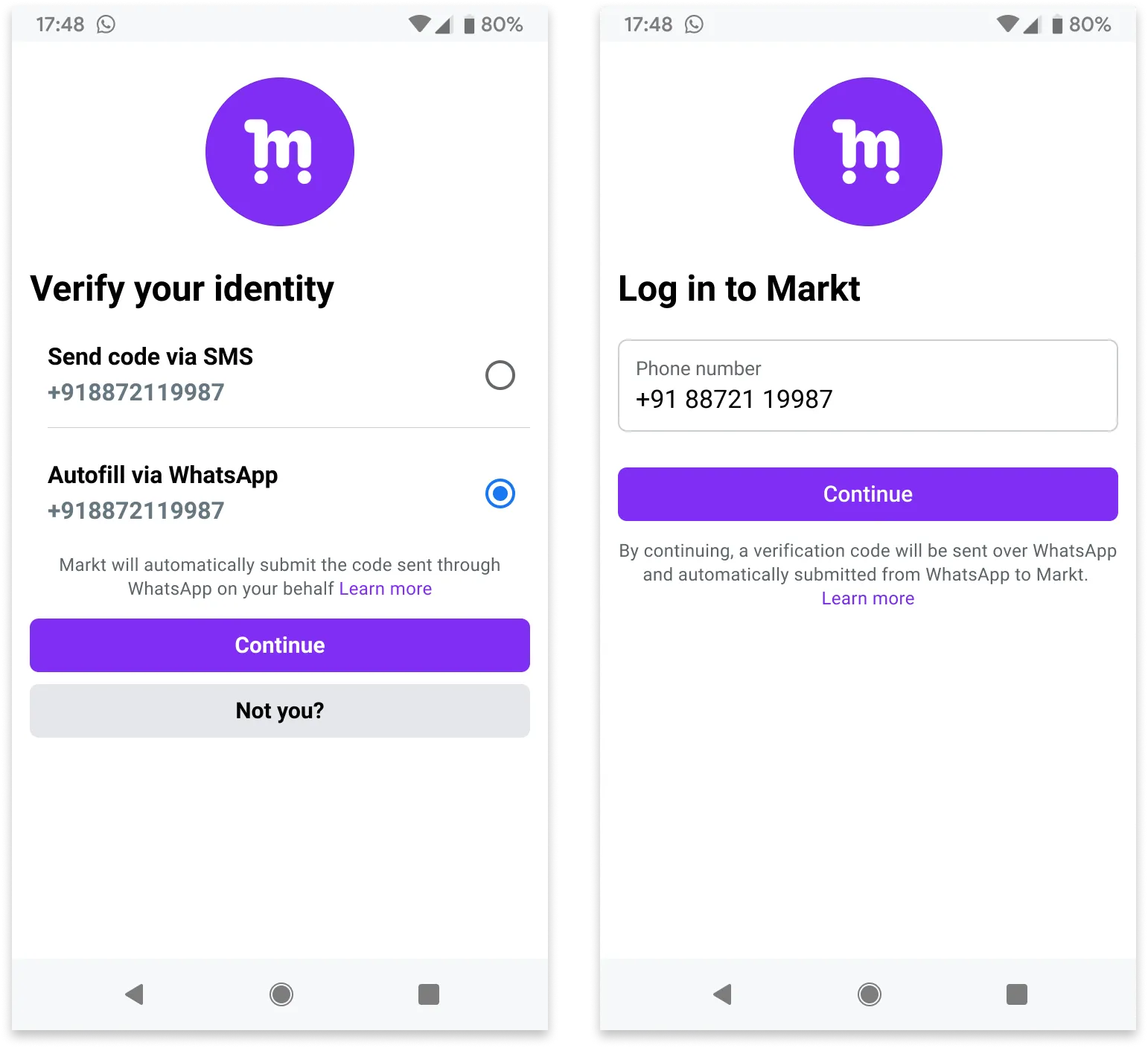
App signing key hash
You must include your app signing key hash in your post body.
To calculate your hash, follow Google’s instructions for computing your app’s hash string.
Alternatively, if you follow Google’s instructions and download your app signing key certificate (step 1), you can use your certificate with the sms_retriever_hash_v9.sh shell script to compute the hash. For example:
./sms_retriever_hash_v9.sh --package "com.example.myapplication" --keystore ~/.android/debug.keystore
Supported apps
The
supported_apps array allows you define pairs of app package names and signing key hashes for up to 5 apps. This can be useful if you have different app builds and want each of them to be able to initiate the handshake:Alternatively, if you are using Graph API version 20.0 or older and have only a single app, you can define the app’s package name and signing key hash as
buttons object properties, but this is not recommended as we will stop supporting this method starting with version 21.0:Error signals
See Error Signals that can help with debugging.
Handshake ID Error Codes
The following error codes may be returned when using the SDK with handshake ID validation:
| Error Code | Description |
|---|---|
HANDSHAKE_ID_MISSING |
The handshake ID was not included in the intent from WhatsApp |
HANDSHAKE_ID_INVALID_FORMAT |
The handshake ID is not a valid UUID format |
HANDSHAKE_ID_MISMATCH |
The handshake ID in the intent does not match the expected value |