
Troubleshoot WhatsApp Calling Errors - Reference Guide | Developer Documentation
Troubleshoot WhatsApp Calling Errors - Reference Guide
Updated: Dec 3, 2025
Standard error response
When you receive an error, in the majority of cases the error shape will look like this:
{Use the Calling API error codes list below to identify and resolve calling errors.
Calling logs
The Call Logs tab in WhatsApp Manager provides businesses and partners with a detailed, self-service view of call events to aid in call troubleshooting.
The tab displays a table of recent call logs for your business phone numbers. Each call has a log. Each log can have multiple events representing a Graph API request made by the business or a webhook sent by Meta. Each row represents a call, with different columns highlighted to provide information about each call log.
How to view call logs
Call logs and events
Timestamp
Timestamp of when the call occurred.
Call Direction
Outbound (Business-initiated) or Inbound (User-initiated).
Signaling
Signaling Protocol used to establish the call (SIP, GRAPH_API).
Call ID
WhatsApp call identifier.
Note: Please provide this ID when requesting support.
Note: Please provide this ID when requesting support.
Request ID
Identifier for the request that initiated the call.
Call Details
Additional information containing a log of events during the lifecycle of the call.
Calling error codes
100Invalid Parameter
The Graph API call you are making has an invalid parameter.
Exact error details will be listed in the
error_data section of the response payload.If it’s an SDP validation related error then the exact issue will be included in the details.
400Bad request
613Fetch Call Permission For Consumer Phone Number API Limit Hit
Limit reached for requests to the fetch call permission status API.
Try again later or reduce the frequency or amount of requests to the API the app is making.
429Too many requests
131009Interactive Message type,
voice_call not supported. Supported types [button, list]Ensure the sender is in one of the supported countries.
400Bad request
131030Recipient phone number is not in allowed list.
The error is thrown for both attempted calls and call permission requests.
Only occurs when using public test numbers (PTNs).
Add a recipient phone number to recipient list and try again.
400Bad request
138000Calling not enabled
Calling APIs are not enabled for this phone number
Calling is not enabled on the business phone number.
401Unauthorized
138001Receiver Uncallable
Receiver is unable to receive calls
Reasons can include:
Confirm with the recipient that they agree to be contacted by you over WhatsApp and are using the latest version of WhatsApp.
400Bad Request
138002Concurrent Calls limit
Limit reached for maximum concurrent calls (1000) for the given number
Try again later or reduce the frequency or amount of API calls the app is making.
429Too many requests
138003Duplicate call
A call is already ongoing with the receiver
Try again later when the current call ends.
400Bad request
138004Connection error
Error while connecting the call
Try again later or investigate the connection params provided to the API.
500Server error
138005Call rate limit exceeded
Limit reached for maximum calls that can be initiated by the business phone number
Try again later or reduce the frequency or amount of API calls the app is making.
429Too many requests
138006No approved call permission found
No approved call permission from the recipient
Ensure a call permission has been accepted by the consumer
401Unauthorized
138007Connect Timeout error
Call was unable to connect due to a timeout
Business did not apply the offer/answer SDP from Cloud API in time. Connect API was not invoked with the answer SDP in time
500Server error
138009Call Permission Request Limit Hit
Limit reached for call permission request sends for the given business and consumer pair
When a business sends more than the limit of call permission requests per time period, Call Permission Requests are rate limited. A connected call with a consumer will reset the limits.
400Bad request
138012Business Initiated Calls Limit Hit
Limit reached for maximum business initiated calls allowed in 24 hours. Currently 100 connected business initiated calls are allowed within 24 hours.
Exact error details will be listed in the
error_data section of the response payload.Details will include a timestamp when the next call is allowed.
400Bad request
138013Business-initiated calling is not available
Business-initiated calling is not available for this business account phone number.
Confirm that Business Initiated calling is available for this business account phone number in the availability section here.
400Bad request
138014Calling is temporarily disabled
Calling APIs for this WhatsApp Business Number have been temporarily disabled for having low quality.
Ensure that your outreach to users is valuable and not spam.
Retry the action after the account restrictions are lifted.
400Bad request
138015Calling cannot be enabled
Calling APIs cannot be enabled for this phone number.
Check and make sure messaging limit on your phone number is 2000 or more
400Bad request
138017Call permission request can’t be sent because a permanent permission already exists.
Call permission request cannot be sent because a permanent permission has already been approved by the user for this business account phone number.
No need to send call permission requests.
400Bad request
138018WhatsApp Business calling cannot be enabled because technical pre-requisites are not met.
See prerequisites for more details
Configure SIP or ensure there is at-least one app subscribed to the WhatsApp Business Account that also has subscription to the
calls webhook field.400Bad request
138019Call setup failed
The WhatsApp client failed to set up the call.
This error is sent in the call terminate webhook.
Try again later.
400Bad request
138020Relay connection failed
The WhatsApp client failed to establish a connection with the relay server.
This error is sent in the call terminate webhook.
Try again later.
400Bad request
138021Media receive timeout
The WhatsApp client terminated the call due to not receiving any media for a long time.
This error is sent in the call terminate webhook.
Confirm that call media is being sent to the relay and try again.
400Bad request
138022Media transmit timeout
The WhatsApp client terminated the call due to not transmitting any media for a long time.
This error is sent in the call terminate webhook.
Try again later.
400Bad request
138023Call accepted but terminated with no media signals
The call was accepted but terminated with no media connection signals.
Cloud API could not determine if the call was connected.
This error is sent in the call terminate webhook.
Try again later.
400Bad request
131044An error webhook is sent on user initiated calls when there is no valid payment method attached
This is similar to the “Business eligibility payment issue” error in messaging.
400Bad request
131055Method not allowed. Graph API calls are not allowed for SIP enabled numbers
Use SIP for SIP enabled business numbers.
400Bad request
SIP errors
Also refer to SIP specific FAQ for additional troubleshooting info
Business initiated calls
400Asset not found, invalid business phone number
The phone number in the
From header of the INVITE is invalid and does not correspond to a registered account on WhatsApp Business PlatformCheck the phone number and resend the INVITE with the correct
From header value. See examples403SIP server
foo.com from INVITE does not match any SIP server configured for phone number id [ID]Your SIP INVITE to Meta has ‘foo.com’ in the
From header (for example, [email protected]). But there is no SIP server with that hostname configured on the business phone number.Check your SIP configuration and ensure it matches the domain used in the
From header. The hostname in the SIP configuration should match the domain in the From header of your SIP INVITE. It is also valid for the SIP configuration hostname to be a sub-domain of the domain in From header. For example, SIP server configured is bar.foo.com and the From header is [email protected]403No Approved Call Permission Found: No approved call permission from the recipient
There is no WhatsApp user with specified number or user has not accepted our new Terms of Service or there is no permission from user to call the business. Meta can’t reveal if a phone number is on WhatsApp with certainty, due to privacy reasons. So this is the same error you’ll receive for multiple reasons.
Double check the user phone number and make sure you obtain the user permission. See Obtain User Call Permissions for more information
403The app [APP_ID] configured for SIP server
example.com is not authorized for phone number id [ID]When you configure SIP server on a business phone, Meta extracts the app id from the access token and stores a mapping from the SIP server to that app id. When you send a SIP INVITE, Meta consults that mapping to know which app is making the SIP request. This error means that app does not have
whatsapp_business_messaging permission on the business phone.Check that you are using the right app and make sure it has permissions on the business phone. If you’re able to send message using the app’s access token, that means the app has the right permission. Otherwise you may need to delete and add your SIP server with the correct app and retry your SIP INVITE. See Configuring SIP settings.
403Business Initiated Connected Call Per Day Limit Hit
Limit reached for maximum business initiated calls allowed in 24 hours. Currently 5 connected business initiated calls are allowed within 24 hours.
See more info about the limits and adjust your calling rate accordingly
403Additional reasons for 403 include
Read each error for details
Consult earlier sections in this page like Calling error codes
404Not found
SIP INVITEs using IP in request URI are not allowed
Use the correct request URI. See examples
407Proxy Authentication Required
Meta mandates digest authentication for your SIP INVITEs and this is the standard challenge response from Meta
Resend the SIP INVITE with digest response. See examples
408RTP Timeout
The WhatsApp client terminated the call due to not receiving any media for a long time.
480Temporarily Unavailable
WhatsApp user is not reachable or did not answer the call
Try messaging or calling later. Unanswered calls impact call permissions. Learn more
486User declined the call
WhatsApp user declined your call
Try messaging or calling later. Rejected calls impact call permissions. Learn more
487Request Terminated
Business canceled their SIP INVITE using SIP CANCEL
Expected return for your SIP INVITE when you CANCEL the INVITE before Meta response to your INVITE
503Service Unavailable
Generic internal error.
Retry your request after some time or consult Meta support
Call disconnects after 20 seconds into the call
At the start of the call, if there is no media flowing from business to WhatsApp user for 20 seconds, WhatsApp client will disconnect the call due to no media
Can’t hear audio and call disconnects after 30 seconds
After the call is connected and established, if there is no media packet from business to WhatsApp user for 30 seconds, WhatsApp client will disconnect the call due to no media reception
Audio clipping issue and solution
When bridging the WhatsApp Consumer media leg via WebRTC to another media leg, such as SIP, it’s important to be aware of potential audio clipping issues and how to prevent them. A common symptom of this issue is that the WhatsApp consumer may miss approximately one second of audio from the business. For instance, if an IVR system is playing a sequence like “1-2-3,” the consumer might only hear “2” or “3.” The extent of audio loss varies based on the specific integration and the severity of the issue.
The sequence diagram below illustrates this problem using an example where the WebRTC leg from the Cloud API is bridged with a SIP media leg. Depending on the SIP vendor and implementation, the media from the SIP User Agent might start playing at step 11, but it won’t reach the WhatsApp consumer until step 18.
Sequence diagram
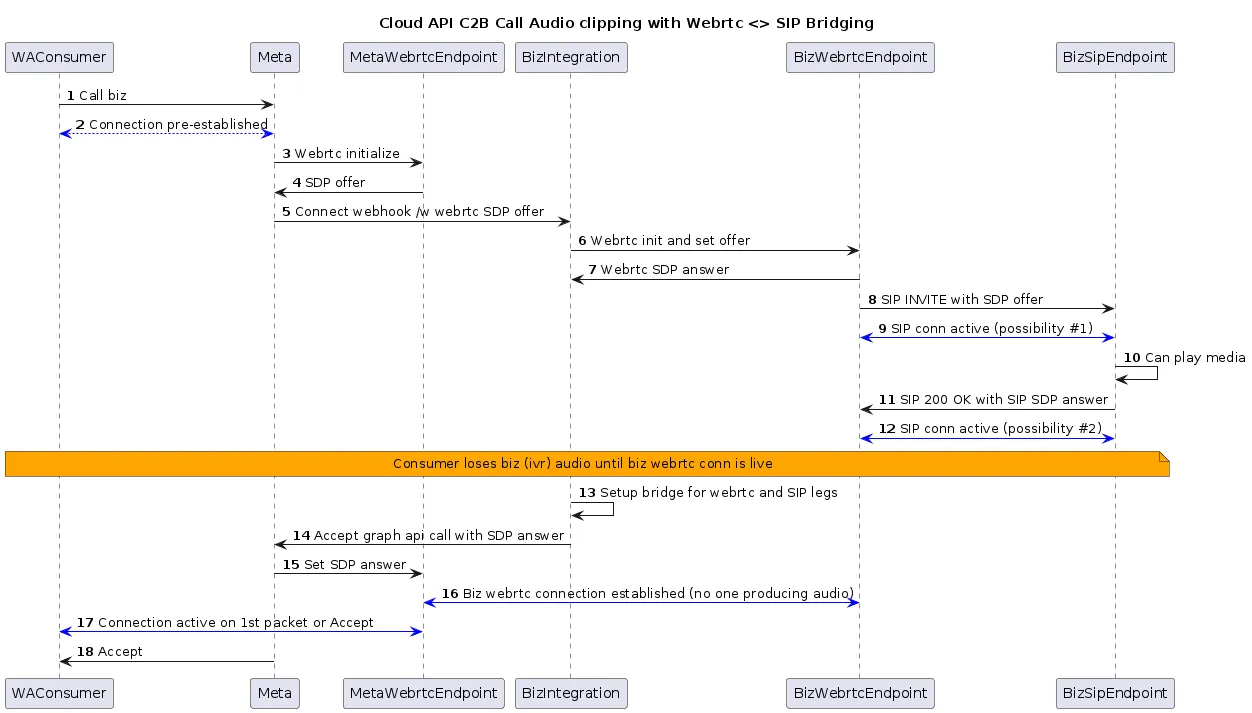 (Right click image and choose “Open in new tab” for enlarged image)
Components of the sequence diagram
Key points to note
Root cause
When bridging two media legs, it’s crucial for the media server to synchronize their readiness to prevent audio clipping. In this scenario, the BizWebrtcEndpoint is allowing the SIP User Agent (UA) to transmit media significantly earlier than the WebRTC leg is prepared to receive it. As a result, packets are being dropped at the media server, leading to audio clipping issues.
Suggested solutions
Below is a high-level summary of alternative approaches to address audio clipping, intended to stimulate discussion and consideration. While each option has its drawbacks, you can assess their feasibility in the context of your specific requirements.
These solutions may have varying degrees of complexity and impact on your system. It’s essential to evaluate their feasibility and potential trade-offs in the context of your specific use case.
Support
For support concerning WhatsApp Business Calling API, choose the WaBiz: Calling API topic when opening a Direct Support ticket.