
Template components | Developer Documentation
Template components
Updated: Nov 21, 2025
Templates are made up of four primary components which you define when you create a template: header, body, footer, and buttons. The components you choose for each of your templates should be based on your business needs. The only required component is the body component.
Some components support variables, whose values you can supply when using the Cloud API to send the template in a template message. If your templates use variables, you must include sample variable values upon template creation.
Text header
Text headers are optional elements that can be added to the top of template messages. Each template may include only one text header. Please note that markdown special characters are not supported in this component, so we recommend avoiding their use.
Text headers support 1 parameter.
Creation syntax
<!--
Creation parameters
<HEADER_TEXT>String
Required.
Header body text string. Supports 1 parameter.
If this string contains a parameter, you must include the
example property and example parameter value.Maximum 60 characters.
Our new sale starts {{sale_start_date}}!<NAMED_PARAMETER_NAME>String
Required if using a named parameter.
Named parameter name.
{{sale_start_date}}<PARAMETER_EXAMPLE_VALUE>String
Required if using a parameter.
Parameter example value.
December 1stCreation example
This example uses 1 named parameter.
{
Media header
Media headers can be an image, video, gif, or a document such as a PDF. All media must be uploaded with the Resumable Upload API. The syntax for defining a media header is the same for all media types.
Note: Gifs are currently only available for Marketing Messages API for WhatsApp. Gifs are mp4 files with a max size of 3.5MB and larger files will be displayed as video messages.
Creation syntax
{
Creation parameters
<FORMAT>Indicates media asset type. Set to
IMAGE, VIDEO, GIF, or DOCUMENT.IMAGE<HEADER_HANDLE>Uploaded media asset handle. Use the Resumable Upload API to generate an asset handle.
4::aW...Creation example
{
Location header
Location headers appear as generic maps at the top of the template and are useful for order tracking, delivery updates, ride-hailing pickup/dropoff, locating physical stores, etc. When tapped, the app user’user's default map app will open and load the specified location. Locations are specified when you send the template.
Location headers can only be used in templates categorized as
UTILITY or MARKETING. Real-time locations are not supported.Creation syntax
{
Creation parameters
None.
Creation example
{
Send syntax
{
Send parameters
<LOCATION_ADDRESS>Location address.
101 Forest Ave, Palo Alto, CA 94301<LOCATION_LATITUDE>Location latitude in decimal degrees.
37.44211676562361<LOCATION_LONGITUDE>Location longitude in decimal degrees.
122.16155960083124<LOCATION_NAME>Location name.
Philz CoffeeSend example
{
Body
The body component represents the core text of your message template and is a text-only template component. Templates are limited to one body component.
The message text in the body component accepts multiple parameters.
Creation syntax
<!--
Creation parameters
<BODY_TEXT>String
Thank you, {{first_name}}! Your order number is {{order_number}}.<NAMED_PARAMETER_NAME>String
Required if using a named parameter.
Named parameter name.
{{order_number}}<PARAMETER_EXAMPLE_VALUE>String
Required if using a parameter.
Parameter example value.
December 1stCreation example
{
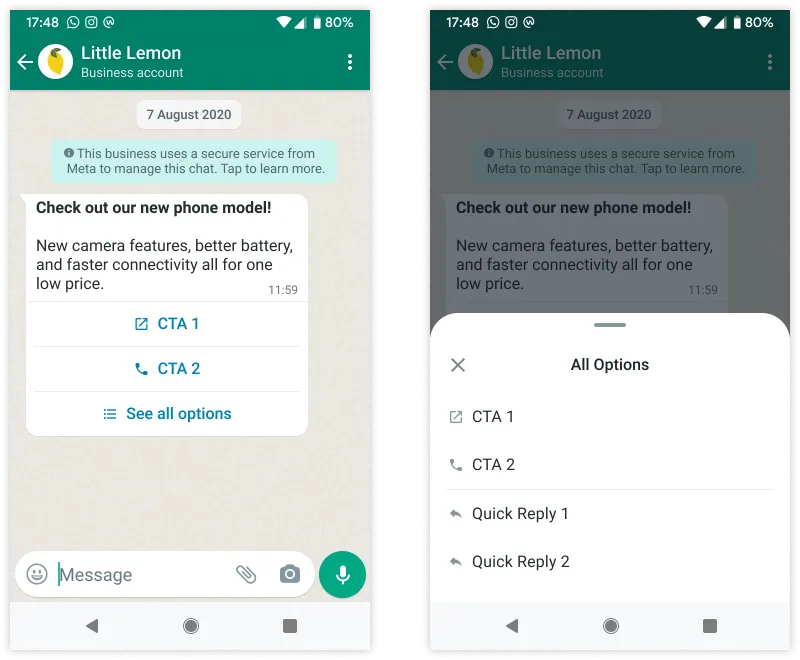
If a template has more than three buttons, two buttons will appear in the delivered message, and the remaining buttons will be replaced with a See all options button. Tapping the See all options button reveals the remaining buttons.
Copy code buttons copy a text string (defined when the template is sent in a template message) to the device’device's clipboard when tapped by the app user. Templates are limited to one copy code button.
Syntax
{"type": "COPY_CODE", "example": "<EXAMPLE>" }
Properties
<EXAMPLE>String to be copied to the device’device's clipboard when tapped by the app user.
250FFExample
{"type": "COPY_CODE", "example": "250FF" }
Multi-product message buttons
Multi-product message buttons are special, non-customizable buttons that, when tapped, display up to 30 products from your ecommerce catalog, organized in up to 10 sections, in a single message. See Multi-Product Message Templates.
One-time password buttons
One-time password buttons are a special type of URL button component used with authentication templates. See Authentication Templates.
Voice call buttons make a WhatsApp call to the business when tapped by the app user. See Create and send WhatsApp call button template message to learn more
Phone number buttons call the specified business phone number when tapped by the app user. Templates are limited to one phone number button.
Syntax
{"type": "PHONE_NUMBER", "text": "<TEXT>", "phone_number": "<PHONE_NUMBER>" }
Properties
<PHONE_NUMBER>Alphanumeric string. Business phone number to be called when the user taps the button.
Note that some countries have special phone numbers that have leading zeros after the country calling code (for example, +55-0-955-585-95436). If you assign one of these numbers to the button, the leading zero will be stripped from the number. If your number will not work without the leading zero, assign an alternate number to the button, or add the number as message body text.
20 characters maximum.
15550051310<TEXT>Button label text.
Call{"type": "PHONE_NUMBER", "text": "Call", "phone_number": "15550051310" }
Quick reply buttons
Quick reply buttons are custom text-only buttons that immediately message you with the specified text string when tapped by the app user. A common use case is a button that allows your customer to easily opt-out of any marketing messages.
Templates are limited to 10 quick reply buttons. If using quick reply buttons with other buttons, buttons must be organized into two groups: quick reply buttons and non-quick reply buttons. If grouped incorrectly, the API will return an error indicating an invalid combination.
Examples of valid groupings:
Examples of invalid groupings:
When using the API to send a template that has multiple quick reply buttons, you can use the index property to designate the order in which buttons appear in the template message.
Syntax
{"type": "QUICK_REPLY", "text": "<TEXT>" }
Properties
<TEXT>Button label text.
Unsubscribe{"type": "QUICK_REPLY", "text": "Unsubscribe from Promos" }
SPM buttons
Single-product message (SPM) buttons are special, non-customizable buttons that can be mapped to a product in your product catalog. When tapped, they load details about the product, which it pulls from your catalog. Users can then add the product to their cart and place an order. See Single-Product Message Templates and Product Card Carousel Templates.
URL buttons load the specified URL in the device’device's default web browser when tapped by the app user. Templates are limited to two URL buttons.
Syntax
{"type": "URL", "text": "<TEXT>", "url": "<URL>", # Required if <URL> contains a variable "example": [ "<EXAMPLE>" ] }
Properties
<EXAMPLE>URL of website. Supports 1 variable.
https://www.luckyshrub.com/shop?promo=summer2023<TEXT>Button label text. 25 characters maximum.
Shop Now<URL>URL of website that loads in the device’device's default mobile web browser when the button is tapped by the app user.
https://www.luckyshrub.com/shop?promo={{1}}Example
{"type": "URL", "text": "Shop Now", "url": "https://www.luckyshrub.com/shop?promo={{1}}", "example": [ "summer2023" ] }
Limited-time offer
Limited-Time Offer components are special components used to create limited-time offer templates.
Example requests
Seasonal promotion
curl -L 'https://graph.facebook.com/v25.0/102290129340398/message_templates' \
-H 'Authorization: Bearer EAAJB...' \
-H 'Content-Type: application/json' \
-d '
{
"name": "seasonal_promotion",
"language": "en_US",
"category": "MARKETING",
"components": [
{
"type": "HEADER",
"format": "TEXT",
"text": "Our {{1}} is on!",
"example": {
"header_text": [
"Summer Sale"
]
}
},
{
"type": "BODY",
"text": "Shop now through {{1}} and use code {{2}} to get {{3}} off of all merchandise.",
"example": {
"body_text": [
[
"the end of August","25OFF","25%"
]
]
}
},
{
"type": "FOOTER",
  "text": "Use the buttons below to manage your marketing subscriptions"
},
{
"type":"BUTTONS",
"buttons": [
{
"type": "QUICK_REPLY",
  "text": "Unsubscribe from Promos"
},
{
"type":"QUICK_REPLY",
"text": "Unsubscribe from All"
}
]
}
]
}'Order confirmation
curl -L 'https://graph.facebook.com/v16.0/102290129340398/message_templates' \
-H 'Authorization: Bearer EAAJB...' \
-H 'Content-Type: application/json' \
-d '
{
  "name": "order_confirmation",
  "language": "en_US",
  "category": "UTILITY",
  "components": [
    {
      "type": "HEADER",
      "format": "DOCUMENT",
      "example": {
        "header_handle": [
          "4::YX..."
        ]
      }
    },
    {
      "type": "BODY",
      "text": "Thank you for your order, {{1}}! Your order number is {{2}}. Tap the PDF linked above to view your receipt. If you have any questions, please use the buttons below to contact support. Thank you for being a customer!",
      "example": {
        "body_text": [
          [
            "Pablo","860198-230332"
          ]
        ]
      }
    },
    {
      "type": "BUTTONS",
      "buttons": [
        {
          "type": "PHONE_NUMBER",
          "text": "Call",
          "phone_number": "15550051310"
        },
        {
          "type": "URL",
          "text": "Contact Support",
          "url": "https://www.luckyshrub.com/support"
        }
      ]
    }
  ]
}'
Order delivery update
curl 'https://graph.facebook.com/v25.0/102290129340398/message_templates' \
-H 'Content-Type: application/json' \
-H 'Authorization: Bearer EAAJB...' \
-d '
{
  "name": "order_delivery_update",
  "language": "en_US",
  "category": "UTILITY",
  "components": [
    {
      "type": "HEADER",
      "format": "LOCATION"
    },
    {
      "type": "BODY",
      "text": "Good news {{1}}! Your order #{{2}} is on its way to the location above. Thank you for your order!",
      "example": {
        "body_text": [
          [
            "Mark",
            "566701"
          ]
        ]
      }
    },
    {
      "type": "FOOTER",
      "text": "To stop receiving delivery updates, tap the button below."
    },
    {
      "type":"BUTTONS",
      "buttons": [
        {
          "type": "QUICK_REPLY",
          "text": "Stop Delivery Updates"
        }
      ]
    }
  ]
}'