
Onboarding WhatsApp Business app users (aka "Coexistence") | Developer Documentation
Onboarding WhatsApp Business app users (aka "Coexistence")
Updated: Mar 20, 2026
You can configure Embedded Signup to allow business customers to onboard using their existing WhatsApp Business app account and phone number. Customers who are successfully onboarded after choosing this option will then be able to use your app to message their customers at scale, but still have the ability to send messages on a one-to-one basis using the WhatsApp Business app, while keeping messaging history between both apps in sync.
How it works
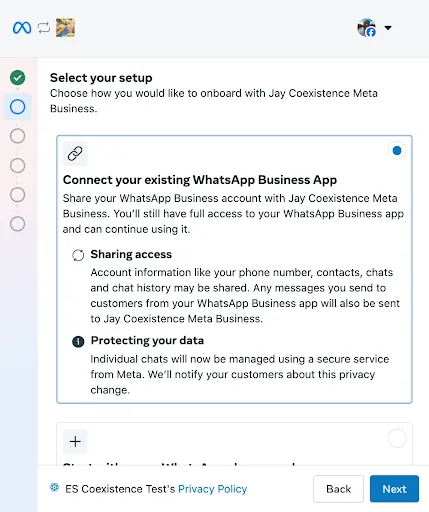
When you configure Embedded Signup for WhatsApp Business app phone numbers, a business customer who goes through the flow will be given the option to connect their existing WhatsApp Business app account to Cloud API:
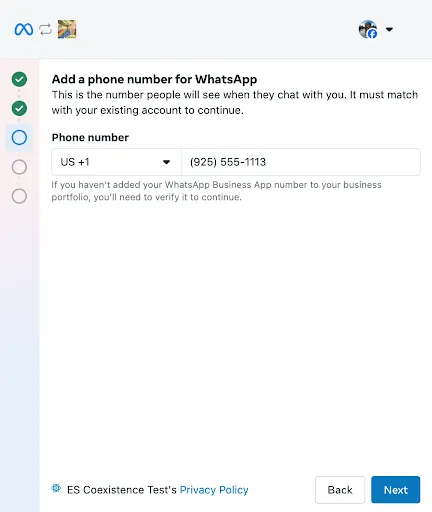
If they choose this option and enter their WhatsApp Business app phone number, they will be presented a verification code to enter.
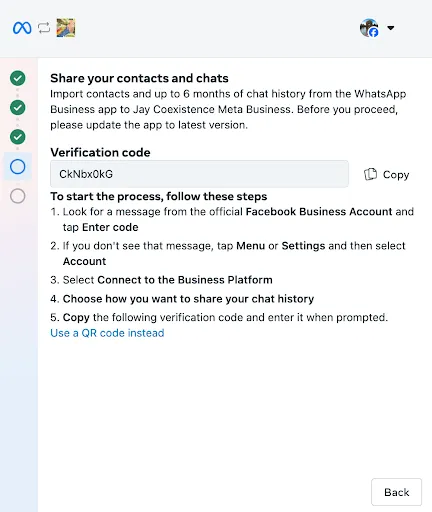
The message instructs the business to copy the verification code and follow the steps:
Expect to receive a message from the official Facebook Business Account. Click Connect:
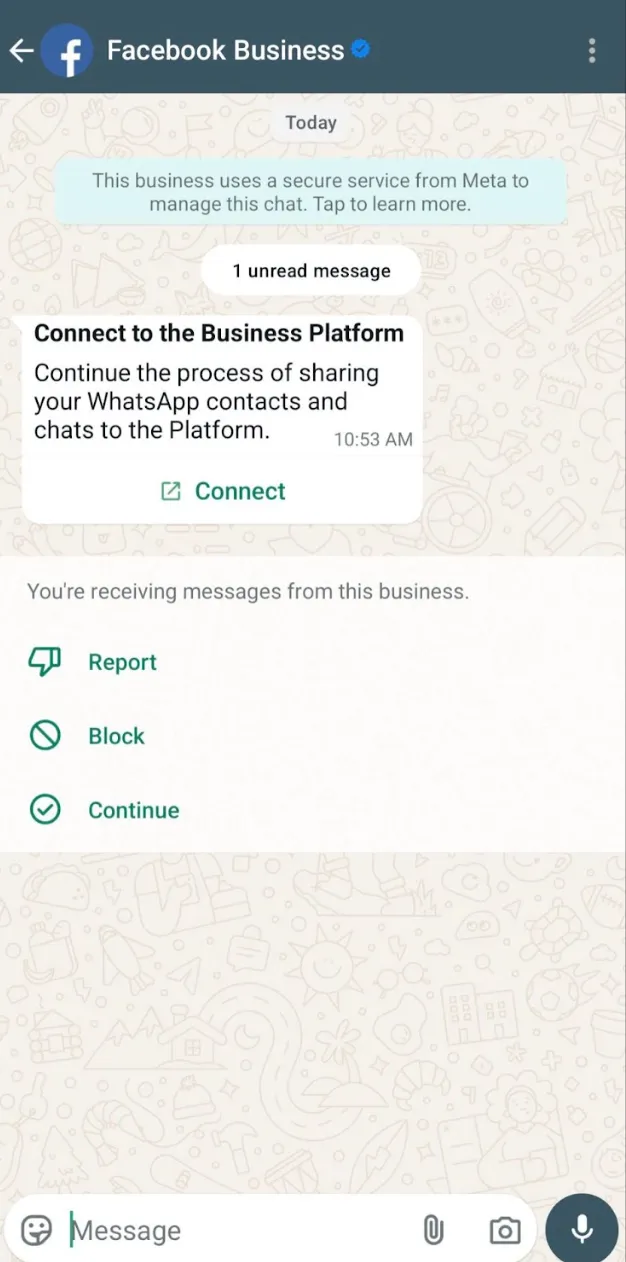
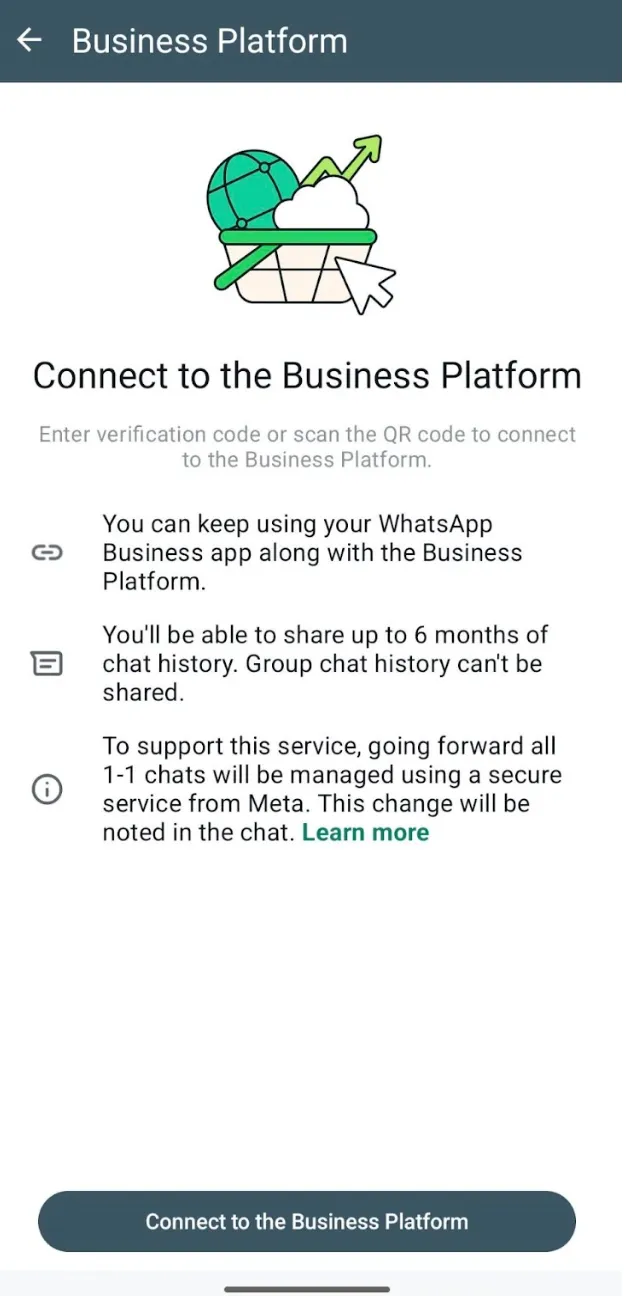
Tap the Connect to the Business Platform button to continue the onboarding process.
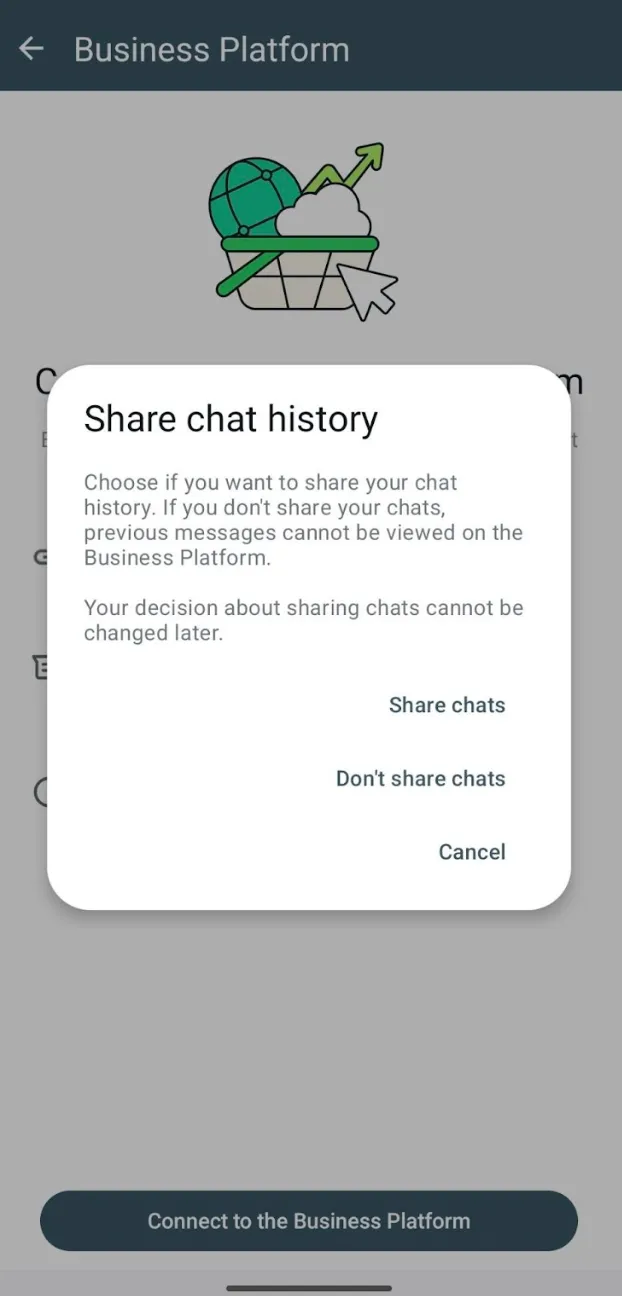
Tap the Confirm button in the app to give the business the option to share their chat history with you.
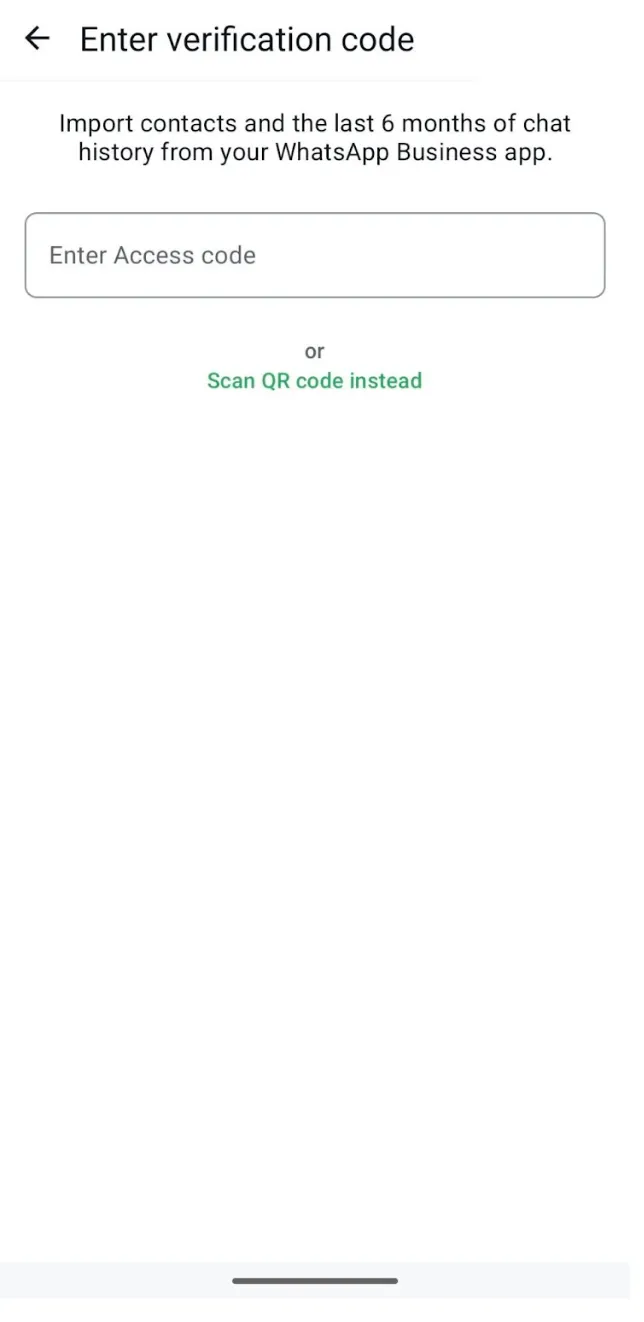
Paste the verification code.
They can complete the remainder of the Embedded Signup flow. This returns their asset IDs and exchangeable token code to the spawning window, as normal. You can then use that information in API calls to (1) onboard the business customer the same way you would any other business customer and (2) synchronize their contacts and messaging history (if permitted by the business) so you can populate it in your app.
Requirements
Limitations
Unsupported countries
WhatsApp Business account phone numbers with country codes from the following countries are not supported:
NigeriaSouth Africa
Pricing
After a business customer has been onboarded to Cloud API, messages sent by the business via the WhatsApp Business app will continue to be free, but messages sent via API will be subject to Cloud API pricing.
See our API Solutions for WhatsApp Business App Users pricing explainer PDF for breakdowns of common pricing scenarios.
Customer service window
Customer service windows will only be opened when a WhatsApp user messages a business customer who is already onboarded onto Cloud API. If a WhatsApp user messages a business just prior to the business being onboarded onto Cloud API, the business can only respond with a template message, since no customer service was opened. If the user messages the business after it has been onboarded onto Cloud API, a customer service window will be opened as normal, and the business can then respond with a non-template message.
The 24-hour customer service window restriction applies to messages sent via Cloud API. Messages sent from the WhatsApp Business app are not subject to the customer service window and do not create, extend, or affect Cloud API conversation windows or Cloud API pricing.
Feature comparison
The following table describes features available to business customers who have been onboarded to Cloud API, as well as any changes to WhatsApp Business app functionality post-onboarding.
| Existing feature on the WhatsApp Business App | Changes to features on the WhatsApp Business App AFTER onboarding to Cloud API | Is the WhatsApp Business app feature supported on Cloud API? |
|---|---|---|
|
Individual (1:1) chats |
Message Edit/Revoke is now supported. |
Supported.
All chat messages in the most recent 6 months can be synchronized.
Messages sent and received are mirrored between the Cloud API and WhatsApp Business app. |
|
Contacts |
No change. |
Supported.
All contacts with a WhatsApp number can be synchronized. |
|
Group chats |
No change. |
Not supported.
Group chats will not be synchronized. |
|
Disappearing messages |
Disappearing messages will be turned off for all individual (1:1) chats |
Not supported. |
|
View once messages will be disabled for all individual (1:1) chats |
Not supported. | |
|
Live location message |
Live location messages will be disabled for all individual (1:1) chats |
Not supported. |
|
Broadcast lists |
Broadcast list will be disabled.
Business will not be able to create new Broadcast Lists.
Existing Broadcast Lists will become read-only. |
Not supported. |
|
Voice and video calls |
No change. |
Not supported. |
|
Business tools (eg. catalog, orders, status) |
No change. |
Not supported. |
|
Messaging tools (e.g., marketing messages, greeting message, away message, quick replies, labels) |
No change. |
Not supported. |
|
Business profile (eg. business name, address, website) |
No change. |
Not supported. |
|
Channels |
No change. |
Not supported. |
Linked devices
Businesses can link up to four WhatsApp “companion” clients to their WhatsApp Business app account on other devices (described as “linked devices” in our Help Center).
All companion clients are supported, except for WhatsApp for Windows and WhatsApp for WearOS.
Once a business customer onboards to Cloud API with an existing WhatsApp Business app account and number, all companion apps will be unlinked from the account, and the business can then re-link any supported companion apps.
WhatsApp users who use an unsupported companion client to message an onboarded business can do so, but the message will not trigger messages webhooks, so the business won’t be able to mirror the message in their own app.
Messages sent from an onboarded business (by any means) that are viewed in an unsupported companion device will appear with placeholder text, instructing the WhatsApp user to view the message in their primary device.
Setting up your app
Step 1: Subscribe to webhooks
Navigate to the App Dashboard > WhatsApp > Configuration panel and subscribe your app to the following WhatsApp Business Account webhook topic fields, and make sure your app’s callback code can digest payloads for each of them. Note that these fields are in addition to any fields you are already subscribed to as a solution provider.
history — describes past messages the business customer has sent/receivedsmb_app_state_sync — describes the business customer’s current and new contactssmb_message_echoes — describes any new messages the business customer sends with the WhatsApp Business app after having been onboarded
Step 2: Customize Embedded Signup
Add a
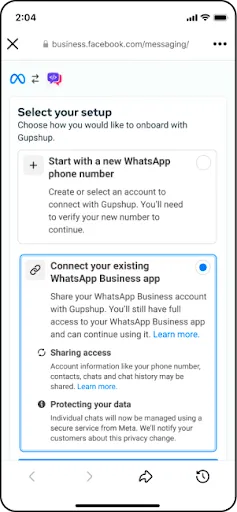
featureType property set to whatsapp_business_app_onboarding to the extras object in the launch method and callback registration portion of the Embedded Signup implementation code.To verify that you have enabled the feature correctly, access your implementation of Embedded Signup. If the WABA selection screen has been replaced with a screen that gives you the option to connect your existing WhatsApp Business account, the feature is enabled:
Step 3: Surface Embedded Signup to customers
Once you have confirmed that the feature has been enabled, surface Embedded Signup to your business customers.
Note that when a business completes the flow and you onboard the customer, you have 24 hours to synchronize their messaging history, otherwise they must be offboarded and they must complete the flow again. For this reason, we recommend that you:
onboard and synchronize as soon as the business completes the flowinform the business that you are synchronizing their WhatsApp Business app dataadvise them to keep the WhatsApp Business app open to facilitate the synchronization process
Onboarding and synchronization can take several minutes, depending on a number of factors such as the size of the business’s messaging history, their internet speed, how quickly you can digest webhooks, etc.
When you complete the onboarding process, the WhatsApp Business app will automatically refresh and indicate to the business that their number is now connected to the API:
After you finish synchronizing the business’s messaging history, we recommend that you inform the customer that the process is complete.
Onboarding business customers
When a business customer successfully completes the Embedded Signup flow, their asset IDs and an exchangeable token code will be returned to the window that spawned the flow, as normal, but the session event payload will have
event set to FINISH_WHATSAPP_BUSINESS_APP_ONBOARDING:{
data: {
waba_id: "<CUSTOMER_WABA_ID>"
},
type: "WA_EMBEDDED_SIGNUP",
event: "FINISH_WHATSAPP_BUSINESS_APP_ONBOARDING",
version: 3
}Capture the customer’s asset IDs and exchangeable token code and use them to onboard the customer as you normally would, but skip the phone number registration step, as the number is already registered.
Onboarding business customers as a Solution ProviderOnboarding business customers as a Tech Provider
Once you have completed these onboarding steps, you can begin the messaging history synchronization process.
Check onboarding status (optional)
If you wish, you can check if the customer’s business phone number is registered for both Cloud API and WhatsApp Business app use by requesting the
is_on_biz_app and platform_type fields on the business phone number ID:Example request:
Example response:
If
is_on_biz_app is true and platform_type is CLOUD_API, the business phone number is able to use Cloud API and the WhatsApp Business app:Synchronizing WhatsApp Business app data
After you onboard the business customer, you have 24 hours to synchronize their contacts and messaging history, otherwise they must be offboarded and complete the flow again. For this reason, we recommend that you begin the synchronization process as soon as you finish onboarding the business.
As a reminder, make sure that you subscribed to the business’s WABA when you onboarded the business, and that you are subscribed to the additional webhook fields, otherwise you will miss important webhooks.
Step 2: Initiate message history synchronization
Upon success, one or more history webhooks will be triggered, depending on if the business chose to share their messaging history with you.
Note that you can only perform this step once. If you need to perform it again, the customer must first offboard, then complete the Embedded Signup flow again.
Messaging history shared
If the business chose to share their messaging history with you, a series of history webhooks will be triggered, describing each message sent to, or received from, WhatsApp users within a set period of time.
See history for a description of the contents of these webhooks and how they are organized.
Messaging history not shared
If the business chose not to share their messaging history with you, a history webhook with error code
2593109 will be triggered instead.Step 3: Mirror new WhatsApp Business app messages
Onboarded businesses are still able to use the WhatsApp Business app and supported companion devices to send and receive messages. Each time a business sends a message with one of these apps, it triggers an smb_message_echoes webhook, which you must digest and display in the contact message thread history in your app.
Reporting conversion activity
Onboarded business customers may run Click to WhatsApp ads, so we recommend that you report purchase/lead-gen signals on behalf of the business using the Conversions API. See Conversions API for business messaging.
Offboarding business customers
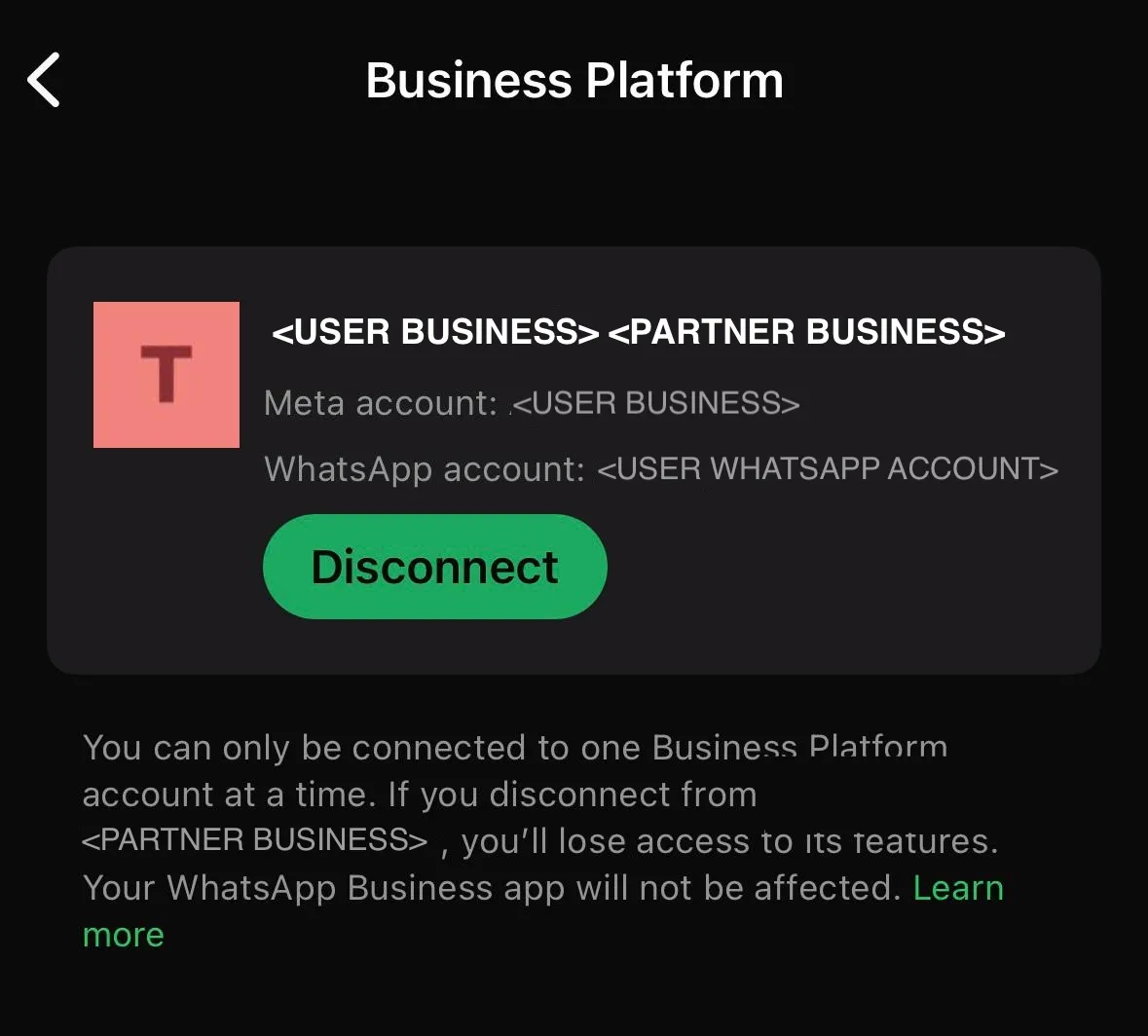
Instead, your business customers can use the WhatsApp Business app to disconnect from Cloud API by navigating to the Settings > Account > Business Platform and clicking the Disconnect Account button. When a business customer disconnects from Cloud API, an account_update webhook with a
PARTNER_REMOVED event is triggered.Errors
If you onboard a business customer with a WhatsApp Business app phone number, you may receive an unsupported messages webhook with error code
First-time messaging: A WhatsApp user messages your business for the first time. This is especially common when users tap one of your ads that click to WhatsApp and immediately send a message. The error typically resolves within a few seconds, after which messages are delivered normally.Unsupported companion device: A WhatsApp user with an unsupported companion device sends or receives a message to or from your business.
131060. This is expected and can occur in the following scenarios:If you receive this webhook, instruct the business to check the WhatsApp Business app for the message.
Need support?
For Coexistence onboarding, choose:
Question Topic: “WABiz: Onboarding” and “TechProvider: Onboarding”Request Type: “Embedded Signup - Coexistence Onboarding”
For Coexistence API issues, choose:
Question Topic: “WABiz: Cloud API”Request Type: “Coexistence Data Synchronization APIs and Webhooks”