# WhatsApp initial configuration for Slack
## Step by step instruction
1\. Install our app. Use the button "**Add to Slack**" on the website
[https://www.chatarchitect.com/product/whatsapp-and-slack-integration](https://www.chatarchitect.com/product/whatsapp-and-slack-integration)
[](https://support.chatarchitect.com/uploads/images/gallery/2026-05/image.png)
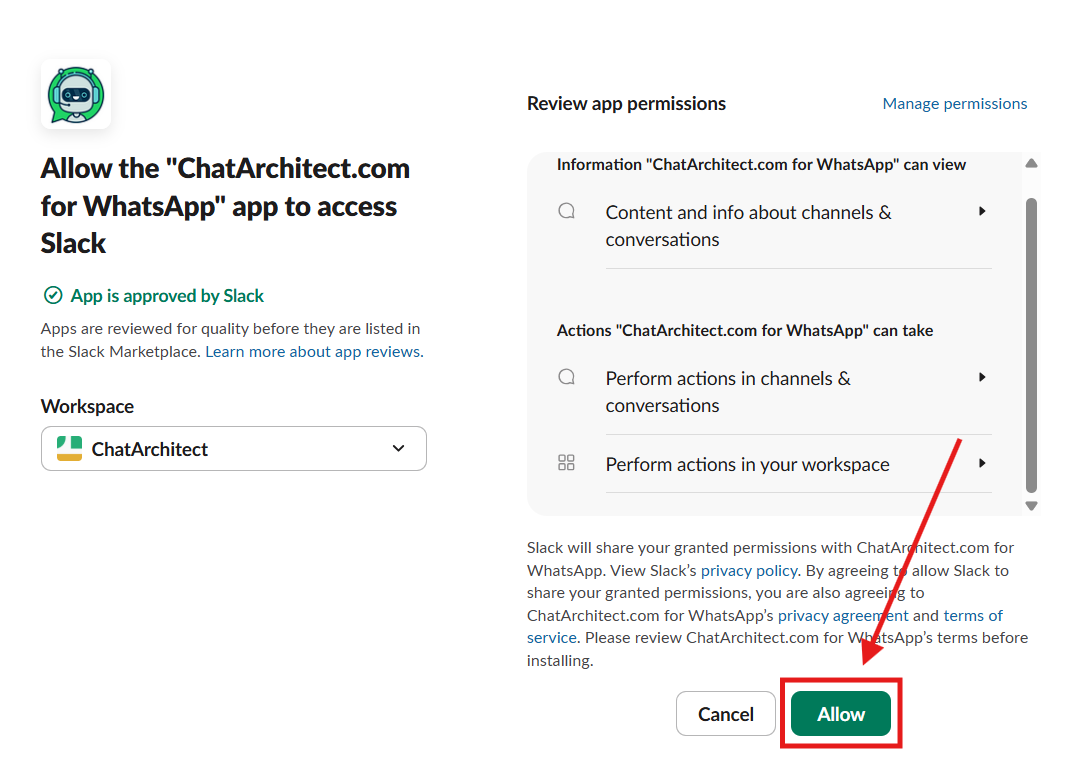
2\. Press "**Allow**"
[](https://support.chatarchitect.com/uploads/images/gallery/2026-05/ZCNimage.png)
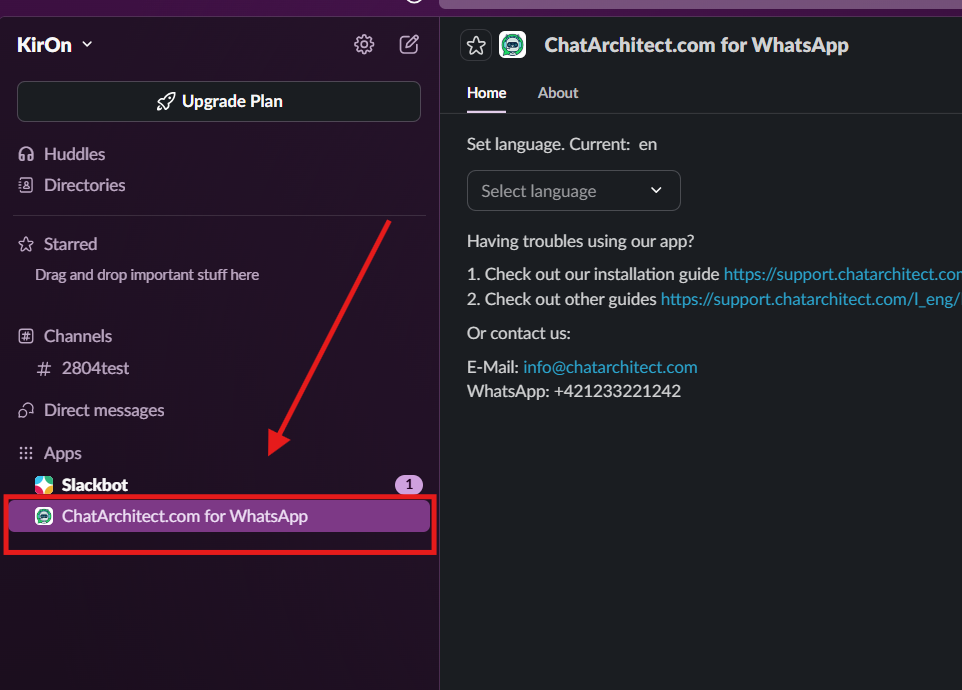
2\. Now you need to add the app to the channel where you want to use
Go to the "**Apps**"
[](https://support.chatarchitect.com/uploads/images/gallery/2026-05/3JTimage.png)
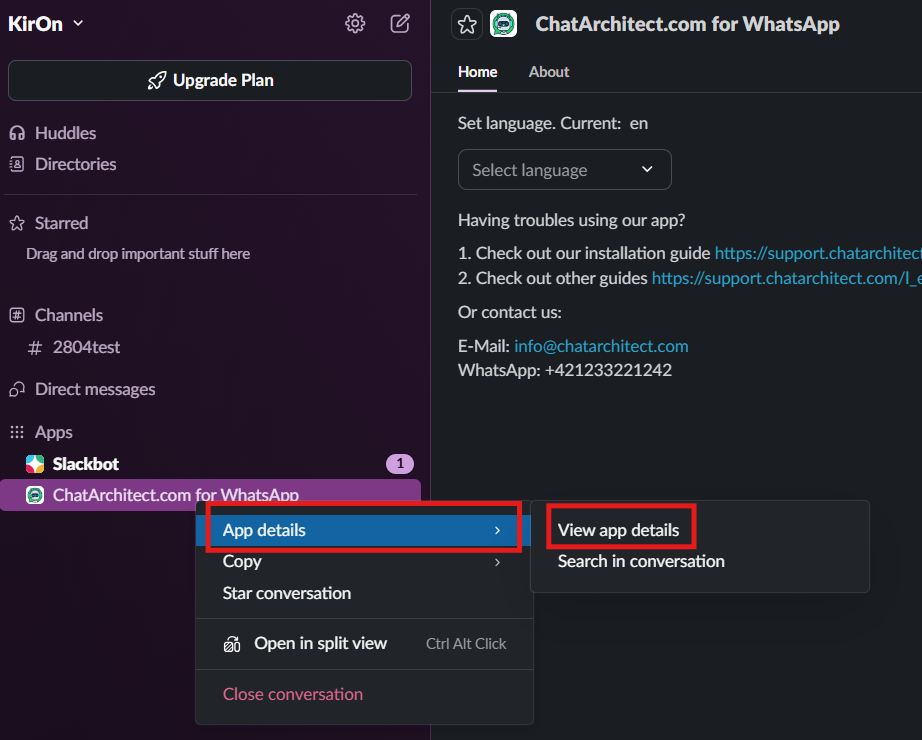
3\. Choose "**ChatArchitect.com for WhatsApp**" - > "**App details**" - > "**View app details**"
[](https://support.chatarchitect.com/uploads/images/gallery/2026-05/VPbimage.png)
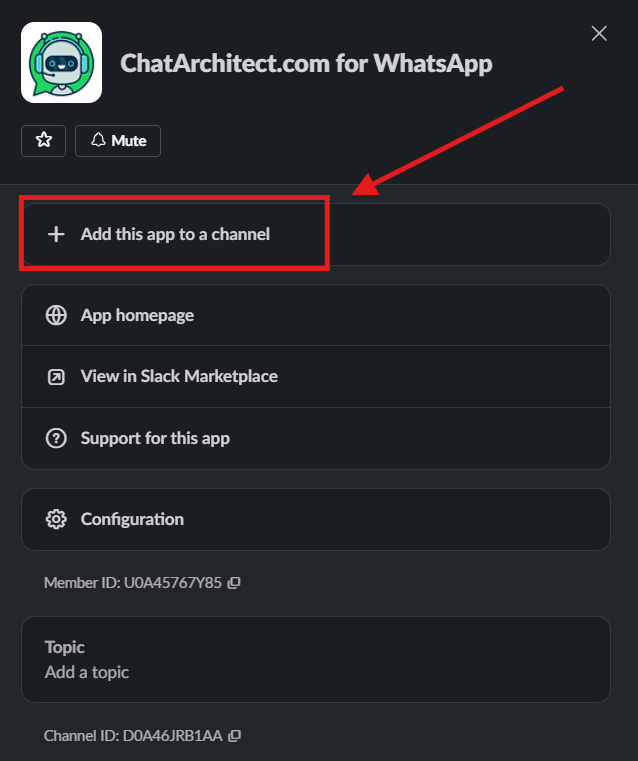
4. Press "**Add this app to a channel**" and choose a channel that you want to use and press "**Add**"
[](https://support.chatarchitect.com/uploads/images/gallery/2026-05/hXGimage.png)
[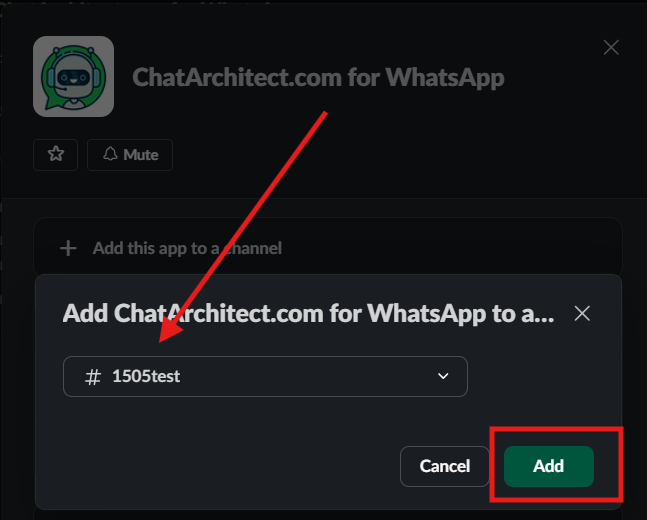](https://support.chatarchitect.com/uploads/images/gallery/2026-05/rVNimage.png)
5. Now you need to open this channel and press "**Install**" button and fill in your APP ID and APP SECRET [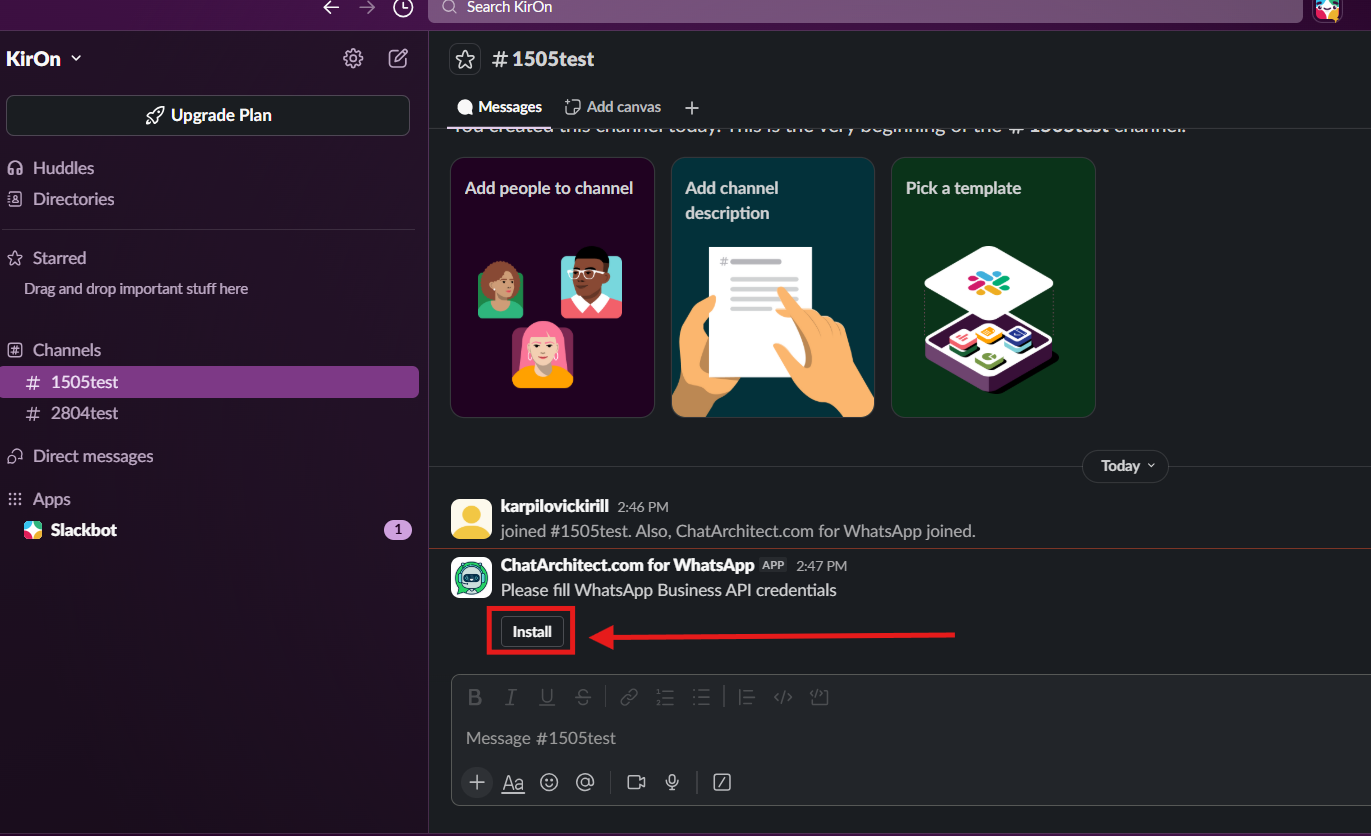](https://support.chatarchitect.com/uploads/images/gallery/2026-05/nKLimage.png)
5\. Write to your WhatsApp Business API number from your personal WhatsApp
[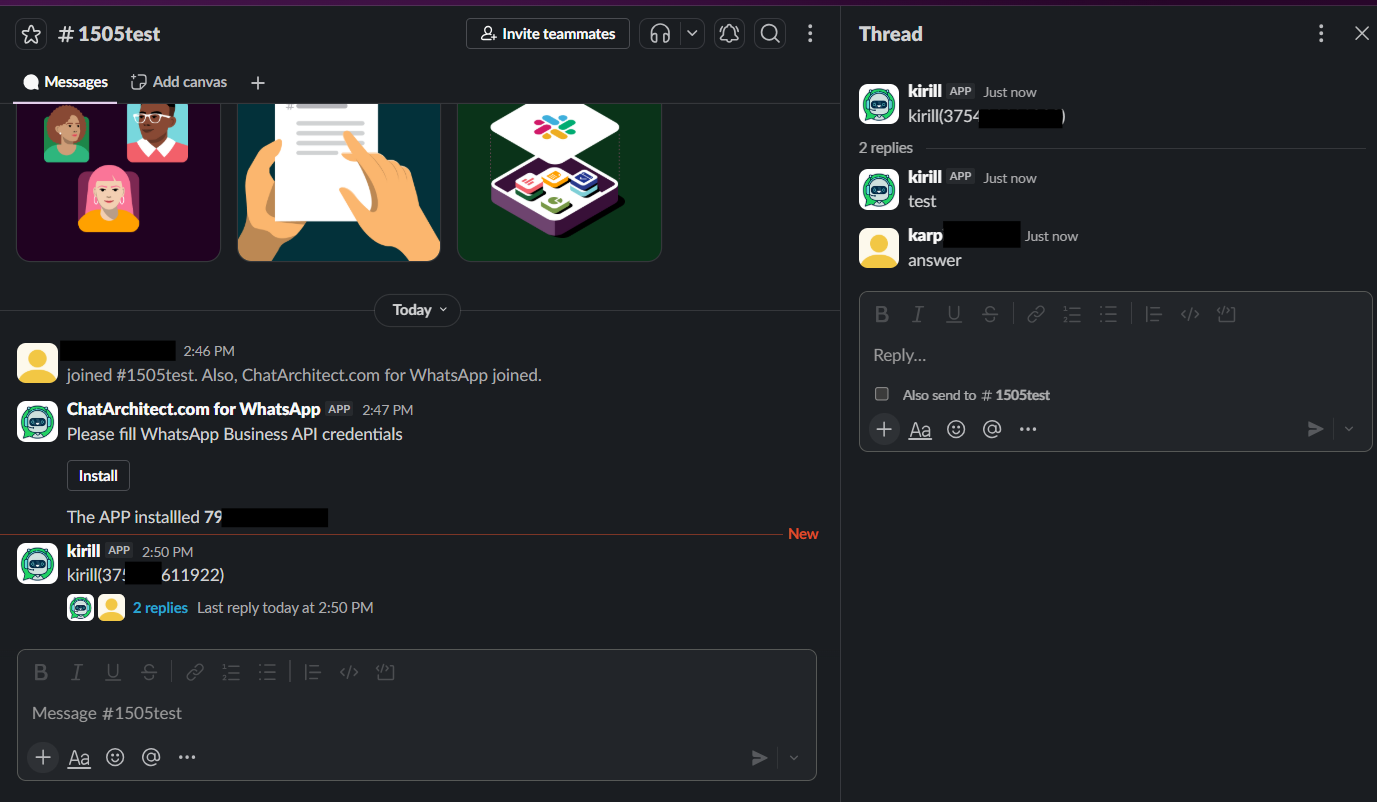](https://support.chatarchitect.com/uploads/images/gallery/2026-05/YEjimage.png)
Done. You can now use our WhatsApp Business API integration in your Slack.