# How to add templates for quick sending in Omnidesk

How to add templates for quick sending in <span class="hover:entity-accent entity-underline inline cursor-pointer align-baseline"><span class="whitespace-normal">Omnidesk  
  
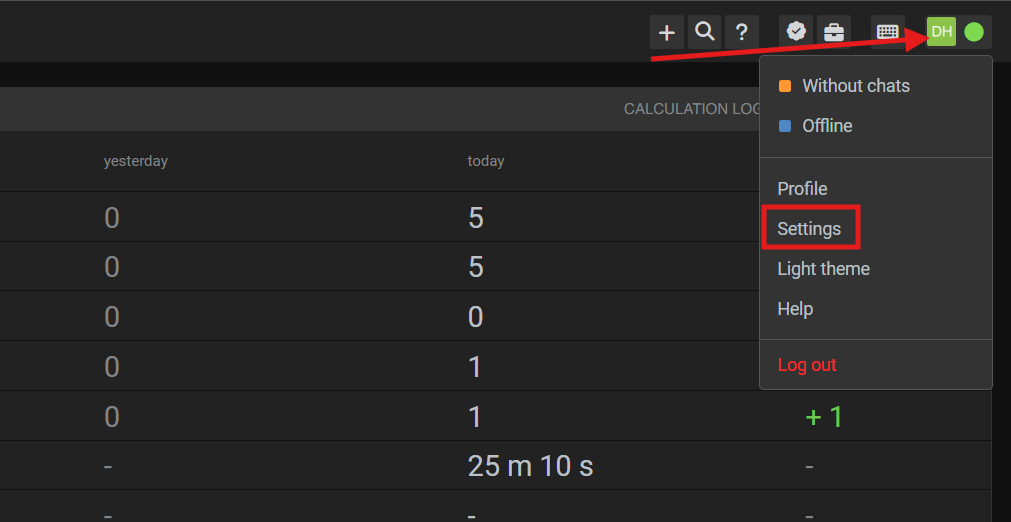
</span></span>1. First, click on your profile logo in the top-right corner of <span class="hover:entity-accent entity-underline inline cursor-pointer align-baseline"><span class="whitespace-normal">Omnidesk</span></span>. Then click “**Settings**”.

[![image.png](https://support.chatarchitect.com/uploads/images/gallery/2026-05/scaled-1680-/y3Jimage.png)](https://support.chatarchitect.com/uploads/images/gallery/2026-05/y3Jimage.png)  
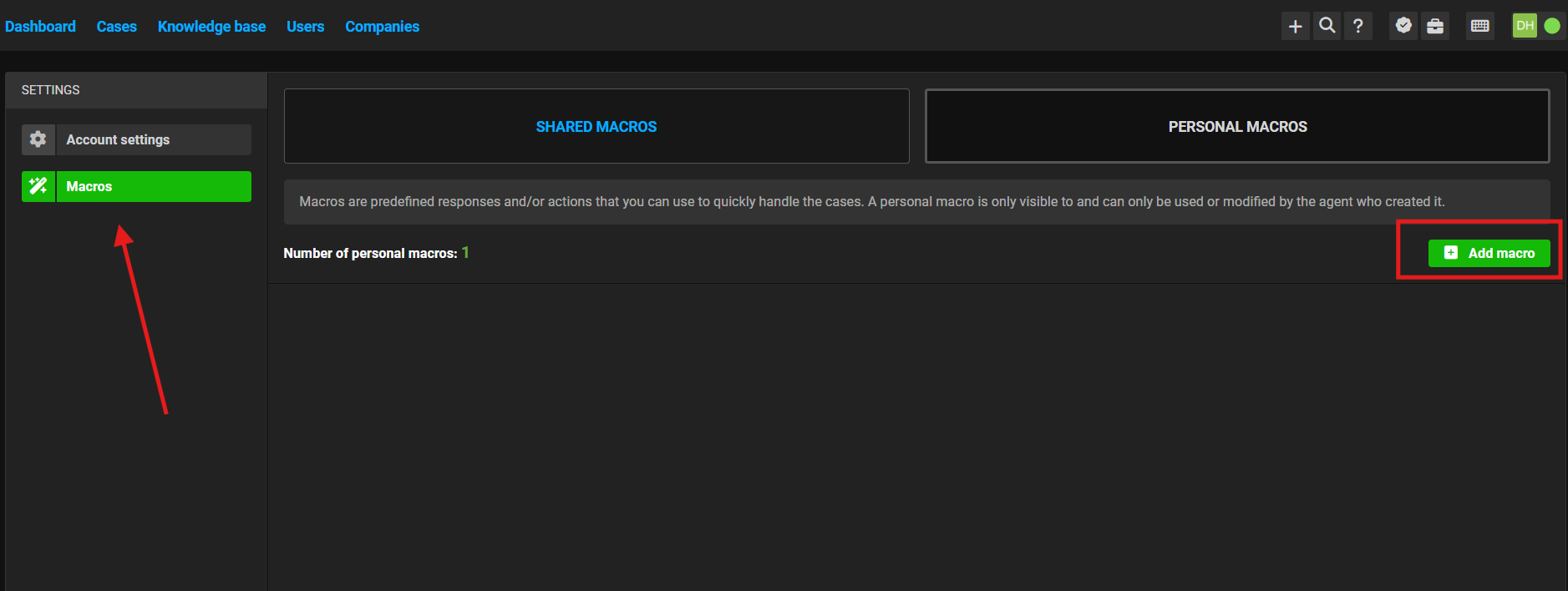
2\. Go to the "**Macros**" -&gt; "**Personal macros**" - &gt; "**Add macro**"

[![image.png](https://support.chatarchitect.com/uploads/images/gallery/2026-05/scaled-1680-/3iSimage.png)](https://support.chatarchitect.com/uploads/images/gallery/2026-05/3iSimage.png)  
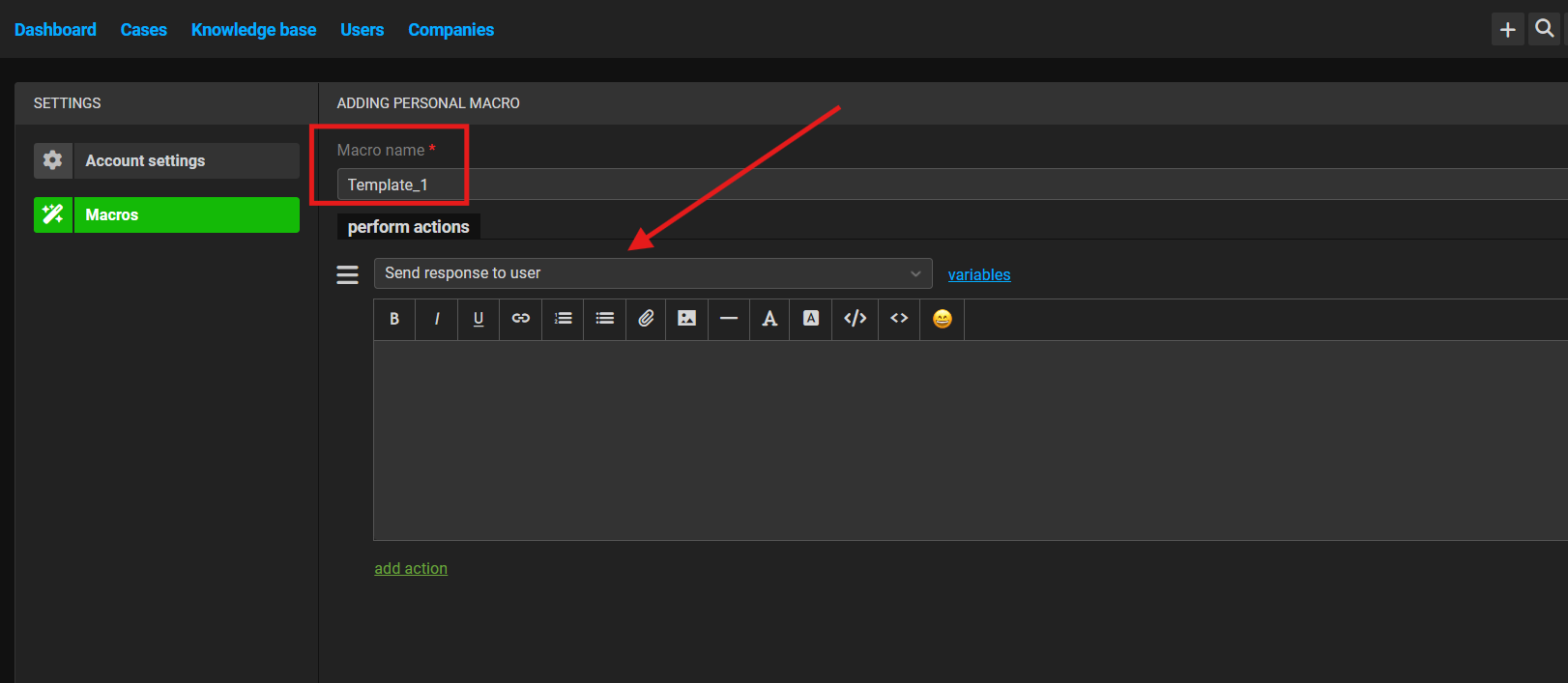
3\. Give the template a name so you can easily understand what kind of template it is. In the actions section, select “Send response to user”.

<div class="" data-is-intersecting="true" data-turn-id-container="905de888-9d54-4835-a5a6-1f565617cdd0" id="bkmrk-"><div class="relative w-full overflow-visible"><section class="text-token-text-primary w-full focus:outline-none has-data-writing-block:pointer-events-none [&:has([data-writing-block])>*]:pointer-events-auto R6Vx5W_threadScrollVars scroll-mb-[calc(var(--scroll-root-safe-area-inset-bottom,0px)+var(--thread-response-height))] scroll-mt-(--header-height)" data-scroll-anchor="false" data-testid="conversation-turn-7" data-turn="user" data-turn-id="905de888-9d54-4835-a5a6-1f565617cdd0" data-turn-id-container="905de888-9d54-4835-a5a6-1f565617cdd0" dir="auto"></section></div></div>[![image.png](https://support.chatarchitect.com/uploads/images/gallery/2026-05/scaled-1680-/IS5image.png)](https://support.chatarchitect.com/uploads/images/gallery/2026-05/IS5image.png)  
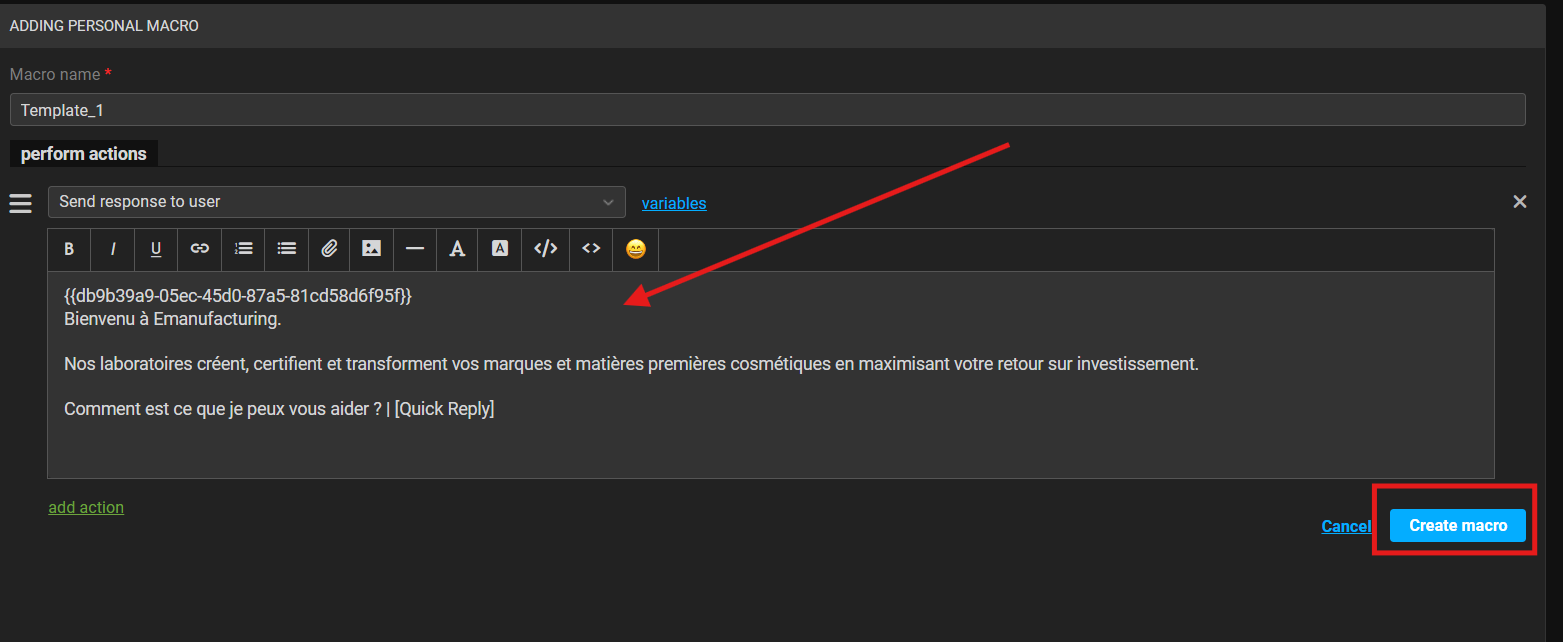
4\. Paste the template text together with its ID into the text field. After that press "**Create macro**"

[![image.png](https://support.chatarchitect.com/uploads/images/gallery/2026-05/scaled-1680-/PqUimage.png)](https://support.chatarchitect.com/uploads/images/gallery/2026-05/PqUimage.png)  
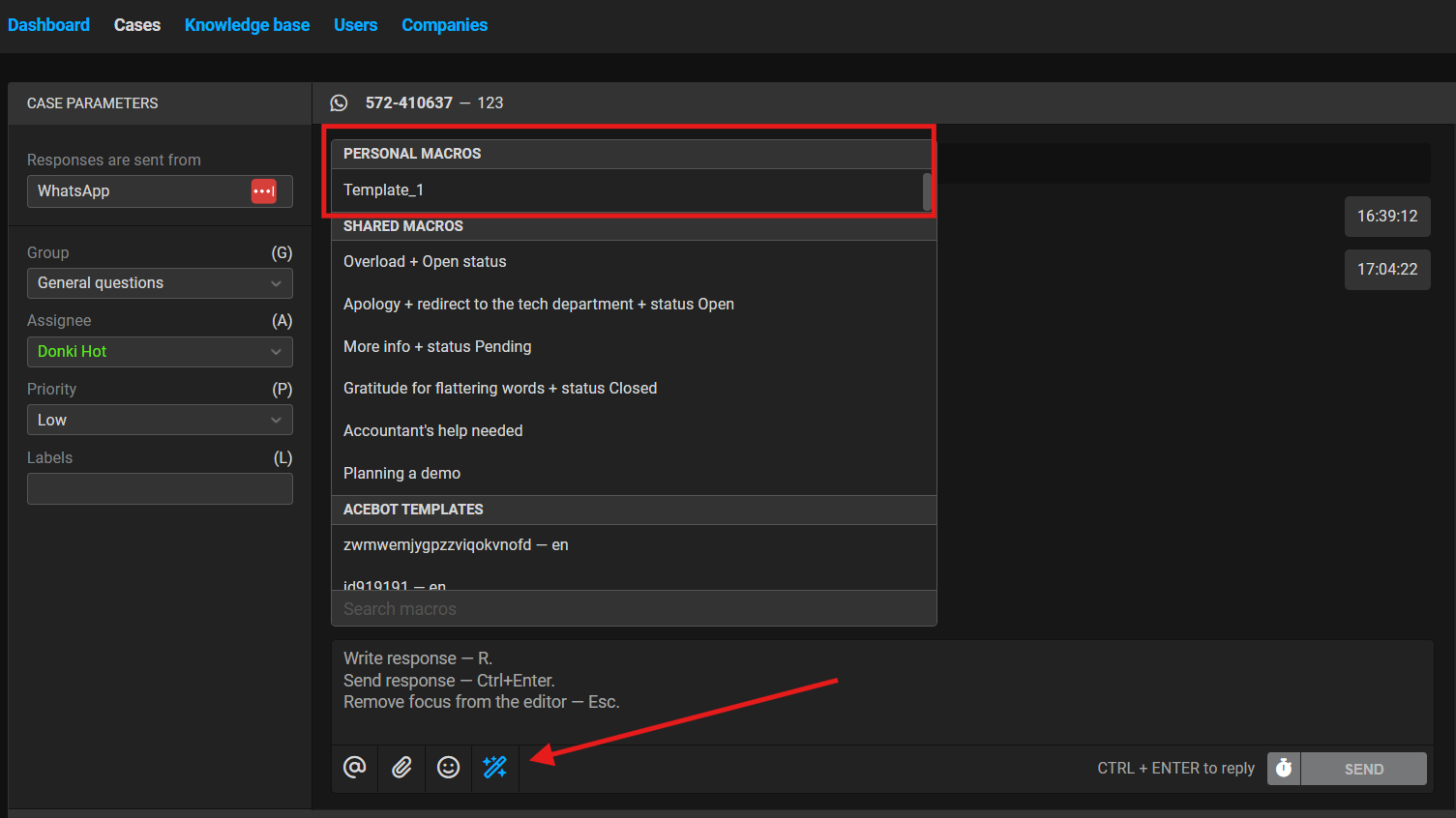
5\. After that, go to the chat, click the pencil icon there (indicated by the arrow in the screenshot), and your template will appear in the “**Personal macros**” section.

[![image.png](https://support.chatarchitect.com/uploads/images/gallery/2026-05/scaled-1680-/XFtimage.png)](https://support.chatarchitect.com/uploads/images/gallery/2026-05/XFtimage.png)  
Done. Now you know how to add templates to quick replies inside <span class="hover:entity-accent entity-underline inline cursor-pointer align-baseline"><span class="whitespace-normal">Omnidesk</span></span>.