# WhatsApp for Everbridge installation manual

# Step by step instruction

1. Open Settings.
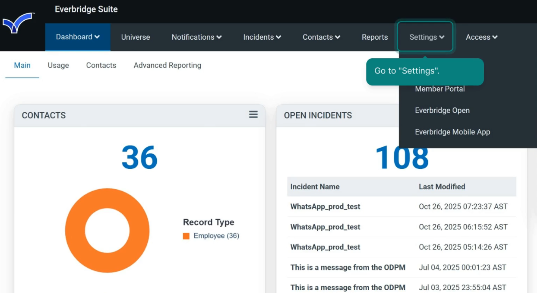
<figure id="bkmrk-">![](https://support.chatarchitect.com/uploads/images/gallery/2026-05/embedded-image-gjorsyjv.png)</figure>2\. Select “Everbridge Open” section, then “Response Subscriptions”, and then “Webhooks”.
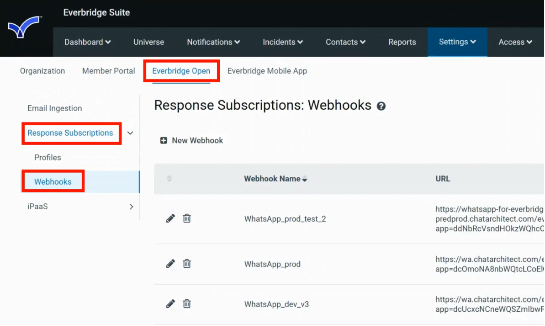
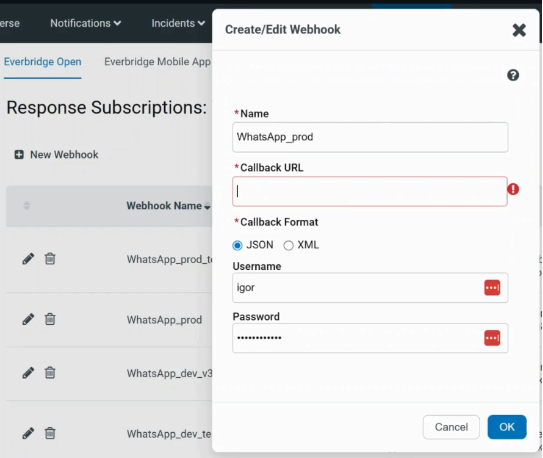
<figure id="bkmrk--2">![](https://support.chatarchitect.com/uploads/images/gallery/2026-05/embedded-image-e8bzivet.png)</figure>3\. To create a new webhook, click “New Webhook”.

1\) Fill in “Name”;

2\) Fill in “Callback URL”:

https://<span class="tag">whatsapp-for-everbridge</span>.chatarchitect.com/everbridge\_v3/?app=**{app}**&amp;secret=**{secret}**&amp;access\_key\_id=**{access\_key\_id}**&amp;secret\_key=**{secret\_key}**

WhatsApp APP key **{app}** and WhatsApp Secret key **{secret}**: you need to get from our support.

Everbridge Access key **{access\_key\_id}** &amp; Everbridge Secret key **{secret\_key}**: you need to get from Everbridge admins.

3\)

Choose “Callback Format”, fill in “Username” and “Password”. Click OK.
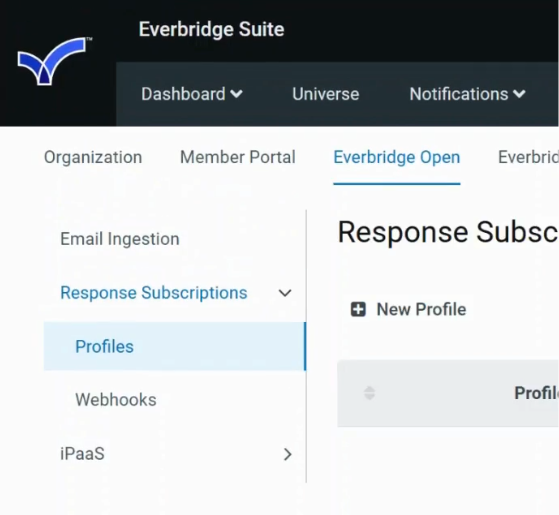
<figure id="bkmrk--4">![](https://support.chatarchitect.com/uploads/images/gallery/2026-05/embedded-image-awvjmppj.png)</figure>4\. Select “Everbridge Open” section, then “Response Subscriptions”, then “Profiles”, and click “New Profile”.
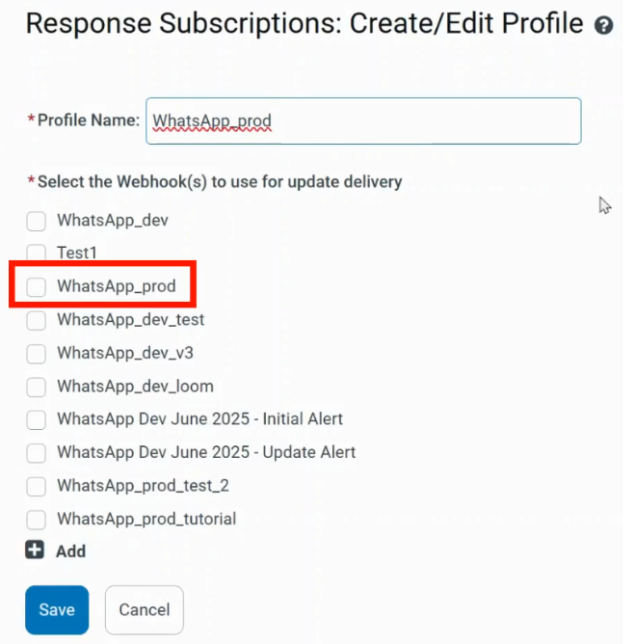
<figure id="bkmrk--6">![](https://support.chatarchitect.com/uploads/images/gallery/2026-05/embedded-image-whjgcdce.png)</figure>5\. Fill in “Profile Name”. Select the necessary webhook. Click “Save”.
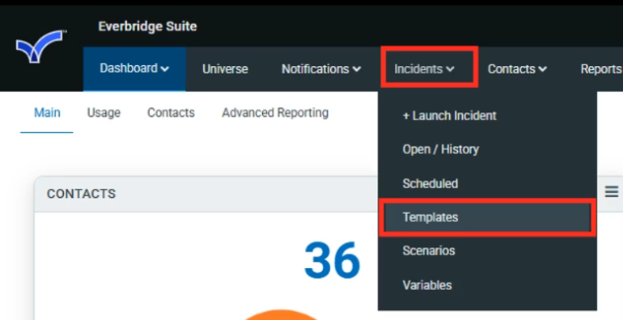
<figure id="bkmrk--8">![](https://support.chatarchitect.com/uploads/images/gallery/2026-05/embedded-image-kefjgqes.png)</figure>6\. Go to “Incidents”. Select “Templates”.
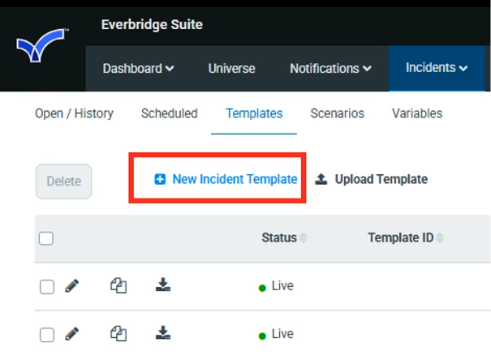
<figure id="bkmrk--10">![](https://support.chatarchitect.com/uploads/images/gallery/2026-05/embedded-image-b9lhufbh.png)</figure>7\. Click “New Incident Template”.

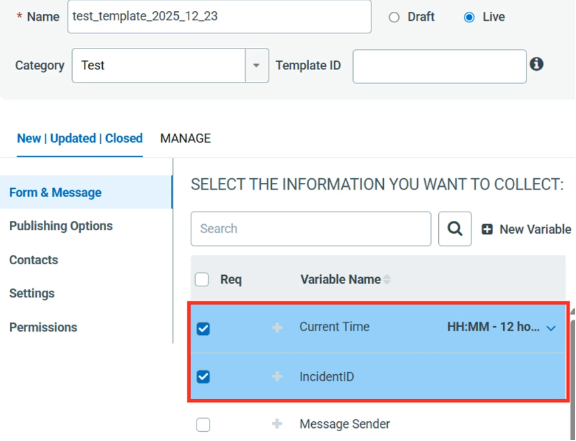
<figure id="bkmrk--12">![](https://support.chatarchitect.com/uploads/images/gallery/2026-05/embedded-image-esmviuex.png)</figure>8\. Fill in “Name” and choose “Category”.
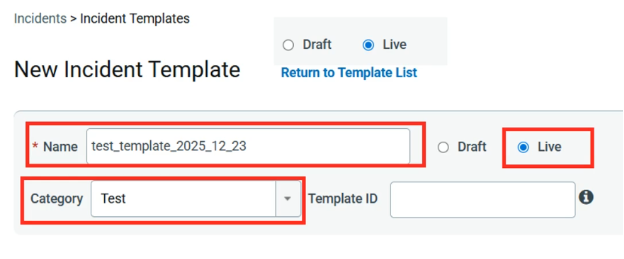
<figure id="bkmrk--14">![](https://support.chatarchitect.com/uploads/images/gallery/2026-05/embedded-image-g0twujkd.png)</figure>9\. Select all the necessary variables. Their order can be rearranged in the “PREVIEW &amp; EDIT” section.

<figure id="bkmrk--16">![](https://support.chatarchitect.com/uploads/images/gallery/2026-05/embedded-image-l6cjotzp.png)</figure>10\. In the Chatarchitect app (https://wtargeted.com/settings), find the necessary template and copy its ID (including the brackets).
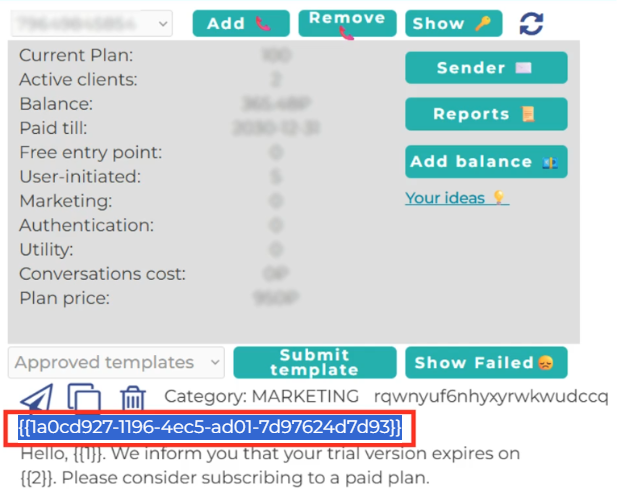
<figure id="bkmrk--18">![](https://support.chatarchitect.com/uploads/images/gallery/2026-05/embedded-image-pg2m9brx.png)</figure>11\. In Everbridge, in the “PREVIEW &amp; EDIT” section, paste the copied template’s ID into the WhatsApp Code.
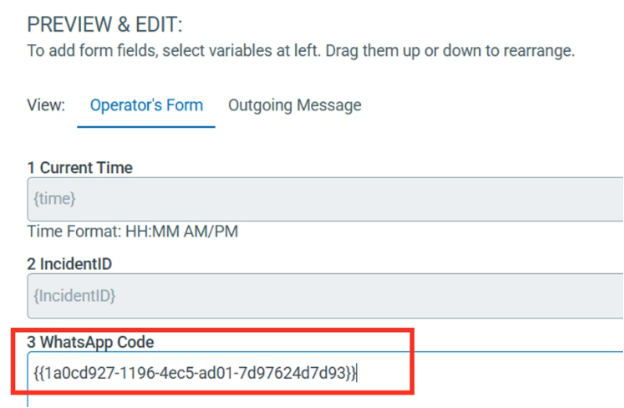
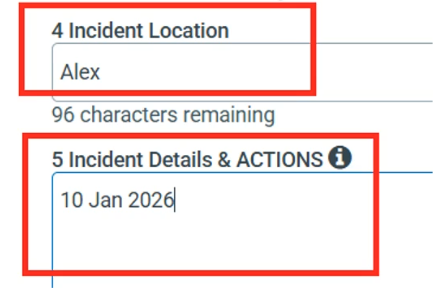
<figure id="bkmrk--20">![](https://support.chatarchitect.com/uploads/images/gallery/2026-05/embedded-image-luukfjmy.png)</figure>12\. Fill in the input fields of the template’s variables with values.
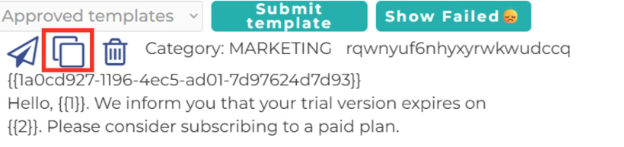
<figure id="bkmrk--22">![](https://support.chatarchitect.com/uploads/images/gallery/2026-05/embedded-image-i9i6v6ub.png)</figure>13\. In the Chatarchitect app, copy the necessary template by clicking the Copy button.
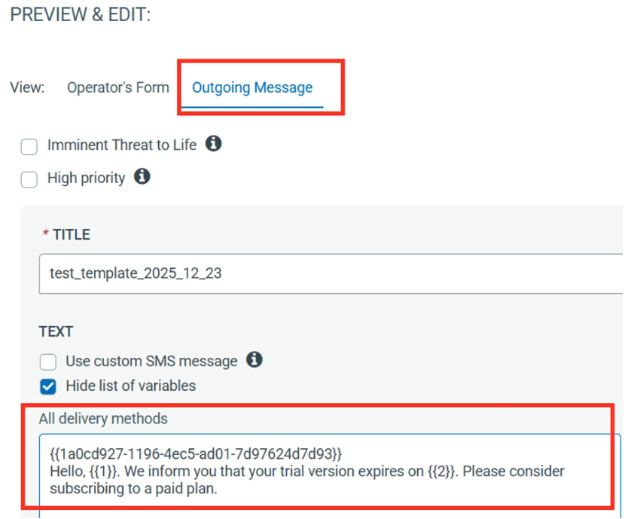
<figure id="bkmrk--24">![](https://support.chatarchitect.com/uploads/images/gallery/2026-05/embedded-image-hjvnwebg.png)</figure>14\. In Everbridge, select “Outgoing Message” and paste the copied template into “All delivery methods”.
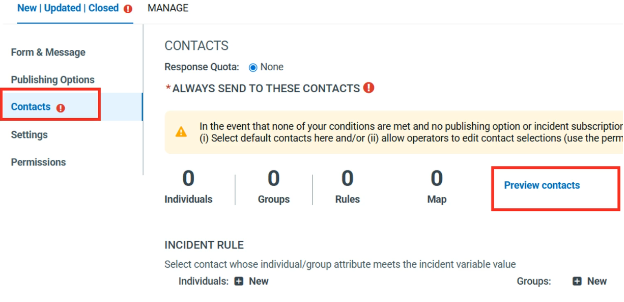
<figure id="bkmrk--26">![](https://support.chatarchitect.com/uploads/images/gallery/2026-05/embedded-image-hdepml2q.png)</figure>15\. Select the “Contacts” section. Click “Preview contacts”.
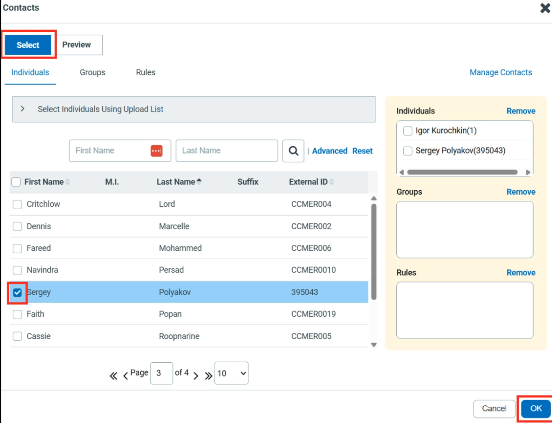
<figure id="bkmrk--28">![](https://support.chatarchitect.com/uploads/images/gallery/2026-05/embedded-image-anhysybt.png)</figure>16\. Click “Select” and choose contacts who will receive the message. Click OK.
<figure id="bkmrk--30">![](https://support.chatarchitect.com/uploads/images/gallery/2026-05/embedded-image-5xnl9dd7.png)</figure>17\. Go to “Settings” section. Click “Edit”.
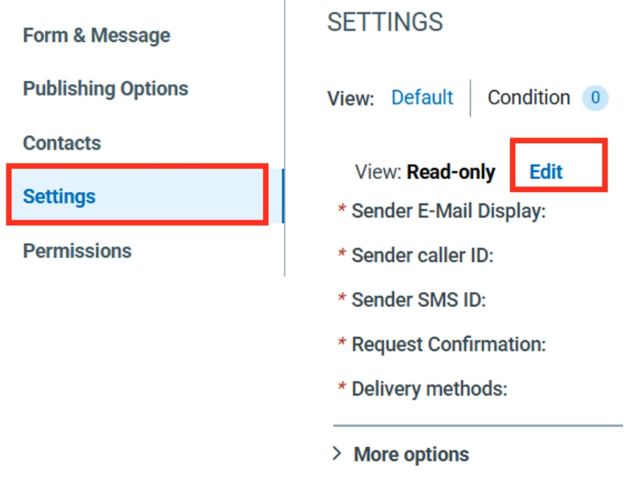
<figure id="bkmrk--32">![](https://support.chatarchitect.com/uploads/images/gallery/2026-05/embedded-image-ujmmmv8r.png)</figure>18\. Select the necessary Delivery Order. In Delivery methods, select WhatsApp.
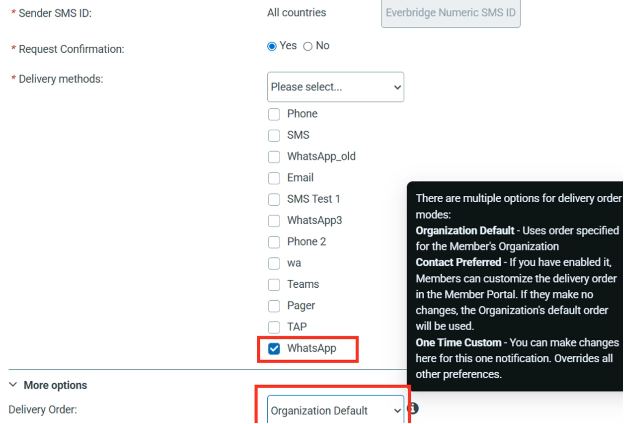
<figure id="bkmrk--34">![](https://support.chatarchitect.com/uploads/images/gallery/2026-05/embedded-image-5zgyeosw.png)</figure>19\. Select the necessary Profile and set all the necessary options.
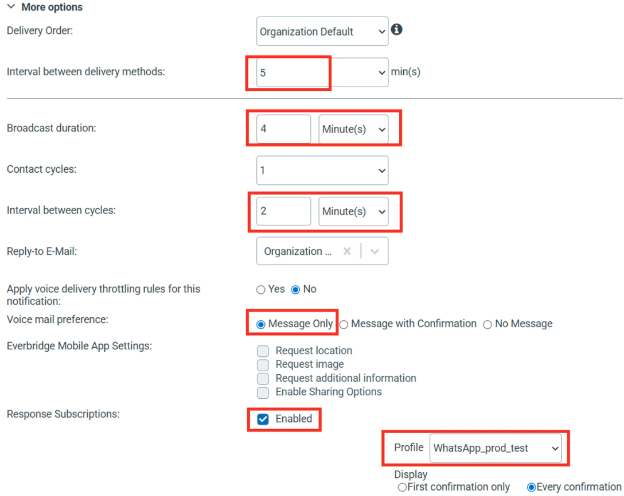
<figure id="bkmrk--36">![](https://support.chatarchitect.com/uploads/images/gallery/2026-05/embedded-image-g3vogc3j.png)</figure>20\. In the “Permissions” section, select all the necessary operator permissions.
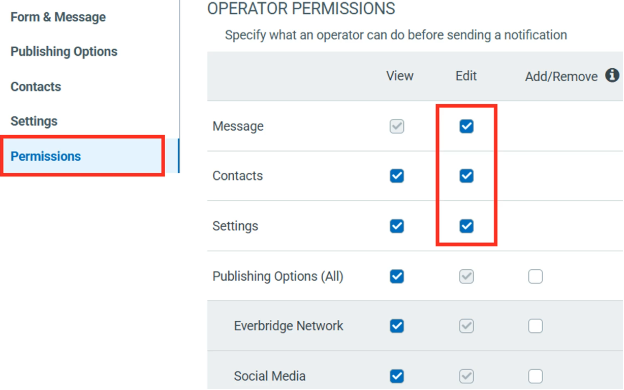
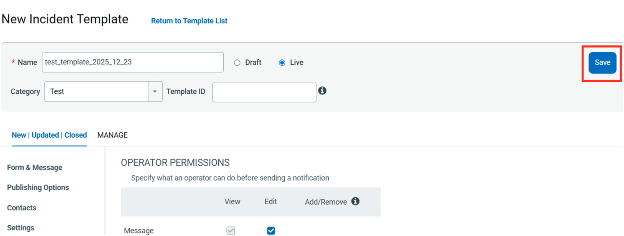
<figure id="bkmrk--38">![](https://support.chatarchitect.com/uploads/images/gallery/2026-05/embedded-image-nq9q1nqz.png)</figure>21\. Click “Save” to save the template.
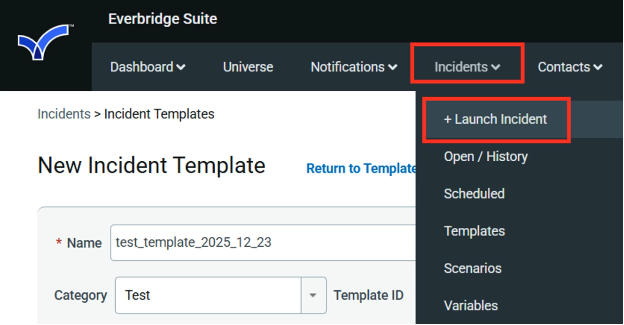
<figure id="bkmrk--40">![](https://support.chatarchitect.com/uploads/images/gallery/2026-05/embedded-image-hk8bkwa3.png)</figure>22\. Select “Incidents” - “Launch Incident”.
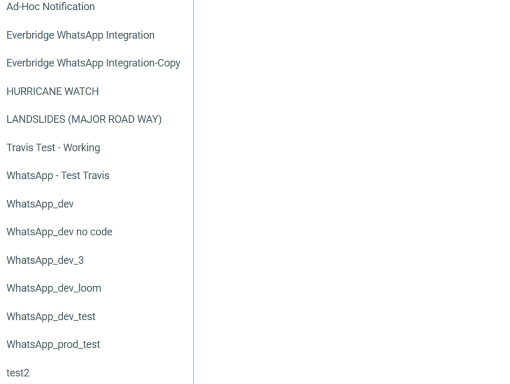
<figure id="bkmrk--42">![](https://support.chatarchitect.com/uploads/images/gallery/2026-05/embedded-image-jie8r8vw.png)</figure>23\. Select the necessary template from the list.
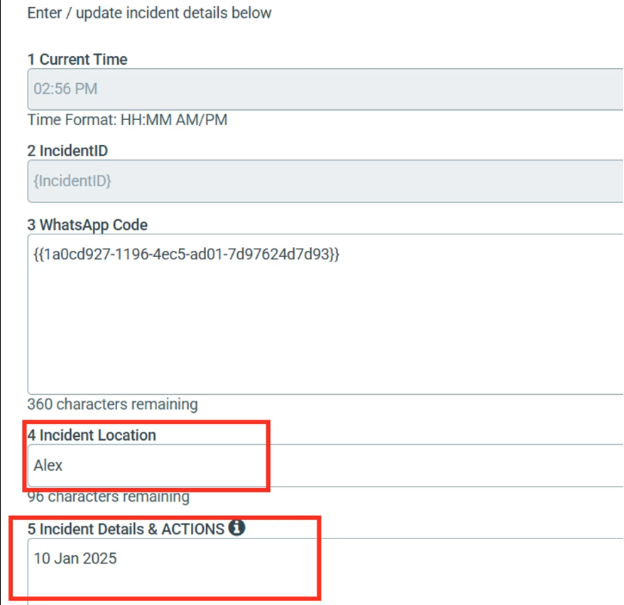
<figure id="bkmrk--44">![](https://support.chatarchitect.com/uploads/images/gallery/2026-05/embedded-image-gdpfjevo.png)</figure>24\. Set the values of the template’s variables.
<figure id="bkmrk--46">![](https://support.chatarchitect.com/uploads/images/gallery/2026-05/embedded-image-ggu1vqh8.png)</figure>25\. Specify the sending options and click “Review”.
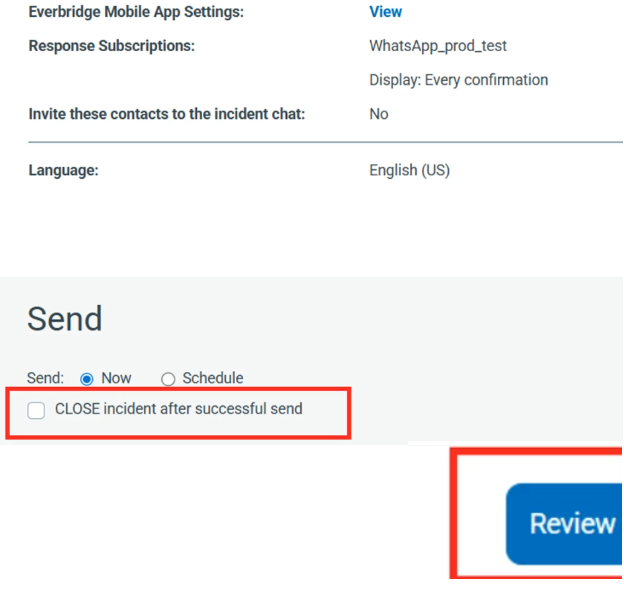
<figure id="bkmrk--48">![](https://support.chatarchitect.com/uploads/images/gallery/2026-05/embedded-image-o3m6pysx.png)</figure>26\. To send the message, click “Send”.
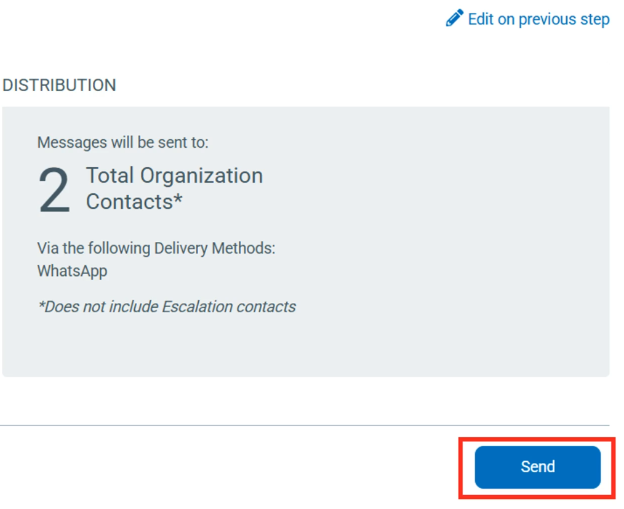
<figure id="bkmrk--50">![](https://support.chatarchitect.com/uploads/images/gallery/2026-05/embedded-image-dnddxy69.png)</figure>27\. The message will be sent to the contacts you had selected in the 16th step.

<figure id="bkmrk--52">![](https://support.chatarchitect.com/uploads/images/gallery/2026-05/embedded-image-a7kph4ym.png)</figure>