# WhatsApp Business API for Zoho Cliq: Installation and sending the first message.
**In this guide, you will learn how to install our WhatsApp Business API integration in Zoho Cliq.**
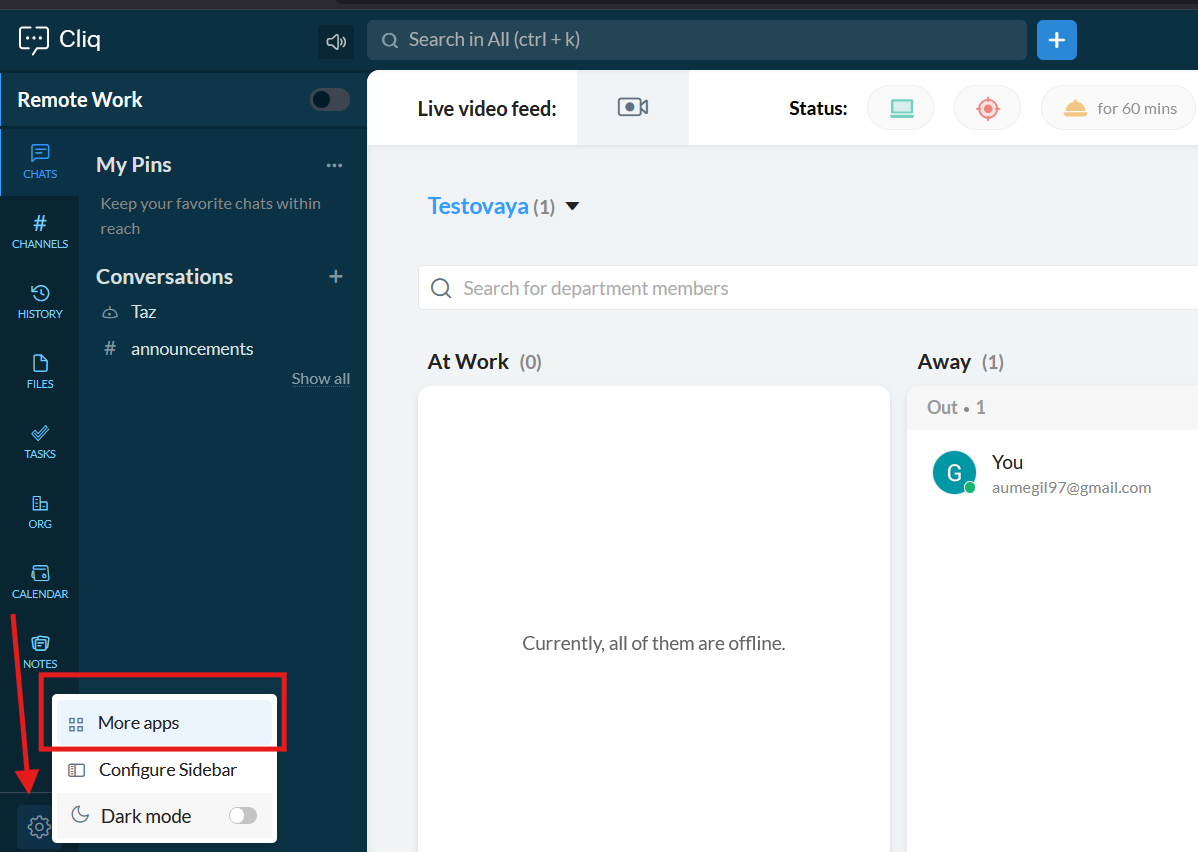
1\. First of all, go to the **"Settings"** -> **"More apps"**
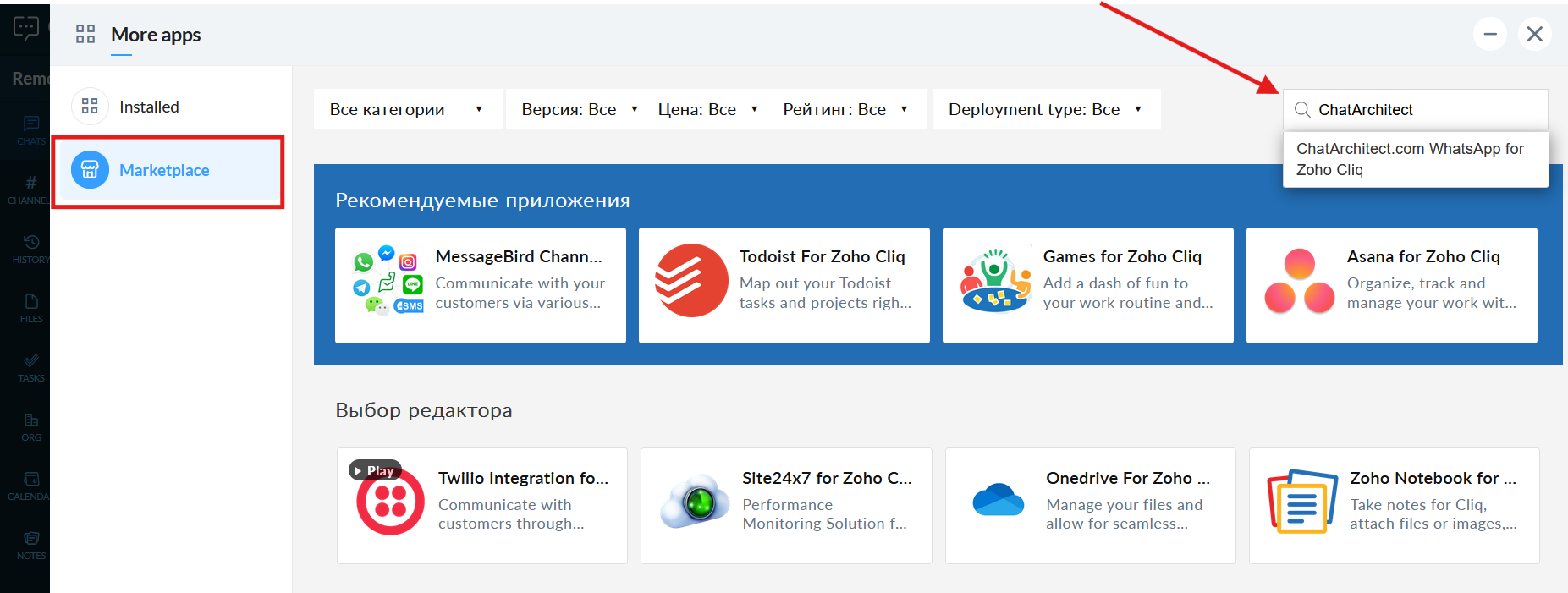
[](https://support.chatarchitect.com/uploads/images/gallery/2026-04/Iylimage.png)2. Go to the "**Marketplace**" and fill in in the search field "**ChatArchitect**" and choose our app
[](https://support.chatarchitect.com/uploads/images/gallery/2026-04/qISimage.png)
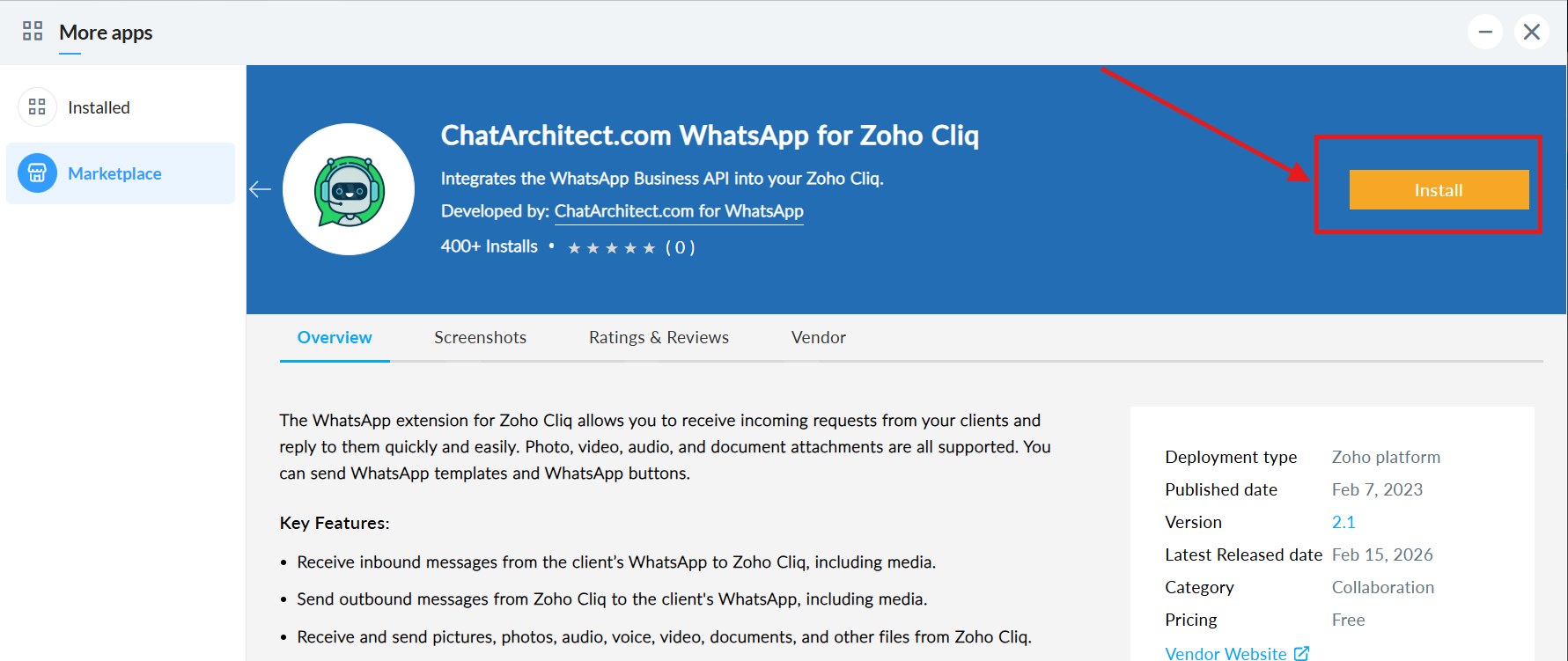
3\. Press "**Install**"
[](https://support.chatarchitect.com/uploads/images/gallery/2026-04/B4Uimage.png)
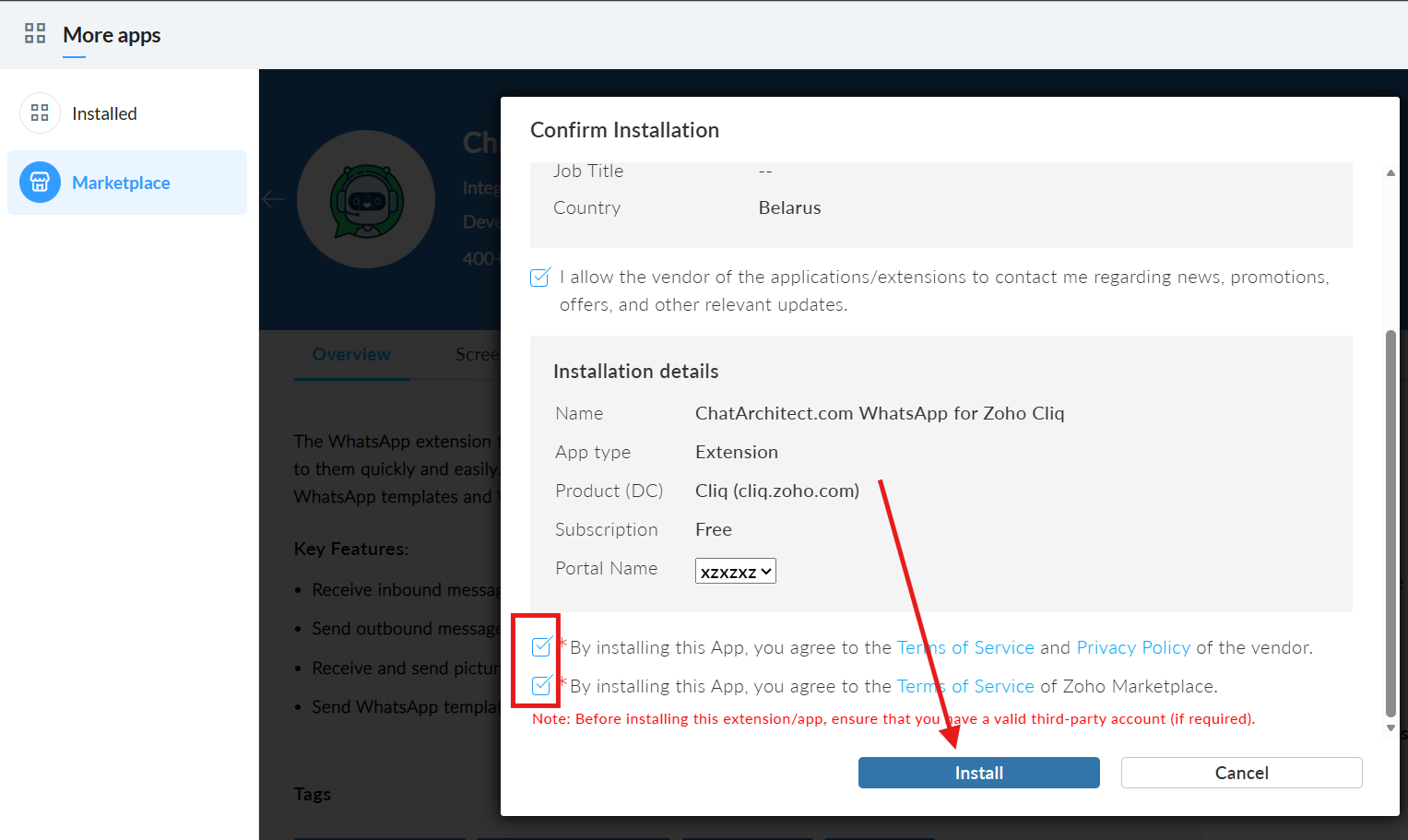
4\. Check the boxes and click the “**Install**” button.
[](https://support.chatarchitect.com/uploads/images/gallery/2026-04/v8gimage.png)5. Press "Take me to Cliq" button
[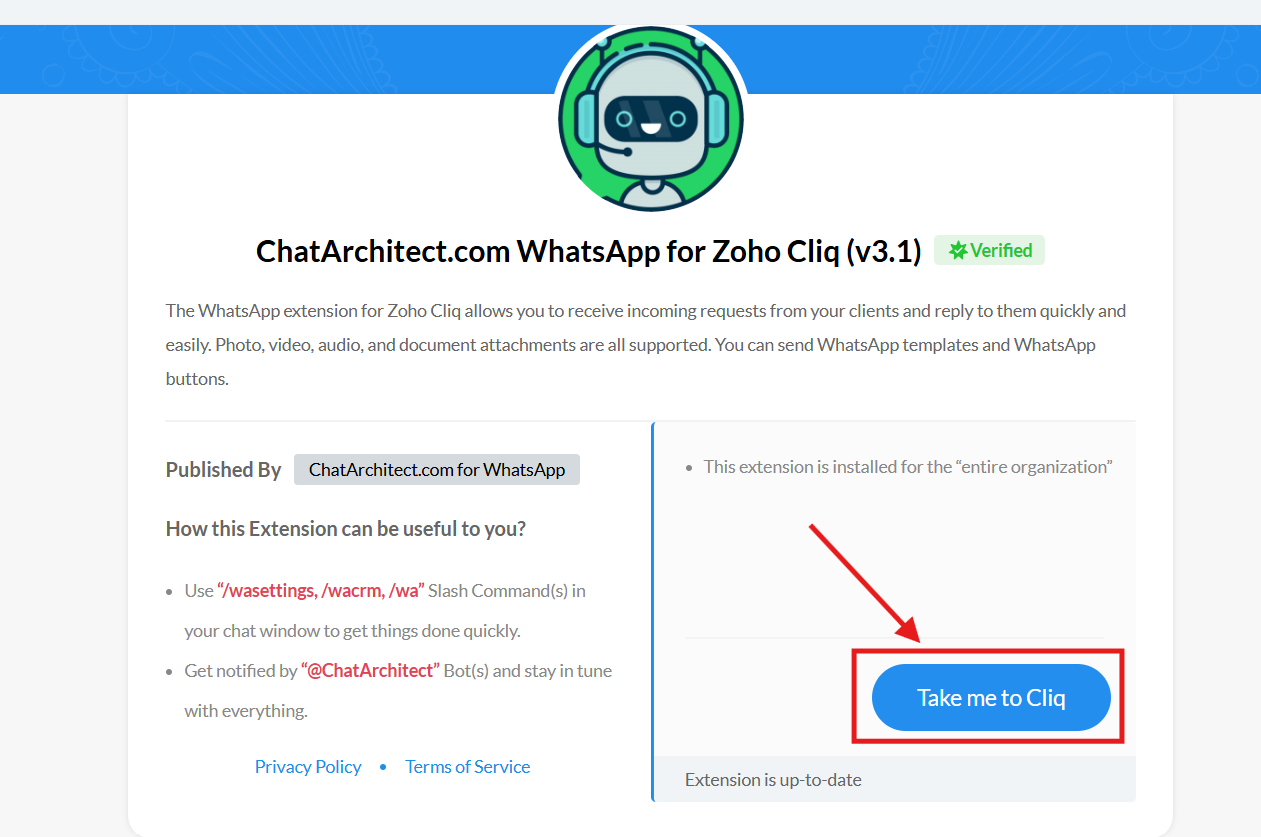](https://support.chatarchitect.com/uploads/images/gallery/2026-04/3sdimage.png)6. Choose "**Grant access**"
[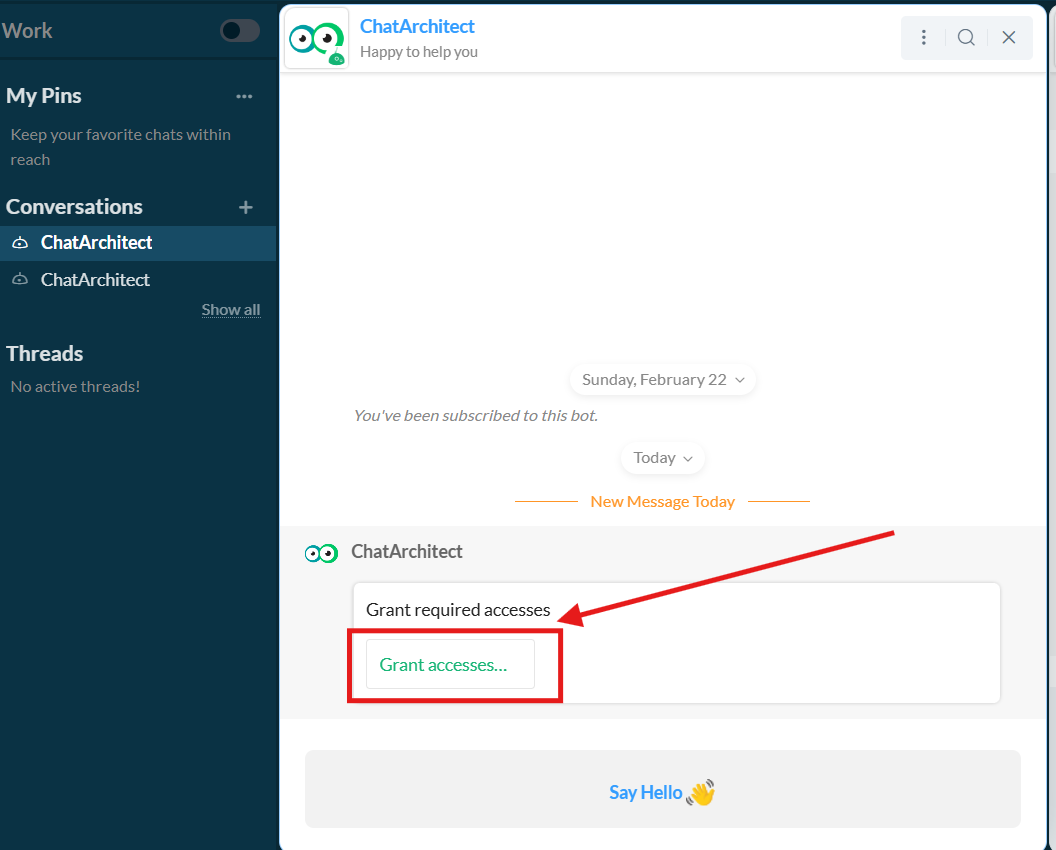](https://support.chatarchitect.com/uploads/images/gallery/2026-04/2RWimage.png)
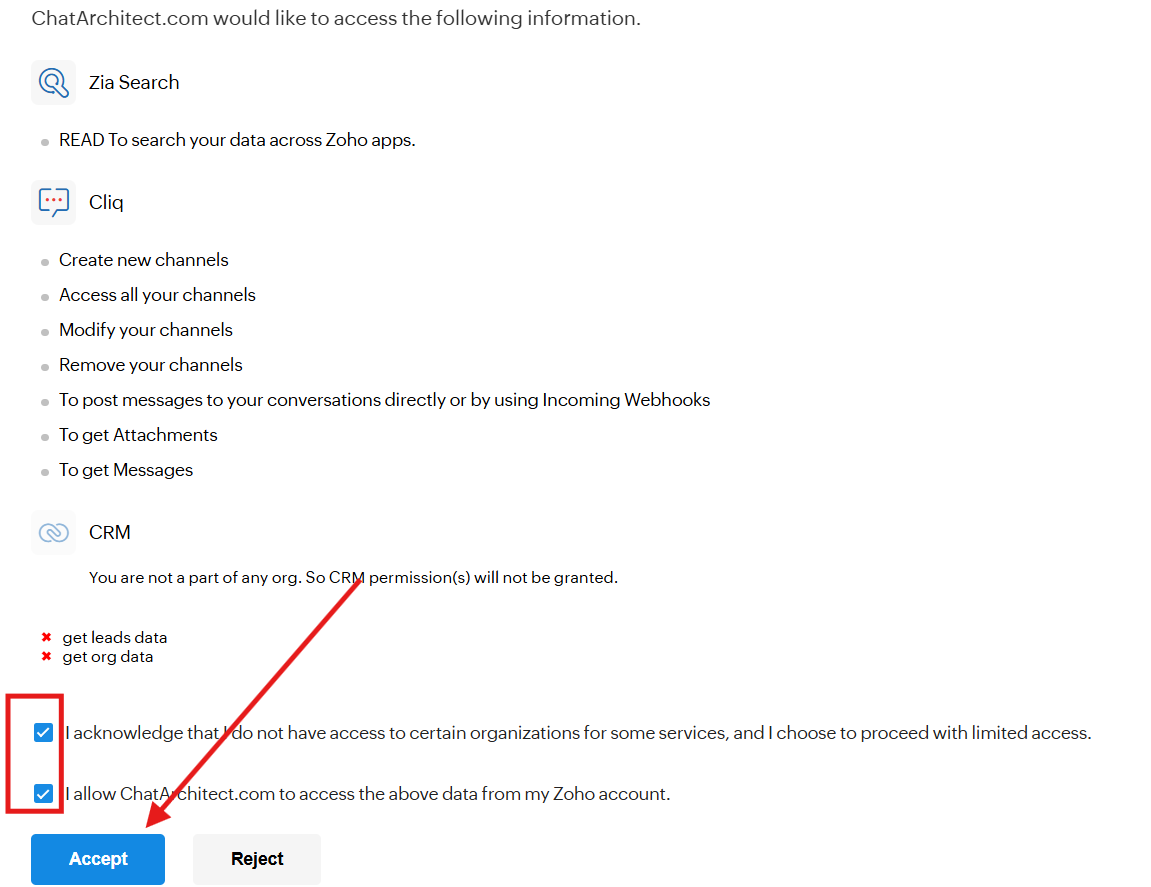
7\. Check the boxes and press "**Accept**"
[](https://support.chatarchitect.com/uploads/images/gallery/2026-04/qpgimage.png)
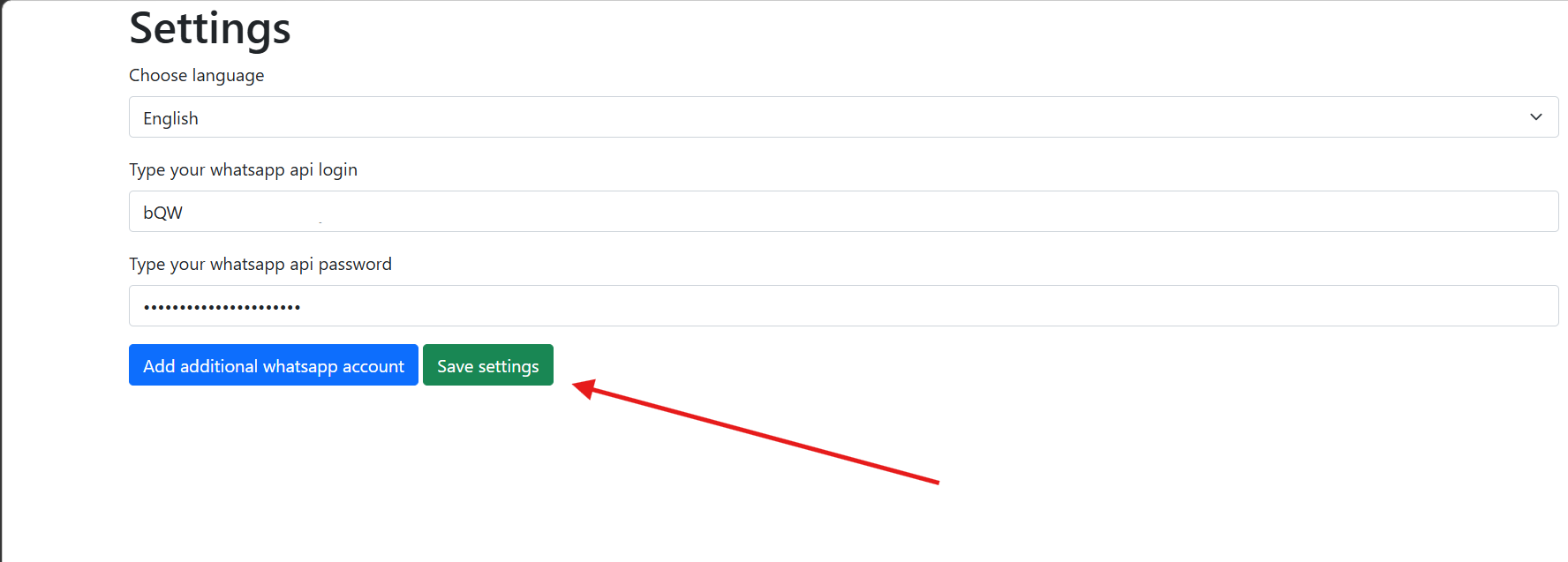
8\. Fill in your **APP ID** and **APP SECRET** and press "**Save settings**"
[](https://support.chatarchitect.com/uploads/images/gallery/2026-04/MJ4image.png)
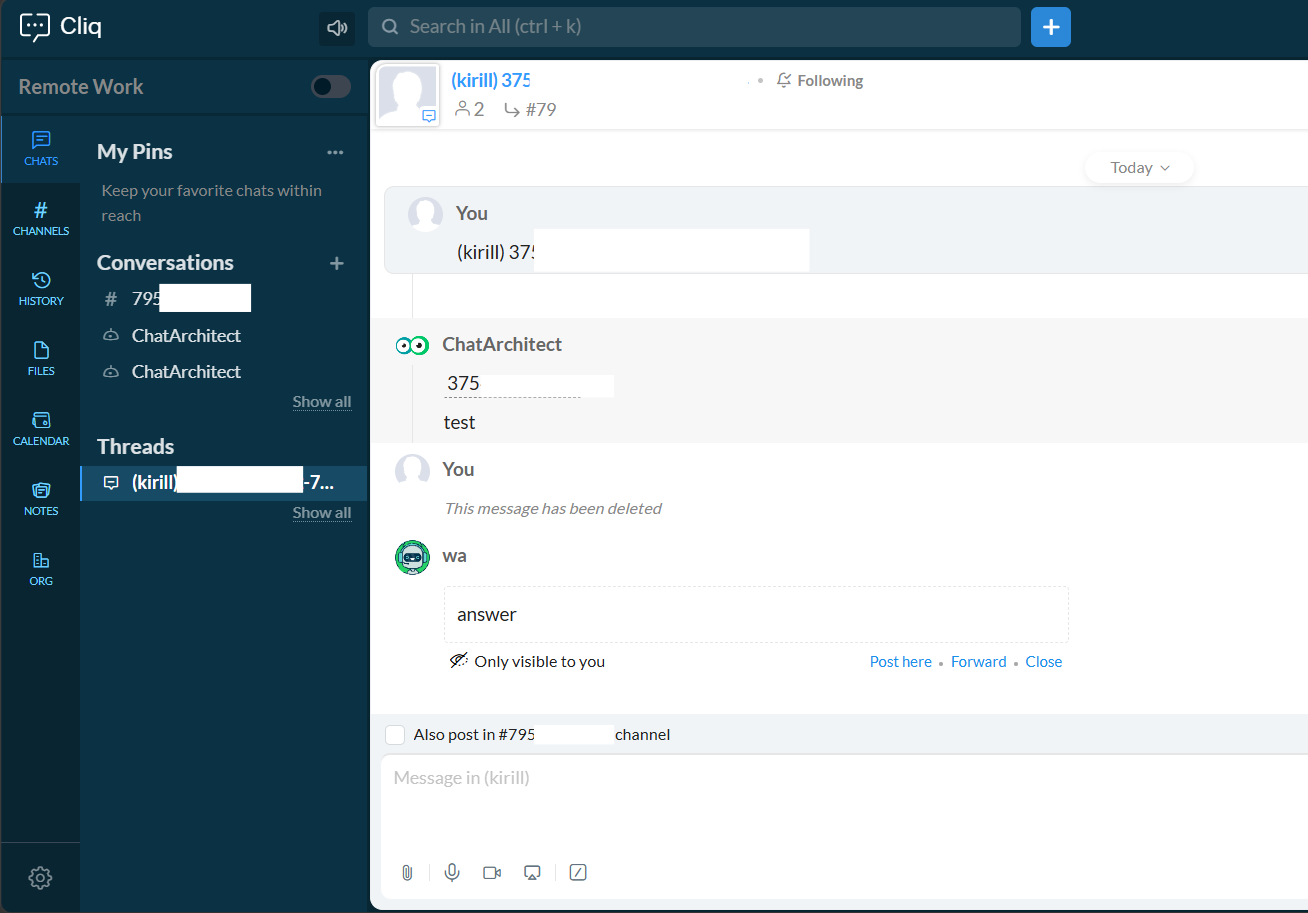
9\. Next, write to your connected WhatsApp Business API number from your personal WhatsApp. It will be displayed in threads.
[](https://support.chatarchitect.com/uploads/images/gallery/2026-04/D9Pimage.png)
**How to reply**
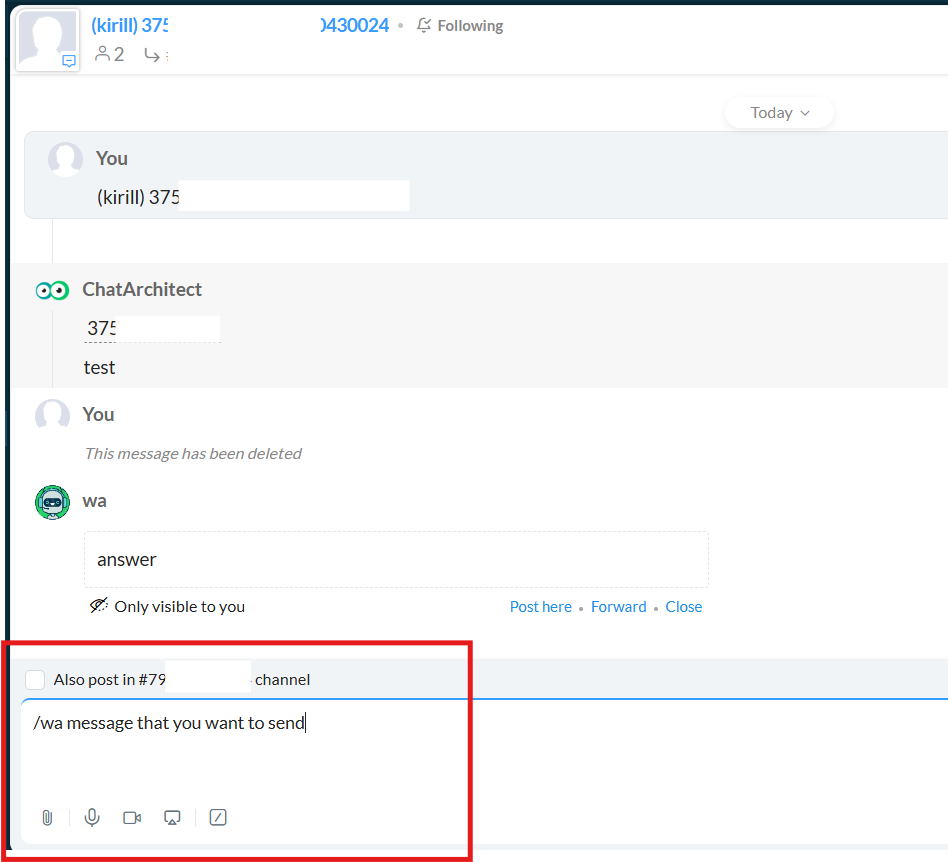
1\. You can reply by using **/wa** +your\_text
[](https://support.chatarchitect.com/uploads/images/gallery/2026-04/sdYimage.png)
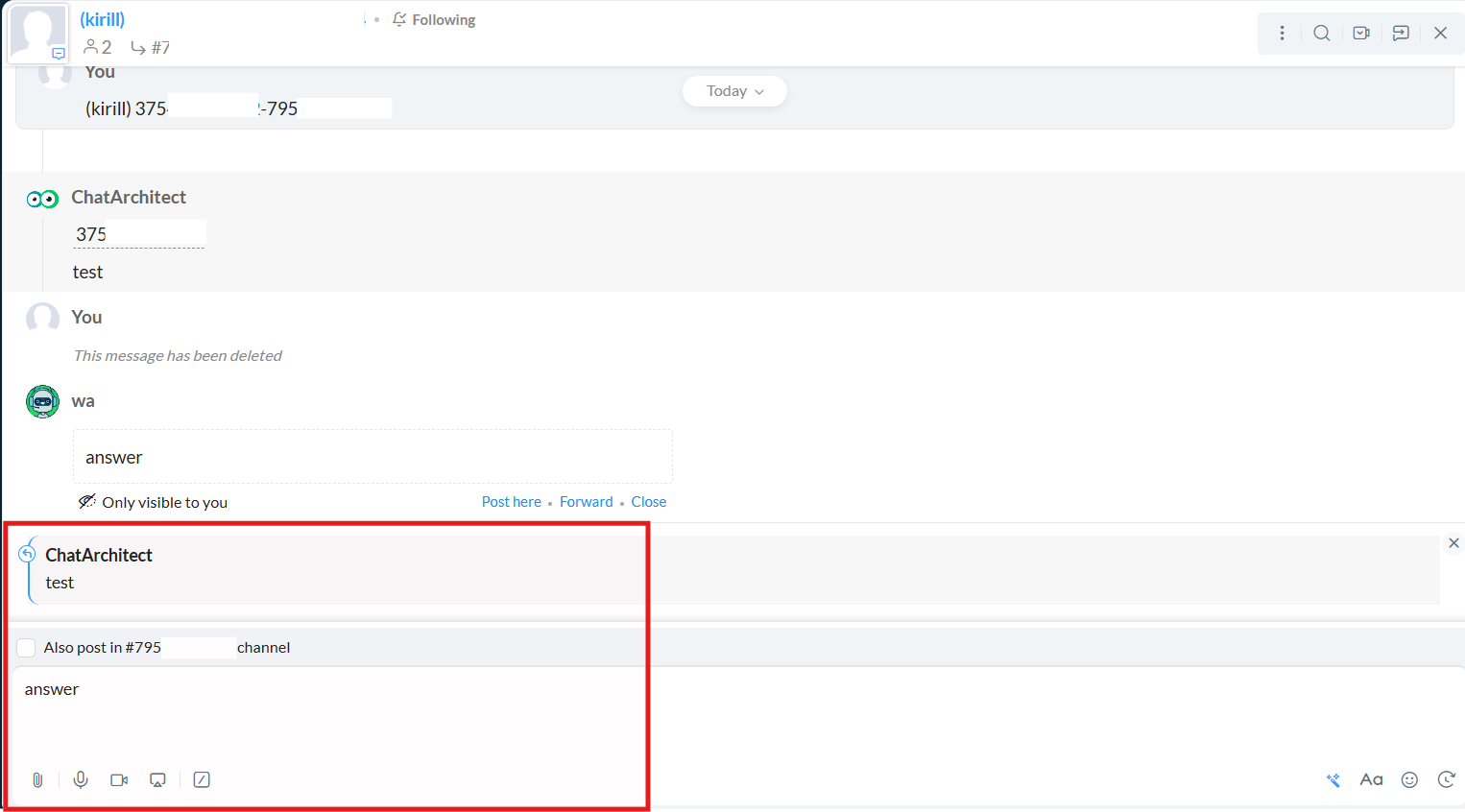
2\. You can **quote** client's message
[](https://support.chatarchitect.com/uploads/images/gallery/2026-04/4nYimage.png)