# Sending template messages using Salesbot

**In this guide, we will show you how to send template messages using <span class="hover:entity-accent entity-underline inline cursor-pointer align-baseline"><span class="whitespace-normal">Salesbot</span></span>.**  
  
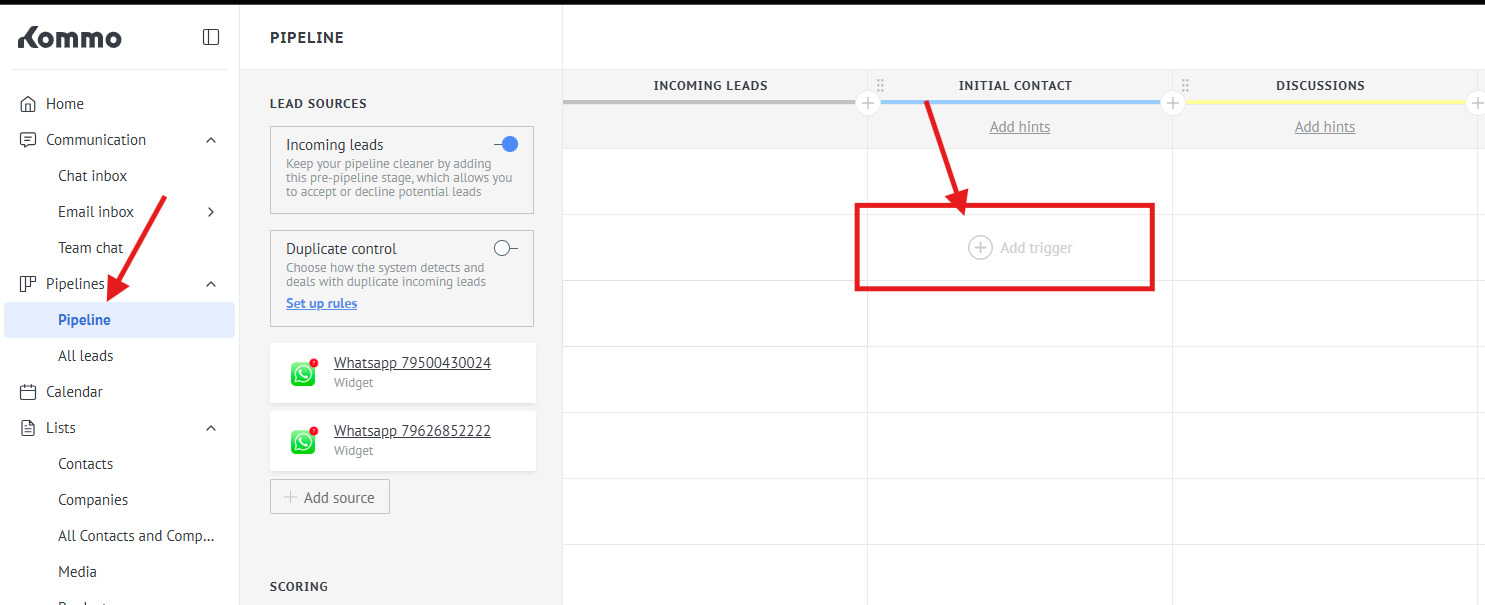
1\. First of all, you need to go to the "Pipeline" and choose a stage, where do you want to use your Salesbot

<section class="text-token-text-primary w-full focus:outline-none [--shadow-height:45px] has-data-writing-block:pointer-events-none has-data-writing-block:-mt-(--shadow-height) has-data-writing-block:pt-(--shadow-height) [&:has([data-writing-block])>*]:pointer-events-auto scroll-mt-(--header-height)" data-scroll-anchor="false" data-testid="conversation-turn-17" data-turn="user" data-turn-id="6e015c83-6e0e-44d1-8f20-071c82980eb7" dir="auto" id="bkmrk-"></section><section class="text-token-text-primary w-full focus:outline-none [--shadow-height:45px] has-data-writing-block:pointer-events-none has-data-writing-block:-mt-(--shadow-height) has-data-writing-block:pt-(--shadow-height) [&:has([data-writing-block])>*]:pointer-events-auto scroll-mt-[calc(var(--header-height)+min(200px,max(70px,20svh)))]" data-scroll-anchor="true" data-testid="conversation-turn-18" data-turn="assistant" data-turn-id="request-69e21cba-41f0-83ea-bddd-9206e839fc28-2" dir="auto" id="bkmrk-in-my-case%2C-this-is-">In my case, this is the **"Initial contact"** stage.

</section>[![image.png](https://support.chatarchitect.com/uploads/images/gallery/2026-04/scaled-1680-/jmPimage.png)](https://support.chatarchitect.com/uploads/images/gallery/2026-04/jmPimage.png)  
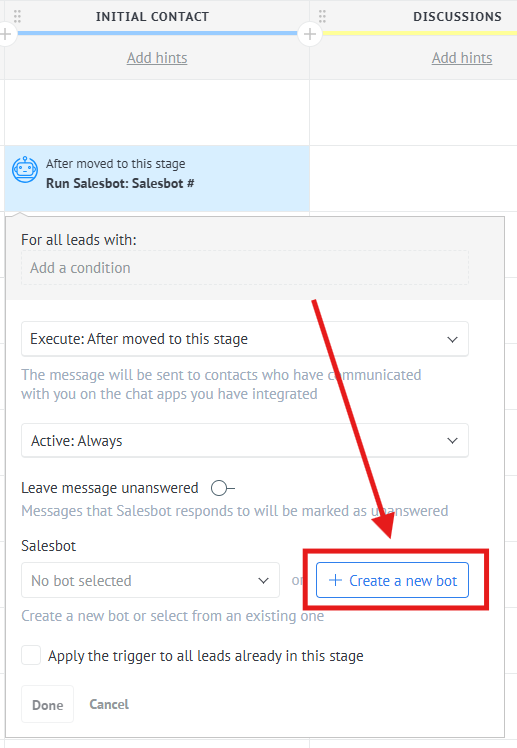
2\. Press "Add trigger" -&gt; "Salesbot" -&gt; "Create a new bot"

[![image.png](https://support.chatarchitect.com/uploads/images/gallery/2026-04/scaled-1680-/i7aimage.png)](https://support.chatarchitect.com/uploads/images/gallery/2026-04/i7aimage.png)  
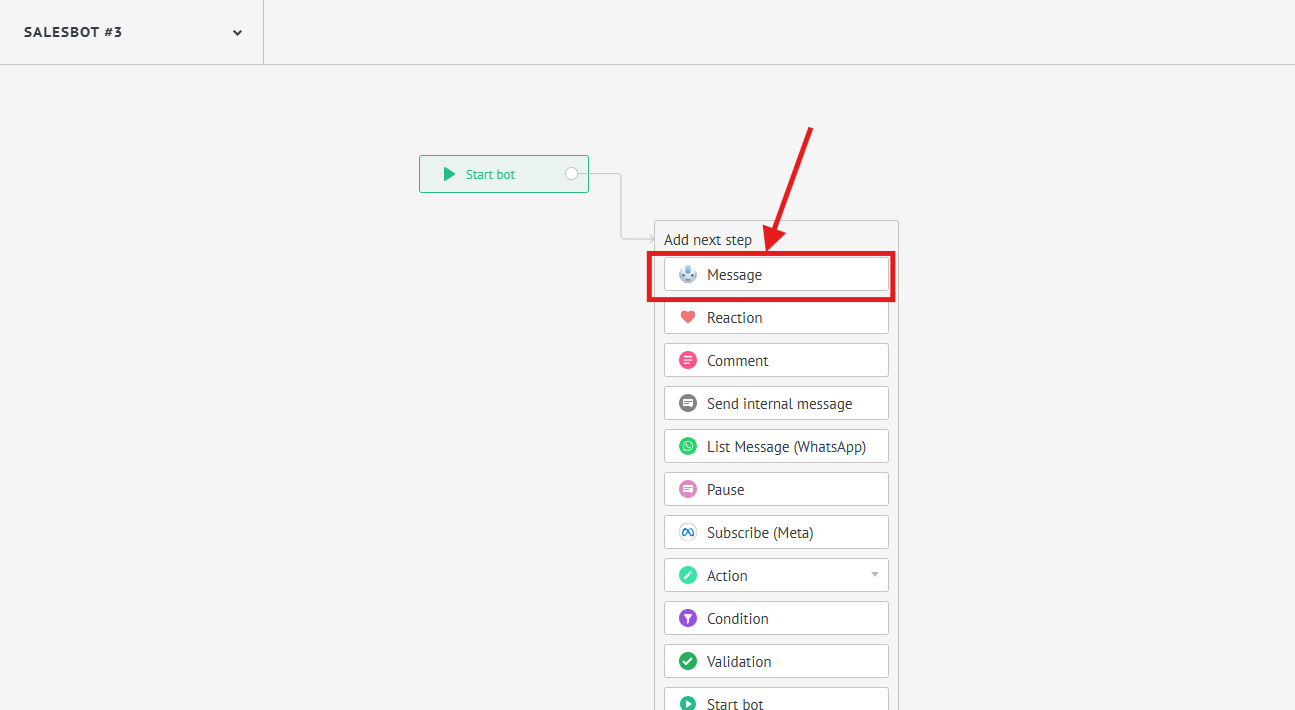
3\. Choose "Message" step

[![image.png](https://support.chatarchitect.com/uploads/images/gallery/2026-04/scaled-1680-/P8Himage.png)](https://support.chatarchitect.com/uploads/images/gallery/2026-04/P8Himage.png)  
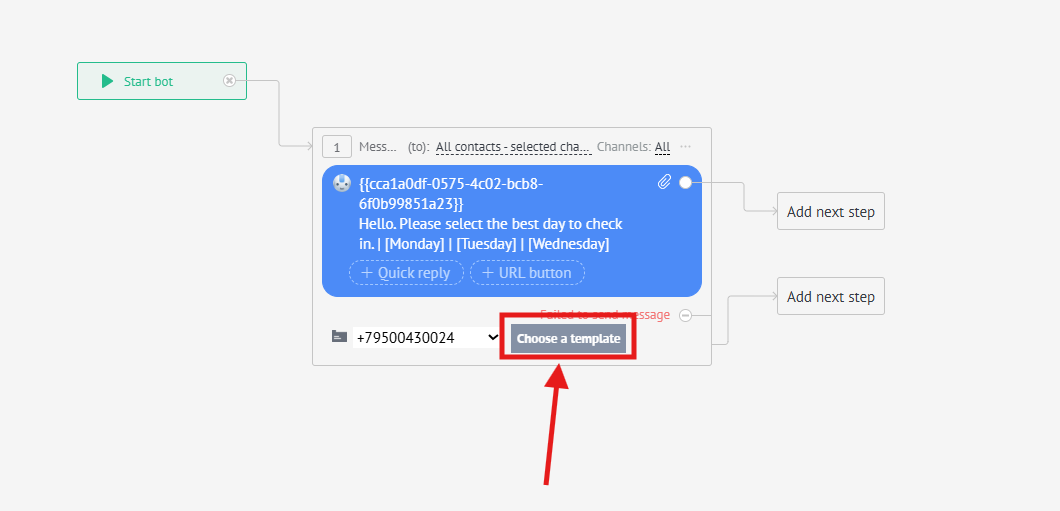
4\. After that, select the template you want to use for sending.

[![image.png](https://support.chatarchitect.com/uploads/images/gallery/2026-04/scaled-1680-/ncGimage.png)](https://support.chatarchitect.com/uploads/images/gallery/2026-04/ncGimage.png)  
Done. Now all your deals that move to the **"Initial contact"** stage will receive the template you selected.  
  
**Note:** At the moment, adding files of the following formats is available: **.png, .jfif, .pjpeg, .jpeg, .pjp, .jpg, .bmp, .dib, .webp, .m4v, .mp4** - the bot supports all video formats that can be chosen to send