# Mailing via RetailCRM \ Simla.com

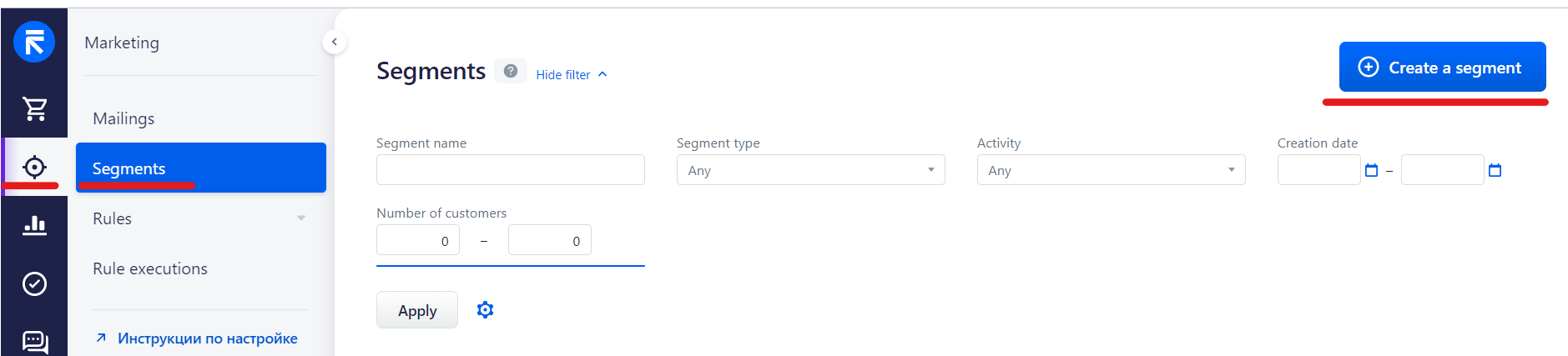
1\. First of all, you need to create a segment Marketing - Segments - Create a segment
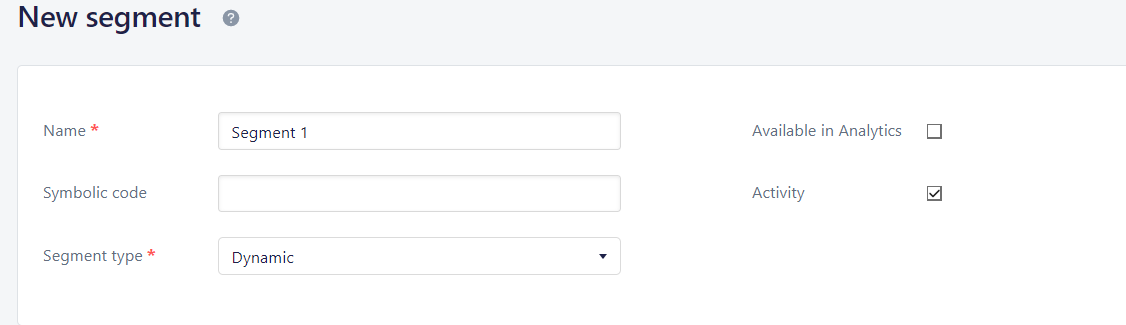
<figure id="bkmrk-">![67379f5455b4d160eb20ef19af312032.png](https://bookstack-support-u7942.vm.elestio.app/uploads/images/gallery/2026-03/embedded-image-hudiirva.png)</figure>Enter segment name and select segment type
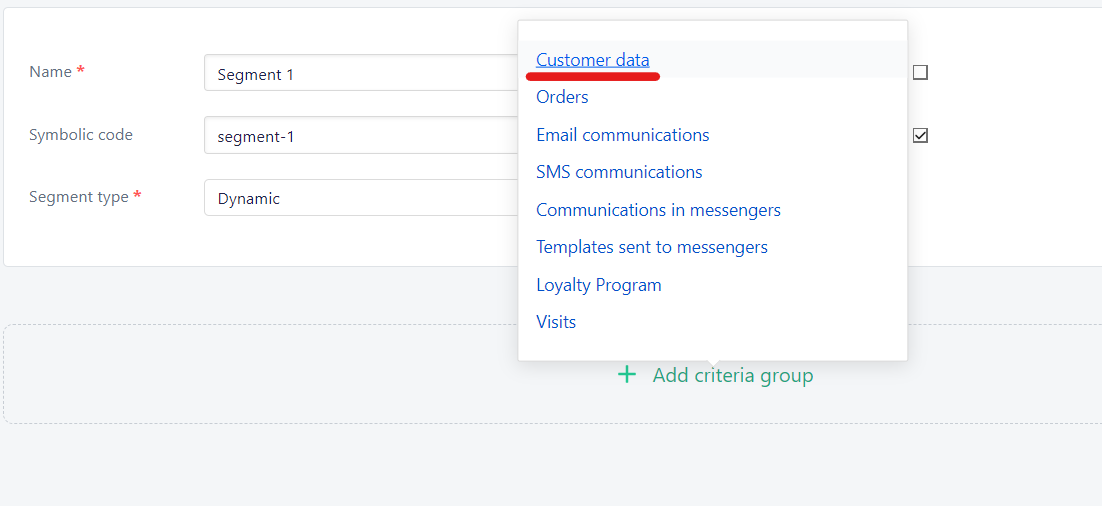
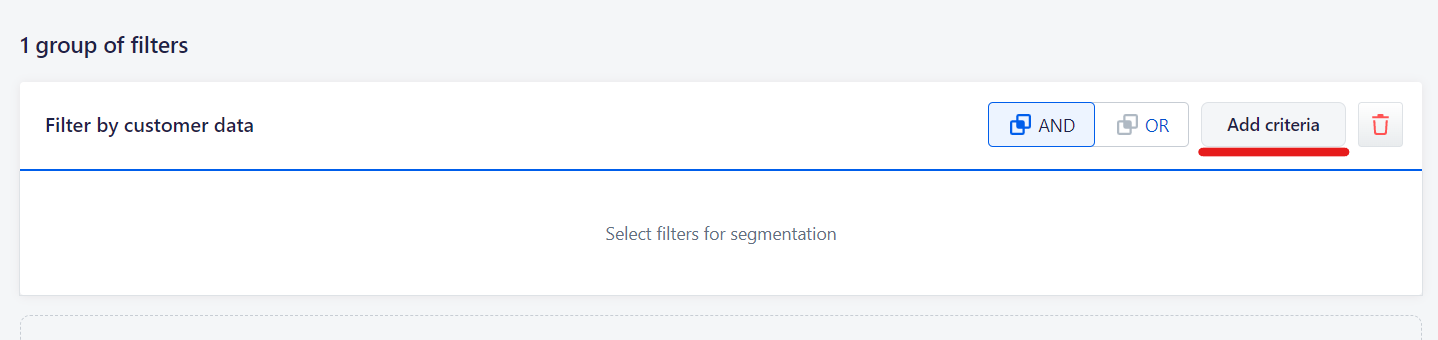
<figure id="bkmrk--1">![38ef3e81fa31fe9d2efd5faea28196af.png](https://bookstack-support-u7942.vm.elestio.app/uploads/images/gallery/2026-03/embedded-image-bfxovana.png)</figure>2\. Add the desired filter group. In our case, the filter is "Customer Data".
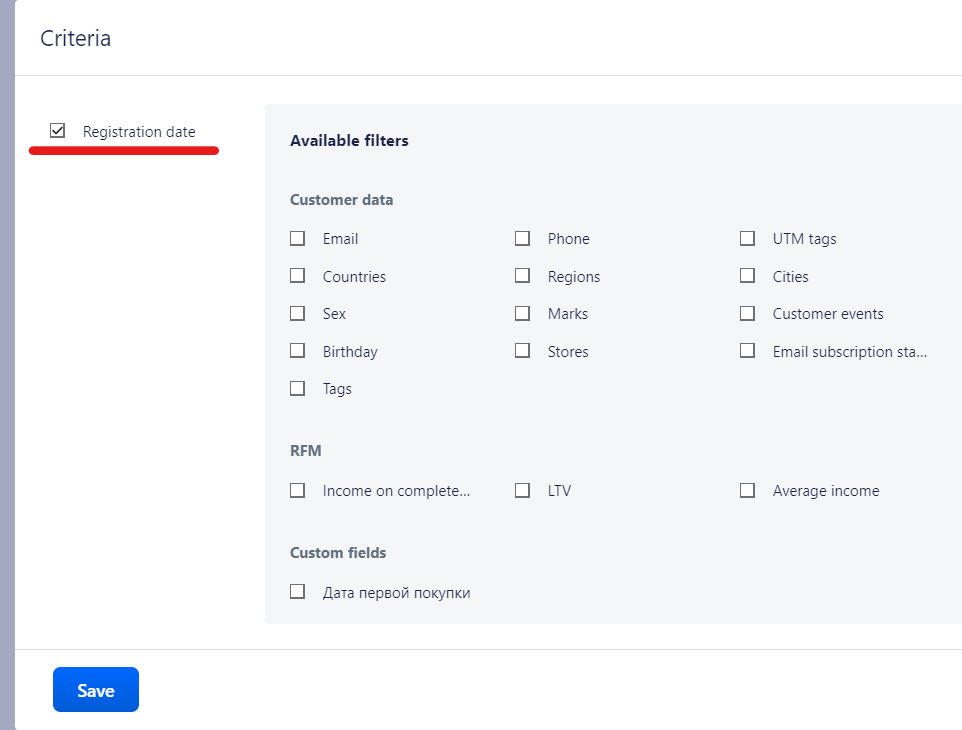
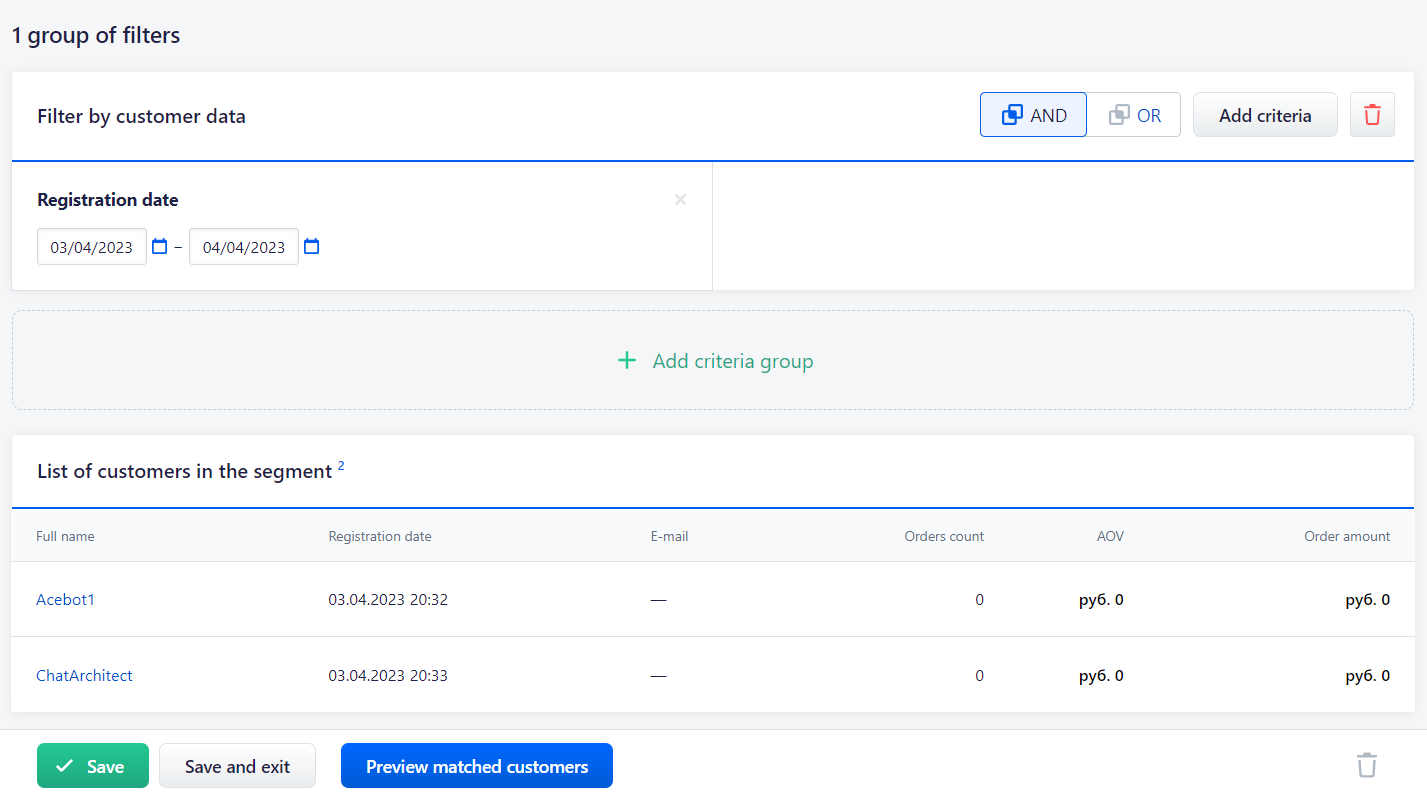
<figure id="bkmrk--2">![f28e4aba76612eb327d5f023aa63654e.png](https://bookstack-support-u7942.vm.elestio.app/uploads/images/gallery/2026-03/embedded-image-xy3eyciv.png)</figure>3\. Inside the filter group, add a filter, in our case it is "Registration date".
<figure id="bkmrk--3">![20ad6485e8048938543967ec2fa7e7a4.png](https://bookstack-support-u7942.vm.elestio.app/uploads/images/gallery/2026-03/embedded-image-ssigqets.png)</figure><figure id="bkmrk--4">![41a882bfd5d208437cd5722d2c594431.png](https://bookstack-support-u7942.vm.elestio.app/uploads/images/gallery/2026-03/embedded-image-4lyst81f.png)</figure>Select a range, in our case it is from 03.04 to 04.04
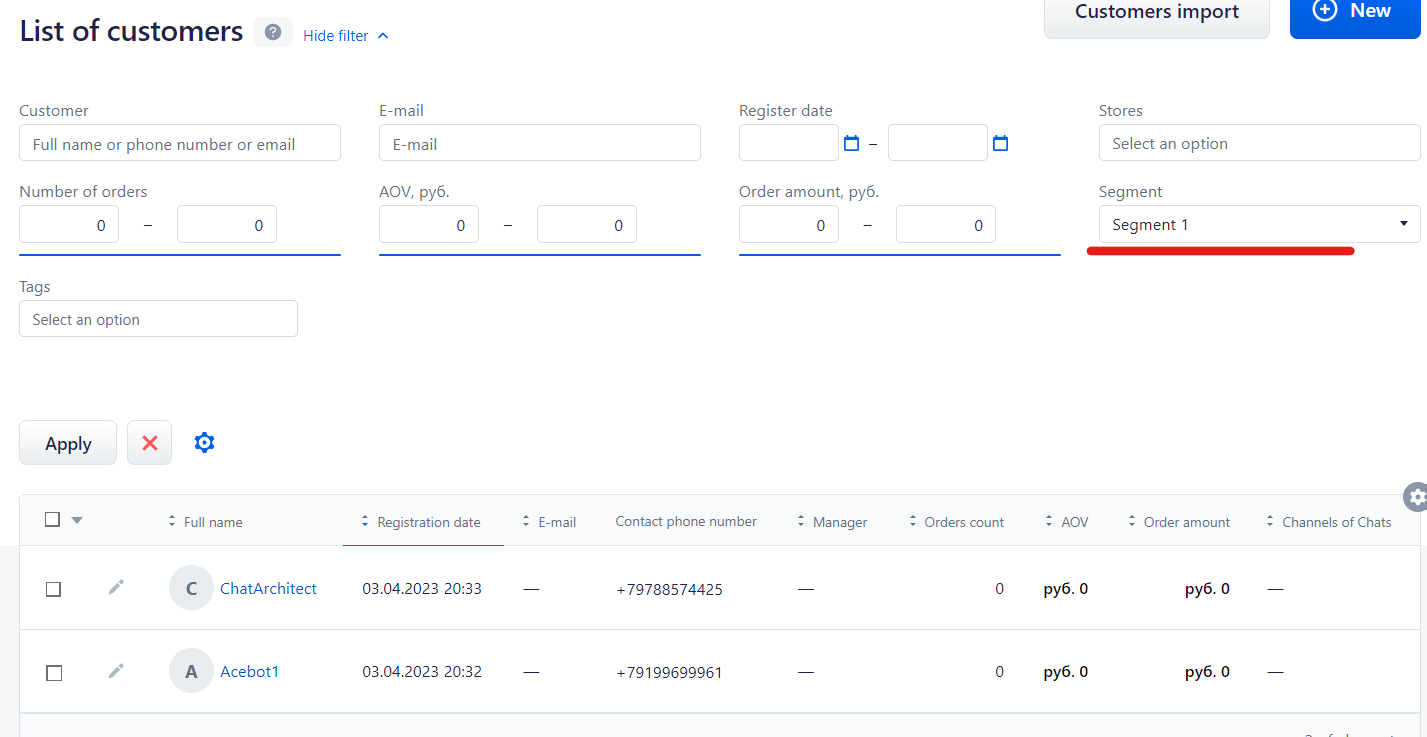
<figure id="bkmrk--5">![8b091d7e741465ca016dab6b2fae5e9b.png](https://bookstack-support-u7942.vm.elestio.app/uploads/images/gallery/2026-03/embedded-image-omu3njio.png)</figure>4\. Next, we need to send messages to clients from this segment. Go to the section "Sales" - "Customers" - "List". In the filter, select "Segment" and click "Apply". Clients will be sorted by the selected segment
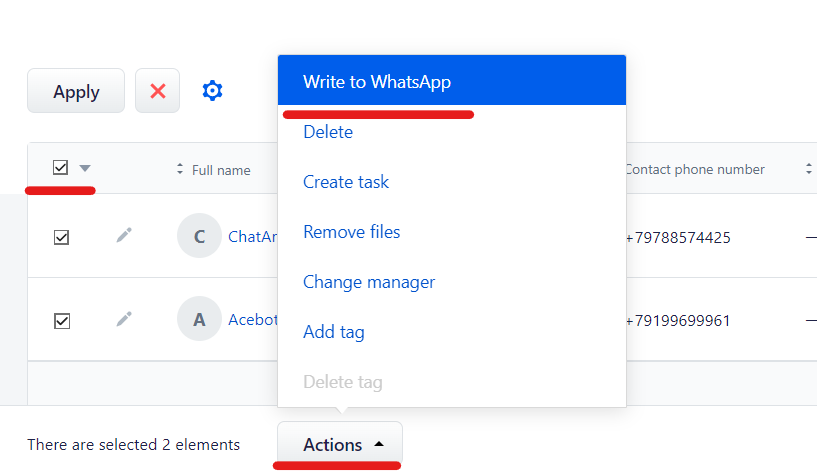
<figure id="bkmrk--6">![c8a700062bf10042cf62b690c36102e0.png](https://bookstack-support-u7942.vm.elestio.app/uploads/images/gallery/2026-03/embedded-image-kabsfpgi.png)</figure>5\. At the bottom of the page there is an "Actions" button. We need it. Select all elements on the page. The blue triangle in the table with clients is responsible for this. Then click on the "Actions" button and select "Write to WhatsApp"
<figure id="bkmrk--7">![362e0a876b7134a1934b3766904896a0.png](https://bookstack-support-u7942.vm.elestio.app/uploads/images/gallery/2026-03/embedded-image-bxvsemle.png)</figure>6\. Select a template and click "Submit"