# WhatsApp for Zoho CRM \ CLIQ
# WhatsApp Business API for Zoho Cliq: Installation and sending the first message.
**In this guide, you will learn how to install our WhatsApp Business API integration in Zoho Cliq.**
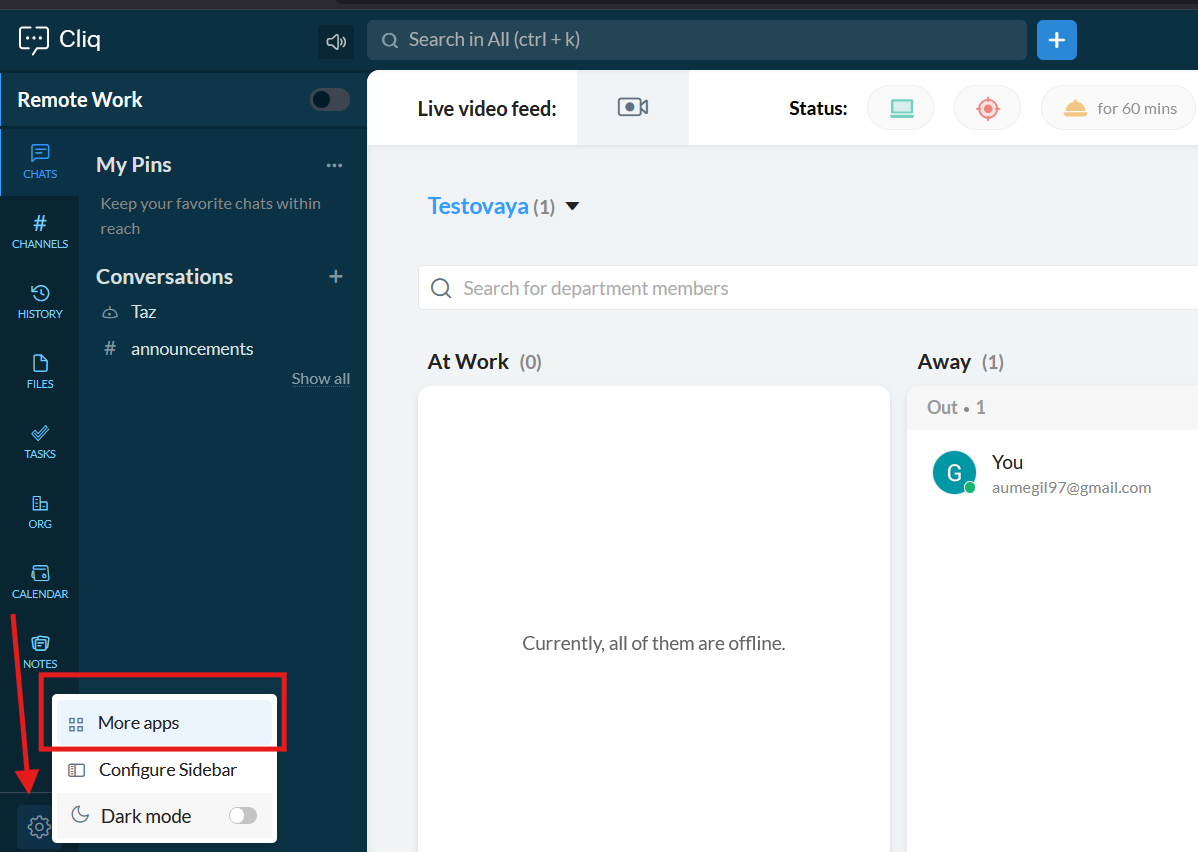
1\. First of all, go to the **"Settings"** -> **"More apps"**
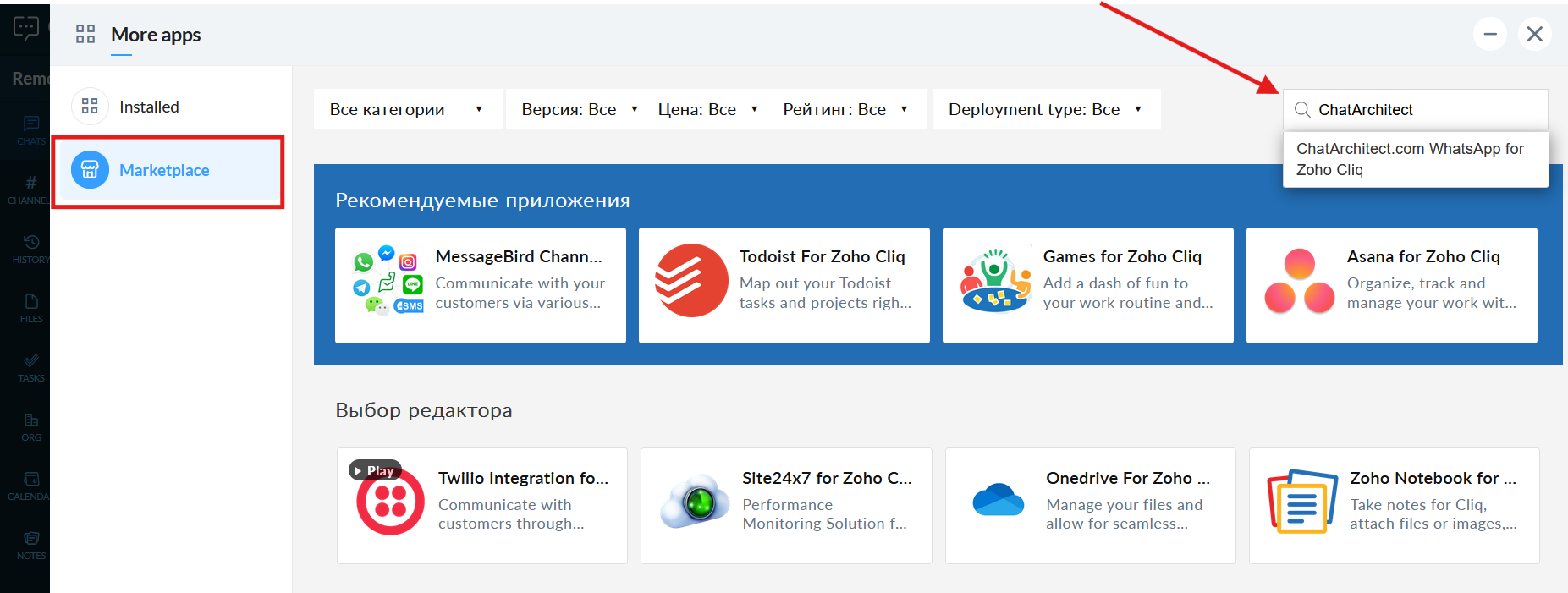
[](https://support.chatarchitect.com/uploads/images/gallery/2026-04/Iylimage.png)2. Go to the "**Marketplace**" and fill in in the search field "**ChatArchitect**" and choose our app
[](https://support.chatarchitect.com/uploads/images/gallery/2026-04/qISimage.png)
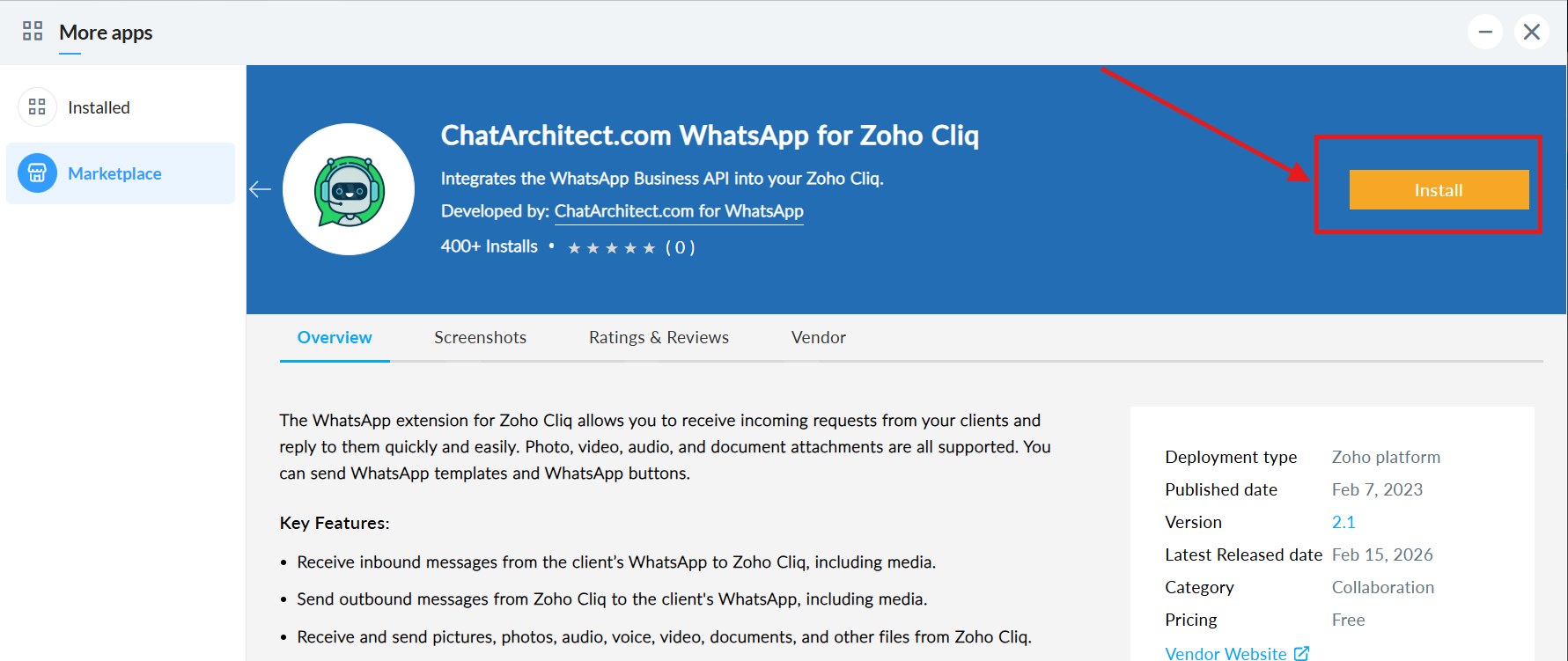
3\. Press "**Install**"
[](https://support.chatarchitect.com/uploads/images/gallery/2026-04/B4Uimage.png)
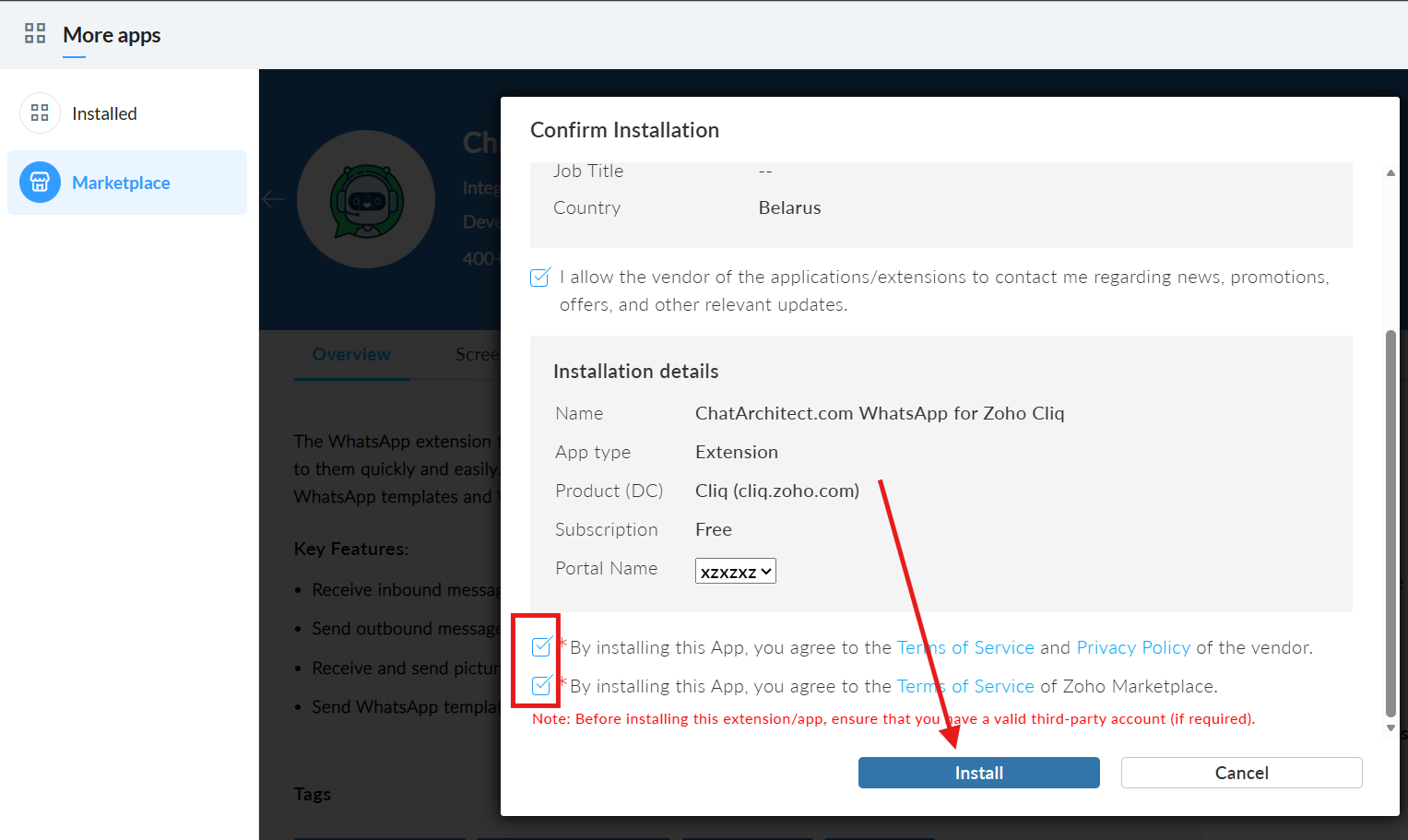
4\. Check the boxes and click the “**Install**” button.
[](https://support.chatarchitect.com/uploads/images/gallery/2026-04/v8gimage.png)5. Press "Take me to Cliq" button
[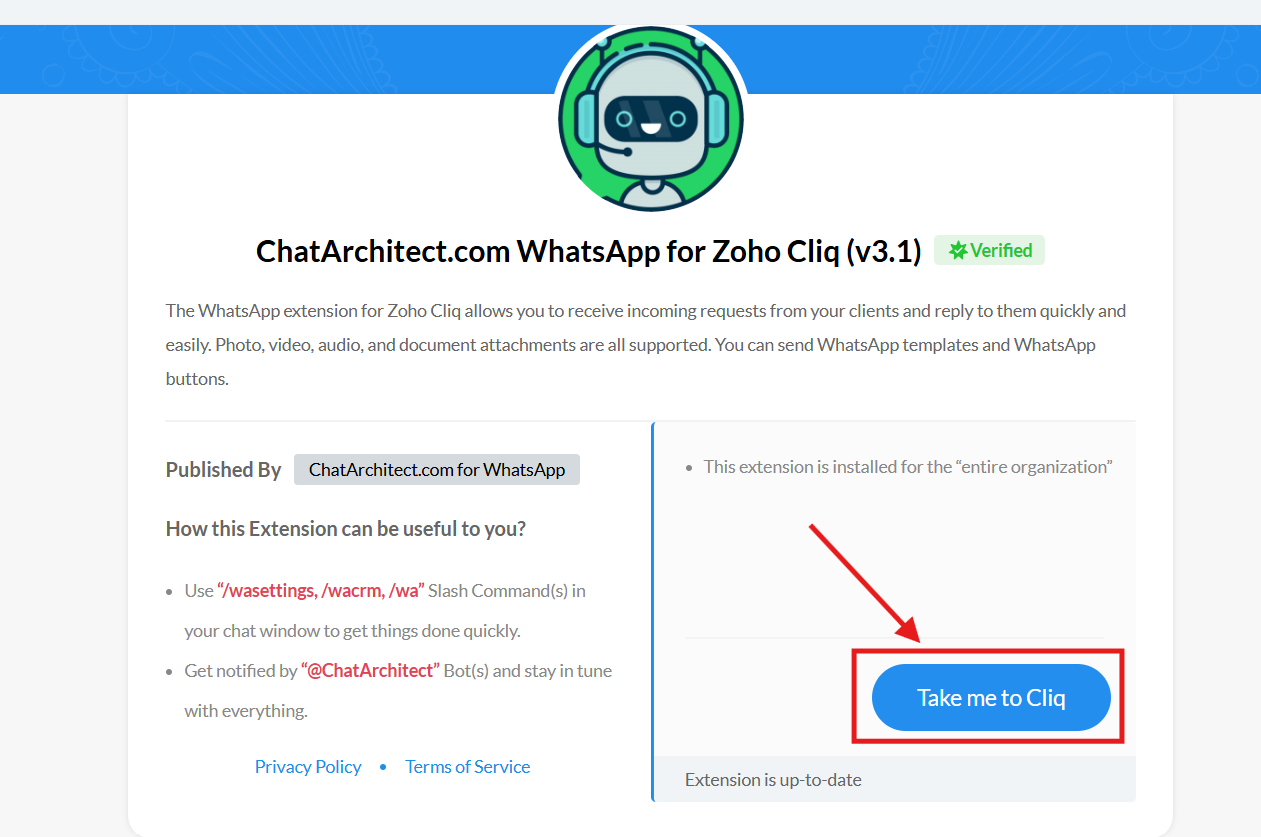](https://support.chatarchitect.com/uploads/images/gallery/2026-04/3sdimage.png)6. Choose "**Grant access**"
[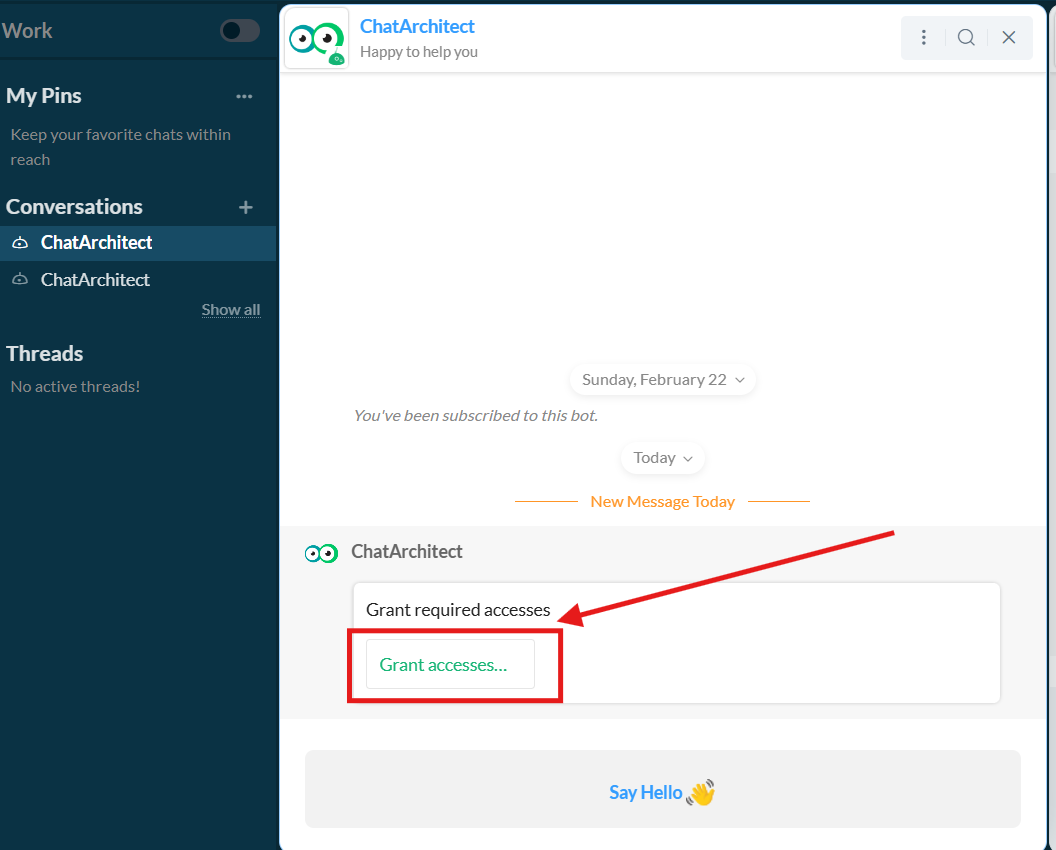](https://support.chatarchitect.com/uploads/images/gallery/2026-04/2RWimage.png)
7\. Check the boxes and press "**Accept**"
[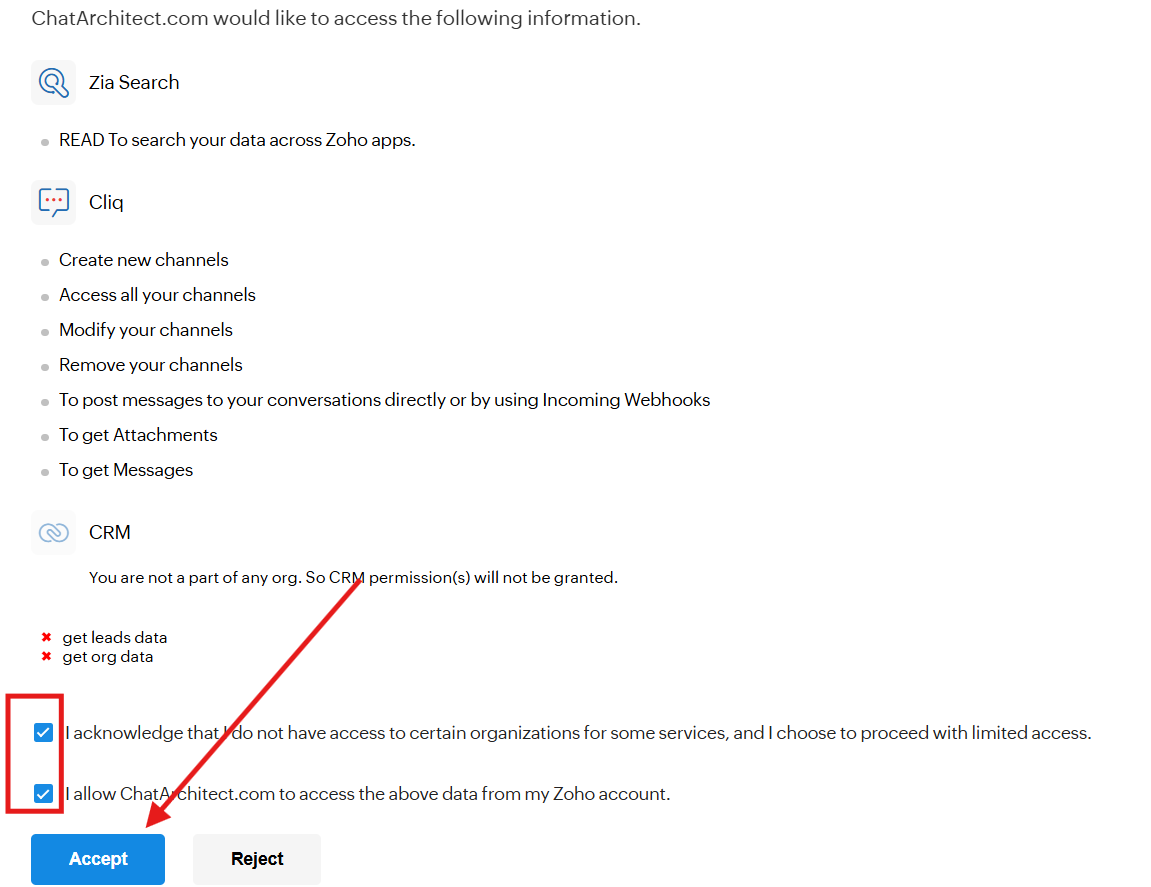](https://support.chatarchitect.com/uploads/images/gallery/2026-04/qpgimage.png)
8\. Fill in your **APP ID** and **APP SECRET** and press "**Save settings**"
[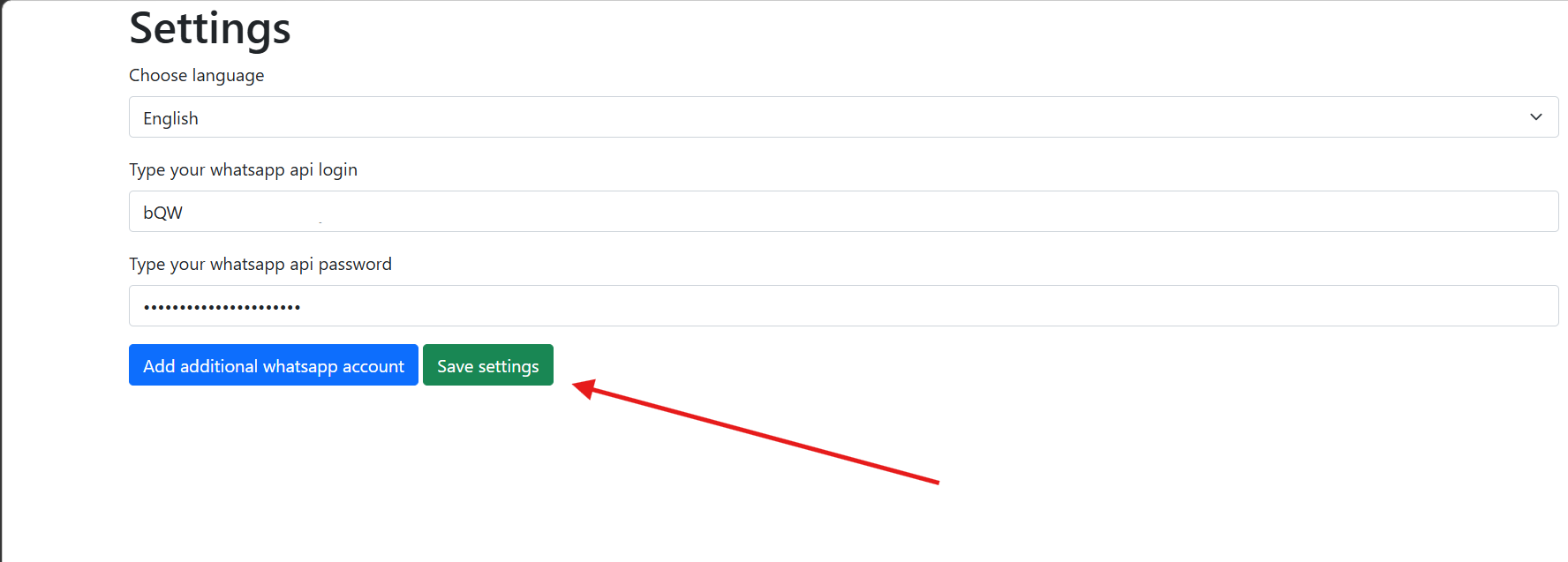](https://support.chatarchitect.com/uploads/images/gallery/2026-04/MJ4image.png)
9\. Next, write to your connected WhatsApp Business API number from your personal WhatsApp. It will be displayed in threads.
[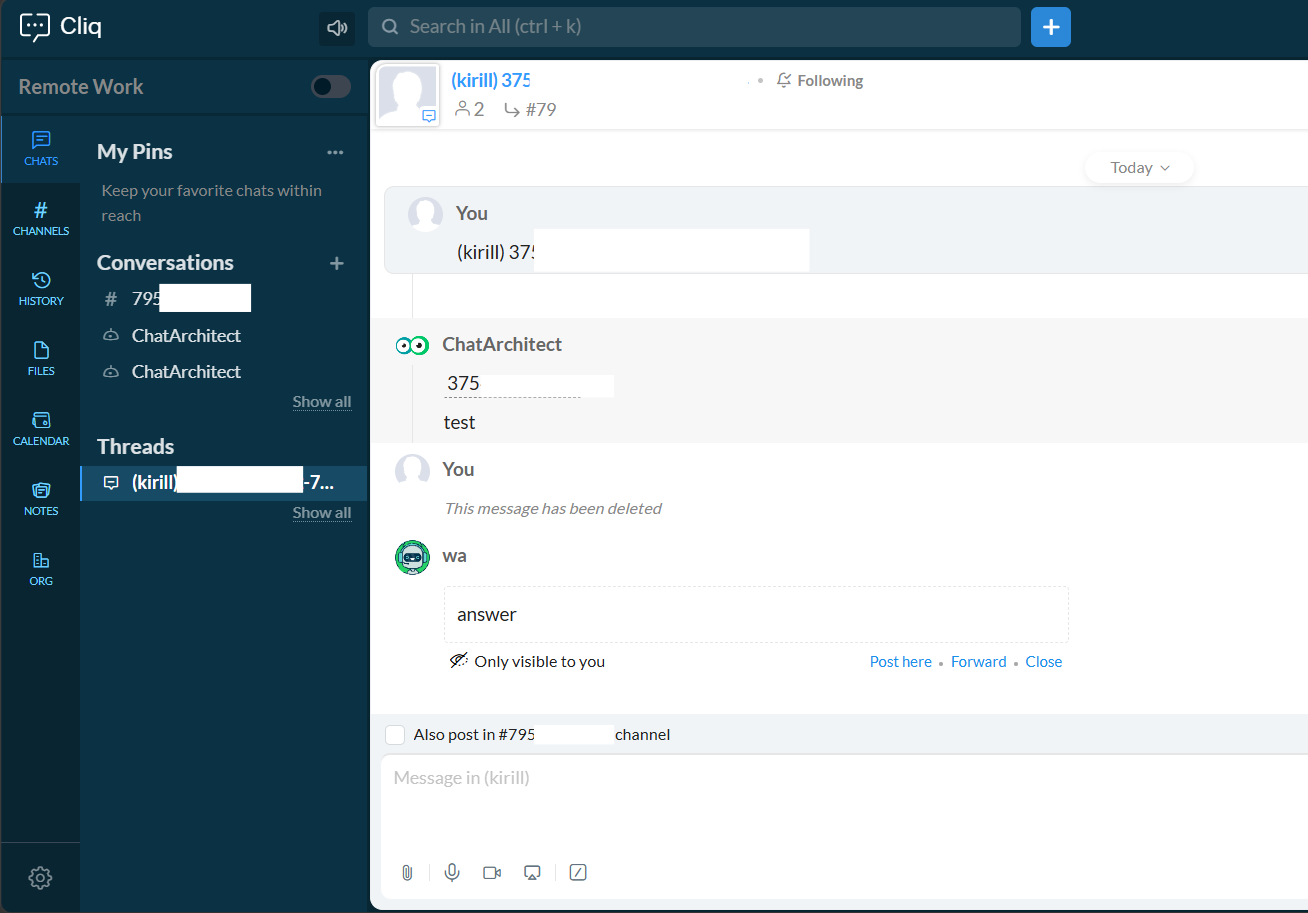](https://support.chatarchitect.com/uploads/images/gallery/2026-04/D9Pimage.png)
**How to reply**
1\. You can reply by using **/wa** +your\_text
[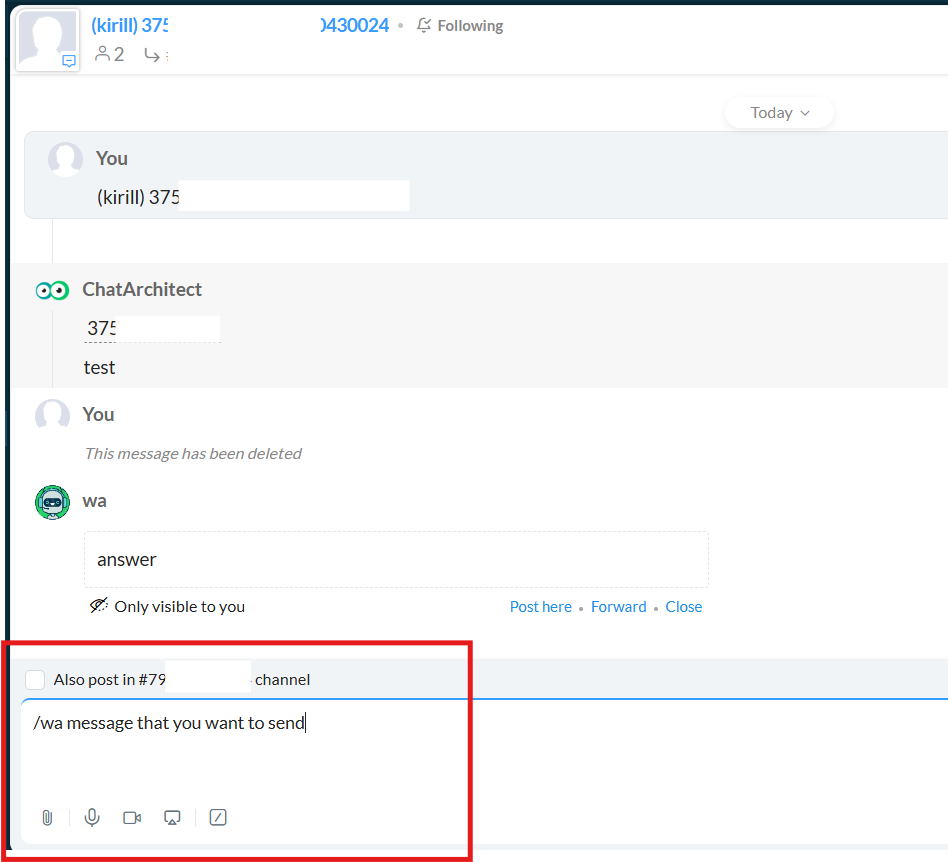](https://support.chatarchitect.com/uploads/images/gallery/2026-04/sdYimage.png)
2\. You can **quote** client's message
[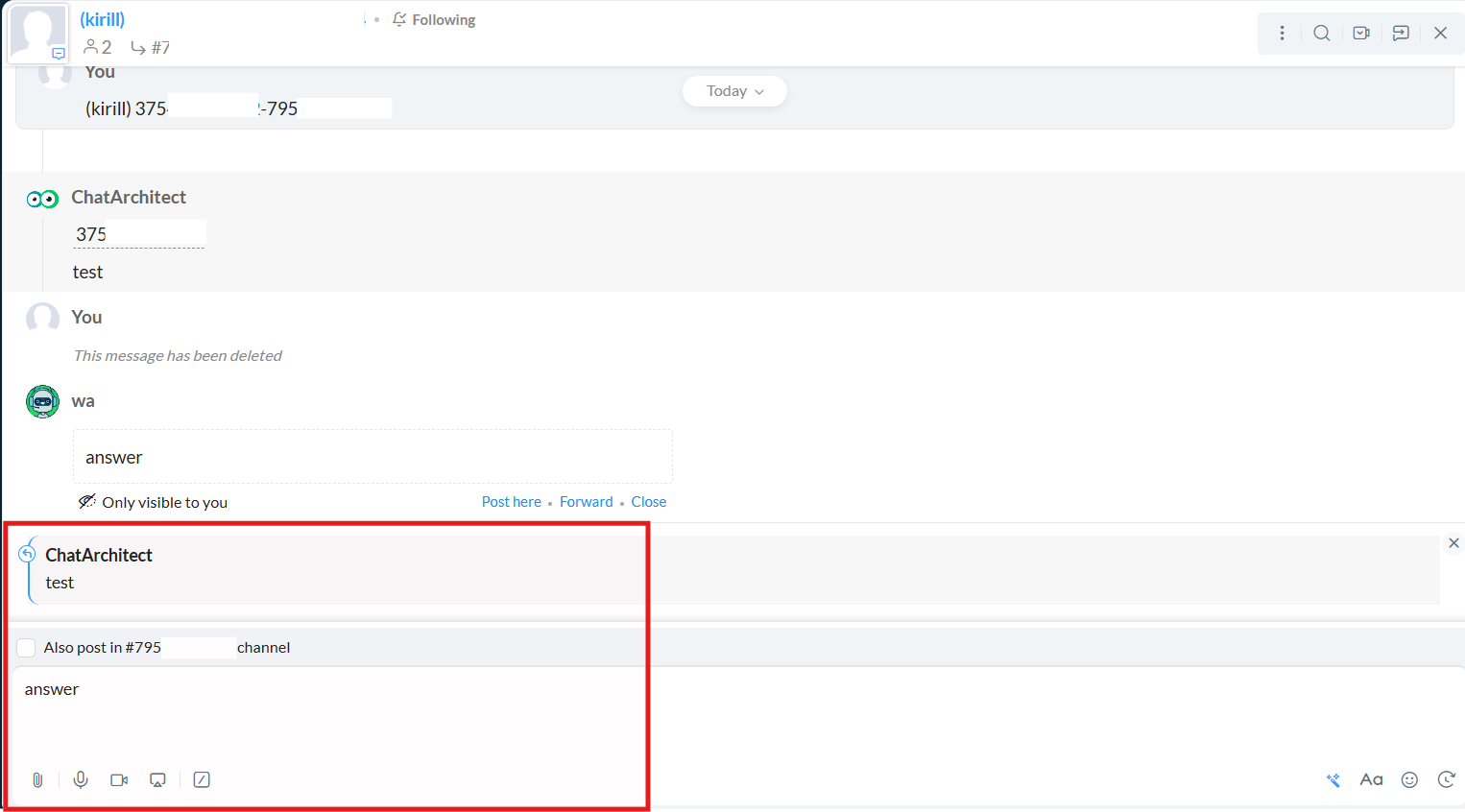](https://support.chatarchitect.com/uploads/images/gallery/2026-04/4nYimage.png)
# How to create a template for WhatsApp Business API
## Step-by-step instructions how to create a template in our app
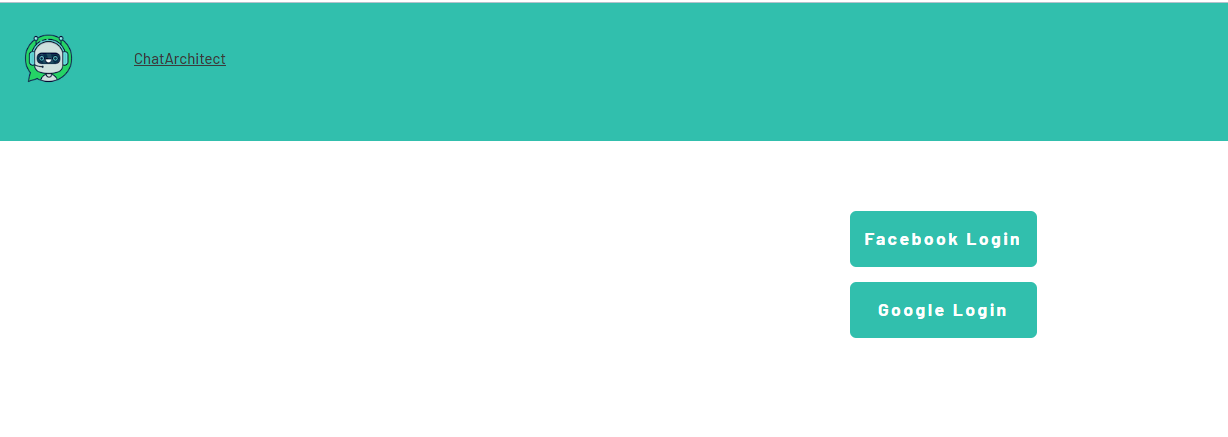
1\. First of all, you need to open [wtargeted.com/](https://wtargeted.com/) and click on the "Facebook Login" button or "Google Login" button
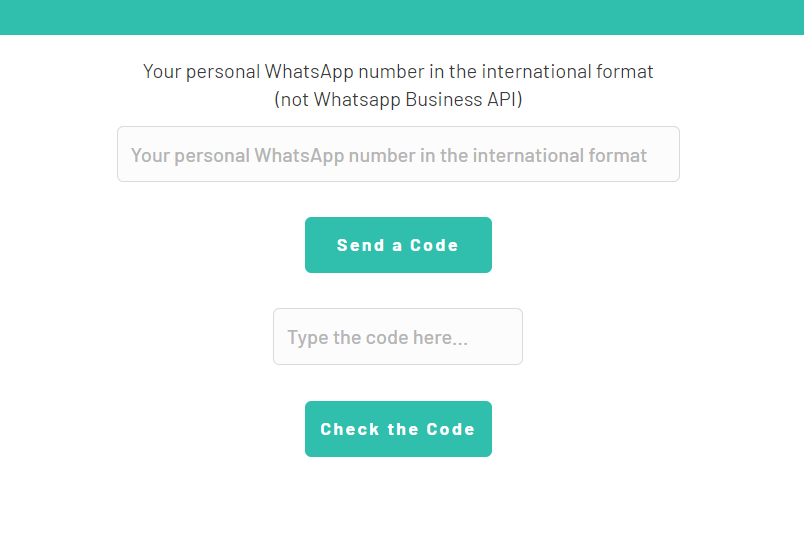
2\. After you have logged in to your google \\ facebook account, you must enter your PERSONAL phone number on which there is a WhatsApp application, a verification code will be sent to it (not to be confused with the number that you connected with us)
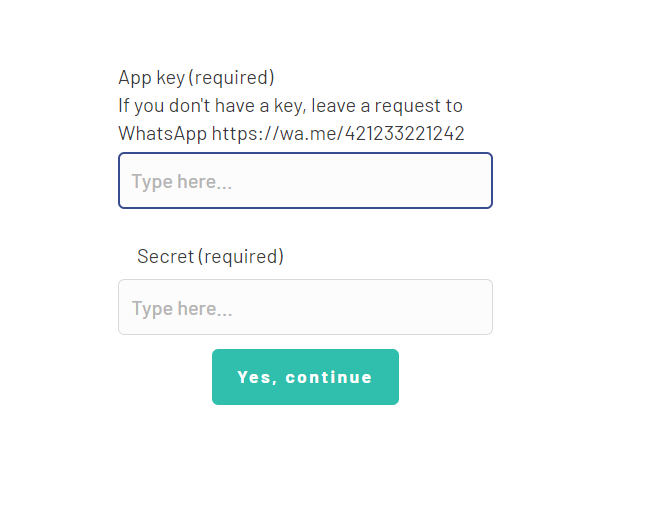
3\. Put your App key and Secret and press "Yes, continue".
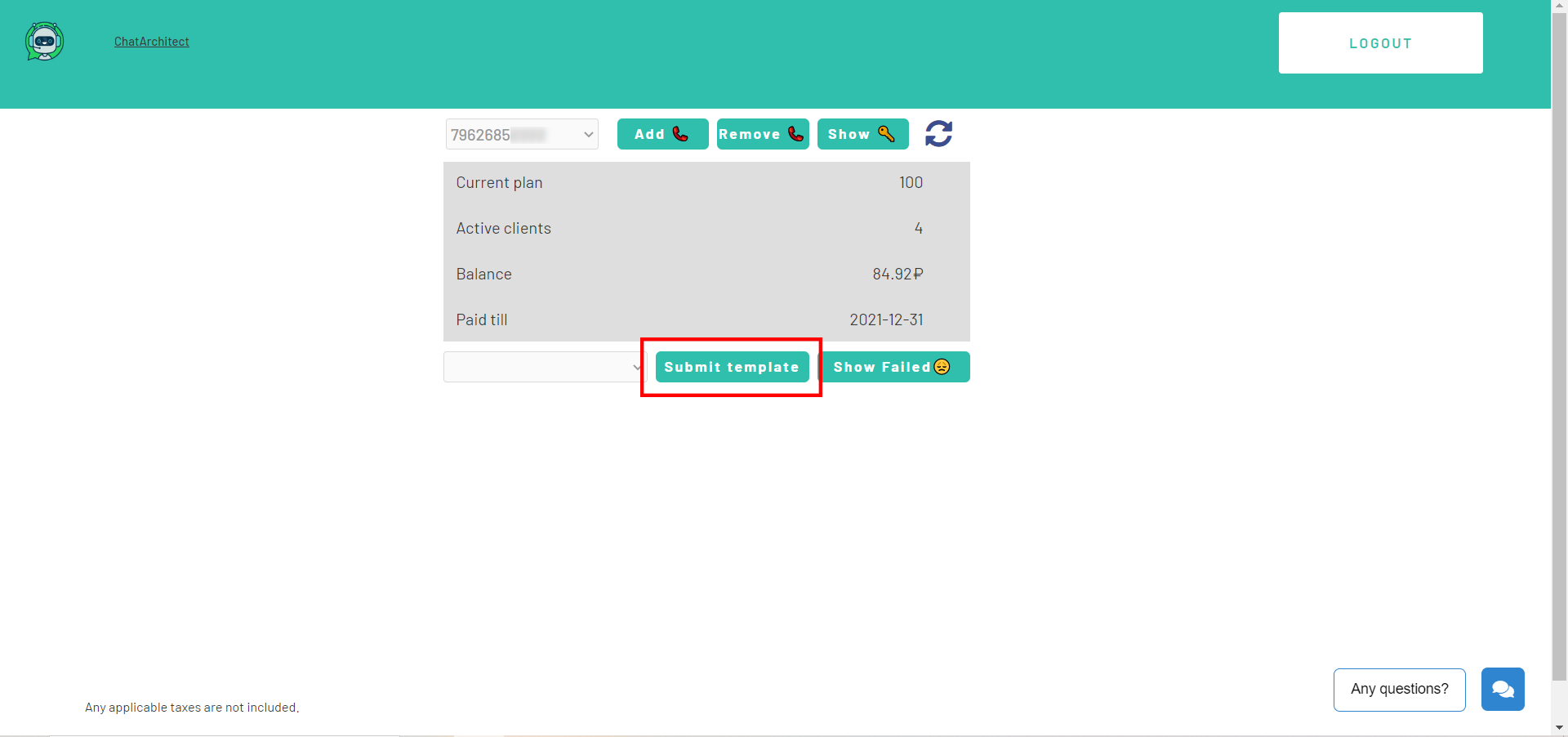
4\. After this, an app menu will be opened. Click on the "Submit template" button.
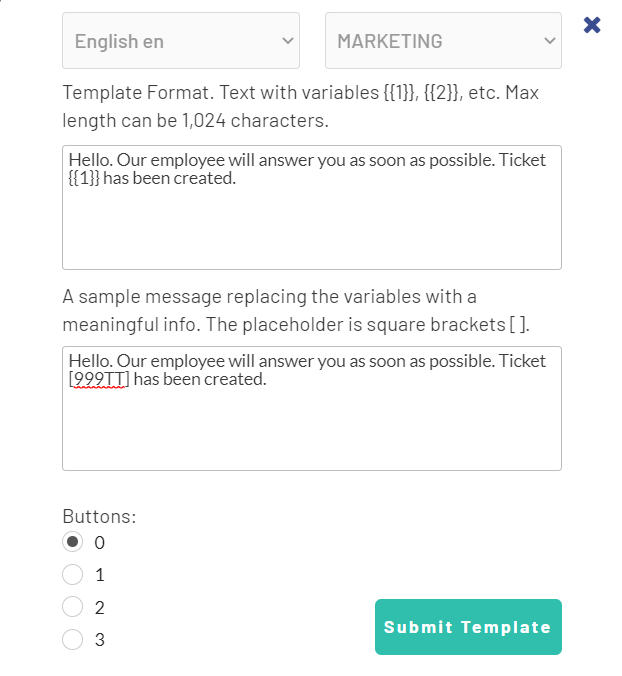
5\. Select the desired language and template type.
Write your message with variables in the first column. For example, "Hello, our employee will answer you as soon as possible. Ticket {{1}} has been created." Variables should be in braces {{}}.
Write a sample message replacing the variables with meaningful information in the second column. For example, "Hello, our employee will answer you as soon as possible. Ticket \[999TTT\] has been created.". The placeholder is square brackets \[\].
Then click "Submit Template".
6\. After review ( it may take from few minutes to 24 hours), your template will appear in "Approved templates".
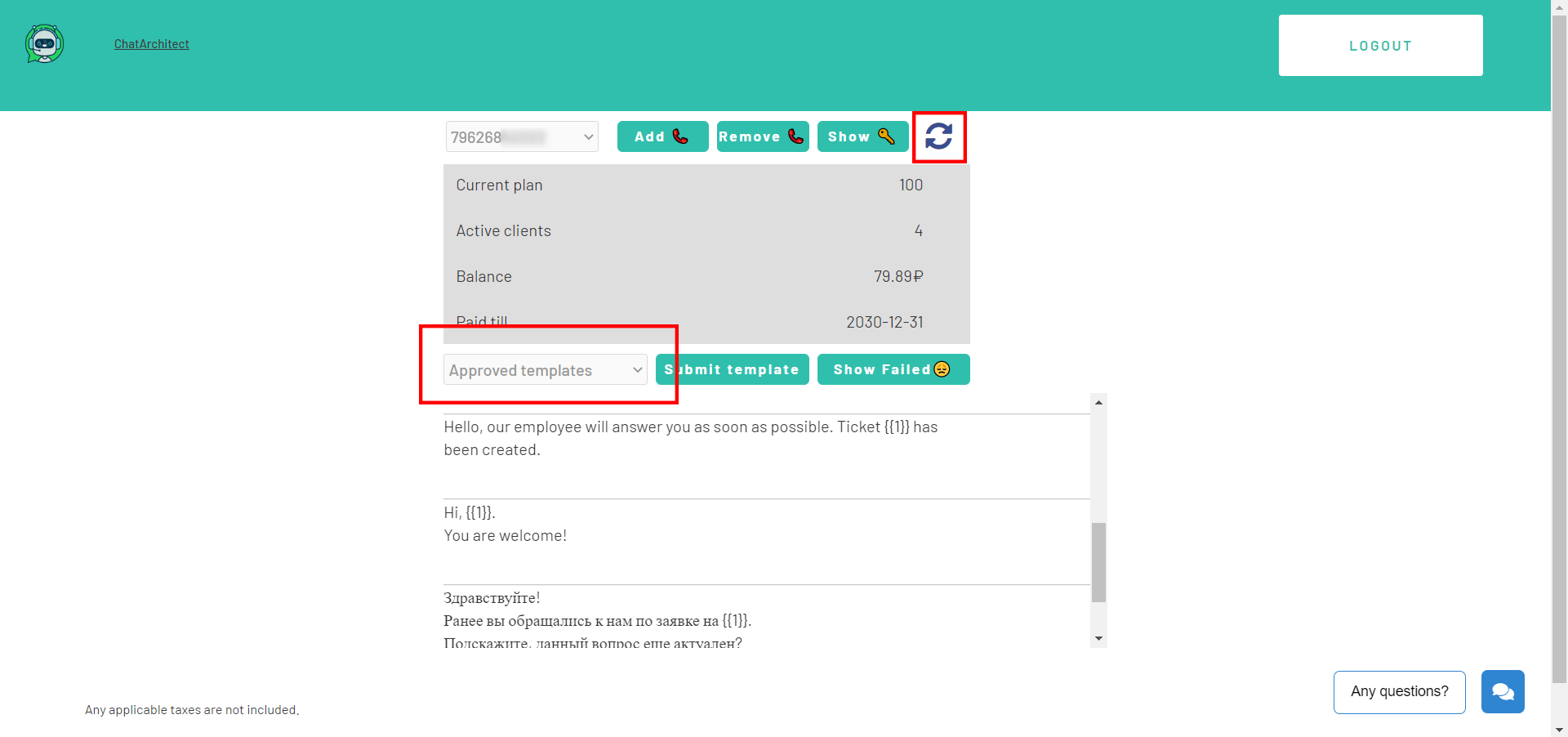Don't forget to click on the "refresh" button.
# How to improve your mailling
# How to improve your Template
When preparing a mailing campaign, one of the most common questions is: *How can I create an effective newsletter without risking being blocked?* In this article, we’ll share practical recommendations to help you achieve that.
## Text Length
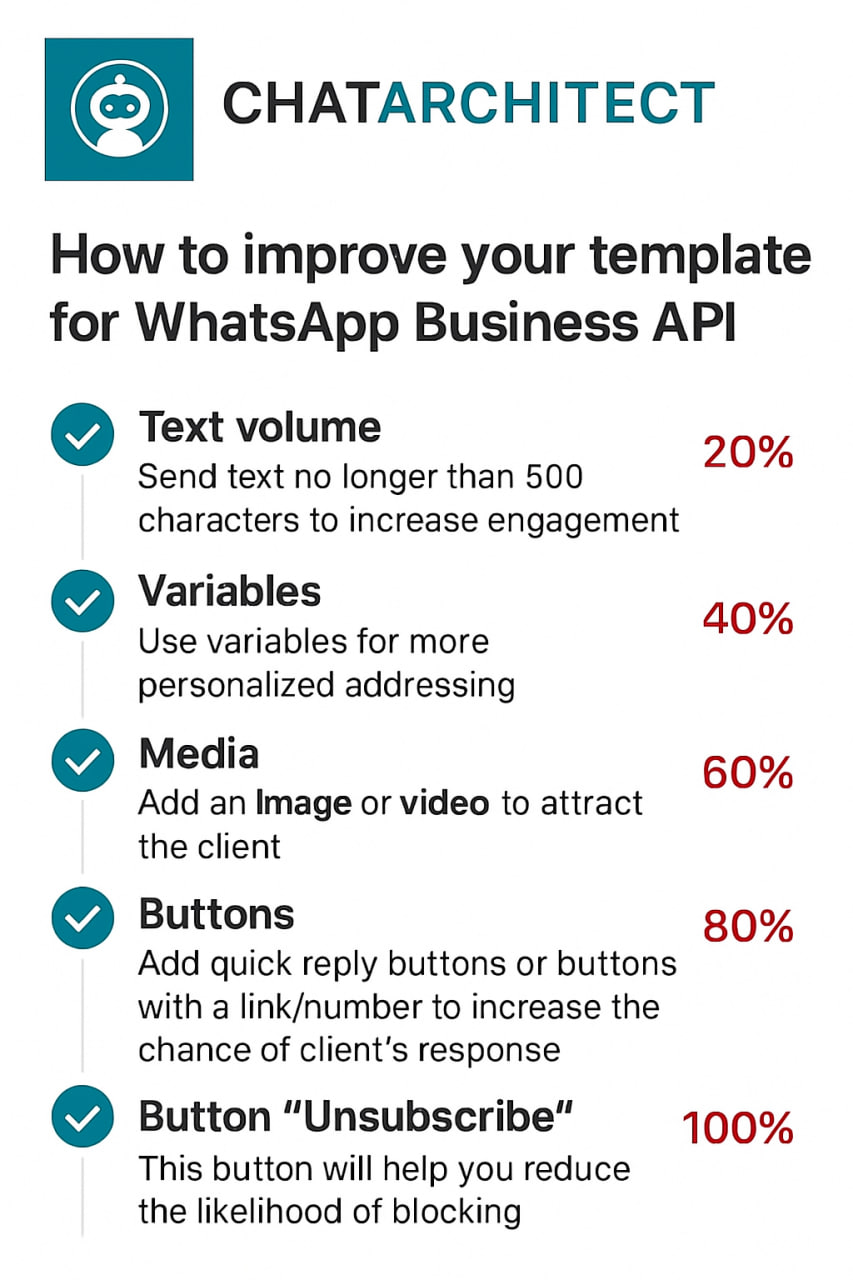
Meta recommends keeping marketing templates under 500 characters to maximize customer engagement. The optimal range is 300–500 characters. In practice, this means keeping your message concise and focused: present the essence of your offer in just a few sentences instead of overwhelming readers with a wall of text.
## Personalization with Variables
Personalization significantly improves the effectiveness of your campaigns. Using variables such as the customer’s name is a simple but powerful way to make your messages feel more personal. After all, everyone appreciates being addressed directly.
## Use of Media
Adding visuals such as bright images or short videos is a proven way to increase click-through rates. High-quality media design not only attracts attention but also serves as an important driver of conversions.
## Action Buttons
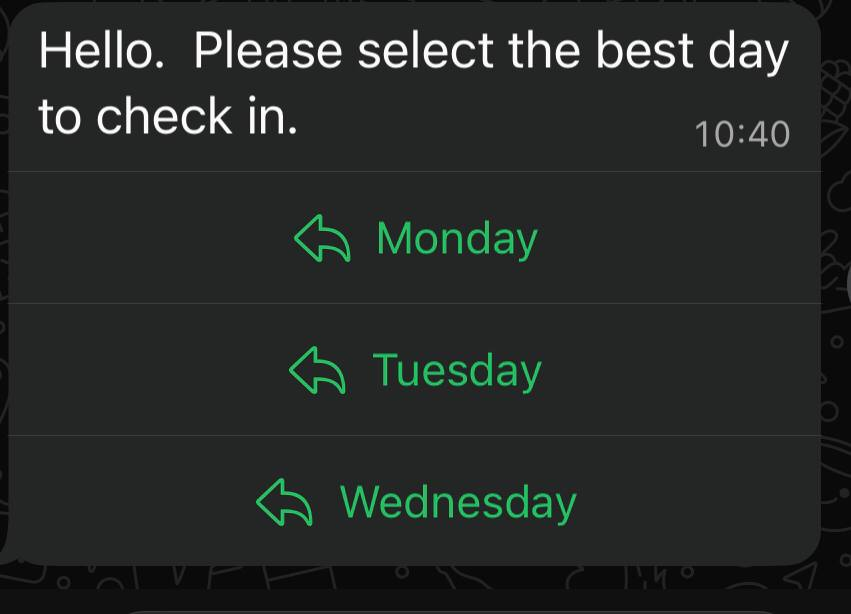
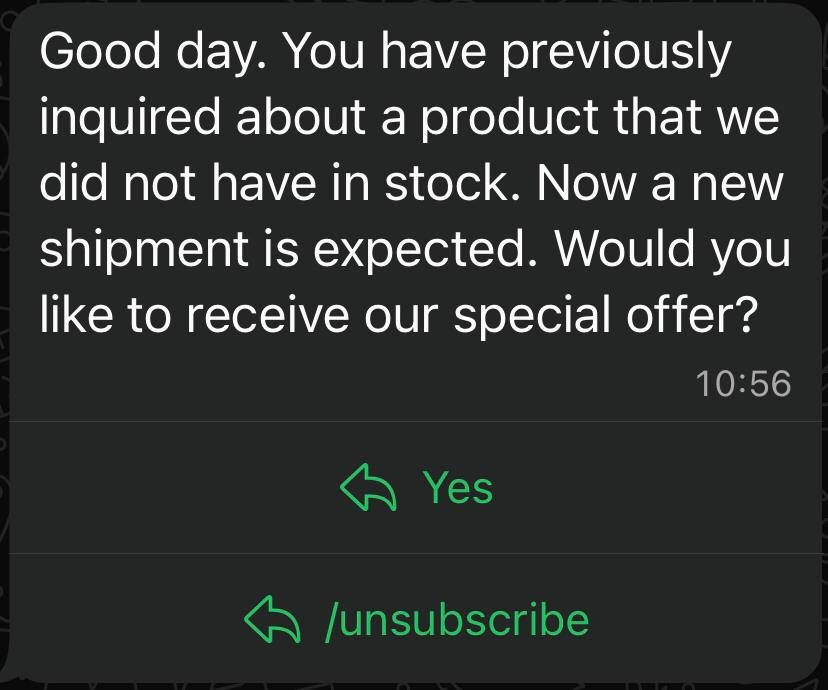
Quick-reply buttons are an excellent tool for faster customer interaction. A single click is always easier than typing a response.
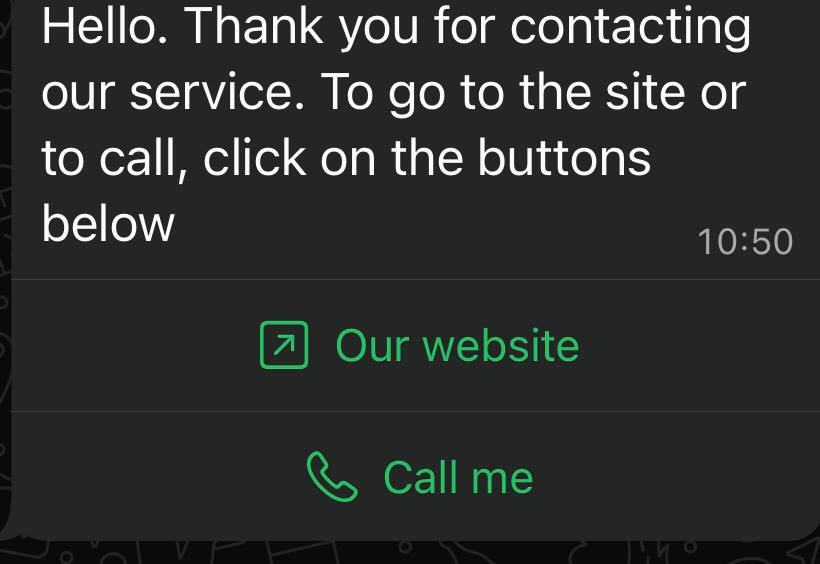
In addition, action buttons can redirect users directly to your website or phone number, making the communication process seamless and convenient.
## Unsubscribe Button
Meta recommends including an “Unsubscribe” button in mass-mailing templates, and we strongly support this practice. It’s much better to give customers an easy, native way to opt out than to risk complaints or negative feedback.
## Conclusion
If you want your newsletter to deliver high engagement and strong conversion rates, make sure your template includes all of the elements listed above: concise copy, personalization, engaging visuals, action buttons, and an unsubscribe option.
**Important Note:** Templates containing images or call-to-action buttons (such as a website link or phone number) can only be approved via chat with our support team: [wa.me/421233221242
wa.me/17377101702](https://wa.me/74956686361)
# How to initiate dialogue in Zoho
# How to initiate dialogue in Zoho
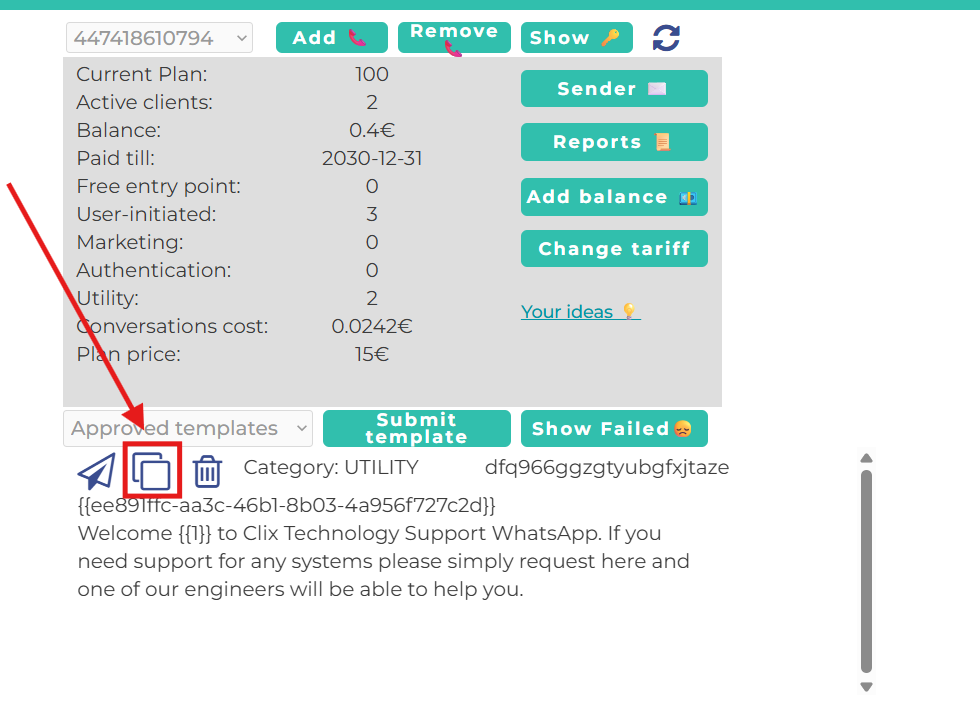
1\. First of all, you need to open your personal account [https://wtargeted.com/settings](https://wtargeted.com/settings) and copy a template by using "**Copy**" button
[](https://support.chatarchitect.com/uploads/images/gallery/2026-04/w3Eimage.png)
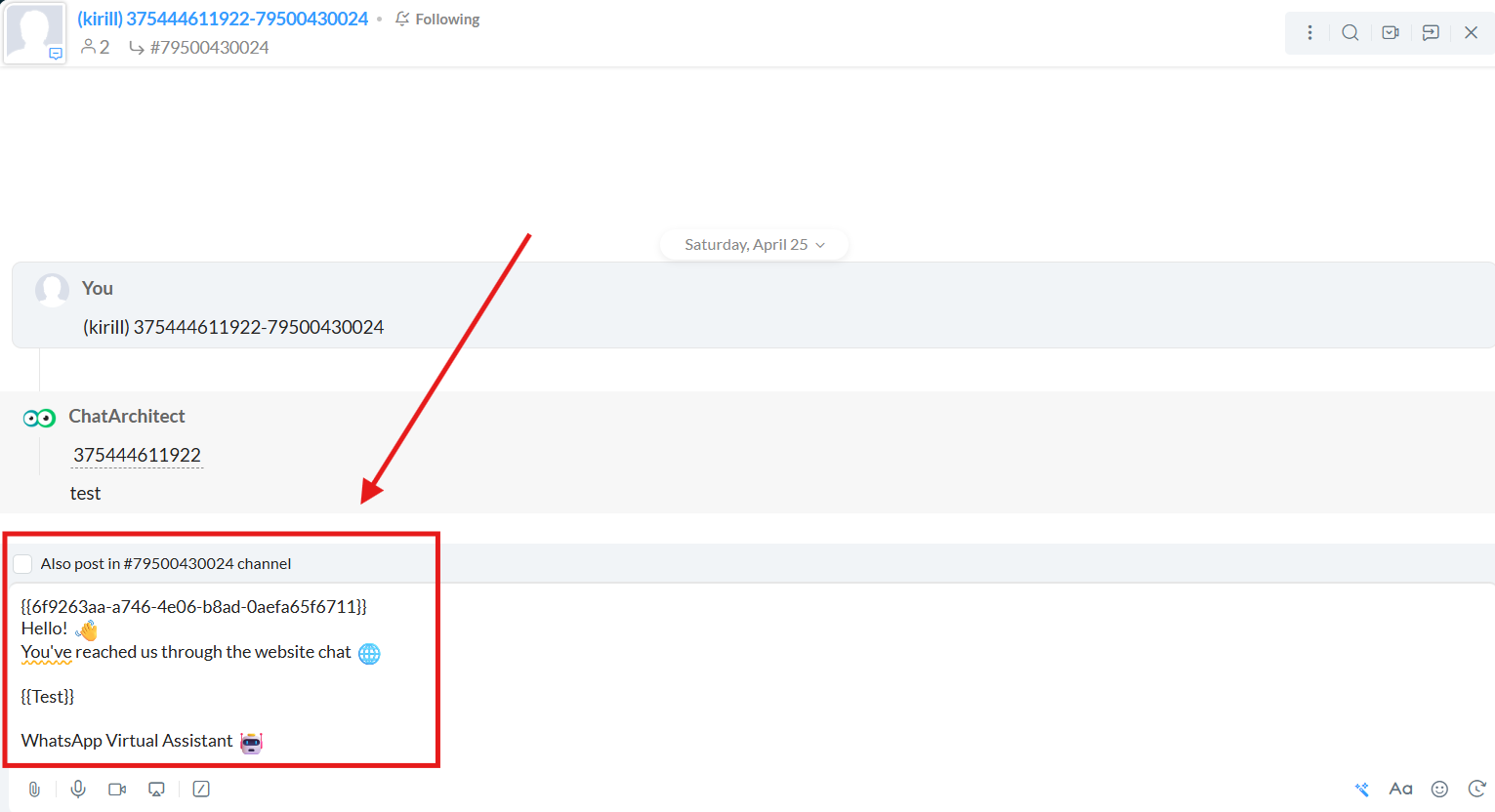
2\. After that, go to Zoho, select the conversation you need to initiate, open it, and paste the template text into the chat thread (including the ID — it is only visible to you; the client will not see it).
[](https://support.chatarchitect.com/uploads/images/gallery/2026-06/1eXimage.png)
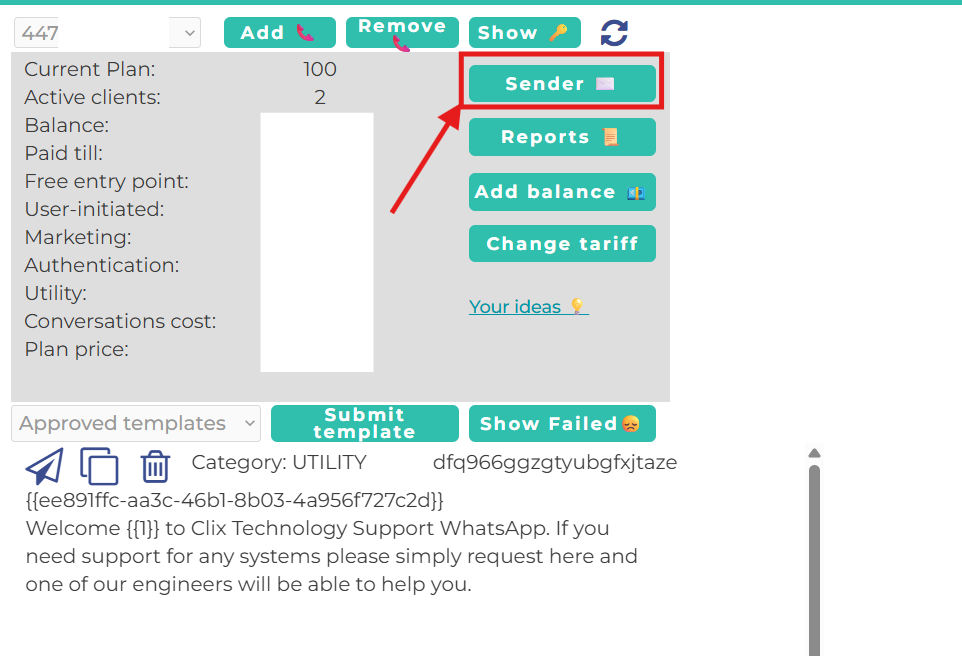
**How to initiate a dialogue with a client if no prior dialogue exists** 1. First of all, you need to open your personal account [https://wtargeted.com/settings](https://wtargeted.com/settings) and press **"Sender"** button
[](https://support.chatarchitect.com/uploads/images/gallery/2026-04/Bhuimage.png)
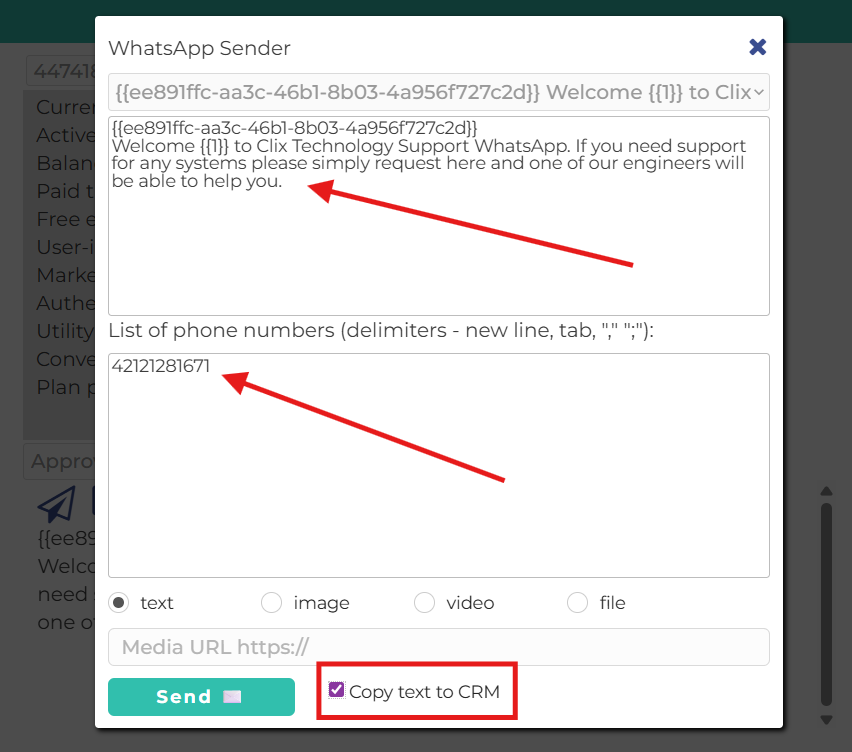
2\. In the top field, select the template you want to send.
In the bottom field, enter the client’s number you want to send it to.
Also, check the “**Copy text to CRM**” option.
[](https://support.chatarchitect.com/uploads/images/gallery/2026-04/33Timage.png)