# WhatsApp Business API for Zapier: Installation guide

**<span style="color: rgb(0,0,0);">In this guide, you will learn how to install our <span class="hover:entity-accent entity-underline inline cursor-pointer align-baseline"><span class="whitespace-normal">WhatsApp Business API</span></span> integration in <span class="hover:entity-accent entity-underline inline cursor-pointer align-baseline"><span class="whitespace-normal">Zapier</span></span>.  
  
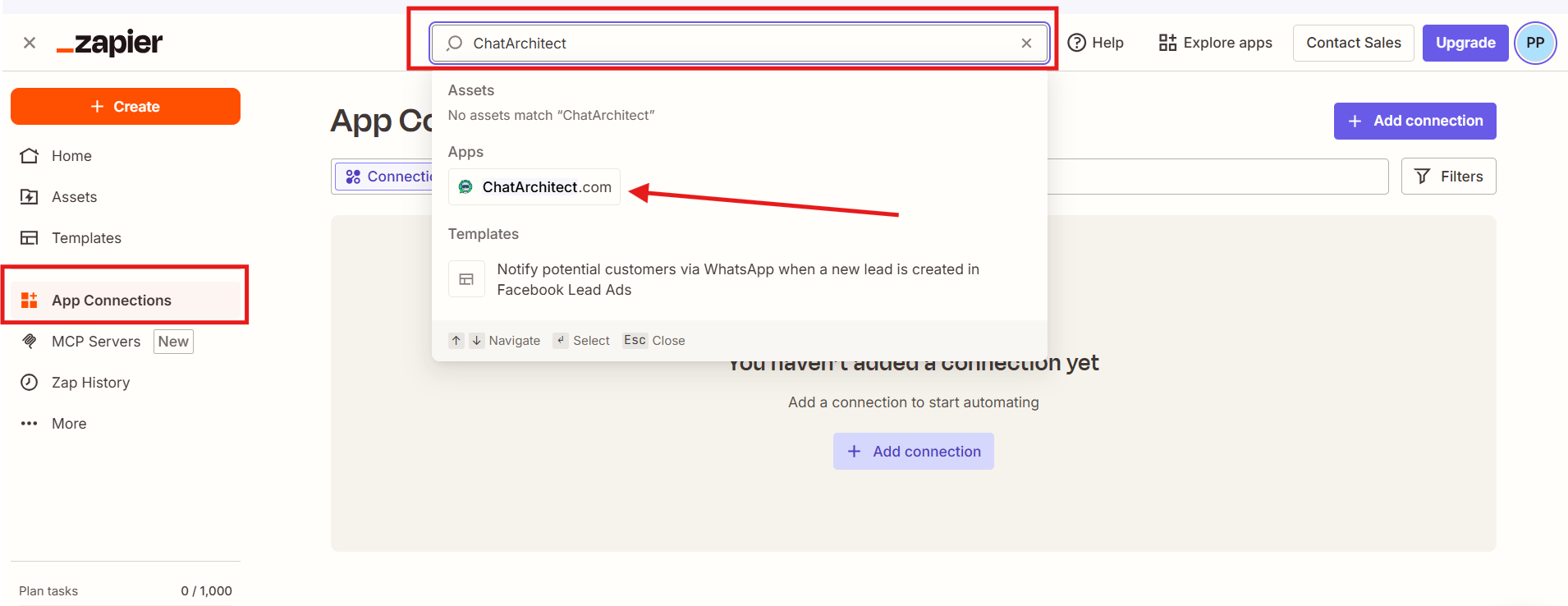
</span>**<span style="color: rgb(0,0,0);">1. Go to the "**App Connections**" -&gt; in the search field write "**ChatArchitect**" and choose our app.  
</span>

[![image.png](https://support.chatarchitect.com/uploads/images/gallery/2026-04/scaled-1680-/wmZimage.png)](https://support.chatarchitect.com/uploads/images/gallery/2026-04/wmZimage.png)  
  
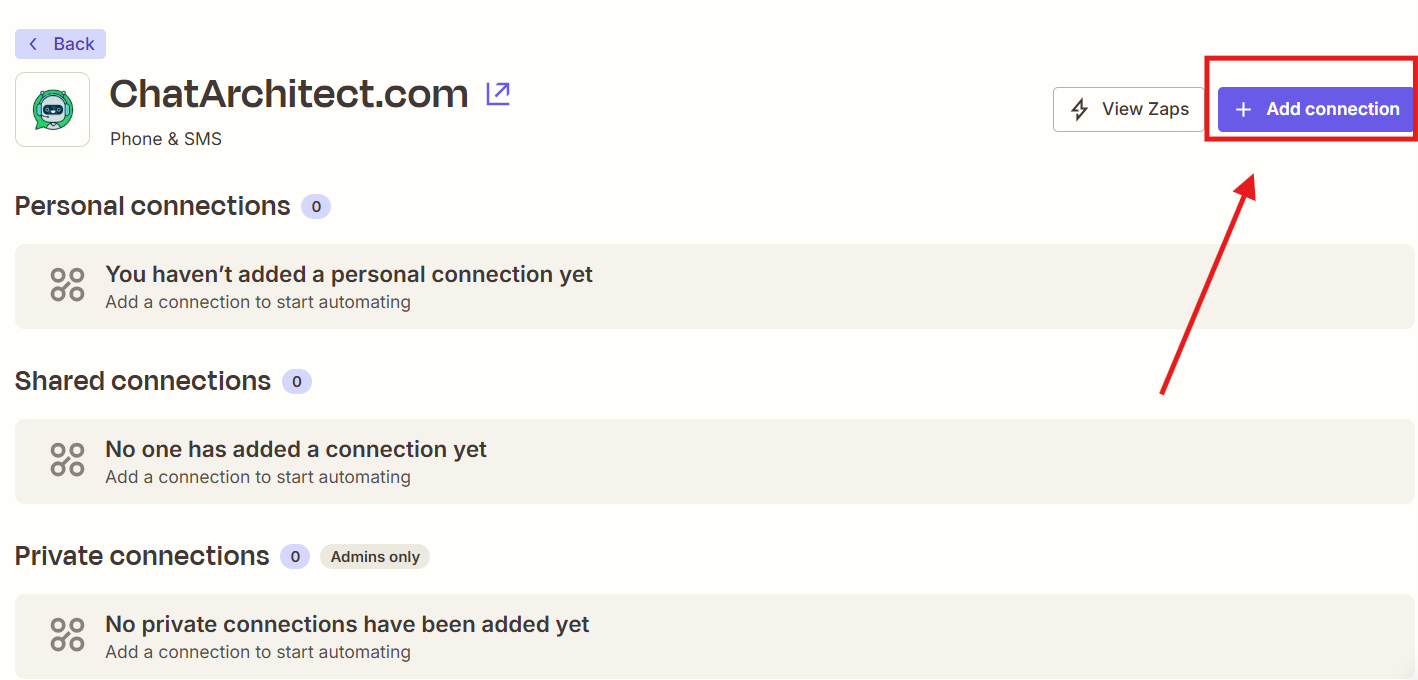
2\. Press "**Add connection**"

[![image.png](https://support.chatarchitect.com/uploads/images/gallery/2026-04/scaled-1680-/g3zimage.png)](https://support.chatarchitect.com/uploads/images/gallery/2026-04/g3zimage.png)
   
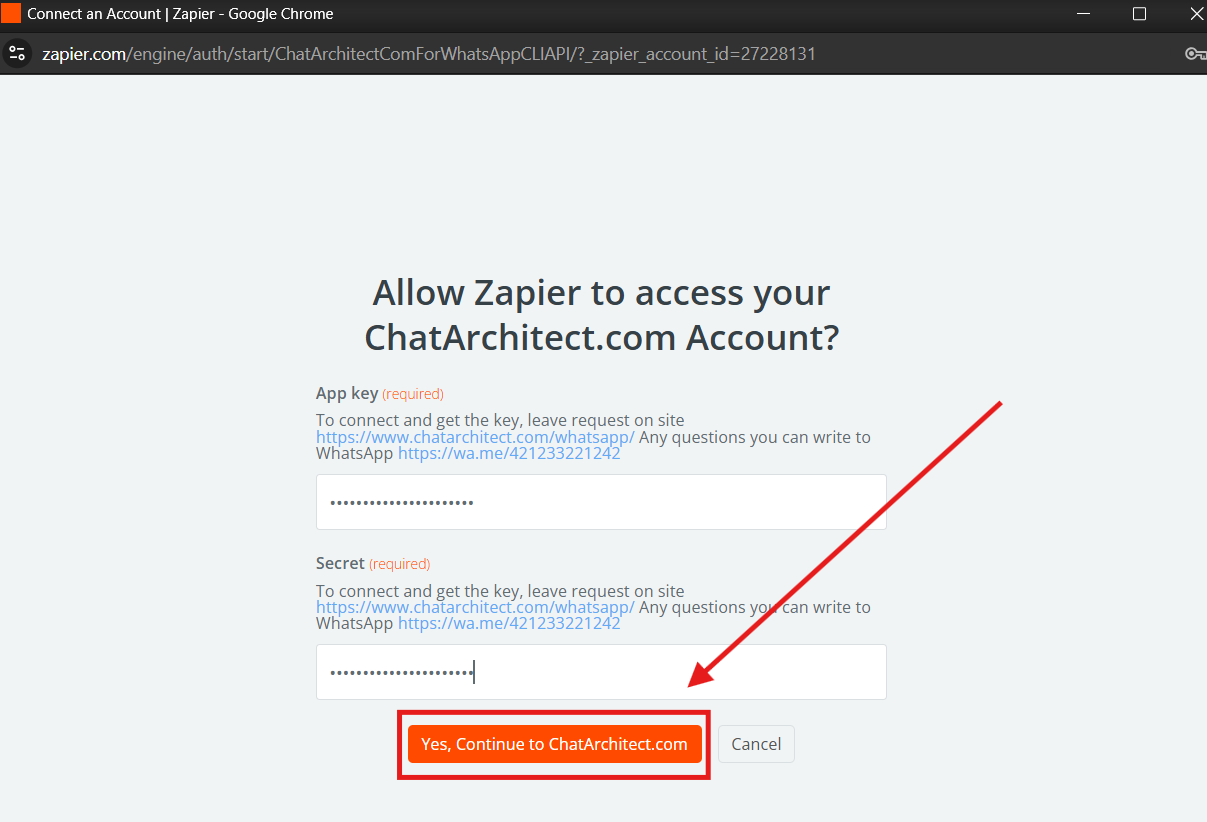
3\. Fill in your **APP ID** and **APP SECRET** and press "Yes, continue to ChatArchitect.com"

[![image.png](https://support.chatarchitect.com/uploads/images/gallery/2026-04/scaled-1680-/Vl3image.png)](https://support.chatarchitect.com/uploads/images/gallery/2026-04/Vl3image.png)
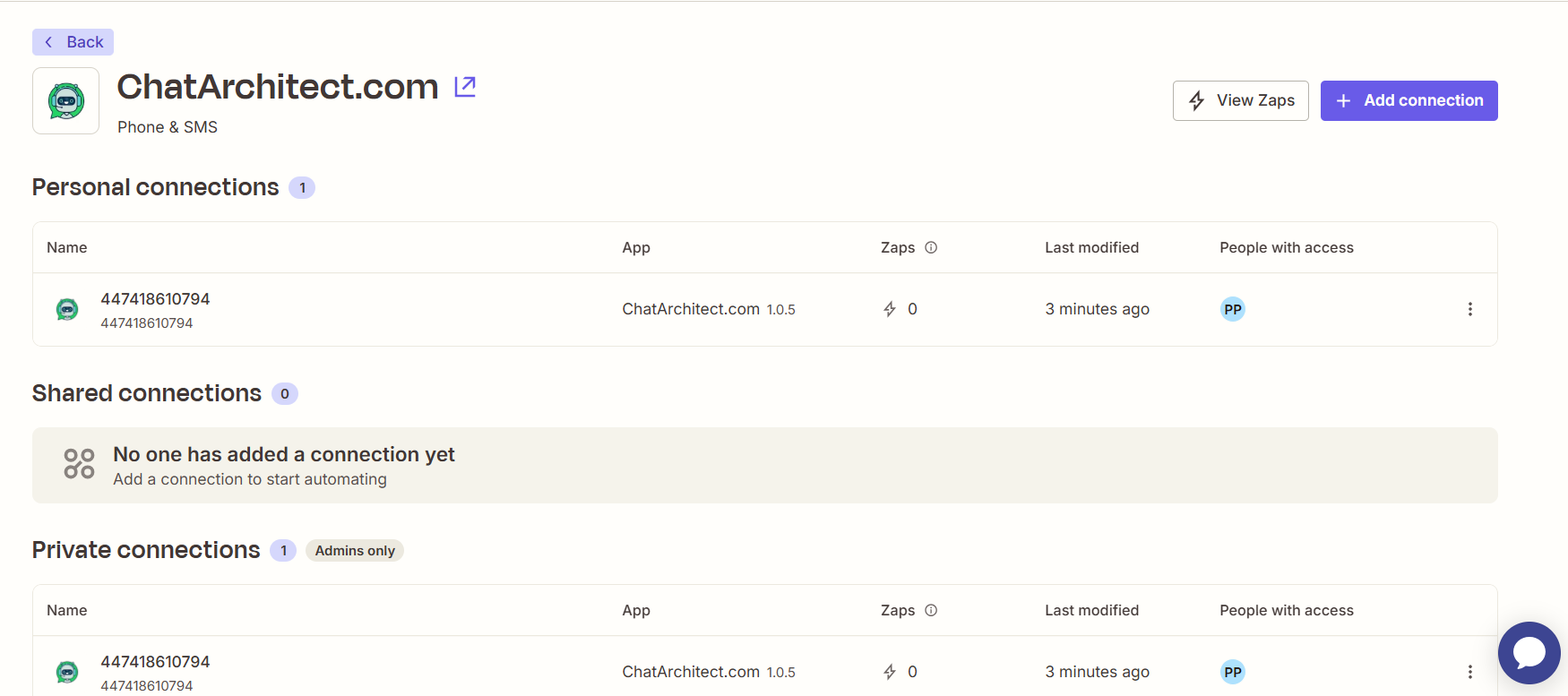
<span style="color: rgb(0,0,0);"><span style="font-size: 18px;">Done. Our integration is now installed in your <span class="hover:entity-accent entity-underline inline cursor-pointer align-baseline"><span class="whitespace-normal">Zapier</span></span>.  
</span></span>

[![image.png](https://support.chatarchitect.com/uploads/images/gallery/2026-04/scaled-1680-/OXqimage.png)](https://support.chatarchitect.com/uploads/images/gallery/2026-04/OXqimage.png)

<span style="color: rgb(0,0,0);"><span style="font-size: 18px;">  
</span></span>