# Set up a WhatsApp bot based on Albato.com

<span style="font-size:20px;">Step by step instruction</span>

  
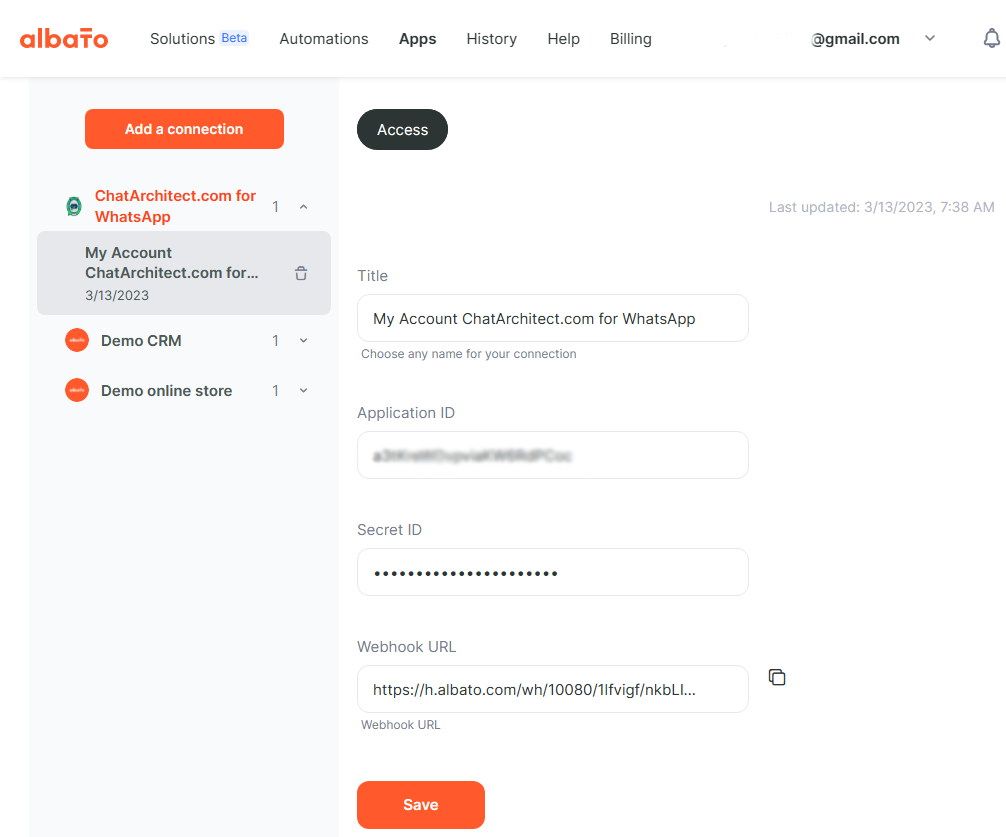
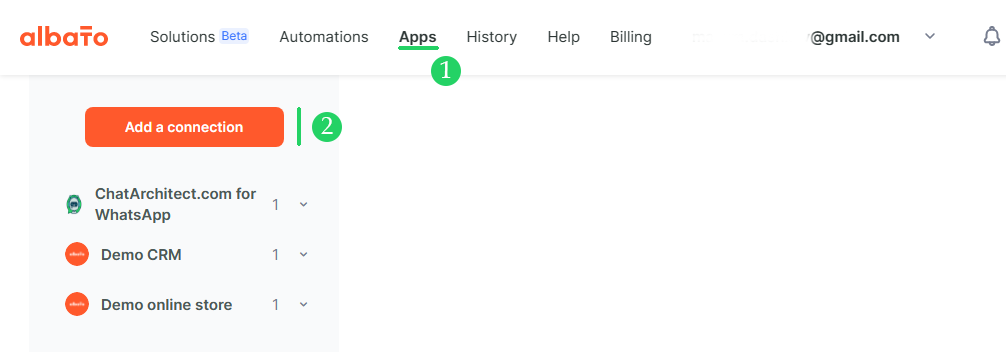
1.1 Create an account on Albato.com and go to the Apps section  
  
1.2 Add a connection to ChatArchitect.com for WhatsApp by clicking the Add a connection button<figure id="bkmrk--4" style="display:block;margin:0px 0px 1em;padding:0px;clear:both;color:rgb(213,214,215);font-family:Roboto, Helvetica, Arial, sans-serif;font-size:14px;font-style:normal;font-weight:400;letter-spacing:normal;text-indent:0px;text-transform:none;white-space:normal;word-spacing:0px;background-color:rgb(34,34,34);text-decoration-thickness:initial;text-decoration-style:initial;text-decoration-color:initial;">![embedded-image-y3foekut.png](https://support.chatarchitect.com/uploads/images/gallery/2026-03/embedded-image-y3foekut.png)</figure>1.3 Add App ID and Secret ID
<figure id="bkmrk--5" style="display:block;margin:0px 0px 1em;padding:0px;clear:both;color:rgb(213,214,215);font-family:Roboto, Helvetica, Arial, sans-serif;font-size:14px;font-style:normal;font-weight:400;letter-spacing:normal;text-indent:0px;text-transform:none;white-space:normal;word-spacing:0px;background-color:rgb(34,34,34);text-decoration-thickness:initial;text-decoration-style:initial;text-decoration-color:initial;">![embedded-image-bwk6dmhq.png](https://support.chatarchitect.com/uploads/images/gallery/2026-03/embedded-image-bwk6dmhq.png)</figure><span style="font-size:20px;">  
1\. Making a bot using Albato tools without third-party integrations</span>  
  
2.1 We approve the message template on app.chatarchitect.com.
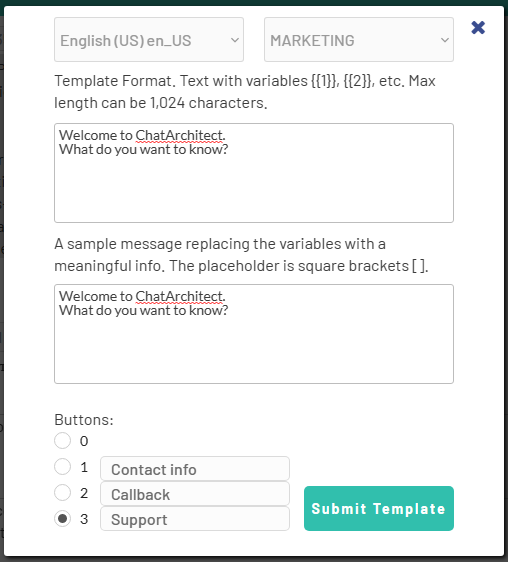
<figure id="bkmrk--7" style="display:block;margin:0px 0px 1em;padding:0px;clear:both;color:rgb(213,214,215);font-family:Roboto, Helvetica, Arial, sans-serif;font-size:14px;font-style:normal;font-weight:400;letter-spacing:normal;text-indent:0px;text-transform:none;white-space:normal;word-spacing:0px;background-color:rgb(34,34,34);text-decoration-thickness:initial;text-decoration-style:initial;text-decoration-color:initial;">![embedded-image-xcaso2qy.png](https://support.chatarchitect.com/uploads/images/gallery/2026-03/embedded-image-xcaso2qy.png)</figure>  
2.2 Add approved template in Albato automation. This message will be sent to all customers who contact us by default (i.e. if the keywords \[Contact info\], \[Callback\] or \[Support\] are not found)

  
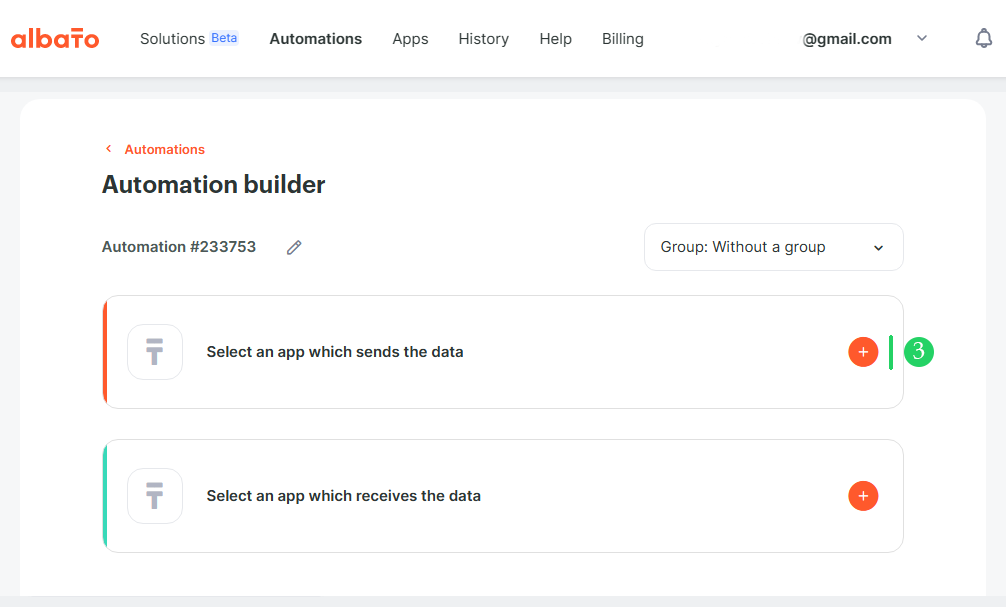
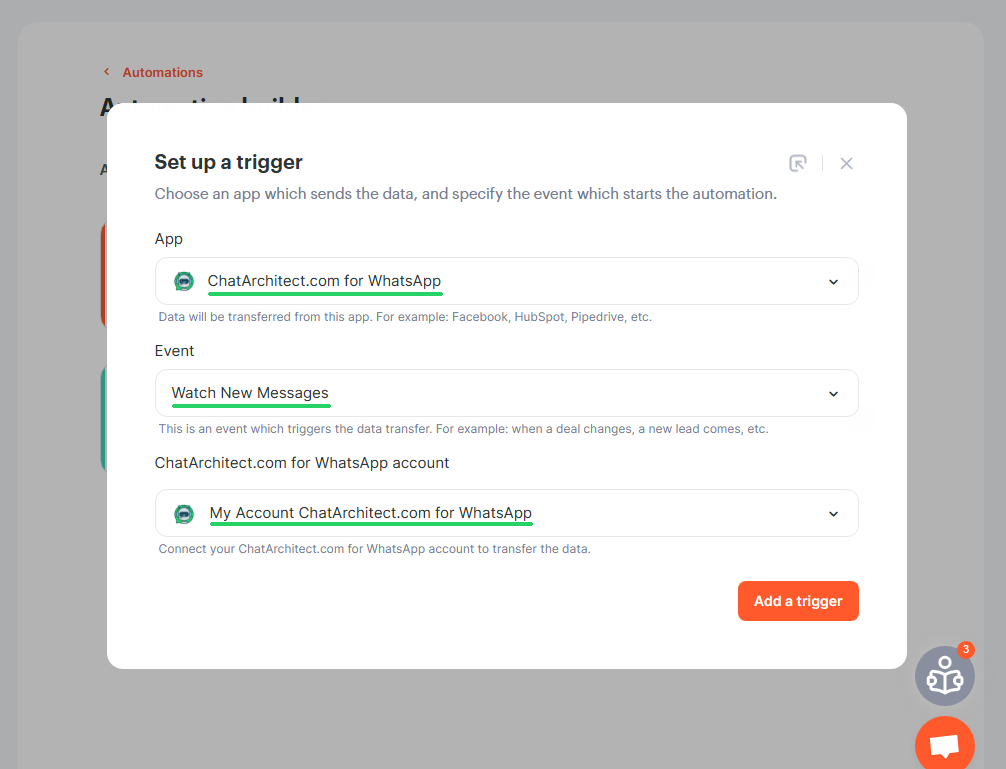
2.3 To do this, go to the "Automations" section and click the "New" button<figure id="bkmrk--10" style="display:block;margin:0px 0px 1em;padding:0px;clear:both;color:rgb(213,214,215);font-family:Roboto, Helvetica, Arial, sans-serif;font-size:14px;font-style:normal;font-weight:400;letter-spacing:normal;text-indent:0px;text-transform:none;white-space:normal;word-spacing:0px;background-color:rgb(34,34,34);text-decoration-thickness:initial;text-decoration-style:initial;text-decoration-color:initial;">![embedded-image-s5lotp0b.png](https://support.chatarchitect.com/uploads/images/gallery/2026-03/embedded-image-s5lotp0b.png)</figure>2.4
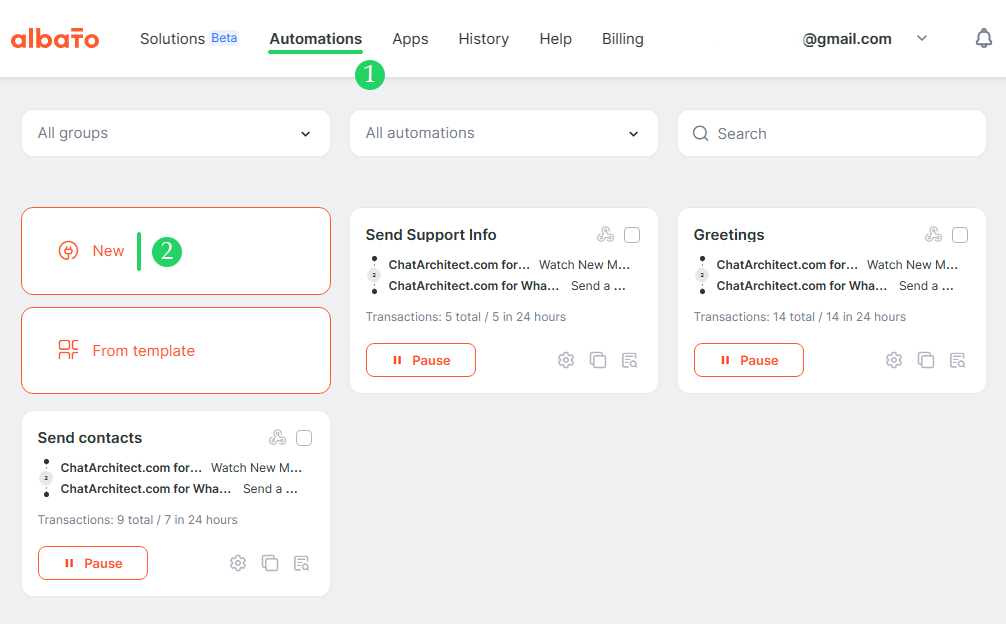
<figure id="bkmrk--11" style="display:block;margin:0px 0px 1em;padding:0px;clear:both;color:rgb(213,214,215);font-family:Roboto, Helvetica, Arial, sans-serif;font-size:14px;font-style:normal;font-weight:400;letter-spacing:normal;text-indent:0px;text-transform:none;white-space:normal;word-spacing:0px;background-color:rgb(34,34,34);text-decoration-thickness:initial;text-decoration-style:initial;text-decoration-color:initial;">![embedded-image-kfbdcf9w.png](https://support.chatarchitect.com/uploads/images/gallery/2026-03/embedded-image-kfbdcf9w.png)</figure>2.5

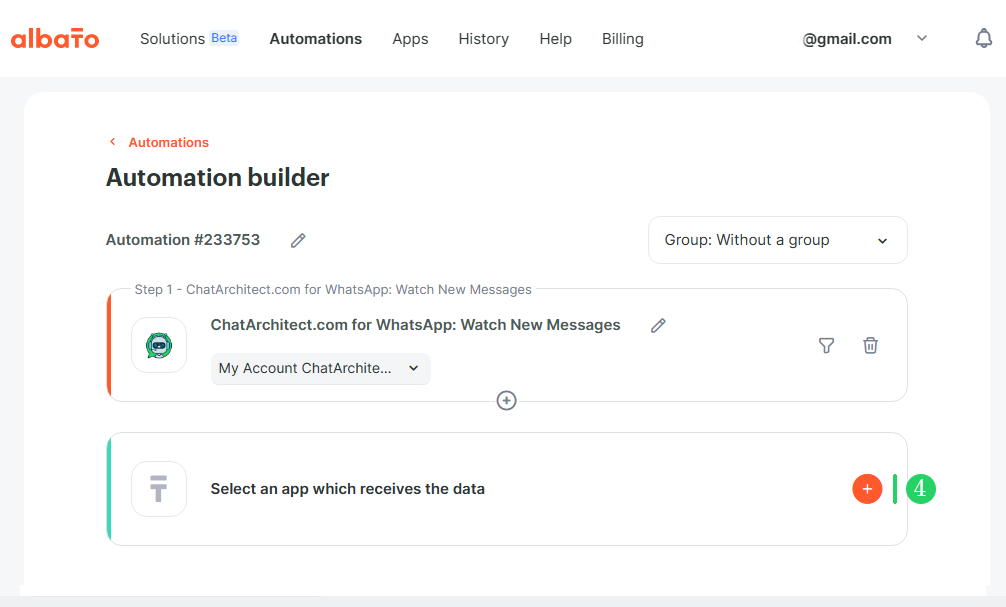
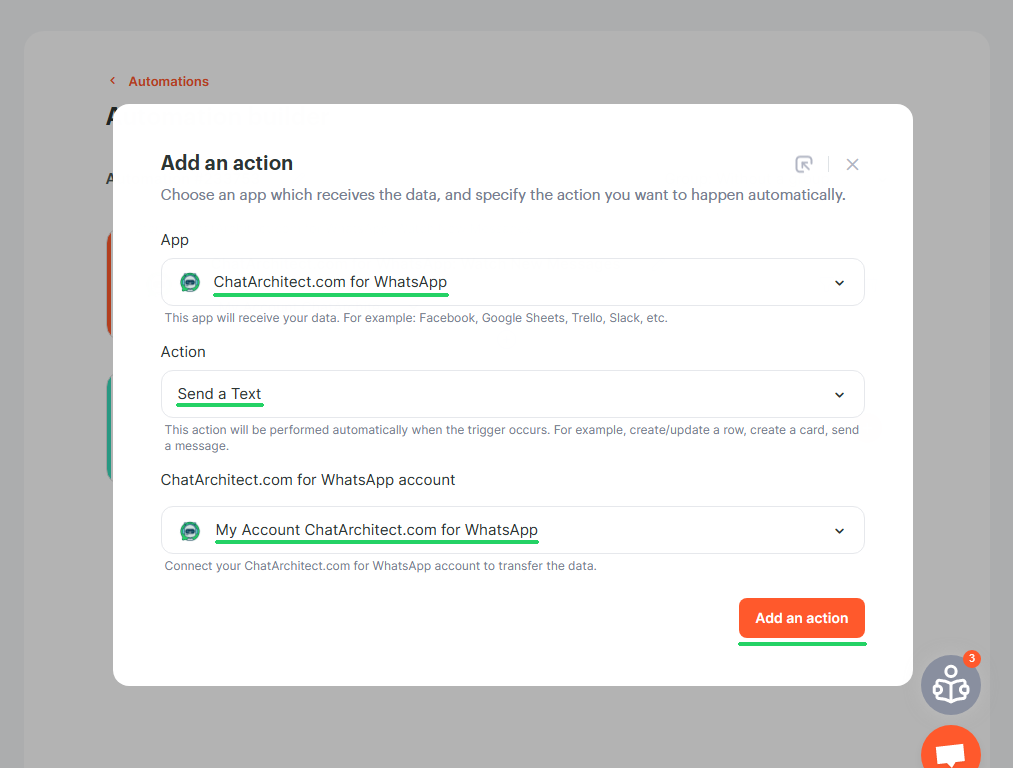
<figure id="bkmrk--12" style="display:block;margin:0px 0px 1em;padding:0px;clear:both;color:rgb(213,214,215);font-family:Roboto, Helvetica, Arial, sans-serif;font-size:14px;font-style:normal;font-weight:400;letter-spacing:normal;text-indent:0px;text-transform:none;white-space:normal;word-spacing:0px;background-color:rgb(34,34,34);text-decoration-thickness:initial;text-decoration-style:initial;text-decoration-color:initial;">![embedded-image-h4bfywyf.png](https://support.chatarchitect.com/uploads/images/gallery/2026-03/embedded-image-h4bfywyf.png)</figure>2.6

<figure id="bkmrk--13" style="display:block;margin:0px 0px 1em;padding:0px;clear:both;color:rgb(213,214,215);font-family:Roboto, Helvetica, Arial, sans-serif;font-size:14px;font-style:normal;font-weight:400;letter-spacing:normal;text-indent:0px;text-transform:none;white-space:normal;word-spacing:0px;background-color:rgb(34,34,34);text-decoration-thickness:initial;text-decoration-style:initial;text-decoration-color:initial;">![embedded-image-s2iv9qev.png](https://support.chatarchitect.com/uploads/images/gallery/2026-03/embedded-image-s2iv9qev.png)</figure>2.7

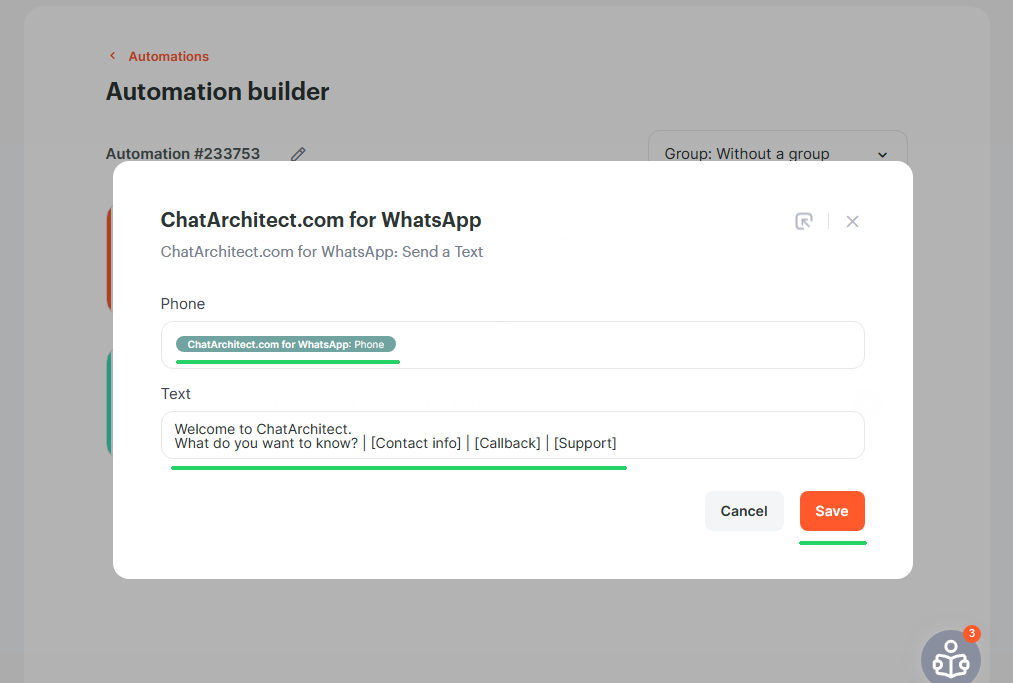
<figure id="bkmrk--14" style="display:block;margin:0px 0px 1em;padding:0px;clear:both;color:rgb(213,214,215);font-family:Roboto, Helvetica, Arial, sans-serif;font-size:14px;font-style:normal;font-weight:400;letter-spacing:normal;text-indent:0px;text-transform:none;white-space:normal;word-spacing:0px;background-color:rgb(34,34,34);text-decoration-thickness:initial;text-decoration-style:initial;text-decoration-color:initial;">![embedded-image-lxpke6da.png](https://support.chatarchitect.com/uploads/images/gallery/2026-03/embedded-image-lxpke6da.png)</figure>2.8 Add a rule to return a message to the number from which the message came to us and insert the text of the message
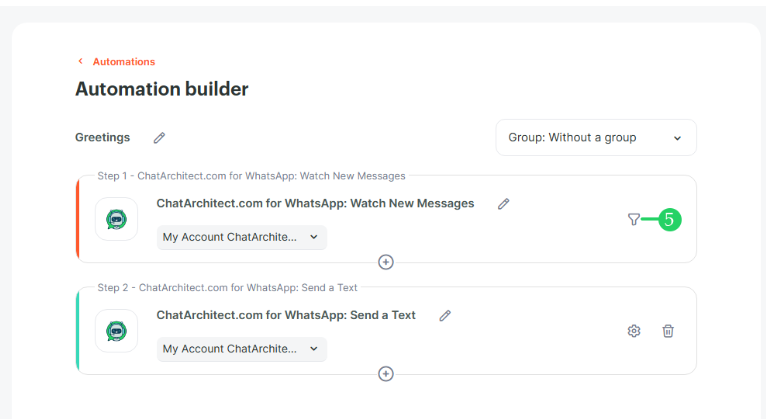
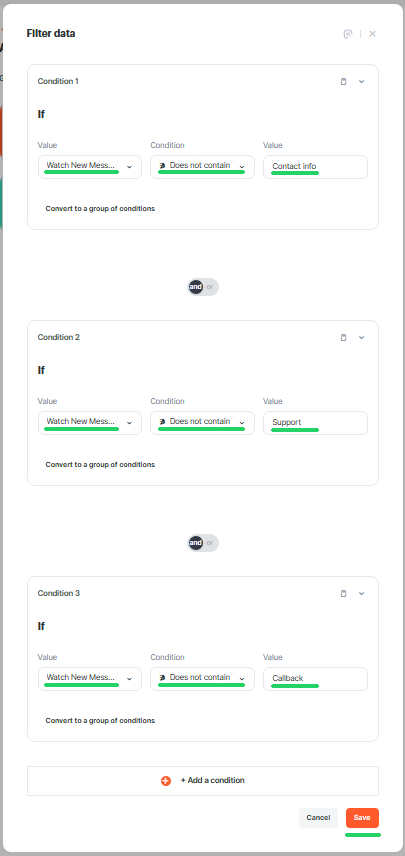
<figure id="bkmrk--15" style="display:block;margin:0px 0px 1em;padding:0px;clear:both;color:rgb(213,214,215);font-family:Roboto, Helvetica, Arial, sans-serif;font-size:14px;font-style:normal;font-weight:400;letter-spacing:normal;text-indent:0px;text-transform:none;white-space:normal;word-spacing:0px;background-color:rgb(34,34,34);text-decoration-thickness:initial;text-decoration-style:initial;text-decoration-color:initial;">![embedded-image-rfjlxt0q.png](https://support.chatarchitect.com/uploads/images/gallery/2026-03/embedded-image-rfjlxt0q.png)</figure>2.9 Add a filter for keywords, at the meeting of which the template will not be sent by default. In our case, these words are Contact info, Callback and Support.
<figure id="bkmrk--16" style="display:block;margin:0px 0px 1em;padding:0px;clear:both;color:rgb(213,214,215);font-family:Roboto, Helvetica, Arial, sans-serif;font-size:14px;font-style:normal;font-weight:400;letter-spacing:normal;text-indent:0px;text-transform:none;white-space:normal;word-spacing:0px;background-color:rgb(34,34,34);text-decoration-thickness:initial;text-decoration-style:initial;text-decoration-color:initial;">![embedded-image-w80vbope.png](https://support.chatarchitect.com/uploads/images/gallery/2026-03/embedded-image-w80vbope.png)</figure>2.10 Just do the same as in the screenshot
<figure id="bkmrk--17" style="display:block;margin:0px 0px 1em;padding:0px;clear:both;color:rgb(213,214,215);font-family:Roboto, Helvetica, Arial, sans-serif;font-size:14px;font-style:normal;font-weight:400;letter-spacing:normal;text-indent:0px;text-transform:none;white-space:normal;word-spacing:0px;background-color:rgb(34,34,34);text-decoration-thickness:initial;text-decoration-style:initial;text-decoration-color:initial;">![embedded-image-pn3np1cq.png](https://support.chatarchitect.com/uploads/images/gallery/2026-03/embedded-image-pn3np1cq.png)</figure>2.11 Add automation to send help messages according to the buttons pressed by customers. In the example, we will create a rule for the phrase "Contact info" (clicking the \[Contact info\] button by the client), the principle is the same for other key phrases / buttons.

Repeat steps 2.3 - 2.8. Only in paragraph 2.8 we add another text with contact information  
  
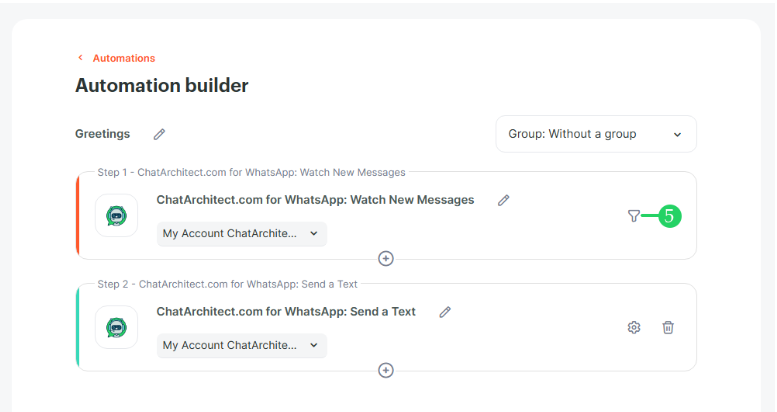
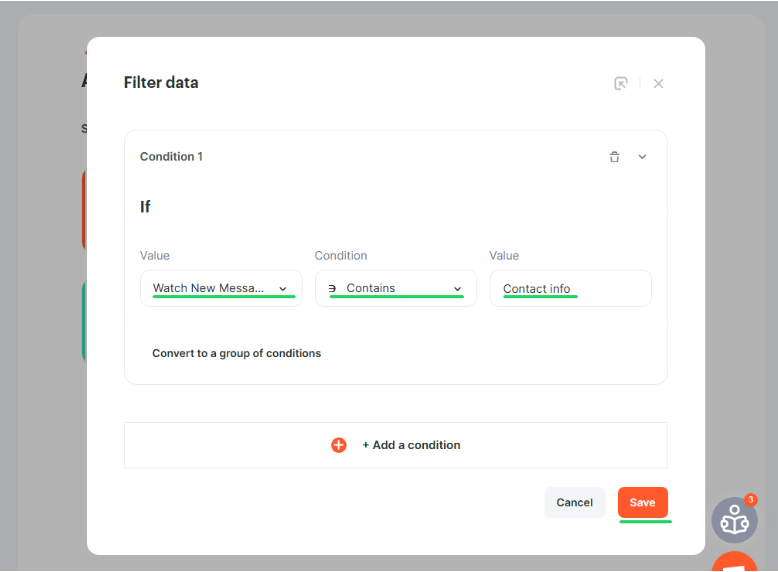
2.12 Click the filter button<figure id="bkmrk--21" style="display:block;margin:0px 0px 1em;padding:0px;clear:both;color:rgb(213,214,215);font-family:Roboto, Helvetica, Arial, sans-serif;font-size:14px;font-style:normal;font-weight:400;letter-spacing:normal;text-indent:0px;text-transform:none;white-space:normal;word-spacing:0px;background-color:rgb(34,34,34);text-decoration-thickness:initial;text-decoration-style:initial;text-decoration-color:initial;">![embedded-image-kdp5q1xg.png](https://support.chatarchitect.com/uploads/images/gallery/2026-03/embedded-image-kdp5q1xg.png)</figure>2.13 Set up a filter for our keyword "Contact info"
<figure id="bkmrk--22" style="display:block;margin:0px 0px 1em;padding:0px;clear:both;color:rgb(213,214,215);font-family:Roboto, Helvetica, Arial, sans-serif;font-size:14px;font-style:normal;font-weight:400;letter-spacing:normal;text-indent:0px;text-transform:none;white-space:normal;word-spacing:0px;background-color:rgb(34,34,34);text-decoration-thickness:initial;text-decoration-style:initial;text-decoration-color:initial;">![embedded-image-vfadlt9f.png](https://support.chatarchitect.com/uploads/images/gallery/2026-03/embedded-image-vfadlt9f.png)</figure>  
We return to point 2.2 and do the same for the keywords \[Callback\] and \[Support\]

  
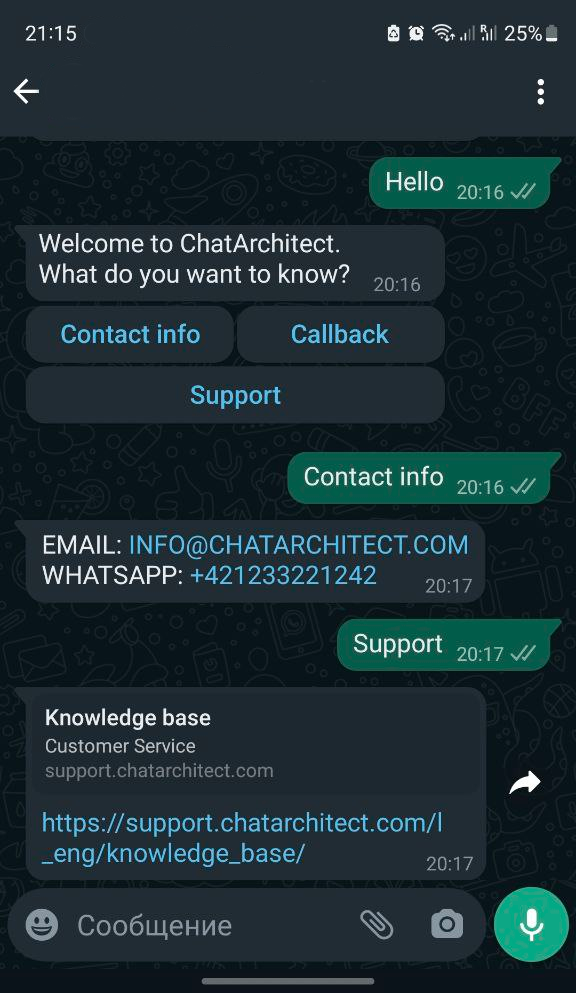
As a result, we will get such a bot:
<figure id="bkmrk--23">![embedded-image-mypcnoga.png](https://support.chatarchitect.com/uploads/images/gallery/2026-03/embedded-image-mypcnoga.png)</figure>