# Sending messages from Google Sheets to WhatsApp via Albato.com

0\. To connect your number and receive an access key, please write to our WhatsApp [https://wa.me/421233221242](https://wa.me/421233221242)

Or you can fill the form on our website [https://www.chatarchitect.com/whatsapp/](https://www.chatarchitect.com/whatsapp/)

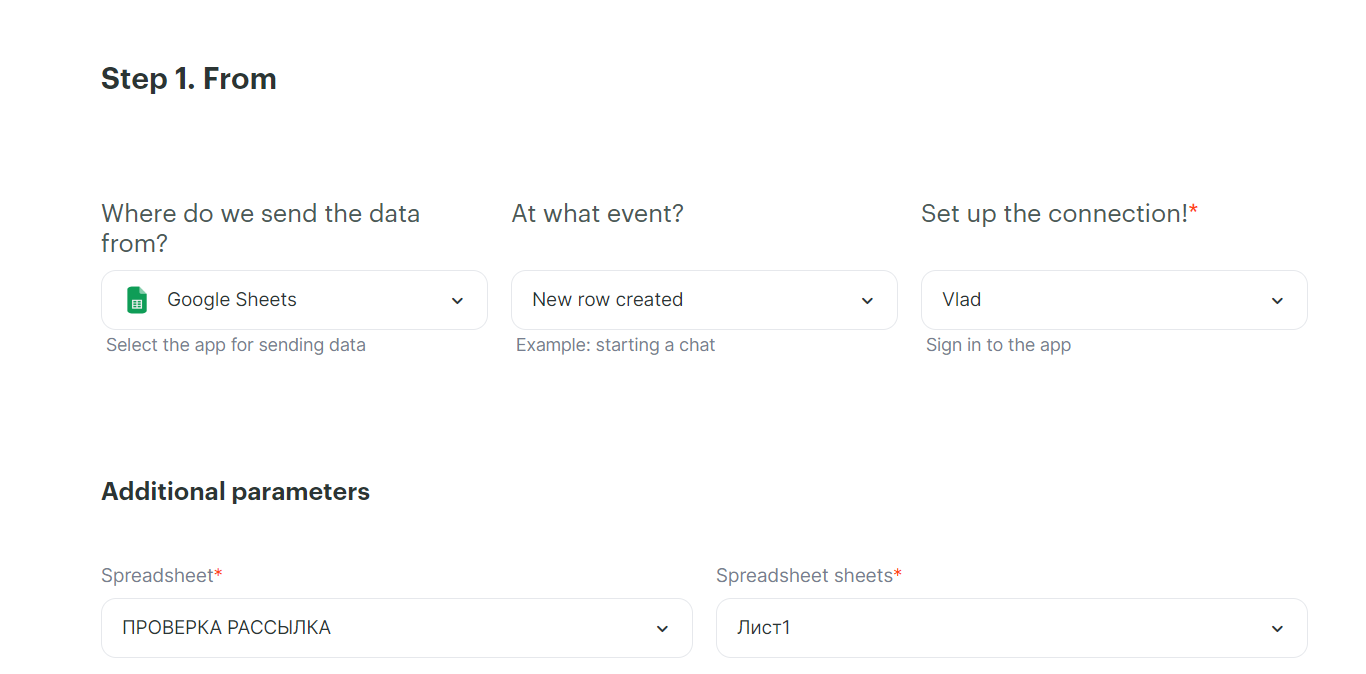
1\. Select Google Sheets, Event - New Row Created, select the desired table.
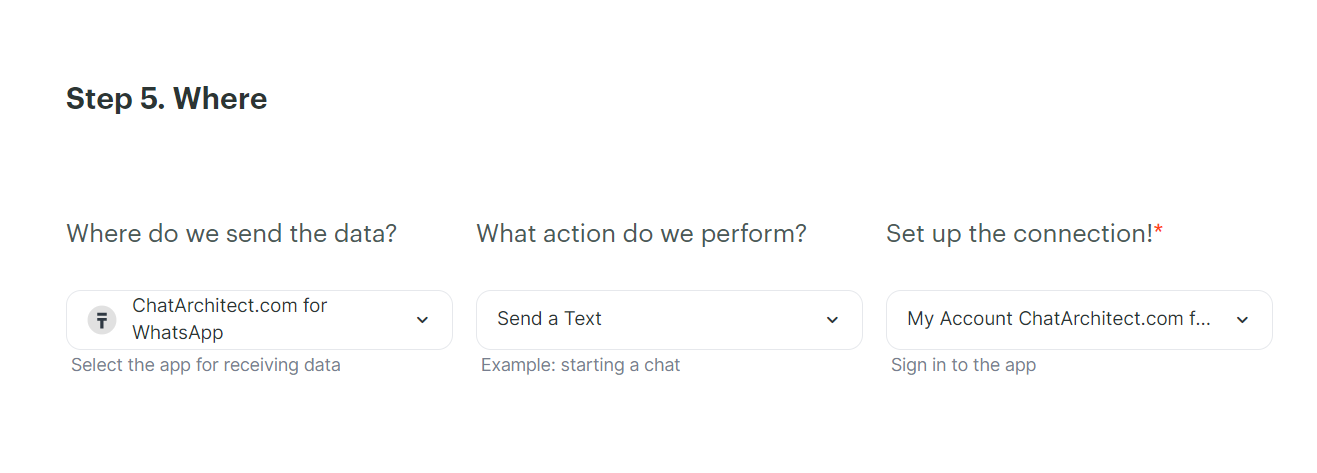
<figure id="bkmrk-" style="display:block;margin:0px 0px 1em;padding:0px;clear:both;color:rgb(213,214,215);font-family:Roboto, helveticaregular, Helvetica, Arial;font-size:14px;font-style:normal;font-weight:400;letter-spacing:normal;text-indent:0px;text-transform:none;white-space:normal;word-spacing:0px;background-color:rgb(34,34,34);">![1209bf12999d4c777b02d3c0b142bb4c.png](https://bookstack-support-u7942.vm.elestio.app/uploads/images/gallery/2026-03/embedded-image-xw1e3xkc.png)</figure>2\. Adding our application ChatArchitect.com, Event - Send a Text. Add your ChatArchitect account (you must enter the app id and app secret that you received after connecting)
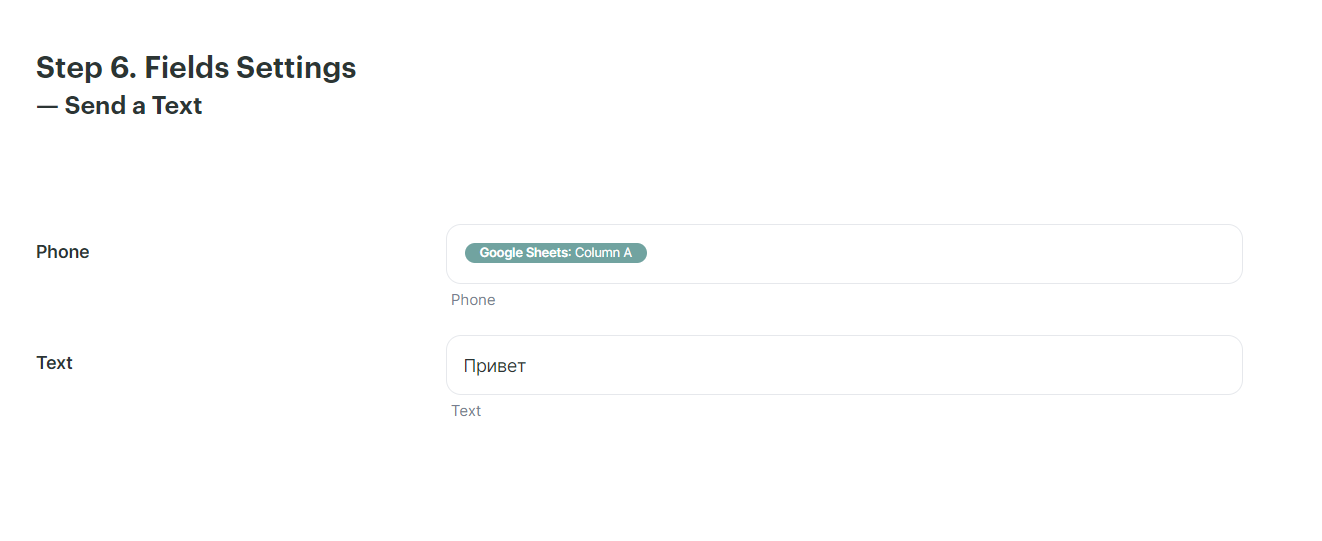
<figure id="bkmrk--1" style="display:block;margin:0px 0px 1em;padding:0px;clear:both;color:rgb(213,214,215);font-family:Roboto, helveticaregular, Helvetica, Arial;font-size:14px;font-style:normal;font-weight:400;letter-spacing:normal;text-indent:0px;text-transform:none;white-space:normal;word-spacing:0px;background-color:rgb(34,34,34);">![0b614eaac64b0b67fb53581c572fec9e.png](https://bookstack-support-u7942.vm.elestio.app/uploads/images/gallery/2026-03/embedded-image-gifkpvty.png)</figure>3\. Specify from which column the numbers will be pulled up, in the Text field enter the text of a submitted template
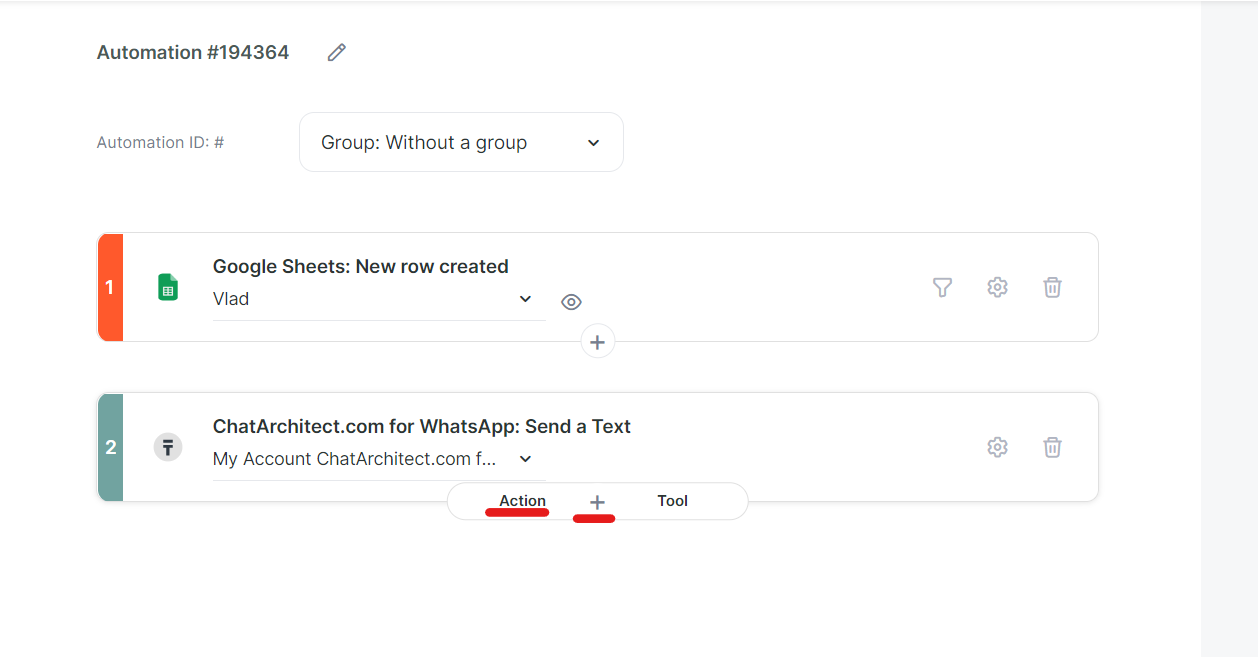
<figure id="bkmrk--2" style="display:block;margin:0px 0px 1em;padding:0px;clear:both;color:rgb(213,214,215);font-family:Roboto, helveticaregular, Helvetica, Arial;font-size:14px;font-style:normal;font-weight:400;letter-spacing:normal;text-indent:0px;text-transform:none;white-space:normal;word-spacing:0px;background-color:rgb(34,34,34);">![3abf15f52d784ba4b5ccd1d9cb1e47e2.png](https://bookstack-support-u7942.vm.elestio.app/uploads/images/gallery/2026-03/embedded-image-k07cz6y5.png)</figure>4\. After that, click on the "+" and select "Action"
<figure id="bkmrk--3" style="display:block;margin:0px 0px 1em;padding:0px;clear:both;color:rgb(213,214,215);font-family:Roboto, helveticaregular, Helvetica, Arial;font-size:14px;font-style:normal;font-weight:400;letter-spacing:normal;text-indent:0px;text-transform:none;white-space:normal;word-spacing:0px;background-color:rgb(34,34,34);">![1c726158d6ebbf66effac8ef4dac8332.png](https://bookstack-support-u7942.vm.elestio.app/uploads/images/gallery/2026-03/embedded-image-ltvslxsw.png)</figure>5\. Once again select Google Sheets, Action - Update a row by number, then add the same table as in the first case.
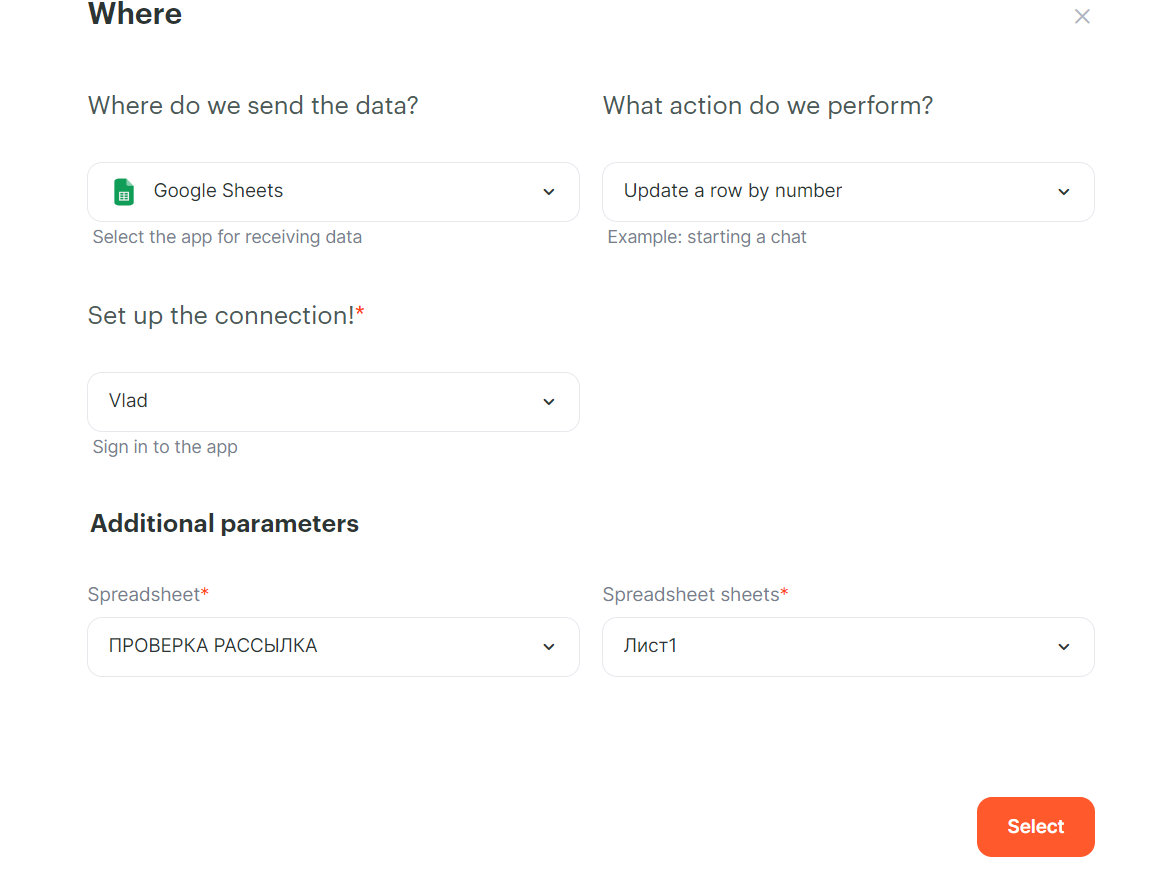
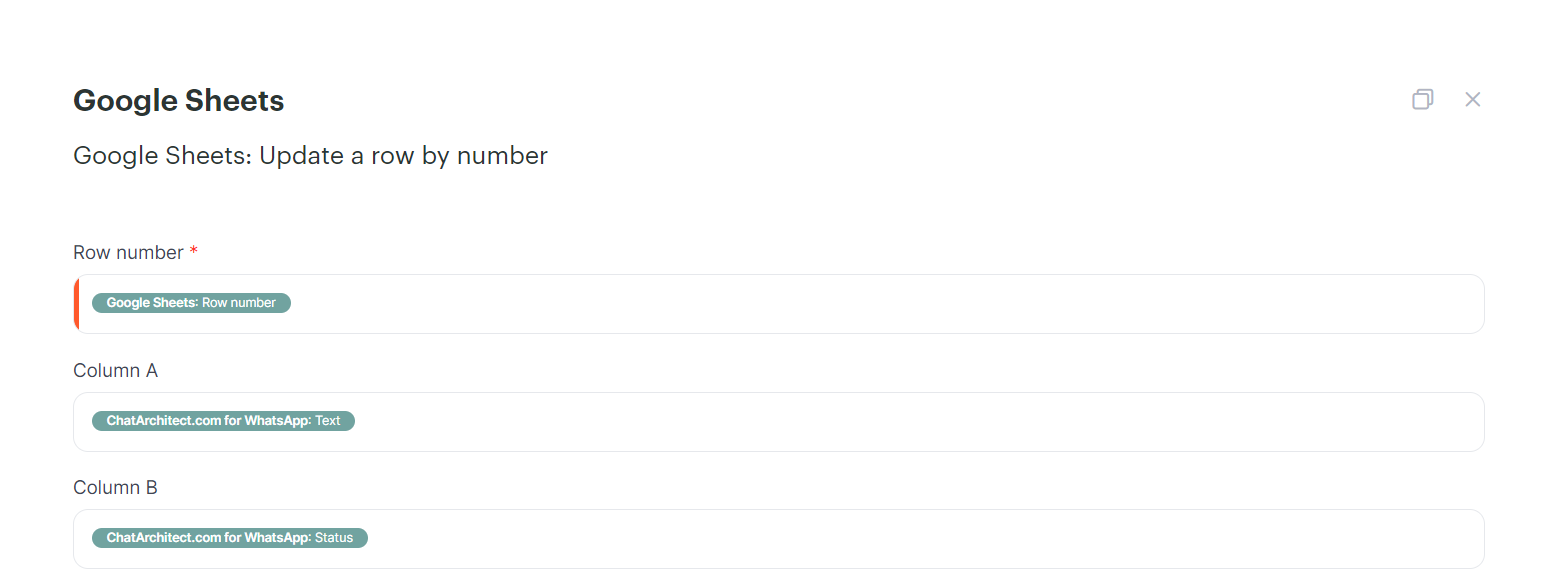
<figure id="bkmrk--4" style="display:block;margin:0px 0px 1em;padding:0px;clear:both;color:rgb(213,214,215);font-family:Roboto, helveticaregular, Helvetica, Arial;font-size:14px;font-style:normal;font-weight:400;letter-spacing:normal;text-indent:0px;text-transform:none;white-space:normal;word-spacing:0px;background-color:rgb(34,34,34);">![4988e8d196b1a402f615973310392699.png](https://bookstack-support-u7942.vm.elestio.app/uploads/images/gallery/2026-03/embedded-image-x0ogprv2.png)</figure>6\. Then choose as in the screenshot:  
1\. Row number - Google Sheets: Row number  
2\. Column A - ChatArchitect.com for Whatsapp: Text  
3\. Column B - ChatArchitect.com for WhatsApp: Status  
You can change the columns according to what you need.
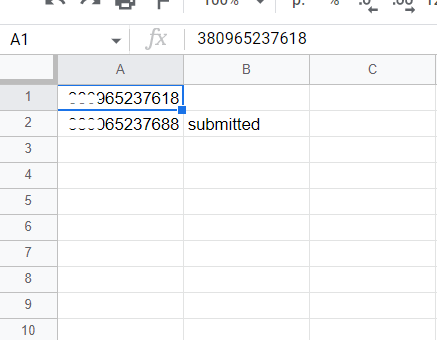
<figure id="bkmrk--5" style="display:block;margin:0px 0px 1em;padding:0px;clear:both;color:rgb(213,214,215);font-family:Roboto, helveticaregular, Helvetica, Arial;font-size:14px;font-style:normal;font-weight:400;letter-spacing:normal;text-indent:0px;text-transform:none;white-space:normal;word-spacing:0px;background-color:rgb(34,34,34);">![44b78c45d4a2820076494166cfd5d7fc.png](https://bookstack-support-u7942.vm.elestio.app/uploads/images/gallery/2026-03/embedded-image-ipaxcy7u.png)</figure>7\. After that, launch Albato; after launching, send a test message to your WABA number and check if the table has been updated.  
It should look like this:
<figure id="bkmrk--6">![a82c57818b242b207f290069137e124e.png](https://bookstack-support-u7942.vm.elestio.app/uploads/images/gallery/2026-03/embedded-image-etuwgvbn.png)</figure>