# How to integrate Salebot.pro with WhatsApp through Albato.com

In this instruction you will learn how to set up a simple Salebot.pro bot that will auto-answer on your clients WhatsApp.

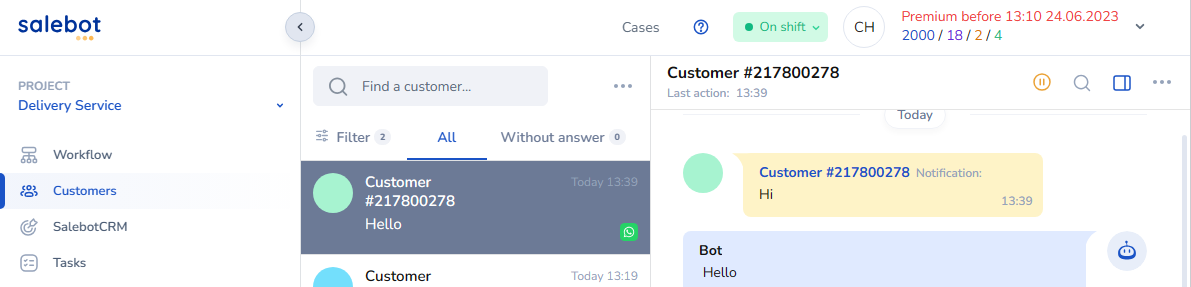
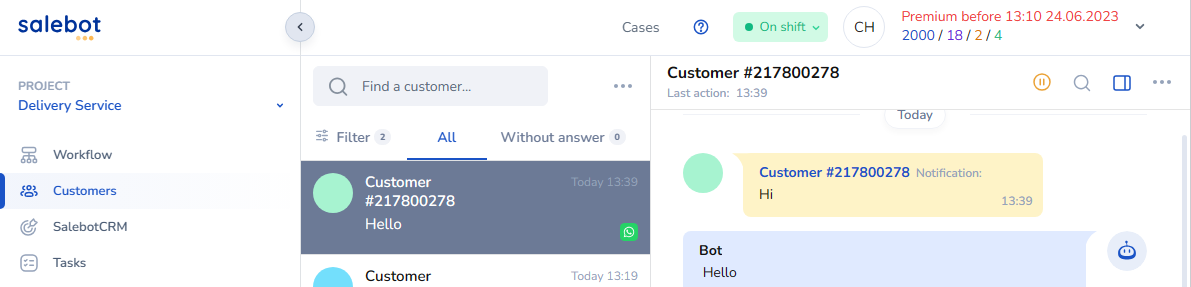
**After all steps are done you should get next result:**
<figure id="bkmrk-">![WrA_Z0WdyQxFsguRXpOGIsHnf6rTSOXszyZE0CSL](https://bookstack-support-u7942.vm.elestio.app/uploads/images/gallery/2026-03/embedded-image-teaezbj4.png)</figure>## Step by Step guide

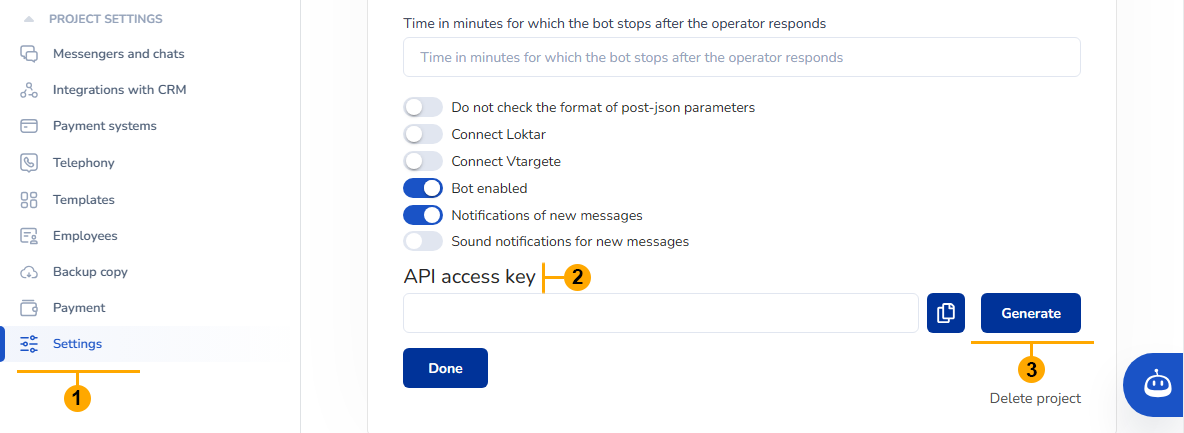
1\. Go to your Salebot.pro account. Open project "Settings" (1). Find API key field (2) and press "Generate" button (3) after that copy generated key.

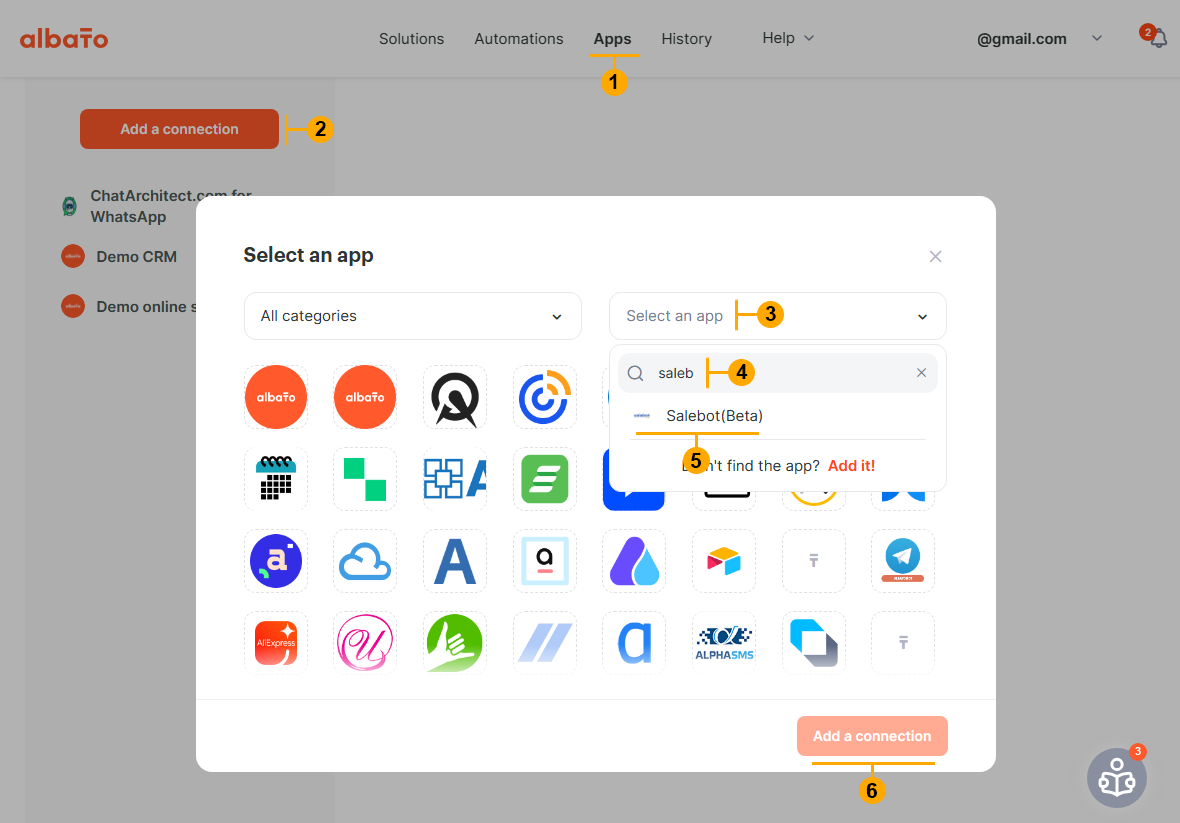
<figure id="bkmrk--4">![GN8DbqOSQrPTFjhYztVE0sIAVrRA5ZfSbsnPbc2G](https://bookstack-support-u7942.vm.elestio.app/uploads/images/gallery/2026-03/embedded-image-kdw4jhtf.png)</figure>2\. Go to your Albato account. Go to "Apps" page (1). Press "Add a connection" button (2). Click on "Select an App" field (3). Type "salebot" (4). Select app (5). Press "Add a connection button" (6)
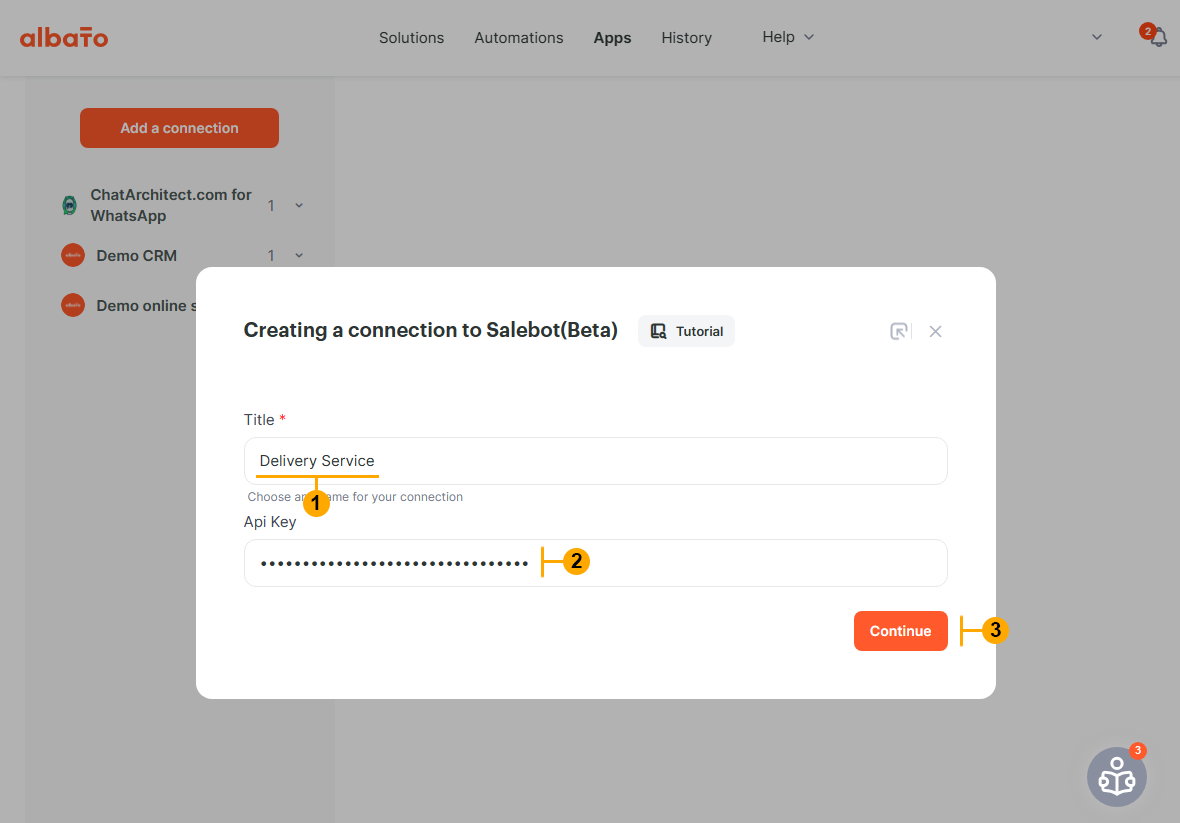
<figure id="bkmrk--5">![0RNCbhgVK566ptPxL8iFLYjd5uoOkyNnd7HGHCW0](https://bookstack-support-u7942.vm.elestio.app/uploads/images/gallery/2026-03/embedded-image-vmgvyarw.png)</figure>3\. In the appeared window type Title for your project (1). Paste your Salebot.pro API key that you copied on "Step 1" (2). Press "Continue" button (3)
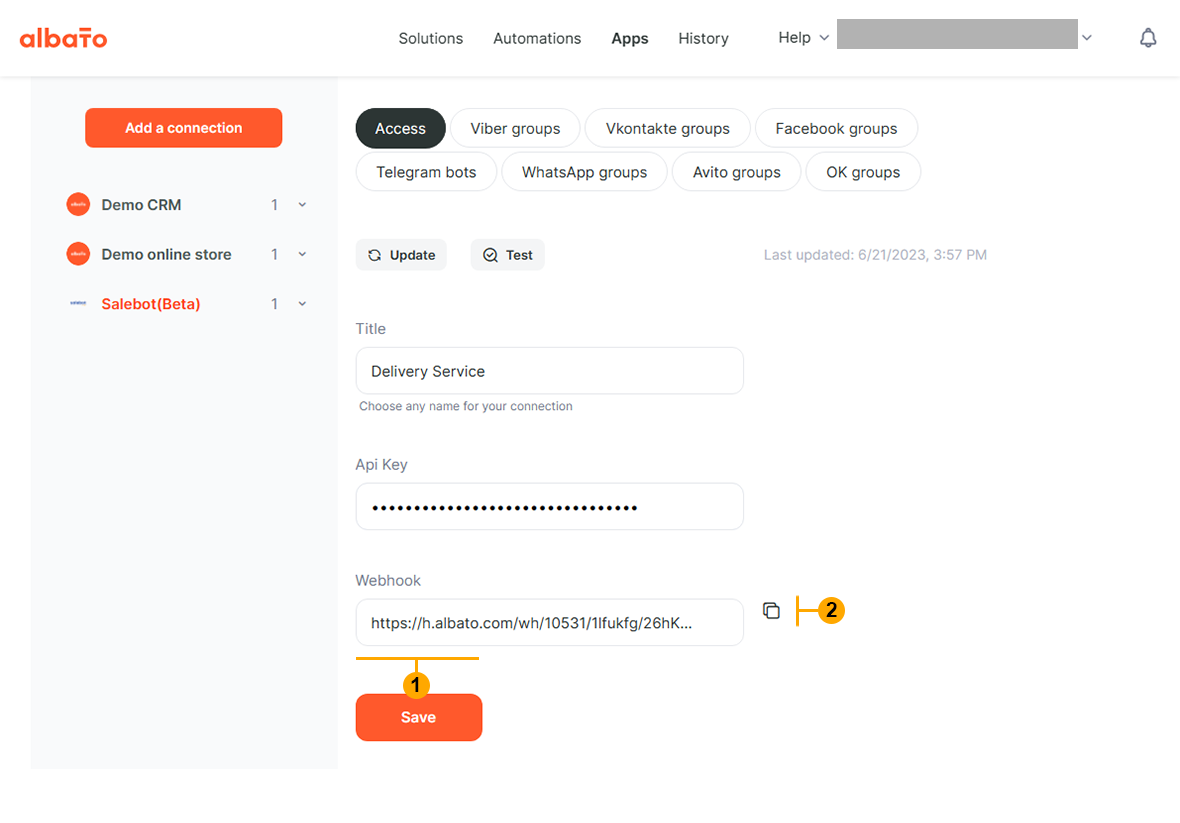
<figure id="bkmrk--6">![09AOjMtZI-p2G0dRokchDi1lNyQJUJ8uf6zQt2ay](https://bookstack-support-u7942.vm.elestio.app/uploads/images/gallery/2026-03/embedded-image-pmas5doi.png)</figure>4\. After "Step 3" Albato will create a Webhook URL (1). Press button (2) to copy this URL
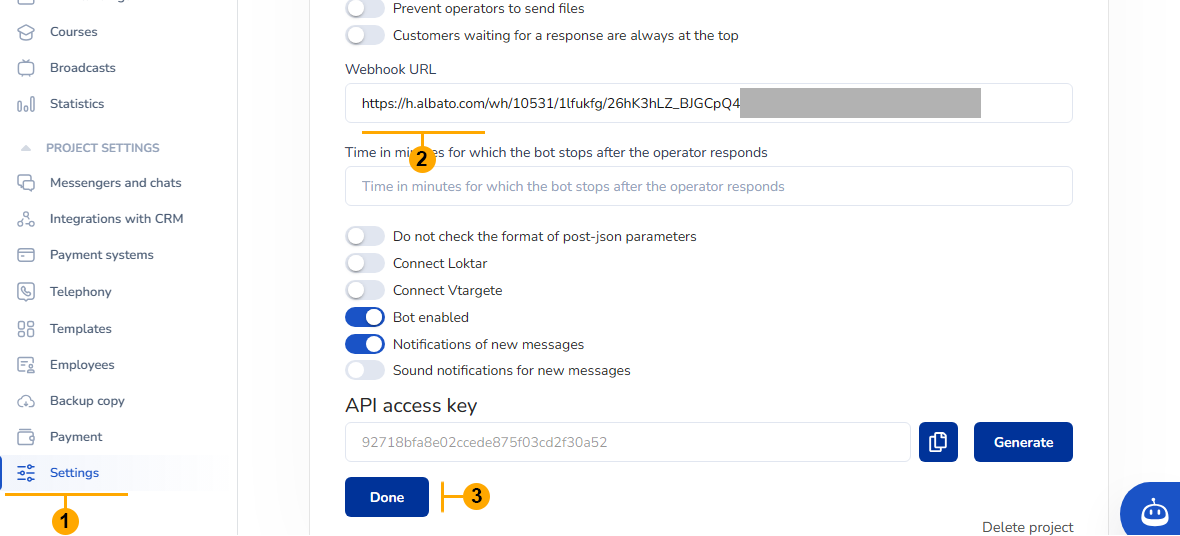
<figure id="bkmrk--7">![ubp6Eyti2IFYSjEcreYUEuQaMk4DlivW-gmBAcks](https://bookstack-support-u7942.vm.elestio.app/uploads/images/gallery/2026-03/embedded-image-qtmhtd4p.png)</figure>5\. Go to your Salebot.pro account. Open project "Settings" (1). Find "Webhook URL" field (2) and paste your Albato webhook from "Step 4". Press "Done" button (3)
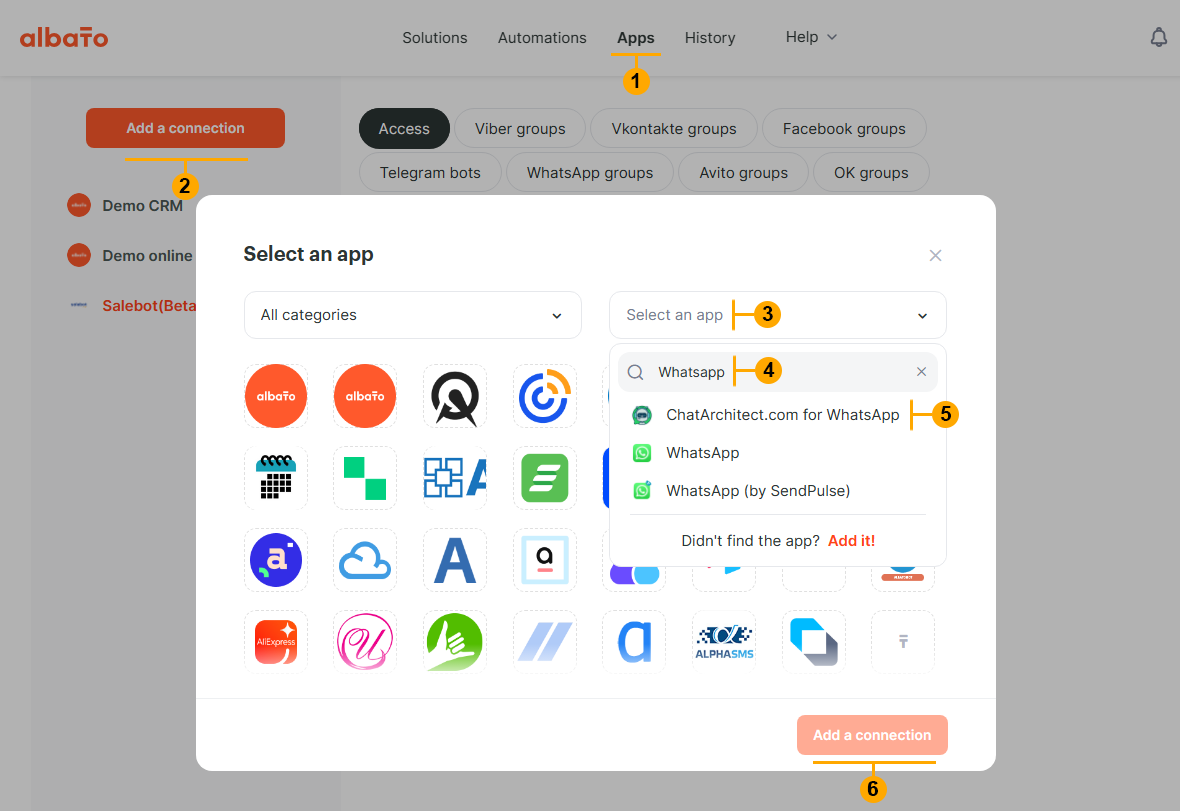
<figure id="bkmrk--8">![M5-uMFcfe_cpdIgxsuHL3HedVkpYftfSYQ5lSnLW](https://bookstack-support-u7942.vm.elestio.app/uploads/images/gallery/2026-03/embedded-image-wcrdm5ur.png)</figure>6\. Go to your Albato account. Go to "Apps" page (1). Press "Add a connection" button (2). Click on "Select an App" field (3). Type "whatsapp" (4). Select "Chatarchitect.com for WhatsApp" app (5). Press "Add a connection button" (6)
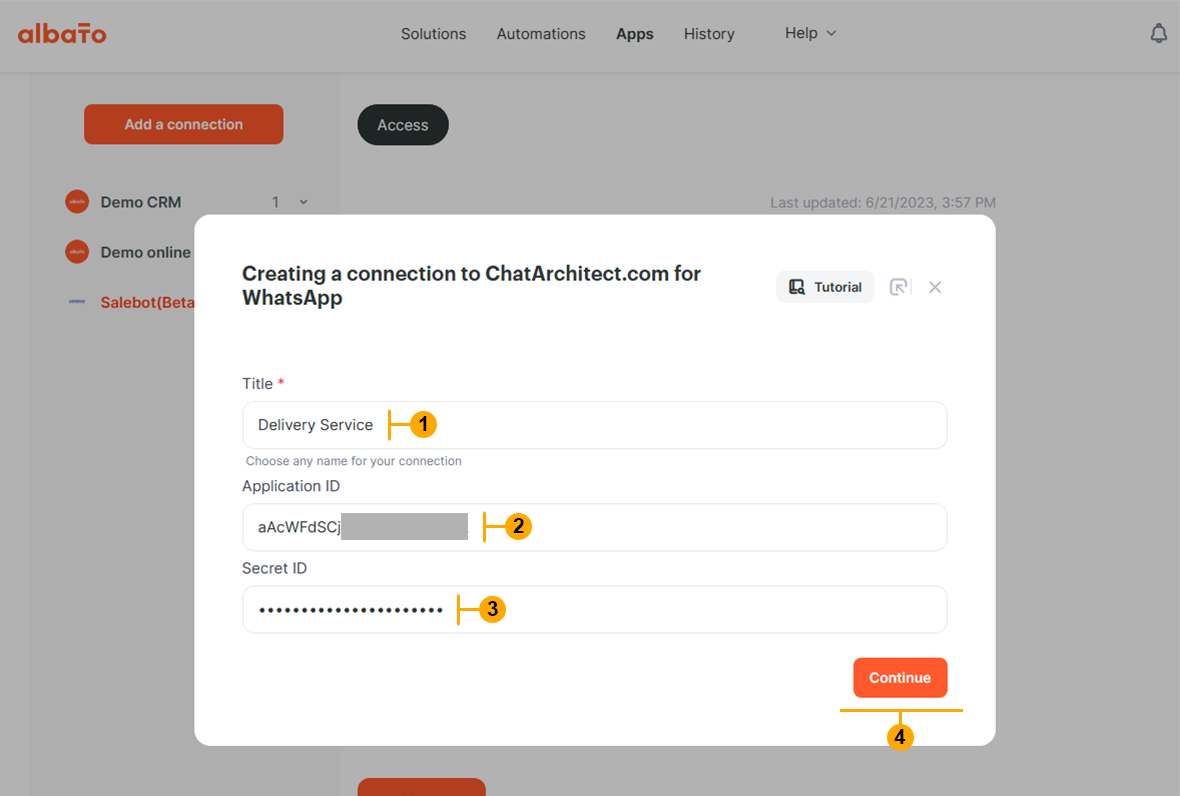
<figure id="bkmrk--9">![vgFm8wnu6O3P4vxtboz7BrI6hULOG8uaFKRtBMsc](https://bookstack-support-u7942.vm.elestio.app/uploads/images/gallery/2026-03/embedded-image-cz7xlza0.png)</figure>7\. In the appeared window type Title for your project (1). Paste your "Application ID" (2) and "Secret ID" (3). Press "Continue" button (4).

NOTE: To get your "Application ID" and "Secret ID" please write to our customer support [https://wa.me/421233221242](https://wa.me/421233221242?text=support)
<figure id="bkmrk--10">![GJjYYZEYVxYOc44dSFk-SpuTOp_FASzZSc0Q-LVy](https://bookstack-support-u7942.vm.elestio.app/uploads/images/gallery/2026-03/embedded-image-txeryhmu.png)</figure>8\. Create the first automation in Albato to receive messages from WhatsApp and send them to Salebot.pro. Go to Albato "Automations" page (1) and press "New" button (2)
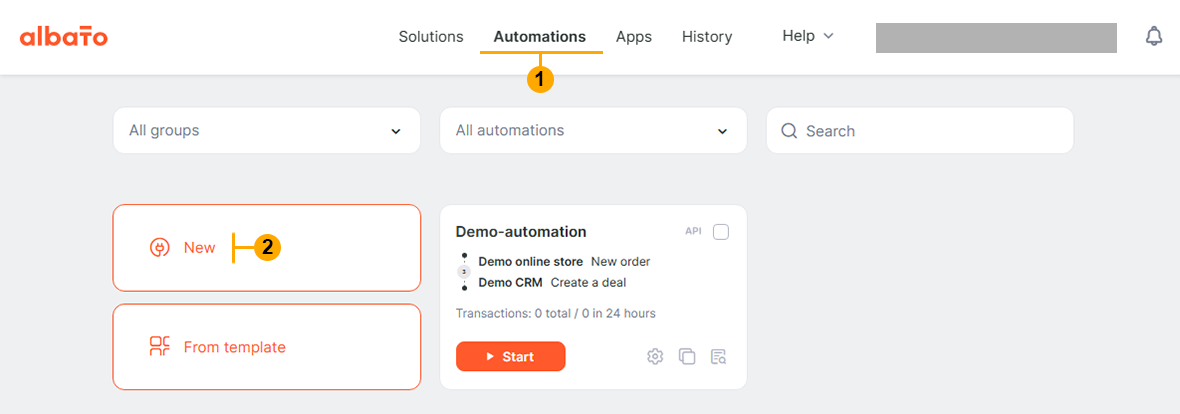
<figure id="bkmrk--11">![r63mPTEKMvQZMxI-FJtur9LqfVC4spjNzf1Ep-d5](https://bookstack-support-u7942.vm.elestio.app/uploads/images/gallery/2026-03/embedded-image-wt1w4bkh.png)</figure>8.1 Press button (1) to select an App which sends data
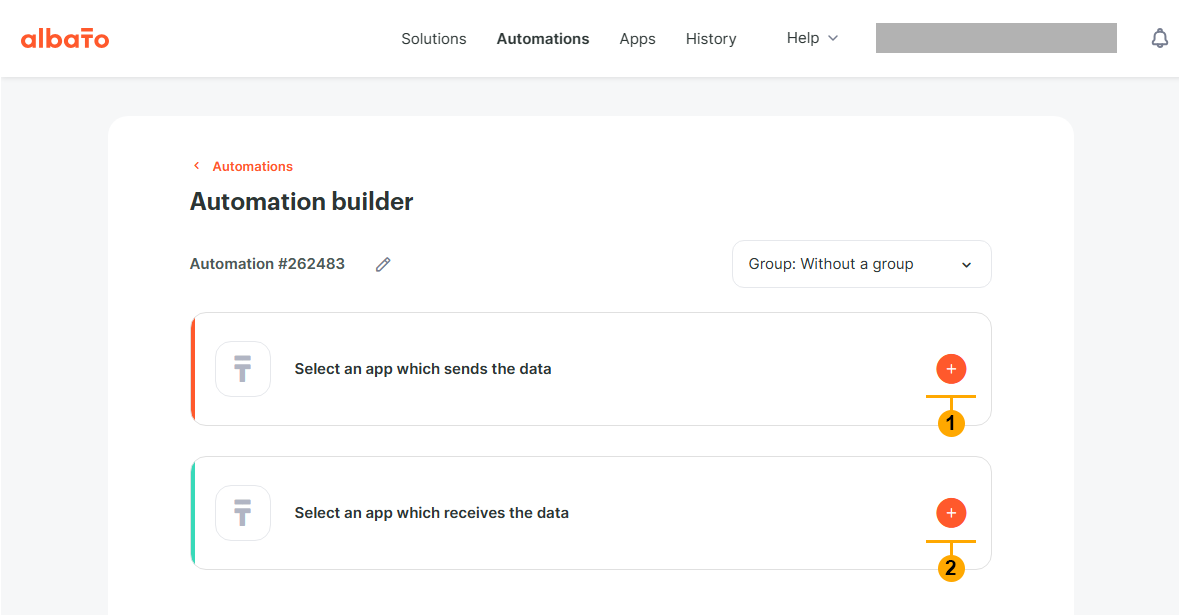
<figure id="bkmrk--12">![jT5CWPB8ZabVFTEQTSlADuQXDy9ZkWy_GnigYi1I](https://bookstack-support-u7942.vm.elestio.app/uploads/images/gallery/2026-03/embedded-image-1xco1aie.png)</figure>8.2 Make selections (1), (2), (3) and press "Add a trigger" button (4)
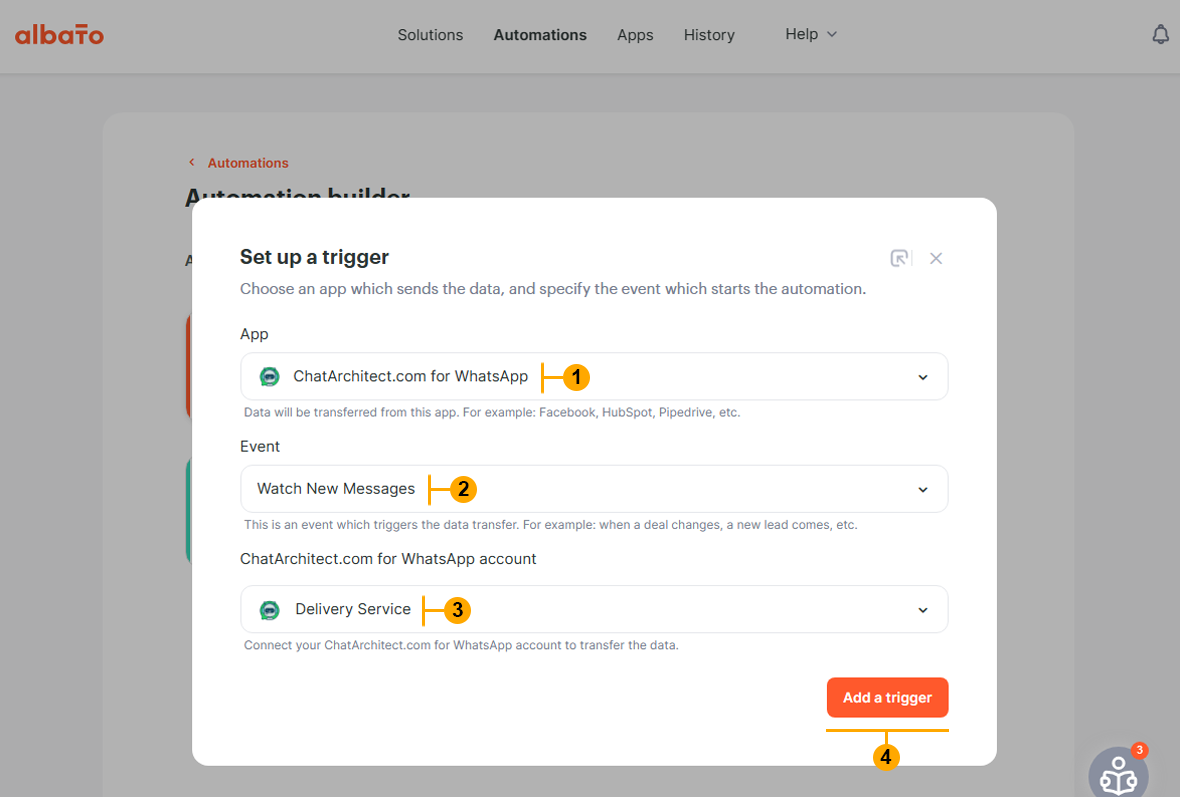
<figure id="bkmrk--13">![4Tfxijs41cLlvaEXiK7Wgjl0bDoSaDe3WB0YZevJ](https://bookstack-support-u7942.vm.elestio.app/uploads/images/gallery/2026-03/embedded-image-zstbt9xz.png)</figure>8.3 Press button (2) to select an App which receives data
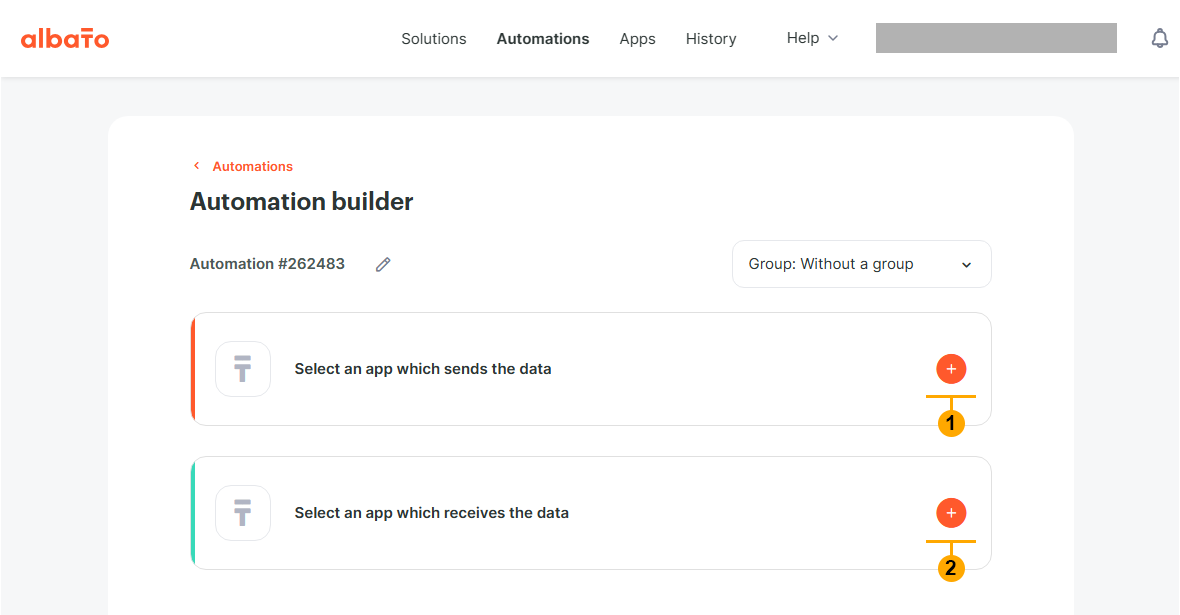
<figure id="bkmrk--14">![jT5CWPB8ZabVFTEQTSlADuQXDy9ZkWy_GnigYi1I](https://bookstack-support-u7942.vm.elestio.app/uploads/images/gallery/2026-03/embedded-image-7fhvtpis.png)</figure>  
  
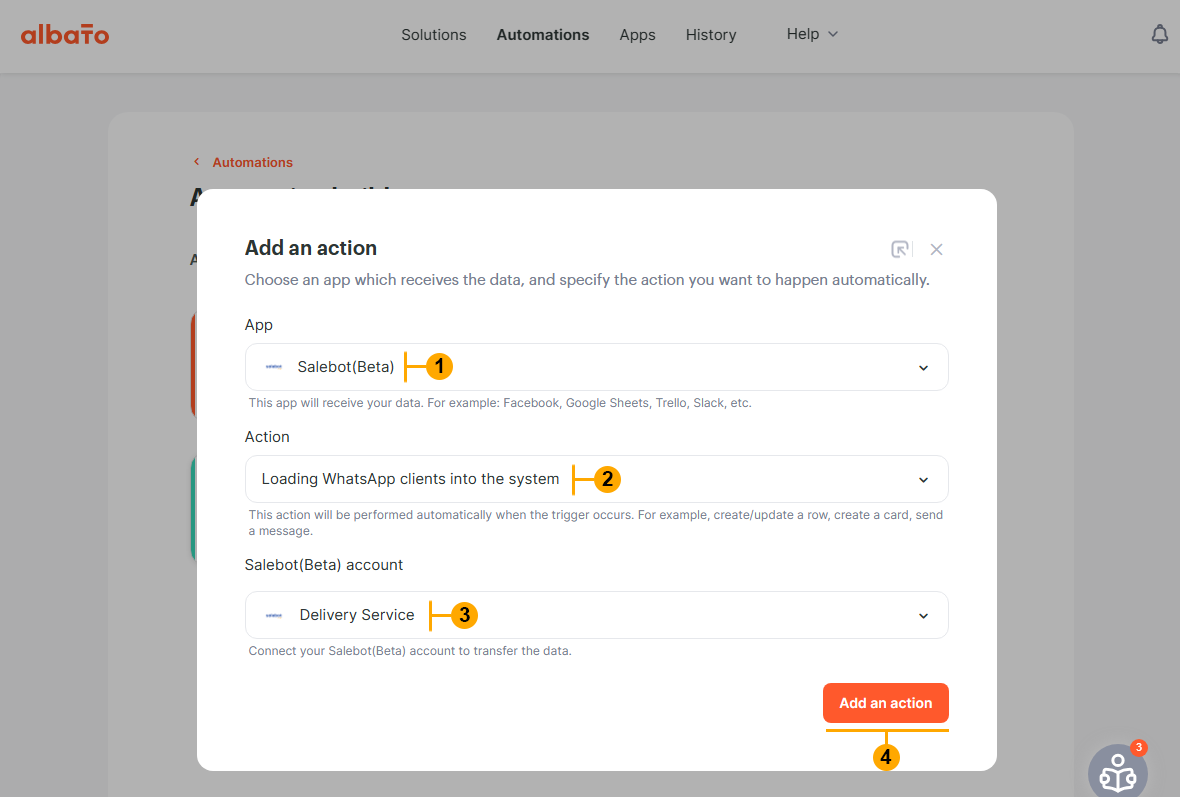
8.4 Make selections (1), (2), (3) and press "Add an action" button (4)
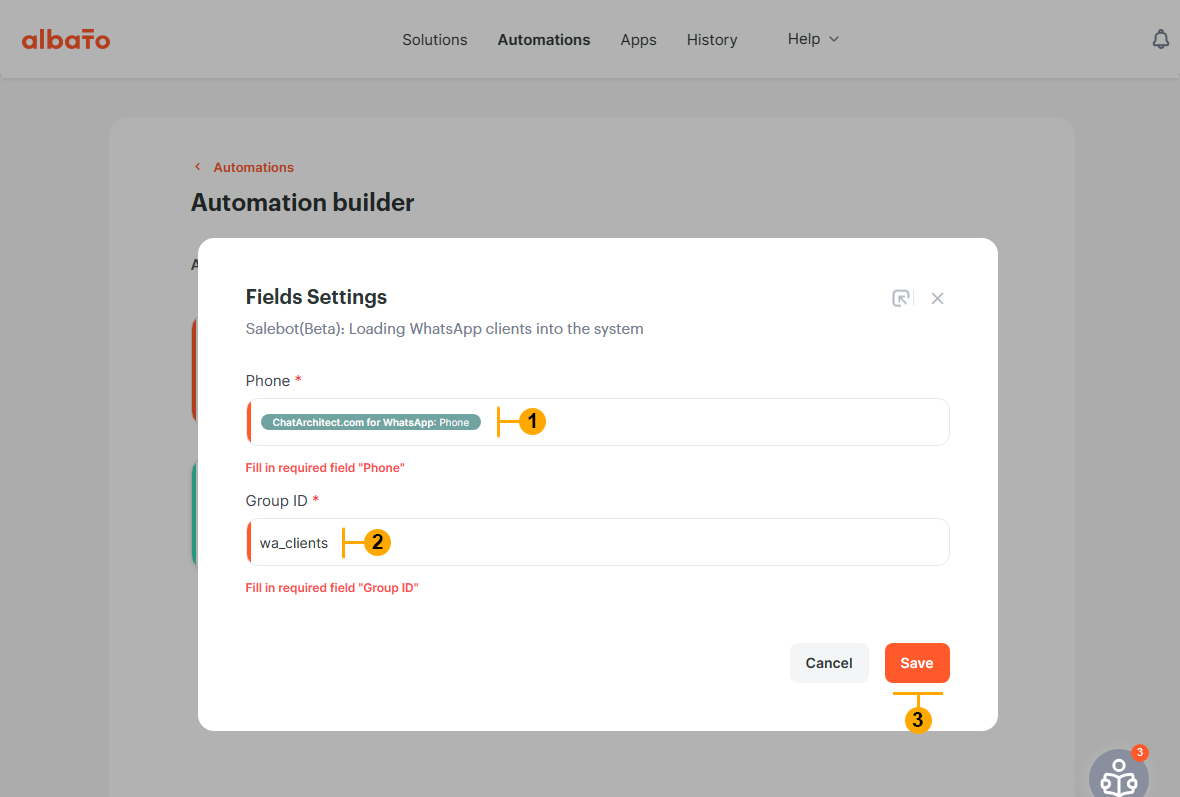
<figure id="bkmrk--15">![apzZL1M0CErZsX4HfbtQe693Wn8Hd6Dmk-K-QGYa](https://bookstack-support-u7942.vm.elestio.app/uploads/images/gallery/2026-03/embedded-image-0chbigiv.png)</figure>8.5 In the appeared window make selection in "Phone" field like on screenshot (1). After that type "Group ID" (2) and press "Save" button (3)

NOTE: Name of "Group ID" can be any you want.
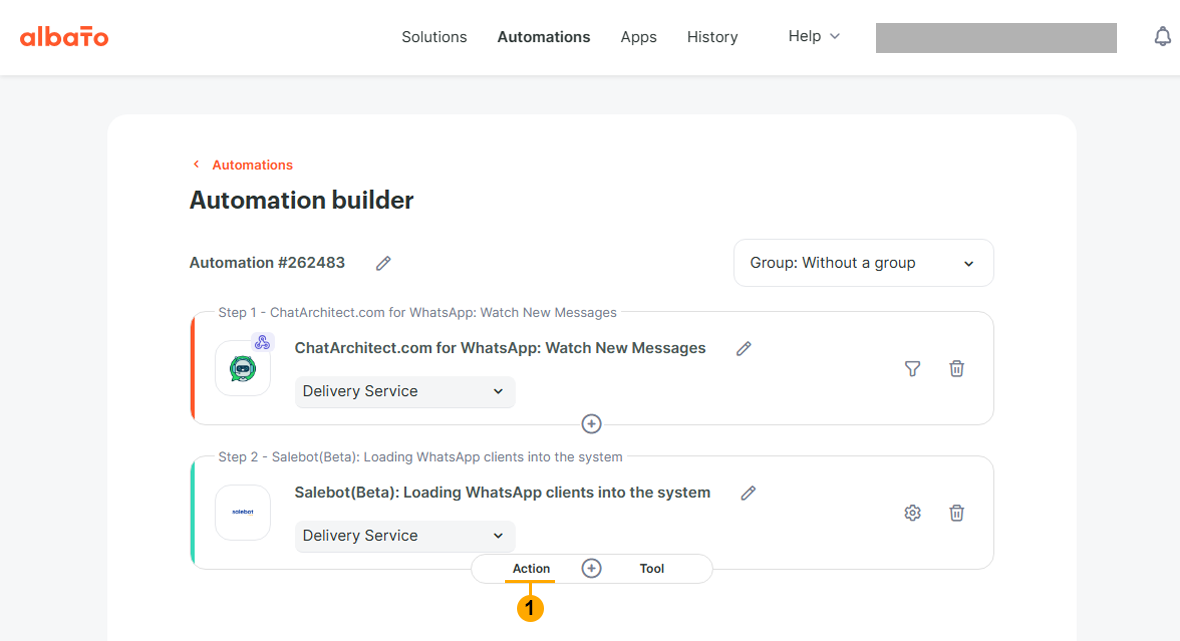
<figure id="bkmrk--16">![ZGX66Hs8Cr0JAiINrUfwhd1LY_6jjHcn0F-TmmkK](https://bookstack-support-u7942.vm.elestio.app/uploads/images/gallery/2026-03/embedded-image-ucnfqj3d.png)</figure>8.6 Now you need to add an action. Press "Plus" (+) and then press "Action" button (1)
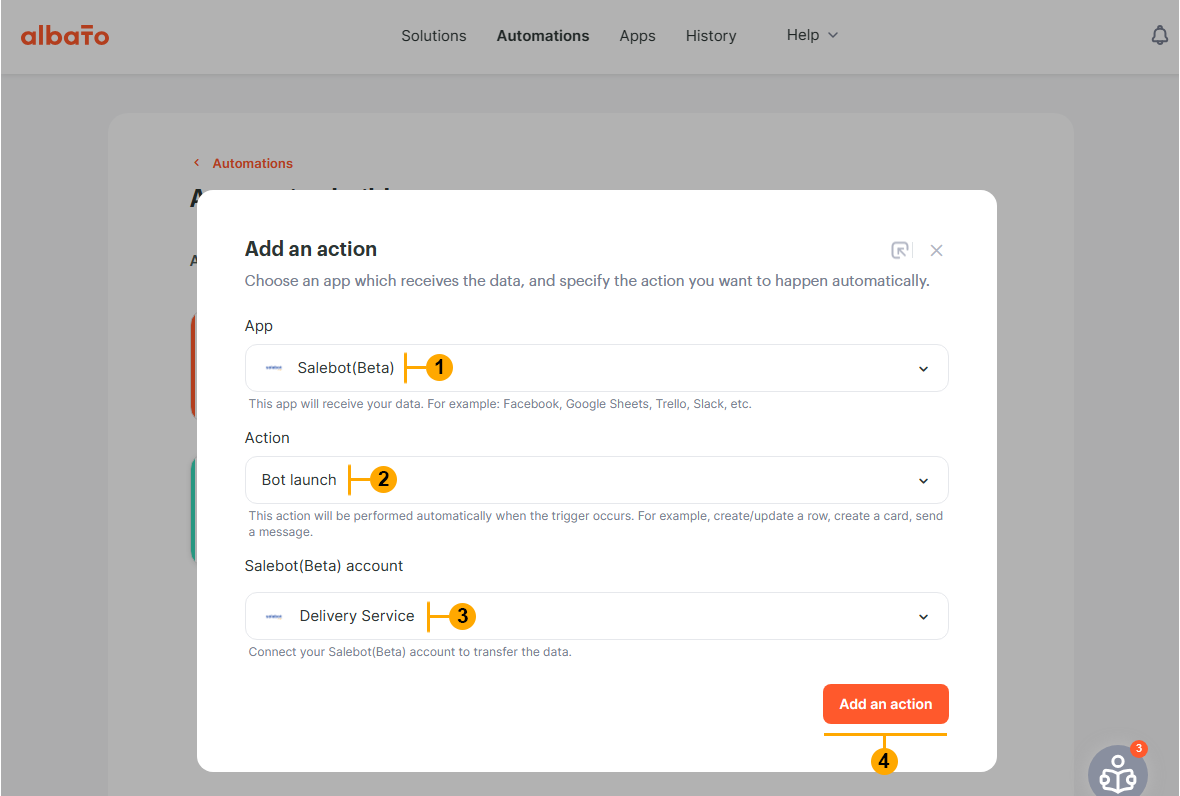
<figure id="bkmrk--17">![qiE5_GqymcbMbeMYLcuqDSKXFqPpyU6j0OBShAFf](https://bookstack-support-u7942.vm.elestio.app/uploads/images/gallery/2026-03/embedded-image-mgzo4vtf.png)</figure>8.7 Make selections (1), (2), (3) and press "Add an action" button (4)
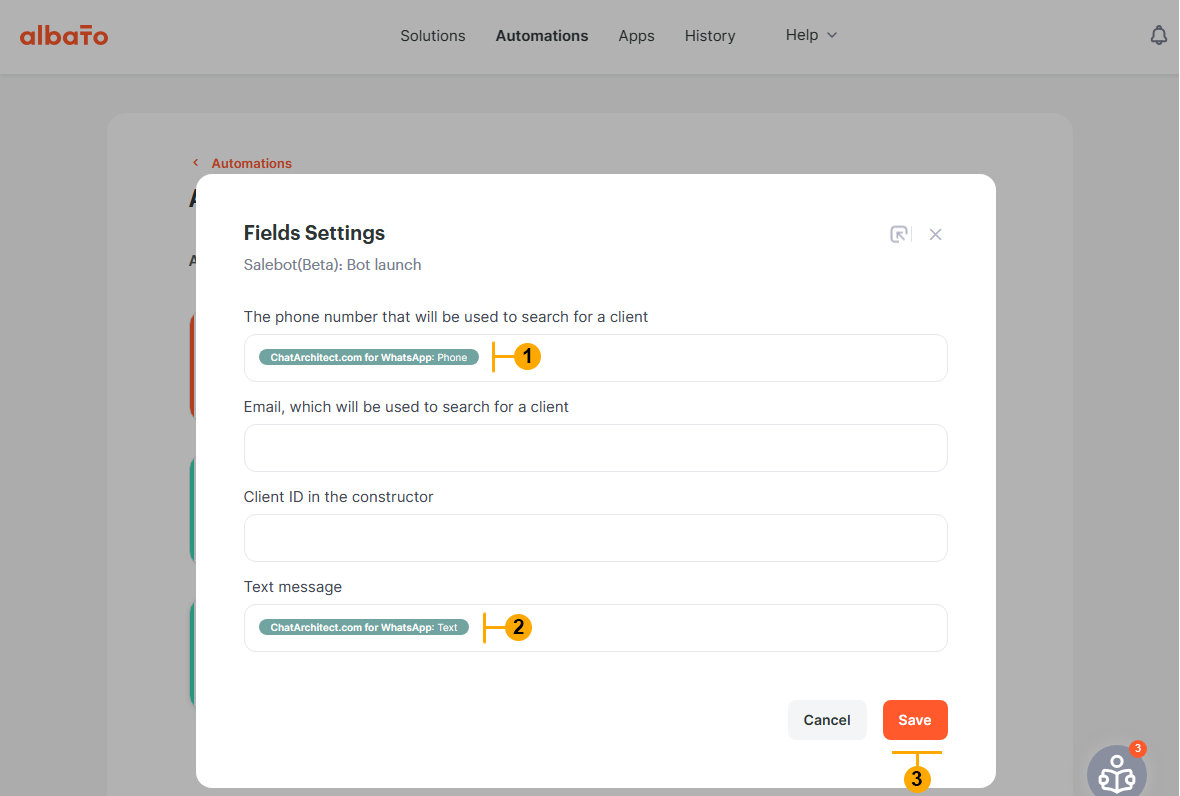
<figure id="bkmrk--18">![4owJGXytLf9q0UJzVFgMHYW_2C-MvB1PJXNKAbtM](https://bookstack-support-u7942.vm.elestio.app/uploads/images/gallery/2026-03/embedded-image-bpvqaklx.png)</figure>8.8 In the window that appears after "Step 8.7" make next selections (1), (2) and press "Save" button (3)
<figure id="bkmrk--19">![KQxHREZvcGCkbqA_-aO_DT6ZRTyg6zmjYkujnp1f](https://bookstack-support-u7942.vm.elestio.app/uploads/images/gallery/2026-03/embedded-image-xwjku403.png)</figure>9\. Create the second automation in Albato to receive messages from Salebot.pro and send them to WhatsApp. Go to Albato "Automations" page and press "New" button. Same as in "Step 8"

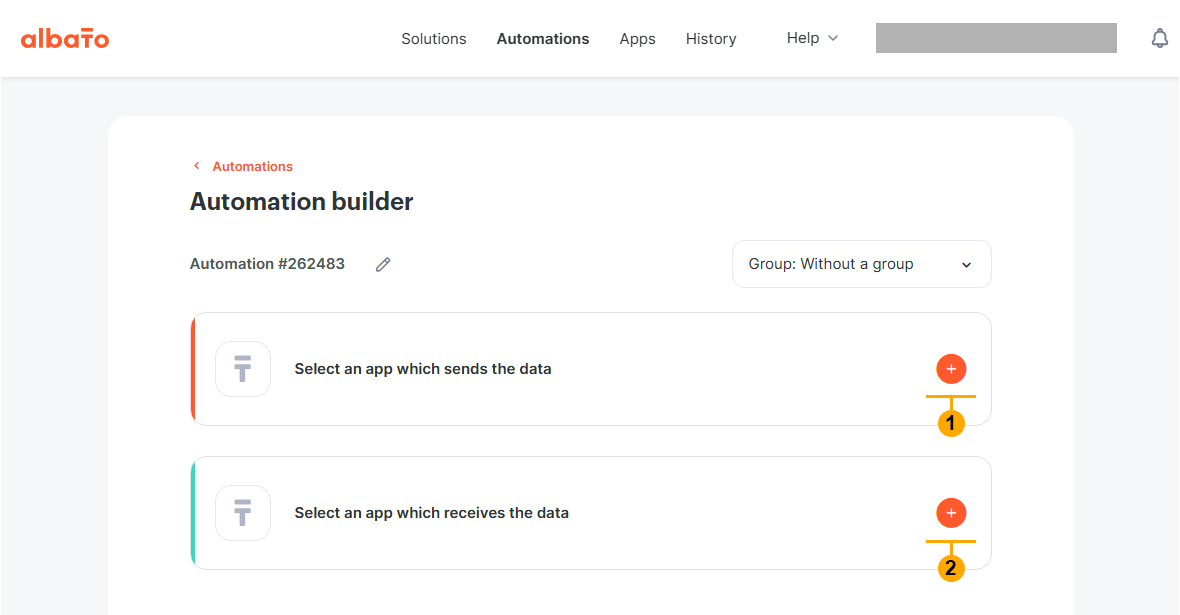
9.1 Press button (1) to select an App which sends data.
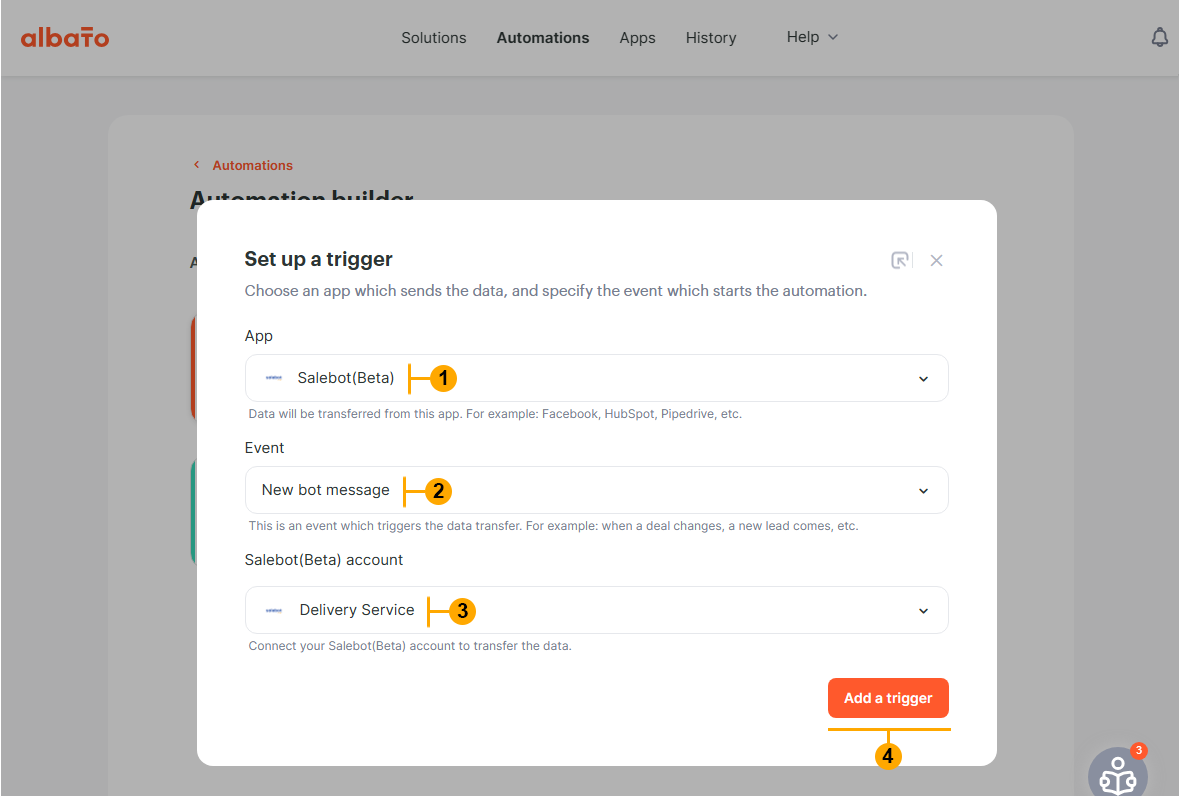
<figure id="bkmrk--20">![jT5CWPB8ZabVFTEQTSlADuQXDy9ZkWy_GnigYi1I](https://bookstack-support-u7942.vm.elestio.app/uploads/images/gallery/2026-03/embedded-image-rq9jbhuv.png)</figure>9.2 Make selections (1), (2), (3) and press "Add a trigger" button (4)
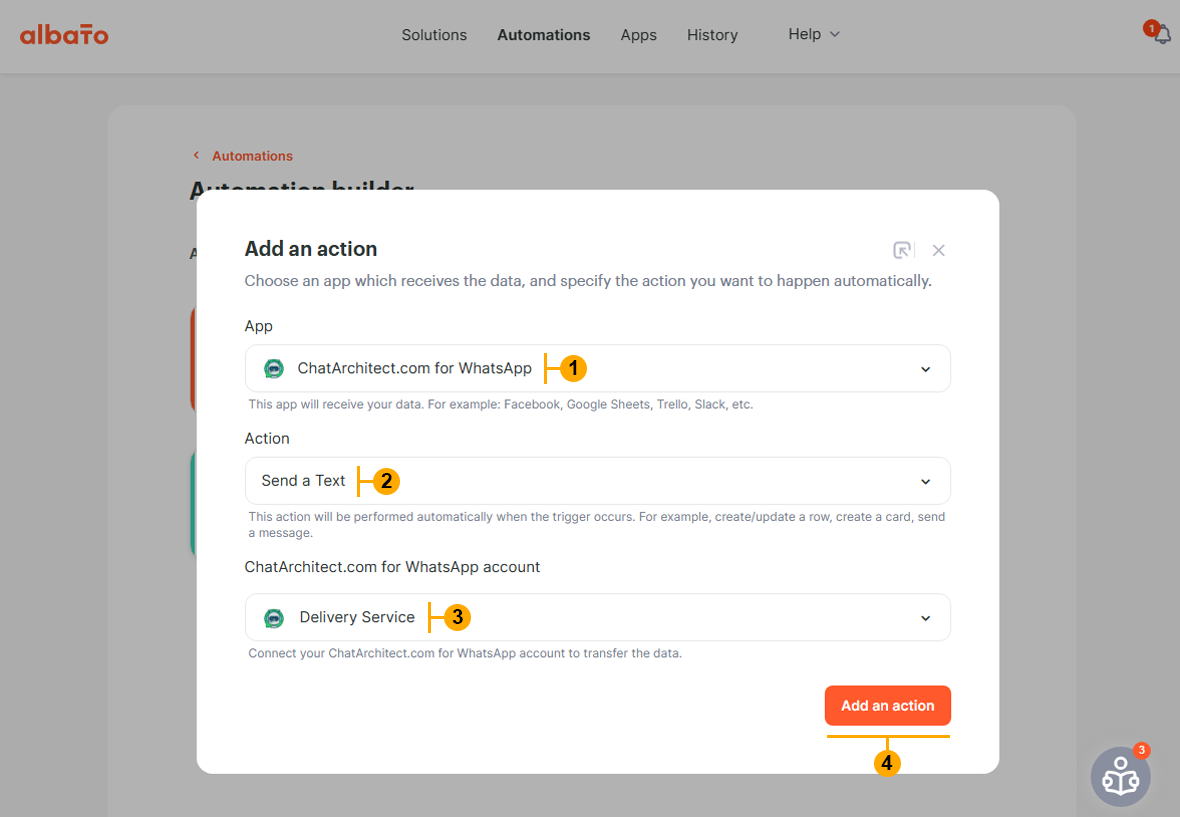
<figure id="bkmrk--21">![Py4ugxr5Hmd6-ZBaCSE1W_Hrle1YQyHB-TlJTLRr](https://bookstack-support-u7942.vm.elestio.app/uploads/images/gallery/2026-03/embedded-image-pjgbahe3.png)</figure>9.3 Press button (2) from step 9.1 to "Select an app which receives the data". Make selections (1), (2), (3) and press "Add a trigger" button (4)
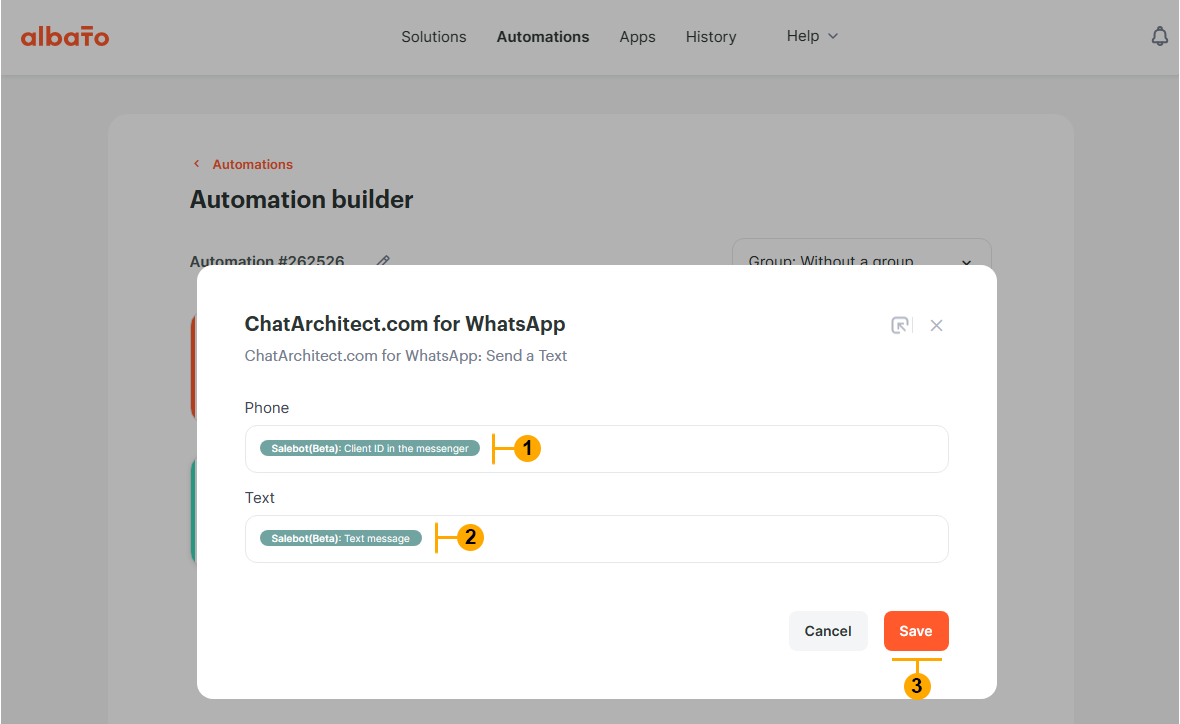
<figure id="bkmrk--22">![66Kg24XaYn9EK3tRUOOxGu-Lz5XzzELiFJ-jR35S](https://bookstack-support-u7942.vm.elestio.app/uploads/images/gallery/2026-03/embedded-image-nm5mujrw.png)</figure>9.4 In the next appeared window make selections (1), (2) and press "Save" button (3)
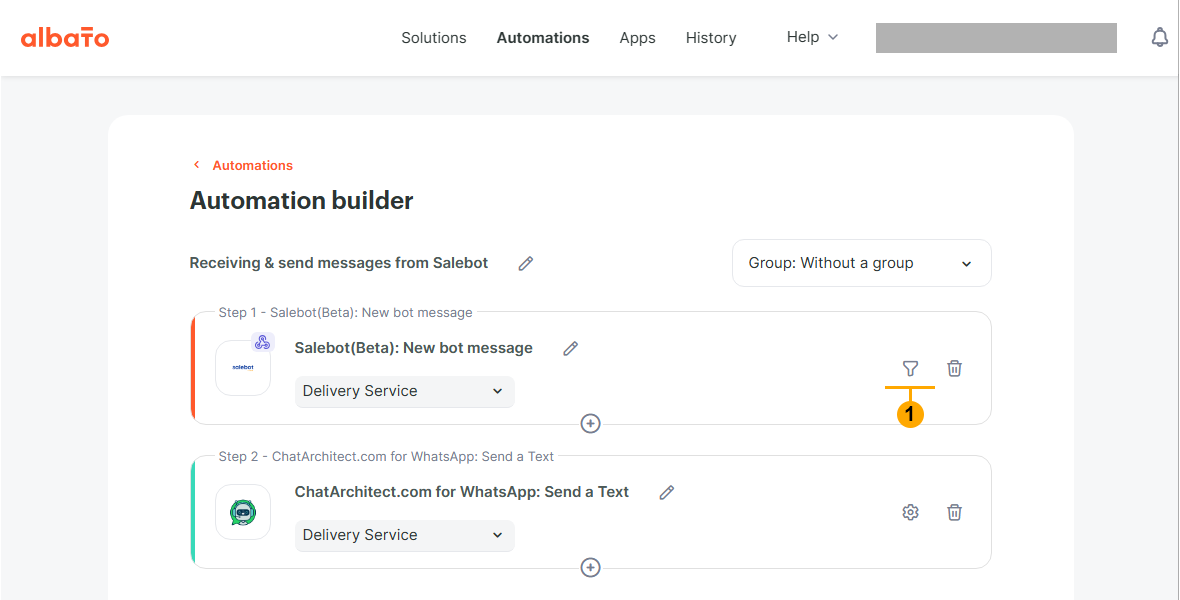
<figure id="bkmrk--23">![xbKH_9wzXixyhIxh6iIaOOiaKb8Lp2bCBdz1UlYf](https://bookstack-support-u7942.vm.elestio.app/uploads/images/gallery/2026-03/embedded-image-4cotkwrj.png)</figure>9.5 Now you need to adjust the filter to process only messages from Salebot.pro bot. To do this press "filter" button (1)
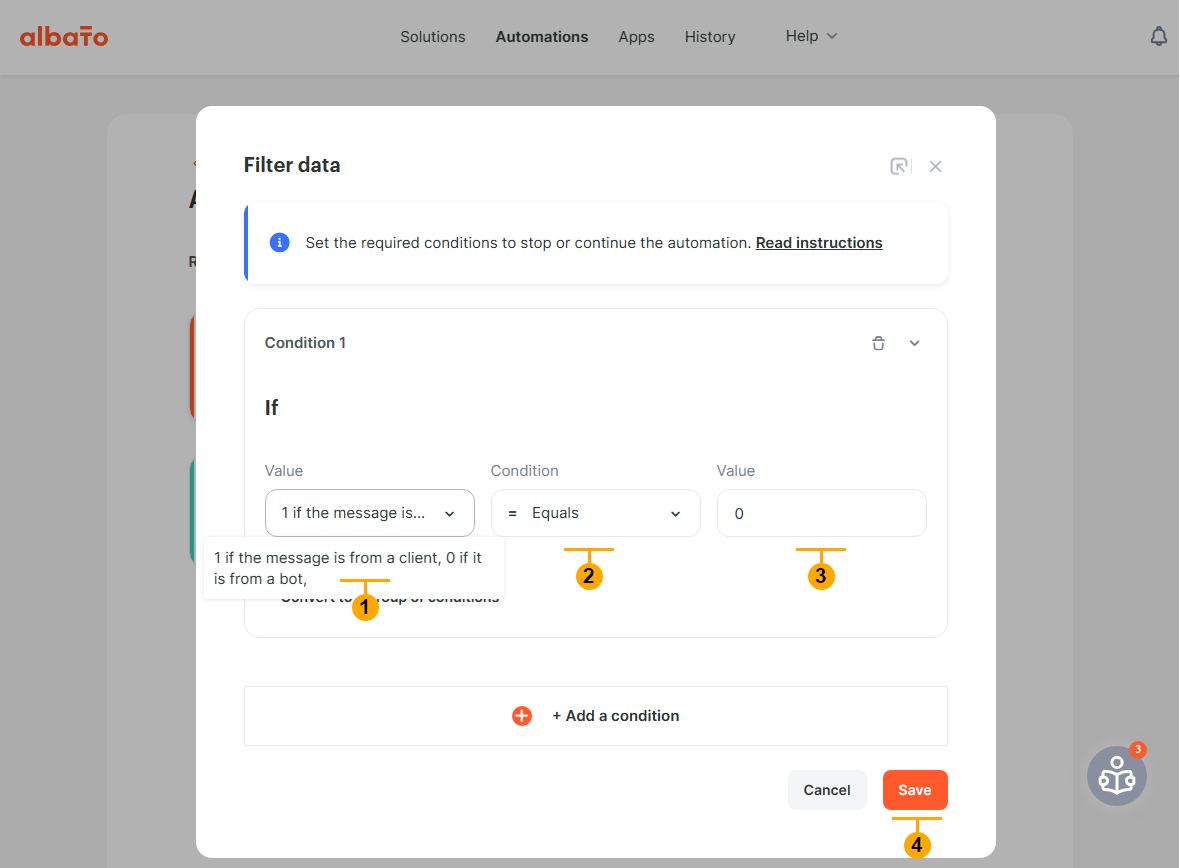
<figure id="bkmrk--24">![BZI1TJeG_0Vhax4w-YjMYgacRi5OzSxrii39QbIZ](https://bookstack-support-u7942.vm.elestio.app/uploads/images/gallery/2026-03/embedded-image-27bme63p.png)</figure>9.6 Adjust filter as shown below (1), (2), (3) and press "Save" button (4)
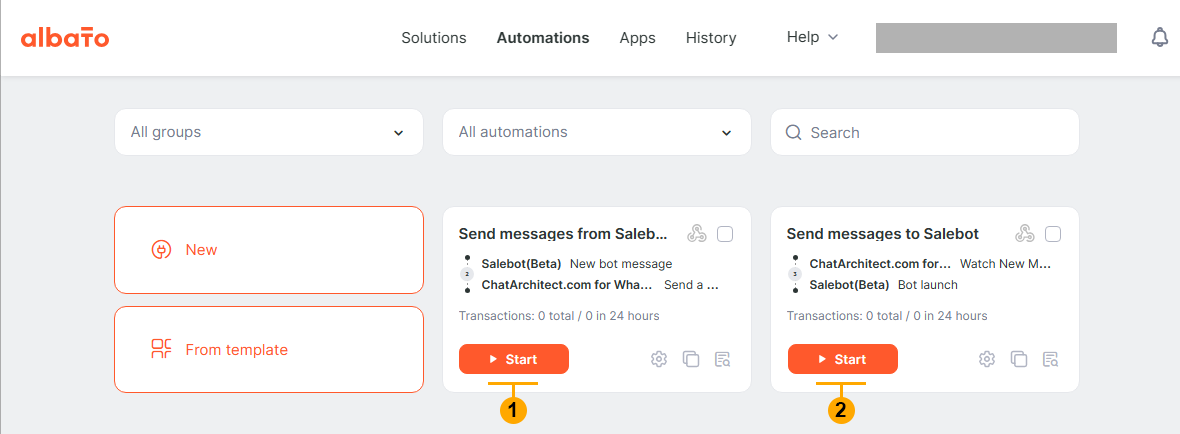
<figure id="bkmrk--25">![oD0wN0L_xfqA4IBuzpPrke4qj_NfwNG_QkQgHcEv](https://bookstack-support-u7942.vm.elestio.app/uploads/images/gallery/2026-03/embedded-image-ys4wnu7i.png)</figure>10 Go to "Automations" page and press the "Start" buttons on both automations (1), (2)
<figure id="bkmrk--26">![wZbRHYtuv37BDLGxkcb6hz-7J7-A8m0_SebAeZvQ](https://bookstack-support-u7942.vm.elestio.app/uploads/images/gallery/2026-03/embedded-image-dpdkdg11.png)</figure>11\. Write to your WhatsApp number to test connection. You should receive your message in the Salebot.pro "Customers" section.
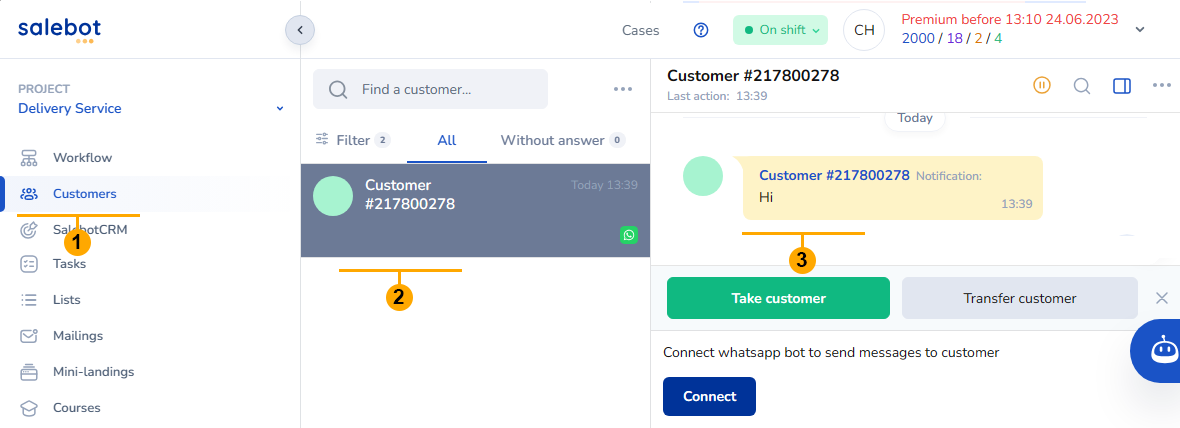
<figure id="bkmrk--27">![zAgcaR07ChYsI-jkZYyJyLgBWlLXF6ZJAviy29v7](https://bookstack-support-u7942.vm.elestio.app/uploads/images/gallery/2026-03/embedded-image-7s4phzqd.png)</figure>12\. Configure Salebot.pro workflow like on screenshot below:
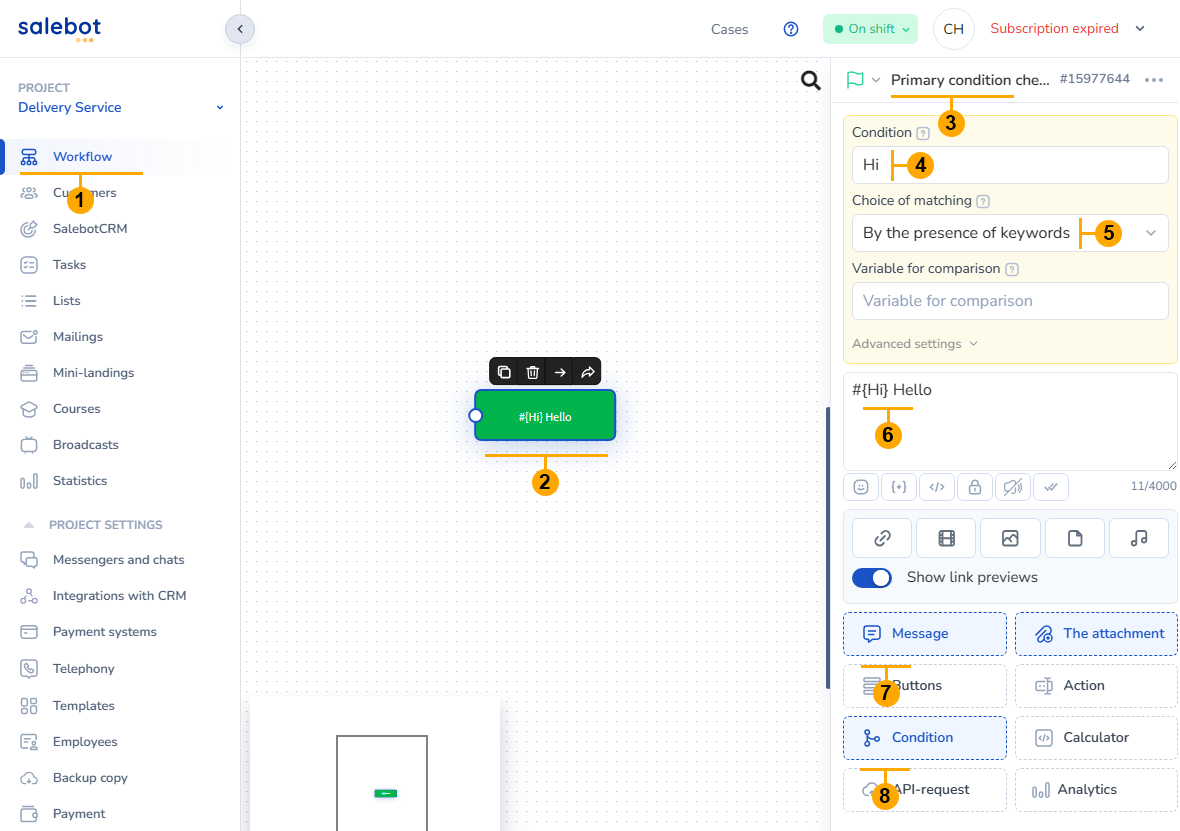
<figure id="bkmrk--28">![oF7oDsqs6TiFwQk5yf_1YAgF95uQj-RkKcZRbyDr](https://bookstack-support-u7942.vm.elestio.app/uploads/images/gallery/2026-03/embedded-image-8xg7xgd3.png)</figure>13\. Write to your phone number keyword "Hi". After some delay bot must reply "Hello"
<figure id="bkmrk--29">![WrA_Z0WdyQxFsguRXpOGIsHnf6rTSOXszyZE0CSL](https://bookstack-support-u7942.vm.elestio.app/uploads/images/gallery/2026-03/embedded-image-4mnm4f48.png)</figure>