# WhatsApp for Integromat.com (Make.com)
# Integration Integromat.com (Make.com) with Google Sheets
**In this guide, you will learn how to install our WhatsApp Business API integration in Make and send messages using a database from Google Sheets.**
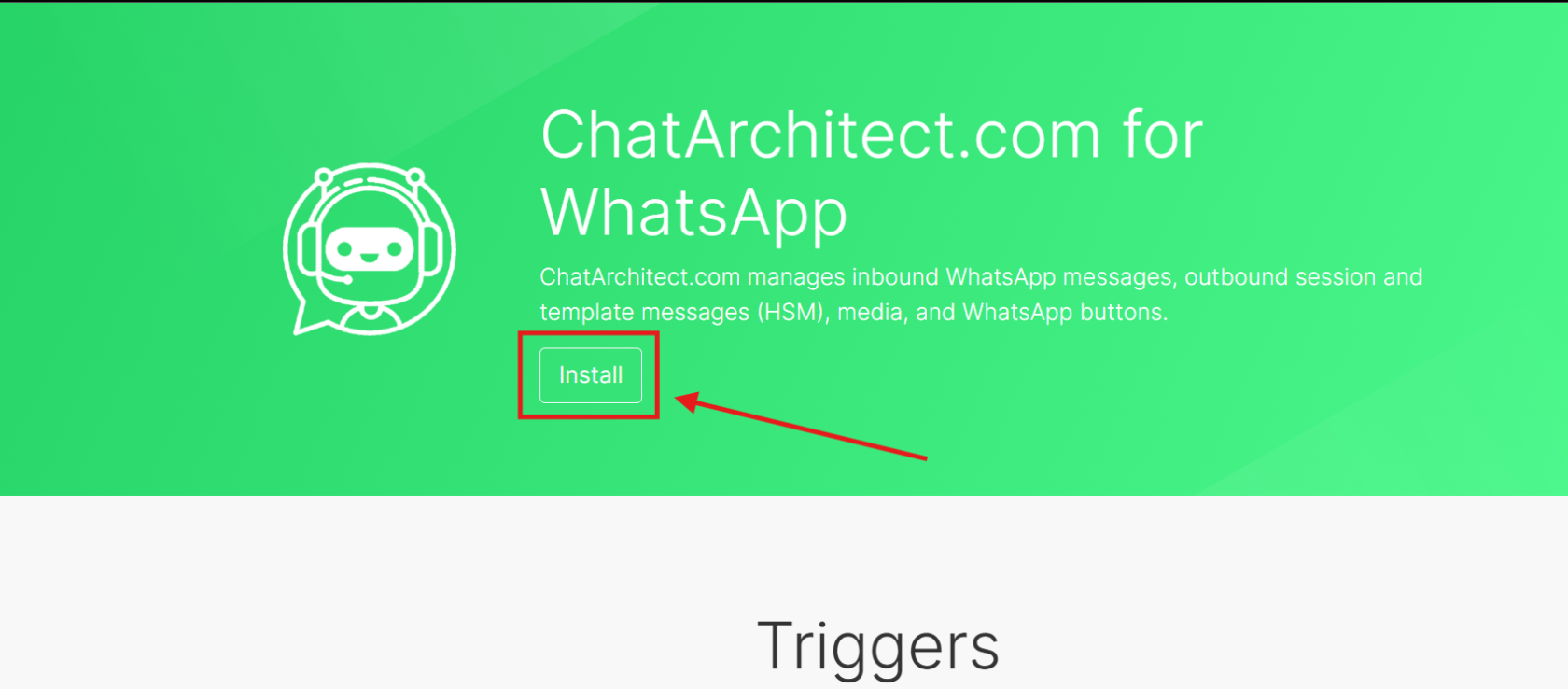
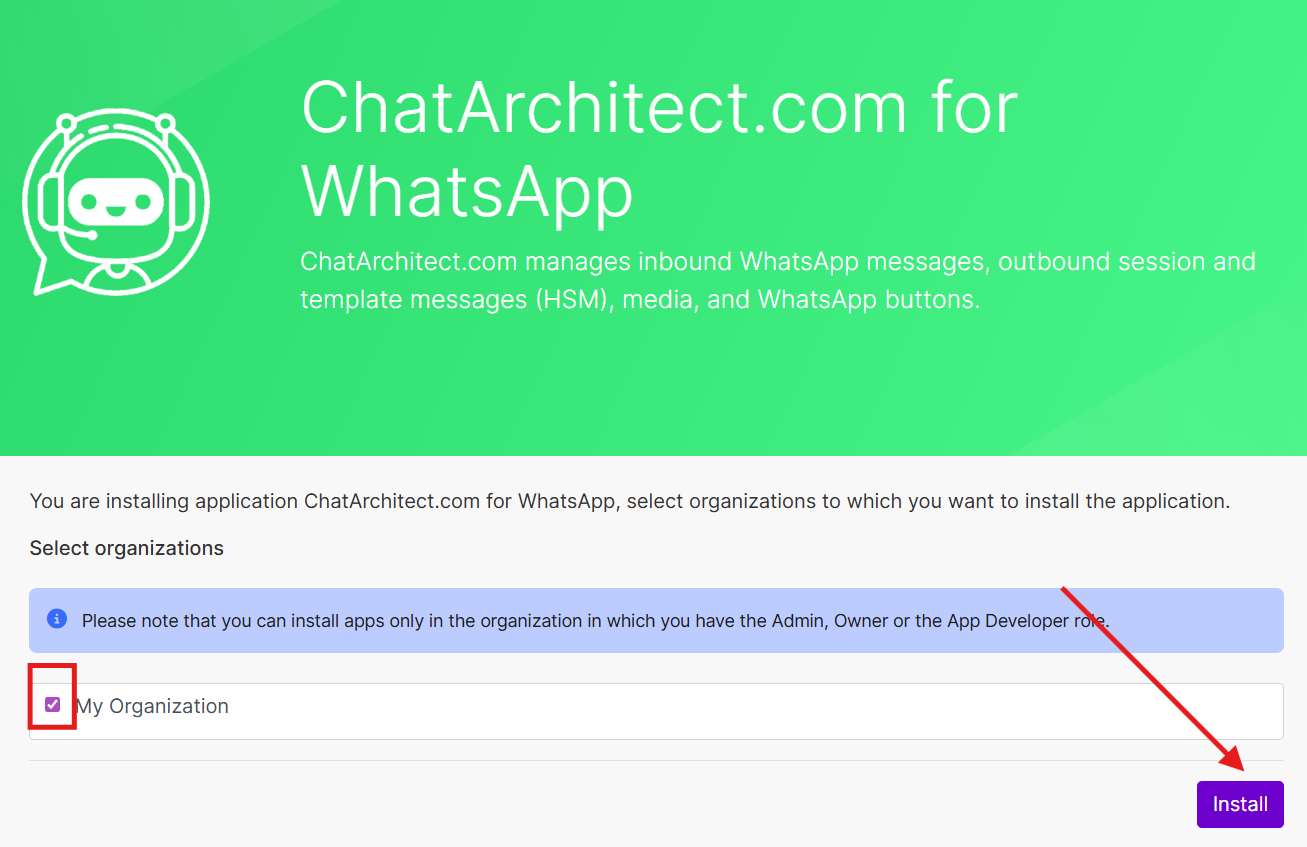
1\. After registering with Make, you need to install our app **[https://www.make.com/en/hq/app-invitation/80e6a64b2b12c4476413627b22551fb7](https://www.make.com/en/hq/app-invitation/80e6a64b2b12c4476413627b22551fb7)**
[](https://support.chatarchitect.com/uploads/images/gallery/2026-04/YlZimage.png)
[](https://support.chatarchitect.com/uploads/images/gallery/2026-04/vQnimage.png)
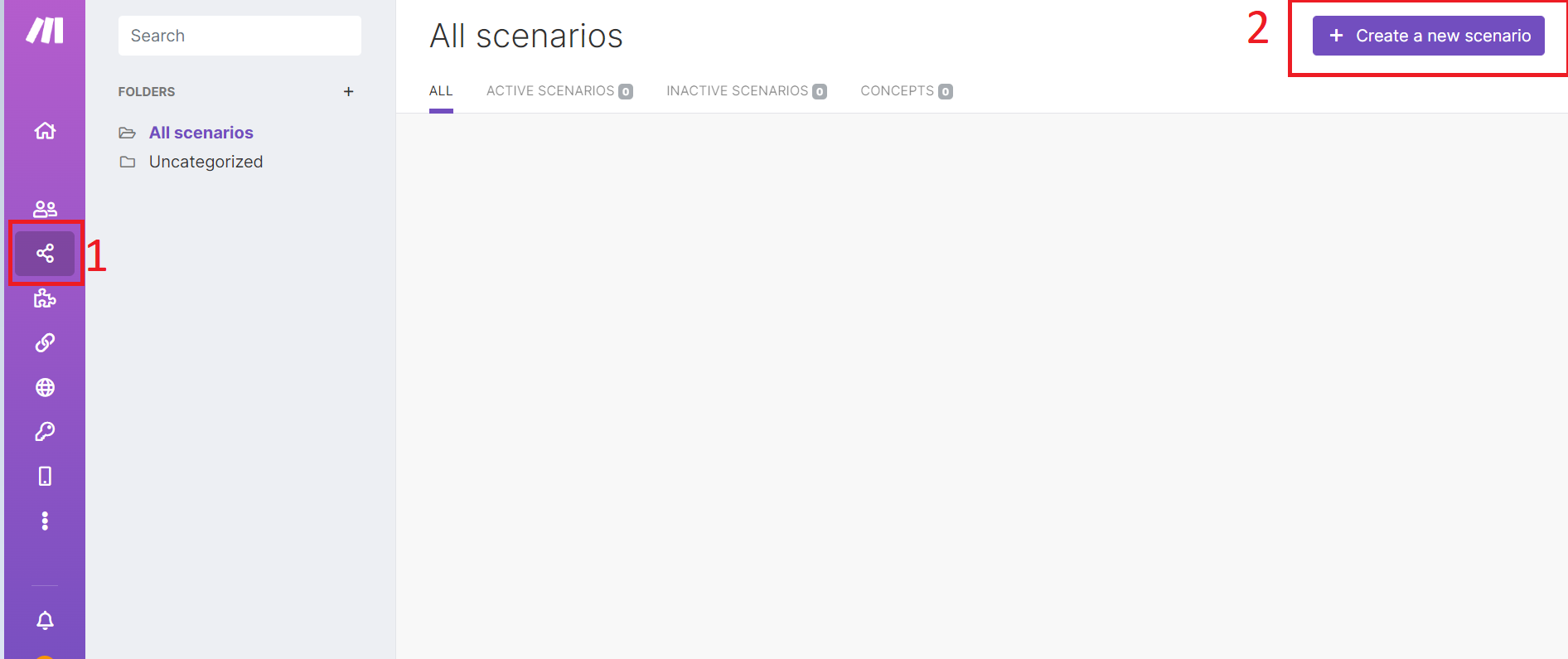
2\. Then go to the "**Scenarios**" tab and click on the "**+Create a new scenario**" button
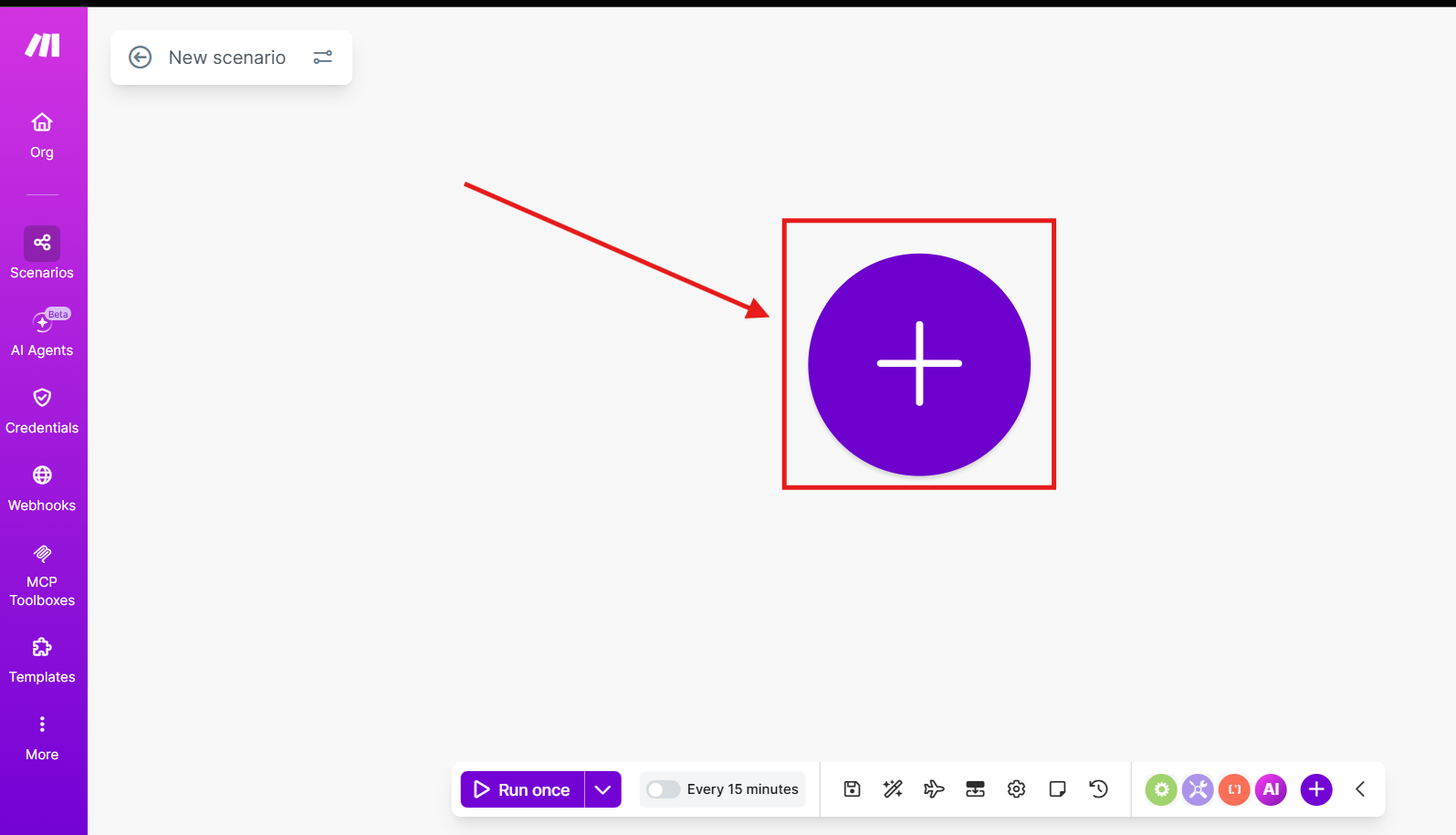
2\. Press on this "**Plus**" button
[](https://support.chatarchitect.com/uploads/images/gallery/2026-04/4XQimage.png)
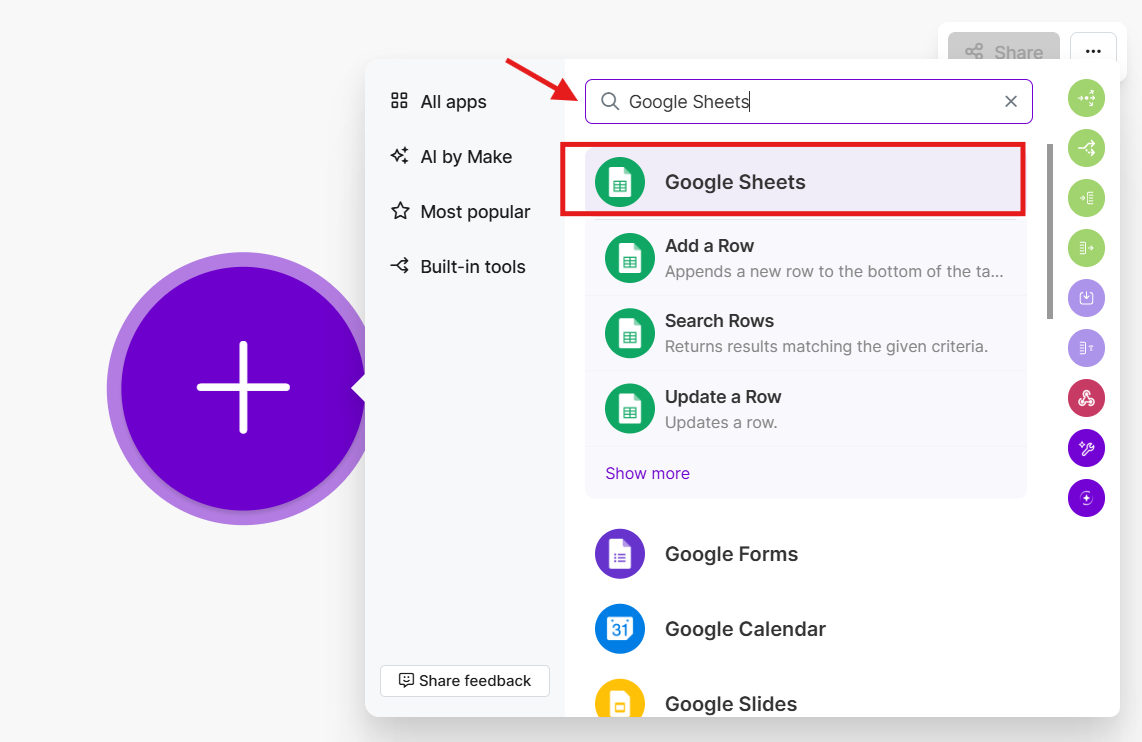
3\. Search "**Google Sheets**"
[](https://support.chatarchitect.com/uploads/images/gallery/2026-04/4bRimage.png)
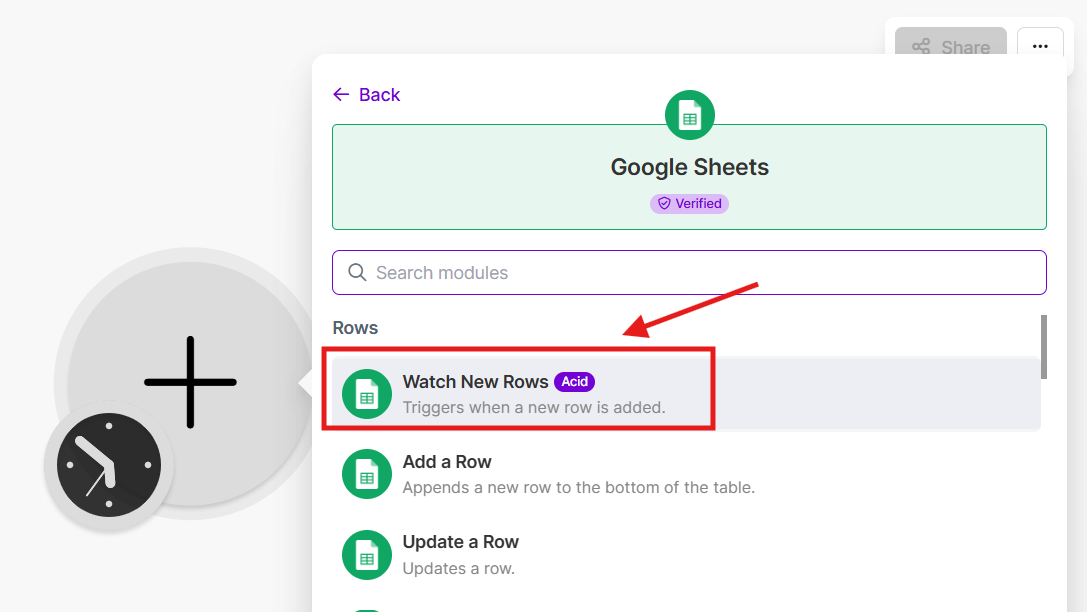
4\. Then choose "**Google Sheets**" and choose trigger "**Watch Rows**"
[](https://support.chatarchitect.com/uploads/images/gallery/2026-04/k41image.png)
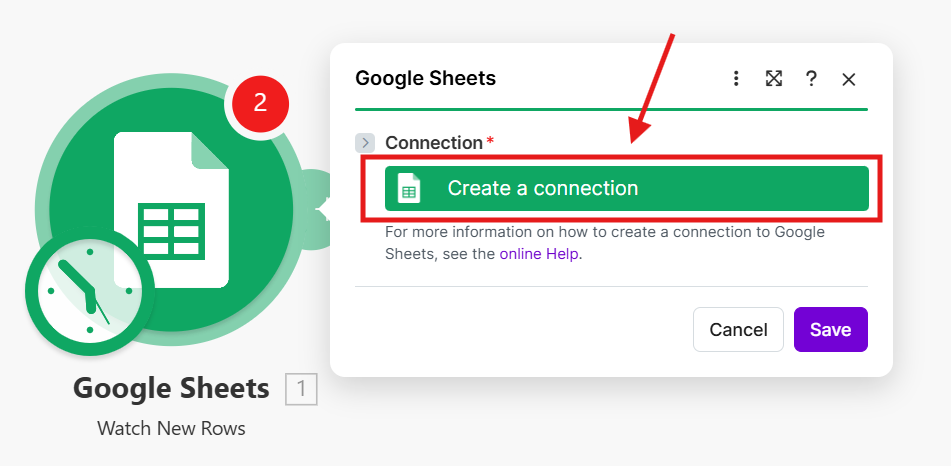
5\. Add your **Google Account**
[](https://support.chatarchitect.com/uploads/images/gallery/2026-04/hW7image.png)
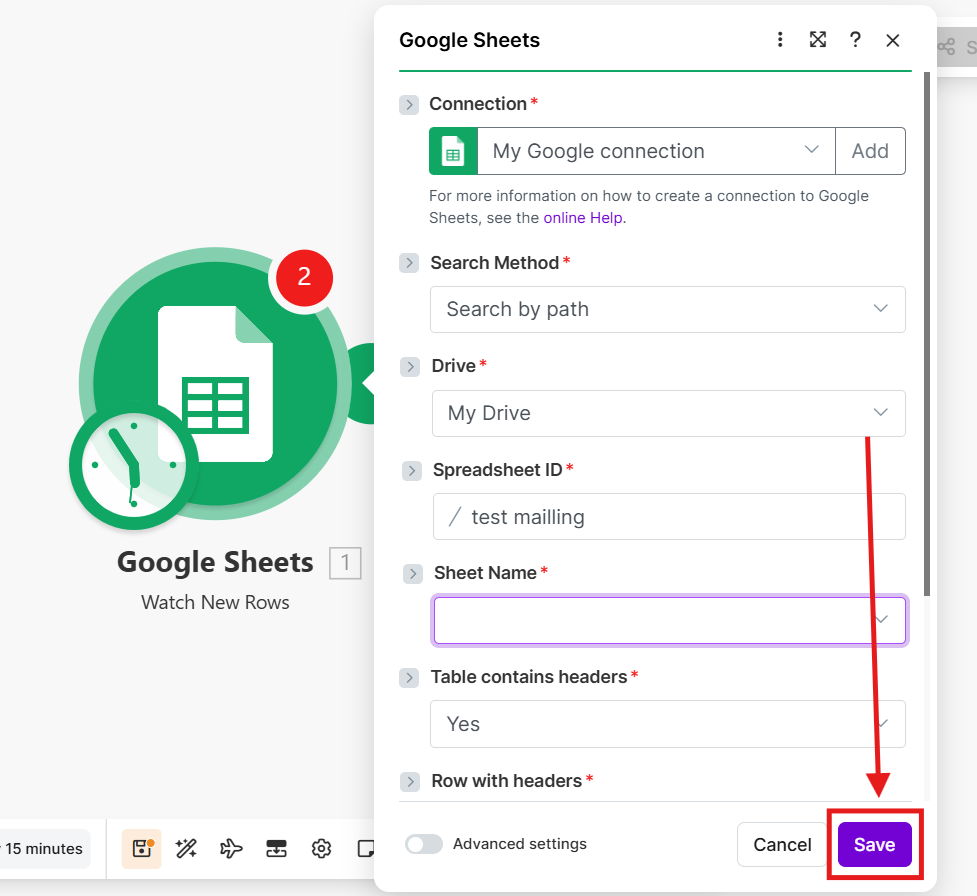
6\. Choose "**Connection**"; "**Drive**"; "**Spreadsheet ID**" and "**Sheet Name**";
After that press "**Save**" button
[](https://support.chatarchitect.com/uploads/images/gallery/2026-04/FK0image.png)
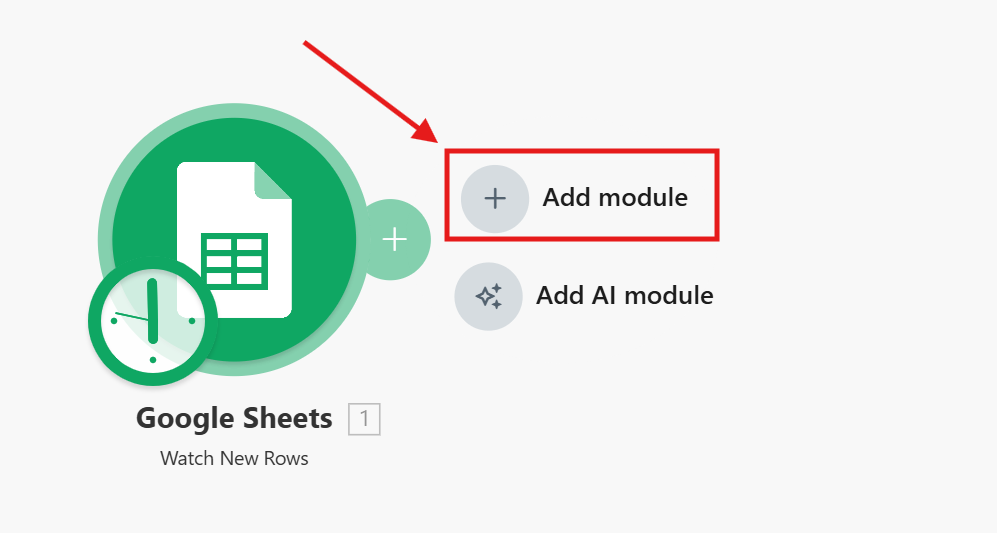
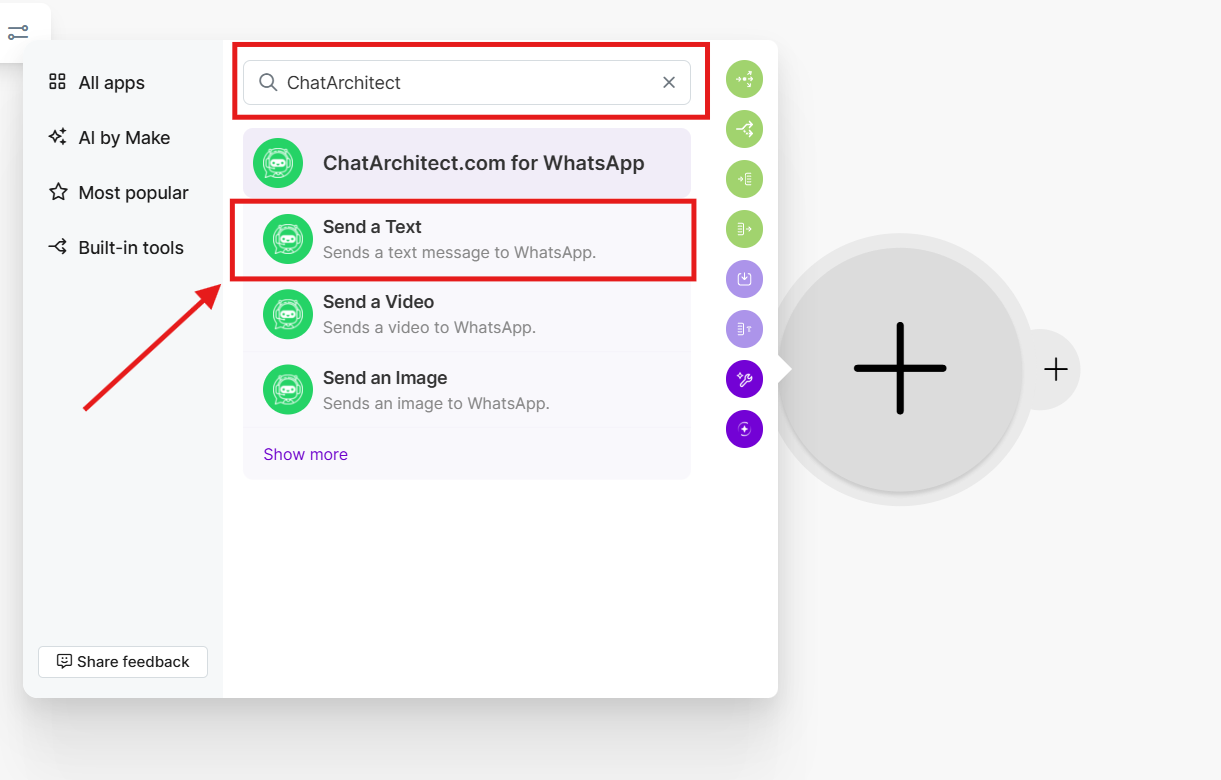
7\. Then you need to press "**Add module**" and choose our integration **ChatArchitect.com for WhatsApp** and choose "**Send a Text**"
[](https://support.chatarchitect.com/uploads/images/gallery/2026-04/gWKimage.png)
[](https://support.chatarchitect.com/uploads/images/gallery/2026-04/cQfimage.png)
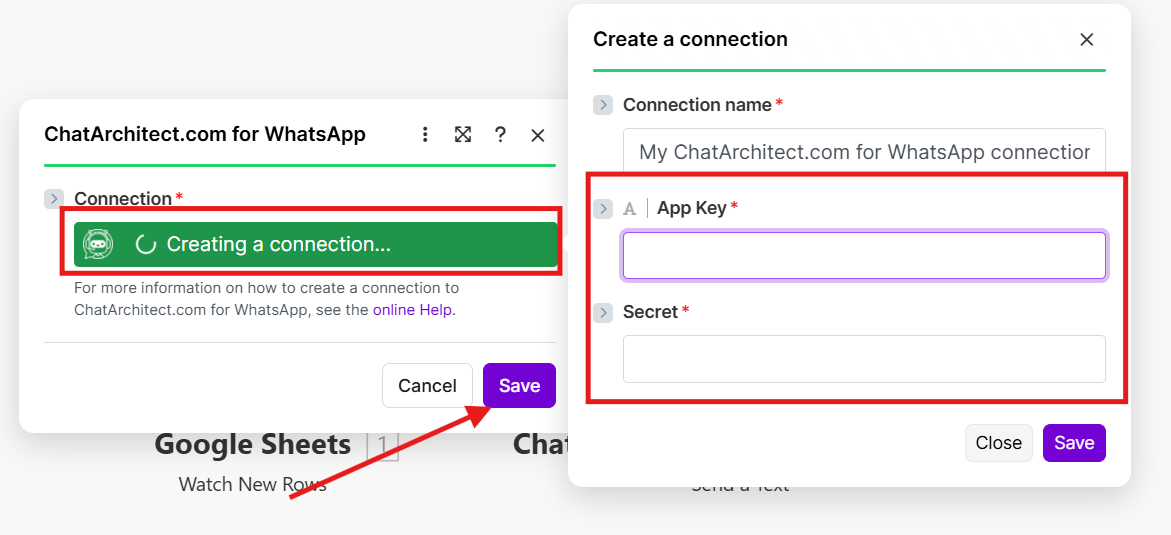
8\. Select "**Create a connection**" -> add your **APP ID** and **APP SECRET**;
After that press "**Save**" button
[](https://support.chatarchitect.com/uploads/images/gallery/2026-04/bWAimage.png)
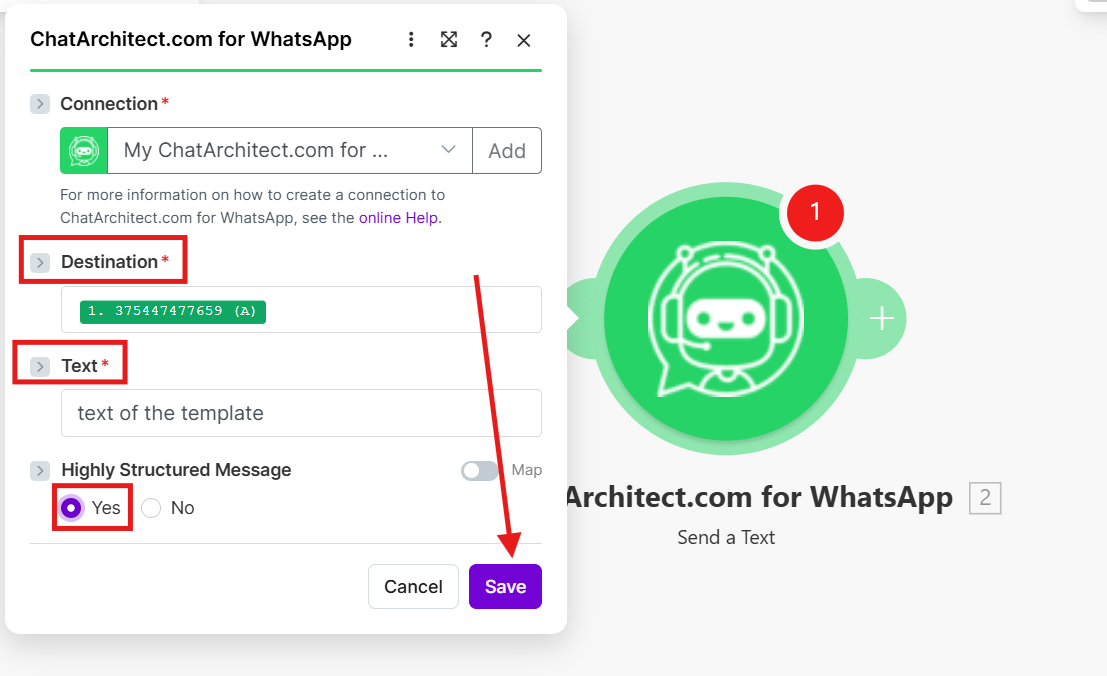
9. Choose destination from your table;
In the text field you need to enter the **text of the template** that you want to send;
Highly Structured Message: **Yes** and press "**Save**" button
[](https://support.chatarchitect.com/uploads/images/gallery/2026-04/xltimage.png)
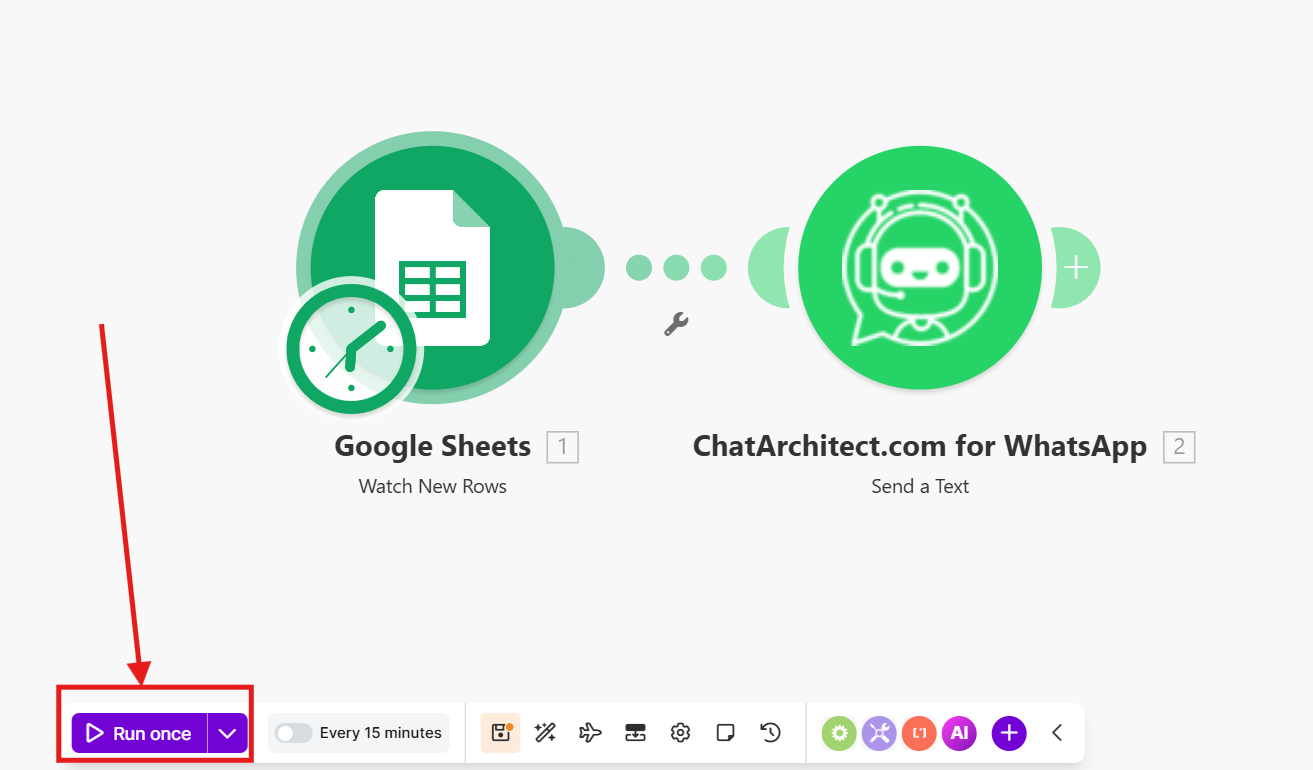
10\. Test your connection by using "**Run once**" button
[](https://support.chatarchitect.com/uploads/images/gallery/2026-04/Kpiimage.png)
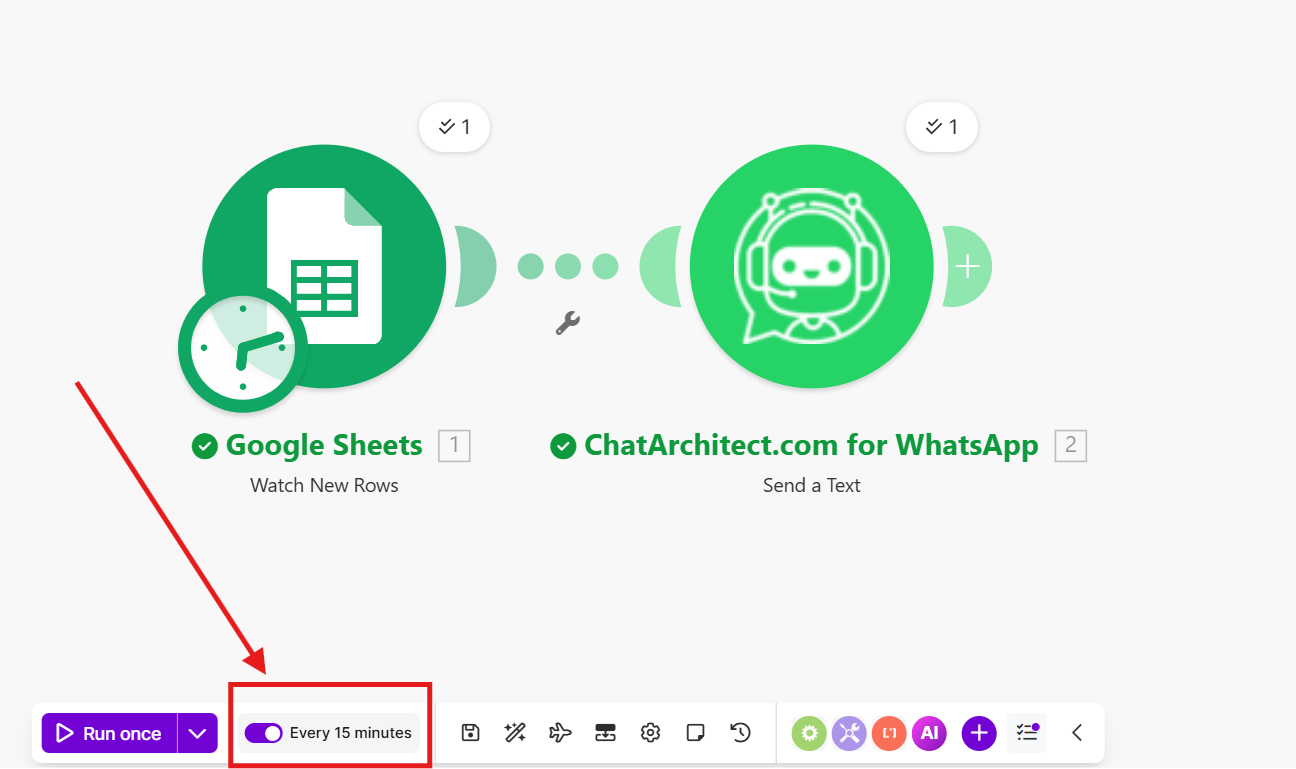
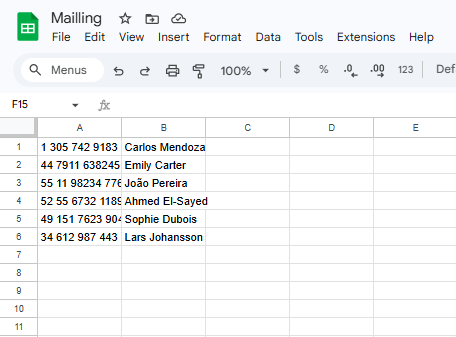
11\. If the message was successfully delivered to your test numbers, you can include "**Scheduling**" and add numbers to the table (It is important to add numbers for mailing after activating "**Scheduling**", **because Make works to add rows to the table**)
[](https://support.chatarchitect.com/uploads/images/gallery/2026-04/ecXimage.png)
[](https://support.chatarchitect.com/uploads/images/gallery/2026-04/nksimage.png)
**To be noted: Make will work on new numbers within 15 minutes❗️**