# WhatsApp chatbots

# WhatsApp for Google Dialogflow

# WhatsApp for Botpress.com

# Setting up Botpress.com (free and open-source) to connect to ChatArchitect.com WhatsApp

This instruction describes the connection to Botpress.com (free and open-source), not the cloud botpress.cloud.

You can download Botpress from the link [https://v12.botpress.com/](https://v12.botpress.com/)[](https://v12.botpress.com/)

We will show you how to launch it in a few clicks using the example of a simple service [https://elest.io/open-source/botpress](https://elest.io/open-source/botpress).

  
0\)  
  
To connect your number to WhatsApp Business API, write to support [https://wa.me/](https://wa.me/74956686361)[421233221242](https://wa.me/421233221242?text=main)  
1\)  
  
Register on the elest.io service. It provides a trial for 3 days.
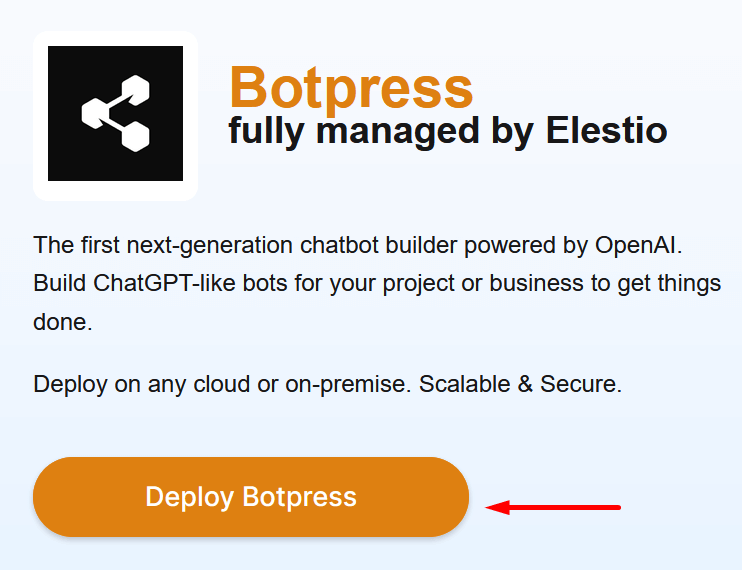
<figure id="bkmrk--1" style="display:block;margin:0px;clear:both;color:rgb(255,255,255);font-family:Roboto, Helvetica, Arial, sans-serif;font-size:13px;font-style:normal;font-weight:400;letter-spacing:normal;text-indent:0px;text-transform:none;word-spacing:0px;white-space:normal;background-color:rgb(17,17,17);text-decoration-thickness:initial;text-decoration-style:initial;text-decoration-color:initial;">![embedded-image-1kxemnlj.png](https://bookstack-support-u7942.vm.elestio.app/uploads/images/gallery/2026-03/embedded-image-1kxemnlj.png)</figure>2\)

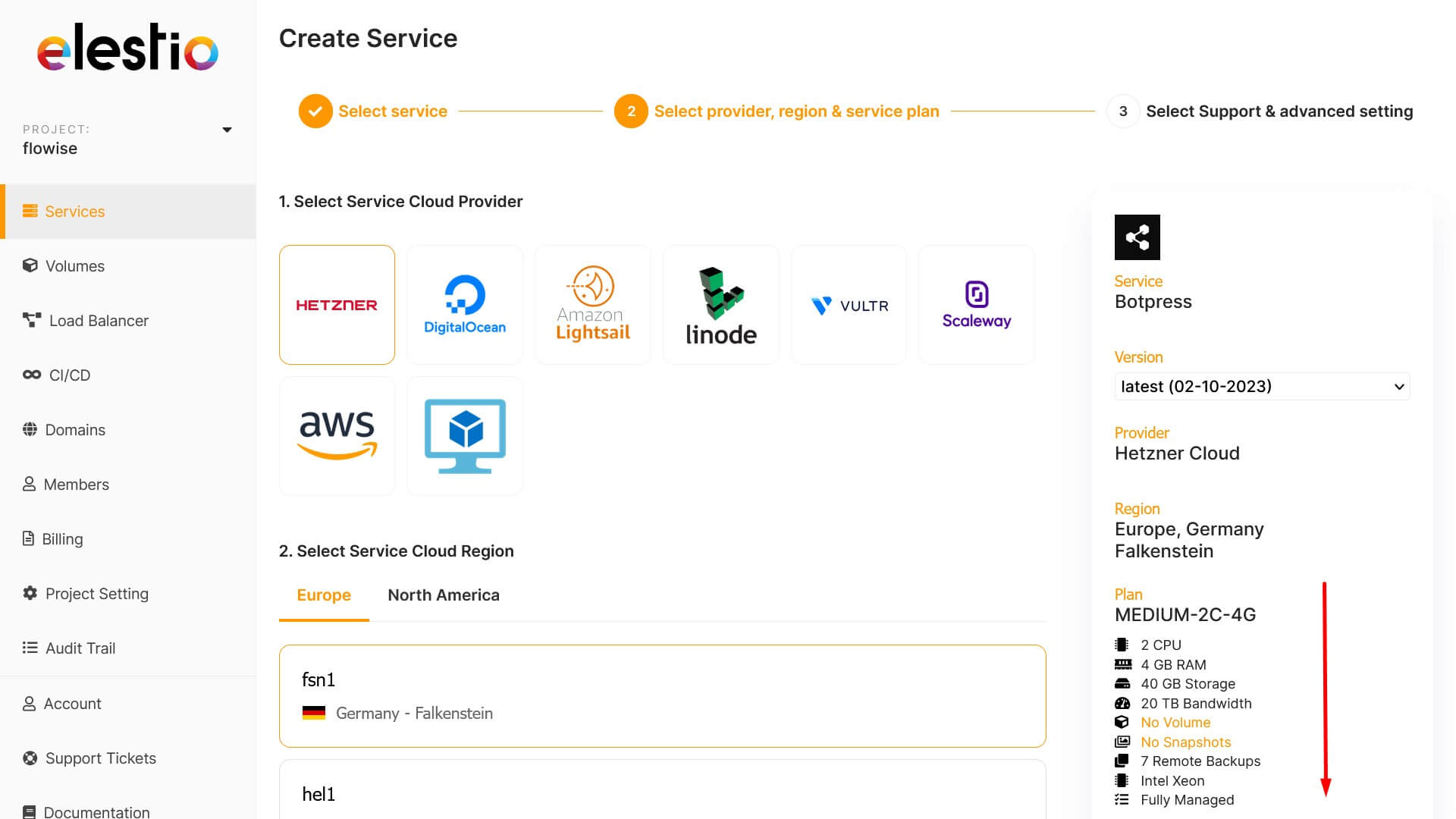
You can leave the default Hetzner and click the Next button at the bottom right.
<figure id="bkmrk--2" style="display:block;margin:0px;clear:both;color:rgb(255,255,255);font-family:Roboto, Helvetica, Arial, sans-serif;font-size:13px;font-style:normal;font-weight:400;letter-spacing:normal;text-indent:0px;text-transform:none;word-spacing:0px;white-space:normal;background-color:rgb(17,17,17);text-decoration-thickness:initial;text-decoration-style:initial;text-decoration-color:initial;">![embedded-image-y3mu5r0m.jpeg](https://bookstack-support-u7942.vm.elestio.app/uploads/images/gallery/2026-03/embedded-image-y3mu5r0m.jpeg)</figure>3\)

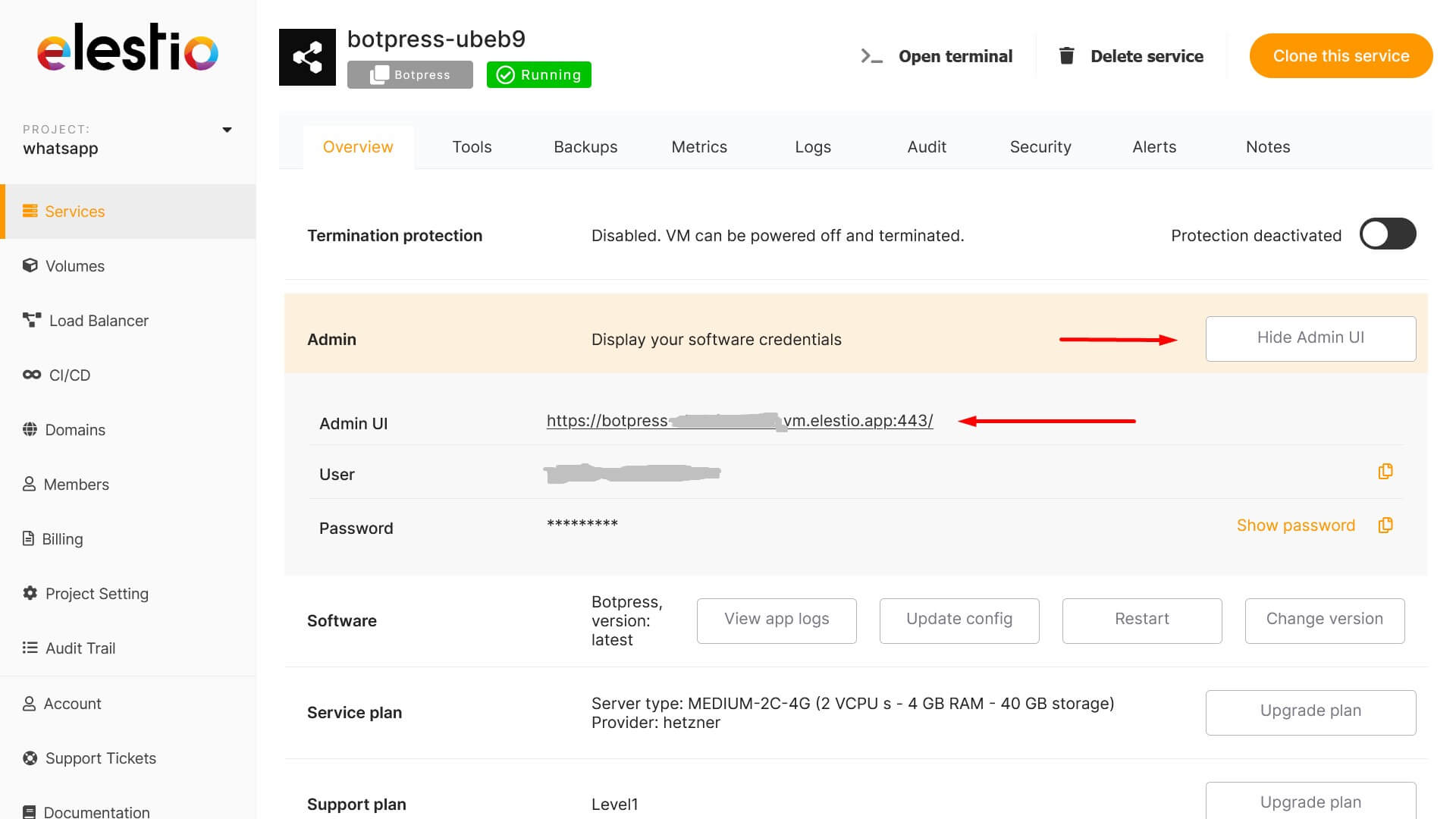
Go to the settings of the created botpress, click the "Display Admin UI" button and follow the link to log into your botpress.
<figure id="bkmrk--3" style="display:block;margin:0px;clear:both;color:rgb(255,255,255);font-family:Roboto, Helvetica, Arial, sans-serif;font-size:13px;font-style:normal;font-weight:400;letter-spacing:normal;text-indent:0px;text-transform:none;word-spacing:0px;white-space:normal;background-color:rgb(17,17,17);text-decoration-thickness:initial;text-decoration-style:initial;text-decoration-color:initial;">![embedded-image-hb4xrykc.jpeg](https://bookstack-support-u7942.vm.elestio.app/uploads/images/gallery/2026-03/embedded-image-hb4xrykc.jpeg)</figure>4\)

Create a bot in the new botpress and send a link to the bot in support [https://wa.me/](https://wa.me/74956686361)[421233221242](https://wa.me/421233221242?text=main)

  
example: [https://botpress-yyyyyyyy.vm.elestio.app/studio/yyyyyyyyy/flows/main](https://botpress-yyyyyyyy.vm.elestio.app/studio/yyyyyyyyy/flows/main)  
  
Support will connect your bot to your WhatsApp number on their side.

# WhatsApp for IBM Watson Assistant