# Templates
# Utility templates | Developer Documentation
## Utility templates
Updated: Nov 14, 2025
This document describes how to create and send utility templates.
Utility templates are typically sent in response to a user action or request, such as an order confirmation or update.
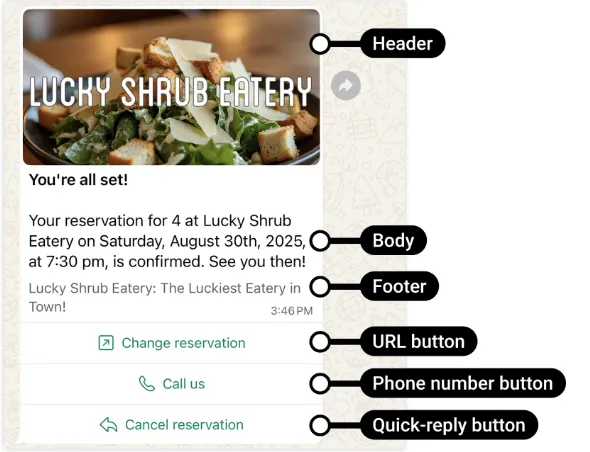
Utility templates have strict content requirements, particularly around marketing material. If you attempt to create or update a utility template with marketing material, the template will automatically be re-categorized as a marketing template.
See our [template categorization](/books/meta-whatsapp/page/template-categorization-developer-documentation) documentation for content guidelines.
Utility templates support the following components:
1 header (optional; all types supported)1 body1 footer (optional)Up to 10 buttons (optional). Supported types:
Call requestCopy codePhone numberQuick-replyURL## Best practices for authenticating users via WhatsApp
Updated: Nov 21, 2025
To register with WhatsApp, users must register using their phone number. During [this sign-up process](https://l.facebook.com/l.php?u=https%3A%2F%2Fwww.whatsapp.com%2Fcoronavirus%2Fget-started&h=AT55-EeSYSwivWosK_z5VgCWlKTSyZOwFmqLfQfR-jBoE3gd09YxOSNEQTgeVL3WcKW2Y6gadTB61yhkgHZ4Suw6u-S40QLMtQ2BDyGDYT1MP-R6xZ77-_YqRK7bbZumrovXPW4c6xLeiUj8A7vylw), WhatsApp verifies the user has ownership of this phone number by sending a 6-digit registration code via SMS or phone call.
For many WhatsApp users, their phone number will continue to be the same as the number they have registered with WhatsApp. However, WhatsApp does not enforce ownership of the phone number past initial registration, so there is no guarantee that a phone number and the WhatsApp account tied to that phone number are owned by the same individual. In particular, since phone numbers are recycled by mobile providers, it is possible that if your user currently owns the phone number and does not use WhatsApp, [the previous owner of that phone number still has access to the WhatsApp account tied to that phone number](https://l.facebook.com/l.php?u=https%3A%2F%2Ffaq.whatsapp.com%2F3347469605523961&h=AT55-EeSYSwivWosK_z5VgCWlKTSyZOwFmqLfQfR-jBoE3gd09YxOSNEQTgeVL3WcKW2Y6gadTB61yhkgHZ4Suw6u-S40QLMtQ2BDyGDYT1MP-R6xZ77-_YqRK7bbZumrovXPW4c6xLeiUj8A7vylw).
As such, for sensitive authentication use cases such as account recovery (where a code sent via WhatsApp may be the only authentication factor), a phone number and the WhatsApp account tied to that phone number should not be treated interchangeably. In these cases, some best practices may apply:
Explicitly verifying that your user owns the WhatsApp account as you would any other new authentication channel, by sending e.g. an initial OTP and having the user enter it in your app during registration or while they are logged in.Showing an additional challenge to verify the user, on top of the code sent via WhatsApp.With the first method, you can take advantage of our identity change check systems on [Cloud API](/books/meta-whatsapp/page/business-phone-numbers-developer-documentation) to “bind” the WhatsApp account to your user’s account, making sure that future messages only reach the WhatsApp user who received that initial OTP. For example, on Cloud API you should store the identity hash received after sending the initial OTP and (assuming the verification was successful) include it in all subsequent message send requests. This setup would improve security over SMS as message delivery would fail if the phone number is recycled and the new owner registers on WhatsApp (OTP codes will not be accidentally sent to an unintended recipient).
To combat phishing, WhatsApp disables [forwarding](https://l.facebook.com/l.php?u=https%3A%2F%2Ffaq.whatsapp.com%2F887468535575482%2F&h=AT55-EeSYSwivWosK_z5VgCWlKTSyZOwFmqLfQfR-jBoE3gd09YxOSNEQTgeVL3WcKW2Y6gadTB61yhkgHZ4Suw6u-S40QLMtQ2BDyGDYT1MP-R6xZ77-_YqRK7bbZumrovXPW4c6xLeiUj8A7vylw) of authentication messages. Messages travel end-to-end encrypted between [Cloud API and the user](/books/meta-whatsapp/page/data-privacy-security-developer-documentation).
WhatsApp does not support and cannot validate the security practices of [unofficial apps](https://l.facebook.com/l.php?u=https%3A%2F%2Ffaq.whatsapp.com%2F1217634902127718&h=AT55-EeSYSwivWosK_z5VgCWlKTSyZOwFmqLfQfR-jBoE3gd09YxOSNEQTgeVL3WcKW2Y6gadTB61yhkgHZ4Suw6u-S40QLMtQ2BDyGDYT1MP-R6xZ77-_YqRK7bbZumrovXPW4c6xLeiUj8A7vylw). There is no guarantee that authentication via WhatsApp is secure for users who use these apps.
Per the [WhatsApp Business Messaging Policy](https://l.facebook.com/l.php?u=https%3A%2F%2Fwww.whatsapp.com%2Flegal%2Fbusiness-policy%2F&h=AT55-EeSYSwivWosK_z5VgCWlKTSyZOwFmqLfQfR-jBoE3gd09YxOSNEQTgeVL3WcKW2Y6gadTB61yhkgHZ4Suw6u-S40QLMtQ2BDyGDYT1MP-R6xZ77-_YqRK7bbZumrovXPW4c6xLeiUj8A7vylw), you must get opt-in before send you can send a message to a WhatsApp user. A common implementation is to offer users a choice of authentication channels (WhatsApp, e-mail, SMS, etc.), as shown in [our sample application](/documentation/business-messaging/whatsapp/templates/authentication-templates/authentication-templates#sample-app).
#### Resolving message delivery issues
If you are seeing issues where users are selecting WhatsApp but messages end up being undeliverable, it is possible users are accidentally selecting WhatsApp when they in fact are not registered on WhatsApp. To mitigate this, on Android, you can check if WhatsApp is installed and only show WhatsApp in this case.
```
fun isWhatsAppAvailable(context:Context){return isAppAvailable(context,"com.whatsapp")||
isAppAvailable(context,"com.whatsapp.w4b")}
fun isAppAvailable(
context:Context,
packageName:String):Boolean{
val intent =Intent()
intent.setPackage(packageName)
intent.action ="com.whatsapp.otp.OTP_REQUESTED"
val packageManager = context.packageManager
val listActivities = packageManager.queryBroadcastReceivers(intent,0)return listActivities.isNotEmpty()}
```
If you are still seeing issues where users are selecting WhatsApp but messages end up being undeliverable, it is also possible that the WhatsApp phone number is not correct. This could be through a user typo error, or that an app is incorrectly assuming the initial registration phone number is the same as the WhatsApp phone number. Users may have a phone number used for SMS and a different phone number used for WhatsApp, in the case where they might have multiple SIM cards for traveling. You should ensure that if WhatsApp is chosen as the authentication channel that the user has a chance to confirm their WhatsApp phone number.
If messages are being delivered but you are seeing lower than expected conversion rates in your authentication flows, consider adopting [our more seamless “one-tap autofill” functionality](/documentation/business-messaging/whatsapp/templates/authentication-templates/authentication-templates#example-request--one-tap-autofill-), available for Android.
Your users may be ready to receive messages through WhatsApp or the WhatsApp Business App (or both). If following [our Android client implementation guide](/documentation/business-messaging/whatsapp/templates/authentication-templates/authentication-templates#client-implementation), your “one-tap autofill” messages should work with any combination of installs, but we recommend testing one-tap across both the consumer app and the business app.
#### Be ready to receive the code from WhatsApp
If integrating with “one-tap autofill” functionality, you should be able to handle the code arriving as soon as you have sent the [handshake](/documentation/business-messaging/whatsapp/templates/authentication-templates/authentication-templates#handshake). WhatsApp will send the code when received regardless of what screen is currently shown on your app. For example, in situations with poor network connectivity, you may receive the code before you are able to load the code entry screen in your app. To handle these cases, one option is to store the received code such that the app can retrieve it when the next screen is fully loaded. This way, the code can be automatically filled by your app as soon as the code is received.
### Business accounts and phone numbers
Every business must have its own WhatsApp Business Account and be sending authentication templates through its own phone number, as opposed to sharing WABAs and phone numbers with separate business entities. Sharing a WABA across multiple businesses is against policy as it conflicts with the [WhatsApp Business Terms of Service](https://l.facebook.com/l.php?u=https%3A%2F%2Fwww.whatsapp.com%2Flegal%2Fbusiness-terms&h=AT55-EeSYSwivWosK_z5VgCWlKTSyZOwFmqLfQfR-jBoE3gd09YxOSNEQTgeVL3WcKW2Y6gadTB61yhkgHZ4Suw6u-S40QLMtQ2BDyGDYT1MP-R6xZ77-_YqRK7bbZumrovXPW4c6xLeiUj8A7vylw) and [WhatsApp Business Messaging Policy](https://l.facebook.com/l.php?u=https%3A%2F%2Fwww.whatsapp.com%2Flegal%2Fbusiness-policy%2F&h=AT55-EeSYSwivWosK_z5VgCWlKTSyZOwFmqLfQfR-jBoE3gd09YxOSNEQTgeVL3WcKW2Y6gadTB61yhkgHZ4Suw6u-S40QLMtQ2BDyGDYT1MP-R6xZ77-_YqRK7bbZumrovXPW4c6xLeiUj8A7vylw), in addition to creating poor user and business experiences on WhatsApp.
### Checking if WhatsApp is installed on Android and iOS
You can check WhatsApp installation before offering WhatsApp as an option if you expect both WhatsApp and your app to be on the same device.
First, you need to add the following to your `AndroidManifest.xml` file:
```
<queries>
<packageandroid:name="com.whatsapp"/>
<packageandroid:name="com.whatsapp.w4b"/>
queries>
```
##### Using the SDK (Preferred)
Instantiate the `WhatsAppOtpHandler` object:
```
WhatsAppOtpHandler whatsAppOtpHandler =newWhatsAppOtpHandler();
```
Check if the WhatsApp client is installed by passing the `isWhatsAppInstalled` method as the clause in an `If` statement:
```
If(whatsAppOtpHandler.isWhatsAppInstalled(context)){// ... do something}
```
```
if(this.isWhatsAppInstalled(context)){// ... do something}publicboolean isWhatsAppInstalled(final@NonNullContext context){return isWhatsAppInstalled(context,"com.whatsapp")||
isWhatsAppInstalled(context,"com.whatsapp.w4b");}publicboolean isWhatsAppInstalled(final@NonNullContext context,final@NonNullString type){finalIntent intent =newIntent();
intent.setPackage(type);
intent.setAction("com.whatsapp.otp.OTP_REQUESTED");PackageManager packageManager = context.getPackageManager();List<ResolveInfo> receivers = packageManager.queryBroadcastReceivers(intent,0);return!receivers.isEmpty();}}
```
Use the following code in your iOS application to check if WhatsApp is installed
```
let schemeURL = URL(string:"whatsapp://otp")!let isWhatsAppInstalled =UIApplication.shared.canOpenURL(schemeURL)
```
## Best practices for authenticating users via WhatsApp
Updated: Nov 21, 2025
To register with WhatsApp, users must register using their phone number. During [this sign-up process](https://l.facebook.com/l.php?u=https%3A%2F%2Fwww.whatsapp.com%2Fcoronavirus%2Fget-started&h=AT55-EeSYSwivWosK_z5VgCWlKTSyZOwFmqLfQfR-jBoE3gd09YxOSNEQTgeVL3WcKW2Y6gadTB61yhkgHZ4Suw6u-S40QLMtQ2BDyGDYT1MP-R6xZ77-_YqRK7bbZumrovXPW4c6xLeiUj8A7vylw), WhatsApp verifies the user has ownership of this phone number by sending a 6-digit registration code via SMS or phone call.
For many WhatsApp users, their phone number will continue to be the same as the number they have registered with WhatsApp. However, WhatsApp does not enforce ownership of the phone number past initial registration, so there is no guarantee that a phone number and the WhatsApp account tied to that phone number are owned by the same individual. In particular, since phone numbers are recycled by mobile providers, it is possible that if your user currently owns the phone number and does not use WhatsApp, [the previous owner of that phone number still has access to the WhatsApp account tied to that phone number](https://l.facebook.com/l.php?u=https%3A%2F%2Ffaq.whatsapp.com%2F3347469605523961&h=AT55-EeSYSwivWosK_z5VgCWlKTSyZOwFmqLfQfR-jBoE3gd09YxOSNEQTgeVL3WcKW2Y6gadTB61yhkgHZ4Suw6u-S40QLMtQ2BDyGDYT1MP-R6xZ77-_YqRK7bbZumrovXPW4c6xLeiUj8A7vylw).
As such, for sensitive authentication use cases such as account recovery (where a code sent via WhatsApp may be the only authentication factor), a phone number and the WhatsApp account tied to that phone number should not be treated interchangeably. In these cases, some best practices may apply:
Explicitly verifying that your user owns the WhatsApp account as you would any other new authentication channel, by sending e.g. an initial OTP and having the user enter it in your app during registration or while they are logged in.Showing an additional challenge to verify the user, on top of the code sent via WhatsApp.With the first method, you can take advantage of our identity change check systems on [Cloud API](/books/meta-whatsapp/page/business-phone-numbers-developer-documentation) to “bind” the WhatsApp account to your user’s account, making sure that future messages only reach the WhatsApp user who received that initial OTP. For example, on Cloud API you should store the identity hash received after sending the initial OTP and (assuming the verification was successful) include it in all subsequent message send requests. This setup would improve security over SMS as message delivery would fail if the phone number is recycled and the new owner registers on WhatsApp (OTP codes will not be accidentally sent to an unintended recipient).
To combat phishing, WhatsApp disables [forwarding](https://l.facebook.com/l.php?u=https%3A%2F%2Ffaq.whatsapp.com%2F887468535575482%2F&h=AT55-EeSYSwivWosK_z5VgCWlKTSyZOwFmqLfQfR-jBoE3gd09YxOSNEQTgeVL3WcKW2Y6gadTB61yhkgHZ4Suw6u-S40QLMtQ2BDyGDYT1MP-R6xZ77-_YqRK7bbZumrovXPW4c6xLeiUj8A7vylw) of authentication messages. Messages travel end-to-end encrypted between [Cloud API and the user](/books/meta-whatsapp/page/data-privacy-security-developer-documentation).
WhatsApp does not support and cannot validate the security practices of [unofficial apps](https://l.facebook.com/l.php?u=https%3A%2F%2Ffaq.whatsapp.com%2F1217634902127718&h=AT55-EeSYSwivWosK_z5VgCWlKTSyZOwFmqLfQfR-jBoE3gd09YxOSNEQTgeVL3WcKW2Y6gadTB61yhkgHZ4Suw6u-S40QLMtQ2BDyGDYT1MP-R6xZ77-_YqRK7bbZumrovXPW4c6xLeiUj8A7vylw). There is no guarantee that authentication via WhatsApp is secure for users who use these apps.
Per the [WhatsApp Business Messaging Policy](https://l.facebook.com/l.php?u=https%3A%2F%2Fwww.whatsapp.com%2Flegal%2Fbusiness-policy%2F&h=AT55-EeSYSwivWosK_z5VgCWlKTSyZOwFmqLfQfR-jBoE3gd09YxOSNEQTgeVL3WcKW2Y6gadTB61yhkgHZ4Suw6u-S40QLMtQ2BDyGDYT1MP-R6xZ77-_YqRK7bbZumrovXPW4c6xLeiUj8A7vylw), you must get opt-in before send you can send a message to a WhatsApp user. A common implementation is to offer users a choice of authentication channels (WhatsApp, e-mail, SMS, etc.), as shown in [our sample application](/documentation/business-messaging/whatsapp/templates/authentication-templates/authentication-templates#sample-app).
#### Resolving message delivery issues
If you are seeing issues where users are selecting WhatsApp but messages end up being undeliverable, it is possible users are accidentally selecting WhatsApp when they in fact are not registered on WhatsApp. To mitigate this, on Android, you can check if WhatsApp is installed and only show WhatsApp in this case.
```
fun isWhatsAppAvailable(context:Context){return isAppAvailable(context,"com.whatsapp")||
isAppAvailable(context,"com.whatsapp.w4b")}
fun isAppAvailable(
context:Context,
packageName:String):Boolean{
val intent =Intent()
intent.setPackage(packageName)
intent.action ="com.whatsapp.otp.OTP_REQUESTED"
val packageManager = context.packageManager
val listActivities = packageManager.queryBroadcastReceivers(intent,0)return listActivities.isNotEmpty()}
```
If you are still seeing issues where users are selecting WhatsApp but messages end up being undeliverable, it is also possible that the WhatsApp phone number is not correct. This could be through a user typo error, or that an app is incorrectly assuming the initial registration phone number is the same as the WhatsApp phone number. Users may have a phone number used for SMS and a different phone number used for WhatsApp, in the case where they might have multiple SIM cards for traveling. You should ensure that if WhatsApp is chosen as the authentication channel that the user has a chance to confirm their WhatsApp phone number.
If messages are being delivered but you are seeing lower than expected conversion rates in your authentication flows, consider adopting [our more seamless “one-tap autofill” functionality](/documentation/business-messaging/whatsapp/templates/authentication-templates/authentication-templates#example-request--one-tap-autofill-), available for Android.
Your users may be ready to receive messages through WhatsApp or the WhatsApp Business App (or both). If following [our Android client implementation guide](/documentation/business-messaging/whatsapp/templates/authentication-templates/authentication-templates#client-implementation), your “one-tap autofill” messages should work with any combination of installs, but we recommend testing one-tap across both the consumer app and the business app.
#### Be ready to receive the code from WhatsApp
If integrating with “one-tap autofill” functionality, you should be able to handle the code arriving as soon as you have sent the [handshake](/documentation/business-messaging/whatsapp/templates/authentication-templates/authentication-templates#handshake). WhatsApp will send the code when received regardless of what screen is currently shown on your app. For example, in situations with poor network connectivity, you may receive the code before you are able to load the code entry screen in your app. To handle these cases, one option is to store the received code such that the app can retrieve it when the next screen is fully loaded. This way, the code can be automatically filled by your app as soon as the code is received.
### Business accounts and phone numbers
Every business must have its own WhatsApp Business Account and be sending authentication templates through its own phone number, as opposed to sharing WABAs and phone numbers with separate business entities. Sharing a WABA across multiple businesses is against policy as it conflicts with the [WhatsApp Business Terms of Service](https://l.facebook.com/l.php?u=https%3A%2F%2Fwww.whatsapp.com%2Flegal%2Fbusiness-terms&h=AT55-EeSYSwivWosK_z5VgCWlKTSyZOwFmqLfQfR-jBoE3gd09YxOSNEQTgeVL3WcKW2Y6gadTB61yhkgHZ4Suw6u-S40QLMtQ2BDyGDYT1MP-R6xZ77-_YqRK7bbZumrovXPW4c6xLeiUj8A7vylw) and [WhatsApp Business Messaging Policy](https://l.facebook.com/l.php?u=https%3A%2F%2Fwww.whatsapp.com%2Flegal%2Fbusiness-policy%2F&h=AT55-EeSYSwivWosK_z5VgCWlKTSyZOwFmqLfQfR-jBoE3gd09YxOSNEQTgeVL3WcKW2Y6gadTB61yhkgHZ4Suw6u-S40QLMtQ2BDyGDYT1MP-R6xZ77-_YqRK7bbZumrovXPW4c6xLeiUj8A7vylw), in addition to creating poor user and business experiences on WhatsApp.
### Checking if WhatsApp is installed on Android and iOS
You can check WhatsApp installation before offering WhatsApp as an option if you expect both WhatsApp and your app to be on the same device.
First, you need to add the following to your `AndroidManifest.xml` file:
```
<queries>
<packageandroid:name="com.whatsapp"/>
<packageandroid:name="com.whatsapp.w4b"/>
queries>
```
##### Using the SDK (Preferred)
Instantiate the `WhatsAppOtpHandler` object:
```
WhatsAppOtpHandler whatsAppOtpHandler =newWhatsAppOtpHandler();
```
Check if the WhatsApp client is installed by passing the `isWhatsAppInstalled` method as the clause in an `If` statement:
```
If(whatsAppOtpHandler.isWhatsAppInstalled(context)){// ... do something}
```
```
if(this.isWhatsAppInstalled(context)){// ... do something}publicboolean isWhatsAppInstalled(final@NonNullContext context){return isWhatsAppInstalled(context,"com.whatsapp")||
isWhatsAppInstalled(context,"com.whatsapp.w4b");}publicboolean isWhatsAppInstalled(final@NonNullContext context,final@NonNullString type){finalIntent intent =newIntent();
intent.setPackage(type);
intent.setAction("com.whatsapp.otp.OTP_REQUESTED");PackageManager packageManager = context.getPackageManager();List<ResolveInfo> receivers = packageManager.queryBroadcastReceivers(intent,0);return!receivers.isEmpty();}}
```
Use the following code in your iOS application to check if WhatsApp is installed
```
let schemeURL = URL(string:"whatsapp://otp")!let isWhatsAppInstalled =UIApplication.shared.canOpenURL(schemeURL)
```
## One-tap autofill authentication templates
Updated: Feb 6, 2026
**Upcoming deprecation:** Starting **April 15, 2026**, the `PendingIntent`-based handshake method for authentication templates will be deprecated. If you are currently using `PendingIntent` to initiate handshakes or verify app identity, the [OTP Android SDK](/books/meta-whatsapp/page/zero-tap-authentication-templates-developer-documentation) is the preferred way to migrate.
One-tap autofill authentication templates allow you to send a one-time password or code along with an one-tap autofill button to your users. When a WhatsApp user taps the autofill button, the WhatsApp client triggers an activity which opens your app and delivers it the password or code.
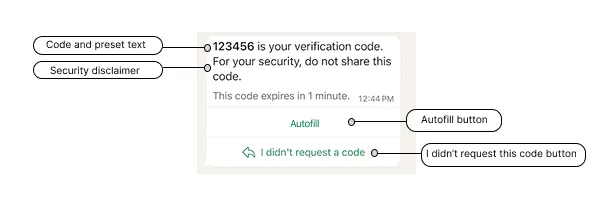
One-tap autofill button authentication templates consist of:
Preset text: *<VERIFICATION\_CODE> is your verification code.*An optional security disclaimer: *For your security, do not share this code.*An optional expiration warning (optional): *This code expires in <NUM\_MINUTES> minutes.*A one-tap autofill button.**Note**: The OTP Android SDK features a simplified workflow for implementing one-tap and zero-tap authentication templates. You can learn how to use it below.
One-tap autofill buttons are only supported on Android. If you send an authentication template to a WhatsApp user who is using a non-Android device, the WhatsApp client will display a copy code button instead.
URLs, media, and emojis are not supported.
You must include your app signing key hash in your post body.
To calculate your hash, follow Google’s instructions for [computing your app’s hash string](https://l.facebook.com/l.php?u=https%3A%2F%2Fdevelopers.google.com%2Fidentity%2Fsms-retriever%2Fverify%23computing_your_apps_hash_string&h=AT6nbQ7OdYH3kxxs9CPLkbMFkYJdmIlnOVCV5-cSWm9YOPWX3wj8IaCbUQZ3PCvPJL58yRVUoc31Rq8zLrppd4YbzVcqH55nVkPlZx-pER5EHim51KZ9h-yFe3NvmGzhr8kOekdIiMptgwbNBo1BKw).
Alternatively, if you follow Google’s instructions and download your app signing key certificate (step 1), you can use your certificate with the [sms\_retriever\_hash\_v9.sh](https://l.facebook.com/l.php?u=http%3A%2F%2Ftinyurl.com%2F43bkdrdt&h=AT6nbQ7OdYH3kxxs9CPLkbMFkYJdmIlnOVCV5-cSWm9YOPWX3wj8IaCbUQZ3PCvPJL58yRVUoc31Rq8zLrppd4YbzVcqH55nVkPlZx-pER5EHim51KZ9h-yFe3NvmGzhr8kOekdIiMptgwbNBo1BKw) shell script to compute the hash. For example:
```
./sms_retriever_hash_v9.sh --package "com.example.myapplication" --keystore ~/.android/debug.keystore
```
The `supported_apps` array allows you define pairs of app package names and signing key hashes for up to 5 apps. This can be useful if you have different app builds and want each of them to be able to initiate the handshake:
Alternatively, if you are using Graph API version 20.0 or older and have only a single app, you can define the app’s package name and signing key hash as `buttons` object properties, but this is not recommended as we will stop supporting this method starting with version 21.0:
You must signal to the WhatsApp client to expect imminent delivery of a password or code. You can do this by initiating a “handshake”.
A handshake is an Android intent and public class that you implement but that the WhatsApp client can start.
When a user in your app requests a one-time password or verification code and chooses for it to be delivered to their WhatsApp number, first perform the handshake, then call our API to send the authentication template message. When the WhatsApp client receives the message, it will perform an eligibility check, and if there are no errors, start the intent and display the message to the user. Finally, when the user taps the message’s one-tap autofill button, we automatically load your app and pass it the password or code.
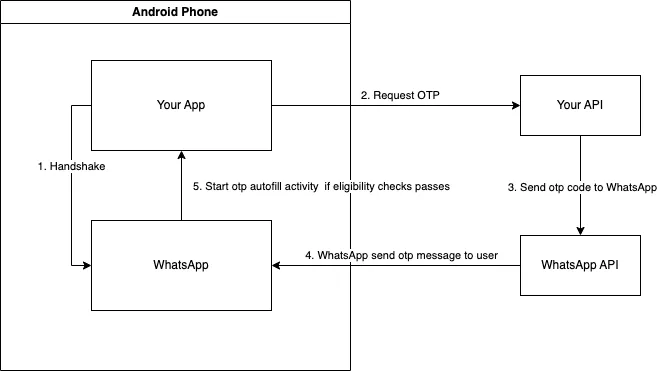
If you do not perform a handshake before sending the message, or the message fails an eligibility check, the delivered message will display a copy code button instead of a one-tap button.
The WhatsApp client performs the following checks when it receives an authentication template message. If any check fails, the one-tap autofill button will be replaced with a copy code button.
The handshake was initiated no more than 10 minutes ago (or no more than the number of minutes indicated by the template’s `code_expiration_minutes` property, if present).The package name in the message (defined in the `package_name` property in the `components` array upon template creation) matches the package name set on the intent. The match is determined through the `getCreatorPackage` method called in the `PendingIntent` object provided by your application.None of the other apps that you included in the template’s list of `supported_apps` initiated a handshake in the last 10 minutes (or the number of minutes indicated by the template’s `code_expiration_minutes` property, if present).The app signing key hash in the message (defined in the `signature_hash` property in the components array upon template creation) matches your installed app’s signing key hash.The message includes the one-tap autofill button text.Your app has defined an activity to receive the password or code.#### Android notifications
Android notifications indicating receipt of a WhatsApp authentication template message will only appear on the user’s Android device if:
The user is logged into the WhatsApp app or WhatsApp Business app with the phone number (account) that the message was sent to.The user is logged into your app.Android OS is KitKat (4.4, API 19) or above.**Show notifications** is enabled (**Settings** > **Notifications**) in the WhatsApp app or WhatsApp Business app.Device level notification is enabled for the WhatsApp app or WhatsApp Business app.Prior message threads in the WhatsApp app or WhatsApp Business app between the user and your business are not muted.The OTP Android SDK can be used to perform handshakes, as well as other functions in both one-tap and zero-tap authentication templates.
To access SDK functionality, add the following configuration to your Gradle file:
```
dependencies {…
implementation 'com.whatsapp.otp:whatsapp-otp-android-sdk:1.0.0'…}
```
To your repositories, add `mavenCentral()`:
```
repositories {…
mavenCentral()…}
```
Declare an activity and intent filter that can receive the one-time password or code. The intent filter must have the action name `com.whatsapp.otp.OTP_RETRIEVED`.
```
android:name=".ReceiveCodeActivity"android:enabled="true"android:exported="true"android:launchMode="standard">android:name="com.whatsapp.otp.OTP_RETRIEVED"/>
```
This is the activity that the WhatsApp app or WhatsApp Business app will start once the authentication template message is received and it passes all [eligibility checks](#bkmrk-eligibility-check-1).
##### Using the SDK (Preferred)
Define the activity public class and instantiate a `WhatsAppOtpIncomingIntentHandler` object to handle the intent. The `.processOtpCode()` method validates the handshake ID against the expected value you stored during handshake initiation and handles errors.
```
publicclassReceiveCodeActivityextendsAppCompatActivity{@Overrideprotectedvoid onCreate(Bundle savedInstanceState){super.onCreate(savedInstanceState);WhatsAppOtpIncomingIntentHandler incomingIntentHandler =newWhatsAppOtpIncomingIntentHandler();// Retrieve the expected handshake ID that was stored during handshake initiationString expectedHandshakeId = retrieveStoredHandshakeId();
incomingIntentHandler.processOtpCode(
getIntent(),
expectedHandshakeId,(code)->{// The handshake ID has been validated by the SDK
validateCode(code);},// call your function to handle errors(error, exception)-> handleError(error, exception));}
```
Define the activity public class that can accept the code once it has been passed to your app. The activity should validate the `request_id` (handshake ID) to ensure the OTP code is coming from a legitimate handshake initiated by your app.
```
publicclassReceiveCodeActivityextendsAppCompatActivity{@Overrideprotectedvoid onCreate(Bundle savedInstanceState){super.onCreate(savedInstanceState);Intent intent = getIntent();// Extract the handshake ID from the intentString incomingRequestId = intent.getStringExtra("request_id");// Retrieve the previously stored handshake IDString storedRequestId = retrieveStoredRequestId();// Validate the handshake ID matchesif(storedRequestId !=null&& storedRequestId.equals(incomingRequestId)){// use OTP codeString otpCode = intent.getStringExtra("code");// ...}}}
```
#### Initiating the handshake
##### Using the SDK (Preferred)
Performing a handshake can be done by instantiating the `WhatsAppOtpHandler` object and passing in your context to the `.sendOtpIntentToWhatsApp()` method. The method returns a UUID (handshake ID) that must be stored and used to validate the incoming OTP code later:
```
WhatsAppOtpHandler whatsAppOtpHandler =newWhatsAppOtpHandler();
UUID handshakeId = whatsAppOtpHandler.sendOtpIntentToWhatsApp(context);// Store handshakeId to validate the received OTP code later
```
This example demonstrates one way to initiate a handshake with the WhatsApp client. The handshake includes a `request_id` (UUID) that must be stored and validated when receiving the OTP code.
```
privateString currentRequestId;publicvoid sendOtpIntentToWhatsApp(){// Generate a unique handshake ID
currentRequestId = UUID.randomUUID().toString();// Store this ID for later validation when receiving the OTP
storeRequestId(currentRequestId);// Send OTP_REQUESTED intent to both WA and WA Business App
sendOtpIntentToWhatsApp("com.whatsapp", currentRequestId);
sendOtpIntentToWhatsApp("com.whatsapp.w4b", currentRequestId);}privatevoid sendOtpIntentToWhatsApp(String packageName,String requestId){/**
* Starting with Build.VERSION_CODES.S, it will be required to explicitly
* specify the mutability of PendingIntents on creation with either
* (@link #FLAG_IMMUTABLE} or FLAG_MUTABLE
*/int flags =Build.VERSION.SDK_INT >=Build.VERSION_CODES.S ? FLAG_IMMUTABLE :0;PendingIntent pi =PendingIntent.getActivity(
getApplicationContext(),0,newIntent(),
flags);// Send OTP_REQUESTED intent to WhatsAppIntent intentToWhatsApp =newIntent();
intentToWhatsApp.setPackage(packageName);
intentToWhatsApp.setAction("com.whatsapp.otp.OTP_REQUESTED");// WA will use this to verify the identity of the caller app.Bundle extras = intentToWhatsApp.getExtras();if(extras ==null){
extras =newBundle();}
extras.putParcelable("_ci_", pi);// Add the handshake ID for secure validation
intentToWhatsApp.putExtra("request_id", requestId);
intentToWhatsApp.putExtras(extras);
getApplicationContext().sendBroadcast(intentToWhatsApp);}
```
#### Checking if WhatsApp is installed on Android
You can check WhatsApp installation before offering WhatsApp as an option if you expect both WhatsApp and your app to be on the same device.
First, you need to add the following to your `AndroidManifest.xml` file:
```
<queries>
<packageandroid:name="com.whatsapp"/>
<packageandroid:name="com.whatsapp.w4b"/>
queries>
```
##### Using the SDK (Preferred)
Instantiate the `WhatsAppOtpHandler` object:
```
WhatsAppOtpHandler whatsAppOtpHandler =newWhatsAppOtpHandler();
```
Check if the WhatsApp client is installed by passing the `isWhatsAppInstalled` method as the clause in an `If` statement:
```
If(whatsAppOtpHandler.isWhatsAppInstalled(context)){// ... do something}
```
```
if(this.isWhatsAppInstalled(context)){// ... do something}publicboolean isWhatsAppInstalled(final@NonNullContext context){return isWhatsAppInstalled(context,"com.whatsapp")||
isWhatsAppInstalled(context,"com.whatsapp.w4b");}publicboolean isWhatsAppInstalled(final@NonNullContext context,final@NonNullString type){finalIntent intent =newIntent();
intent.setPackage(type);
intent.setAction("com.whatsapp.otp.OTP_REQUESTED");PackageManager packageManager = context.getPackageManager();List<ResolveInfo> receivers = packageManager.queryBroadcastReceivers(intent,0);return!receivers.isEmpty();}}
```
#### Checking if WhatsApp is installed on iOS
Use the following code in your iOS application to check if WhatsApp is installed
```
let schemeURL = URL(string:"whatsapp://otp")!let isWhatsAppInstalled =UIApplication.shared.canOpenURL(schemeURL)
```
See [Error Signals](/books/meta-whatsapp/page/error-signals-developer-documentation) that can help with debugging.
#### Handshake ID error codes
The following error codes may be returned when using the SDK with handshake ID validation:
| Error Code | Description |
|---|
`HANDSHAKE_ID_MISSING` | The handshake ID was not included in the intent from WhatsApp |
`HANDSHAKE_ID_INVALID_FORMAT` | The handshake ID is not a valid UUID format |
`HANDSHAKE_ID_MISMATCH` | The handshake ID in the intent does not match the expected value |
See our [WhatsApp One-Time Password (OTP) Sample App](https://l.facebook.com/l.php?u=https%3A%2F%2Fgithub.com%2FWhatsApp%2FWhatsApp-OTP-Sample-App&h=AT6nbQ7OdYH3kxxs9CPLkbMFkYJdmIlnOVCV5-cSWm9YOPWX3wj8IaCbUQZ3PCvPJL58yRVUoc31Rq8zLrppd4YbzVcqH55nVkPlZx-pER5EHim51KZ9h-yFe3NvmGzhr8kOekdIiMptgwbNBo1BKw) for Android on Github. The sample app demonstrates how to send and receive OTP passwords and codes via the API, how to integrate the one-tap autofill and copy code buttons, how to create a template, and how to spin up a sample server.
## Zero-tap authentication templates
Updated: Feb 6, 2026
**Upcoming deprecation:** Starting **April 15, 2026**, the `PendingIntent`-based handshake method for authentication templates will be deprecated. If you are currently using `PendingIntent` to initiate handshakes or verify app identity, the [OTP Android SDK](#bkmrk-using-the-sdk-1) is the preferred way to migrate.
Zero-tap authentication templates allow your users to receive one-time passwords or codes via WhatsApp without having to leave your app.
When a user in your app requests a password or code and you deliver it using a zero-tap authentication template, the WhatsApp client simply broadcasts the included password or code and your app can capture it immediately with a broadcast receiver.
From your user’s perspective, they request a password or code in your app and it appears in your app automatically. If your app user happens to check the message in the WhatsApp client, they will only see a message displaying the default fixed text: *< code > is your verification code.*
Like one-tap autofill button authentication templates, when the WhatsApp client receives the template message containing the user’s password or code, we perform a series of eligibility checks. If the message fails this check and we are unable to broadcast the password or code, the message will display either a one-tap autofill button or a copy code button. For this reason, when you create a zero-tap authentication template, you must include a one-tap autofill and copy code button in your post body payload, even if the user may never see one of these buttons.
Note: The OTP Android SDK features a simplified workflow for implementing one-tap and zero-tap authentication templates. You can learn how to use it below.
Zero-tap is only supported on Android. If you send a zero-tap authentication template to a WhatsApp user who is using a non-Android device, the WhatsApp client will display a copy code button instead.
URLs, media, and emojis are not supported.
Do not make WhatsApp your default password/code delivery method.Make it clear to your app users that the password or code will be automatically delivered to your app when they select WhatsApp for delivery.Link to our [About security codes that automatically fill on WhatsApp](https://l.facebook.com/l.php?u=https%3A%2F%2Ffaq.whatsapp.com%2F659113242716268%2F&h=AT5j1FrEeNSjq0mXa563rUdInE9KHgB4gowwaET01HBHIkml1nDJx8j3jsUV07i-M18d5jOfrt7mlzKasP55IAVweALZONR41zO8SzHIjeg9Dx3ZVC7mcYKmNfiMinoriuN64XxSSMnfEbYLYbM9UA) help center article if your users are worried about auto-delivery of the password or code.After the password/code is used in your app, make it clear to your app user that it was received successfully.Here are some examples that make it clear to an app user that their code will automatically appear in the app. 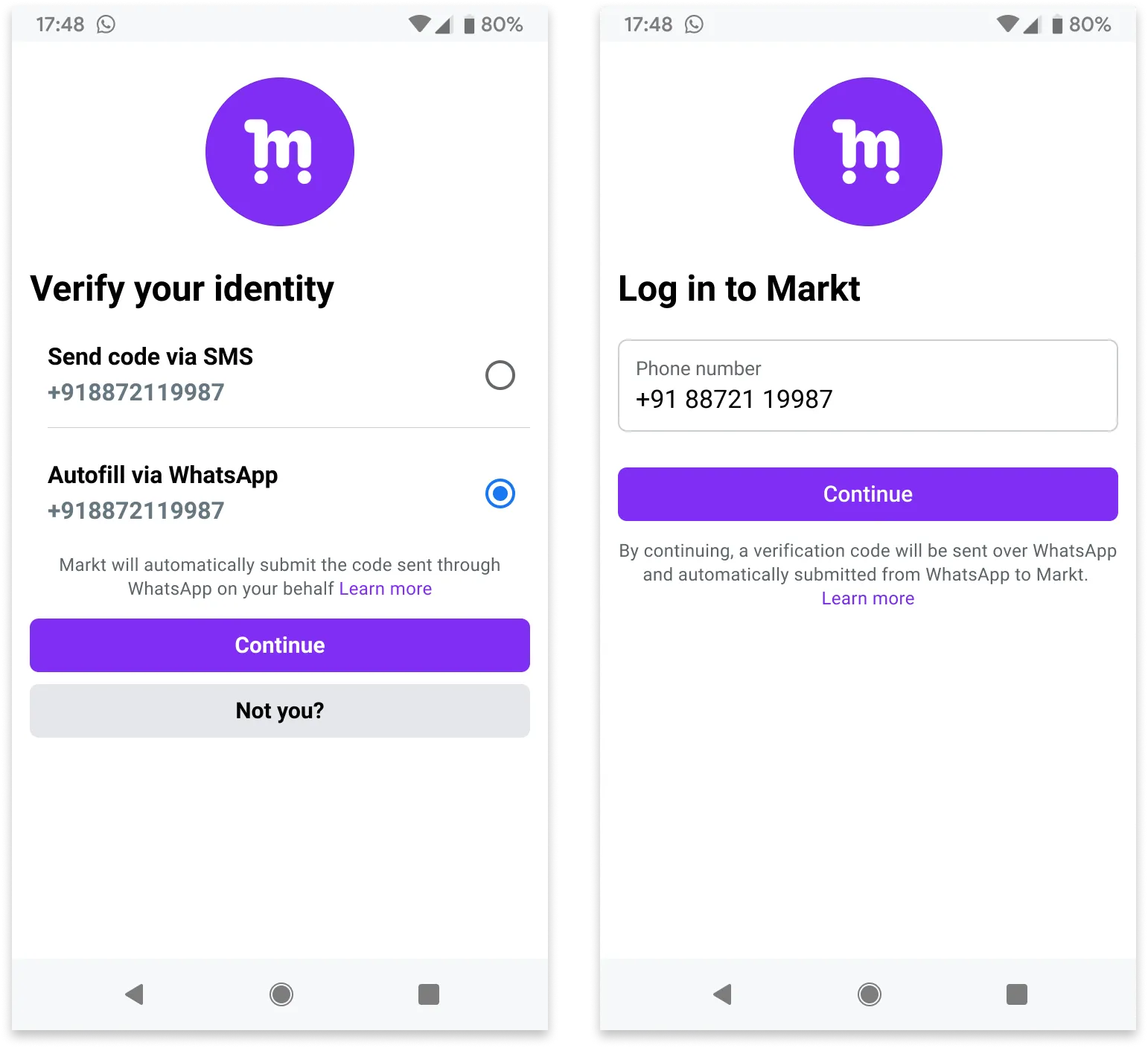
You must include your app signing key hash in your post body.
To calculate your hash, follow Google’s instructions for [computing your app’s hash string](https://l.facebook.com/l.php?u=https%3A%2F%2Fdevelopers.google.com%2Fidentity%2Fsms-retriever%2Fverify%23computing_your_apps_hash_string&h=AT5j1FrEeNSjq0mXa563rUdInE9KHgB4gowwaET01HBHIkml1nDJx8j3jsUV07i-M18d5jOfrt7mlzKasP55IAVweALZONR41zO8SzHIjeg9Dx3ZVC7mcYKmNfiMinoriuN64XxSSMnfEbYLYbM9UA).
Alternatively, if you follow Google’s instructions and download your app signing key certificate (step 1), you can use your certificate with the [sms\_retriever\_hash\_v9.sh](https://l.facebook.com/l.php?u=http%3A%2F%2Ftinyurl.com%2F43bkdrdt&h=AT5j1FrEeNSjq0mXa563rUdInE9KHgB4gowwaET01HBHIkml1nDJx8j3jsUV07i-M18d5jOfrt7mlzKasP55IAVweALZONR41zO8SzHIjeg9Dx3ZVC7mcYKmNfiMinoriuN64XxSSMnfEbYLYbM9UA) shell script to compute the hash. For example:
```
./sms_retriever_hash_v9.sh --package "com.example.myapplication" --keystore ~/.android/debug.keystore
```
The `supported_apps` array allows you define pairs of app package names and signing key hashes for up to 5 apps. This can be useful if you have different app builds and want each of them to be able to initiate the handshake:
Alternatively, if you are using Graph API version 20.0 or older and have only a single app, you can define the app’s package name and signing key hash as `buttons` object properties, but this is not recommended as we will stop supporting this method starting with version 21.0:
See [Error Signals](/books/meta-whatsapp/page/error-signals-developer-documentation) that can help with debugging.
#### Handshake ID Error Codes
The following error codes may be returned when using the SDK with handshake ID validation:
| Error Code | Description |
|---|
`HANDSHAKE_ID_MISSING` | The handshake ID was not included in the intent from WhatsApp |
`HANDSHAKE_ID_INVALID_FORMAT` | The handshake ID is not a valid UUID format |
`HANDSHAKE_ID_MISMATCH` | The handshake ID in the intent does not match the expected value |
## Copy code authentication templates
Updated: Nov 4, 2025
Copy code authentication templates allow you to send a one-time password or code along with a copy code button to your users. When a WhatsApp user taps the copy code button, the WhatsApp client copies the password or code to the device’s clipboard. The user can then switch to your app and paste the password or code into your app.
Note: The “I didn’t request a code” button is currently in beta and is being rolled out incrementally to business customers.
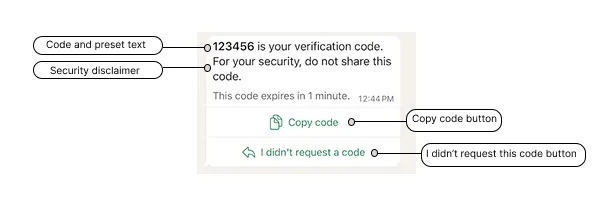
Copy code button authentication templates consist of:
Preset text: *<VERIFICATION\_CODE> is your verification code.*An optional security disclaimer: *For your security, do not share this code.*An optional expiration warning (optional): *This code expires in <NUM\_MINUTES> minutes.*A copy code button.URLs, media, and emojis are not supported.
See our [WhatsApp One-Time Password (OTP) Sample App](https://l.facebook.com/l.php?u=https%3A%2F%2Fgithub.com%2FWhatsApp%2FWhatsApp-OTP-Sample-App&h=AT54maGhOmvXT06pYtOeAI4XmtpMYoJVoRKv_HTjomnN37neIDwjhNpTUuLYV_p9KfVytI0PeUl3t8fV7oeiSSTKh3MPxZyHosbTiHoPcR8tyP_vppb9IIcgGCyCzgCo3VGpzlG6mPJiu6wKIG_iPQ) for Android on Github. The sample app demonstrates how to send and receive OTP passwords and codes via the API, how to integrate the one-tap autofill and copy code buttons, how to create a template, and how to spin up a sample server.
## Error Signals
Updated: Feb 6, 2026
**Upcoming deprecation:** Starting **April 15, 2026**, the `PendingIntent`-based handshake method for authentication templates will be deprecated. If you are currently using `PendingIntent` to initiate handshakes or verify app identity, the [OTP Android SDK](/books/meta-whatsapp/page/zero-tap-authentication-templates-developer-documentation) is the preferred way to migrate.
The OTP Android SDK features a simplified workflow for implementing one-tap and zero-tap authentication templates. You can learn how to use it below.
This document describes Android-only error signals that can help you debug [one-tap autofill authentication templates](/books/meta-whatsapp/page/one-tap-autofill-authentication-templates-developer-documentation) and [zero-tap authentication templates](/books/meta-whatsapp/page/zero-tap-authentication-templates-developer-documentation).
If your message fails the eligibility check, the one-tap autofill button will be replaced with a copy code button. In addition, there may be device or WhatsApp client settings that prevent message notifications. To help with debugging, our apps surface some error information via the `com.whatsapp.OTP_ERROR` intent. In these situations you will receive an error key and message instead of the user’s one-time passwords or verification code.
Note that some of these error signals will only surface if you are running WhatsApp in the Android emulator.
| Key | Description |
|---|
`ambiguous_delivery_destination` *Emulator only* | **Ambiguous delivery destination** There are multiple active OTP requests for the packages specified by this template, and we could not determine which package to deliver the code to. This can happen when multiple applications specified in the template’s `supported_apps` array have initiated the handshake (sent the `com.whatsapp.otp.OTP_REQUESTED` intent) within the past 10 minutes. |
`incompatible_os_version` | **Incompatible Android version**
This can happen when you initiate the handshake (send the `com.whatsapp.otp.OTP_REQUESTED` intent) but the device is running a version of Android older than v19. |
`incorrect_signature_hash` *Emulator only* | **Incorrect signature hash**
This can happen when you initiate the handshake (send the `com.whatsapp.otp.OTP_REQUESTED` intent) and our app receives an authentication template message that uses a one-tap autofill button, but the package name in the message does not produce the message’s signature hash. |
`missing_handshake_or_disorder` | **Missing handshake / Order of operations**
This can happen when our app receives an authentication template message with a one-tap autofill button but the handshake was not initiated. |
| **OTP request expired**
This can happen when an authentication template that uses a one-tap autofill button is delivered to the user but more than 10 minutes (or the number of minutes indicated in the template’s `code_expiration_minutes` property, if present) have passed since you initiated the handshake. In this situation, we display the copy code button instead. |
`whatsapp_message_notification_disabled` *Emulator only* | **Message notification disabled in WA settings**
This can happen when you initiate the handshake (send the `com.whatsapp.otp.OTP_REQUESTED` intent) but the user has disabled notifications in the WhatsApp app or WhatsApp Business app (within our app settings). |
`whatsapp_notification_disabled` *Emulator only* | **WA notification disabled in device level**
This can happen when you initiate the handshake (send the `com.whatsapp.otp.OTP_REQUESTED` intent) but the user has disabled app notifications for our apps (device level settings). |
The error signals are delivered via broadcasted intent so you must implement [`BroadcastReceiver`](https://l.facebook.com/l.php?u=https%3A%2F%2Fdeveloper.android.com%2Freference%2Fandroid%2Fcontent%2FBroadcastReceiver&h=AT4q1RHNaJfjSsir9UNvGDxY4-HhwpaY6fOkDZsIpDJHKMOwNP-nZcaAdhaI9KzfEGZB9Jw-VMrO1bBrJ7ADuvmNXRAuZRituKcRtJxQXGp0-0U4cCe-_AFGd5ll08W0401dWbGJyxnEK4YvCN5frA) to listen for error signals.
##### Receiver class - Using the SDK (Preferred)
Implement `onReceive` and use a `WhatsAppOtpIncomingIntentHandler` object to process the debug signals.
```
publicclassOtpErrorReceiverextendsBroadcastReceiver{@Overridepublicvoid onReceive(Context context,Intent intent){WhatsAppOtpIncomingIntentHandler whatsAppOtpIncomingIntentHandler =newWhatsAppOtpIncomingIntentHandler();
whatsAppOtpIncomingIntentHandler.processOtpDebugSignals(
intent,// your function to handle the signal(debugSignal)-> handleSignal(debugSignal),// your function to handle any error(error, exception)-> handleError(error, exception));}}
```
##### Receiver class - Without the SDK
```
publicclassOtpErrorReceiverextendsBroadcastReceiver{publicstaticfinalString OTP_ERROR_KEY ="error";publicstaticfinalString OTP_ERROR_MESSAGE_KEY ="error_message";@Overridepublicvoid onReceive(Context context,Intent intent){String otpErrorKey = intent.getStringExtra(OTP_ERROR_KEY);String otpErrorMessage = intent.getStringExtra(OTP_ERROR_MESSAGE_KEY);// Handle errors}}
```
## Bulk management
Updated: Nov 10, 2025
If a template already exists with a matching name and language, the template will be updated with the contents of the request, otherwise, a new template will be created.
All [template creation properties](/documentation/business-messaging/whatsapp/templates/authentication-templates/authentication-templates#properties) are supported, with these exceptions:
The `language` property is not supported. Instead, use `languages` and set its value to an array of [language and locale code](/books/meta-whatsapp/page/template-library-developer-documentation) strings. For example: `["en_US","es_ES","fr"]`.The `text` property is not supported.The `autofill_text` property is not supported.## Template previews
Updated: Nov 4, 2025
| Placeholder | Description | Example Value |
|---|
| **Optional.**
Comma-separated list of [language and locale codes](/books/meta-whatsapp/page/template-library-developer-documentation) of language versions you want returned.
If omitted, versions of all supported languages will be returned. | |
| **Optional.**
Set to `true` if you want the security recommendation body string included in the response.
If omitted, the security recommendation string will not be included. | |
| **Optional.**
Set to an integer if you want the code expiration footer string included in the response.
If omitted, the code expiration footer string will not be included.
Value indicates number of minutes until code expires. Minimum `1`, maximum `90`. | |
`` *Comma-separated list of strings* | **Required.**
Comma-separated list of strings indicating button type.
If included, the response will include the button text for each button in the response.
For authentication templates, this value must be `OTP`. | |
## Templates
Updated: Dec 5, 2025
Learn about templates, their uses and limitations, and the various types of templates you can create.
Templates are WhatsApp Business Account assets that can be sent in template messages via Cloud API or Marketing Messages API for WhatsApp. Template messages are the only type of message that can be sent to WhatsApp users outside of a [customer service window](/books/meta-whatsapp/page/sending-messages-developer-documentation), so templates are commonly used when messaging users in bulk, or when you need to message a user, but no customer service window is open between you and the user.
Template creation via API uses a common syntax. The bulk of the variation occurs in the category string, which assigns a category to the template, and the components array, which defines the components that make up the template.
You can create a maximum of 100 templates in a WhatsApp Business Account per hour.
Every template must have a name, but names are not unique. This flexibility allows you to create multiple templates with the same name, but in different languages.
Template names are limited to a maximum of 512 characters, consisting of lowercase alphanumeric characters and underscores.
Each template must be categorized as **authentication**, **marketing**, or **utility**. Our [template categorization](/books/meta-whatsapp/page/template-categorization-developer-documentation) document describes how to assign the proper category to a template, and what can happen if we determine that a template has been mis-categorized.
Note that template categories also factor into [pricing](/books/meta-whatsapp/page/pricing-on-the-whatsapp-business-platform-developer-documentation).
Templates are made up of various text, media, and interactive UI components, which you define upon template creation. Our [template components document](/books/meta-whatsapp/page/template-components-developer-documentation) describes all possible components and how to define them.
Since there are a lot of components to choose from, we have dedicated [authentication](/documentation/business-messaging/whatsapp/templates/authentication-templates/authentication-templates), [marketing](/books/meta-whatsapp/page/marketing-templates-developer-documentation), and [utility](/books/meta-whatsapp/page/utility-templates-developer-documentation) template documents and sub-documents, each with code examples that show how to create various templates with commonly used components.
You must assign a [template language code](/books/meta-whatsapp/page/template-library-developer-documentation) upon template creation. Template strings and variables are not translated by Meta, so you are responsible for supplying strings and example parameters in their appropriate language.
If you create multiple templates with the same name but with different languages, each template counts against your [template limit](#bkmrk-template-limits-1).
Some template components allow you to define strings that contain one or more parameters (described as “variables” in WhatsApp Manager). These are replaced with values included by you in your send message payload when you send the template.
Upon template creation, if a string includes one or more parameters, you can specify their format — either `named` or `positional` — and you must include an example value for each parameter. If you do not specify a format, the template will use `positional` format by default.
Parameters using the named format must be unique, single strings, composed of lowercase characters and underscores, wrapped in double curly brackets, for example, `{{first_name}}`. Example values in template creation payloads and real values in template send payloads can appear in any order.
Example template creation payload with named parameters:
Example template send payload of template that uses named parameters:
#### Positional parameters
Positional parameters must be ordered array index numbers, starting from 1, wrapped in double curly brackets: (`{{1}}`...`{{2}}`...and so on). Example values in template creation payloads and real values in template send payloads must appear in the order in which their corresponding placeholders appear in the component text string.
Example template creation payload with positional parameter:
Example template send payload of template that uses positional parameter:
Template header components can display media assets. If you are creating a template with a media header, you must use the [Resumable Upload API](https://developers.facebook.com/docs/graph-api/guides/upload) to obtain an asset handle, and include this asset handle in your template creation request. The example asset will be reviewed as part of [template review](/books/meta-whatsapp/page/template-review-developer-documentation).
Templates are automatically reviewed upon creation or after editing. If your template is approved, its status will be set to `APPROVED` and you can begin sending it in template messages. If it is rejected, or if its status changes to any other value, it cannot be sent in template messages.
See our [template review](/books/meta-whatsapp/page/template-review-developer-documentation) document to learn more about the template review process, common rejection reasons, and what you can do if your template is rejected.
The number of templates a WhatsApp Business Account can have is determined by its parent business portfolio.
If a parent business portfolio is unverified, each of its WhatsApp Business Accounts is limited to 250 message templates. However, if the portfolio is [verified](https://www.facebook.com/business/help/1095661473946872), and at least one of its WhatsApp Business Accounts has a business phone number with an approved [display name](/books/meta-whatsapp/page/display-names-developer-documentation), each of its WhatsApp Business Accounts can have up to 6,000 templates.
Additionally, there are limits on the number of templates you can send, as well as processes that can affect template delivery:
[Messaging limits](/books/meta-whatsapp/page/messaging-limits-developer-documentation) — A limit on the number of message templates you can send outside of customer service windows.[Template pacing](/books/meta-whatsapp/page/template-pacing-developer-documentation) — A process that allows time for WhatsApp users to provide feedback on message templates.[Template pausing](/books/meta-whatsapp/page/template-pausing-developer-documentation) — A process that can temporarily pause message templates that have received poor feedback.[Per-user marketing template message limits](/books/meta-whatsapp/page/per-user-marketing-template-message-limits-developer-documentation) — A process that limits the number of marketing message templates a given WhatsApp user may receive from any business.If a message sent to a WhatsApp user cannot be delivered, the system will continue attempting delivery for a period known as the time-to-live (TTL). You can customize the TTL for templates upon template creation.
See our [time-to-live](/books/meta-whatsapp/page/configure-message-time-to-live-developer-documentation) document for more information.
Template quality rating is a system used to evaluate the quality of message templates, based on usage, customer feedback, and engagement. This rating helps maintain a high-quality messaging ecosystem and helps ensure that you are sending relevant and well-received messages.
See our [template quality rating](/books/meta-whatsapp/page/template-quality-rating-developer-documentation) document for more information about quality ratings, how they can affect a template’s status, and how you can be notified of changes to template quality scores.
### Delivery sequence of multiple messages
When sending a series of messages, the order in which messages are delivered is not guaranteed to match the order of your API requests. If you need to ensure the sequence of message delivery, confirm receipt of a `delivered` status in a [status messages](/books/meta-whatsapp/page/status-messages-webhook-reference-developer-documentation) webhook before sending the next message in your message sequence.
See our [template management](/books/meta-whatsapp/page/template-management-developer-documentation) document for a list of endpoints commonly used for getting, updating, and deleting templates.
## Marketing templates
Updated: Dec 5, 2025
Marketing templates are typically used to drive engagement, brand awareness, and driving sales. They are the only type of template that can be used with both Cloud API and Marketing Messages API for WhatsApp.
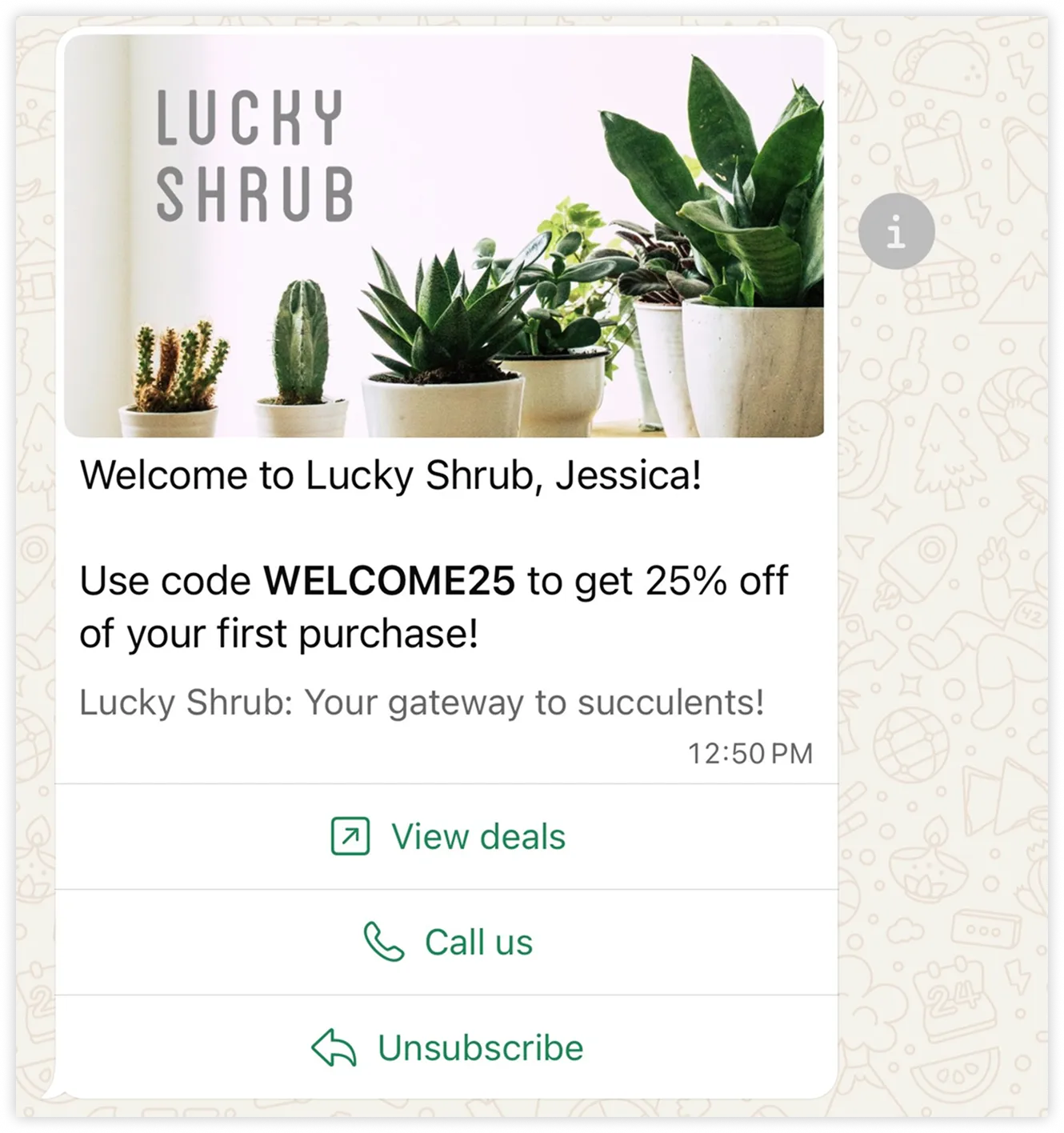
See our [custom marketing templates](/documentation/business-messaging/whatsapp/templates/marketing-templates/custom-marketing-templates) document for example of how to create and send a custom template, and which components are supported.
Some templates use a special component that requires or excludes additional components, or require additional configuration. These are described below.
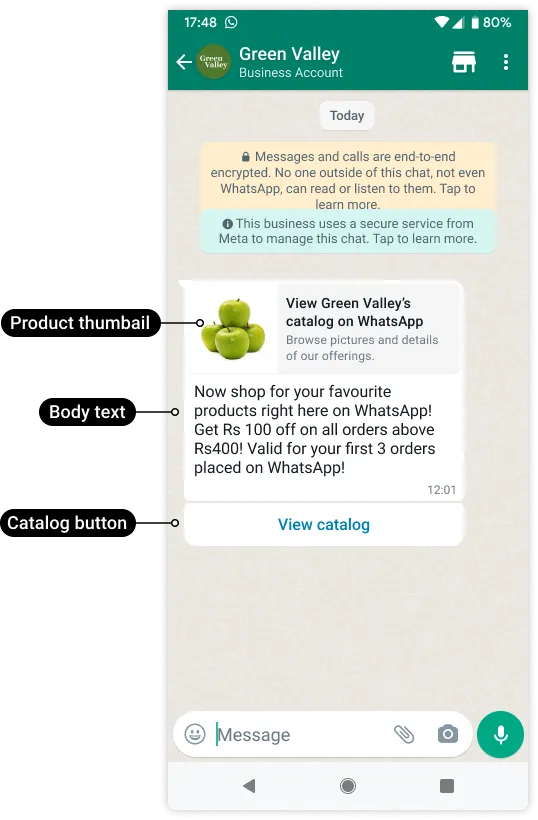
[Catalog templates](/books/meta-whatsapp/page/catalog-templates-developer-documentation) are marketing templates that allow you to showcase your product catalog entirely within WhatsApp.
#### Coupon code templates
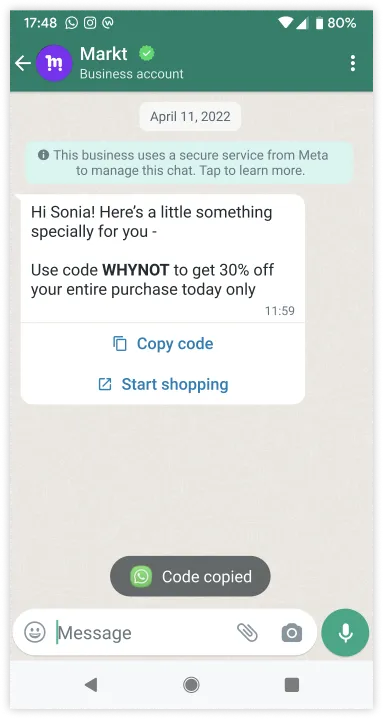
[Coupon code templates](/documentation/business-messaging/whatsapp/templates/marketing-templates/coupon-templates) are marketing templates that display a single copy code button. When tapped, the code is copied to the customer’s clipboard.
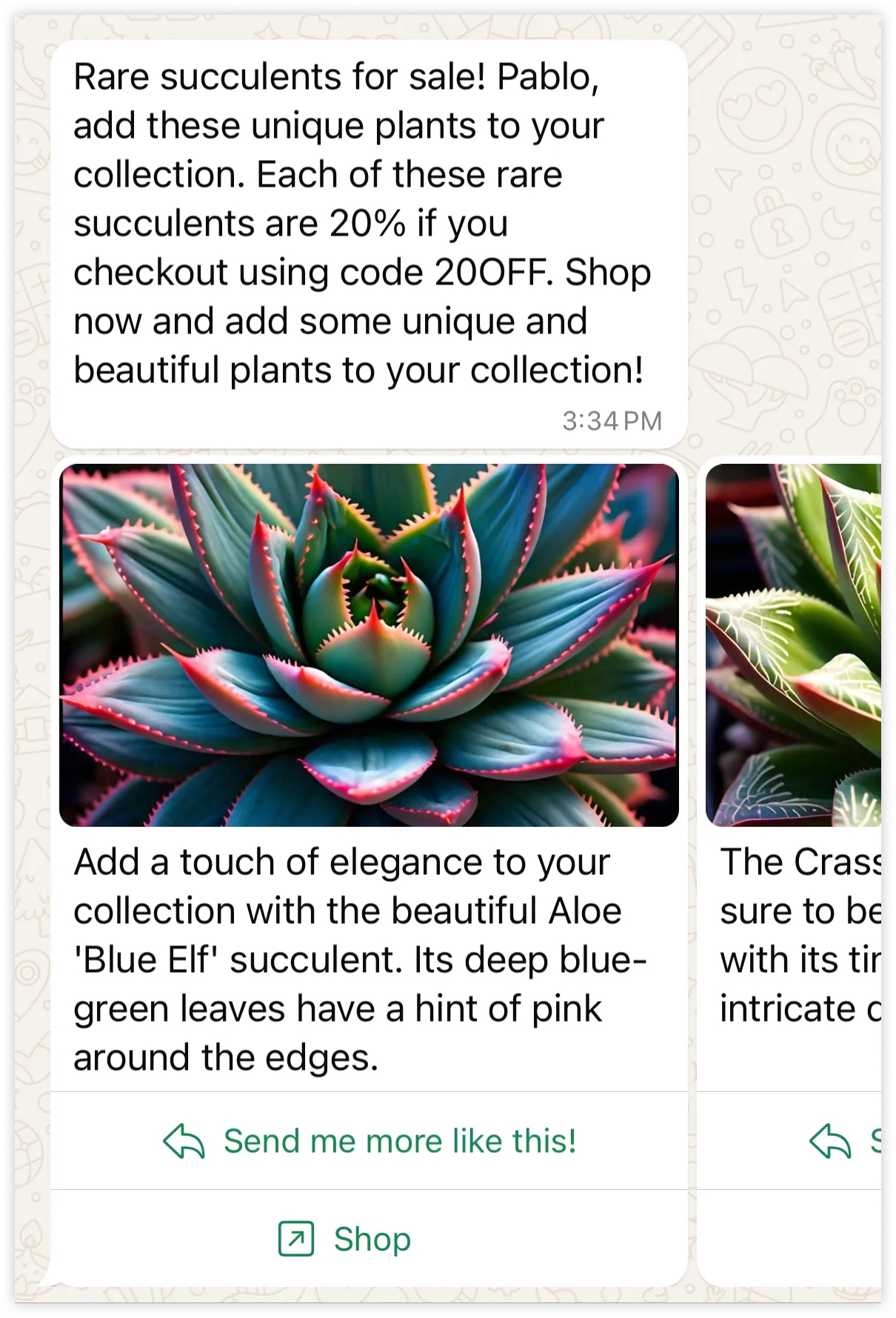
[Media card carousel templates](/documentation/business-messaging/whatsapp/templates/marketing-templates/media-card-carousel-templates) allow you to send a single text message accompanied by a set of up to 10 media cards in a horizontally scrollable view.
#### Call permission request templates
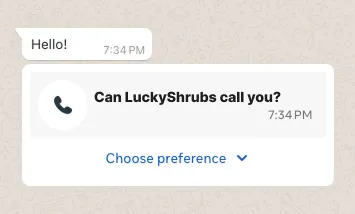
[Call permission request templates](/documentation/business-messaging/whatsapp/templates/marketing-templates/call-permission-request-message-template) allow your business to call your customers outside of the customer service window.
#### Limited-time offer templates
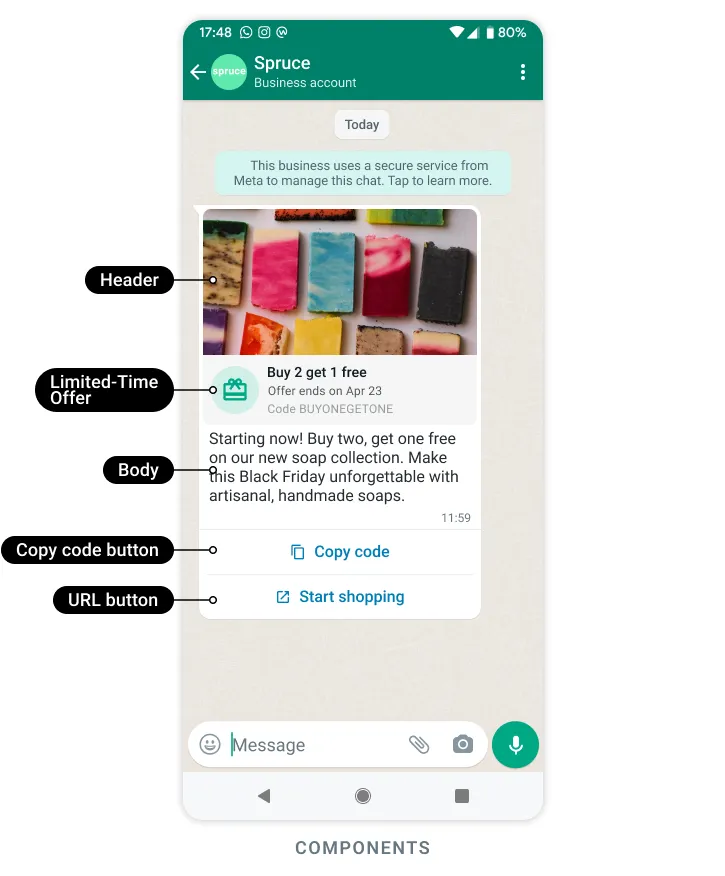
[Limited-time offer templates](/books/meta-whatsapp/page/limited-time-offer-templates-developer-documentation) allow you to display expiration dates and running countdown timers for offer codes in template messages, making it easy for you to communicate time-bound offers and drive customer engagement.
#### Multi-product message templates
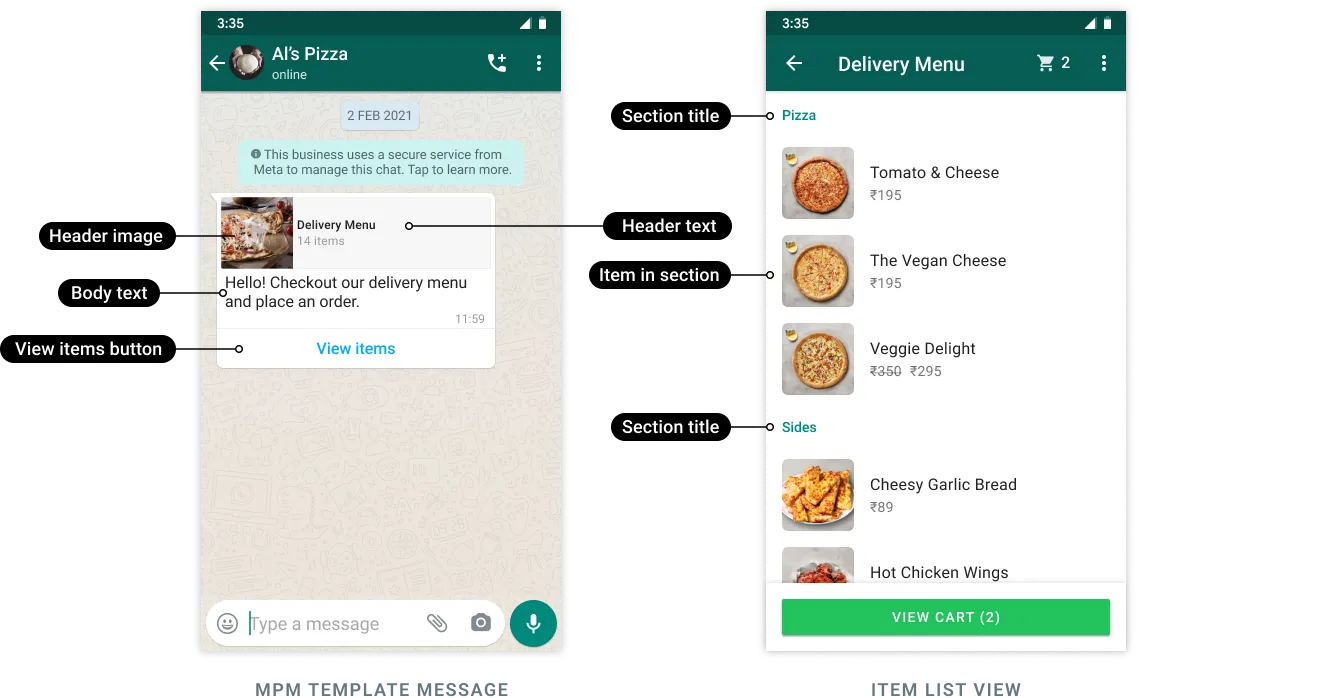
[Multi-product message templates](/books/meta-whatsapp/page/multi-product-message-templates-developer-documentation) allow you to showcase up to 30 products from your ecommerce catalog, organized in up to 10 sections, in a single message.
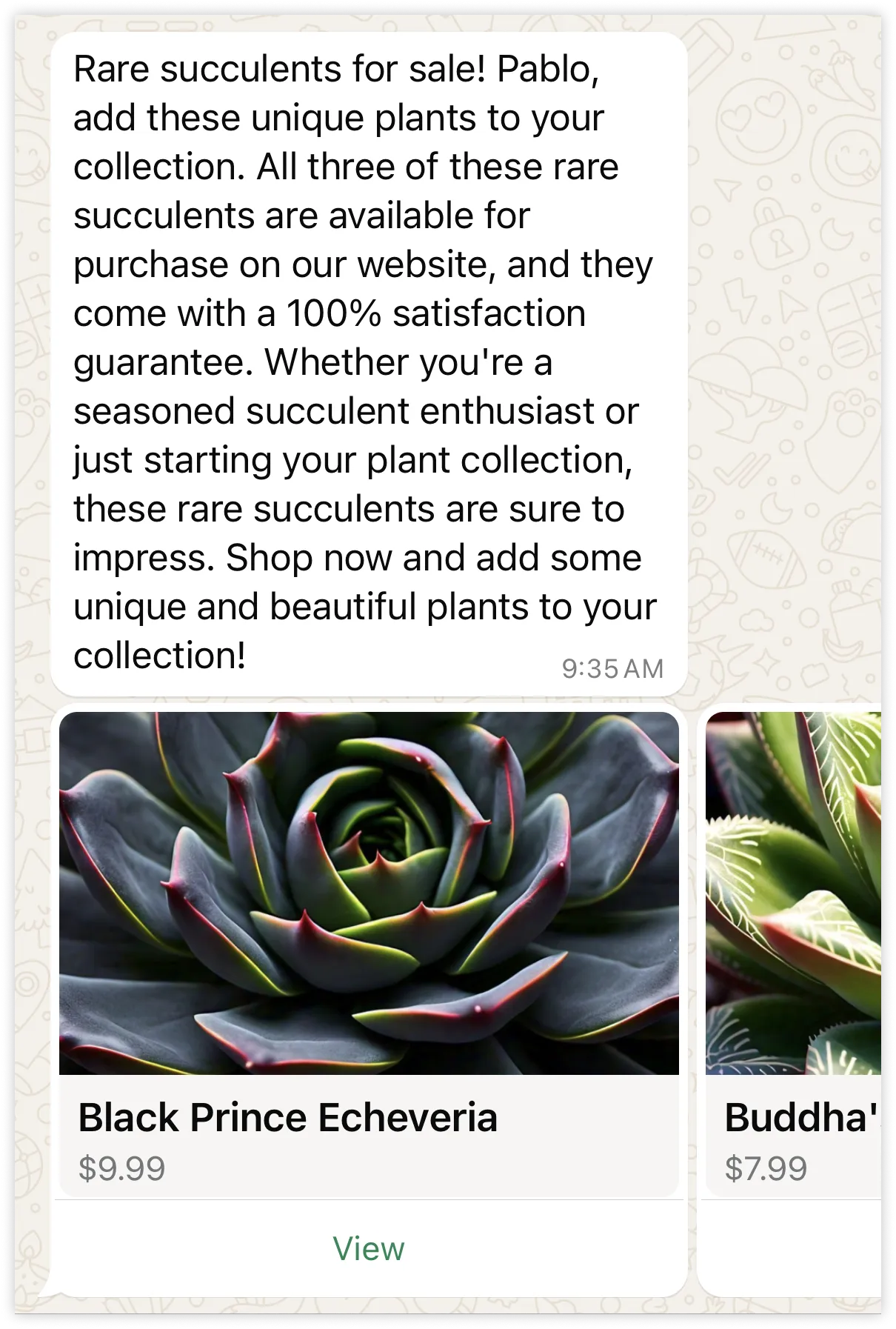
#### Product card carousel templates
[Product card carousel templates](/books/meta-whatsapp/page/product-card-carousel-templates-developer-documentation) allow you to send a single text message accompanied by a set of up to 10 product cards in a horizontally scrollable view:
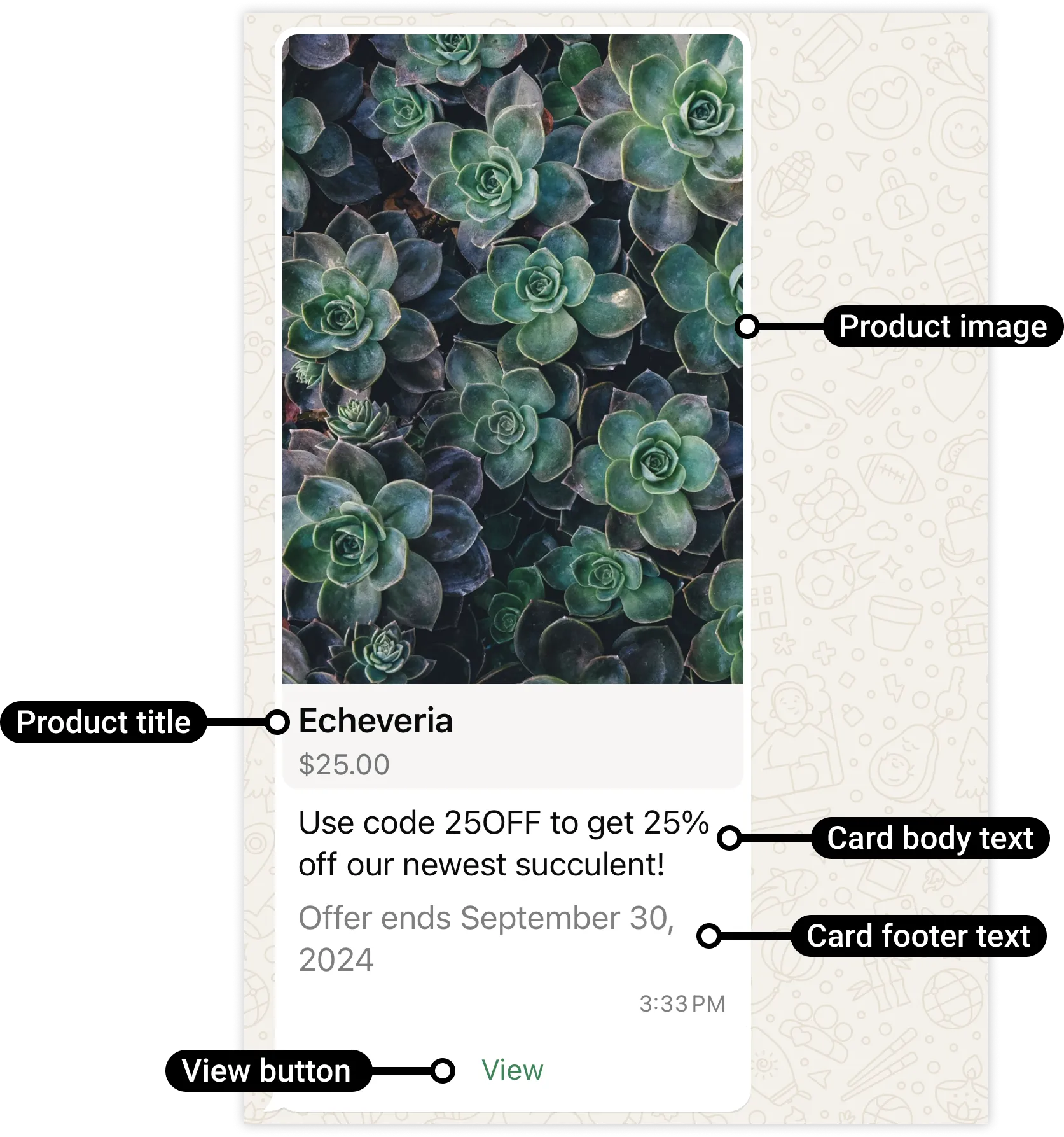
#### Single-product message templates
[Single-product message templates](/books/meta-whatsapp/page/single-product-message-templates-developer-documentation) allow you to send a single text message accompanied by a set of up to 10 product cards in a horizontally scrollable view:
### Per-user marketing template message limits
WhatsApp may limit the number of marketing template messages a person receives from any business in a given period of time, starting with delivering fewer marketing conversations to those users who are less likely to engage with them. In most WhatsApp markets, this is determined based on a number of factors, including a dynamic view of an individual’s marketing message read rate.
Refer to [per-user marketing template message limits](/books/meta-whatsapp/page/per-user-marketing-template-message-limits-developer-documentation) document for more information.
### User preferences for marketing messages
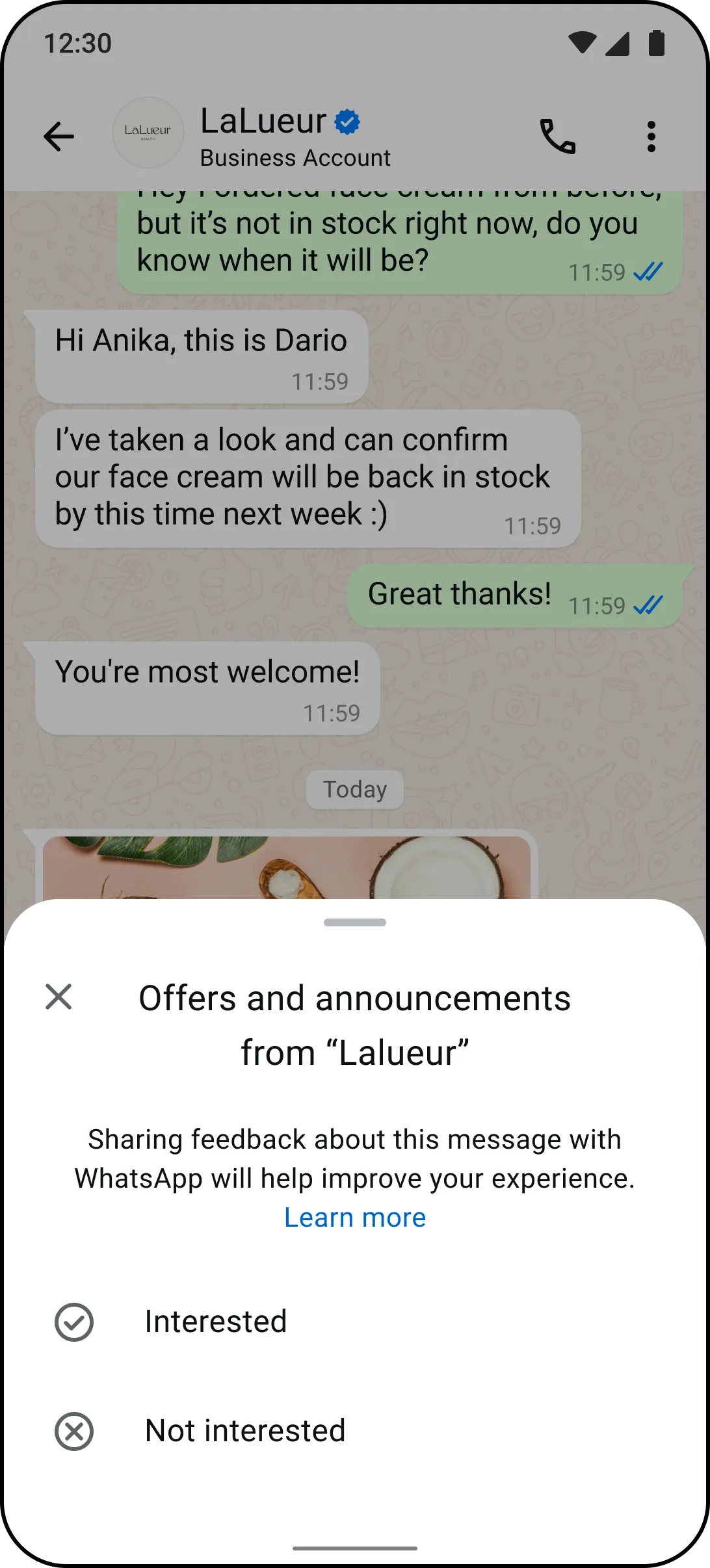
WhatsApp provides a setting, **Offers and announcements**, that allows WhatsApp users to indicate their interest level in marketing messages sent from your business, and to stop or resume delivery of marketing messages from your business entirely.
#### Interested/Not Interested feedback
WhatsApp users can use the **Offers and announcements** setting to indicate how interested they are in receiving marketing template messages from your business.
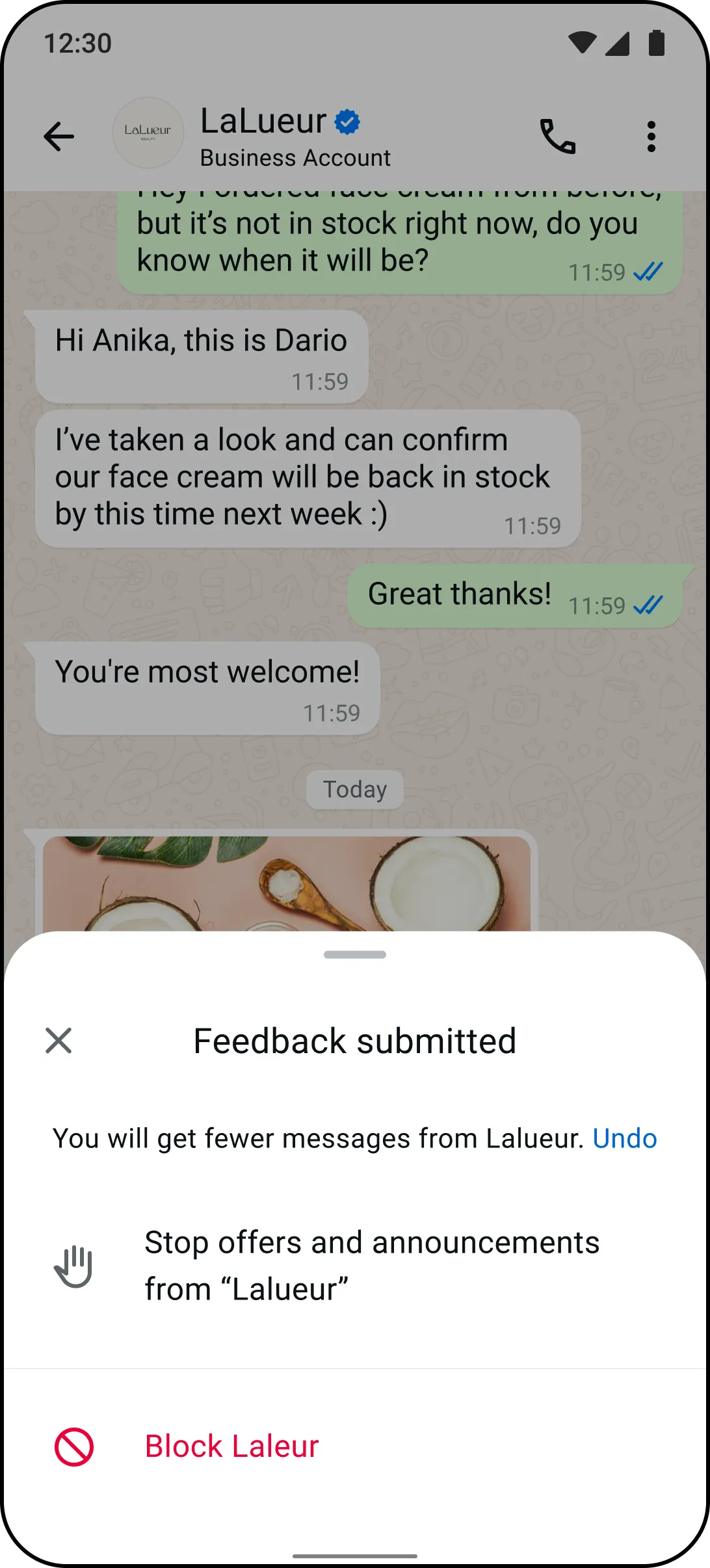
If a user chooses **Not interested**, it can affect [per-user marketing template messaging limits](/books/meta-whatsapp/page/per-user-marketing-template-message-limits-developer-documentation) between you and the user. Choosing this option also displays the second modal, which gives the user the option to stop delivery of marketing messages from your business.
#### Stop/Resume controls
WhatsApp users can use the **Offers and announcements** setting to stop or resume delivery of marketing template messages from your business.
If you attempt to send a marketing template to a WhatsApp user who has stopped marketing template messages from your business, the API will process the request but not send the message. Instead, the API will trigger a [status messages webhook](/books/meta-whatsapp/page/status-messages-webhook-reference-developer-documentation) with:
`status` set to `failed`,`code` set to `131050`,`title` set to ```
Unable to deliver the message. This recipient has chosen to stop receiving marketing messages on WhatsApp from your business
```
To be notified whenever a WhatsApp user stops or resumes delivery of marketing template messages from your business, subscribe to the [user\_preferences webhook](/books/meta-whatsapp/page/user-preferences-webhook-reference-developer-documentation) webhook.
### For accounts linked with WhatsApp Business app (aka “Coexistence”)
To improve the experience for WhatsApp Business Users, marketing messages sent to business customers will not bump chat threads to the top of the inbox. These messages will still be delivered and visible to business customers, but the thread will only move to the top if the customer responds.
Note: This feature is currently limited and not generally available (GA) to all users.
## Coupon code templates
Updated: Dec 3, 2025
Coupon code templates are marketing templates that display a single copy code button. When tapped, the code is copied to the customer's clipboard.
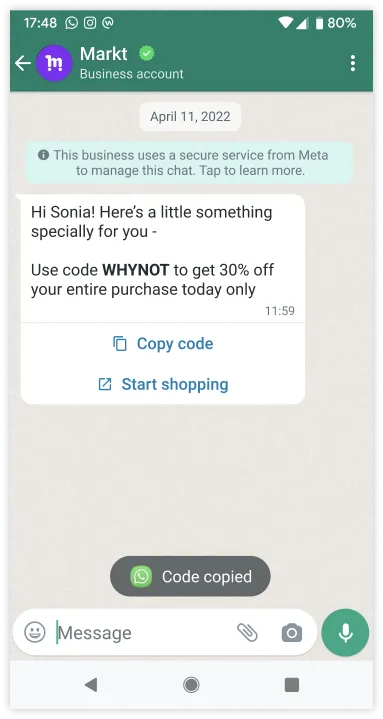
## Limited-time offer templates
Updated: Nov 4, 2025
This document describes limited-time offer templates and how to use them.
Limited-time offer templates allow you to display expiration dates and running countdown timers for offer codes in template messages, making it easy for you to communicate time-bound offers and drive customer engagement.
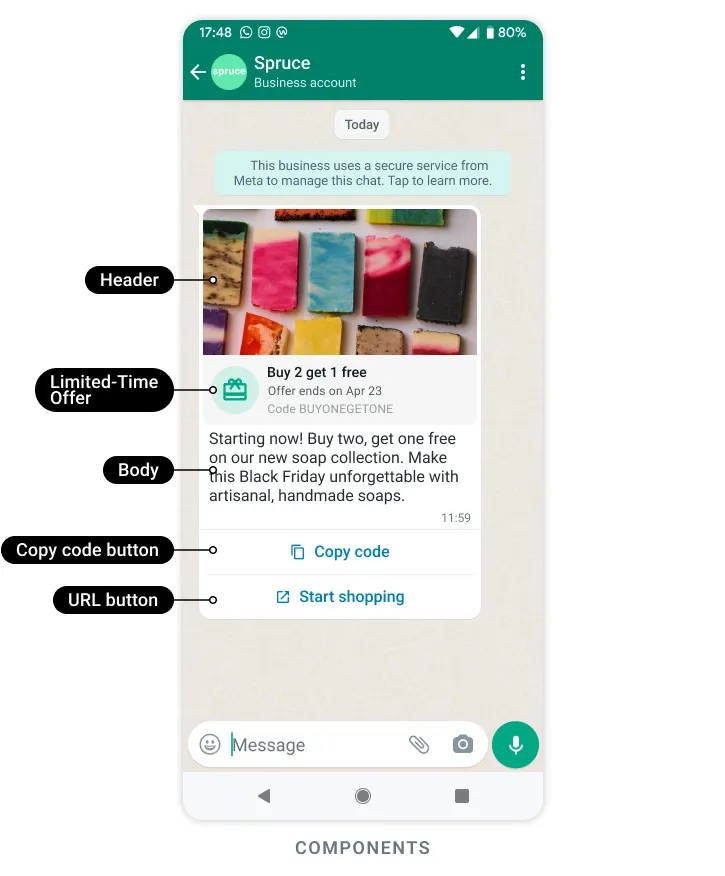
Only templates categorized as `MARKETING` are supported.Footer components are not supported.Users who view a limited-time offer template message using that WhatsApp web app or desktop app will not see the offer, but will instead see a message indicating that they have received a message but that it's not supported in the client they are using.## Template categorization
Updated: Jan 30, 2025
When creating a new template, or managing existing ones, it’s important to understand how WhatsApp categorizes your template for pricing purposes.
Consider template category guidelines before creating a new templateStay updated on your template’s approval status after template creationLearn about automatic category updates to templates in production***This information is also available in PDF form in our [Message templates category guidelines explainer PDF](https://l.facebook.com/l.php?u=https%3A%2F%2Fscontent-ams2-1.xx.fbcdn.net%2Fv%2Ft39.8562-6%2F522646671_1032957015586071_352200442705405080_n.pdf%3F_nc_cat%3D108%26ccb%3D1-7%26_nc_sid%3Db8d81d%26_nc_ohc%3DWI_Vs_az-pkQ7kNvwHRrFFm%26_nc_oc%3DAdrles0HkJ2s2MdlkGISGxb-kDEIEzUZBgLy3_mty9opVFjySA1ifMgBvrZi1k9GrR4%26_nc_zt%3D14%26_nc_ht%3Dscontent-ams2-1.xx%26_nc_gid%3DNKHHzwOL-F_z27FQO_98ig%26_nc_ss%3D7a389%26oh%3D00_Af2qkEmosMONqnYBg6kkH2P34QYFOKgaFPb7q13RSs6lYw%26oe%3D69D2A2E2&h=AT6OkZ46PzLVnyBlF9xtpP0mjTsiMh8U4yiIXZPEbS6q60FQKaSgJAmqGh1xo8pMLK9KlXqtWA891zH7ei0CW9vTcuxNBNjIOGhGUBnCkK-QiNLV1XPsHAaOTK24GJJhsWuyEvtaZJijuRwxuVyocQ).***
### Template category guidelines
Our template category guidelines define the category of message templates. Message templates can be categorized as:
**Marketing templates** – Enable businesses to achieve a wide range of goals, from generating awareness to driving sales and retargeting customers.**Utility templates** – Enable businesses to follow up on user actions or requests, since these messages are typically triggered by user actions.**Authentication templates** – Enable businesses to verify a user’s identity, potentially at various steps of the customer journey.#### Marketing template guidelines
Marketing templates are the most flexible. They enable businesses to achieve a wide range of goals, from generating awareness to driving sales and more.
The following templates are also considered marketing:
Templates with mixed content (for example, both utility and marketing, such as an order update with a promo or a feedback survey with promotional content).Templates where contents are unclear (for example, where contents are only “{{1}}” or “Congratulations!”).*Note: Examples are illustrative only. Templates that contain similar content, or the example text above, might be categorized differently based on the exact content.*
| Message Objective | Business Goal | Example Templates |
|---|
| Generate awareness of your business, products, or services among customers who have subscribed to receive messages from your business on WhatsApp. | Did you know? We installed a {{new\_tower}} in your area so you can enjoy a better network experience. To learn more, visit our site.{{Diwali}} is around the corner! Join us at {{location}} on {{date}} to celebrate with friends and family. For more details about our event, click below.Looking for a getaway this fall? Our newest resort just opened in {{location}}: the perfect place to relax and unwind. |
| Send promotional offers to customers related to sales events, coupons, or other content intended to drive sales or renewals. | As a thank you for your last order, please enjoy {{15}}% off your next order. Use code {{loyal15}} at checkout. Visit our site here below.We are actively seeking {{donations}} to meet our fundraising goal of {{amount}}. Support our cause and contribute now!Upgrade to our {{premium\_cabin}} to enjoy new benefits, like {{more\_legroom}} and {{priority\_boarding}}. Click below or log into our app to upgrade.You have been {{pre\_approved}} for our {{credit\_card}}! Enjoy an introductory {{apr\_rate}} if you apply via your personalized link below. |
| Promote or recommend offers, products or services; attempt to renew subscriptions; or other calls to action to users who might have visited your website, used your app or engaged with you. These are marketing even if requested by users. | Your subscription will expire on {{date}}! Renew today to save {{discount}}.You left {{items}} in your cart! Don’t worry, we saved them. Checkout now below.Your loan application is {{pending\_approval}}! Please log in to pick up where you left off.We found a {{car}} that meets your saved search. Log in to our app to view.We apologize for the delay in your {{package}} delivery. We have deposited a {{credit}} to your account, available immediately. |
| Request customers to install or take a specific action with your app. | Did you know? You can now {{checkout}} in our app. Download it below to use our streamlined experience.Thank you for using our app. We noticed you have not used our {{latest\_feature}}. Click below to learn more about how this benefits you!In-app only: {{20}}% off this week! Use code {{summer\_promo}} to save on select styles.Hi {{name}}, your friend {{name}} recently joined our community. Send them a welcome message in our app today: {{URL}}. |
**Build Customer Relationships** | Strengthen customer relationships through personalized messages or by prompting new conversations. | {{Name}}, did you think we’d forget? No way! {{Happy\_birthday}}! We wish you the best in the year ahead.As we approach the end of the year, we reflect on what drives us: {{Name}}. Thank you for being a {{valued\_customer}}. We look forward to continuing to serve you.Hello, I am the new {{virtual\_assistant}}. I can help you discover products or provide support. Please reach out if I can help! |
#### Utility template guidelines
Utility templates are typically triggered by a user action or request. For a template to be categorized as utility, it needs to meet both criteria below:
*Must* be **non-promotional**, not containing any promotional or persuasive intent.*Must* ALSO be either **specific to or requested by the user** (clearly related to their order, account, services or transactions) OR **essential or critical** to the user (for example, to ensure user safety).| Message Objective | Business Goal | Example Templates |
|---|
**Opt-In Management on WhatsApp** | Confirm opt-in to receive messages on WhatsApp as a follow-up to opt-in collected via other channels (for example, website, email) or confirm opt-out. | Thanks for confirming opt-in! You’ll now receive notifications via WhatsApp.Thank you for confirming your opt-out preference. You will no longer receive messages from us on WhatsApp. |
| Confirm, update or cancel an order or transaction with a customer, using specific order or transaction details in the body of your message. *These messages should not promote, recommend, upsell, or cross-sell products; include offers; or attempt to secure renewals.* | Thank you! Your order {{order\_number}} is confirmed. We will let you know once your package is on its way.Hooray! Your package from order {{order\_number}} is on its way. Your tracking number is {{tracking\_ID}} and expected delivery date is {{date}}.Unfortunately, one item from your order {{number}} is backordered. We will follow up with an estimated ship date. If you wish to cancel and receive a refund, please click below.We have received your item from order {{order\_number}}. Your refund for ${{amount}} has been processed. Thank you for your business. |
**Account Alerts or Updates** | Send important or time-sensitive updates or alerts or other information specific to purchased or subscribed products/services. *These messages should not promote, recommend, upsell, or cross-sell products; include offers; or attempt to secure renewals.* | Daily update for account ending in {{four\_digit\_number}}: Your available balance is {{amount}}.Reminder: Your monthly payment for {{service}} will be billed on {{date}} to the {{card}} you have saved on file.You only have {{number}} minutes remaining in your plan. Remember to top up your account by {{date}} to avoid disruptions.To finish setting up your {{new\_profile}}, you need to upload a {{photo}}. Please click below to upload.Please note, we have updated our {{Customer\_service}} phone number to {{number}}. Please save this and call if we can be of support. |
| Collect feedback on previous orders, transactions or engagements with customers. *Specificity of the order or interaction to which these relate is necessary. A general/generic survey or request for feedback will not be approved as utility.* | We have delivered your order {{order\_number}}! Please let us know if there was any issue by reaching out below.Your feedback ensures we continually {{improve}}. Please click below to share your thoughts on your {{recent visit}} at our {{store}} location. Thank you in advance!You chatted with us {{online}} recently about order {{order\_number}}. How was your experience? Click below to fill out a short survey. |
**Continue a Conversation on WhatsApp** | Send a message to begin an interaction on WhatsApp that began in another channel. *These messages should not be initiated without a user having requested the conversation to be moved to WhatsApp.* | Hi! I see you requested support via our {{online\_chat}}. I am the virtual assistant on WhatsApp. How can I help?Hi {{name}}, we are following up on your call with customer service on {{issue}}. Your case has progressed to the next step. Please log into your account to continue. |
For a utility template to be deemed essential or critical to the user, it must reflect one of the use cases below and must also be non-promotional (not containing any promotional or persuasive intent).
| Use Case Category | Use Case | Example that meets definition of "essential or critical to the user" |
|---|
| | There is a {{tornado}} alert in your area. We recommend you remain indoors until {{time}} today. |
| | We activated support services for the {{crisis}} in the {{zip code}} area. Live updates on our site, available below. |
| | Stay up-to-date with your health. Stop by {{location}} by {{time}} to get your free COVID-19 {{vaccine}}. Bring your {{vaccination_card}} and identification document. |
| | The {{city}} has just declared a health emergency because of {{issue}}. We will follow up with more details once available. |
| | To vote on {{date}}, please ensure your voter {{registration card}} is active. Please click the URL below to understand steps required to renew, if needed. Please disregard this message if your {{registration card}} will be active. |
| | Your {{welfare}} disbursement balance is {{amount}}. Kindly note it will expire on {{date}}. |
| | We have detected a system outage that impacts zip code {{code}}. We expect to restore service by {{time_and_date}}. We apologize for the inconvenience. |
| | This is to notify you that {{trains}} at our {{location}} station are halted because of {{issue}}. Please avoid the area as we work to rectify. |
**Account or Product Protection** | | We have detected an increase in {{ATM fraud}}. To protect your card ending in {{1234}}, please consider updating your PIN. Click below to see the step-by-step. |
**Account or Product Protection** | | The {{product}} you ordered on {{date}} has been recalled. Please click below to let us know how you would like to proceed. |
**Account or Product Protection** | | Thank you for your purchase of {{product}}. Your warranty is active as of {{date}}. Our {{product manuals}} are below, for your reference |
**Legal/Regulatory Compliance** | | This is to notify you that you need to upgrade to a {{updated_identification_card}} by {{date}}. To avoid any inconveniences when traveling, please ensure you make an appointment at your local {{office}}. |
**Legal/Regulatory Compliance** | | We updated our privacy policy on {{date}}. Please click the button below to learn more. |
**Legal/Regulatory Compliance** | | Thank you for your purchase of {{product}}. Your warranty is active as of {{date}}. Our {{product manuals}} are below, for your reference |
#### Authentication template guidelines
*Note: Only authentication templates can be used to send a one-time passcode for identity verification. Marketing and utility templates cannot be used for this purpose.*
You can use authentication templates from [Template Library](/books/meta-whatsapp/page/template-library-developer-documentation). These templates include optional add-ons like security disclaimers and expiry warnings.
Authentication templates enable businesses to verify user identity (usually with alphanumeric codes) at various steps of the customer journey:
New account creationAccount integrity, access or recoveryNew or existing orders/transactionsAuthentication templates are our most restrictive, so for a template to be classified as authentication, **a business must**:
Use Cloud API authentication message templates in [Template Library](/books/meta-whatsapp/page/template-library-developer-documentation): These templates include optional add-ons like security disclaimers and expiry warnings.Configure a one-time password button: Such as [copy-code](/books/meta-whatsapp/page/copy-code-authentication-templates-developer-documentation) or [one-tap](/books/meta-whatsapp/page/one-tap-autofill-authentication-templates-developer-documentation)Follow content restrictions: URLs, media, and emojis are not allowed for authentication template content or parameters. Parameters are also restricted to 15 characters.##### Message Objective: **Authentication**
| Message Objective | Business Goal | Example Templates |
|---|
| Authenticate users with one-time passcodes, potentially at multiple steps in the login process (for example, account verification, account recovery, integrity challenges). | {{123456}} is your verification code. |
### How WhatsApp assigns a category during template creation
When you create a template, you indicate the template’s category, based on the guidelines above. WhatsApp validates the category you indicated per the contents of the template and the [guidelines](#bkmrk-template-category-gu-1). The template is then created and its status is set to one of the statuses below, based on the outcome of the validation process.
a. When you create a template and it is approved, you can request a review up to 60 days from the creation date.
b. For utility templates that may be updated to marketing, you can request a review up to 60 days from the date the category was updated.
`APPROVED` status means WhatsApp agrees with the category chosen in your template creation request and that the template successfully passed [template review](/books/meta-whatsapp/page/templates-developer-documentation). It can now be used to send messages.
**Status updates** — An email and WhatsApp Manager alert will inform you that the template was approved, and a [message\_template\_status\_update](/books/meta-whatsapp/page/message-template-status-update-webhook-reference-developer-documentation) webhook will be triggered with the event property set to `APPROVED`.
Effective April 9, 2025, If you selected `UTILITY` as the template’s category and WhatsApp determined it should be `MARKETING`, **the template is approved as `MARKETING`**. In WhatsApp Manager, you will see the screen below. When using the API, the behavior will be as outlined above. You can request a review up to 60 days from the date the category was updated.
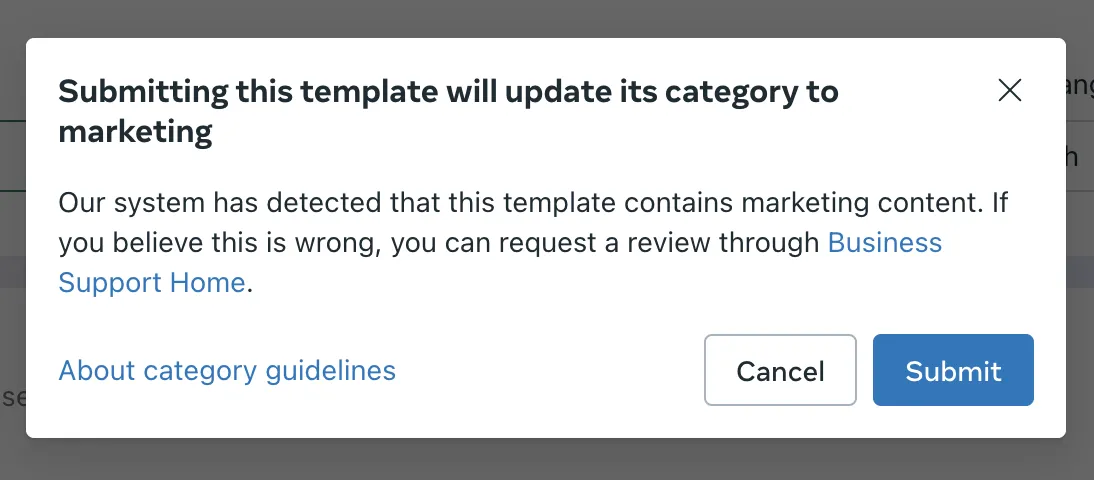
Effective April 9, 2025 – The `allow_category_change` property during template creation. Previously, if set to `true` in a template creation request, this allowed us to update a template’s category to `marketing`, if `marketing` to be its category was determined to be its category per its content and the guidelines. This is now the default behavior.
`PENDING` status means WhatsApp agrees with the category chosen in your template creation request, however the template is undergoing [template review](/books/meta-whatsapp/page/templates-developer-documentation).
**Status Alerts** — The outcome of template review will be communicated via email and WhatsApp Manager alert. Upon completion, a [message\_template\_status\_update](/books/meta-whatsapp/page/managing-webhooks-developer-documentation) webhook will be triggered with the event property set to `APPROVED` or `REJECTED`.
`REJECTED` status indicates that WhatsApp disagreed with the category you designated in your template creation request.
**Status Alerts** — Rejections are communicated via email and WhatsApp Manager alert. Upon review completion, a [message\_template\_status\_update](/books/meta-whatsapp/page/message-template-status-update-webhook-reference-developer-documentation) webhook will be triggered and the `event` property set to `REJECTED`, with the `reason` property set to `INCORRECT_CATEGORY`.
If your message template is rejected, you have the following options:
[Create a new message template](/books/meta-whatsapp/page/templates-developer-documentation) via WhatsApp Manager or the API.[Edit the template’s category](/books/meta-whatsapp/page/template-management-developer-documentation), and resubmit for approval.[Request a review](#bkmrk-how-to-request-a-cat-1).#### Duplicated Templates from Phone Number Migration
All eligible templates are automatically duplicated in the destination WABA and category checks will be performed to ensure that all duplicated templates are correctly categorized.
### How WhatsApp updates a template’s category after initial approval
July 1, 2024 — To ensure templates on the platform are correctly categorized per the template category guidelines, WhatsApp introduced a recurring process to identify and update approved templates that should be of a different category, per the template category guidelines.
Effective April 16, 2025 — For any business detected to be abusing the template categorization system and to whom [a warning is sent](#bkmrk-notices-when-action--1), the 24-hour notice mentioned below will no longer be provided if a utility template that should be marketing is detected. The category will be updated with no advance notice and emails/webhooks will be triggered to confirm the category change
Automatic category updates can apply to approved templates only that were not initially approved per the template category guidelines. Advance notice is provided on different surfaces, like through webhook and email, before action is taken on these templates.
#### For templates approved as **utility**, but should actually be **marketing**
#### For templates approved as **marketing or utility**, but should actually be **authentication**
*This process was introduced on October 1, 2024*
**Notice period** — Advance notice is provided.**Template category** — There is no change in the template’s category.**Template status** — On the first day of the following month, the template status is changed to `REJECTED` and can no longer be used to send messages.
#### **How you are notified**
#### For templates approved as **utility**, but should actually be **marketing**
| Advanced notification of category updates | Description |
|---|
| An email will be sent to any people in the business’ portfolio with ‘full control’ of the WhatsApp Business Account (WABA).The email will contain a link to the WhatsApp Manager > Message Templates > Manage Templates panel.Templates whose categories will be updated will have an “information” icon beside their name. Hovering over the icon will display the category it will be updated to, and the date when it will be updated.For templates that will be rejected, the icon will display |
| A [template\_category\_update](/books/meta-whatsapp/page/template-category-update-webhook-reference-developer-documentation) webhook will be triggered for each template whose category will be updated, with a `correct_category` property in the payload set to what the template’s category should be. The `new_category` property also exists in the payload indicating the template’s current category. |
| The WhatsApp Manager > Message Templates > Manage Templates panel will display a banner with a link to a downloadable CSV identifying these templates.[Business Support](https://business.facebook.com/business-support-home/) will list the name and current category of these templates, as well as the categories they will be updated to. |
| Notification when action is taken | Description |
|---|
| An email will be sent to any people in the business portfolio who have been granted full control of the WABA that owns the templates whose categories have been updated.The email will highlight the number of templates whose categories were updated, and will include a link to the WhatsApp Manager > Message Templates > Manage Templates panel where the name and new category of these templates, as well as the categories before automatic update will be listed. It also includes a link to [Business Support](https://business.facebook.com/business-support-home/). |
| A [template\_category\_update](/books/meta-whatsapp/page/template-category-update-webhook-reference-developer-documentation) webhook will be triggered for each template whose category has been updated. The `new_category` property will indicate the template’s new category and the `previous_category` property will indicate the template’s category before automatic update. |
#### For templates approved as **marketing or utility**, but should actually be **authentication**
| Advanced notification of category updates | Description |
|---|
| An email will be sent to any people in the business portfolio who have been granted full control of the WABA that owns the templates whose categories have been updated.The email will contain a link to the WhatsApp Manager > Message Templates > Manage Templates panel.Templates whose status will be updated to `REJECTED` will be updated will have an “information” icon beside their name. Hovering over the icon will display the date when the template will be rejected. |
| A [template\_category\_update](/books/meta-whatsapp/page/template-category-update-webhook-reference-developer-documentation) webhook will be triggered for each template which will be rejected. |
| The WhatsApp Manager > Message Templates > Manage Templates panel will display a banner with a link to a downloadable CSV identifying these templates. [Business Support](https://business.facebook.com/business-support-home/) will list these as well. |
| Notification when action is taken | Description |
|---|
| An email will be sent to any people in the business portfolio who have been granted full control of the WABA that owns the templates whose categories have been updated.The email will highlight the number of templates that were rejected, and will include a link to the WhatsApp Manager > Message Templates > Manage Templates panel, where the status will reflect the template is rejected.It also includes a link to [Business Support](https://business.facebook.com/business-support-home/). |
| A `status` webhook will be triggered for each template that has been rejected. whose category has been updated. The webhook will have the `event` property set to `REJECTED` and the reason property set to `INCORRECT_CATEGORY`. |
#### Your options in this process
When you receive notice that a template’s category will be updated or a template will be rejected, you can:
Create a new templateFor **utility templates** that will be updated to **marketing**: You can [request a review](#bkmrk-how-to-request-a-cat-1): If the review is approved – The template’s category will not be updated as previously notified.If the review is not approved – The template will be updated to marketing, as previously notified.For **marketing or utility templates** that will be **rejected**: You cannot request a review.Businesses on Cloud API can browse the [template library](/books/meta-whatsapp/page/template-library-developer-documentation) to identify available options for your identity verification use case. It is recommended that businesses browse, choose and create a new template from the [template library](/books/meta-whatsapp/page/template-library-developer-documentation) before the utility/marketing template is rejected, to avoid workflow disruptions.**You have 60 days to review and appeal these changes in [Business Support Home](https://business.facebook.com/business-support-home/).**
#### Learn which template(s) will be updated or have been updated
You can use the [](/books/meta-whatsapp/page/whatsapp-cloud-api-template-api-developer-documentation)endpoint to get the list of templates that have been or will be updated.
Request the `category` and `correct_category` fields, which will return the IDs of all of the WABA’s templates, and each template’s `category` and `correct_category` values. You can then compare these values:
If the values match (for example, they are both `MARKETING`), the template’s category has already been updated with the `correct_category` value.If they mismatch and the `correct_category` is not an empty string or null (for example, category is `UTILITY` but `correct_category` is `MARKETING`), the template’s category will be updated on the first day of the next month with the `correct_category` value.If the `correct_category` value is an empty string or null, the template has not been impacted.#### Via WhatsApp Manager
The WhatsApp Manager’s Manage Templates panel identifies any templates whose categories will be updated.
### How to update a template category or request a category review
This process has been in effect since June 2023, when the marketing, utility and authentication template categories were introduced.
#### Edit your template’s category
You can [edit template content or just its category](/books/meta-whatsapp/page/template-management-developer-documentation).
The template will undergo category validation and template review again.If the template passes validation and review, its category will be updated and a [template\_category\_update](/books/meta-whatsapp/page/template-category-update-webhook-reference-developer-documentation) webhook will be triggered.##### Via WhatsApp Manager
On the **Manage Templates** tab:
Select your templateEdit the content so it aligns to the guidelines of that categoryRe-submit the template for approval#### Qualifications and outcomes for category review
You can request Meta to review the category of your template if:
It is categorized as `UTILITY` or `MARKETING` and status is `REJECTED`It is categorized as `MARKETING` and status is `APPROVED`Possible outcomes after you submit a request of your template’s category:
Review is rejected – The category will not change.#### How to request a category review
A review can only be requested via WhatsApp Manager.
In the sidebar of WhatsApp Manager, select the **Message Templates** dropdown, and then **Message Templates**. You should see a rejection banner with the template in question. Click **Go to Business Support**.

Click **Template Category Updates**, select the templates you would like reviewed and then click the **Request Review** button to begin the review process.
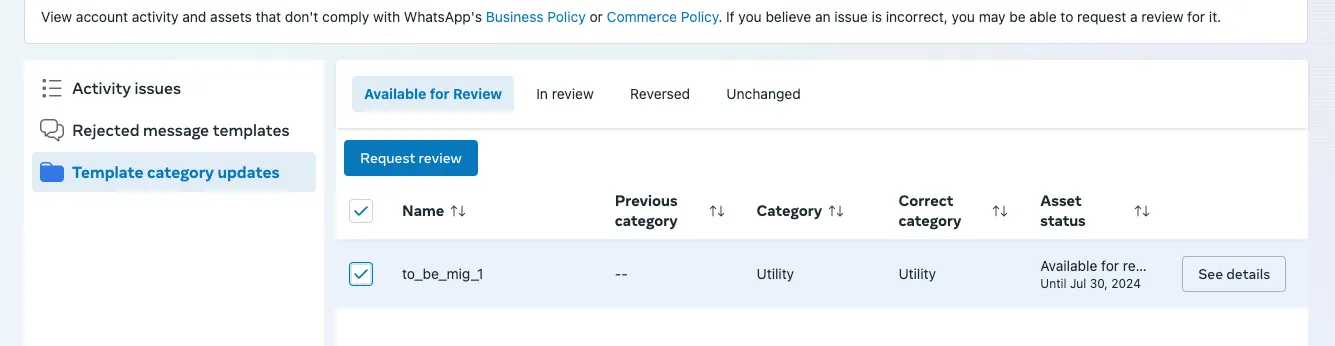
#### How to view templates submitted for review
In the Business Support sidebar, click **Template category Updates**, and then the **In review** tab.
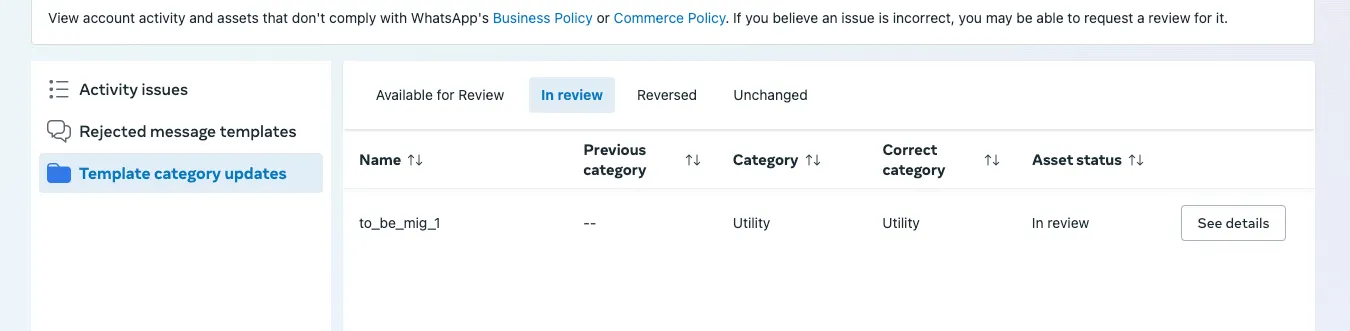
#### How to view template category decisions
**If the template category change is not approved**: The template can be viewed in Business Support under the **Template category updates** > **Unchanged** tab. The template’s category will change to the correct category during an automatic category update.

**If the template category change is approved**: the template can be viewed in Business Support under the **Template category updates** > **Reversed** tab. If the template category was already changed during automatic category update, it will be reverted to its previous category.
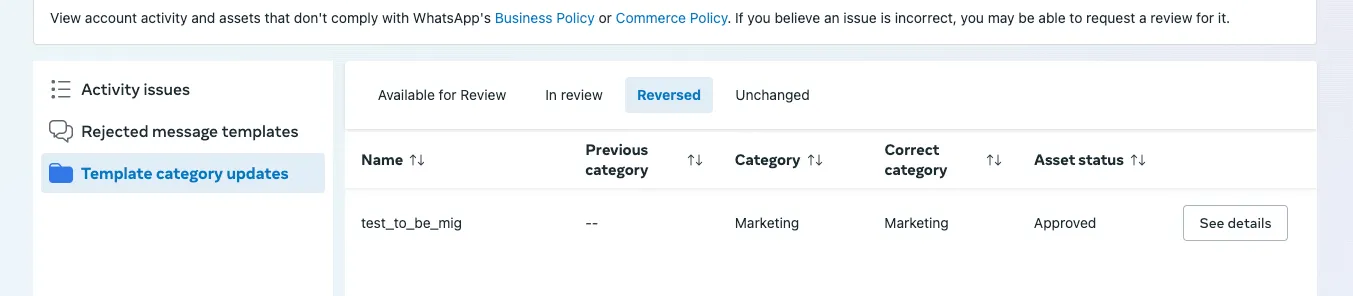
### Restrictions on businesses misusing the template categorization system
Written notice is provided before businesses are restricted from using the WhatsApp Business Platform for utility messaging in the following way:
**Warning** – If a business is detected to be misusing the template categorization system to secure the utility category for templates that should be categorized as marketing, a written warning will be sent before the business is restricted from using utility messaging on the WhatsApp Business Platform. **As of April 16 2025 — After you are given a warning:**A 24 hour notice **will not be provided** before changing template categories from `UTILITY` to `MARKETING`Category changes will be **instant****Restriction** – If misuse is detected after this warning, the following restrictions will be introduced which would prevent the WhatsApp Business Account from using the WhatsApp Business Platform for utility messaging for 7 days: **As of April 16 2025 — Previously approved `UTILITY` templates will no longer be rejected. Instead, they will be re-categorized as `MARKETING`**For 7 days – Disable [category reviews](#bkmrk-how-to-request-a-cat-1) for these templatesFor 7 days – Disable creation of new utility templates**For businesses that have been restricted previously** — If continued misuse of the template categorization system is detected, these restrictions might be re-introduced for 30 days.
#### Notices when action is taken
The following notices are triggered:
**Warnings** – Email is sent to all WhatsApp Business Account admins (people with **Full control** of the WhatsApp Business Account). An `account_update` webhook will be sent out indicating utility restriction `WARN` for the WhatsApp Business Account.
**Restrictions** – When restrictions are introduced or lifted, email is sent to all WhatsApp Business Account admins (people with **Full control** of the WhatsApp Business Account). A change to the `restriction_info` object in the `account_update` webhook is also triggered.
#### Your options in this process
Businesses that believe these restrictions have been applied in error can request a review via [Business Support](https://business.facebook.com/business-support-home/).
## Template components
Updated: Nov 21, 2025
Templates are made up of four primary components which you define when you create a template: header, body, footer, and buttons. The components you choose for each of your templates should be based on your business needs. The only required component is the body component.
Some components support variables, whose values you can supply when using the Cloud API to send the template in a template message. If your templates use variables, you must include sample variable values upon template creation.
Text headers are optional elements that can be added to the top of template messages. Each template may include only one text header. Please note that markdown special characters are not supported in this component, so we recommend avoiding their use.
Text headers support 1 [parameter](/books/meta-whatsapp/page/templates-developer-documentation).
| Placeholder | Description | Example Value |
|---|
| **Required.** Header body text string. Supports 1 [parameter](/books/meta-whatsapp/page/templates-developer-documentation). If this string contains a parameter, you must include the `example` property and example parameter value. Maximum 60 characters. | `Our new sale starts {{sale_start_date}}!` |
| **Required if using a named parameter.** [Named parameter](/books/meta-whatsapp/page/templates-developer-documentation) name. | |
| **Required if using a parameter.** [Parameter](/books/meta-whatsapp/page/templates-developer-documentation) example value. | |
Media headers can be an image, video, gif, or a document such as a PDF. All media must be uploaded with the [Resumable Upload API](https://developers.facebook.com/docs/graph-api/guides/upload). The syntax for defining a media header is the same for all media types.
Note: Gifs are currently only available for [Marketing Messages API for WhatsApp](/books/meta-whatsapp/page/features-developer-documentation). Gifs are mp4 files with a max size of 3.5MB and larger files will be displayed as video messages.
| Placeholder | Description | Example Value |
|---|
| Indicates media asset type. Set to `IMAGE`, `VIDEO`, `GIF`, or `DOCUMENT`. | |
| Uploaded media asset handle. Use the [Resumable Upload API](https://developers.facebook.com/docs/graph-api/guides/upload) to generate an asset handle. | |
Location headers appear as generic maps at the top of the template and are useful for order tracking, delivery updates, ride-hailing pickup/dropoff, locating physical stores, etc. When tapped, the app user's default map app will open and load the specified location. Locations are specified when you send the template.
Location headers can only be used in templates categorized as `UTILITY` or `MARKETING`. Real-time locations are not supported.
None.
| Placeholder | Description | Sample Value |
|---|
| | `101 Forest Ave, Palo Alto, CA 94301` |
| Location latitude in decimal degrees. | |
| Location longitude in decimal degrees. | |
| | |
The body component represents the core text of your message template and is a text-only template component. Templates are limited to one body component.
The message text in the body component accepts multiple [parameters](/books/meta-whatsapp/page/templates-developer-documentation).
| Placeholder | Description | Example Value |
|---|
| **Required.** Body text string. Supports multiple [parameters](/books/meta-whatsapp/page/templates-developer-documentation). Maximum of 1024 characters. | `Thank you, {{first_name}}! Your order number is {{order_number}}.` |
| **Required if using a named parameter.** [Named parameter](/books/meta-whatsapp/page/templates-developer-documentation) name. | |
| **Required if using a parameter.** [Parameter](/books/meta-whatsapp/page/templates-developer-documentation) example value. | |
Footers are optional text-only components that appear immediately after the body component. Templates are limited to one footer component.
| Placeholder | Description | Example Value |
|---|
| Text to appear in template footer when sent.
60 characters maximum. | `Use the buttons below to manage your marketing subscriptions` |
Buttons are optional interactive components that perform specific actions when tapped.
Templates can have a combination of up to 10 button components in total, although there are limits to individual buttons of the same type as well as combination limits, which are described below. In addition, templates composed of 4 or more buttons, or a quick reply button and one or more buttons of another type, cannot be viewed on WhatsApp desktop clients. WhatsApp users who receive one of these template messages will be prompted to view the message on a phone instead.
Buttons are defined within a single buttons component object, packed into a single `buttons` array. For example, this template uses a voice call button and a URL button:
If a template has more than three buttons, two buttons will appear in the delivered message, and the remaining buttons will be replaced with a **See all options** button. Tapping the **See all options** button reveals the remaining buttons.
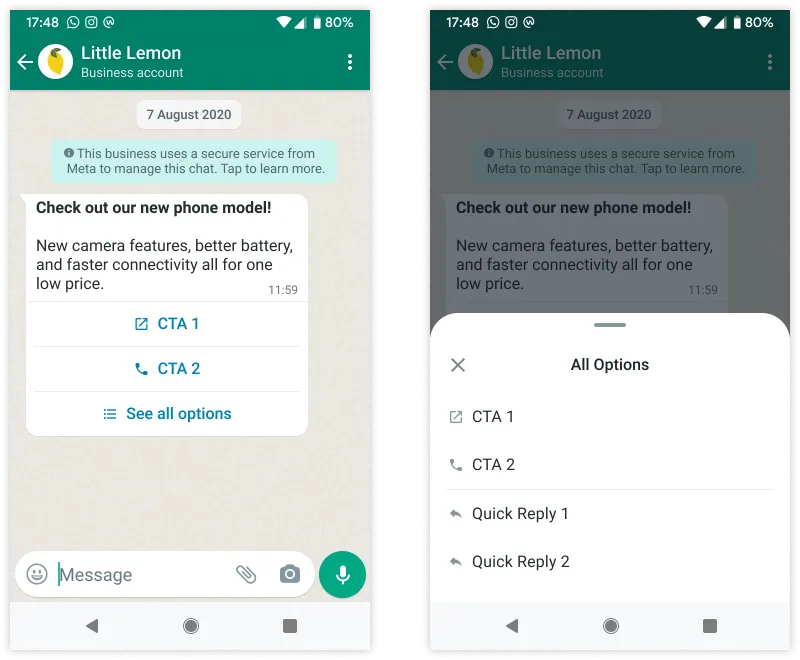
Copy code buttons copy a text string (defined when the template is sent in a template message) to the device's clipboard when tapped by the app user. Templates are limited to one copy code button.
| Placeholder | Description | Example Value |
|---|
| String to be copied to the device's clipboard when tapped by the app user.
Maximum 15 characters. | |
#### Multi-product message buttons
Multi-product message buttons are special, non-customizable buttons that, when tapped, display up to 30 products from your ecommerce catalog, organized in up to 10 sections, in a single message. See [Multi-Product Message Templates](/books/meta-whatsapp/page/multi-product-message-templates-developer-documentation).
#### One-time password buttons
One-time password buttons are a special type of [URL button](#bkmrk-url-buttons-1) component used with authentication templates. See [Authentication Templates](/documentation/business-messaging/whatsapp/templates/authentication-templates/authentication-templates).
Voice call buttons make a WhatsApp call to the business when tapped by the app user. See [Create and send WhatsApp call button template message](/books/meta-whatsapp/page/send-whatsapp-call-button-messages-and-deep-links-developer-documentation) to learn more
Phone number buttons call the specified business phone number when tapped by the app user. Templates are limited to one phone number button.
| Placeholder | Description | Example Value |
|---|
| Alphanumeric string. Business phone number to be called when the user taps the button. Note that some countries have special phone numbers that have leading zeros after the country calling code (for example, +55-0-955-585-95436). If you assign one of these numbers to the button, the leading zero will be stripped from the number. If your number will not work without the leading zero, assign an alternate number to the button, or add the number as message body text. 20 characters maximum. | |
| Button label text.
25 characters maximum. | |
Quick reply buttons are custom text-only buttons that immediately message you with the specified text string when tapped by the app user. A common use case is a button that allows your customer to easily opt-out of any marketing messages.
Templates are limited to 10 quick reply buttons. If using quick reply buttons with other buttons, buttons must be organized into two groups: quick reply buttons and non-quick reply buttons. If grouped incorrectly, the API will return an error indicating an invalid combination.
Examples of valid groupings:
Quick Reply, Quick ReplyQuick Reply, Quick Reply, URL, PhoneURL, Phone, Quick Reply, Quick ReplyExamples of invalid groupings:
Quick Reply, URL, Quick ReplyURL, Quick Reply, URLWhen using the API to send a template that has multiple quick reply buttons, you can use the index property to designate the order in which buttons appear in the template message.
| Placeholder | Description | Example Value |
|---|
| Button label text.
25 characters maximum. | |
Single-product message (SPM) buttons are special, non-customizable buttons that can be mapped to a product in your product catalog. When tapped, they load details about the product, which it pulls from your catalog. Users can then add the product to their cart and place an order. See [Single-Product Message Templates](/books/meta-whatsapp/page/single-product-message-templates-developer-documentation) and [Product Card Carousel Templates](/books/meta-whatsapp/page/product-card-carousel-templates-developer-documentation).
URL buttons load the specified URL in the device's default web browser when tapped by the app user. Templates are limited to two URL buttons.
| Placeholder | Description | Example Value |
|---|
| URL of website. Supports 1 variable.
If using a variable, add sample variable property to the end of the URL string. The URL loads in the device's default mobile web browser when the customer taps the button.
2000 characters maximum. | `https://www.luckyshrub.com/shop?promo=summer2023` |
| Button label text. 25 characters maximum. | |
| URL of website that loads in the device's default mobile web browser when the button is tapped by the app user.
Supports 1 variable, appended to the end of the URL string.
2000 characters maximum. | `https://www.luckyshrub.com/shop?promo={{1}}` |
Limited-Time Offer components are special components used to create [limited-time offer templates](/books/meta-whatsapp/page/limited-time-offer-templates-developer-documentation).
## Template Library
Updated: Nov 14, 2025
Template Library makes it faster and easier for businesses to create utility templates for common use cases, like payment reminders, delivery updates - and authentication templates for common identity verification use cases.
These pre-written templates have already been categorized as utility or authentication. Library templates contain fixed content that cannot be edited and parameters you can adapt for business or user-specific information.
You can browse and create templates using Template Library in WhatsApp Manager, or programmatically via the API.
### Creating Templates via WhatsApp Manager (WAM)
Follow the instructions below to create templates using the Template Library in [WhatsApp Manager?](https://business.facebook.com/wa/manage/template-library).
1: In the sidebar of WAM, under **Message Templates**, select **Create Template**.
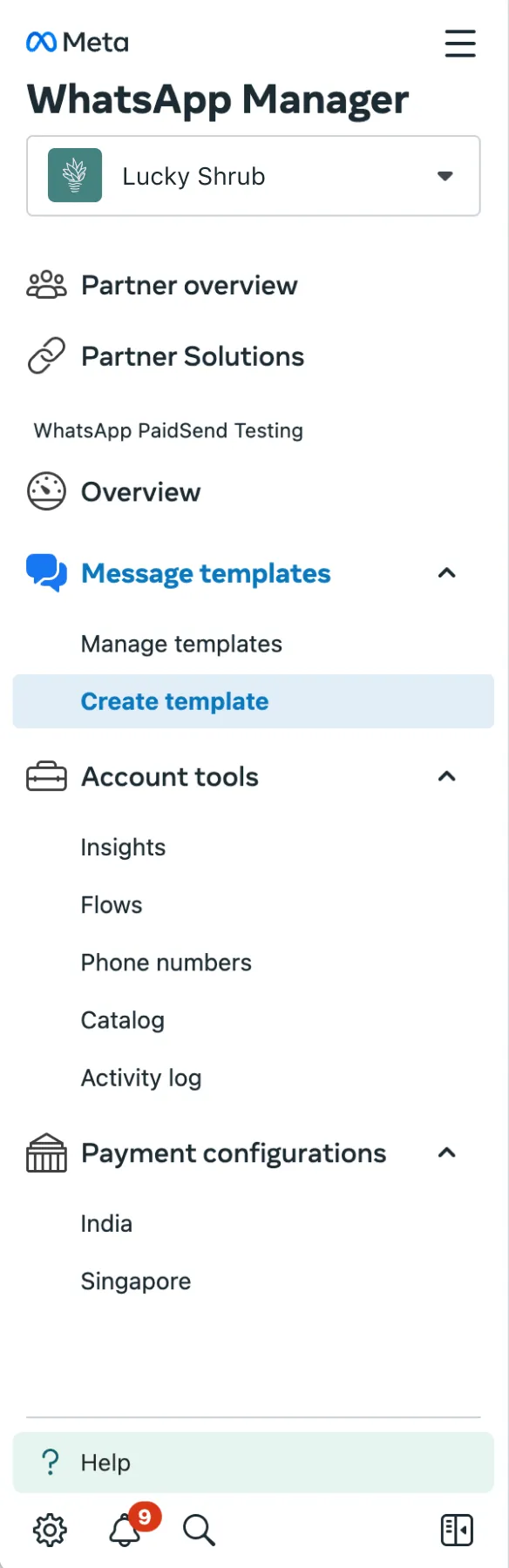
2: Under *Browse the WhatsApp Template Library*, select **Browse Templates**.
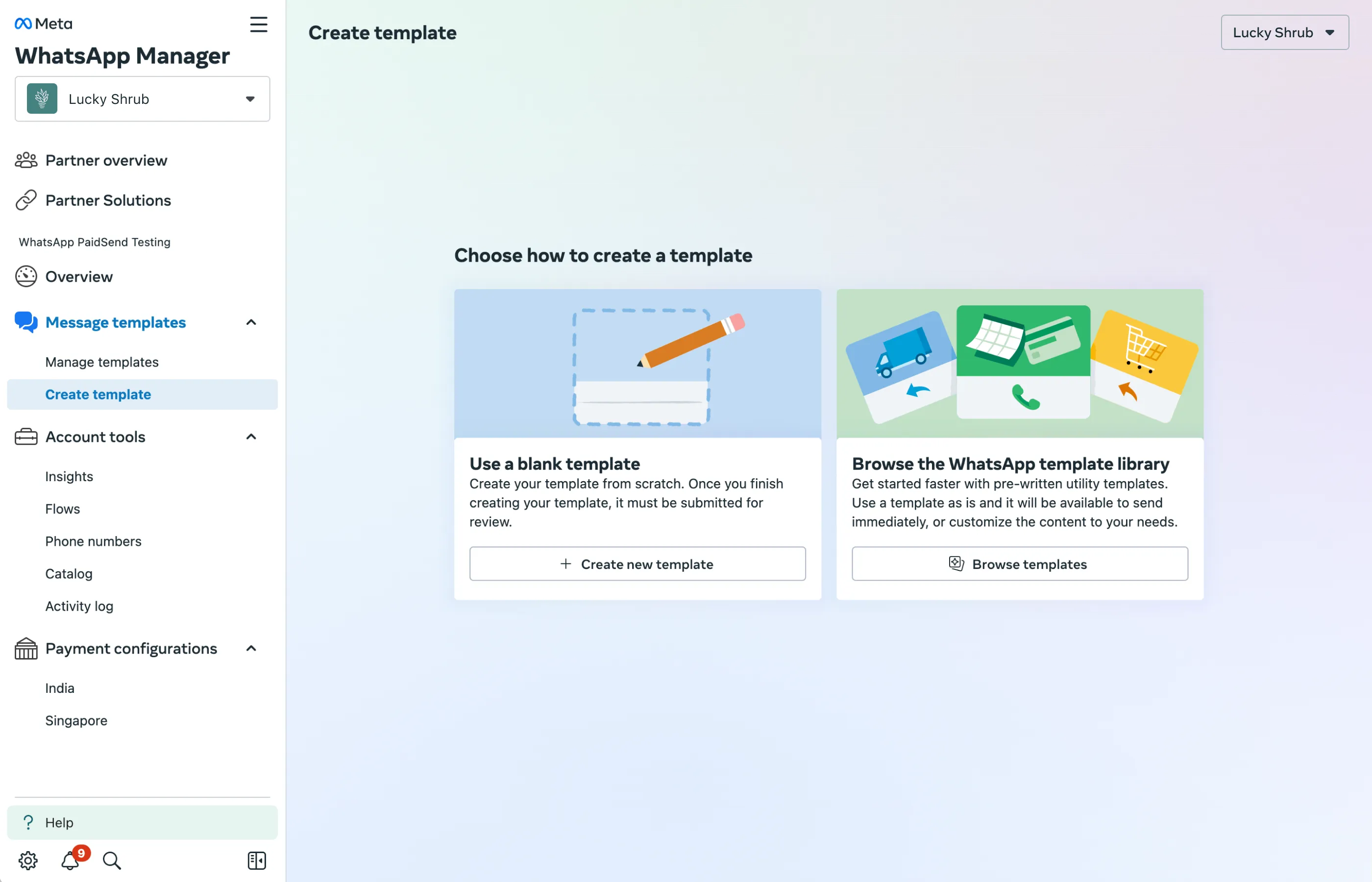
3: You will now see all currently available templates. Use the search bar to search by topic or use case, or use the dropdown options on the sidebar to filter the results.
Note that hovering over a template will show you its parameter values.
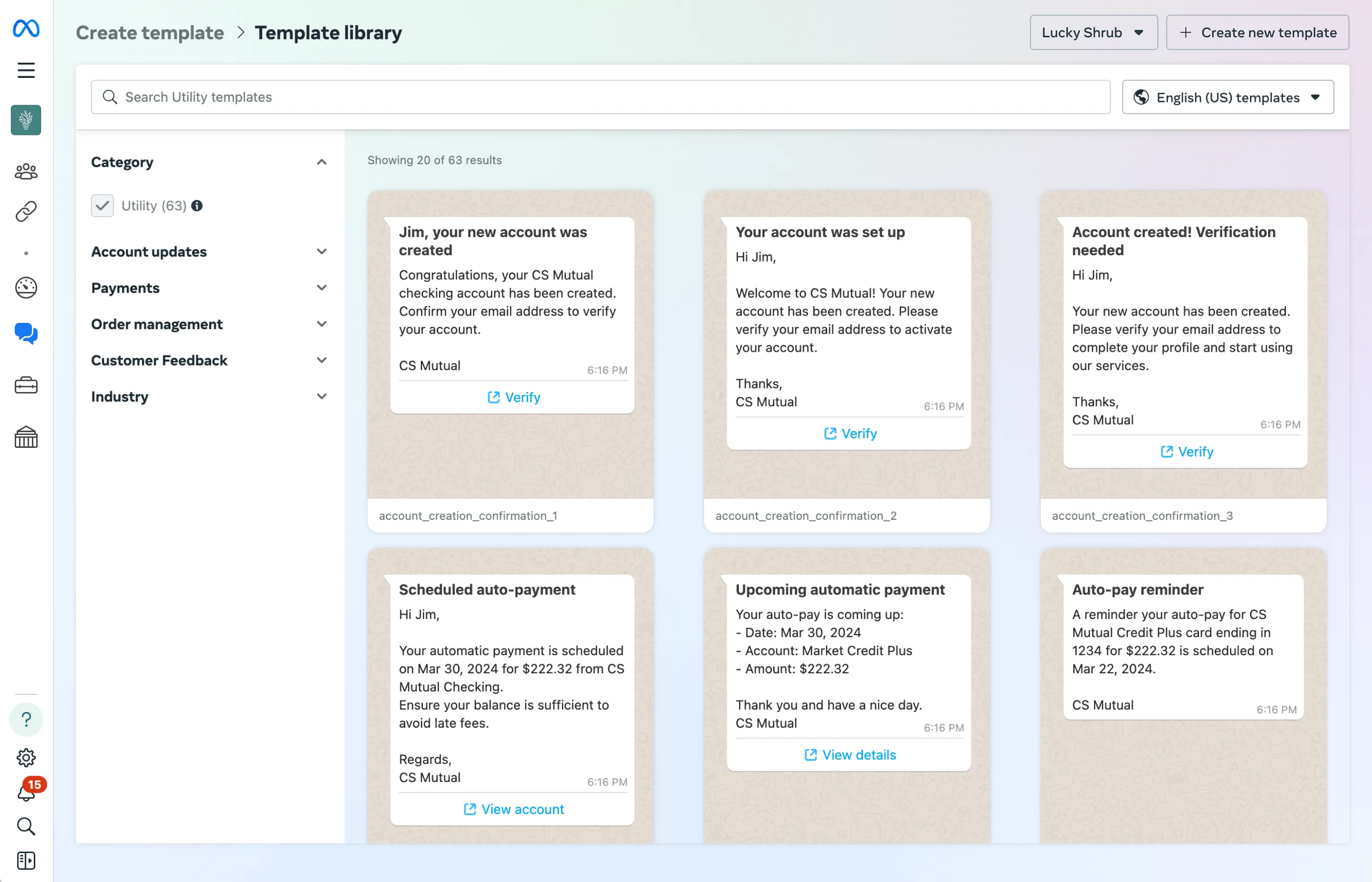
4: To create a template, **select one** by clicking on it. Then, add your template name, select the language, and fill out the button details. Once you have completed these steps, click **Submit**.
Note: If you choose **Customize template**, your template will have to go through review before you are able to send messages.
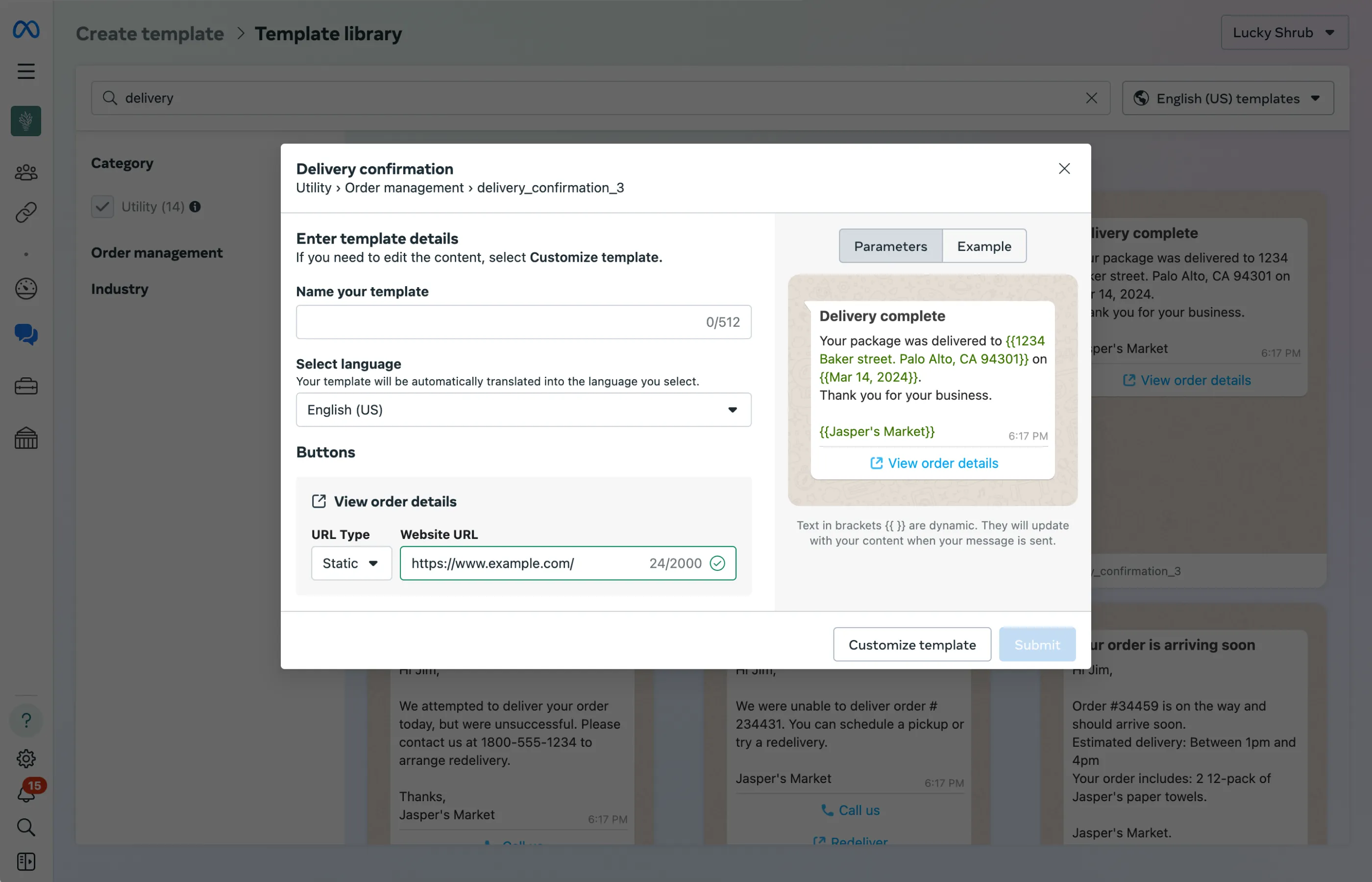
### Template Parameters and Restrictions
When a template contains the value `library_template_name` in the `GET /message_templates?name=` response, it is a template created from the Template Library and is subject to type checks and restrictions.
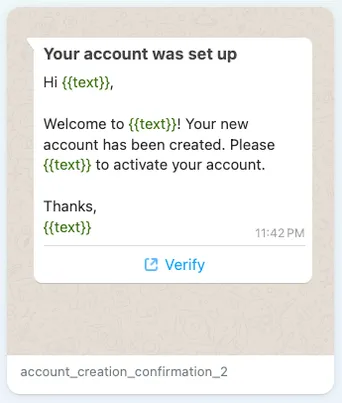
Templates in the library contain both fixed content and parameters. The parameters represent spaces in the template where variable information can be inserted, such as names, addresses, and phone numbers.
In the example above, parameters like the name `Jim` or the business name `CS Mutual` can be modified to accept variables like your customer's name and your business's name.
Messages sent using templates from Template Library are subject to parameter checks during send time. Values used in parameters that are outside of the established ranges listed below will cause the message send to fail.
#### List of parameters and sample values
All parameters are length restricted. If you receive an error, try again with a shorter value.
| Parameter Type | Description | Sample Value |
|---|
| A location address.
Must be a valid address |
`1 Hacker Way, Menlo Park, CA 94025` |
| |
`regarding your order.``12 pack of paper towels``your request``purchase``Jasper's Market` |
| A number signifying a quantity.
May contain a prefix or suffix for monetary values such as USD or RSMay contain decimals (.) and commas (,)May contain valid currency symbols such as $ and ? |
`145``USD $375.32``?1,376.22 EUR``RS 1200` |
| A standard calendar date. |
`2021-04-19``13/03/2021``5th January 1982``08.22.1991``January 1st, 2024``05 12 2022` |
| A telephone number.
May contain numbers, spaces, dashes (-), parentheses, and plus symbols (+) |
`+1 4256789900``+91-7884-789122``+39 87 62232` |
| A standard email address.
Must be a valid email address |
`1hackerway@meta.com``yourcustomername@gmail.com``abusinessorcustomername@hotmail.com` |
| A number.
Must be a number.Cannot contain spaces. |
`23444``90001234921388904``453638` |
### Sending Template Messages
To learn how to send templated messages, view the [Send Templates guide](/books/meta-whatsapp/page/template-messages-developer-documentation)
## Template management
Updated: Nov 14, 2025
Learn about common endpoints used to manage templates.
Only templates with an `APPROVED`, `REJECTED`, or `PAUSED` status can be edited.You can only edit a template's category, components, or time-to-live.You cannot edit individual template components; all components will be replaced with the components in the edit request payload.You cannot edit the category of an approved template.Approved templates can be edited up to 10 times in a 30 day window, or 1 time in a 24 hour window. Rejected or paused templates can be edited an unlimited number of times.After editing an approved or paused template, it will automatically be approved unless it fails template review.If you delete a template that has been sent in a template message but has yet to be delivered (e.g. because the customer's phone is turned off), the template's status will be set to `PENDING_DELETION` and we will attempt to deliver the message for 30 days.If you delete an approved template, you cannot create a new template with the same name for 30 days.Templates that are in a disabled status cannot be deleted.#### Delete template by name
Deleting a template by name deletes all templates that match that name (meaning templates with the same name but different languages will also be deleted).
#### Delete template by ID
To delete a template by ID, include the template's ID along with its name in your request; only the template with the matching template ID will be deleted.
## Business portfolio pacing
Updated: Dec 8, 2025
This feature is being released gradually over the coming weeks so may not apply to you immediately.
Business portfolio pacing is a template message delivery batching mechanism that allows time to gather feedback on any template sent as part of a large-scale messaging campaign.
Note that business portfolio pacing is different from [template pacing](/books/meta-whatsapp/page/template-pacing-developer-documentation), which only affects marketing and utility templates.
Business portfolio pacing applies to:
business portfolios that have sent less than 500K template messages collectively, across all of their business phone numbers, within a moving 365-day lookback periodbusiness portfolios that are currently being monitored for suspicious activity (for example, for violating our [WhatsApp Business Messaging Policy](https://l.facebook.com/l.php?u=https%3A%2F%2Fbusiness.whatsapp.com%2Fpolicy&h=AT6XrhY0KdXEaMPqhZQZgGYWRVyATxzTasLD1Cfq-b9CN_SDedXtuw_7-KcexIcBejpbUd4BLkNGnphXM01dJM60imycV-0Zy2VlXqPDJ4lLf65Rb98-Y61ZgM_SC7T7dqtPYxOVeBn03JIK2c3sdA) or [WhatsApp Messaging Guidelines](https://l.facebook.com/l.php?u=https%3A%2F%2Fwww.whatsapp.com%2Flegal%2Fmessaging-guidelines&h=AT6XrhY0KdXEaMPqhZQZgGYWRVyATxzTasLD1Cfq-b9CN_SDedXtuw_7-KcexIcBejpbUd4BLkNGnphXM01dJM60imycV-0Zy2VlXqPDJ4lLf65Rb98-Y61ZgM_SC7T7dqtPYxOVeBn03JIK2c3sdA))If pacing applies to your business portfolio and you attempt to send a large number of templates within a short period of time using any of your portfolio’s business phone numbers:
an initial set of messages will be processed normallysubsequent messages will be held, and the `message_status` property in API responses will be set to `held_for_quality_assessment`We will then deliver messages in batches, monitoring feedback before releasing each new batch. If feedback suggests suspicious activity, all remaining held messages will be dropped, and a [status messages](/books/meta-whatsapp/page/status-messages-webhook-reference-developer-documentation) webhook with `status` set to `failed` and `code` set to `132015` will be triggered for each dropped message. Portfolio admins will be informed of dropped messages by Meta Business Suite notification, WhatsApp Manager banner, and email.
In addition, the business portfolio will be prevented from sending or creating templates while it undergoes further review. If messaging activity has been found to violate our policies or guidelines, it may be fully disabled completely. Portfolio admins will be notified of any enforcement actions and will have the option to appeal any decisions.
## Template pacing
Updated: Dec 8, 2025
Template pacing is a mechanism that allows time for customers to provide early feedback on templates. This identifies and [pauses templates](/books/meta-whatsapp/page/template-pausing-developer-documentation) that have received poor feedback or engagement, giving you enough time to adjust their contents before they are sent to too many customers, thereby reducing the likelihood of negative feedback impacting your business.
Template pacing is valid for marketing and utility templates. Newly created templates, paused templates that are unpaused, and templates that may have been created previously but don’t have a `GREEN` quality rating are potentially subject to pacing. Template quality history — for example, low quality resulting in a template pause — is one of the primary reasons for template pacing and you may see other templates get paced. When a template is paced, messages will be sent normally until an unspecified threshold is reached. Once this threshold is reached, subsequent messages using that template will be held to allow enough time for customer feedback. Once we receive a good quality signal, subsequent messages using that template will be scaled to the entire target audience. If we receive a bad quality signal, subsequent messages using that template will be dropped, giving you the opportunity to adjust content, targeting, etc.
### Utility template pacing
Utility templates are subject to pacing only if you have had a utility template paused. Once a utility template has been paused, newly created templates, paused templates that are unpaused, and templates that may have been created previously but don’t have GREEN quality rating are potentially subject to pacing for the next 7 days.
The immediate response from the messages endpoint will indicate if the message was sent or held with the new `message_status` property in the `messages` object. This response will be available on all versions of the API.
Cloud API will always include a `message_status` property that will have a value of `accepted` for messages that are processed, and `held_for_quality_assessment` for messages that are held. Messages that are accepted will trigger the `sent` and `delivered` webhooks when they are actually sent (this is the same behavior that existed before pacing). A full example response can be found in the Cloud API docs.If the feedback is positive and changes the template’s quality rating to high quality, the held messages will be released and sent normally. The `message_template_quality_update` will send the quality update and the `messages` webhook will send the sent and delivered updates.
If the feedback is negative and changes the template’s quality to low quality:
The template’s `status` will be set to `PAUSED`A `message_template_status_update` will be sent with an event value of `paused`Each held message will be dropped and trigger a `messages` webhook with and (Cloud API users).A `message_template_quality_update` webhook will be triggered with the quality changeAdmins of the WhatsApp Business Account owning business will be informed of the dropped messages by Meta Business Suite notification, WhatsApp Manager banner, and emailSee [Template Pausing](/books/meta-whatsapp/page/template-pausing-developer-documentation) to learn how to unpause a template that has been paused due to pacing.
Note that we have internal guardrails in place to ensure that we evaluate and make a pacing decision within a reasonable time to avoid impact on time sensitive campaigns. Our goal is that even if paced, campaign messages with highest throughput still get delivered within an hour (99 percentile).
Thus, if our internal guardrails are reached before a template has received enough feedback to change its quality to high or low, the held messages will be released normally along with any appropriate messages webhooks.
## Template pausing
Updated: Oct 22, 2025
If a message template reaches the lowest quality rating (a status of **Active - Low quality** in WhatsApp Manager, or a `quality_score` of `RED` via API), it will automatically be paused for a period of time to protect the quality rating of phone numbers that have used the template. Pausing durations are as follows:
1st Instance: Paused for 3 hours2nd Instance: Paused for 6 hours3rd Instance: DisabledWhen a message template is paused (status of **Paused**) it can’t be sent to customers, so you should halt any automated messaging campaigns that rely on that template. Although you won’t be charged for attempting to send a paused message template to a customer, and the attempt won’t count against your messaging limit, the API will reject these attempts anyway. You should only resume these campaigns when the template’s status has been set to Active again.
You may wish to edit a paused template if you feel that editing its content will reduce the amount of negative feedback it may receive and increase user engagement. Keep in mind, however, that once you edit a message template and resubmit it for approval, its status will change to In Review and it can’t be sent to customers again until it has been re-approved and its status set to Active.
You may also wish to make changes to your business logic (targeting, delivery parameters, etc.) if you feel it is contributing to negative feedback or low engagement.
Pausing will initially not impact the business phone number from which the message template was sent. Other high quality message templates can continue to be sent from the phone number. However, if a business consistently sends message templates that reach a Low quality status, the phone number may eventually be impacted.
When a message template has been paused we will notify you by WhatsApp Manager notification, email, and a [message\_template\_status\_update](/books/meta-whatsapp/page/message-template-status-update-webhook-reference-developer-documentation) webhook will be triggered.
A template will unpause on its own after satisfying the pause duration outlined above. Once unpaused, the template’s status will be set to **Active** and you may begin sending it to customers again. If you didn’t halt any automated messaging campaigns that relied on a paused template, they should start working again. However, we recommend that you halt any campaigns that rely on a template that has been paused until it is unpaused, because our APIs will reject your requests anyway.
The template’s [quality rating](/books/meta-whatsapp/page/template-quality-rating-developer-documentation) will also be reset to a value based on the most recent customer feedback the template has received.
Similar to pause notifications, we will notify you by WhatsApp Manager notification, email, and webhook once the template’s status has been set to Active.
Applies to businesses in Brazil, Colombia, and Singapore, starting September 12, 2023. Applies to all businesses starting October 12, 2023.
With the introduction of Template Pacing, we’re also introducing the ability to unpause any paused template through:
The API by making a POST request to `/{whats_app_message_template_id}/unpause`WhatsApp Manager by clicking the **manually unpause it** link highlighted in the screenshots below.Note that templates paused during Template Pacing must be manually unpaused (API or WhatsApp Manager) before they can be used again.
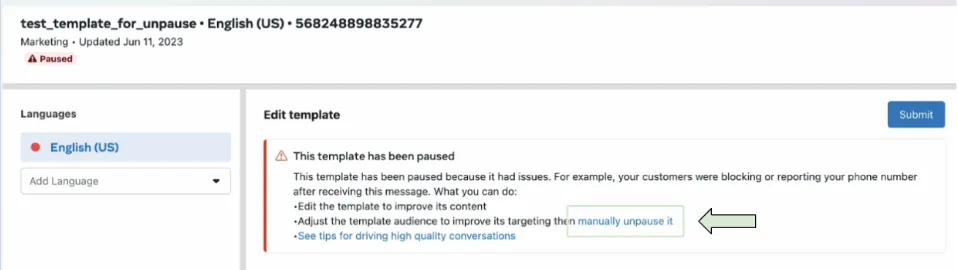
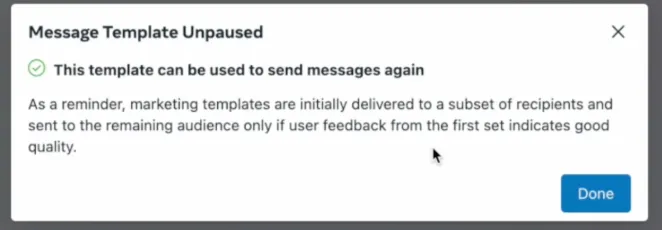
If your submission is rejected you may file an appeal. Note that appeals must include a sample. If an approved template has become disabled, you may also edit it and resubmit it for approval.
In the WhatsApp Manager:
Mouseover the suitcase icon (**Account tools**) and click **Message templates**.If you have multiple WhatsApp Business Accounts, use the dropdown menu in the top-right corner to select the account whose templates you want to manage.Find the message template that you would like to edit and click it.Edit the template’s contents.Click the **Add Sample** button and add sample variable values and images.Click **Submit**.The appeal will be reviewed and a decision made within 24 hours.
## Per-user marketing template message limits
Updated: Feb 26, 2026
**Upcoming changes**
*Starting March 3, 2025*, we will take into account the overall volume of personal and business messages in a user’s inbox in addition to their recent marketing message read rates when determining if a given WhatsApp user should receive fewer marketing template messages, and what their limit should be. This means that if a person has low inbox activity or they have not engaged with many of the marketing messages they received lately they may receive fewer marketing messages to ensure a healthy balance of messages in their inbox. From late Q2 we will also align the per user marketing limit with upcoming per-message pricing changes so that all marketing messages delivered will now count towards the per user marketing limit.
*Starting April 1, 2025*, we will temporarily pause delivery of all marketing template messages to WhatsApp users who have a United States phone number (a number composed of a +1 dialing code and a US area code). This pause is intended to allow us to focus on building a better consumer experience in the US, which will ultimately lead to improved outcomes for businesses. Attempting to send a template message to a WhatsApp user with a US phone number after this date will [result in an error](#bkmrk-how-we-notify-via-er-1).
WhatsApp may limit the number of marketing template messages a person receives from any business in a given period of time where users are less likely to be receptive and engage with them. This is determined based on a number of factors, including a dynamic view of an individual’s recent marketing message read rate and how many messages they currently have in their inbox from friends, family and businesses.
Starting April 1, 2025, to focus on building the consumer experience, WhatsApp will not deliver any marketing template messages to individuals with United States phone numbers (numbers composed of a +1 dialing code and a US area code).
Messages sent from a business phone number in the European Economic Area, United Kingdom, Japan, or South Korea, or to a consumer in these countries, will not receive delivery optimizations. Note that per-user marketing message template limits are also not active in these countries, so a lack of delivery optimizations will not have any effect on message delivery.
WhatsApp has found that per-user marketing template limits maximize marketing message engagement and improve the user experience, measured through improvements in user read rates and sentiment. This limit helps WhatsApp users find business messaging more valuable and feel less like they receive too many business messages. How this Applies to Your Business
Our per user marketing limit adapts automatically over time based on a person’s recent engagement levels. While this may mean delivering fewer messages to some users during periods of lower marketing read rates or overall inbox activity, rest assured your ability to reach people when they are most engaged will not change.
### Aligning per-user marketing limits with upcoming per message pricing changes
Gradually rolling out from late Q2 2025, the per user marketing limit will align with upcoming per-message [pricing changes](/books/meta-whatsapp/page/pricing-on-the-whatsapp-business-platform-developer-documentation). Previously, the limit only applied to marketing template messages that would normally open a new marketing conversation, and businesses could send one additional marketing template message if a marketing conversation is already open between you and a WhatsApp user.
Now businesses will be able to send an unlimited number of marketing messages, however each message delivered will now count towards the per user marketing limit. One exception is, if a person responds to a marketing message it will start a 24h [customer service window](/books/meta-whatsapp/page/sending-messages-developer-documentation). Marketing messages sent within this window will not count towards a person’s limit.
### How we notify via error code
If a marketing template message is not sent due to per-user marketing template limit enforcement, a messages webhook will be triggered with status set to failed and (error) code set to `131049` (for Cloud API).
If you do receive this error code and suspect it is due to the limit, wait at least 24 hours before resending the template message. Doing so will only result in another error response since the limit may be in effect for differing periods of time.
We will continue to refine our approach, and we appreciate your partnership as we invest in making WhatsApp the best possible experience for your business and your customers.
## Template quality rating
Updated: Oct 29, 2025
Every template has a quality rating based on usage, customer feedback, and engagement. Templates can have the following ratings, as reported by the API:
`GREEN` - Indicates high quality. The template has received little to no negative feedback from WhatsApp users. The template can be sent.`YELLOW` - Indicates medium quality. The template has received negative feedback from multiple WhatsApp users, or low read-rates, and may soon become paused or disabled. Message templates with this status can still be sent.`RED` - Indicates low quality. The template has received negative feedback from multiple WhatsApp users, or low read-rates. The template can be sent, but is in danger of being paused or disabled soon. We recommend that you address the issues that users are reporting. are reporting.`UNKNOWN` - Indicates a quality score is still pending, because it has yet to receive WhatsApp user feedback or read-rate data. The template can be sent.Newly created templates have a quality score of `UNKNOWN`, but their rating will change automatically as usage, feedback, and engagement signal is collected over time.
Quality ratings factor into [template pacing](/books/meta-whatsapp/page/template-pacing-developer-documentation) and [template pausing](/books/meta-whatsapp/page/template-pausing-developer-documentation), which can affect template delivery. If a template continuously receives negative feedback or low engagement, it can eventually affect the template's status. If the status changes to anything other than `APPROVED`, the template cannot be sent in template messages unless its `APPROVED` status is restored.
### Get template quality rating via WhatsApp Manager
The [Manage templates?](https://business.facebook.com/latest/whatsapp_manager/message_templates) panel in WhatsApp Manager also displays template quality ratings for templates that have an approved status:
Active - **Quality pending** (equates to an `UNKNOWN` quality score)Active - **High quality** (equates to a `GREEN` quality score)Active - **Medium quality** (equates to a `YELLOW` quality score)Active - **Low quality** (equates to a `RED` quality score)
[About your WhatsApp Business message template's quality rating?](https://www.facebook.com/business/help/766346674749731)## Template review
Updated: Oct 31, 2025
Cloud API reviews templates and variable parameters using machine learning to protect the security and integrity of Cloud API services. When Cloud API reviews templates and variable text, no information is shared with WhatsApp.
When you submit a template creation request, the content undergoes validation through a combination of automated systems and manual reviews. This process ensures that the template complies with WhatsApp’s policies and quality standards. Templates that contain spam, scam-like content, or violate WhatsApp policies are rejected during this review process.
Once you have created your template you can submit it for approval. It can take up to 24 hours for an approval decision to be made. Once a decision has been made, a notification will appear in your WhatsApp Manager and we will send an email to your Business Manager admins. In addition, we will send a [message\_template\_status\_change](/books/meta-whatsapp/page/message-template-status-update-webhook-reference-developer-documentation) webhook.
If your message template is approved, its status will be set to **Active - Quality pending** (`APPROVED` in the API) and you can begin sending it to customers. If it is rejected, you can edit it and resubmit for approval, or appeal the decision.
If your template uses variables you must include sample variable values (media assets, text strings, etc.) with your submission. This makes it easier for us to visualize how your template will appear to customers.
To include a sample with your submission in the WhatsApp Manager, first create your template, adding any variables that it requires, then click the Add Sample button. The preview pane will render any sample media assets or sample text values you provide.
### Common rejection reasons
Submissions are commonly rejected for the following reasons, so make sure you avoid these mistakes.
Variable parameters are missing or have mismatched curly braces. The correct format is `{{1}}` for positional parameters .Variable parameters contain special characters such as a `#`, `$`, or `%`.Variable parameters are not sequential. For example, `{{1}}`, `{{2}}`, `{{5}}`, `{{4}}`.The template contains too many variable parameters relative to the message length. You need to decrease the number of variable parameters or increase the message length.The message template cannot start or end with a parameter i.e. dangling parameters are not allowed.#### Content and Policy Violations
#### Character limits and text format
The body component will have different character limits depending on the format and tag of the template. The number of emojis allowed in the body component may also be limited.
The message template is a duplicate of an existing template. If a template is submitted with the same wording in the body and footer of an existing template, the duplicate template will be rejected.
#### Rejection Notifications
A rejection notification that includes the rejection reason will appear in Business Support Home. You can view rejections in the Business Support Home by navigating to **Account Overview** > **View my accounts** (button) > (your Meta Business Account) > (your WABA) > **Rejected message templates**.
Rejection info will also be sent via email.
You can refer to the Business Support Home notification to see the name and language of the existing template with the same content as the rejected duplicate template. You may also choose to edit the template and resubmit.
Note: This check does not apply to templates categorized as `AUTHENTICATION`.
If your submission is rejected you may file an appeal. Note that appeals must include a sample. If an approved template has become disabled, you may also edit it and resubmit it for approval.
#### In the WhatsApp Manager:
The appeal will be reviewed and a decision made within 24 hours.
### Template review webhooks
You can receive updates via the [message\_template\_status\_update](/books/meta-whatsapp/page/message-template-status-update-webhook-reference-developer-documentation) webhook, which notifies whether a template is approved, pending, or rejected.
If your template is rejected and you disagree with the decision, you have the option to submit an appeal for reconsideration.
## Tap target title URL override
Updated: Nov 13, 2025
This document explains how to send approved message templates using the `tap_target_configuration` component within a template message. Tap target override enables image-based, text-based, and header-less message templates to function as interactive Call-to-Action URL buttons. These buttons display a custom title and open the destination linked to the first URL button.
WhatsApp Business Accounts (WABAs) must be fully verified and consistently maintain high-quality standards to ensure compliance and access to this component.
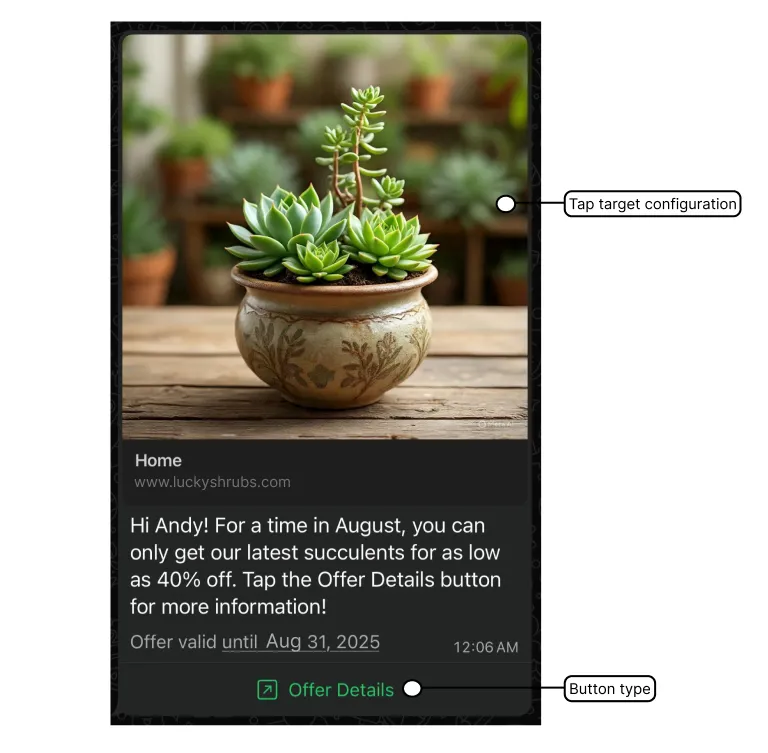
## Template groups
Updated: Feb 27, 2026
This document describes how to create, manage, and measure template groups.
Template groups allow you to associate a set of templates so it's easier to track their performance as a set when querying template metrics.
a template can only be a part of a single template group at a timetemplate group names must be uniqueremoving a template from a template group does not remove any template metrics it may have contributed to the group### Template group analytics
See the [Template group analytics](/books/meta-whatsapp/page/analytics-developer-documentation) document.
## Template Comparison
Updated: Nov 14, 2025
You can compare two templates by examining how often each one is sent, which one has the lower ratio of blocks to sends, and each template's top reason for being blocked.
A [User](/books/meta-whatsapp/page/access-tokens-guide-developer-documentation) or [System User](/books/meta-whatsapp/page/access-tokens-guide-developer-documentation) access token.The [whatsapp\_business\_management](https://developers.facebook.com/docs/permissions/reference/whatsapp_business_management) permission.
Only two templates can be compared at a time.Both templates must be in the same WhatsApp Business Account.Templates must have been sent at least 1,000 times in the queries specified timeframe.Lookback windows are limited to 7, 30, 60 and 90 days from the time of the request.## Template migration
Updated: Nov 14, 2025
This document describes how to migrate templates from one WhatsApp Business Account (WABA) to another. Note that migration doesn't move templates, it recreates them in the destination WABA.
Templates can only be migrated between WABAs owned by the same Meta business.Only templates with a status of `APPROVED` and a `quality_score` of either `GREEN` or `UNKNOWN` are eligible for migration.