# Solution Providers
# Solution providers | Developer Documentation
## Solution providers
Updated: Nov 14, 2025
This documentation contains information, instructions, and resources for **solution providers** — businesses that provide, or want to provide, WhatsApp messaging services to other businesses. If you are building an app that will not be used by other businesses, refer to our [Cloud API Get Started](/books/meta-whatsapp/page/get-started-developer-documentation) guide instead.
Solution providers are business entities that deploy value-added solutions as WhatsApp authorized service providers on behalf of their business customers. Solution providers include Solution Partners, Tech Providers, and Tech Partners.
Solution Partners are [Meta Business Partners](https://www.facebook.com/business/marketing-partners/become-a-partner) that provide a full range of WhatsApp Business Platform services to other businesses, such as messaging services, billing, integration support, and customer support.
Solution Partners have [credit lines](https://www.facebook.com/business/help/1684730811624773?id=2129163877102343) which can be extended to business customers who they bring on board, thus removing the need for those customers to enter their own payment method during the onboarding process. Furthermore, Solution Providers are able to directly invoice their customers for the WhatsApp Business Platform services provided through their apps.
In addition, Solution Partners have access to [Direct Support](/books/meta-whatsapp/page/faqs-developer-documentation) and are eligible to participate in the [Meta Business Partner SMB Accelerator Program](https://www.facebook.com/business/marketing-partners/mbp-smb-accelerator), which offers incentive, accreditation, and enablement services.
Note that becoming a Solution Provider is a lengthy process, so if you don’t need a credit line and don’t need to invoice your business customers for API usage directly, consider becoming a Tech Provider instead.
See [Get started for solution partners](https://developers.facebook.com/docs/whatsapp/solution-providers/get-started-for-solution-partners).
Tech Providers are similar to Solution Partners in that they also can offer a full range of WhatsApp Business Platform services to other businesses, either by providing these services on their own, or by [partnering with a Solution Partner](/books/meta-whatsapp/page/multi-partner-solutions-developer-documentation) who already offers these services.
Unlike Solution Providers, however, Tech Providers do not have credit lines. Instead, business customers onboarded by Tech Providers must provide their own payment method after onboarding is complete. Meta will then bill these customers for API usage, and the Tech Provider will bill for other services.
Tech Providers also cannot participate in the [Meta Business Partner SMB Accelerator Program](https://www.facebook.com/business/marketing-partners/mbp-smb-accelerator), unless they upgrade to a Tech Partner. However, Tech Providers do have access to [Direct Support](/books/meta-whatsapp/page/faqs-developer-documentation).
To learn how to become a Tech Provider, see [Become a Tech Provider](/books/meta-whatsapp/page/become-a-tech-provider-developer-documentation).
Tech Partners are Tech Providers who are, or are eligible to become, [Meta Business Partners](https://www.facebook.com/business/marketing-partners/become-a-partner). Tech Providers who apply to become a Meta Business Partner and are approved are eligible to participate in the [Meta Business Partner SMB Accelerator Program](https://www.facebook.com/business/marketing-partners/mbp-smb-accelerator).
To learn how to upgrade to a Tech Partner, see [Upgrading to a Tech Partner](/books/meta-whatsapp/page/upgrading-to-a-tech-partner-developer-documentation).
If you just want to use Meta Business Suite to provide WhatsApp messaging-related services to business customers (i.e. you **don’t need API access**), you only need a verified business portfolio.
Go to [https://business.facebook.com](https://business.facebook.com/) and create a business portfolio, or sign into your existing Meta Business Suite account if you already have one.Complete the [business verification steps](https://www.facebook.com/business/help/2058515294227817) described in our Help Center article.Once your business is verified, provide your business portfolio ID to any business customers for whom you wish to provide service, and ask them to [share their WhatsApp Business Account](/books/meta-whatsapp/page/managing-whatsapp-business-accounts-developer-documentation) with you. Once shared, you can use Meta Business Suite to access their account and provider service.
| Solution Partners | Tech Providers | Tech Partners |
|---|
Can offer full WhatsApp Business Platform services to onboarded customers | | | |
| | | |
Customers bypass payment method collection | | | |
Bills customers directly for API usage (vs. Meta billing customers for usage) | | | |
Is a Meta Business Partner | | | |
Eligible for accelerator program | | | |
| | | |
### Onboarding business customers
There are multiple ways for you to onboard business customers.
[Embedded Signup](/books/meta-whatsapp/page/embedded-signup-developer-documentation) is a scalable, authentication and authorization interface that can be launched directly from your website or customer portal. Embedded Signup automatically generates all required WhatsApp assets for business customers who successfully complete the flow, and authorizes your app to access those assets.
#### Hosted Embedded Signup
[Hosted Embedded Signup](/documentation/business-messaging/whatsapp/embedded-signup/hosted-es) (“Hosted ES”) is an alternative and simpler way of implementing Embedded Signup that doesn’t require you to configure and host the implementation code on your website or portal.
#### Partner-initiated account creation
If you are a Solution Partner, you can [initiate WhatsApp Business Account creation](/books/meta-whatsapp/page/partner-initiated-waba-creation-developer-documentation) for a business customer who can then use Meta Business Suite to approve or decline creation.
Your business customers can [use Meta Business Suite to create a WhatsApp Business Account](/books/meta-whatsapp/page/managing-whatsapp-business-accounts-developer-documentation) on their own and [share it with you](/books/meta-whatsapp/page/managing-whatsapp-business-accounts-developer-documentation).
### Multi-Partner Solutions
[Multi-Partner Solutions](/books/meta-whatsapp/page/multi-partner-solutions-developer-documentation) allow solution partners to jointly manage onboarded business customer assets in order to provide comprehensive WhatsApp messaging services. For example, if you are a Tech Provider, you may wish to create a multi-partner solution with a Solution Partner who can share their credit line with business customers onboarded via your joint solution.
If you are a Tech Provider or Tech Partner, you should use **business tokens** exclusively. If you are a Solution Partner, you should use a system token only when sharing your credit line with onboarded business customers; in all other cases, use business tokens.
System tokens should only be used by Solution Partners, and only when sharing credit lines with onboarded business customers; at all other times, use a business token instead.
System tokens are described in our API documentation, as they are used by non-solution partners as well. See [System User Access tokens](/books/meta-whatsapp/page/access-tokens-guide-developer-documentation) to learn how to create a system user and token.
When creating your system user, aside from granting it any permissions and roles your app needs, also grant it the **Finance editor** role:
Sign into the [Meta Business Suite](https://business.facebook.com/).Locate your business portfolio in the top-left dropdown menu and click its **Settings** (gear) icon.Click **Business settings**.Navigate to **Users** > **System Users**.Edit the user and grant it the **Finance editor** role.This will allow your app to use the API to share your credit line with onboarded customers.
[Business tokens](/books/meta-whatsapp/page/access-tokens-guide-developer-documentation) are access tokens scoped to individual onboarded business customers. Use these tokens when accessing onboarded customer data, such as WhatsApp Business Accounts, message templates, business phone numbers, and when sending and receiving messages for your customers.
To get a business token that is scoped to a customer, you must exchange a code returned to you when that customer completes the [Embedded Signup](/books/meta-whatsapp/page/embedded-signup-developer-documentation) flow. This process is described in the Onboarding Business Customers section of the Embedded Signup documentation.
The [permissions](/books/meta-whatsapp/page/permissions-developer-documentation) your app requires from onboarded customers depends on the services you provide. These are described in broad terms below but are largely determined by the endpoints your app will be querying.
The most commonly needed permissions are:
**whatsapp\_business\_management** — necessary if your app needs access to onboarded customer WhatsApp Business Account settings and message templates.**whatsapp\_business\_messaging** — necessary if your app needs access to onboarded customer business phone number settings, or if your app will be used by customers to send and receive messages.Note that before your app can be granted these permissions by your business customers, the permissions must be approved through the [App Review](/books/meta-whatsapp/page/app-review-developer-documentation) process.
Before you can officially begin onboarding business customers, you must submit your app for [App Review](/books/meta-whatsapp/page/app-review-developer-documentation) and request **advanced access** approval for any permissions your app requires.
If advanced access is not approved for a given permission, the permission will not appear in the Embedded Signup flow and your business customers will be unable to grant it to your app.
### Business Verification
In order to be eligible for increased messaging limits, business phone number limits, and Official Business Account status, your business customers must verify their business. Your business customers can submit their business for verification by following the instructions in the following Help Center article:
[How to Verify Your Business on Meta](https://www.facebook.com/business/help/2058515294227817?id=180505742745347)
Alternatively, if you are a **Select Solution** or **Premier** Solution Partner, you can submit a customer’s business for verification on their behalf, which has a much faster turnaround time. See [Partner-led Business Verification](/books/meta-whatsapp/page/partner-led-business-verification-developer-documentation).
## Become a Tech Provider
Updated: Nov 20, 2025
This document describes the steps you must take to become a [Tech Provider](/books/meta-whatsapp/page/solution-providers-developer-documentation).
As a Tech Provider, you can independently provide all WhatsApp messaging services to business customers who you have onboarded, or you can work with a [Solution Partner](/books/meta-whatsapp/page/solution-providers-developer-documentation) to jointly offer these services. If you are partnering with a Solution Partner, ask them for their app ID, which you will need to complete these steps.
You need the following:
A [Meta app](https://developers.facebook.com/docs/development/create-an-app) with the WhatsApp use case and a connected [business portfolio](https://www.facebook.com/business/help/486932075688253)During the app creation process you can create a business portfolio.
If you prefer to onboard with a Solution Partner, you will need to provide your partner’s app ID.
### Go to the app dashboard
In the [Meta App Dashboard](/apps) go to **Use cases > Customize** (pencil icon) and click the **Customize** button for the WhatsApp use case, then select **Tech Provider onboarding** from the left-side menu.
On this page of the dashboard, you will find links to the [WhatsApp Embedded Signup developer documentation](/books/meta-whatsapp/page/embedded-signup-developer-documentation), [Developer Support](/support/), and [Success Stories](/success-stories/) as well as steps to complete the Tech Provider onboarding process.
### Step 1: Verify your business
To become a tech provider you need to [verify your business with Meta](https://www.facebook.com/business/help/2058515294227817). If you already have a verified business, and linked it to your app during the app creation process, this step will be marked as completed and you can [start the app review process](/books/meta-whatsapp/page/app-review-developer-documentation).
Click **Start verification** to verify your business. You’ll need the following information:
Verify business details – Provide your business name, address, phone number, email and website for verification.Confirm your connection – Select a way for us to get in touch to confirm your connection to the business.Upload documents – You might need to upload accepted documents to confirm these details if your business is not found.Your business must be verified before you can start the app review process.
Once you have completed business verification, you can submit your app for App Review. You’ll need to complete the following tasks:
Review your app settingsCreate and submit videos of your appSubmit documentation for App Review#### Review your app settings
Your app will need [basic settings](https://developers.facebook.com/docs/development/create-an-app/app-dashboard/basic-settings) such as an app icon, privacy policy, and app category.
To pass App Review, you need to submit video evidence of your capabilities to send messages and manage templates.
The first video must show a message created and sent from your app and received in the WhatsApp client (mobile app or web app).The second video must show your app being used to create a message template.If you are partnering with a Solution Partner, you can use your current integration with them to demostrate these actions.
#### Submit documentation for App Review
Get approval to access advanced permissions and features so that your can manage your clients’ accounts and information.
App Review is the process that will grant you advanced access to the following permissions which are required to become a Tech Provider.
Advanced access to `whatsapp_business_messaging` will allow you to send messages for customers.Advanced access to `whatsapp_business_management` allows you to onboard customers and manage their assets.Click the **Begin App Review** button to start your submission.
[Learn more about App Review](https://developers.facebook.com/docs/resp-plat-initiatives/individual-processes/app-review).
### Onboard with an existing Solution Partner
If you prefer to onboard with a Solution Partner, click the **Onboard with a Solution Partner** button at the bottom of the page.
After clicking the **Onboard with a Solution Partner** button, the Tech Provider onboarding page will refresh to this flow. The flow is identical to the Tech Provider flow with the additional App Review step to **Create a partner solution** by entering your partner’s app ID to create a partner solution.
To onboard without a partner, you can do so by clicking the **Onboard without a partner** button at the bottom of the page.
Confirmed Tech Providers have access to all support channels. See [Support](/books/meta-whatsapp/page/faqs-developer-documentation).
Onboarding business customers - Onboarding business customers via [Embedded Signup](/books/meta-whatsapp/page/embedded-signup-developer-documentation).Webhooks - Before your app users can use your app to send and receive messages or manage templates, you must set up [Webhooks](/books/meta-whatsapp/page/managing-webhooks-developer-documentation).Billing - Your onboarded business customers must [add a credit card to your WhatsApp Business Platform Account](https://www.facebook.com/business/help/488291839463771).## Get started as a Solution Partner
Updated: Dec 12, 2025
This guide goes over the steps [Solution Partners](/books/meta-whatsapp/page/solution-providers-developer-documentation) need to take in order to offer the Cloud API to their customers. There are 4 main stages:
[Prepare & Plan](#bkmrk-prepare-%26-plan-1)[Set up Assets](#bkmrk-set-up-assets-1)[Sign Contracts](#bkmrk-sign-contracts-1)[Build Integration](#bkmrk-build-integration-1)After you're done, please [keep up with monthly updates](#bkmrk-keep-up-with-monthly-1).
Before you start, we recommend reading through our [developer documentation](/books/meta-whatsapp/page/about-the-whatsapp-business-platform-developer-documentation) and our [Postman collection?](https://l.facebook.com/l.php?u=https%3A%2F%2Fwww.postman.com%2Fmeta%2Fworkspace%2Fwhatsapp-business-platform%2Fcollection%2F13382743-84d01ff8-4253-4720-b454-af661f36acc2&h=AT6qUwl44HshMcmtDnszs_fGL9T9mpBrGhqQCCZdHL4d2qn21mhWFVzmVWbcjnhF_7Ut8mF_xso01seI5DzmAmCpSErJbD7cRMt5I53ARVjYdXTOqDZDAdXB6L2zXIa97D0e9djd6JL3uXpaQykxZA). This helps you understand how the Cloud API works, including how to get started and migrate numbers.
#### Plan onboarding & migration
**We recommend that you use Embedded Signup to onboard new business customers to the Cloud API.** If you haven't already, implement [Embedded Signup](/books/meta-whatsapp/page/embedded-signup-developer-documentation). Embedded Signup is the fastest and easiest way to register business customers, enabling them to start sending messages in less than five minutes.
To use the Cloud API, Solution Partners need to have the following assets:
| Asset | Specific Instructions |
|---|
| You can use an existing one, or [set up a new one?](https://www.facebook.com/business/help/1710077379203657). Save the business portfolio ID. |
**WhatsApp Business Account** (WABA) | See [Create a WhatsApp Business Account for the WhatsApp Business API?](https://www.facebook.com/business/help/2087193751603668) for help. |
| If you don't have an app, you need to [create one](https://developers.facebook.com/docs/development/create-an-app) with the **Business** type. Remember to add a display name and a contact email to your app. As a (Solution Partner), your app must go through [App Review](https://developers.facebook.com/docs/app-review) and request Advanced Access to the following permissions: [`whatsapp_business_management`](https://developers.facebook.com/docs/permissions/reference/whatsapp_business_management) - Used to manage phone numbers, message templates, registration, business profile under a WhatsApp Business Account. To get this permission, your app must go through [App Review](https://developers.facebook.com/docs/app-review).[`whatsapp_business_messaging`](https://developers.facebook.com/docs/permissions/reference/whatsapp_business_messaging) - Used to send/receive messages from WhatsApp users, upload/download media under a WhatsApp Business Account. To get this permission, your app must go through [App Review](https://developers.facebook.com/docs/app-review).[`whatsapp_business_manage_events`](https://developers.facebook.com/docs/permissions#whatsapp_business_manage_events) - Used to log events-such as purchases, add-to-cart actions, leads, and more under a WhatsApp Business Account. Only request this permission if you are using the [Marketing Messages API for WhatsApp](/books/meta-whatsapp/page/marketing-messages-api-for-whatsapp-developer-documentation) with [Conversions API](https://developers.facebook.com/docs/marketing-api/conversions-api). To get this permission, your app must go through [App Review](https://developers.facebook.com/docs/app-review).As a Solution Partner, you can also feel free to use the same Meta app across different clients and WABAs. But be aware that each app can only have one webhook endpoint and each app needs to go through App Review. |
| See [Add system users to your business portfolio?](https://www.facebook.com/business/help/503306463479099) for help. Currently, a Meta App with `whatsapp_business_messaging`, `whatsapp_business_management`, `whatsapp_business_manage_events`, and `business_messaging` permissions has access to up to: 1 admin system user1 employee system userWe recommend using the admin system user for your production deployment. See [About business portfolio access?](https://www.facebook.com/business/help/442345745885606) for more information. |
**Business Phone Number** | This is the phone number the business will use to send messages. Phone numbers need to be verified through SMS/voice call. For Solution Partners and Direct Developers: If you wish to use your own number, then you should [add a phone number?](https://www.facebook.com/business/help/456220311516626) in WhatsApp Manager and verify it with the verify endpoint via [Graph API](/books/meta-whatsapp/page/business-phone-numbers-developer-documentation). For business customers of Solution Partners: If you wish to use your own number, then you should add and verify their numbers using the Solution Partner's [Embedded Signup flow](/books/meta-whatsapp/page/embedded-signup-developer-documentation). There is no limit to the amount of business phone numbers that can be onboarded to the Cloud API. |
**Consumer Phone Number** | This is a phone number that is currently using the consumer WhatsApp app. This number will be receiving the messages sent by your business phone number. |
#### Accepting Terms of Service
In order to access the WhatsApp Business Messaging Cloud API you need to first accept the WhatsApp Business Platform Terms of Service on behalf of your business.
To do so, navigate to [WhatsApp Manager?](https://business.facebook.com/wa/manage/) and accept the Terms of Service in the informational banner.

For any new Cloud API businesses, you will need to accept Terms of Service before you can start using Cloud API. Registration calls will fail until you accept the Terms of Service.
You as a developer need to accept the Terms of Service. If you are a Solution Partner, you do not need your customers to accept.
#### Step 1: Get system user access token
Graph API calls use access tokens for authentication. For more information, see [Access Tokens](https://developers.facebook.com/docs/facebook-login/access-tokens). We recommend using your system user to generate your token.
To generate a system user access token:
Go to [**Business portfolio**?](https://business.facebook.com/) > **Business Settings** > **Users** > **System Users** to view the system user you created.
Click on that user and select **Add Assets**. This action launches a new window.
Under **Select Asset Type** on the left side pane, select **Apps**. Under **Select Assets**, choose the Meta app you want to use (your app must have the correct permissions). Enable **Develop App** for that app.
Select **Save Changes** to save your settings and return to the system user main screen.
Now you are ready to generate your token. In the system user main screen, click **Generate Token** and select your Meta app.
After selecting the app, you will see a list of available permissions. Select `whatsapp_business_management` , `whatsapp_business_messaging` , and `whatsapp_business_manage_events` . Click **Generate Token**.
A new window opens with your system user, assigned app and access token. Save your token.
Optionally, you can click on your token and see the Token Debugger. In your debugger, you should see the permissions you have selected. You can also directly paste your token into the [Access Token Debugger](/tools/debug/accesstoken).
#### Step 2: Set up webhooks
With Webhooks set up, you can receive real-time HTTP notifications from the WhatsApp Business Platform. This means you get notified when, for example, you get a message from a customer or there are changes to your WhatsApp Business Account (WABA).
To set up your webhook endpoint, you need to create an internet-facing web server with a URL that meets Meta's and WhatsApp's requirements. See our [Webhooks](/books/meta-whatsapp/page/managing-webhooks-developer-documentation) document for more information. If you need an endpoint for testing purposes, [you can deploy a test app](/books/meta-whatsapp/page/create-a-test-webhook-endpoint-developer-documentation) that simply dumps webhook payloads to your console.
Once the endpoint is ready, configure it to be used by your Meta app:
In the App Dashboard, go to **WhatsApp** > **Configuration**, then click the **Edit** button.
Callback URL: This is the URL Meta will be sending the events to. See the [Webhooks, Getting Started](https://developers.facebook.com/docs/graph-api/webhooks/getting-started) guide for information on creating the URL.Verify Token: This string is set up by you, when you create your webhook endpoint.After adding the information, click **Verify and Save**.
After saving, back in the **Configuration** panel, click the **Manage** button and subscribe to individual webhook fields. To receive notifications of customer messages, be sure to subscribe to the **messages** webhook field.
You only need to set up Webhooks once for every application you have. You can use the same Webhook to receive multiple event types from multiple WhatsApp Business Accounts, or set up an override. For more information, see our Webhooks section.
#### Step 3: Subscribe to your WABA
To make sure you get notifications for the correct account, subscribe your app:
If you get the response below, all Webhook events for the phone numbers under this account will be sent to your configured Webhooks endpoint.
#### Step 6: Receive a message From consumer app
Once participating customers send a message to your business, you get **24 hours of free messages with them** -that window of time is called the customer service window. For testing purposes, we want to enable this window, so you can send as many messages as you would like.
From a personal WhatsApp iOS/Android app, send a message to the phone number you just registered. Once the message is sent, you should receive an incoming message to your Webhook with a notification in the following format.
### Keep up with monthly updates
We will release Cloud API updates on the first Tuesday of every month. Those will include new features and improvements. You don't need to do any work to use any of the new features, since the Cloud API updates automatically.
**Which company will be providing the Cloud API?**
WhatsApp develops and operates the WhatsApp Business API, which enables businesses to communicate with WhatsApp consumer users on the WhatsApp network. When using the Cloud API, Meta will host the WhatsApp Business API for you and provide an endpoint for the WhatsApp service for your incoming and outgoing WhatsApp communications.
**Are there any additional costs for the Cloud API?**
Access to Cloud API is free, and we expect it to generate additional cost savings for developers, as Meta hosts and maintains the Cloud API.
#### Technical implementation FAQs
**What is the architecture of the Cloud API?**
The Cloud API architecture significantly simplifies the Solution Partner's operational and infrastructure requirements to integrate with WhatsApp Business Platform. First, it removes the infrastructure requirements to run Business API docker containers (CAPEX savings). Second, it obviates the need of operational responsibilities to manage the deployment (OPEX savings). 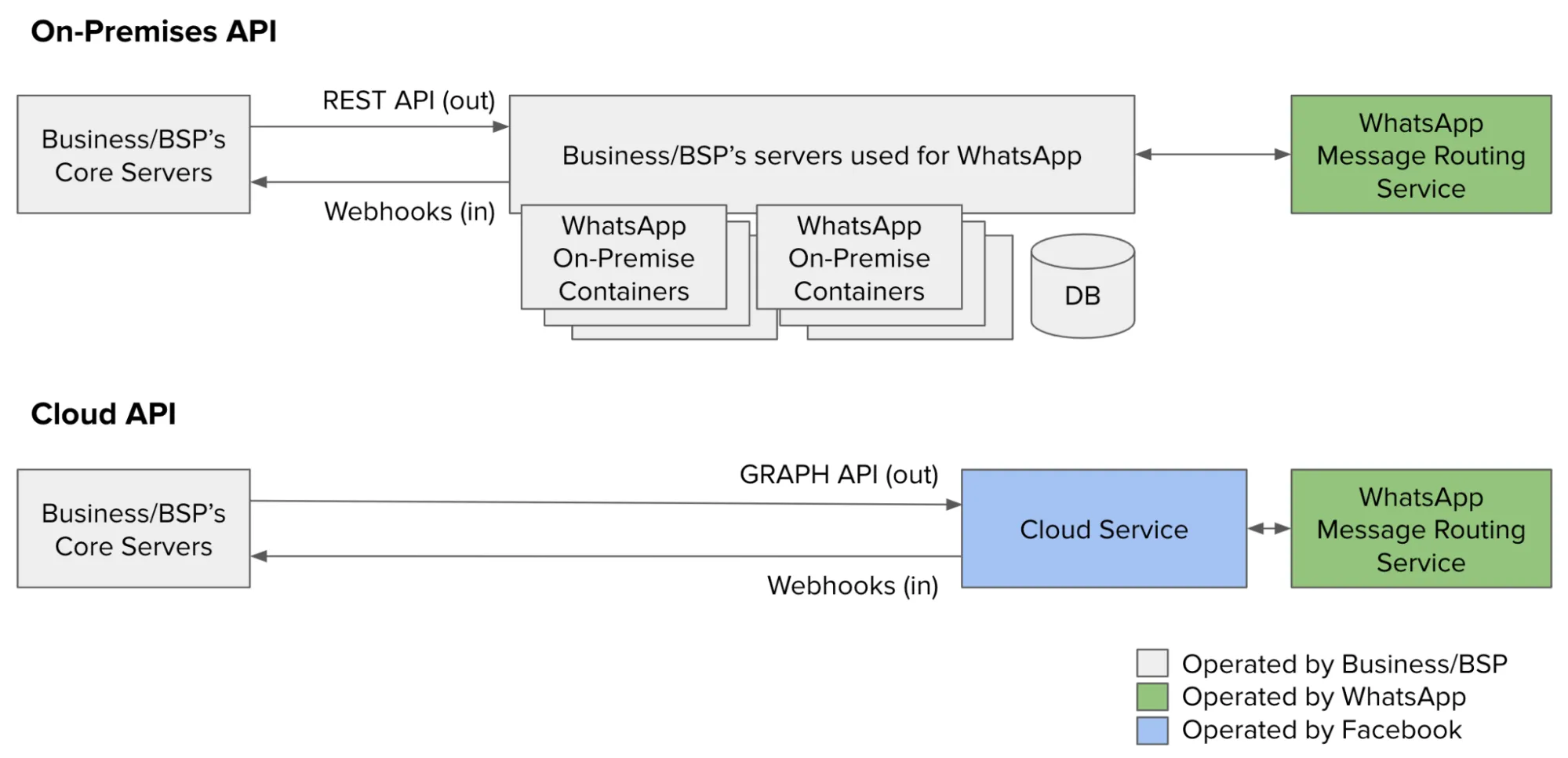
**What will disaster recovery look like: if a region is unavailable, how much time does it take to move messages to another region?**
We will have disaster recovery and data replication across multiple regions. The expected downtime would be within our SLA and usually in the order of less than a minute to less than five minutes.
#### Data privacy & security FAQs
**Where are the servers for Cloud API?**
Cloud API processes messages on servers in [Meta data centers?](https://l.facebook.com/l.php?u=https%3A%2F%2Fdatacenters.atmeta.com%2Fall-locations%2F&h=AT6qUwl44HshMcmtDnszs_fGL9T9mpBrGhqQCCZdHL4d2qn21mhWFVzmVWbcjnhF_7Ut8mF_xso01seI5DzmAmCpSErJbD7cRMt5I53ARVjYdXTOqDZDAdXB6L2zXIa97D0e9djd6JL3uXpaQykxZA). If a business opts to use Cloud API Local Storage, message data is stored in data centers located in another [designated country](/books/meta-whatsapp/page/local-storage-developer-documentation).
**Is the Cloud API end-to-end encrypted? What is the encryption model?**
See [Cloud API Overview, Encryption](/books/meta-whatsapp/page/about-the-whatsapp-business-platform-developer-documentation).
**What happens to message data at rest? How long is it stored?**
Cloud API messages at rest are encrypted. Messages have a maximum retention period of 30 days in order to provide the base features and functionality of the Cloud API service; for example, retransmissions.
**Does Meta have access to encryption keys?**
In order to send and receive messages through Cloud API, Cloud API manages the encryption/decryption keys on behalf of the business. For more detail, see the [WhatsApp Encryption Overview technical whitepaper?](https://l.facebook.com/l.php?u=https%3A%2F%2Fwww.whatsapp.com%2Fsecurity%2FWhatsApp-Security-Whitepaper.pdf&h=AT6qUwl44HshMcmtDnszs_fGL9T9mpBrGhqQCCZdHL4d2qn21mhWFVzmVWbcjnhF_7Ut8mF_xso01seI5DzmAmCpSErJbD7cRMt5I53ARVjYdXTOqDZDAdXB6L2zXIa97D0e9djd6JL3uXpaQykxZA).
#### Regulatory compliance FAQs
**How does Cloud API comply with regional data protection laws (such as GDPR, LGPD, and PDPB)?**
Meta takes data protection and people's privacy very seriously and we comply with applicable legal, industry, and regulatory requirements governing data protection, as well as industry best practices. Cloud API customers must meet their own obligations under data protection laws, such as the General Data Protection Regulation (GDPR). Please visit our [Meta Business Messaging Compliance Center?](https://www.facebook.com/business/business-messaging/compliance) to learn more.
## Measurement Partners
Updated: Dec 12, 2025
A Measurement Partner is a third-party company that helps businesses measure the effectiveness of their marketing campaigns on our platform.
Measurement Partners gain read-only access to WhatsApp Business Account (WABA) analytics data and webhooks. Specifically, they can view phone numbers, message templates, and incoming messages, and can access WABA analytics data.
For a business to share their analytics data with a Measurement Partner, they must already have a WABA. Measurement Partners cannot create WABAs or send messages on behalf of their clients.
### Onboarding flow overview
Follow these steps to onboard as a Measurement Partner:
[Complete Tech Provider onboarding.](/books/meta-whatsapp/page/become-a-tech-provider-developer-documentation)Create your Facebook Login Button using the Measurement Partner ES template instructions belowEmbed the Facebook Login Button on your website### How to create Facebook Login button using the Measurement Partner ES template
Follow the steps below to create your Facebook Login button that will show the Measurement Partner ES flow to your customers.
### Step 1: Load the Facebook JavaScript SDK
See [Basic Setup](https://developers.facebook.com/docs/javascript/quickstart#loading) for instructions on loading the basic version of the Facebook JavaScript SDK with the options set to their most common defaults.
The `fbAsyncInit` function must be attached to the `window` object before the line of code loading the JavaScript SDK as the SDK calls this function to set up the Facebook Login information.
This setup uses the following parameters:
`appId` - The Meta app ID`cookie` - Enables cookies to allow the server to access this session`xfbml`- Parses social plugins on the page`version` - The Graph API version to use### Step 2: Create Facebook Login for Business Configuration
### Step 4: Create a login button
Create a button or link on your website to launch the Embedded Signup flow. Use the `onClick` function to call the `launchWhatsAppSignup()` function set up in Step 3 above.
### Embed your new Facebook Login button
Copy the button code to the desired location on your site.
### Testing the Embedded Signup flow for Measurement Partners
## Upgrading to a Tech Partner
Updated: Nov 4, 2025
This document describes the requirements and steps you must to take to become a Tech Partner.
The product journey details the steps for Tech Providers to upgrade to become a Tech Partner on the Meta Developer Platform.
Becoming a Tech Partner allows you to have even more choices and control of WhatsApp messaging solutions. It also grants access to benefits such as:
Training and supportAnalytics reportsBusiness customer matching opportunities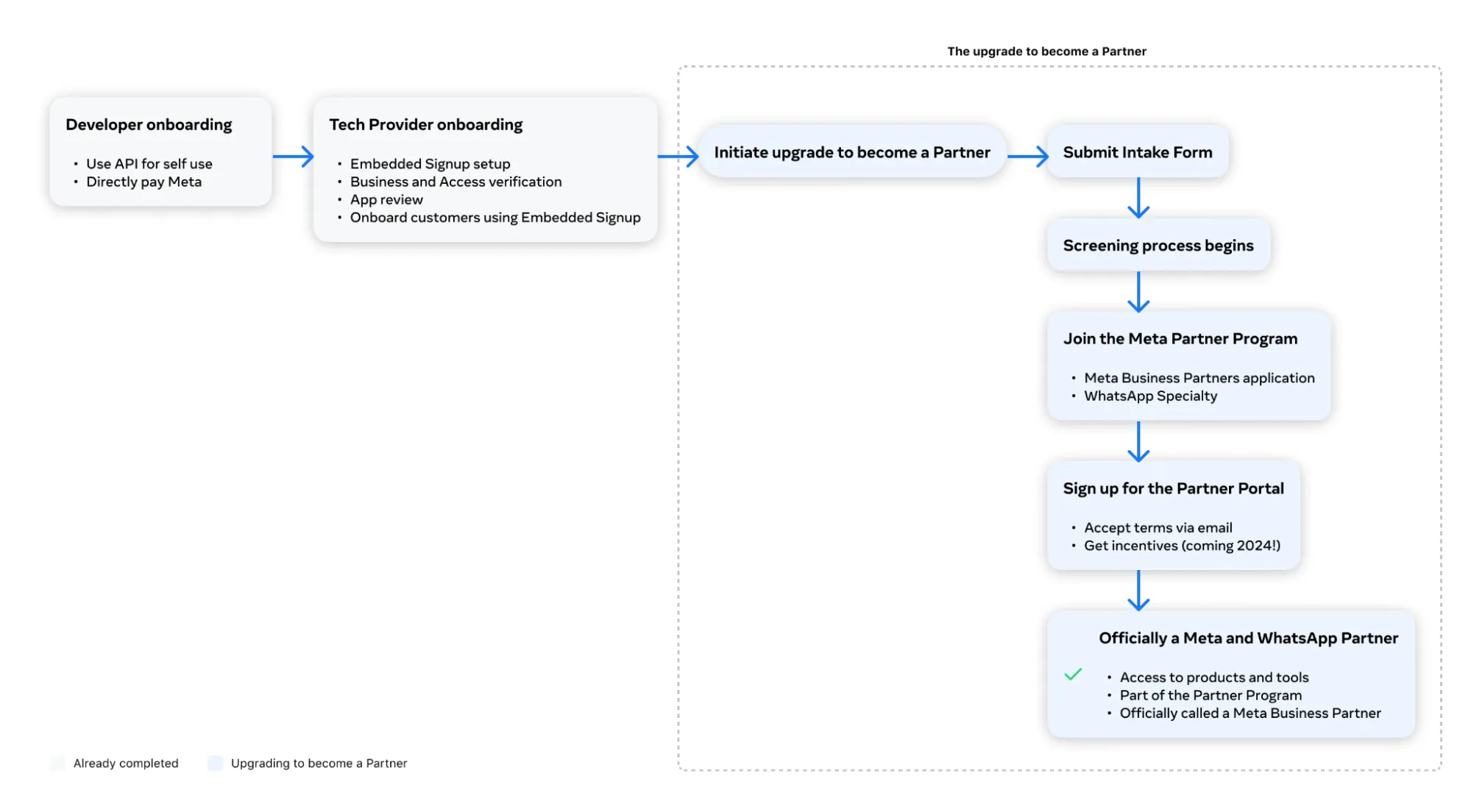
During this upgrade process, there are a couple of surfaces and definitions that you will come across:
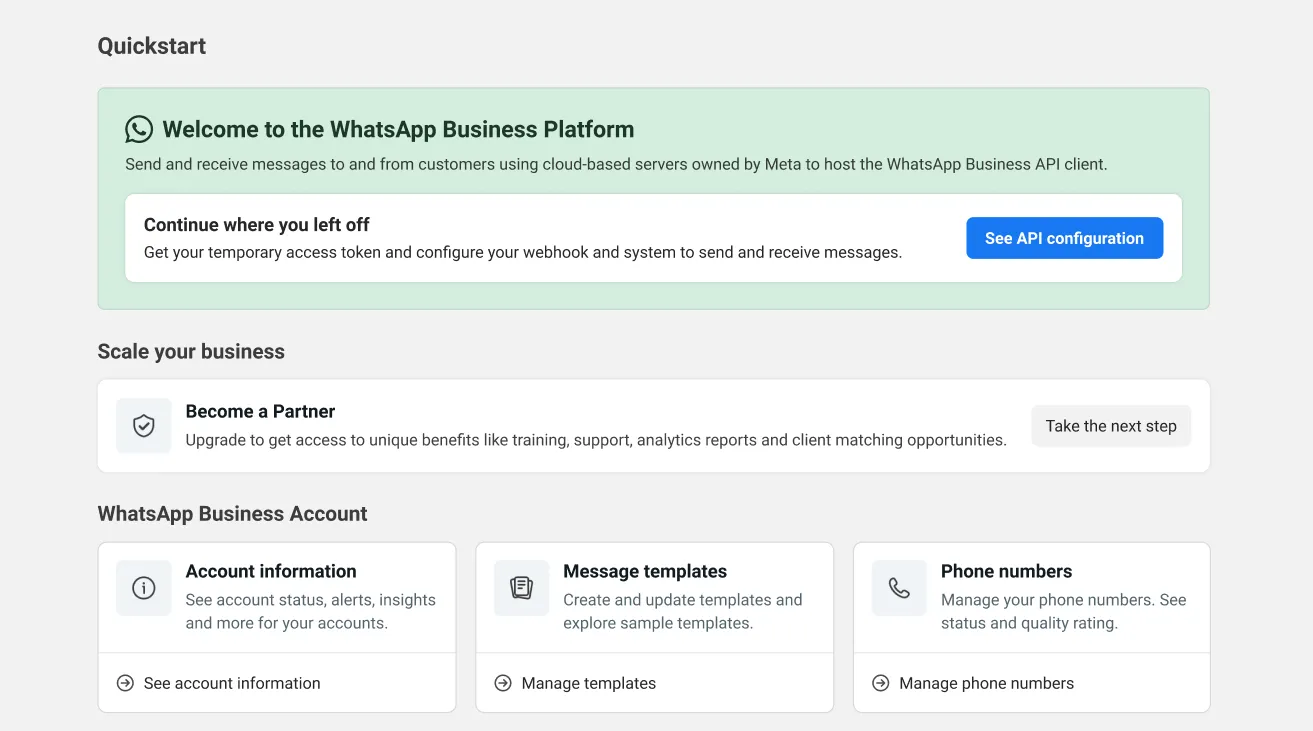
**Meta for Developers** - The entry point for developer documentation and common tools and dashboards, including the [App Dashboard](/apps), the **WhatsApp** product panel within it, and the **Quickstart** panel.**Quickstart panel** - a panel within the **App Dashboard** > **WhatsApp** product panel. The Quickstart panel is where you can begin or resume a request for an upgrade.**Enterprise Center** - Enterprise Center is a new centralized platform that enables Meta to do business with external partners and vendors.**Supplier Connect** - Supplier Connect is an application on Enterprise Center that serves as a front to onboard external partners or third-party vendors (suppliers). It is a secure, self-service portal that allows partners to view and modify data, as well as carry out different business transactions such as:
viewing purchase orderssubmitting invoicestracking payments**Meta Business Partners** - Meta Business Partners are companies Meta has vetted for their technical skills and services, and their unique ability to help businesses grow. Partners are part of a respected global community and get access to unique benefits, including:
TrainingSupportAnalytics reportsBusiness customer matching opportunities**Partner Portal** - The Partner Portal provides scalable solutions for collaboration with Business Messaging partners across pipeline management and Business Messaging Accelerate program. The portal is the main surface used by WhatsApp partners to create and progress deals and view the relevant metrics and incentives for their business.#### Eligibility Requirements
To be eligible for an upgrade, you must:
have successfully completed all [Tech Provider Get Started](/books/meta-whatsapp/page/become-a-tech-provider-developer-documentation) stepsgreater than or equal to 2,500 average daily messages (sent or received) on the WhatsApp Business Platform between your business and its users over the last 7 days or greater than or equal to 200 average daily calls (business-initiated or user-initiated) on the WhatsApp Business Platform between your business and its users over the last 7 days10 or more active business customers (have used your app to send at least 1 message in the last 30 days)maintain a business phone number [quality rating](https://www.facebook.com/business/help/896873687365001) of 90% or betterSee [Support](/documentation/business-messaging/whatsapp/solution-providers/support).
### Step 1: Access the Upgrade Flow
In the [App Dashboard](/apps), navigate to **WhatsApp** > **Quickstart**, and in the **Become a Partner** section, click the **Take the next step** button.
### Step 2: Initiate the Upgrade Process
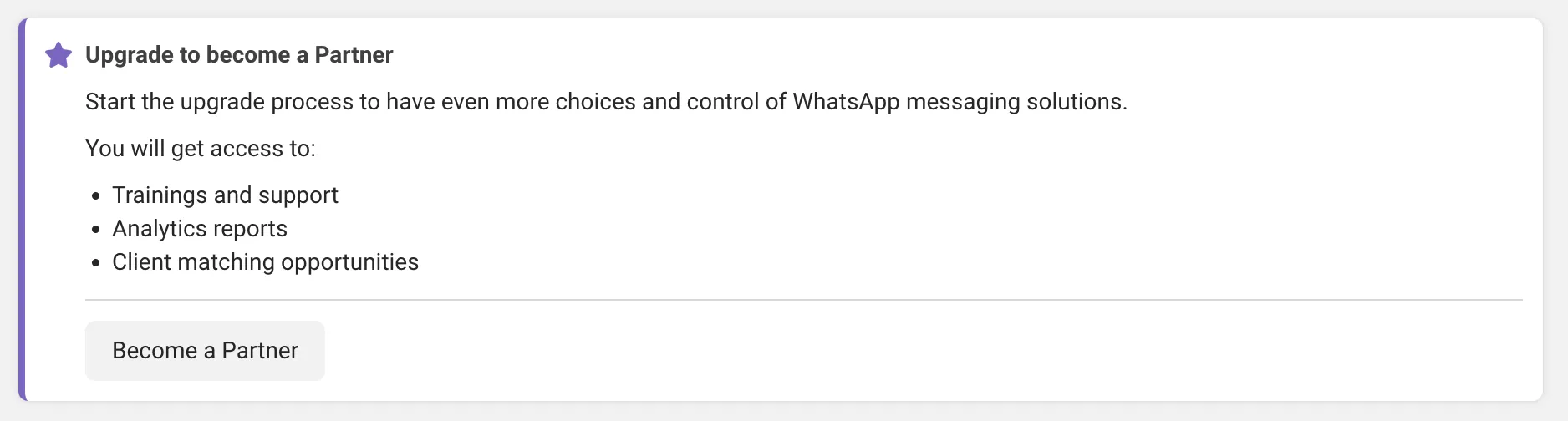
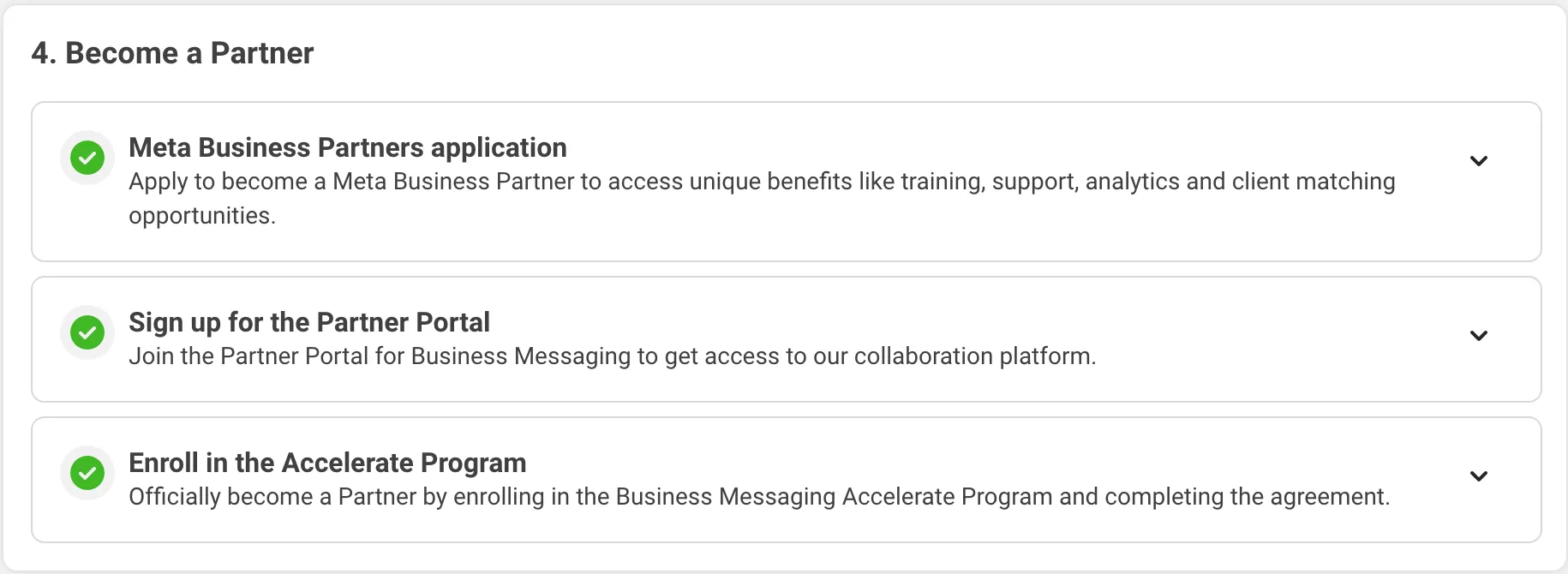
On the **Onboarding** page, scroll to the bottom and click **Become a Partner**. This will reveal the 4 steps that are required to complete the upgrade to become a Tech Partner.
Keep in mind the following:
Please carefully fill out all business details because the information will be submitted and reviewed for approval.During a few of these steps, you will receive emails as shown in the steps below. If you do not see them, check your spam folder.This process will likely take a few weeks to complete to get through all of the approvals.### Step 3: Add the WhatsApp Specialty For Your Business
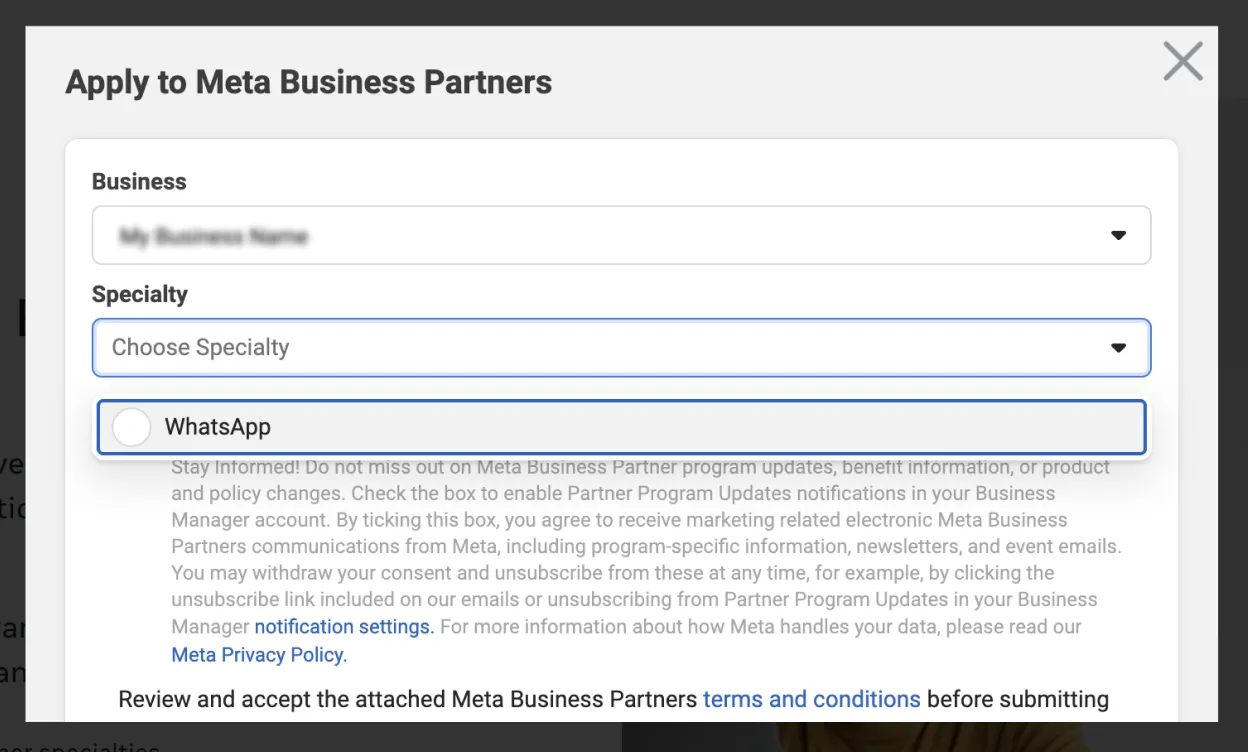
Return to the **Onboarding** page inside of Meta for Developers and navigate to the **Meta Business Partners** application step, then click the **Apply now** button to submit an application to become a Meta Business Partner and apply for the WhatsApp Specialty.

### Step 4: Sign up for the Partner Portal
Navigate back to the Onboarding page in Meta for Developers and scroll down to the **Sign up for the Partner Portal** step. Click **Sign up** and on the Partner Portal login screen select the link to **Sign up**. Add your name and business ID and accept the agreement to create the account.

The Partner Portal is a resource to use as a partner to collaborate on deals with the Business Messaging team as well as access resources such as marketing and sales material.
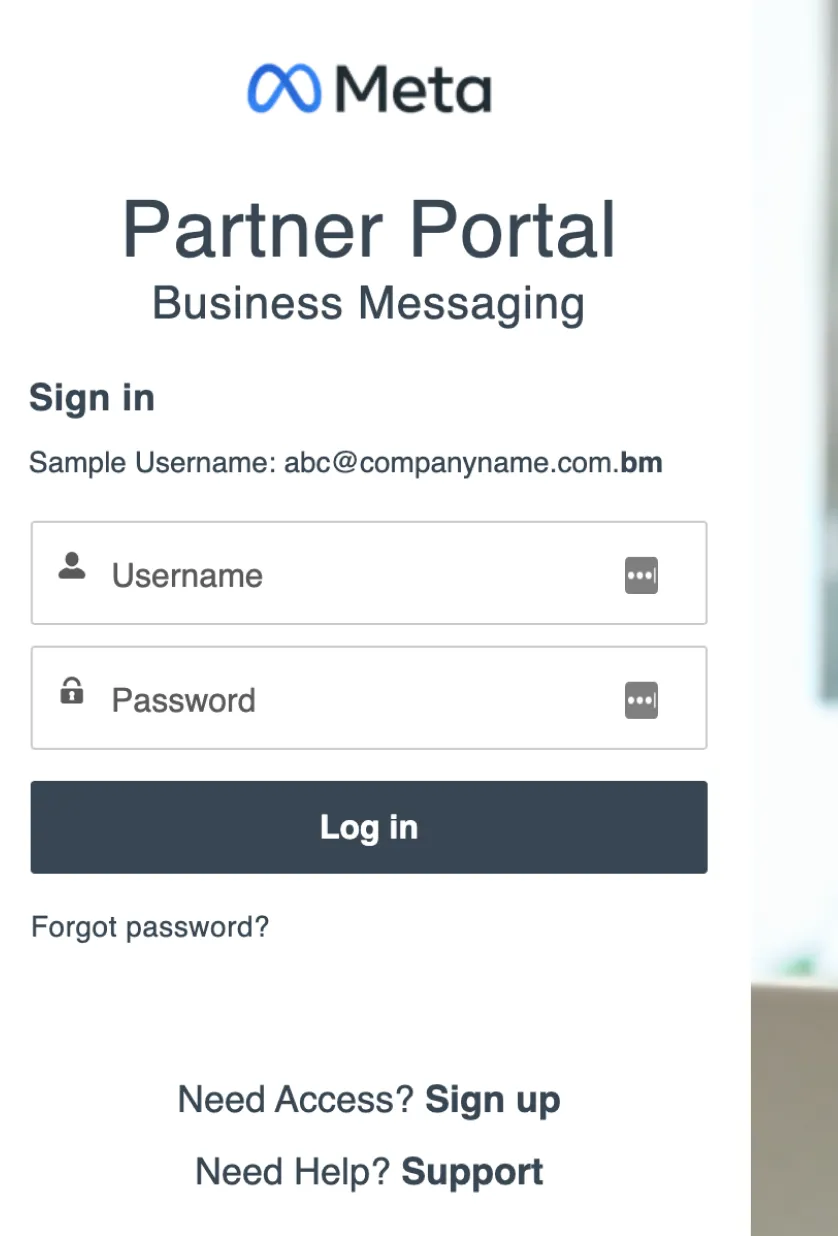
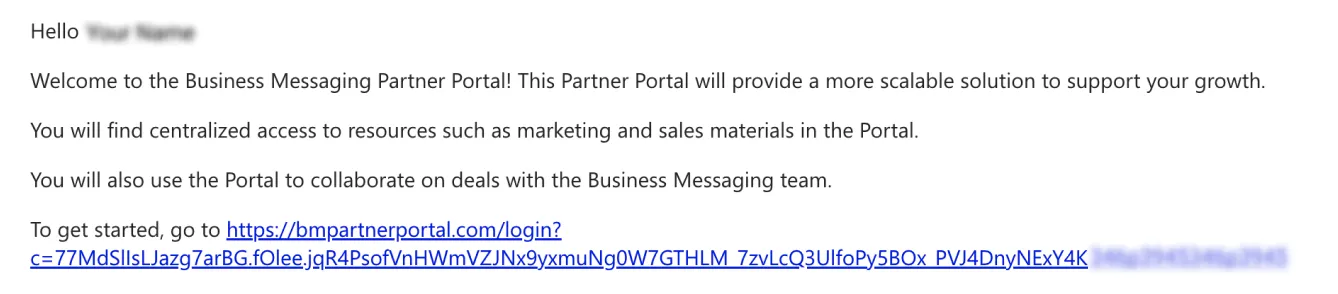
Once you have created an account, you will receive an email with a link to get started and add your account password.
### Step 5: Enroll in the Accelerate Program
The final step is to enroll in the **Business Messaging Accelerate Program** and accept the agreement. On the **Onboarding** page in Meta for Developers, scroll down to the last step to **Enroll in the Accelerate Program** and click the button to **Complete enrollment**.
Inside of the Partner Portal, look for the **Business Messaging Accelerate** card and click to view and sign. You will be able to download the agreements if needed.
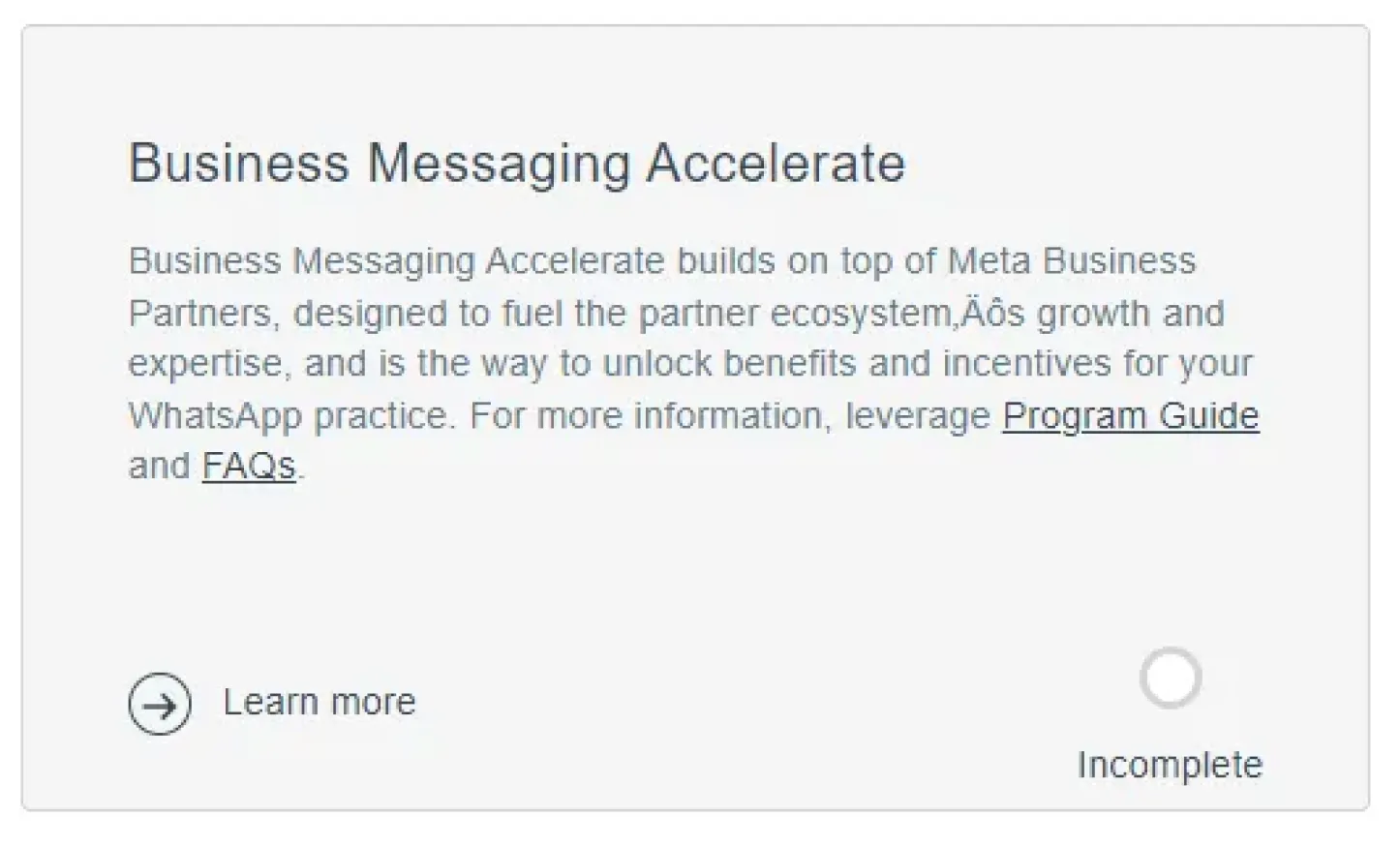
When you return to the **Onboarding** page in Meta for Developers, if all steps are complete, you are officially a Tech Partner!
## App Review
Updated: Nov 6, 2025
App Review is part of [app development](https://developers.facebook.com/docs/development) that enables us to verify that your app uses our Products and APIs in an approved manner. Meta needs to validate how you intend to use the requested permissions to make sure it is compliant with our requirements and policies.
Businesses first need to develop a prototype of their product so they can demonstrate their use case with a video recording for the App Review submission. To pass App Review, it is important that you ask for only the permissions your app needs; **requesting unnecessary permissions is a common reason for rejection** during app review.
The following video provides a brief overview of the App Review process:
Business apps are automatically approved for [Standard Access](https://developers.facebook.com/docs/graph-api/overview/access-levels#standard-access) for all Permissions and Features available to the Business app type, so you can test your app while you are in this access level. Make sure your test users have a `developer` or `admin` role in the Meta app being used to implement embedded signup. **This means that if you are using the API for yourself as a Direct Developer, you do not need advanced access or app review.**
**If you are building an app that other businesses will be using, you must request advanced access for any permissions your app needs.** You can request [Advanced Access](https://developers.facebook.com/docs/graph-api/overview/access-levels#advanced-access) by submitting your app to App Review.
Commonly requested permissions and what to include to get approval for Advanced Access:
| Permission | Description | What to include in your submission |
|---|
[whatsapp\_business\_management](https://developers.facebook.com/docs/permissions#w) | The **whatsapp\_business\_management** permission allows your app to read and/or manage WhatsApp business assets you own or have been granted access to by other businesses through this permission. These business assets include WhatsApp Business Accounts, business phone numbers, message templates, QR codes and their associated messages, and webhook subscriptions. | **Written:** Explain how you will use this permission to access the business assets of business customers who you have onboarded onto the platform. **Video:** Record a video of your app, or WhatsApp Manager, being used to create a message template. |
[whatsapp\_business\_messaging](https://developers.facebook.com/docs/permissions#w) | The **whatsapp\_business\_messaging** permission allows an app to send WhatsApp messages and make calls to a specific phone number, upload and retrieve media from messages, manage and get WhatsApp business profile information, and to register those phone numbers with Meta. | **Written:** Explain what messaging functionality your app offers to business customers who you have onboarded onto the platform, and how they perform those functions. If you are partnering with a Solution Partner and plan to use their API, ask the Solution Partner to share a video with you that you can submit as part of your submission. |
[whatsapp\_business\_manage\_events](https://developers.facebook.com/docs/permissions#w) Only request this permission if you are using the [Marketing Messages API for WhatsApp](/books/meta-whatsapp/page/marketing-messages-api-for-whatsapp-developer-documentation) with [Conversions API](https://developers.facebook.com/docs/marketing-api/conversions-api). | The **whatsapp\_business\_manage\_events** permission allows an app to log events, such as purchase, add-to-cart, leads and more, on behalf of a WhatsApp Business Account administered by an app user. The allowed usage for this permission is to log events on WhatsApp Business Accounts and send this activity data to Meta for ads targeting, optimization and reporting. | This permission is automatically approved if you already have advanced access for `whatsapp_business_messaging` permission. |
The average turnaround time for app reviews is about 24 hours. We recommend starting the app review process as soon as possible. You don’t need to wait for Embedded Signup to be fully implemented to start this process.
### Reducing chances of app review rejection
You must request Advanced access for the permissions above.
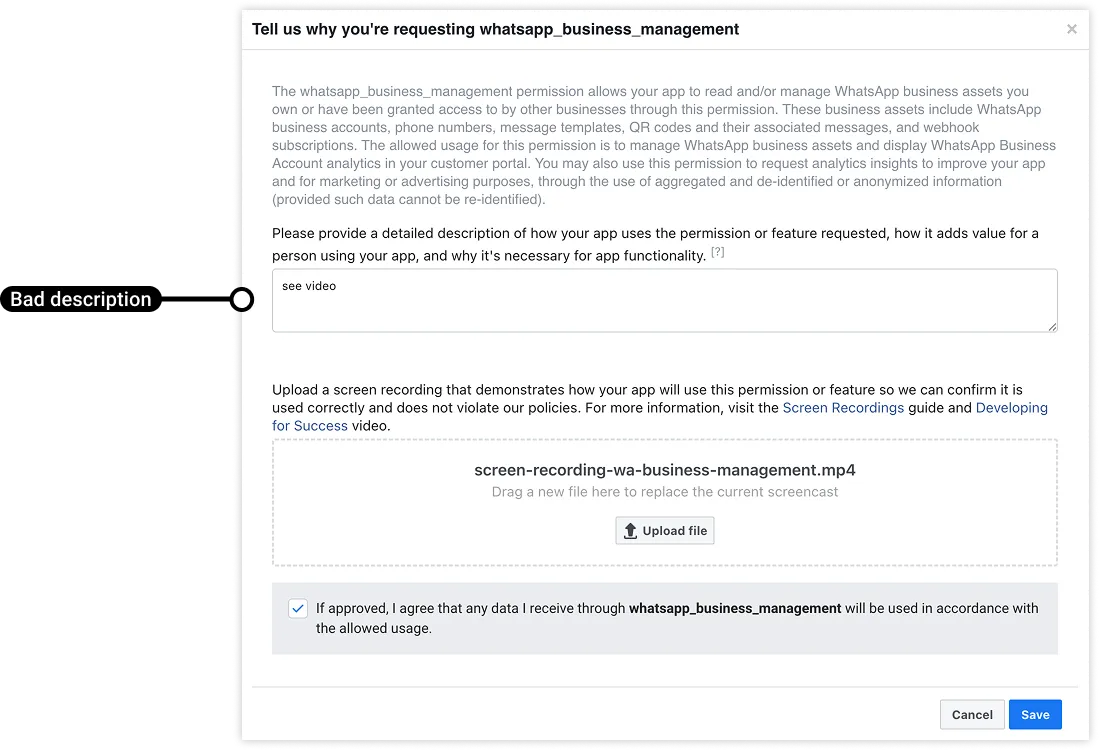
You can request these permissions in a single bulk submission, or as separate submissions. For each permission, an explanation and screen recording specific to the permission being requested is required.
As part of your submission, you must include separate screen recordings that show how your app uses each permission in your submission. The video can be a screen recording directly from your computer, or a recording using a digital camera or camera phone. You will need to attach this file to your App Review submission.
Do not submit a video that includes multiple permissions supporting different use cases. You must submit a different video clip for each permission. Your submission may be rejected if you highlight multiple permissions being used as part of the same video.
Both written descriptions and screen recordings are required for each permission. If you include a screen recording that shows how your app uses a permission, but fail to include a description of how it uses it, your submission will be rejected.
Submissions in draft mode will not be reviewed, so don’t forget to **submit your App Review submission!**

## Partner-initiated WABA creation
Updated: Nov 14, 2025
If you are a Solution Partner and you don’t want to onboard a business customer with [Embedded Signup](/books/meta-whatsapp/page/embedded-signup-developer-documentation), you can use Meta Business Suite to initiate WABA creation for a business customer. This generates a WABA creation request which your business customer can review in Meta Business Suite. The customer can then accept the request (or decline it) and optionally add a business phone number.
If accepted, the WABA will be created and its ownership will be assigned to the customer. You will also be given access to the WABA based on the permissions you defined when you initiated the request. You can then use your [system token](/books/meta-whatsapp/page/access-tokens-guide-developer-documentation) to add a business phone number to the customer’s WABA (if they opted not to create one) and share your credit line with the customer, which completes the onboarding process.
Note that if you use this method to create a WABA for a business customer, and the customer accepts it, you must use your system token when accessing the WABA (a [business token](/books/meta-whatsapp/page/access-tokens-guide-developer-documentation) will not work), and you must use the API to share your credit line with the customer (it cannot be shared as part of the initiation or acceptance process).
### Initiating WABA creation
### Onboarding business customers
This completes the onboarding process. You can now use your system token to provide WhatsApp messaging services to the customer.
### Business customer instructions
Once you have confirmed that the invitation has been sent, instruct the business customer to review and accept the request in the Meta Business Suite. Invitations that have not been accepted within 90 days will be canceled automatically.
You can send them the following instructions:
*Access Meta Business Suite at [https://business.facebook.com](https://business.facebook.com).**If you have multiple business portfolios, select the appropriate portfolio using the dropdown menu at the top-left of the page.**Navigate to the **Settings** (gear icon) > **Requests** > **Other Requests** panel and click the **Received** tab.**Locate the invitation and review its contents (or decline the invitation).**Add and verify a business phone number (optional).**Confirm the invitation.**Navigate to the **Accounts** > **WhatsApp account** panel and confirm that your WhatsApp Business Account has been created and shared with your Solution Partner.*Once the business customer has shared their WABA with you, you can register a business phone number for the customer in one of two ways:
**Via WhatsApp Manager**: Navigate to the [**WhatsApp Manager**](https://business.facebook.com/latest/whatsapp_manager/) > **Overview** panel and locate the WABA in the WhatsApp account section. Click the three-dot menu to the far right of the WABA’s name, click **Add phone number**, and complete the flow.**Via API**: See [Registering business phone numbers](/books/meta-whatsapp/page/registering-business-phone-numbers-developer-documentation).Alternatively, you can instruct the customer to add a number on their own using the WhatsApp Manager.
#### Canceling invitations
To cancel an invitation that has not been accepted yet, navigate to the **Settings** (gear icon) > **Requests** panel and click the **Sent** tab. Locate the invitation and click its **Cancel** button.
Business customers cannot add their own payment method to a WABA created via the partner-initiated WABA creation process. You must use the API to [share your credit line](/books/meta-whatsapp/page/managing-credit-lines-developer-documentation) with any business customer who accepts your creation request.
#### Multi-Partner Solutions
If you are part of a [Multi-Partner Solution](/books/meta-whatsapp/page/multi-partner-solutions-developer-documentation) (“MPS”), you can share a WABA created through the partner-initiated WABA creation process with other MPS participants after you have successfully [onboarded the WABA](#bkmrk-onboarding-business--1).
To share the WABA with other MPS participants, you have two options:
**Recommended**: direct the customer to your (or your partner’s) MPS-configured implementation of Embedded Signup, and instruct them to complete the flow using their existing WABA name, business portfolio, and business phone number.Use the API to [add the WABA to your MPS](/documentation/business-messaging/whatsapp/solution-providers/support/adding-waba-to-mps).With the WABA Sharing model, a business customer creates and grants access to their WABA to a solution provider using Embedded Signup.
When a customer successfully completes a solution provider’s Embedded Signup flow, a WABA is created under the customer’s business portfolio (and is thus owned by the customer) and a webhook is triggered, notifying the partner. The partner can then use the contents of the webhook and the customer’s [business token](/books/meta-whatsapp/page/access-tokens-guide-developer-documentation) to onboard the customer and provide message services via the API.
### Onboarding customers to the WABA Sharing model
To onboard a business customer to the WABA Sharing model, you must use Embedded Signup. See the [Embedded Signup](/books/meta-whatsapp/page/embedded-signup-developer-documentation) documentation to learn how to implement Embedded Signup, and how to onboard business customers as a Solution Provider.
The On-Behalf-Of WABA ownership model has been deprecated and is no longer possible. See [On-Behalf-Of account ownership model deprecation](/books/meta-whatsapp/page/on-behalf-of-account-ownership-model-deprecation-developer-documentation) for details.
## Multi-Partner Solutions
Updated: Feb 27, 2026
This document explains how to set up Multi-Partner Solutions (“solutions”) and how to use them with [Embedded Signup](/books/meta-whatsapp/page/embedded-signup-developer-documentation).
Multi-Partner Solutions allow Solution Partners and Tech Providers to jointly manage customer WhatsApp assets in order to provide WhatsApp messaging services to their customers. For example, if you are a Tech Provider and are unable to offer custom or full WhatsApp messaging services to your customers, you can work with a Solution Partner to offer your customers the Solution Partner’s services.
Once created and accepted via API or App Dashboard, the solution’s ID can be used to customize the Embedded Signup flow. Any customers onboarded via the customized flow can grant asset access to all of the solution’s partners.
Note that solutions can also be set up via an embedded button that triggers an interface that gathers app information from Tech Providers. This flow and the API calls involved are described in the [Multi-Partner Solution — Embedded Creation](/books/meta-whatsapp/page/multi-partner-solution-embedded-creation-developer-documentation) document, but the information below is still relevant and should be read first.
You must be an approved [Solution Partner](/books/meta-whatsapp/page/solution-providers-developer-documentation), a Tech Provider who has completed the steps in our [Get Started for Tech Providers](/books/meta-whatsapp/page/become-a-tech-provider-developer-documentation) document appropriate for your intended usage, or a Tech Provider who has been upgraded to a [Tech Partner](/books/meta-whatsapp/page/solution-providers-developer-documentation).
If your app will be calling our APIs to access onboarded customer data:
The app must be the same app whose token will be used in API requests.The app must have undergone App Review and been approved for the [whatsapp\_business\_management](https://developers.facebook.com/docs/permissions#w) and [whatsapp\_business\_messaging](https://developers.facebook.com/docs/permissions#w) permissions.The app must be subscribed to the **account\_updates** webhooks field and be able to successfully digest webhooks for onboarded customers.### Creating Multi-Partner Solutions
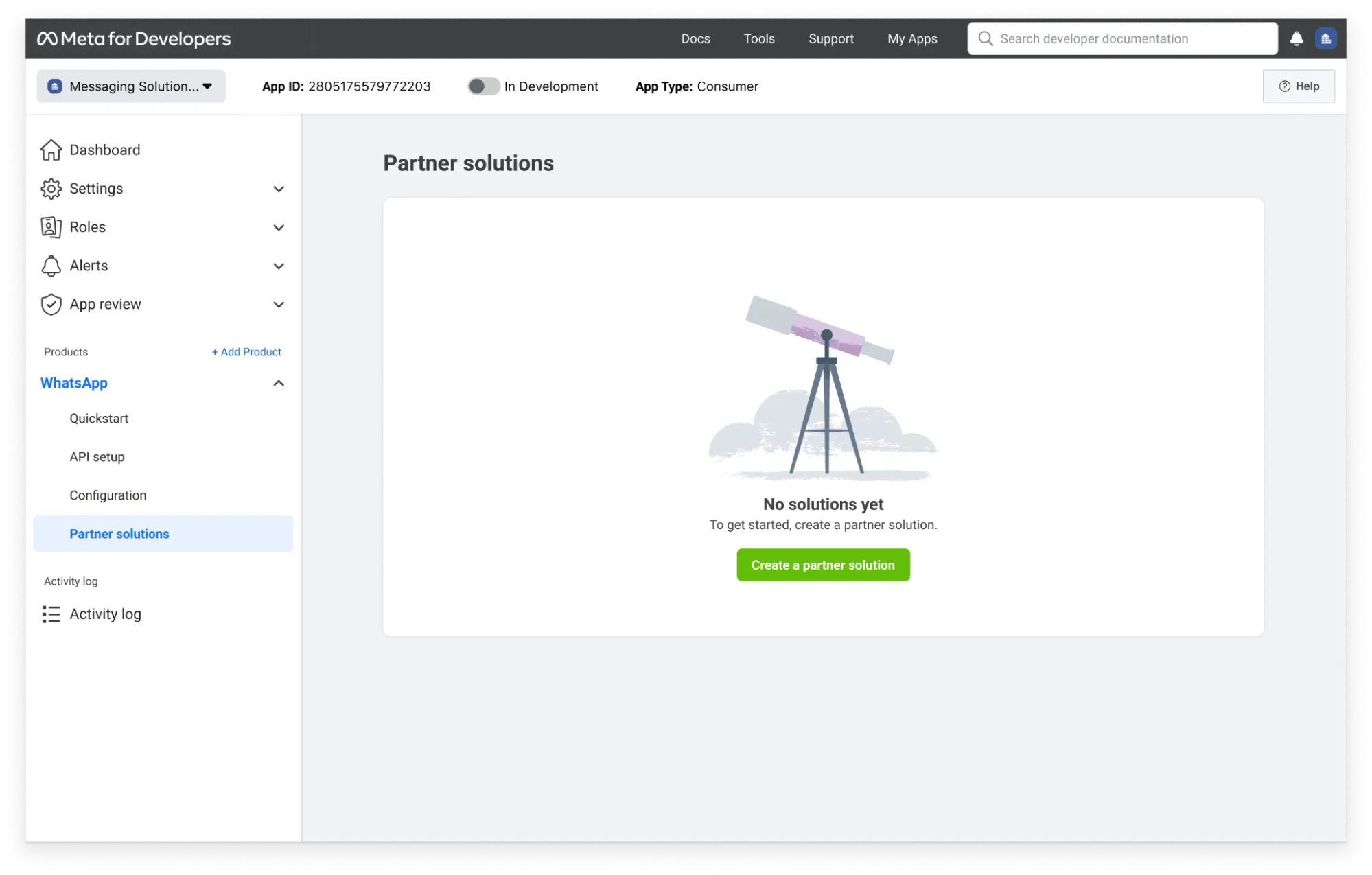
Use the **App Dashboard** > **WhatsApp** > **Partner Solutions** panel to create, accept, and manage solutions.
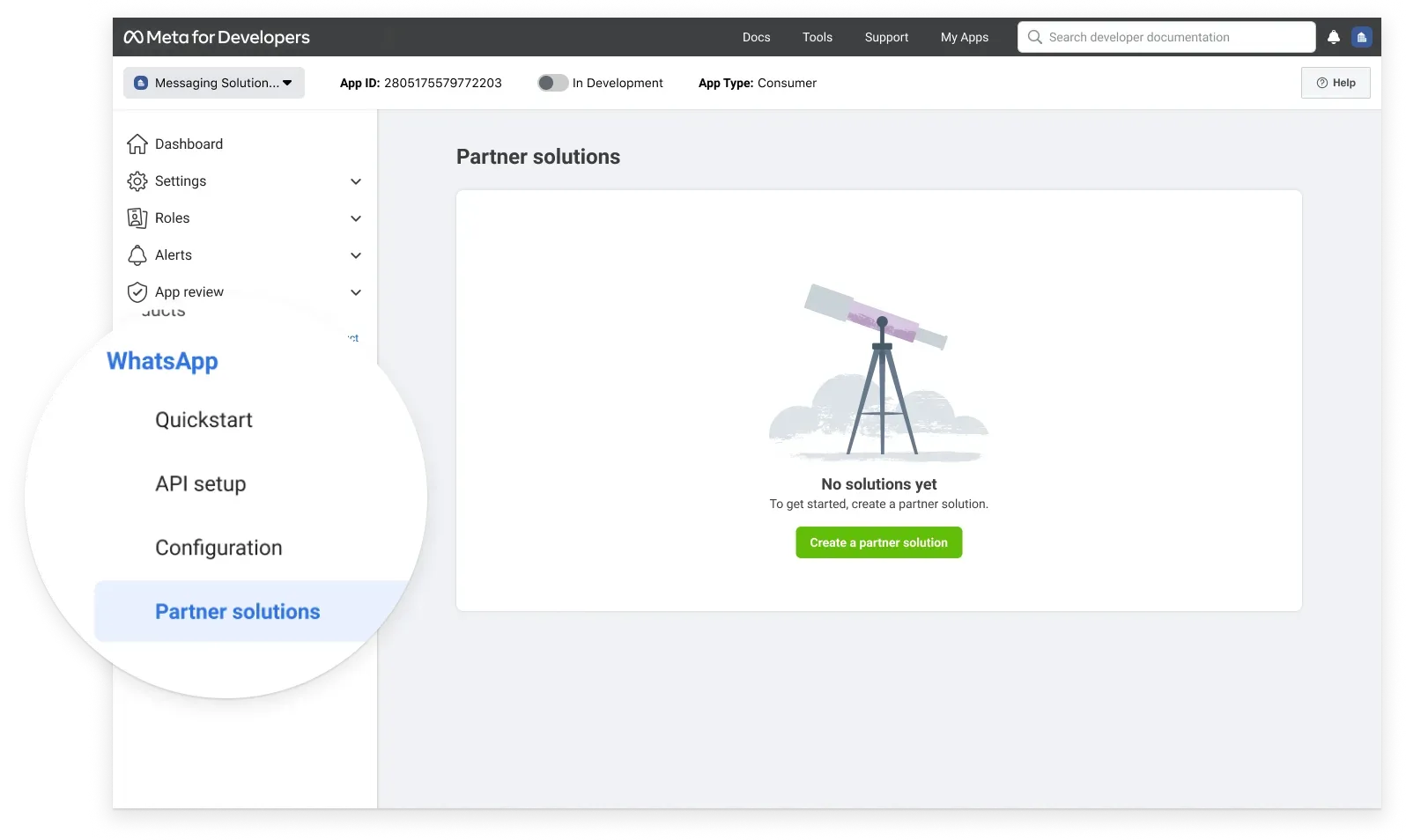
Solutions can be created by either partner of the solution. Once created, a solution request is sent to the invited partner, who can then use the panel in their App Dashboard to accept or decline the request. Once accepted, either partner can use the solution ID to customize the Embedded Signup flow and onboard business customers.
Solutions states are displayed in the **Partner solutions** panel. Solutions can have the following states:
| State | Description |
|---|
| The solution has been accepted by the invited party and can be used to configure Embedded Signup for customer onboarding. |
| The solution has been deactivated.
Customers who attempt to access Embedded Signup configured for a solution in this state will see an error informing them that it cannot be used for onboarding at this time. |
| The solution has been initiated and saved, but you have not sent it to your partner.
Customers who attempt to access Embedded Signup configured for a solution in this state will see an error informing them that it cannot be used for onboarding at this time. |
| The solution request was declined by your partner.
Customers who attempt to access Embedded Signup configured for a solution in this state will see an error informing them that it cannot be used for onboarding at this time. |
| Solution has not been accepted or declined by your partner.
Customers who attempt to access Embedded Signup configured for a solution in this state will see an error informing them that it cannot be used for onboarding at this time. |
| Your partner has requested to deactivate the solution. You can accept or decline this request. |
Tech Providers who are part of a solution can onboard up to 200 total new customers in a rolling one week period. Only customers who are new to the WhatsApp Business Platform count against this limit.
[Embedded Signup](/books/meta-whatsapp/page/embedded-signup-developer-documentation) can be configured and hosted by either of the solution’s partners, or both partners. Once implemented, customers who access it will see a customized version of the Embedded Signup flow, which makes it clear that by completing the flow they are granting WhatsApp data access to both partners:
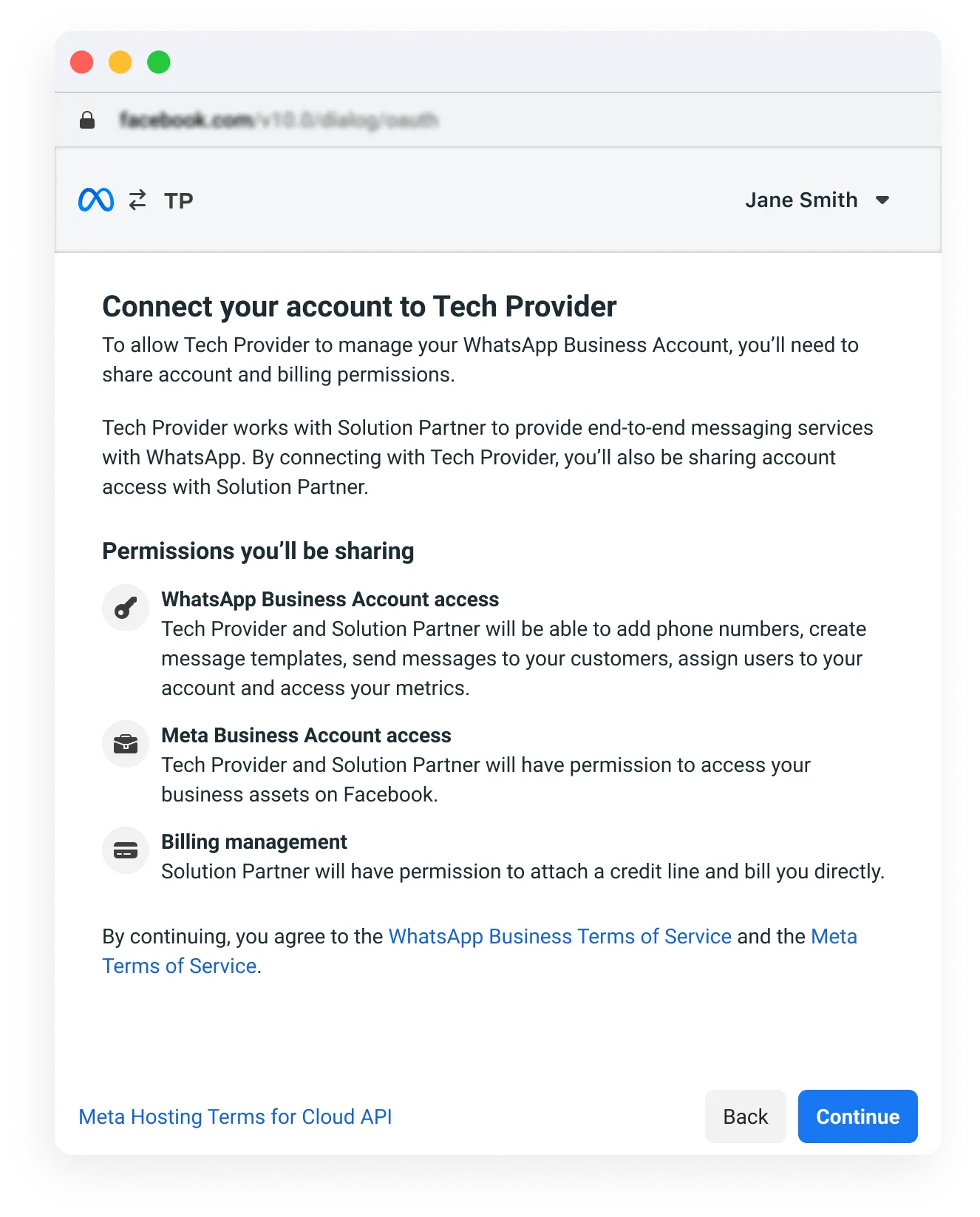
When a customer completes the flow, all of the customer’s WhatsApp assets that we need are automatically generated, and access to those assets is granted to both partners of the solution.
Customers onboarded via Embedded Signup configured with a solution ID share the credit line of the Solution Partner associated with the solution.
### Step 1: Determine Solution Details
Contact your potential partner and work together to determine:
A solution name. The solution name will appear in the **Partner Solutions** panel in the App Dashboard for both you and your partner, so you should both agree on a name that can be distinguished from other solutions you may initiate or accept.Who will create and initiate the solution request. Either partner can do this. If you are initiating the request, you will need your partner’s app ID.Who will host Embedded Signup configured with the solution ID. Either or both partners can do this.Anything else, such as contracts, service level agreements, services provided, billing processes, etc. This is left to the discretion of you and your partner, subject to each of your separate agreements with Meta.### Step 2: Subscribe to Webhooks
Subscribe to the **account\_update** and **partner\_solutions** webhooks fields. These webhooks will inform you when new business customers are onboarded, and when partner solutions that you are associated with are created or edited.
See the [Webhooks](#bkmrk-webhooks-1) section below for example payloads and what to look for when you receive any of these webhooks.
### Step 3: Create a Solution
If you are creating the solution, navigate to the **App Dashboard** > **WhatsApp** > **Partner solutions** panel and click the **Create a partner solution** button.
Use your partner’s app ID to complete the flow. As part of the creation flow you can designate which solution partner apps can be used by onboarded business customers to send messages (**Only me**, **Only my partner**).
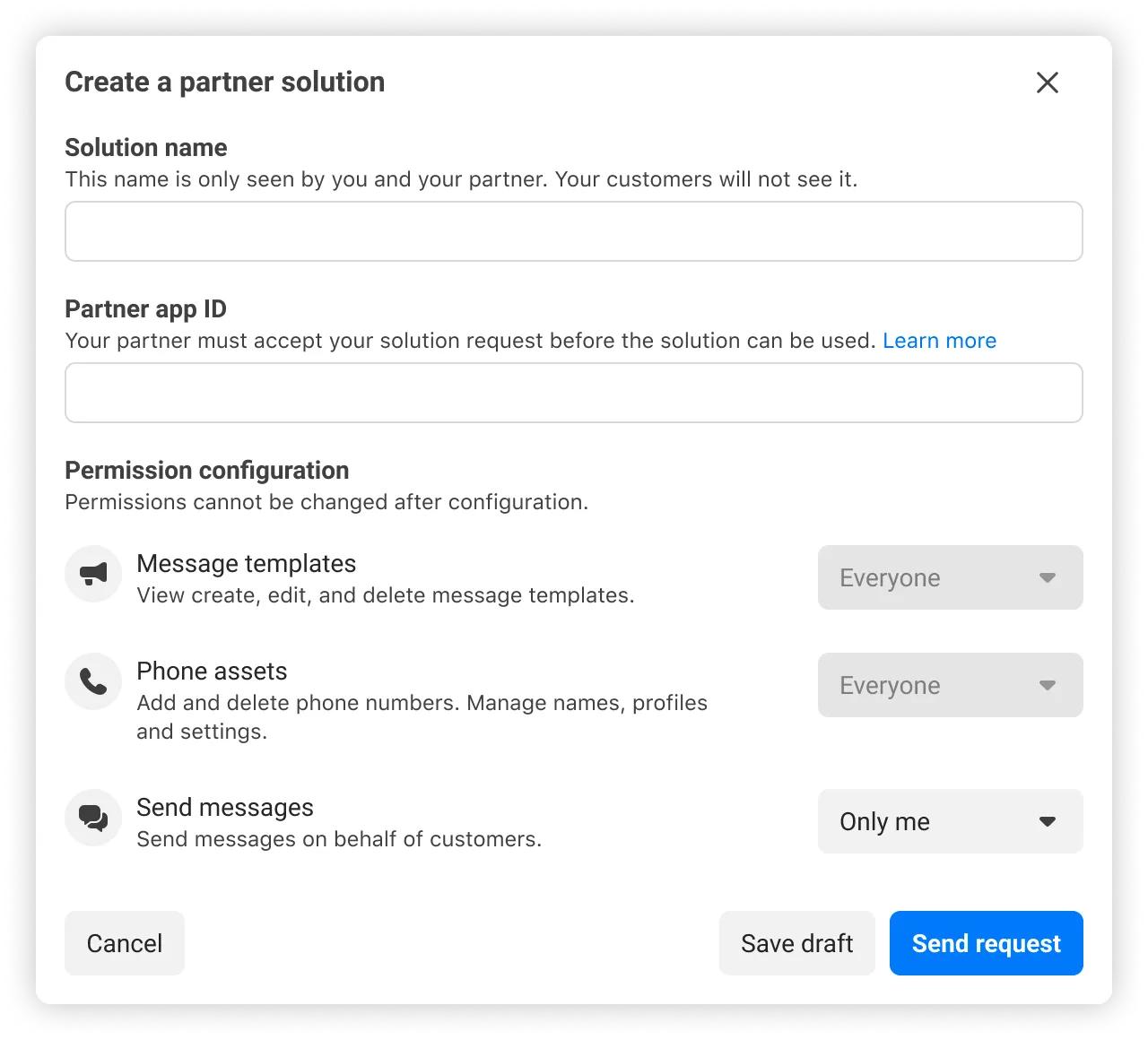
Upon creation, an email and Meta Business Suite notification will be sent to your partner, and a **partner\_solutions** webhook will be triggered.
The partner solution will appear in the **Partner solutions** panel with a **Pending** status until accepted by your partner. If accepted, its status will change to **Active**. If declined, its status will change to **Inactive**.
Assign the solution ID to the `solutionID` property in the `extras.setup` object within the [launch method and callback registration](/books/meta-whatsapp/page/implementation-developer-documentation) portion of the Embedded Signup code.
```
// Launch method and callback registration
const launchWhatsAppSignup = () => {
FB.login(fbLoginCallback, {
config_id: '', // your configuration ID goes here, ensure it is in quotes
response_type: 'code',
override_default_response_type: true,
extras: {
setup: {
solutionID: '' // add solution ID here, ensure it is in quotes
},
featureType: '',
sessionInfoVersion: '3',
}
});
}
```
Both you and your partner’s business portfolio (**Business Settings** > **Business Info**) will appear throughout the Embedded Signup flow.
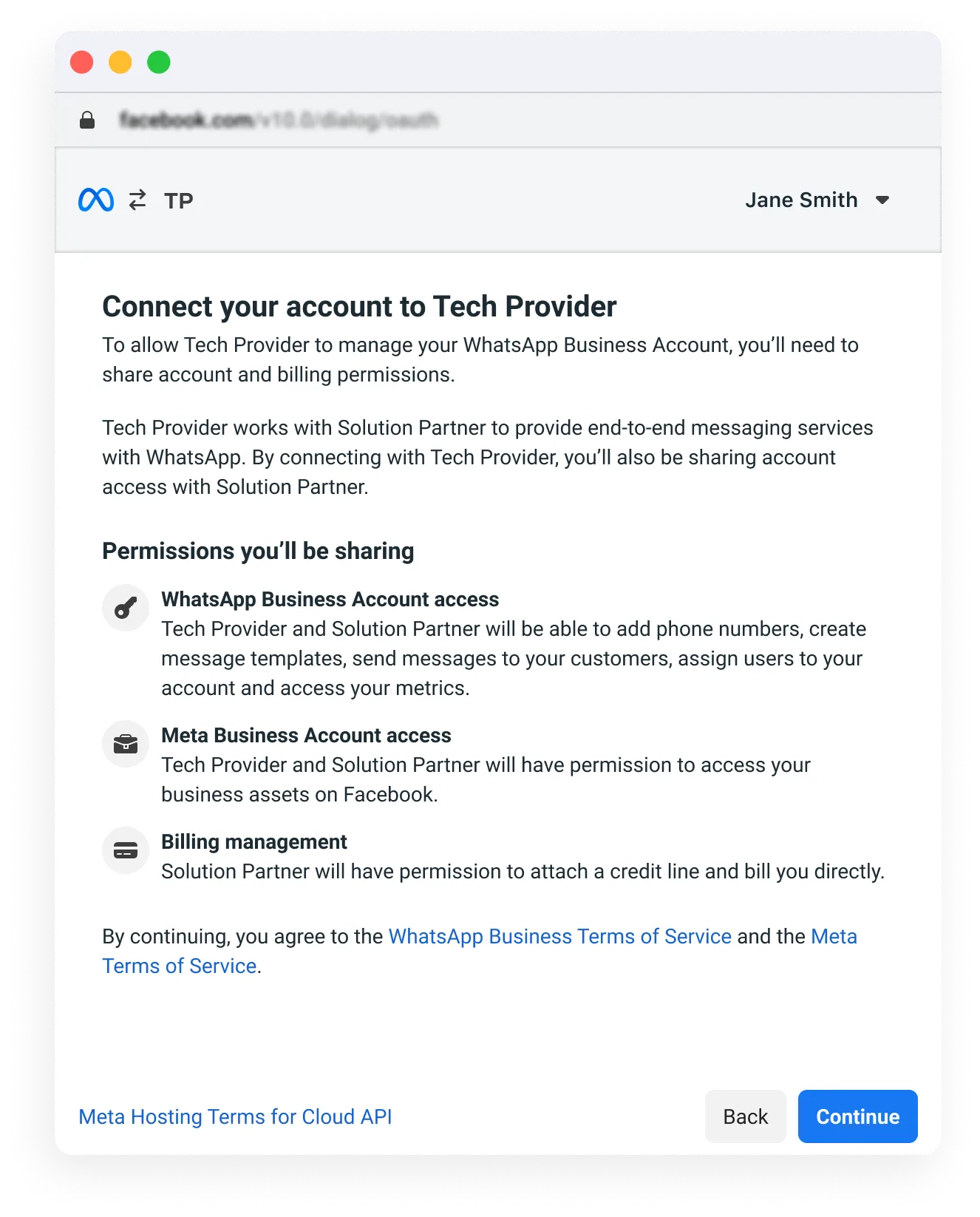
Once configured, surface the customized Embedded SIgnup flow to customers on your platform wherever you feel it is appropriate. Note that if you have multiple active partner solutions, it is your responsibility to inject the correct solution ID into your Embedded Signup configuration and surface it to your intended customers, otherwise a customer could be onboarded using the wrong solution.
### Step 6: Listen for Onboarded Business Customers
To listen for onboarded customers, your app must be subscribed to the [**account\_update**](#bkmrk-account_update-1) webhook field.
In addition, we will send an email to admins of the business portfolio that owns the app, and a Meta Business Suite notification to the business portfolio that owns the app.
### Step 7: Share Your Credit Line (Solution Partners only)
If you are a Solution Partner, [share your line of credit](/books/meta-whatsapp/page/managing-credit-lines-developer-documentation) with any business customers newly onboarded via the partner solution.
**Note**: If you are a Solution Partner trying to add a user to a WhatsApp Business Account that is shared with you, you would need to account for the following scenarios:
If you are not granted the `MESSAGING` permission on the solution, then you need to decide which granular tasks you need when adding the user to the shared WhatsApp Business Account: `DEVELOP`, `MANAGE_TEMPLATES`, `MANAGE_PHONE`, `VIEW_COST`, `MANAGE_EXTENSIONS`, `VIEW_PHONE_ASSETS`, `MANAGE_PHONE_ASSETS`, `VIEW_TEMPLATES`, `VIEW_INSIGHTS`, `MANAGE_USERS`, and `MANAGE_BILLING`.In this scenario, also note that `MANAGE_BILLING` is needed for credit line sharing.`MANAGE` will only work if you are given **Full access** on the solution, i.e. including `MESSAGING`.### Editing or Deactivating Solutions
You can use the App Dashboard or API to edit or deactivate a solution.
When you request deactivation, the solution’s status will change to **Pending deactivation** and your partner will be notified by email and Meta Business Suite notification. In addition, a [**partner\_solutions**](#bkmrk-partner_solutions-1) webhook will be triggered with `event` set to `SOLUTION_UPDATED` and `solution_status` set to `PENDING_DEACTIVATION`. Your partner can then accept or reject your request.
Note that partner solutions can still be used to onboard customers until your partner accepts the deactivation request.
If the deactivation request is rejected, the solution will remain in an **Active** state and can continue to be used to onboard customers.
If the deactivation request is accepted, the solution status will be set to **Deactivated** and can no longer be used to onboard business customers, so make sure that neither you nor your partner are surfacing it to business customers.
You can only edit solutions that were created by you.You can request deactivation of any solutions that you create which are in an **Active** state.Use the **App Dashboard** > **WhatsApp** > **Partner solutions** panel to edit or deactivate a solution. Note that you can only edit solutions that were initiated by you.
| State | Permitted actions |
|---|
| You may edit the solution name, or deactivate the solution. |
| Solutions in this state cannot be edited. |
| You may edit the solution name. |
| You may edit the solution name. |
| Solutions in this state cannot be edited until accepted or declined by your partner. |
| You may accept or decline the partner’s deactivation request. |
### Migrating business customer assets among solutions
You have several options for migrating business customer assets to and from Multi-Partner Solutions. See [Migrating business customer assets](/documentation/business-messaging/whatsapp/solution-providers/support#migrating-business-customer-assets).
## Multi-Partner Solution - Embedded creation
Updated: Dec 12, 2025
[Multi-Partner Solutions](/books/meta-whatsapp/page/multi-partner-solutions-developer-documentation) (MPS) allow Solution Partners and Tech Providers to jointly manage customer WhatsApp assets in order to provide WhatsApp messaging services to customers.
If you are a Solution Partner, instead of using the app dashboard to create an MPS, you can create one using a snippet of JavaScript and an HTML button which you can embed somewhere on your website. Tech Providers who want to partner with you can use the button to grant your app permission to manage solutions for one or more of their apps, which you can then do using a series of API requests.
Tech Providers who visit your website and click the embedded solution creation button will be asked to authenticate, and after doing so, will be presented with an interface that allows them to choose an existing app:
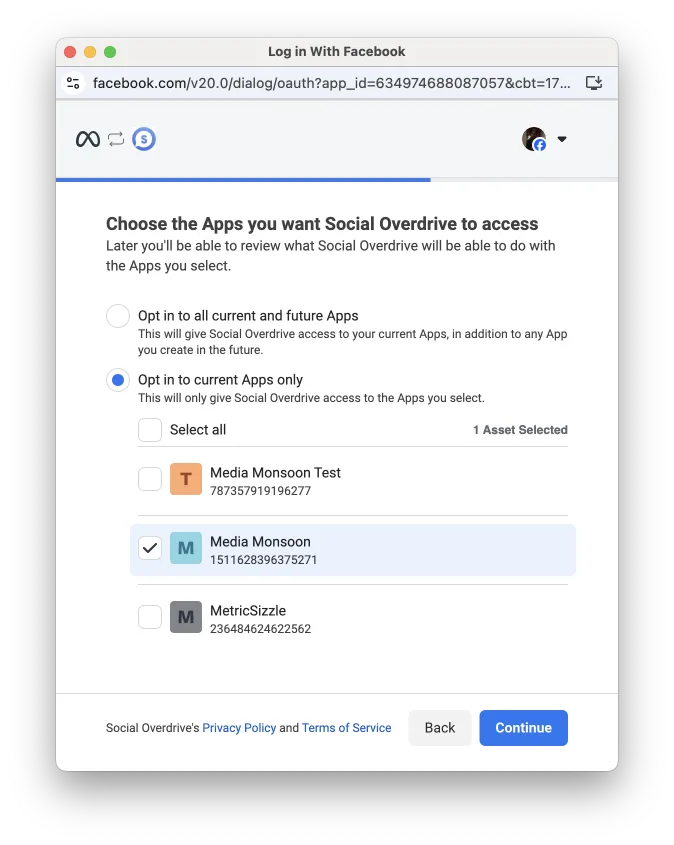
After choosing an app, they can review and confirm that they will be granting your app permission to manage their app's Multi-Partner Solutions.
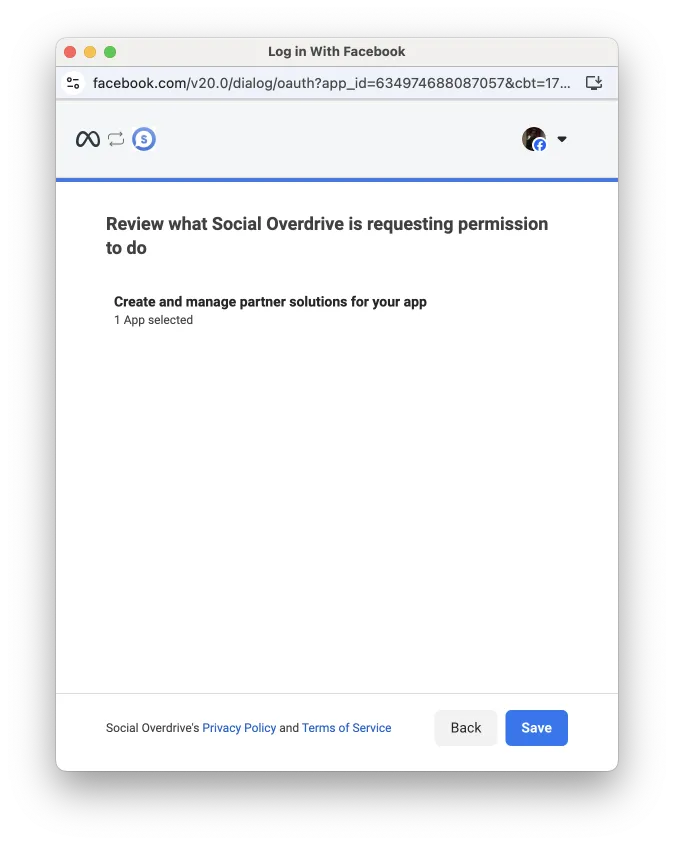
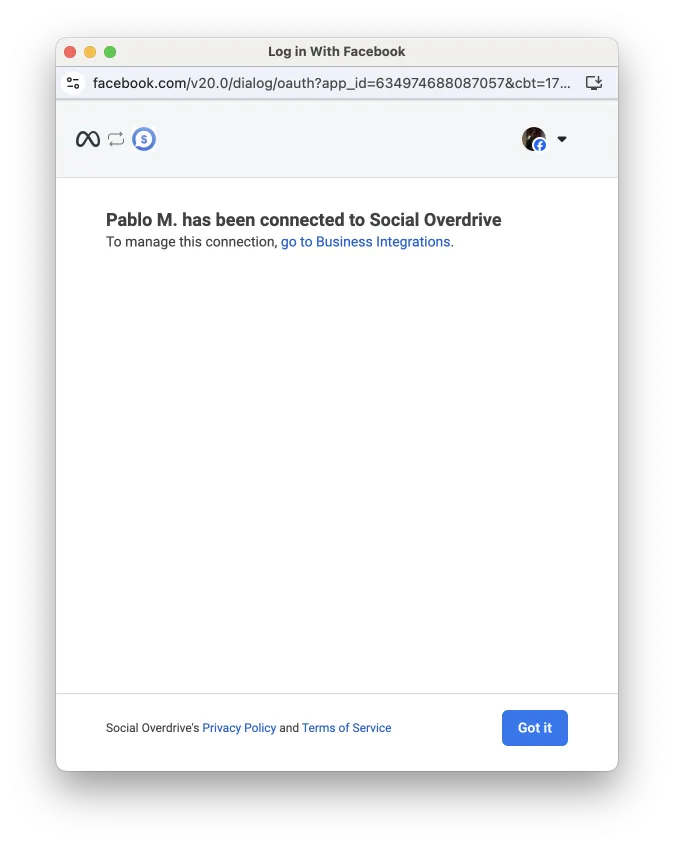
Once the Tech Provider dismisses the interface, a user access token will be generated and returned to flow, where you can capture it. You can then use the token in a series of API calls to get Tech Provider's chosen app ID(s) and create and accept a solution.
Facebook Login for Business must be [configured on your app](/books/meta-whatsapp/page/implementation-developer-documentation), with **Valid OAuth Redirect URIs** and **Allowed Domains for the JavasScript SDK** set. You should already have set these values when configuring Embedded Signup.Your app must undergo App Review and be approved for advanced access for the **manage\_app\_solution** permission.### Embedded creation button
#### Step 1: Grant permission to app
Access the Meta Business Suite and use your system user to grant your app the **manage\_app\_solution** permission.
Log into [business.facebook.com?](https://business.facebook.com).Use the business portfolio dropdown menu on the left to locate your business portfolio and click the gear icon (for settings).Navigate to **Users** > **System Users**.Click the system user who has business asset access on your app and WhatsApp Business Account.Click the **Generate token** button.Select your app.Set an expiration date for the token.Select the **manage\_app\_solution** permission.Generate a token.Use this token when accepting any Multi-Partner Solutions you create for your partners (see below).
#### Step 2: Add embedded button code
Add the following code to your website or portal, or wherever you plan on directing Tech Providers who will be working with you as part of an MPS. Be sure to replace `` with your app ID.
Direct prospective Tech Provider partners to this location and instruct them to complete the flow. Let them know that completing the flow does not create the solution (it requires some API calls on your part) and that you'll provide them with the solution ID once it has been created.
## How to use Multi-Solution Conversations (MSC)
Updated: Feb 24, 2026
Multi-Solution Conversations allows businesses to use multiple partners and solutions **on the same phone number**, creating a seamless chat thread experience for their customers.
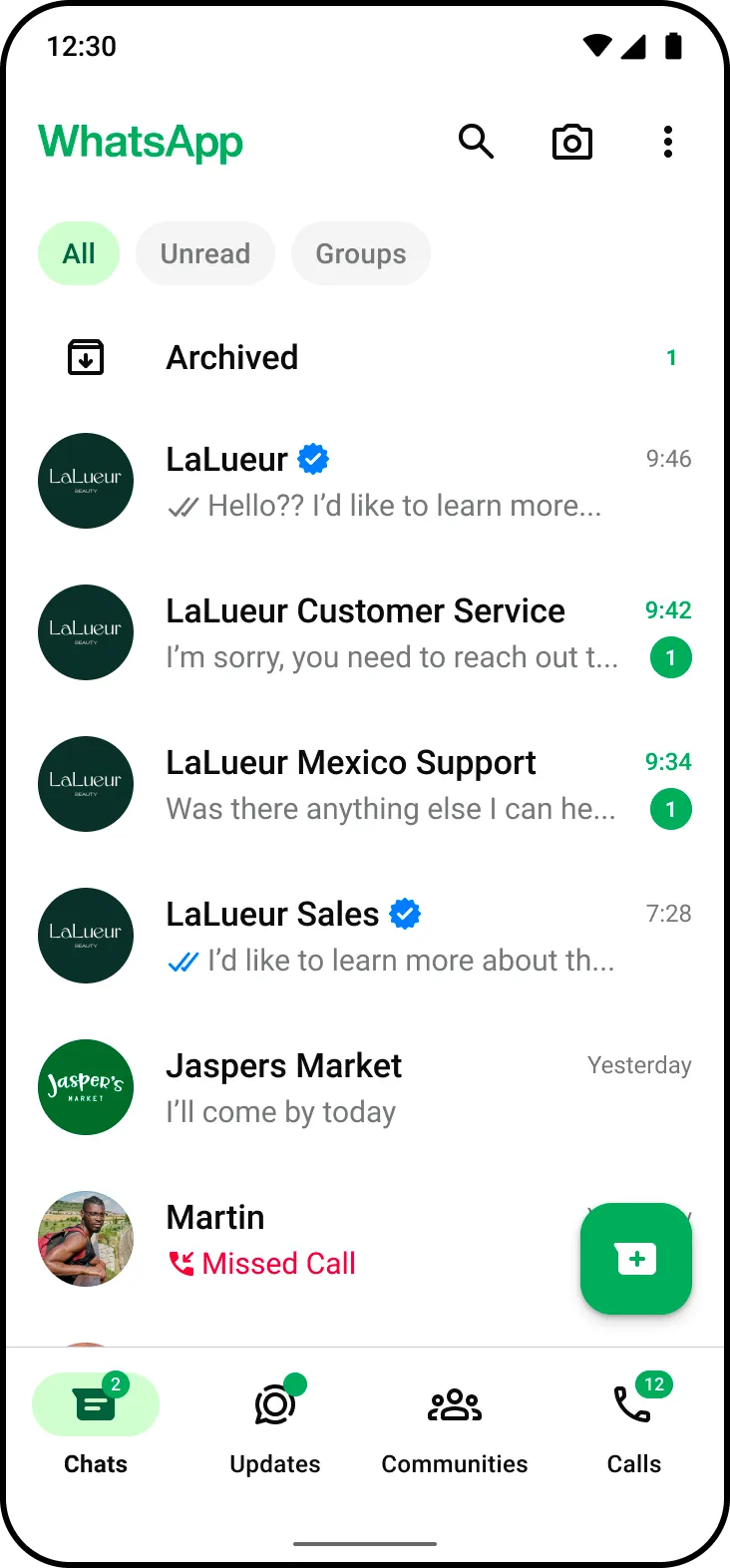
This feature is currently in a closed beta. Please reach out to your partner manager for more details.Your business portfolio must have an [increased messaging limit](/books/meta-whatsapp/page/messaging-limits-developer-documentation).Businesses with banned or restricted WhatsApp Business accounts (WABA) are not eligible. Use the [Business Support Home](https://business.facebook.com/business-support-home/) to address restrictions.
**Simple end-business onboarding via Embedded Sign-up:** Partners can onboard businesses easily through [Embedded Signup](/books/meta-whatsapp/page/how-to-use-multi-solution-conversations-msc-developer-documentation).**Payment and template isolation per partner:** Each partner has their own WhatsApp Business Account, their own templates, and their own billing and metrics.Since this feature is still in beta, some functionality may not work as expected. See [Beta Product Testing Terms](https://www.facebook.com/legal/BetaProductTestingTerms).
### How Multi-Solution Conversations work
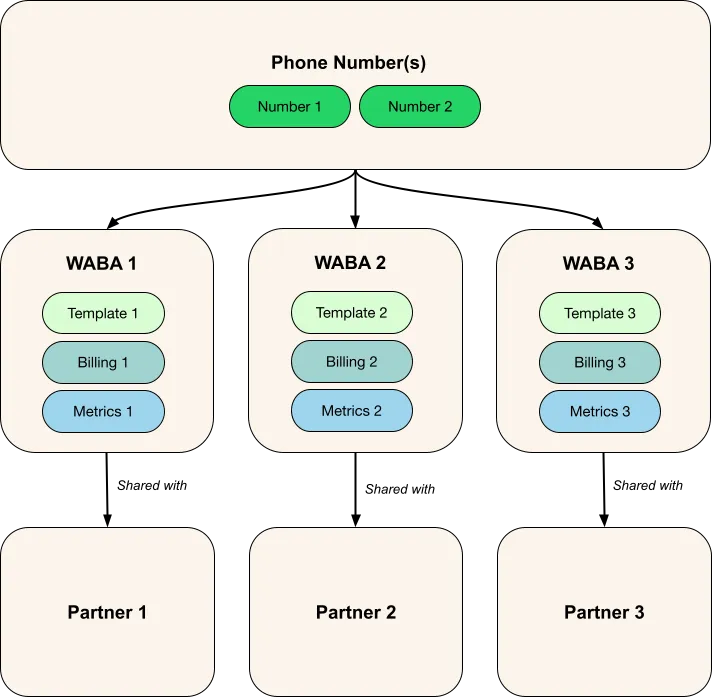
The chart above illustrates a new WABA shared with each integrated partner, and assets separated per WABA.
The business shares all phone numbers associated with their WhatsApp Business Account (WABA) to a partner through the [Embedded Signup flow](/books/meta-whatsapp/page/how-to-use-multi-solution-conversations-msc-developer-documentation).The system creates and shares a new WABA with the partner the business onboards with.The partner now has messaging or calling access to the business phone numbers shared with them and can message or manage calls on behalf of the business.#### Supported APIs and usage
Businesses can use a single phone number across one or multiple partners across the following APIs and uses:
[Messaging via WhatsApp Cloud API](/books/meta-whatsapp/page/sending-messages-developer-documentation)[Calling via WhatsApp Cloud API](/books/meta-whatsapp/page/cloud-api-calling-developer-documentation)[Click-to-WhatsApp Ads via Ads Manager](https://www.facebook.com/business/help/447934475640650?id=371525583593535)### Additional limitations
**MSC does not currently support:**
Conversation routing and management: currently, all parties the phone number is shared with receive incoming webhooks. Businesses must work with partners to manage response handling.Coexistence phone numbersPhone numbers using the Groups APIWABA created through Embedded Signup which are used on Ads Manager for Marketing Messages[Measurement Partner onboarding](/books/meta-whatsapp/page/measurement-partners-developer-documentation)
Only 5 partners or solutions can be enabled per each end-business WhatsApp Business Account (WABA).Only 1 partner can attach a catalog to the shared phone number(s) between partners.#### Phone number sharing limitations
The business cannot share a phone number with the same partner more than once via different WABAs.
For example, the business has a phone number linked to WABA 1 and then shares WABA 1 with Partner 1. If you have the same phone number linked to WABA 2, you cannot also share WABA 2 with Partner 1. If you try to share the phone number, you may receive an error.
### How messaging, calling, and account management works when using MSC
Use the following table to understand how different features and APIs work when using MSC as a partner or business.
**Value:** Use an existing phone number across multiple partners and solutions.
| Business Experience | Partner Experience |
|---|
The business onboards an existing phone with more than one partner via [Embedded Signup.](/books/meta-whatsapp/page/how-to-use-multi-solution-conversations-msc-developer-documentation) | Partners can see the new WABA shared with them within Meta Business Suite settings. |
**Value:** Account management as usual
Business Experience | Partner Experience |
|---|
You can perform account management operations via the usual pathways (WhatsApp Manager, API, and so on) based on permissions granted. |
**Value:** Enable messaging and calling functions across multiple partners on a single phone number
| Feature | Business Experience | Partner Experience |
|---|
Cloud API MessagingMarketing Messages API for WhatsApp | |
**Send messages:** All partners can send messages via API on the shared phone number(s). **Receive messages:** All partners will receive all incoming webhooks on the shared phone number(s). |
[Cloud API Calling](/books/meta-whatsapp/page/cloud-api-calling-developer-documentation) | | Partners onboarded to the Calling API can make [business-initiated calls](/books/meta-whatsapp/page/business-initiated-calls-developer-documentation), and receive [user-initiated calls](/books/meta-whatsapp/page/user-initiated-calls-developer-documentation). [Learn more about the WhatsApp Business Calling API](/books/meta-whatsapp/page/cloud-api-calling-developer-documentation) |
[Templates](/books/meta-whatsapp/page/templates-developer-documentation) | | Partners can create templates as usual by using the new WABA, either through the API or WhatsApp Manager. [Learn how to create and manage message templates](/books/meta-whatsapp/page/templates-developer-documentation) |
Conversation Routing and Management | Currently, all parties the phone number is shared with receive incoming webhooks. Businesses must work with partners to manage response handling. | Currently, all parties the phone number is shared with receive incoming webhooks. Businesses must work with partners to manage response handling. |
**Value:** Simplified, siloed billing ownership per WABA
| Business Experience | Partner Experience |
|---|
Businesses can add a payment method to any of the WABAs created and shared with partners. | Partners add their own payment methods to the WABA shared with them, the same as they do today. Each partner is billed only for the messages sent through their app. [Per-message pricing applies.](/books/meta-whatsapp/page/pricing-on-the-whatsapp-business-platform-developer-documentation) |
**Value:** Simplified, siloed asset management per WABA
Feature | Business Experience | Partner Experience |
|---|
| The business can create and see templates on all WABAs shared with partners. | Partners can only create templates on the WABAs that are shared with them. Partners are not able to see other Partners’ templates |
| Phone numbers are a shared resource. Whether the end business or partner adds the phone number, it will be visible to all in WhatsApp Manager. Any new phone numbers added to WABAs using MSC are shared with all partners with access to these MSC WABAs. |
**Value:** The business has full control of what partners, assets, and accounts they retain.
Role/Asset | Business Experience | Partner Experience | Partner Experience |
|---|
| The business can delete the WABA. | Partners cannot delete the WABA shared with them. | |
| Both the business and partner can delete a phone number. | |
| The business can remove the partner. | | |
### How violations and bans work with MSC
[Decision appeals](/books/meta-whatsapp/page/whatsapp-business-platform-policy-and-spam-enforcement-developer-documentation) continue to function as they do today.
### Onboarding for MSC (Embedded Signup flow)
Only available to businesses with a messaging limit of at least 1,000 business-initiated conversations in a rolling 24 hour period.
Once a business meets the eligibility requirements, the MSC flow for Embedded Signup is automatically displayed in the Embedded Signup flow ([v2 and above](/books/meta-whatsapp/page/versions-developer-documentation)). Partners don’t need to configure anything in Embedded Signup for this to work.
When businesses sign up to a partner through Embedded Signup, they see the flow below and can choose to share their existing business phone numbers. This onboards them to MSC. Embedded Signup has two experiences, and a given business may see either one randomly. Both experiences are described below.
**Once the business completes the Embedded Signup flow, the partner does not need to re-register with the business.**
#### Embedded Signup flow for businesses (experience 1)
The **Notes** column calls out any MSC-specific notes for each screen.
| Screen | Notes |
|---|
[Authentication screen](/books/meta-whatsapp/page/customizing-the-default-flow-developer-documentation) | |
[Authorization screen](/books/meta-whatsapp/page/customizing-the-default-flow-developer-documentation) | |
[Business Asset Selection Screen](/books/meta-whatsapp/page/customizing-the-default-flow-developer-documentation) | Here, you can select a WhatsApp Business account that is already shared with other partner(s) |
[Phone number addition screen](/books/meta-whatsapp/page/customizing-the-default-flow-developer-documentation) | Select ‘Use a new or existing WhatsApp number’, then click on the dropdown ‘Add a new WhatsApp number’, then select existing WhatsApp Business Account you want to share with current partner |
[Permissions review screen](/books/meta-whatsapp/page/customizing-the-default-flow-developer-documentation) | |
[Success screen](/books/meta-whatsapp/page/customizing-the-default-flow-developer-documentation) | |
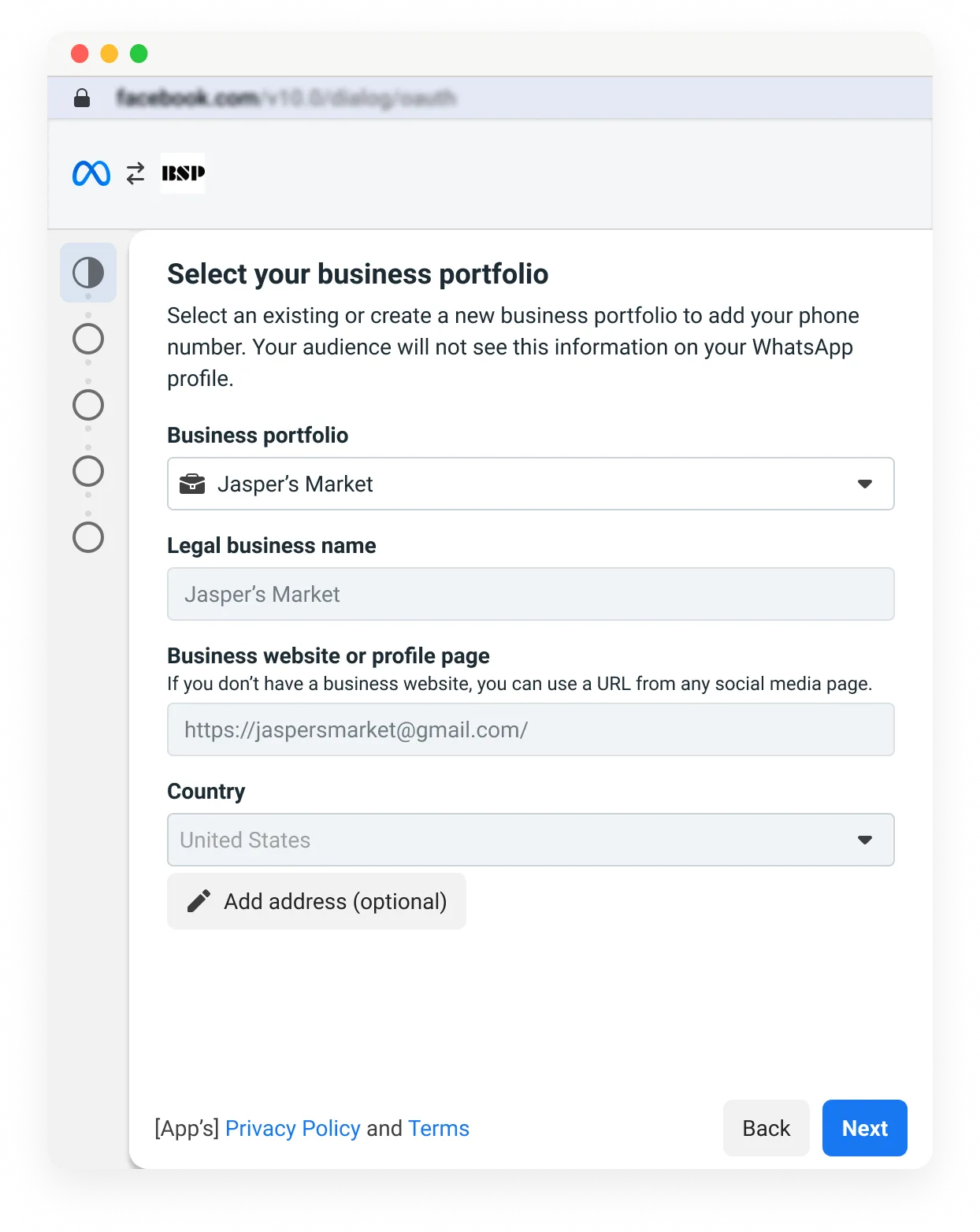
#### Embedded Signup flow for businesses (experience 2)
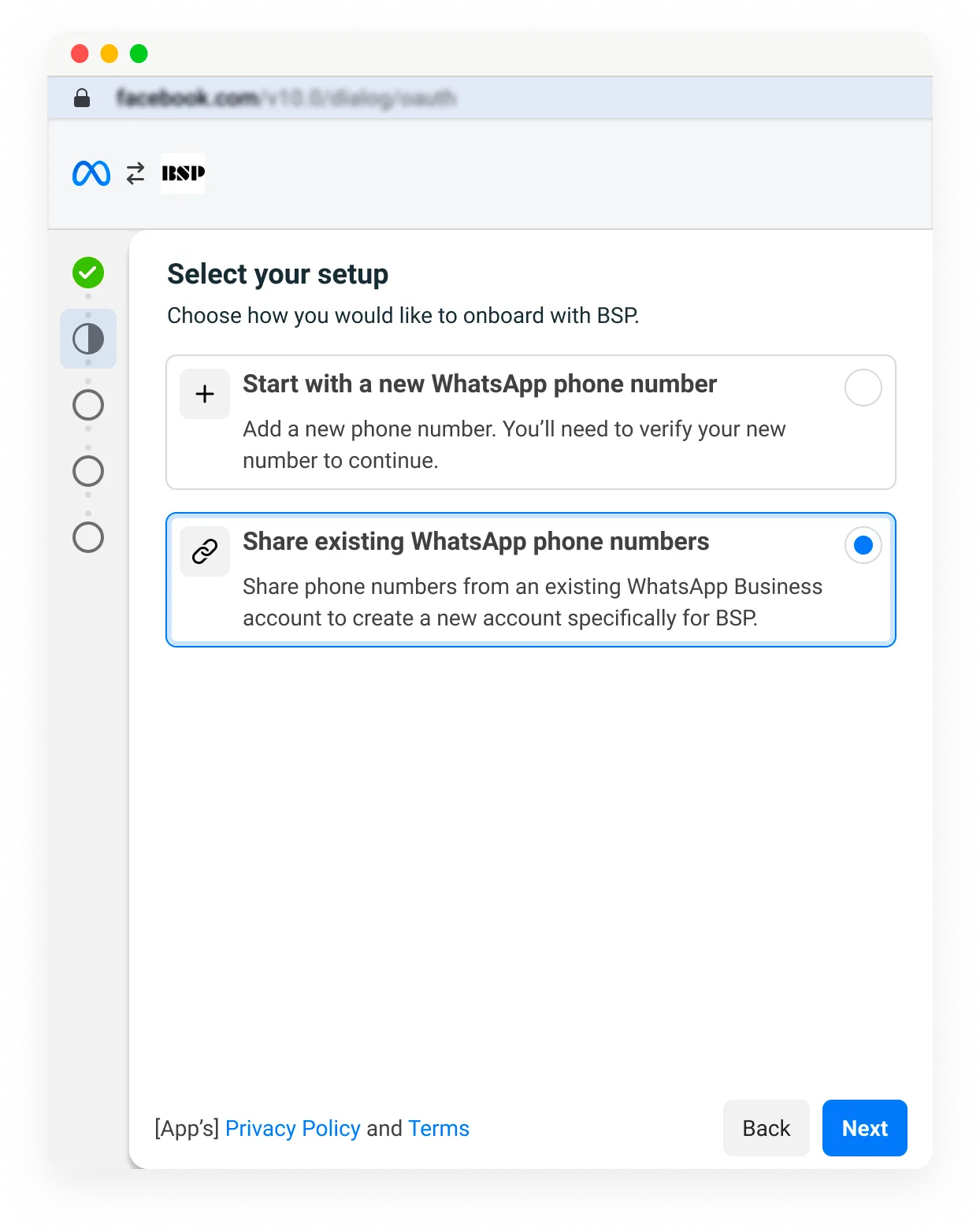
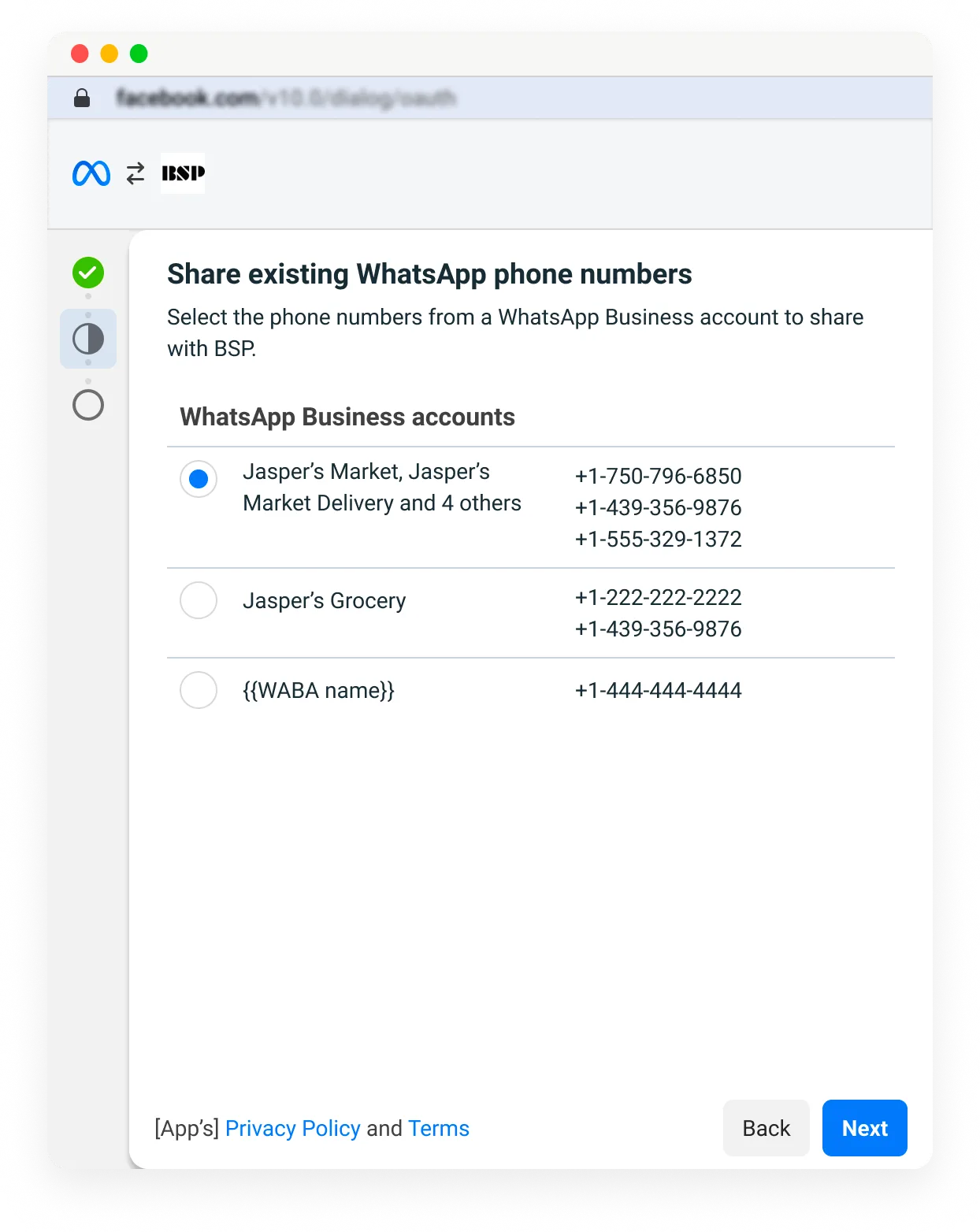
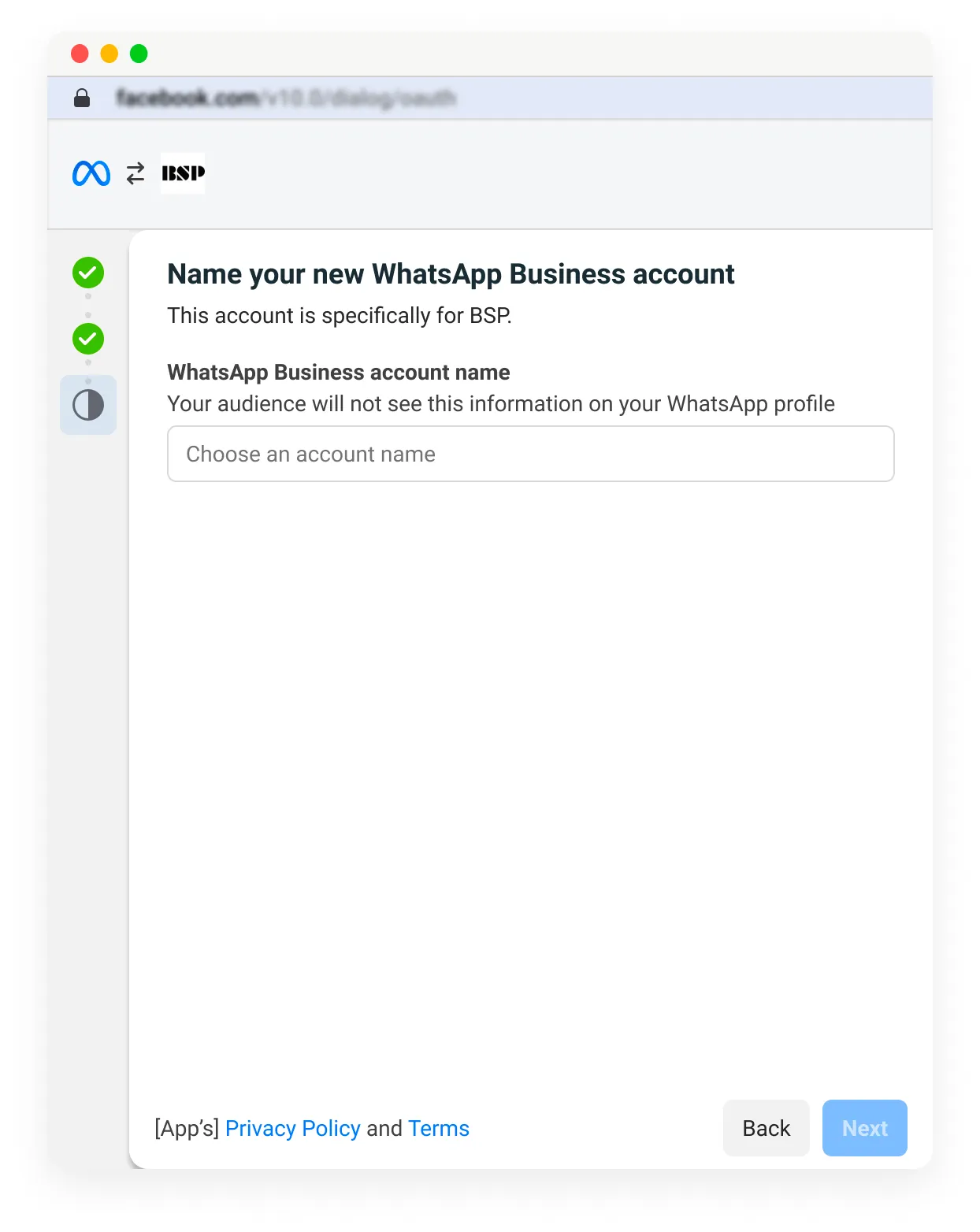
Businesses onboard to MSC by using the Embedded Signup flow. Note that these screenshots may differ as the product evolves.
Step 1: Select the business portfolio.
Step 2: Select **Share existing WhatsApp phone numbers**.
Step 3: The business selects the WABA with the phone number(s) they would like to share. Note that these numbers are only selectable if they have not been shared already with this partner.
Step 4: Create a name for the new WhatsApp Business Account being created.
Step 5: Verify permission information.
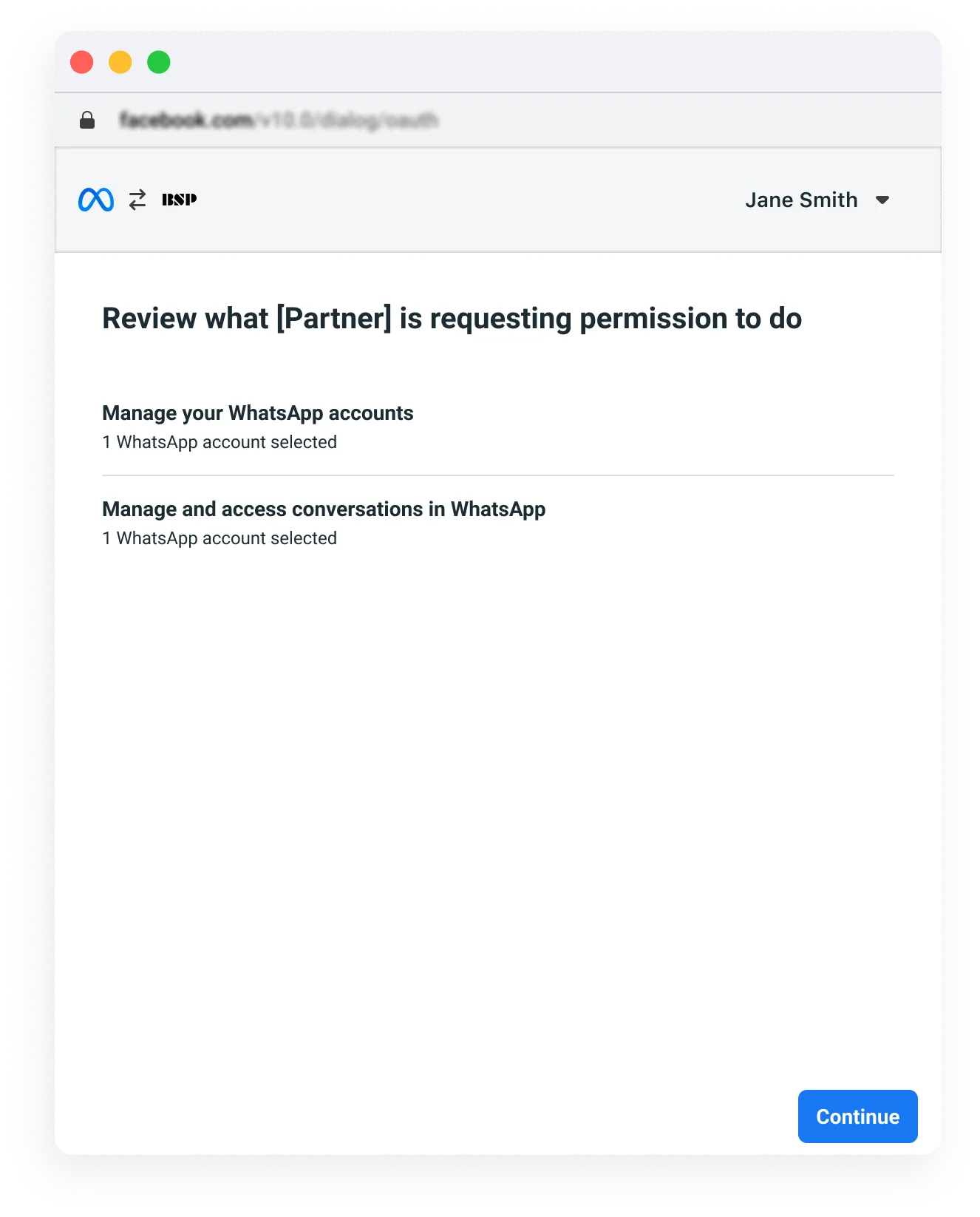
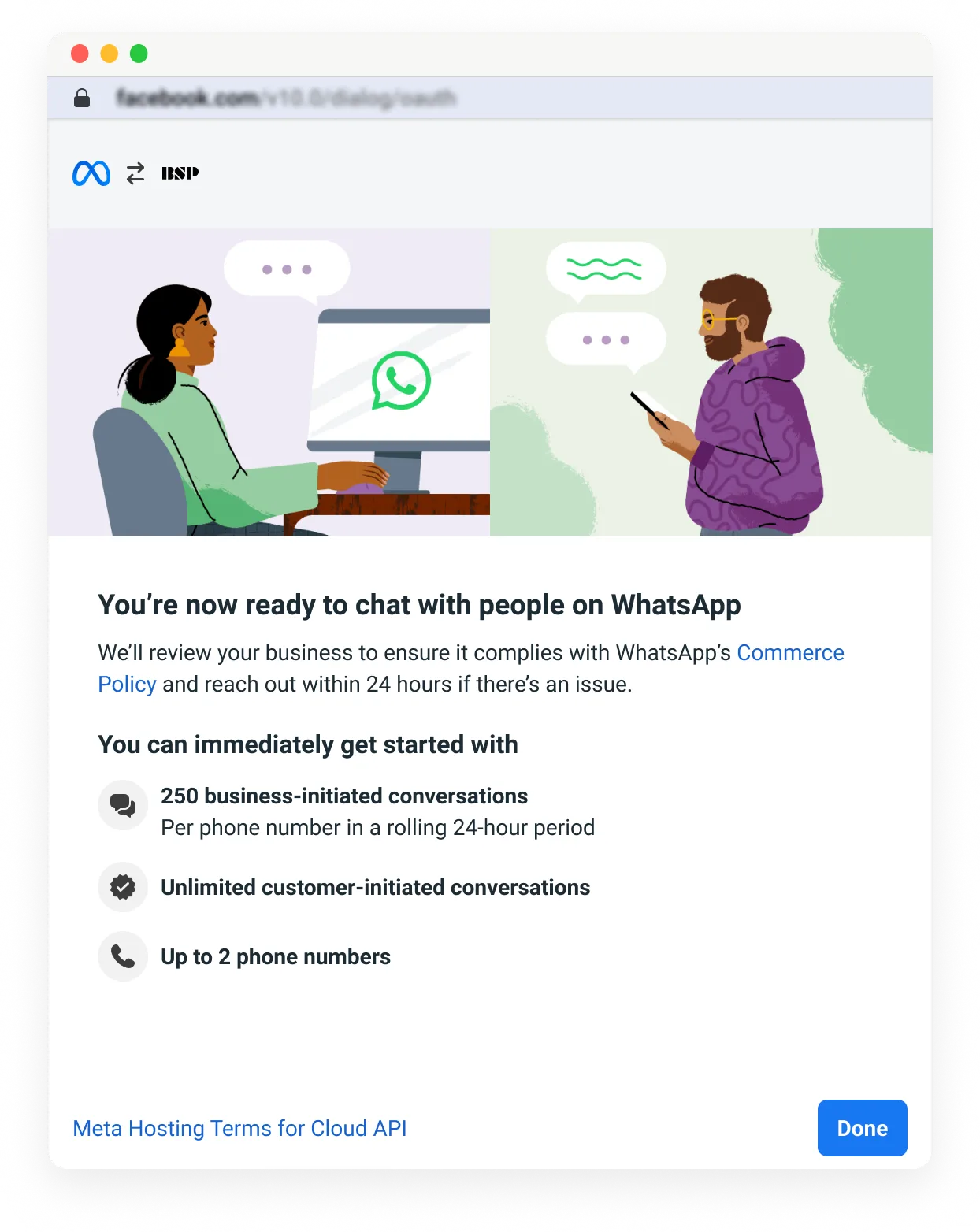
Step 6: Verify signup information and finish.
**The “Share existing WhatsApp phone numbers” option is greyed out**
This can happen for several reasons:
The business already has a solution with the partner they are trying to share the number with.The business has exceeded the 5 partner maximum for the number.The phone number is not eligible to send 1k messages yet.The phone number has not been registered.**What can I do if the business phone number goes offline?**
Rarely, a phone number can go offline. To solve this issue, try the following:
Register the phone number again: The business should search each of their WABA activity logs to find which partner registered the phone number first. Then, that partner can register the phone number again.Turn off 2-factor authentication (optional): If the business cannot obtain which partner originally registered the phone number, they can shut off two-factor authentication and have another partner register the number again. [Learn how to disable 2FA on a phone number](/books/meta-whatsapp/page/business-phone-numbers-developer-documentation).### Frequently asked questions
**How do I get support?**
For support concerning Multi-Solutions Conversations, choose the **WABiz: Onboarding** topic when opening a [Direct Support](https://business.facebook.com/direct-support/) ticket.
**How can I offboard from MSC?**
To offboard from MSC:
Migrate templates (Optional): If there are newly created templates on an MSC-created WABA, please migrate them before offboarding. \[Learn how to migrate templates here.\]Submit a WhatsApp support ticket: Use the request type “Embedded Signup - MSC Offboarding” and include the WABA you would like to retain.**Is MSC supported for Tech Providers, Tech Partners, and Multi-Partner Solutions?**
Yes.
**Will a partner be able to see how many partners a client is using and the specific services/capabilities each partner provides?**
No.
**Does every partner need to register a given business phone number to onboard it to MSC?**
No, only one partner needs to register it. Once the number has been registered, it is ready to be used with new partners without the need to re-register it.
**What happens if a business tries to onboard without having previously registered their phone number(s)?**
An error will be displayed in Embedded Signup, prompting the business to register their number(s).
**If multiple partners respond to messages within the same conversation window, who will be charged?**
[Per-message pricing](/books/meta-whatsapp/page/pricing-on-the-whatsapp-business-platform-developer-documentation) applies.
**What happens if two partners send messages at the same time? Will I get billed twice?**
[Per-message pricing](/books/meta-whatsapp/page/pricing-on-the-whatsapp-business-platform-developer-documentation) applies.
**When will MSC become generally available?**
Mid-2026.
## Partner-led Business Verification
Updated: Nov 14, 2025
This feature is currently only available to approved **Select Solution** and **Premier** Solution Partners. See our [Sign up for partner-led business verification?](https://www.facebook.com/business/help/1091073752691122) Help Center article to learn how to request approval.
This document describes how to create business verification submissions for business customers who have been onboarded via Embedded Signup.
If you are an approved Solution Partner, you can gather required business verification documentation from your onboarded business customers and submit their business for verification on their behalf. Decisions on submissions created in this way can be made in minutes instead days.
you must already be an approved **Select Solution** or **Premier** Solution Partner, and [approved for access?](https://www.facebook.com/business/help/1091073752691122)your [system user access token](/books/meta-whatsapp/page/access-tokens-guide-developer-documentation)the system user whose system token you are using must be an admin on your business portfolio (see our [About business portfolio access?](https://www.facebook.com/business/help/442345745885606) Help Center article)the system user whose system token you are using must have granted your app the **business\_management** permissionthe business customer's business portfolio ID ([provided by the customer?](https://www.facebook.com/business/help/1181250022022158?id=180505742745347) or returned via API by requesting the `owner_business_info field` on the customer's WABA ID, using their [business token](/books/meta-whatsapp/page/access-tokens-guide-developer-documentation))You are limited to three submissions for a given business customer. If all three submissions are rejected, the customer must complete business verification on their own. If your submission is rejected three times, share the following Help Center article with the customer:
[How to Verify Your Business on Meta?](https://www.facebook.com/business/help/2058515294227817?id=180505742745347)
If you need help with partner-led business verification, open a Direct Support ticket:
Go to [Direct Support?](https://business.facebook.com/direct-support/).Click **Ask a Question**.Under **Topic** select **WABiz: Onboarding**.Click **Request type** and select **Partner-led Business Verification for WhatsApp**.See the following Help Center article for a list of business documents that we will accept:
[Upload official documents to verify your business?](https://www.facebook.com/business/help/159334372093366)
The average turnaround time for a submission is 5 minutes, but can take several hours. If you do not receive a webhook notifying of the outcome of a submission after 24 hours, please open a Direct Support ticket.
Submission decisions are communicated via **account\_update** webhook, so make sure your app is subscribed to the **account\_update** webhook field, and your app is [subscribed to webhooks on the business customer's WhatsApp Business Account](/books/meta-whatsapp/page/managing-webhooks-developer-documentation).
| Placeholder | Description | Example value |
|---|
| Business customer's business portfolio ID. | |
| Description of rejection reasons. Note that this parameter will be present even if the submission was rejected, but its value will be set to `NONE`. See the `rejection_reasons` field on the [WhatsApp Business Partner Client Verification Submission](https://developers.facebook.com/docs/graph-api/reference/whats-app-business-partner-client-verification-submission#Reading) node reference for a list of possible values and their descriptions. | `LEGAL_NAME_NOT_FOUND_IN_DOCUMENTS` |
| Business verification status. Values can be: `APPROVED` - Indicates the customer's business has been verified. `FAILED` - Indicates we were unable to verify the customer's business based on the submitted business information. | |
| Business customer's WABA ID. | |
| Unix timestamp indicating when the webhook was sent. | |
### Getting submission status
| Placeholder | Description | Example value |
|---|
| **Optional.** The customer's business portfolio ID. Include this parameter if you only want to get data on submissions you have created for the business identified by the customer's business portfolio ID. | |
| **Required.** Your system user access token. | `EAAAN6tcBzAUBOZC82CW...DOMccqHEZD` |
Upon success, the endpoint returns an array of [WhatsApp Business Partner Client Verification Submission](https://developers.facebook.com/docs/graph-api/reference/whats-app-business-partner-client-verification-submission) nodes, with default fields on each node.
See the [WhatsApp Business Partner Client Verification Submission](https://developers.facebook.com/docs/graph-api/reference/whats-app-business-partner-client-verification-submission) node reference for descriptions of returned fields and parameter values.
### Get business verification status
| Placeholder | Description | Example value |
|---|
| **Required.** The customer's business portfolio ID. | |
| **Required.** The customer's business token. | `EAAAN6tcBzAUBOwtDtTf...039ZAFlyNn` |
| Placeholder | Description | Example value |
|---|
| The business customer's business portfolio ID. | |
| The business portfolio's verification status. See the `verification_status` field on the [Business](https://developers.facebook.com/docs/marketing-api/reference/business#Reading) node reference for a list of possible values. | |
## Tracking with the Meta Pixel
Updated: Nov 4, 2025
The [Meta Pixel](https://developers.facebook.com/docs/meta-pixel) is a snippet of JavaScript code that allows you to track visitor activity on your website. It works by loading a small library of functions that you can use whenever a site visitor takes an action (i.e., an event) that you want to track; this is called a conversion.
Embedding the Meta Pixel is a feature that lets you know how many visitors to a given page have clicked on the embedded signup button. This can help you understand how many people considered WhatsApp and how many successfully converted.
Make sure the [initial code setup](https://developers.facebook.com/docs/meta-pixel/get-started#base-code) triggers a `Pageview` event with your Facebook app ID and the `feature` parameter.
## Managing WhatsApp Business Accounts
Updated: Feb 27, 2026
This document describes common endpoints used to manage business customer WhatsApp Business Accounts.
### Understanding shared WABAs
A Solution Partner has the following permissions in a shared WABA:
Add phone numbersCreate templatesSend messages to customersAssign users to the accountAccess metricsView payment informationOn their side, the businesses onboarding via Embedded Signup can see and/or do:
| Category | What can businesses see? |
|---|
| Messaging, cost, and quality state changes. |
| Quality statuses and ratings. |
| Category | What can businesses do? |
|---|
| Add and manage phone numbers and templates. |
| Unshare WABA with a Solution Partner, delete WABA, and change settings. |
Integration with other Meta products | Integrate with Ads that Click to WhatsApp. |
Solution Partners cannot disable what businesses are able to see or do or customize their views.
Businesses can see [Manage Your WhatsApp Solution Partner's Permissions?](https://www.facebook.com/business/help/861444384718867) for more information.
Solution Partners receive relevant notifications via webhooks and through Business Manager. Notifications are sent when:
A business shares a WABA.Messaging limits or quality rating changes for a client's WABA.When a phone number display name or a template is approved.If the business leaves the Embedded Signup flow before they have successfully completed it, they may have shared the WABA but the phone number's certificate may not ready, which means the number cannot be registered for API use. If this happens, please reach out to the business to help them complete the embedded signup flow.
[WhatsApp Business Management API](/books/meta-whatsapp/page/about-the-whatsapp-business-platform-developer-documentation)Reference: [Business](https://developers.facebook.com/docs/marketing-api/reference/business)Reference: [WhatsApp Business Account](/documentation/business-messaging/whatsapp/reference/whatsapp-business-account/whatsapp-business-account-api)## Registering business phone numbers
Updated: Nov 14, 2025
This document describes the steps to programmatically register business phone numbers on WhatsApp Business Accounts (WABA).
Note that **Embedded Signup performs steps 1-3 automatically** (unless you are [bypassing the phone number addition screen](/books/meta-whatsapp/page/bypassing-the-phone-number-addition-screen-developer-documentation)) so you only need to perform step 4 when a business customer completes the flow. If you have disabled phone number selection, however, you must perform all 4 steps.
Registering business phone numbers is a four step process:
Create the number on a WABA.Get a verification code for that number.Use the code to verify the number.Register the verified number for API use.These steps are described below.
You can also perform all 4 steps repeatedly to register business phone numbers in bulk.
Business phone numbers must meet our [phone number requirements](https://developers.facebook.com/docs/whatsapp/phone-numbers#requirements).
### Step 2: Request a verification code
Send a POST request to the [WhatsApp Business Phone Number > Request Code](/documentation/business-messaging/whatsapp/reference/whatsapp-business-pre-verified-phone-number/request-verification-code-api) endpoint to have a verification code sent to the business phone number.
#### Query string parameters
| Placeholder | Description | Example Value |
|---|
| **Required.**
Indicates how you want the verification code delivered to the business phone number. Values can be `SMS` or `VOICE`. | |
| **Required.**
Indicates language used in delivered verification code. | |
| Placeholder | Description | Example Value |
|---|
| Boolean indicating success or failure.
Upon success, the API will respond with `true` and a verification code will be sent to the business phone number using the method specified in your request. | |
#### Example SMS delivery
Example of an SMS message in English containing a verification code, delivered to a business phone number:
```
WhatsApp code 123-830
```
### Step 3: Verify the number
Send a POST request to the [WhatsApp Business Phone Number > Verify Code](/books/meta-whatsapp/page/whatsapp-business-account-phone-number-verification-verify-code-api-developer-documentation) endpoint to verify the business phone number, using the verification code contained in the SMS or voice message delivered to the number.
#### Query string parameters
| Placeholder | Description | Example Value |
|---|
| **Required.**
Verification code, without the hyphen. | |
| Placeholder | Description | Example Value |
|---|
| Boolean indicating success or failure.
Upon success, the API will respond with `true`, indicating that the business phone number has been verified. | |
## Manage System Users
Updated: Nov 14, 2025
Adding your System User to shared WhatsApp Business Accounts allows you to programmatically manage the accounts. On this guide, we go over actions BSPs may need to perform to manage their system users.
For help creating a system user, see [System Users, Create, Retrieve and Update a System User](https://developers.facebook.com/docs/marketing-api/system-users/create-retrieve-update).For help generating your system user access token, see [System Users, Install Apps and Generate Tokens](https://developers.facebook.com/docs/marketing-api/system-users/install-apps-and-generate-tokens#generate-token).### Add System Users to a WhatsApp Business Account
For this API call, **you need to use the access token of a System User with admin permissions**.
| Name | Description |
|---|
| Provides admin access. Users can have admin access on a WhatsApp Business Account that is shared with Admin permissions. Note: If you are a Solution Partner trying to add a user to a WhatsApp Business Account that is shared with you via a [Multi-Partner Solution](/books/meta-whatsapp/page/multi-partner-solutions-developer-documentation), then you would need to account for the following scenarios: If you are not granted `MESSAGING` permission on the solution, then you need to decide which granular tasks you need when adding the user to the shared WhatsApp Business Account: `DEVELOP`, `MANAGE_TEMPLATES`, `MANAGE_PHONE`, `VIEW_COST`, `MANAGE_EXTENSIONS`, `VIEW_PHONE_ASSETS`, `MANAGE_PHONE_ASSETS`, `VIEW_TEMPLATES`, `VIEW_INSIGHTS`, `MANAGE_USERS`, `MANAGE_BILLING`.In such scenario, also note that `MANAGE_BILLING` is needed for sharing Line of Credit.MANAGE will only work if you are given full access on the solution i.e. including `MESSAGING`. |
| Provides developer access. Users can have developer access on a WhatsApp Business Account that is shared with Standard permissions. |
## On-Behalf-Of account ownership model deprecation
Updated: Nov 14, 2025
We have deprecated the On-Behalf-Of (“OBO”) account ownership model and replaced it with [partner-initiated WABA creation](/books/meta-whatsapp/page/partner-initiated-waba-creation-developer-documentation). All existing WABAs created under the OBO model should have been transferred to business customers by October 1, 2025. Post 1st October 2025, all the eligible OBO accounts will be auto-migrated in batches through the end of 2025.
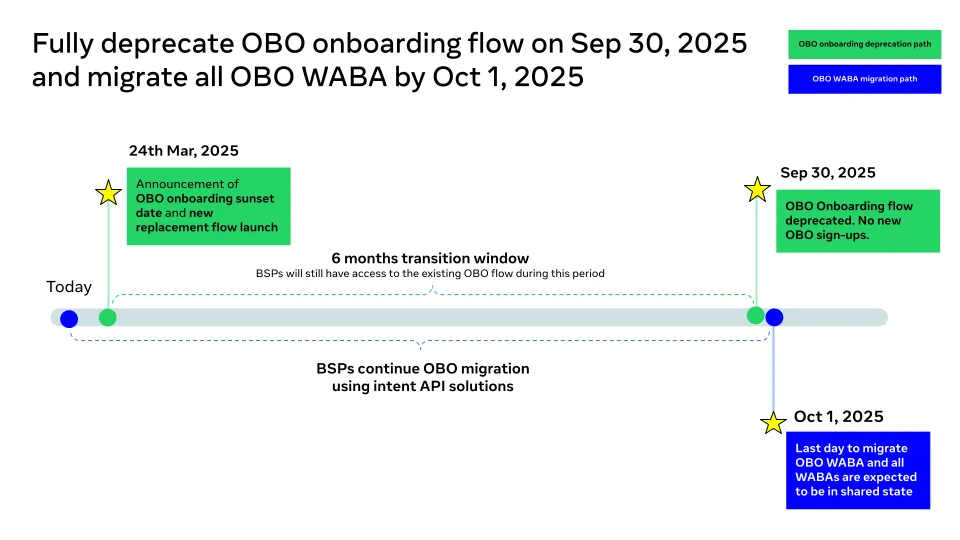
**March 24, 2025**: [partner-initiated WABA creation](/books/meta-whatsapp/page/partner-initiated-waba-creation-developer-documentation) is made available to all Solution Providers.**September 29, 2025**: last day to onboard business customers to the OBO model.**October 1, 2025**: last day to transfer ownership of OBO model WABAs to business customers.Partner-initiated WABA creation does not support automatic payment setup. Instead, you must share your credit line with the business customer via the API. See [Partner-initiated WABA creation](/books/meta-whatsapp/page/partner-initiated-waba-creation-developer-documentation) for details.
### Multi-Partner Solutions
Business customers cannot be onboarded to a Multi-Partner Solution as part of the partner-initiated WABA creation process, but can be added to an MPS afterwards. See [Partner-initiated WABA creation](/books/meta-whatsapp/page/partner-initiated-waba-creation-developer-documentation) for details.
### Marketing Messages API for WhatsApp
Existing OBO model WABAs need to be transferred to business customers if you want to use them with the Marketing Messages API for WhatsApp, but this can be done as part of the [Marketing Messages API for WhatsApp onboarding process](/books/meta-whatsapp/page/onboard-developer-documentation).
## Migrate an existing WhatsApp Number to a Business Account
Updated: Oct 31, 2025
To use an existing WhatsApp Messenger phone number with Cloud API, you must first delete your WhatsApp Messenger account.
To use an existing WhatsApp Business app phone number with Cloud API, you must either delete your account, or onboard to the platform [using a solution provider](https://business.facebook.com/messaging/partner-showcase) who supports [business app number onboarding](/books/meta-whatsapp/page/onboarding-whatsapp-business-app-users-aka-coexistence-developer-documentation). **Remember to back up your chat history from the WhatsApp Business App. These are guides on how to do so for [Android](https://l.facebook.com/l.php?u=https%3A%2F%2Ffaq.whatsapp.com%2F744445782709185%2F%3Fhelpref%3Dfaq_content&h=AT4omjkGHUMyn_x6KxvNaeSI9CKN8RBVjZIx_U-qJwAKKGlQIgx6CZ-kZPwjClJgT0CK9IhLHjviXqk7w29bLOKAlV9QYkXZFEP7MY5je2x_BjOU1qymevbEJ5TRpVvLa5m3F5cF05-Dc2p9O4Ki0g) or [iOS](https://l.facebook.com/l.php?u=https%3A%2F%2Ffaq.whatsapp.com%2F180225246548988%2F&h=AT4omjkGHUMyn_x6KxvNaeSI9CKN8RBVjZIx_U-qJwAKKGlQIgx6CZ-kZPwjClJgT0CK9IhLHjviXqk7w29bLOKAlV9QYkXZFEP7MY5je2x_BjOU1qymevbEJ5TRpVvLa5m3F5cF05-Dc2p9O4Ki0g).**
Note that if you delete your WhatsApp Business app phone number and then register it for use with Cloud API using the steps below, your existing messaging history will be lost, and you will be unable to use that number with the WhatsApp Business app again, unless you deregister the number from Cloud API. If you onboard via a solution provider who supports business app number onboarding, you will be able to use both the WhatsApp Business app and the solution partner’s app concurrently, and your messaging history will be preserved.
### Deleting a WhatsApp Messenger or WhatsApp Business app account
Open WhatsApp Messenger or WhatsApp Business app on your Android or iPhone
Navigate to **Settings > Account**
Select **Delete my account.** Messages sent to this phone number will be queued in the meantime
Follow the steps to delete the WhatsApp account for that phone number. **It may take up to 3 minutes for the disconnected number to become available**
Once the number is available, follow the instructions to [Add a Phone Number](/books/meta-whatsapp/page/get-started-developer-documentation).
## Business customer phone numbers
Updated: Feb 27, 2026
This document describes business customer phone numbers, their requirements, and endpoints commonly used to manage business phone numbers.
Your business customers need a dedicated number to use WhatsApp. Phone numbers already in use with the WhatsApp app are not supported, but numbers in use with the WhatsApp Business app [can be registered](/books/meta-whatsapp/page/onboarding-whatsapp-business-app-users-aka-coexistence-developer-documentation).
Business customers can have multiple phone numbers associated with their [Meta Business Account?](https://business.facebook.com/settings/), so they can [add another number for API use](#bkmrk-add-phone-numbers-to-1) if they wish.
When completing the Embedded Signup flow, your business customers should use a phone number and display name that they want to have appear in the WhatsApp app. We strongly discourage signing up with a test or personal number, or test display name, as are difficult to change.
For more detailed information relating to phone numbers and WhatsApp for Business Platform, see [Phone Numbers](/books/meta-whatsapp/page/business-phone-numbers-developer-documentation).For information on how to migrate an existing registered WhatsApp phone number, see [Migrate Phone Number](/documentation/business-messaging/whatsapp/solution-providers/support/migrating-phone-numbers-among-solution-partners-via-embedded-signup).### Instructions for business customers
This section is directed towards customers of Embedded Signup and provides guidance about actions they may perform relating to phone numbers.
#### Add Phone Numbers to a WhatsApp Business Account
There are two methods to add additional numbers to a WhatsApp Business Account (WABA):
**\[Recommended\]** Go through the embedded signup flow again, select the existing Business Manager & WABA, add the number, and verify it.In the **Business Manager**, go to the **Phone Numbers** tab of **WhatsApp Manager**, and select **Add Phone Number**. When using this option, the Solution Partner has to manually verify the phone number as phone verification is not available in the Business Manager. For this reason, it is recommended that businesses follow the embedded signup flow to add additional numbers.
[Phone numbers: WhatsApp for Business Platform Overview](/books/meta-whatsapp/page/business-phone-numbers-developer-documentation)[Phone numbers: Migrate an existing registered number](/documentation/business-messaging/whatsapp/solution-providers/support/migrating-phone-numbers-among-solution-partners-via-embedded-signup)Reference: [WhatsApp Business Account](/documentation/business-messaging/whatsapp/reference/whatsapp-business-account/whatsapp-business-account-api)## Managing credit lines
Updated: Dec 12, 2025
This document describes how Solution Partners can share and revoke lines of credit with onboarded business customers.
**Billing Liability Disclosure**
Business customers that you onboard through Embedded Signup must be granted access to your line of credit with Meta to pay for WhatsApp Business Platform access. This means that businesses pay you, and you receive an aggregated invoice to pay Meta.
You are the “Bill To Party” for all businesses sharing your credit line. You are liable for and will pay Meta for all WhatsApp Business Platform spend made by these businesses.
You can grant access to your line of credit using the APIs described in this document. You can revoke access to your line of credit for individual businesses within the [Meta Business Suite](https://business.facebook.com/home/accounts) or with a [series of API calls](#bkmrk-revoke-a-shared-cred-1).
### Authentication and authorization
Nearly all credit line related endpoints require your system user access token. In addition, the system user who the token represents must have granted your app the **business\_management** permission, and must have been granted an **Admin** or **Financial Editor** role on your business portfolio.
### Sharing your credit line
We are currently testing new steps for sharing your credit line with onboarded business customers. These steps will eventually replace this step, so if you wish to implement these steps now, refer to the [Alternate method for sharing your credit line](#bkmrk-alternate-method-for-1) below.
| Placeholder | Description | Example value |
|---|
| **Required.** The business’s currency, as a three-letter currency code. Support values are: `AUD``EUR``GBP``IDR``INR``USD`This currency is used for invoicing and corresponds to [pricing](/books/meta-whatsapp/page/pricing-on-the-whatsapp-business-platform-developer-documentation) rates. | |
| **Required.** The customer’s WABA ID. | |
| **Required.** Your extended credit line ID. | |
| **Required.** Your system token. | `EAAAN6tcBzAUBOZC82CW...DOMccqHEZD` |
| Placeholder | Description | Example value |
|---|
| The extended credit line’s allocation configuration ID. Save this ID if you want to [verify](#bkmrk-verifying-shared-sta-1) that your credit line has been shared with the customer. | |
| | |
#### Unshared WhatsApp Business Accounts
If a business customer unshares their WABA with you, or removes you as a partner from their WhatsApp Business Account, you will not be able to get their business portfolio ID via API.
Instead, you can get their portfolio ID from the email notification that was sent to admins of the business portfolio, when the business customer removed you as a partner, or unshared their WABA.
When WABA is unshared with you, all messaging for that WABA is blocked to protect your credit line. For complete security, we recommend that you revoke your credit line from the business customer’s WABA as soon as it has been unshared with you.
Reference: [Business](https://developers.facebook.com/docs/marketing-api/reference/business)Reference: [WhatsApp Business Account](/documentation/business-messaging/whatsapp/reference/whatsapp-business-account/whatsapp-business-account-api)Reference: [Extended Credit](https://developers.facebook.com/docs/marketing-api/reference/extended-credit)## Managing Webhooks
Updated: Dec 12, 2025
WhatsApp Business Accounts (WABAs) and their assets are objects in the Facebook Social Graph. When a trigger event occurs to one of those objects, Facebook sees it and sends a notification to the webhook URL specified in your Facebook App’s dashboard.
In the context of embedded signup, you can use webhooks to get notifications of changes to your WABAs, phone numbers, message templates, and messages sent to your phone numbers.
**You must [individually subscribe to every WABA](#bkmrk-subscribe-to-webhook-1) for which you wish to receive webhooks.** After fetching the client’s WABA ID, subscribe your app to the ID in order to start receiving webhooks.
See [Webhooks](/books/meta-whatsapp/page/managing-webhooks-developer-documentation) for more information about webhooks and fields.
### Subscribe to webhooks on a business customer WABA
Upon success:
Repeat this process for any other WABAs for which you wish you receive webhooks notifications. Note that if you subscribe your app to webhooks for multiple WABAs, all webhooks notifications will be sent to the app’s callback URL specified in the **Webhooks** product panel of the App Dashboard, unless you [override webhooks](/books/meta-whatsapp/page/webhook-overrides-developer-documentation).
### Get all subscriptions on a WABA
To get a list of apps subscribed to webhooks for a WABA, send a GET request to the `subscribed_apps` endpoint on the WABA:
### Unsubscribe from a WABA
To unsubscribe your app from webhooks for a WhatsApp Business Account, send a DELETE request to the `subscribed_apps` endpoint on the WABA.
### Overriding the callback URL
See [Webhooks Overrides](/books/meta-whatsapp/page/webhook-overrides-developer-documentation).
You can set up webhooks to send you notifications of changes to your subscribed WhatsApp Business Accounts. The types of notifications you can subscribe to are:
#### Available subscription fields
| Field name | Description |
|---|
[account\_alerts](/documentation/business-messaging/whatsapp/webhooks/reference/account_alerts) | The **account\_alerts** webhook notifies you of changes to a business phone number’s [messaging limit](/books/meta-whatsapp/page/messaging-limits-developer-documentation), [business profile](/books/meta-whatsapp/page/business-phone-numbers-developer-documentation), and [Official Business Account](/books/meta-whatsapp/page/managing-whatsapp-business-accounts-developer-documentation) status. |
[account\_review\_update](/documentation/business-messaging/whatsapp/webhooks/reference/account_review_update) | The **account\_review\_update** webhook notifies you when a WhatsApp Business Account has been reviewed against our policy guidelines. |
[account\_update](/documentation/business-messaging/whatsapp/webhooks/reference/account_update) | The **account\_update** webhook notifies of changes to a WhatsApp Business Account’s [partner-led business verification](/books/meta-whatsapp/page/partner-led-business-verification-developer-documentation) submission, its [authentication-international rate](/books/meta-whatsapp/page/authentication-international-rates-developer-documentation) eligibility, or primary business location, when it is shared with a [Solution Partner](/books/meta-whatsapp/page/solution-providers-developer-documentation), [policy or terms violations](/books/meta-whatsapp/page/whatsapp-business-platform-policy-and-spam-enforcement-developer-documentation), offboarding, reconnection, or when it is deleted. |
[automatic\_events](/books/meta-whatsapp/page/automatic-events-webhook-reference-developer-documentation) | The **automatic\_events** webhook notifies you when we detect a purchase or lead event in a chat thread between you and a WhatsApp user who has messaged you via your Click to WhatsApp ad, if you have opted-in to [Automatic Events](/books/meta-whatsapp/page/automatic-events-api-developer-documentation) reporting. |
[business\_capability\_update](/books/meta-whatsapp/page/business-capability-update-webhook-reference-developer-documentation) | The **business\_capability\_update** webhook notifies you of WhatsApp Business Account or business portfolio capability changes ([messaging limits](/books/meta-whatsapp/page/messaging-limits-developer-documentation), [phone number limits](/books/meta-whatsapp/page/business-phone-numbers-developer-documentation), etc.). |
[history](/books/meta-whatsapp/page/history-webhook-reference-developer-documentation) | The **history** webhook is used to synchronize the [WhatsApp Business app chat history](/books/meta-whatsapp/page/onboarding-whatsapp-business-app-users-aka-coexistence-developer-documentation) of a business customer onboarded by a solution provider. |
[message\_template\_components\_update](/books/meta-whatsapp/page/message-template-components-update-webhook-reference-developer-documentation) | The **message\_template\_components\_update** webhook notifies you of changes to a template’s components. |
[message\_template\_quality\_update](/books/meta-whatsapp/page/message-template-quality-update-webhook-reference-developer-documentation) | The **message\_template\_quality\_update** webhook notifies you of changes to a template’s [quality score](/books/meta-whatsapp/page/template-quality-rating-developer-documentation). |
[message\_template\_status\_update](/books/meta-whatsapp/page/message-template-status-update-webhook-reference-developer-documentation) | The **message\_template\_status\_update** webhook notifies you of changes to the status of an existing template. |
[messages](/books/meta-whatsapp/page/messages-webhook-reference-developer-documentation) | The **messages** webhook describes messages sent from a WhatsApp user to a business and the status of messages sent by a business to a WhatsApp user. |
[partner\_solutions](/books/meta-whatsapp/page/partner-solutions-webhook-reference-developer-documentation) | The **partner\_solutions webhook** describes changes to the status of a [Multi-Partner Solution](/books/meta-whatsapp/page/multi-partner-solutions-developer-documentation). |
[payment\_configuration\_update](/documentation/business-messaging/whatsapp/webhooks/reference/payment_configuration_update) | The **payment\_configuration\_update** webhook notifies you of changes to payment configurations for [Payments API India](/books/meta-whatsapp/page/payments-api-india-developer-documentation) and [Payments API Brazil](/books/meta-whatsapp/page/payments-api-brazil-developer-documentation). |
[phone\_number\_name\_update](/books/meta-whatsapp/page/phone-number-name-update-webhook-reference-developer-documentation) | The **phone\_number\_name\_update** webhook notifies you of business phone number [display name verification](/books/meta-whatsapp/page/display-names-developer-documentation) outcomes. |
[phone\_number\_quality\_update](/books/meta-whatsapp/page/phone-number-quality-update-webhook-reference-developer-documentation) | The **phone\_number\_quality\_update** webhook notifies you of changes to a business phone number’s [throughput level](/books/meta-whatsapp/page/throughput-developer-documentation). |
[security](/books/meta-whatsapp/page/security-webhook-reference-developer-documentation) | The **security** webhook notifies you of changes to a business phone number’s security settings. |
[smb\_app\_state\_sync](/books/meta-whatsapp/page/smb-app-state-sync-webhook-reference-developer-documentation) | The **smb\_app\_state\_sync** webhook is used for synchronizing contacts of [WhatsApp Business app users who have been onboarded](/books/meta-whatsapp/page/onboarding-whatsapp-business-app-users-aka-coexistence-developer-documentation) via a solution provider. |
[smb\_message\_echoes](/books/meta-whatsapp/page/smb-message-echoes-webhook-reference-developer-documentation) | The **smb\_message\_echoes** webhook notifies you of messages sent via the WhatsApp Business app or a [companion (“linked”) device](/books/meta-whatsapp/page/onboarding-whatsapp-business-app-users-aka-coexistence-developer-documentation) by a business customer who has been [onboarded to Cloud API](/books/meta-whatsapp/page/onboarding-whatsapp-business-app-users-aka-coexistence-developer-documentation) via a solution provider. |
[template\_category\_update](/books/meta-whatsapp/page/template-category-update-webhook-reference-developer-documentation) | The **template\_category\_update** webhook notifies you of changes to template’s [category](/books/meta-whatsapp/page/template-categorization-developer-documentation). |
[user\_preferences](/books/meta-whatsapp/page/user-preferences-webhook-reference-developer-documentation) | The **user\_preferences** webhook notifies you of changes to a WhatsApp user’s [marketing message preferences](/books/meta-whatsapp/page/marketing-templates-developer-documentation). |