# Catalogs
# Catalogs overview | Developer Documentation
## Catalogs overview
Updated: Mar 3, 2026
WhatsApp catalogs let businesses showcase products and services directly within customer conversations. Instead of redirecting customers to external websites or apps, catalogs bring the browsing experience into the chat — customers can view products, explore options, and place orders without leaving WhatsApp.
A catalog is a structured inventory of products or services that you upload to Meta and connect to your WhatsApp Business Account (WABA). Each catalog item includes details like name, description, price, images, and availability. Once connected, this inventory becomes the foundation for all commerce interactions on WhatsApp.
Catalogs support two categories of items:
**Products**: Physical or digital goods with attributes like price, SKU, and images.**Services**: Offerings such as appointments, consultations, or subscriptions.### How catalog commerce works
WhatsApp catalog commerce involves four stages:
**Inventory upload** — You upload your product data to Meta through the [Commerce API](/books/meta-whatsapp/page/upload-inventory-to-meta-developer-documentation) or the [Meta Commerce Manager](https://business.facebook.com/commerce/). This creates the catalog that powers all downstream interactions.
**Commerce configuration** — You configure commerce settings for your business phone number, including whether to enable cart functionality and catalog visibility. See [Set commerce settings](/documentation/business-messaging/whatsapp/catalogs/set-commerce-settings) for details.
**Product sharing** — You share products with customers using different message types — catalog messages, single product messages, multi-product messages, or carousel formats. See [Share products](/books/meta-whatsapp/page/share-products-with-whatsapp-users-developer-documentation) for all available formats.
**Customer responses** — Customers browse products, ask questions, and submit orders. You receive these interactions as [webhook notifications](/books/meta-whatsapp/page/receive-responses-from-customers-developer-documentation) containing order details and product inquiries.
WhatsApp supports several message formats for sharing catalog products, each suited to different use cases:
**Catalog messages** display a thumbnail of your full catalog, inviting customers to browse all available products.**Single product messages** highlight one specific product with its image, price, and description.**Multi-product messages** present a curated selection of up to 30 products organized into sections.**Product carousel messages** show products in a horizontally scrollable card format.When cart functionality is enabled, customers can add multiple products to a cart while browsing your catalog and submit a single order. The cart persists across the conversation, allowing customers to continue browsing and adding items before checking out.
A shopping cart:
Is unique to a customer/business chat thread on a specific device: Only one cart is created per chat thread between you and a customer, and carts do not persist across multiple devices. Once a cart is sent, the customer can open another cart with you and start the process again.Has no expiration date: The cart persists in the chat thread until it is sent to you. Once sent, the cart is cleared.Customers can add up to 99 units of each single catalog item to a shopping cart, but there is no limit on the number of distinct items that can be added to a cart.
Once a cart has been sent, no edits can be made. Customers can send a new cart if they need new items, or would like to change their order. You cannot send carts to customers.
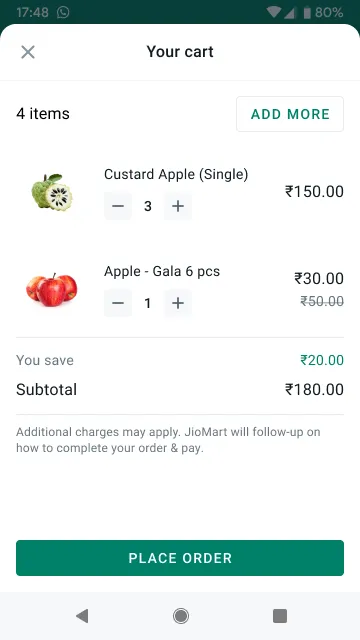
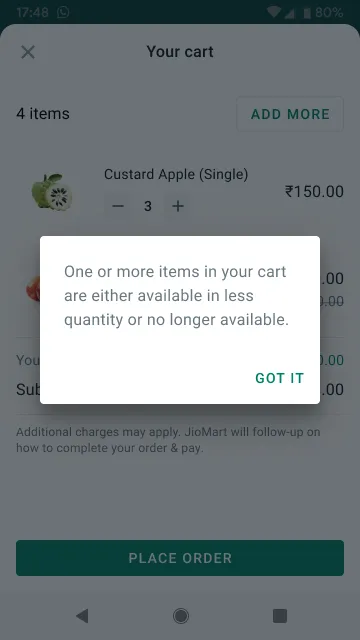
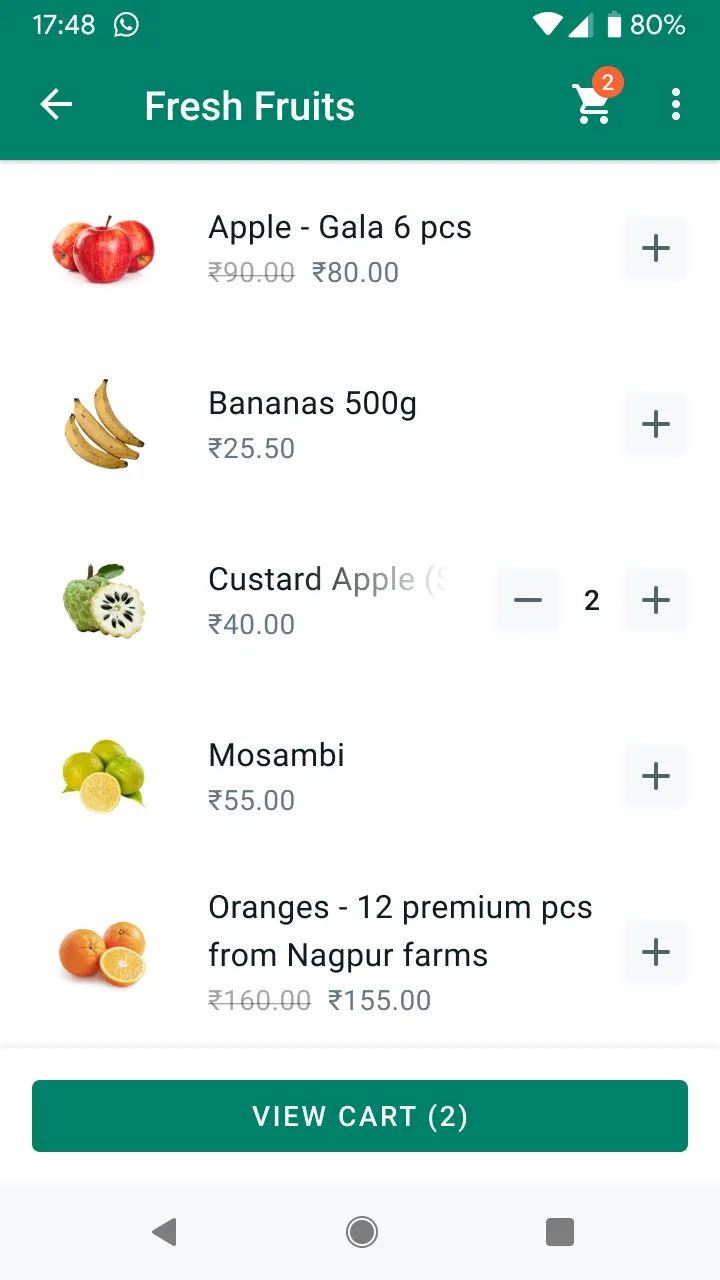
*Shopping cart experience example and expected behavior for item state change.*
Never send messages that violate the Commerce and Business Policies. Additionally, multi-product and single-product messages are subject to the existing enforcement and data sharing rules for product catalogs:
**India compliance**: Businesses based in India must [comply with all online selling laws](https://www.facebook.com/help/1104628230079278).**Rejection at product catalog level**: WhatsApp automatically reviews items added to a catalog connected to a WABA. If a policy-violating item is added, the product is flagged and the business is directed to the WhatsApp Commerce Policies.**Reporting options at the product catalog level**: Users can report a specific product they receive through a message. If a user reports a product, it is reviewed for violations.Businesses can appeal for disapproved items directly in the [Meta Commerce Manager](https://business.facebook.com/commerce/).
Unlike product messages sent via the WhatsApp Business app, messages sent via the Cloud API currently do not display a shopping cart icon in the chat thread header.
You may need to update properties of items in your catalog. Depending on the updated property, this is how messages that showcase that product are handled:
| Updated Property | Update Process |
|---|
Product’s price, title, description, and image. |
You send a product message containing product A.You update product A’s properties in your catalog.The screens that display that product are updated as soon as the customer client learns about the change from the server. |
|
You send a customer a product message containing product B.You sell all units of product B available. Then, you update your catalog saying that product B is no longer available.If a customer has already added product B to a cart, the item will be removed from the cart. The shopping cart displays a dialog saying “One or more items in your cart have been updated”.If a customer has not added product B to the cart, the product message now shows the item as unavailable. |
## Upload inventory to Meta
Updated: Mar 3, 2026
A business’s inventory needs to be uploaded to Meta in a catalog format — see [About Catalogs](https://www.facebook.com/business/help/890714097648074) for more information.
If a business already has a Meta catalog set up, leverage that catalog for WhatsApp commerce use cases. Just [connect the catalog to a WhatsApp Business Account](https://www.facebook.com/business/help/158662536425974) (WABA) and the business will be able to [share products with customers](/books/meta-whatsapp/page/share-products-with-whatsapp-users-developer-documentation).
If a business needs to create a catalog, there are two possibilities:
Create a catalog using the [Commerce API](https://developers.facebook.com/docs/commerce-platform/catalog/get-started)Create a catalog using the [Meta Commerce Manager](https://business.facebook.com/commerce/).You can only upload one catalog per WABA, but the same catalog can belong to multiple phone numbers.
Solution Partners onboarding client businesses into commerce messages have the following options:
If a client business already has and manages their own Meta catalog, they can give permission to the Solution Partner to manage their catalog —these permissions are controlled via the [Meta Business Manager](https://business.facebook.com/) and [Meta Commerce Manager](https://business.facebook.com/commerce/). After that, the Solution Partner can [connect the WhatsApp Business Account to the catalog](https://www.facebook.com/business/help/158662536425974) via WhatsApp Manager.If a client business doesn’t have a Meta catalog, they can create and upload a new catalog under the Solution Partner’s business ID.## Share products with WhatsApp users
Updated: Mar 3, 2026
You have multiple ways to share products with your customers.
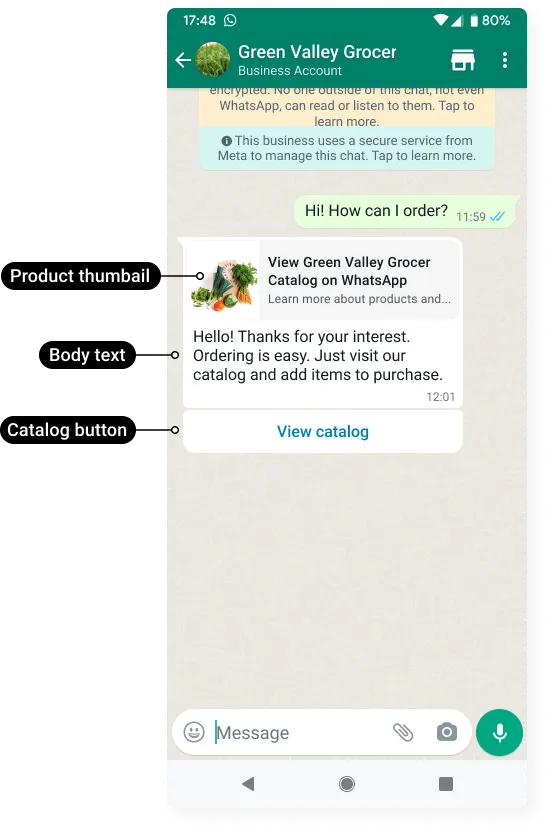
[Catalog messages](/books/meta-whatsapp/page/catalog-messages-developer-documentation) and [Catalog template messages](/books/meta-whatsapp/page/catalog-templates-developer-documentation) display a product thumbnail header image, custom body text, and a **View catalog** button. When a customer taps the button, your product catalog appears within WhatsApp.
### Catalog link messages
Use a [Catalog link messages](/books/meta-whatsapp/page/catalog-link-messages-developer-documentation) to send a link to your entire product catalog by assembling a wa.me link and including it in a standard [text message](/books/meta-whatsapp/page/sending-messages-developer-documentation).
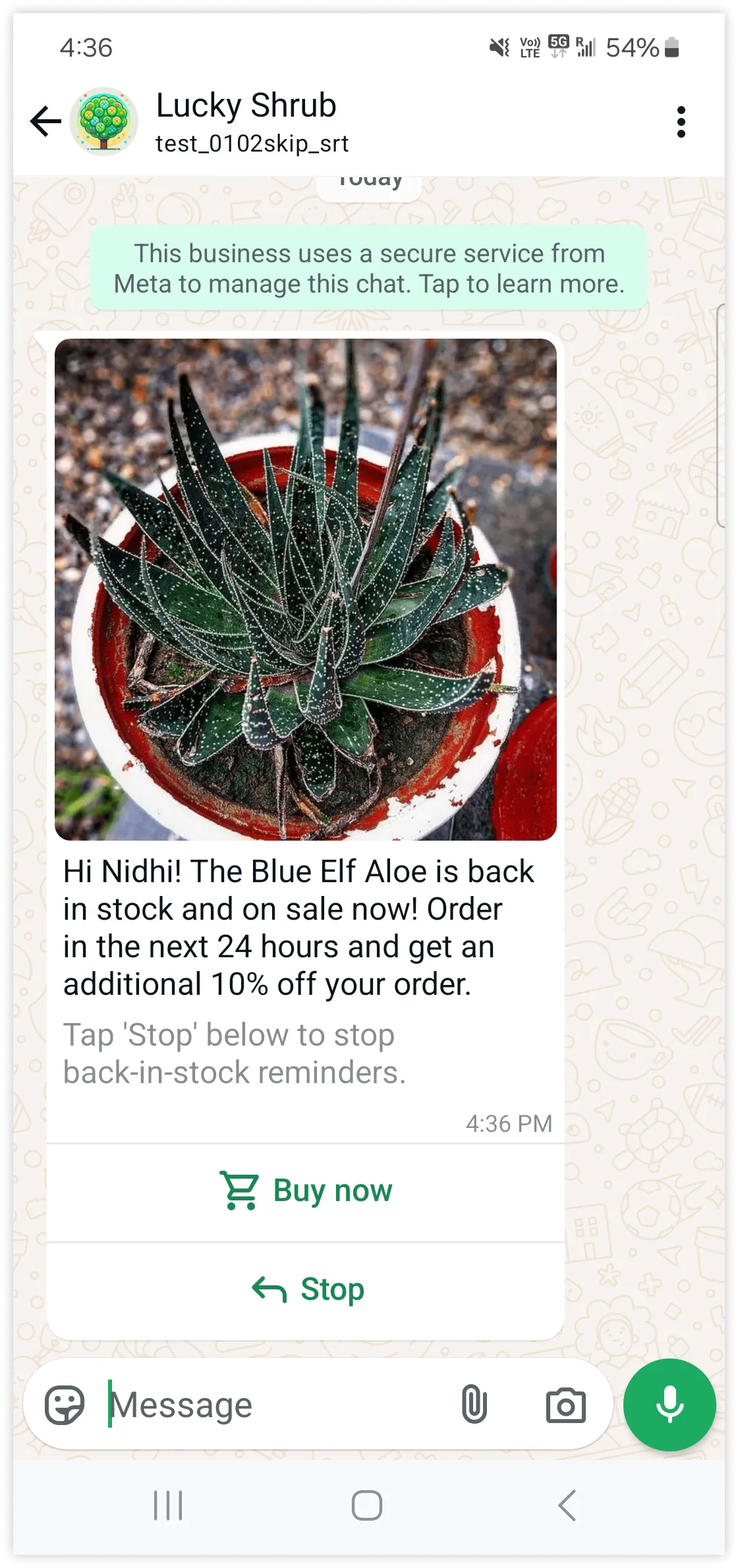
[Checkout button template messages](/books/meta-whatsapp/page/checkout-button-templates-developer-documentation) allow India-based businesses to showcase one or more products that WhatsApp users in India (with India country calling codes) can purchase without leaving the WhatsApp client.
### Single-product messages
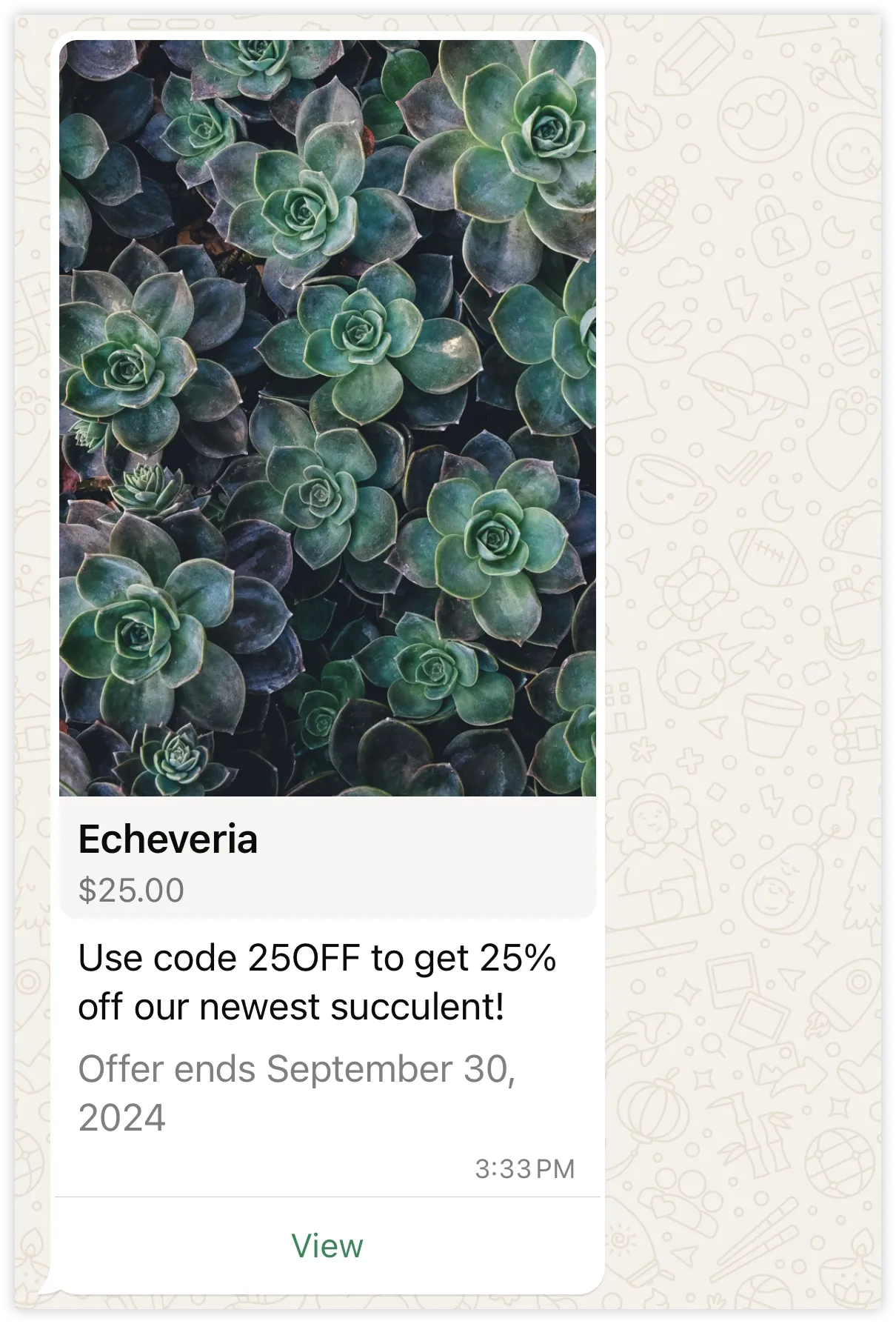
[Single-product messages](/books/meta-whatsapp/page/single-product-messages-developer-documentation) and [Single-product template messages](/books/meta-whatsapp/page/single-product-message-templates-developer-documentation) present a single product from your catalog, accompanied by a product image, product title, and product price, along with customizable body text, optional footer text, and an interactive **View** button.
### Multi-product messages
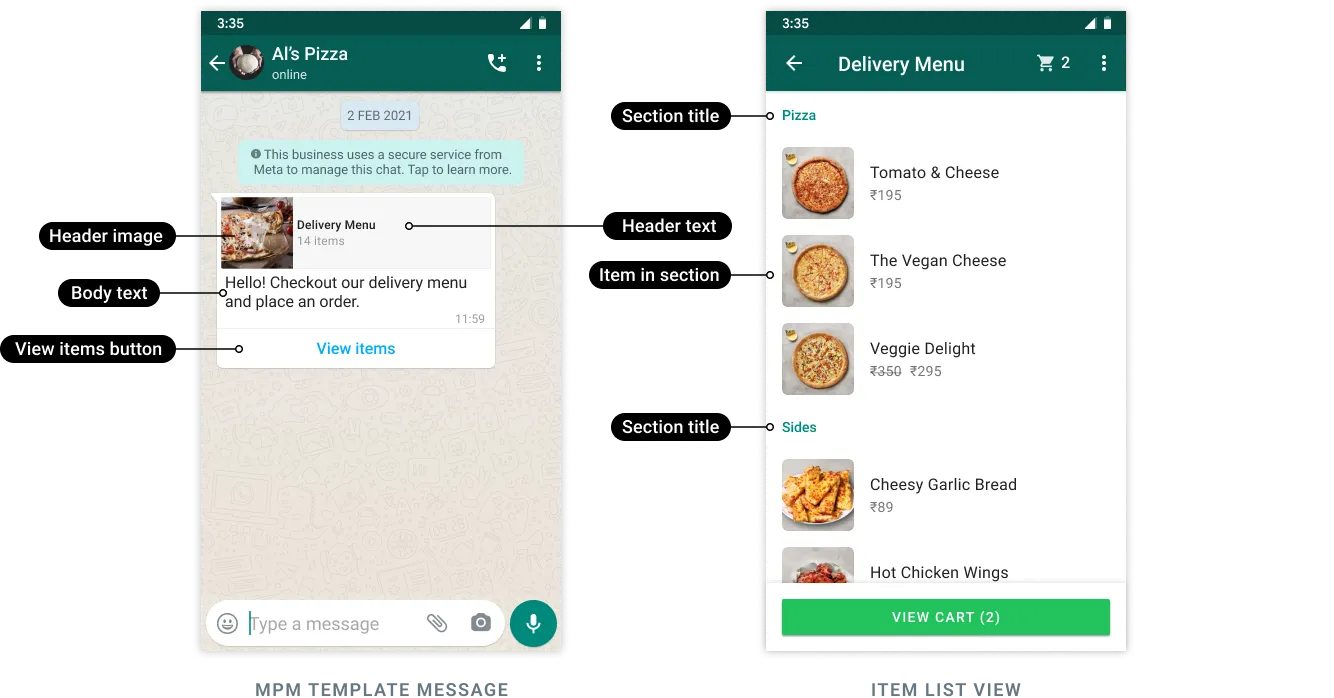
[Multi-product messages](/books/meta-whatsapp/page/multi-product-messages-developer-documentation) and [Multi-product template messages](/books/meta-whatsapp/page/multi-product-message-templates-developer-documentation) display up to 30 products from your catalog, organized into customizable sections.
### Product carousel messages
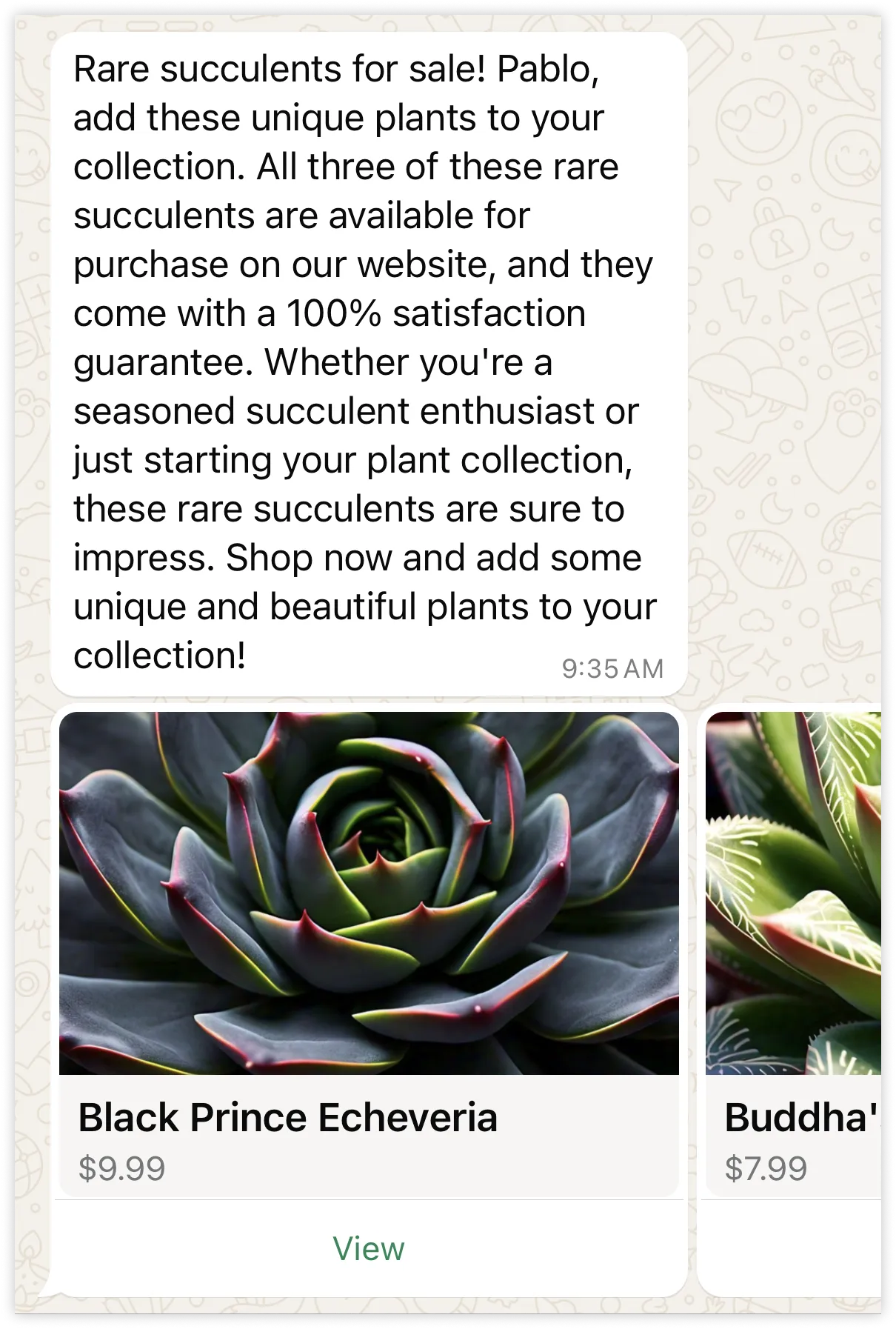
[Product carousel messages](/books/meta-whatsapp/page/interactive-product-carousel-messages-developer-documentation) and [Product carousel template messages](/books/meta-whatsapp/page/product-card-carousel-templates-developer-documentation) allow you to send a single text message accompanied by a set of up to 10 product cards in a horizontally scrollable view.
## Receive responses from customers
Updated: Mar 3, 2026
After receiving single- or multi-product messages, WhatsApp users can ask for more information about a product or place an order. These actions are communicated via the [messages](/books/meta-whatsapp/page/messages-webhook-reference-developer-documentation) webhook.
Sent message statuses (sent, delivered, read) are described in [status messages webhooks](/books/meta-whatsapp/page/status-messages-webhook-reference-developer-documentation).
Whenever a WhatsApp user receives a single- or multi-product message, they can ask for more information by sending you a text message in an existing WhatsApp thread, or by tapping a **Message business** or **Message** button when viewing a specific product.
Messages sent after tapping a **Message business** or **Message** button are described in [text messages webhooks](/books/meta-whatsapp/page/text-messages-webhook-reference-developer-documentation) and a `context` property will be included, whose value is an object describing the product the user was viewing when they tapped the button.
When a WhatsApp user adds one or more products to their WhatsApp shopping cart and places an order, the [order messages webhook](/books/meta-whatsapp/page/order-messages-webhook-reference-developer-documentation) is triggered, describing the contents of the order. Use the order contents to fulfill the order.
## Catalog link messages
Updated: Mar 3, 2026
You can send a link to your entire product catalog by assembling a wa.me link and including it in a standard [text message](/books/meta-whatsapp/page/sending-messages-developer-documentation). When sending a text message, you can use the optional `preview_url` set to `true` to have the message render a set of product catalog thumbnails of any URL in the message `body` string.
Note that if you [disable the catalog](/documentation/business-messaging/whatsapp/catalogs/set-commerce-settings#enable-disable-catalog), wa.me links and the **View Catalog** button in catalog link messages display an **Invalid catalog link** message when tapped.
To assemble a wa.me link, append your business phone number, including country code, to the end of the following string:
```
https://wa.me/c/
```
For example:
```
https://wa.me/c/15555455657
```
## Catalog messages
Updated: Mar 3, 2026
Catalog messages let you showcase your product catalog entirely within WhatsApp.
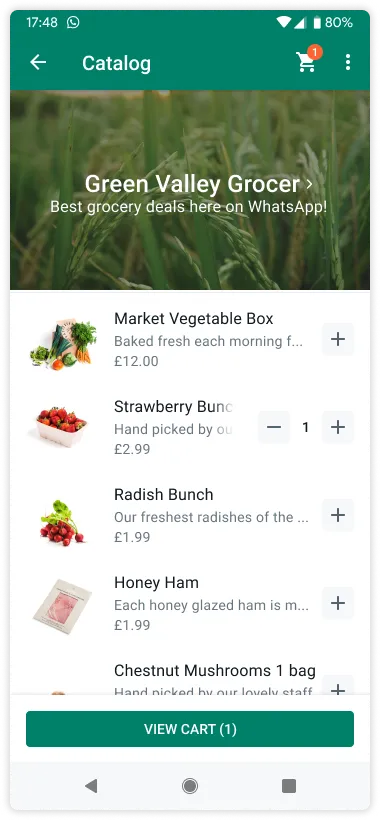
Catalog messages display a product thumbnail header image of your choice, custom body text, a fixed text header, a fixed text sub-header, and a **View catalog** button.
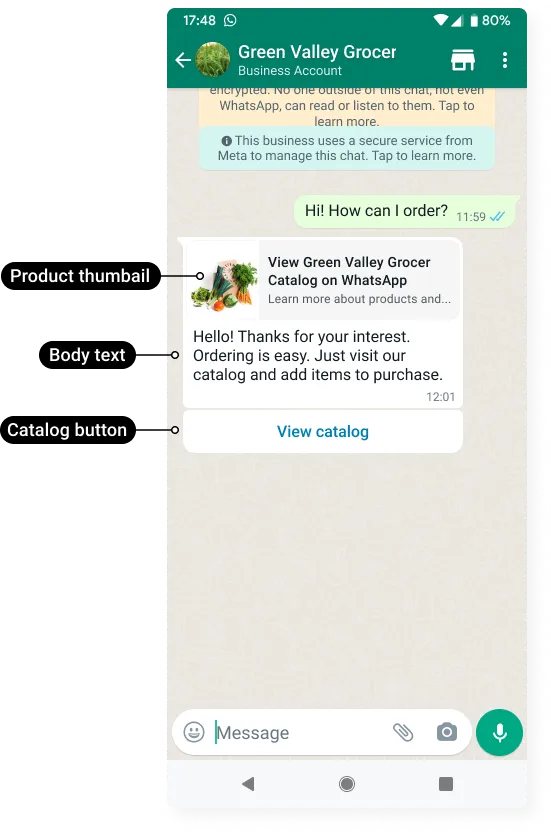
When a customer taps the **View catalog** button, your product catalog appears within WhatsApp.
You must have [inventory uploaded to Meta](/books/meta-whatsapp/page/upload-inventory-to-meta-developer-documentation) in an ecommerce catalog [connected to your WhatsApp Business Account?](https://www.facebook.com/business/help/158662536425974).
| Placeholder | Description | Sample Value |
|---|
| **Required.**
Text to appear in the message body.
Maximum 1024 characters. | `Hello! Thanks for your interest. Ordering is easy. Just visit our catalog and add items to purchase.` |
| **Optional.**
Text to appear in the message footer.
Maximum 60 characters. | `Best grocery deals on WhatsApp!` |
| **Optional.**
Item SKU number. Labeled as **Content ID** in the Commerce Manager.
The thumbnail of this item will be used as the message's header image.
If the `parameters` object is omitted, the product image of the first item in your catalog will be used. | |
| | |
## Catalog templates
Updated: Mar 3, 2026
This document explains how to create catalog templates. See [Sell Products & Services](/books/meta-whatsapp/page/catalogs-overview-developer-documentation) to learn more about product catalogs and ways to showcase your products.
Catalog templates are marketing templates that allow you to showcase your product catalog entirely within WhatsApp. Catalog templates display a product thumbnail header image of your choice and custom body text, along with a fixed text header and fixed text sub-header.
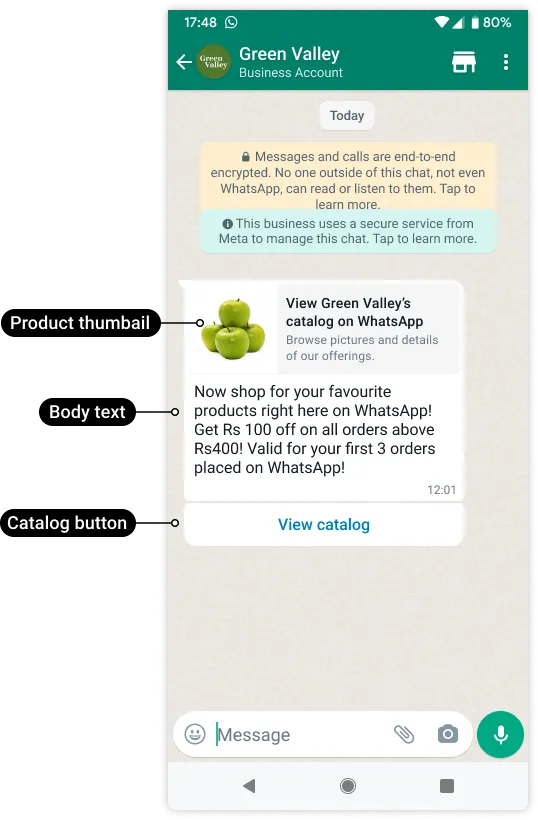
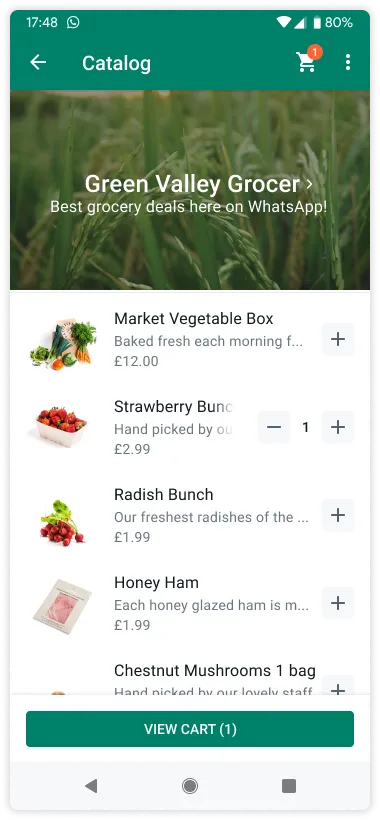
When a customer taps the **View catalog** button in a catalog template message, your product catalog appears within WhatsApp.
### Creating catalog templates
You must have [inventory uploaded to Meta](/books/meta-whatsapp/page/upload-inventory-to-meta-developer-documentation) in an e-commerce catalog [connected to your WhatsApp Business Account?](https://www.facebook.com/business/help/158662536425974).
| Placeholder | Description | Sample Value |
|---|
| **Required.**
Template body text. Variables are supported.
Maximum 1024 characters. | `Now shop for your favorite products right here on WhatsApp! Get Rs {{1}} off on all orders above {{2}}Rs! Valid for your first {{3}} orders placed on WhatsApp!` |
`` *String (of an array of strings)* | **Required if body text uses variables.**
Sample strings to replace variable placeholders in `` string.
Maximum 1024 characters. | |
| **Optional.**
Template footer text. Variables are supported.
Maximum 60 characters. | `Best grocery deals on WhatsApp!` |
| **Required.**
Template [language and locale code](/books/meta-whatsapp/page/template-library-developer-documentation). | |
| **Required.**
Template name.
Maximum 512 characters. | |
### Sending catalog template messages
You can send approved [catalog templates](/books/meta-whatsapp/page/catalog-templates-developer-documentation) in a template message. See [Sell Products & Services](/books/meta-whatsapp/page/catalogs-overview-developer-documentation) to learn more about product catalogs and ways to showcase your products.
You must have [inventory uploaded to Meta](/books/meta-whatsapp/page/upload-inventory-to-meta-developer-documentation) in an e-commerce catalog [connected to your WhatsApp Business Account?](https://www.facebook.com/business/help/158662536425974).
| Placeholder | Description | Sample Value |
|---|
| **Required.**
Template [language and locale code](/books/meta-whatsapp/page/template-library-developer-documentation). | |
| **Required.**
Template name. | |
| **Optional.**
Item SKU number. Labeled as Content ID in the Commerce Manager.
The thumbnail of this item will be used as the message's header image.
If the `parameters` object is omitted, the product image of the first item in your catalog will be used. | |
| **Required if template uses variables.**
Template variable. | |
| **Required.**
Customer phone number. | |
| **Required if template uses variables.**
Template variable type. | |
## Multi-product messages
Updated: Mar 3, 2026
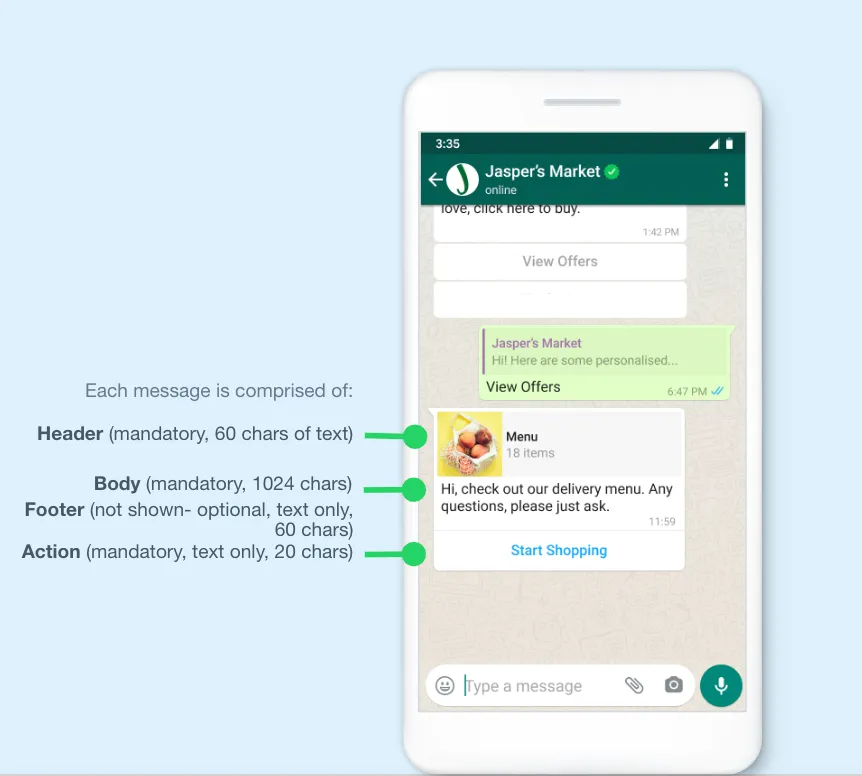
Multi-Product Messages are interactive messages that display up to 30 products from your catalog, organized into sections. Customers can browse products, view details, add items to a cart, and send an order — all within WhatsApp.
*Multi-Product message example:*
*Menu triggered when user clicks on Start Shopping:*
Customers that receive Multi-Product Messages can perform 3 main actions:
View products: Customers can see a list of products. Whenever a customer clicks on a specific item, the product’s latest info is fetched and the product displays in a Product Detail Page (PDP) format. Currently, PDPs only support product images — any videos or GIFs added to the product won’t be displayed in the PDP.Add products to a cart: Whenever a user adds a product to the shopping cart, the item’s latest info is fetched. If there has been a state change on any of the items, a dialog saying “One or more items in your cart have been updated” is displayed — see [Product updates](/books/meta-whatsapp/page/share-products-with-whatsapp-users-developer-documentation) for more information. A cart persists in a chat thread between you and your customer until the cart is sent to you — see [Shopping cart experience](/books/meta-whatsapp/page/share-products-with-whatsapp-users-developer-documentation) for details.Send a shopping cart to you: After adding all needed items, customers can send their cart to you. After that, you can define the next steps, such as requesting delivery info or giving payment options.If your customer has multiple devices linked to their account, Multi-Product Messages will be synced between devices. However, the shopping cart is local to each specific device. See [Shopping cart experience](/books/meta-whatsapp/page/share-products-with-whatsapp-users-developer-documentation) for details.
Currently, Multi-Product Messages can be received on the following platforms:
iOS: 2.21.100Android: 2.21.9.15Web: The web client supports this feature.If the customer’s app version does not support Multi-Product Messages, they will instead receive a message explaining that they were unable to receive a message because they are using an outdated version of WhatsApp. You also receive a webhook notification indicating the message was unable to be delivered due to the customer using an outdated version of WhatsApp.
Multi-Product Messages can be:
Forwarded by one user to another.Reopened by a user within the same chat thread.Multi-Product Messages cannot be:
Sent as notifications. They can only be sent as part of existing chat threads.Multi-Product Messages are best for guiding customers to a specific subset of your inventory, such as:
Shopping in a conversational way. For example, using search functionality to allow customers to type a shopping list and send back a Multi-Product Message in response.Navigating to a specific category. For example, fitness apparel.Personalized offers or recommendations.Re-ordering previously ordered items. For example, a user can re-order their regular take-out order of less than 30 items.Multi-Product Messages can also be used as part of a human agent flow. However, you need to build the tooling to allow the human agent to generate a Multi-Product Message in thread.
#### Why you should use them
Multi-Product Messages lend themselves best to user experiences that are simple and personalized, where it’s a better experience to guide the customer to a subset of items most relevant to them, rather than browsing your full inventory.
##### Simple and efficient
Combining the features with navigation tools like Natural Language Processing (NLP), text search or List Messages and Reply Buttons to get to what the customer is looking for fast.
Populated dynamically so can be personalized to the customer or situation. For example, you can show a Multi-Product Message of a customer’s most frequently ordered items.
A high-performing channel for driving orders. During testing, businesses had an average 7% conversion of Multi-Product Messages sent to carts received.
Interactive messages do not require templates or pre-approvals. They are generated in real-time and will always reflect the latest item details, pricing and stock levels from your inventory.
### Send a multi-product message
Before sending product messages, follow the get started best suited for your needs:
[Direct developers](/books/meta-whatsapp/page/get-started-developer-documentation)[Solution providers](/books/meta-whatsapp/page/solution-providers-developer-documentation)All API calls mentioned in this guide must be authenticated with an access token. You can authenticate your API calls with the access token generated in the **App Dashboard** > **WhatsApp** > **API Setup** panel. If you are a solution provider, you must authenticate with an access token with the [whatsapp\_business\_messaging](https://developers.facebook.com/docs/permissions/reference/whatsapp_business_messaging) permission.
#### Step 1: Assemble the interactive object
To send a Multi-Product Message, assemble an `interactive` object of type `product_list` with the following components:
| Required Components | Optional Components |
|---|
Header Object — Header’s type must be set to text. Remember to add a text object with the desired content.Body ObjectAction Object - Must include catalog\_id and sections. Sections must be an array of objects describing each section using title and product\_items. Each section’s product\_items value must be an array describing each product in the section using product\_retailer\_id and the product’s SKU number. | Footer Object |
See [Messages, Interactive Object](/books/meta-whatsapp/page/sending-messages-developer-documentation) for full information. By the end of the process, the interactive object should look something like this:
If none of the items provided in the API call matches a product from your product catalog, an error message is sent and the Multi-Product Message is not sent to the user.
At least one item from the products list must match an item from your product catalog. In this case:
Messages are sent successfullyItems without a match are droppedYou receive an error message asking for a catalog update## Multi-product message templates
Updated: Mar 3, 2026
This document describes multi-product message (“MPM”) templates, their uses, and how to use them.
MPM templates are marketing templates that allow you to showcase up to 30 products from your ecommerce catalog, organized in up to 10 sections, in a single message.
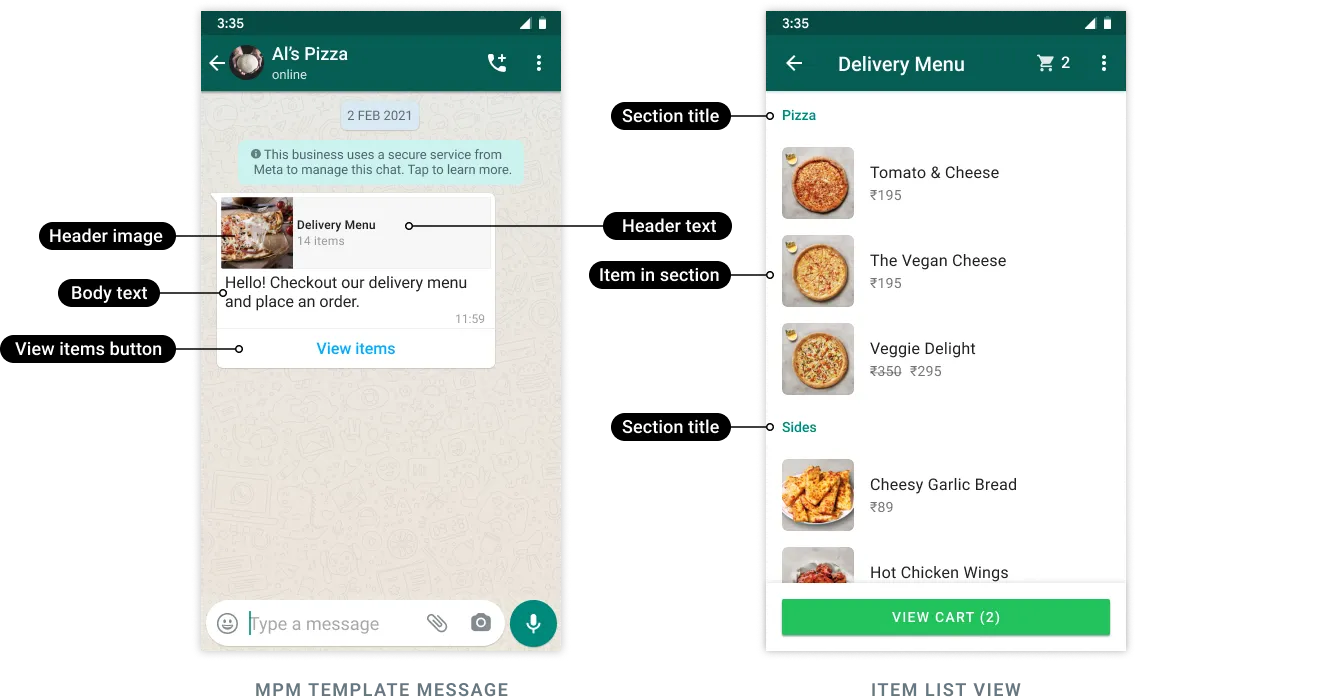
Customers can browse products and sections within the message, view details for each product, add and remove products from their cart, and submit their cart to place an order. Orders are then sent to you via a webhook.
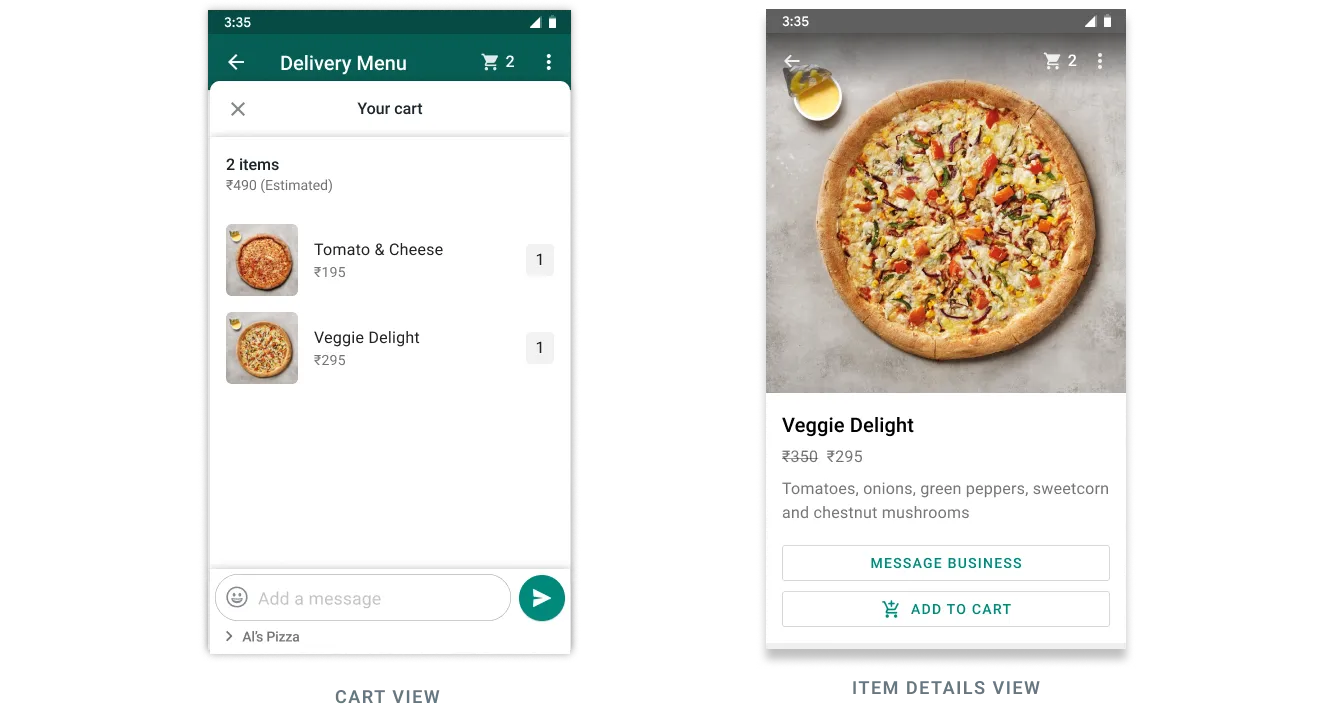
See our help center article [About Multi-product message templates on WhatsApp](https://www.facebook.com/business/help/978451836847222) for common use cases and tips on how to make the most of MPM templates.
In order to create and use MPM templates you must have an ecommerce product catalog, with inventory, connected to your WhatsApp Business Account. See the Cloud API [Commerce](/books/meta-whatsapp/page/catalogs-overview-developer-documentation) guide.
Customers must be using WhatsApp v2.22.24 or greater.MPM templates cannot be forwarded to other customers.## Interactive product carousel messages
Updated: Mar 3, 2026
The interactive product carousel message enables businesses to send horizontally scrollable product cards within WhatsApp conversations, allowing users to browse and engage with products directly in-thread.
This format integrates with the Product Catalog and supports Single Product Message (SPM) actions on each card, providing a seamless and interactive shopping experience via the WhatsApp Business APIs and mobile clients.
### How to build a product carousel message
The product carousel message contains a `card` object. You must add 2 card objects to your message, and can add a maximum of 10. Each card exists in a `cards[]` array and must be given a `"card_index"` value of `0` through `9`.
The type of each card must be set to `"product"`, and each card must reference the same `"catalog_id"`.
You must add a message body to the message, and no header, footer, or buttons are allowed.
Lastly, each card must specify the product and catalog identifiers `"product_retailer_id"` and `"catalog_id"`.
| Placeholder | Description | Sample Value |
|---|
| **Required.** [System token](/books/meta-whatsapp/page/access-tokens-guide-developer-documentation) or [business token](/books/meta-whatsapp/page/access-tokens-guide-developer-documentation). | `EAAAN6tcBzAUBOZC82CW...DOMccqHEZD` |
| **Optional.** Graph API version. | |
| **Required.** Maximum 1024 characters. | `Which option do you prefer?` |
| **Required.** WhatsApp business phone number ID. | |
| **Required.** WhatsApp user phone number. | |
### Card object parameters
| Placeholder | Description | Sample value |
|---|
| **Required**
Unique index for each card (0-9). Must not repeat within the message. | |
| **Required**
The unique retailer ID of the product in the catalog. | |
| **Required**
The unique ID of the catalog containing the product. | |
## Product card carousel templates
Updated: Mar 3, 2026
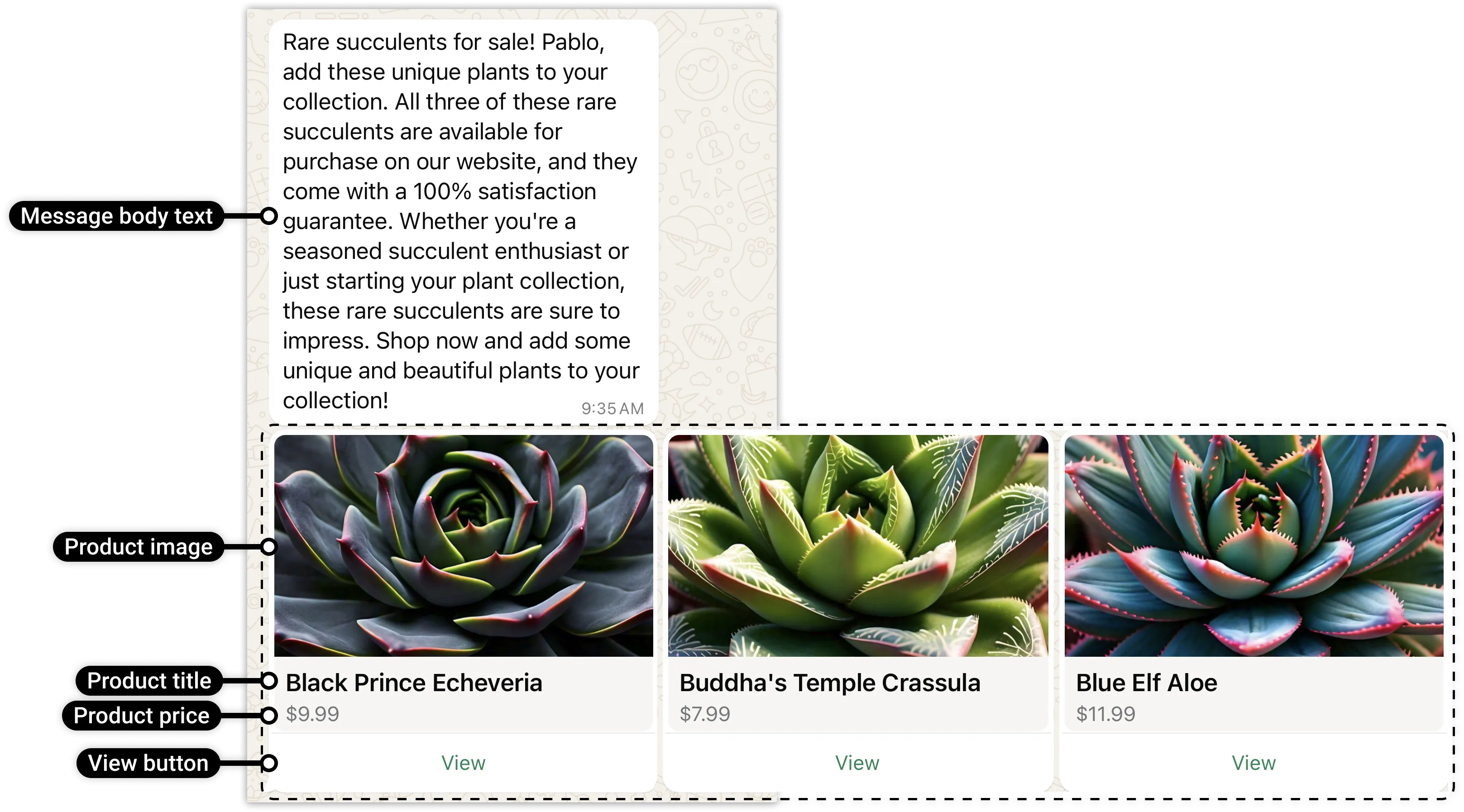
Product card carousel templates allow you to send a single text message accompanied by a set of up to 10 product cards in a horizontally scrollable view:
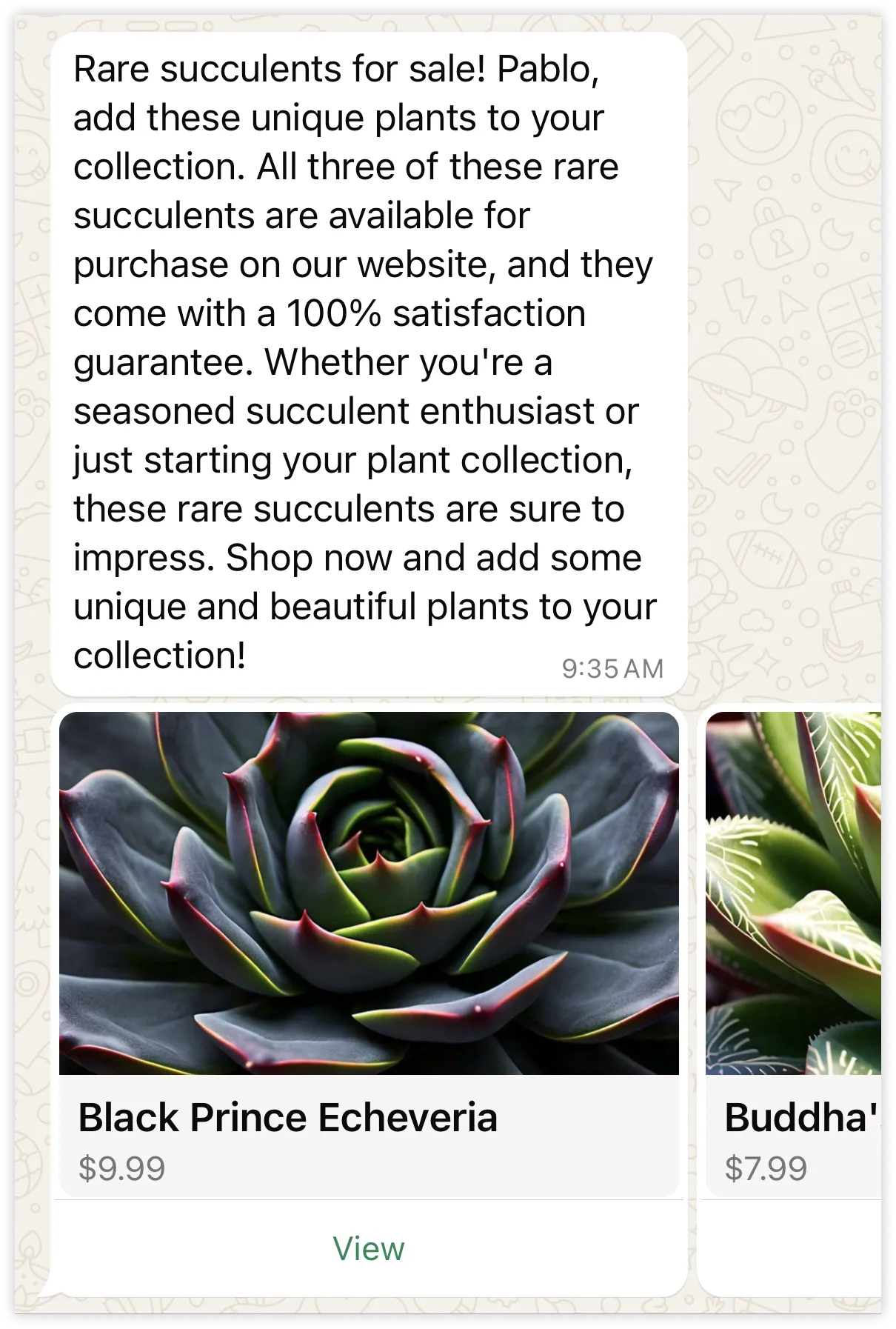
When a WhatsApp user taps the **View** button, they can view more information about the product, add the product to a shopping cart, and place an order, all without leaving the WhatsApp client experience. If instead you prefer to send the user to your website when they click the button, see [Media Card Carousel Templates](/documentation/business-messaging/whatsapp/templates/marketing-templates/media-card-carousel-templates).
Carousel templates support up to 10 product cards, composed of message body text, a product image, product title, product price, and a single View button or URL button. All cards defined on a template must have the same components.
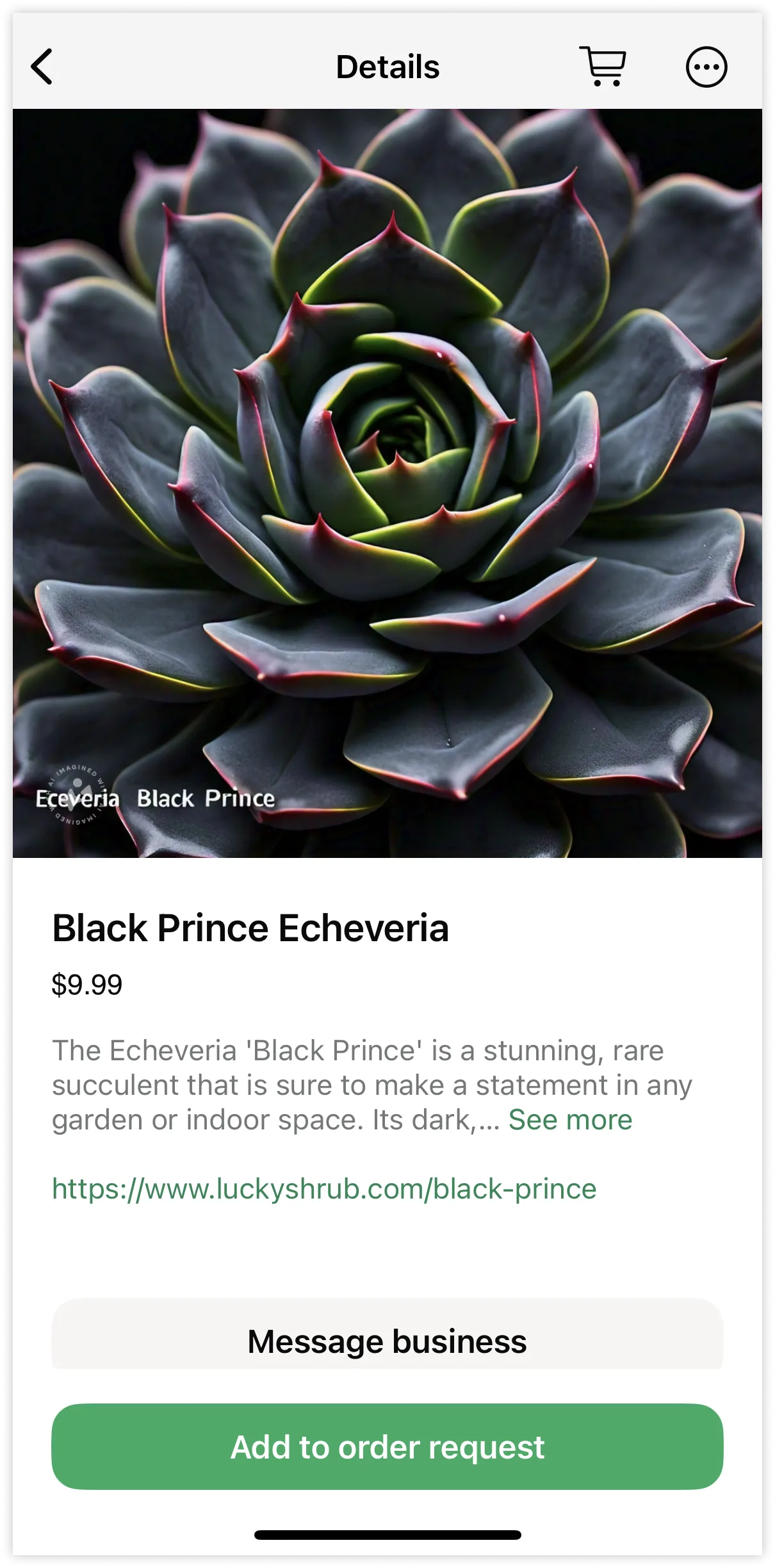
When a WhatsApp user taps the button, the product details view appears, displaying product information pulled from your product catalog.
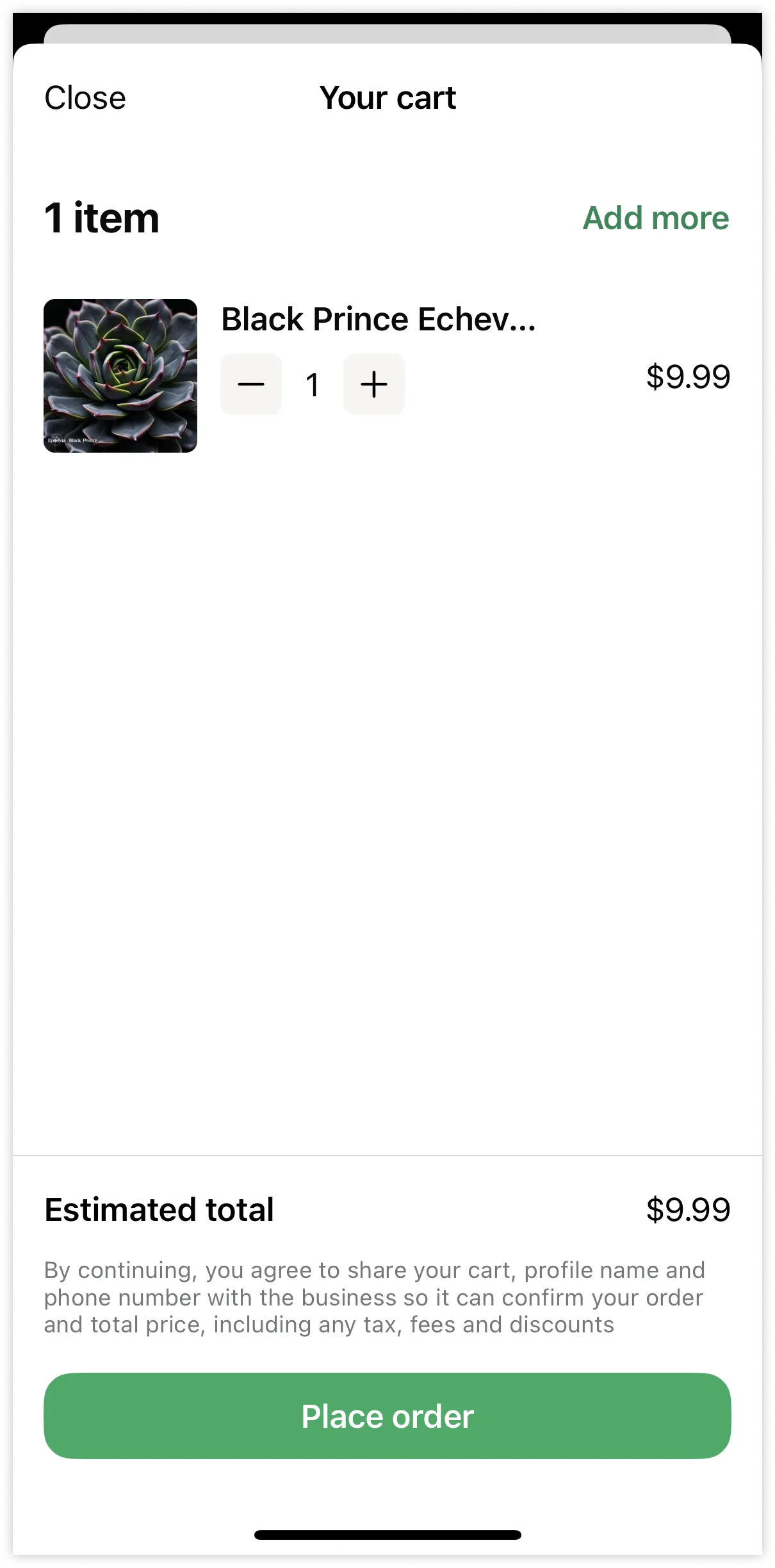
Users can then add the product to a cart and place an order.
When a user submits the cart, a [webhook](#bkmrk-webhooks-1) will be triggered describing the order, and an order confirmation message will appear in the message thread.
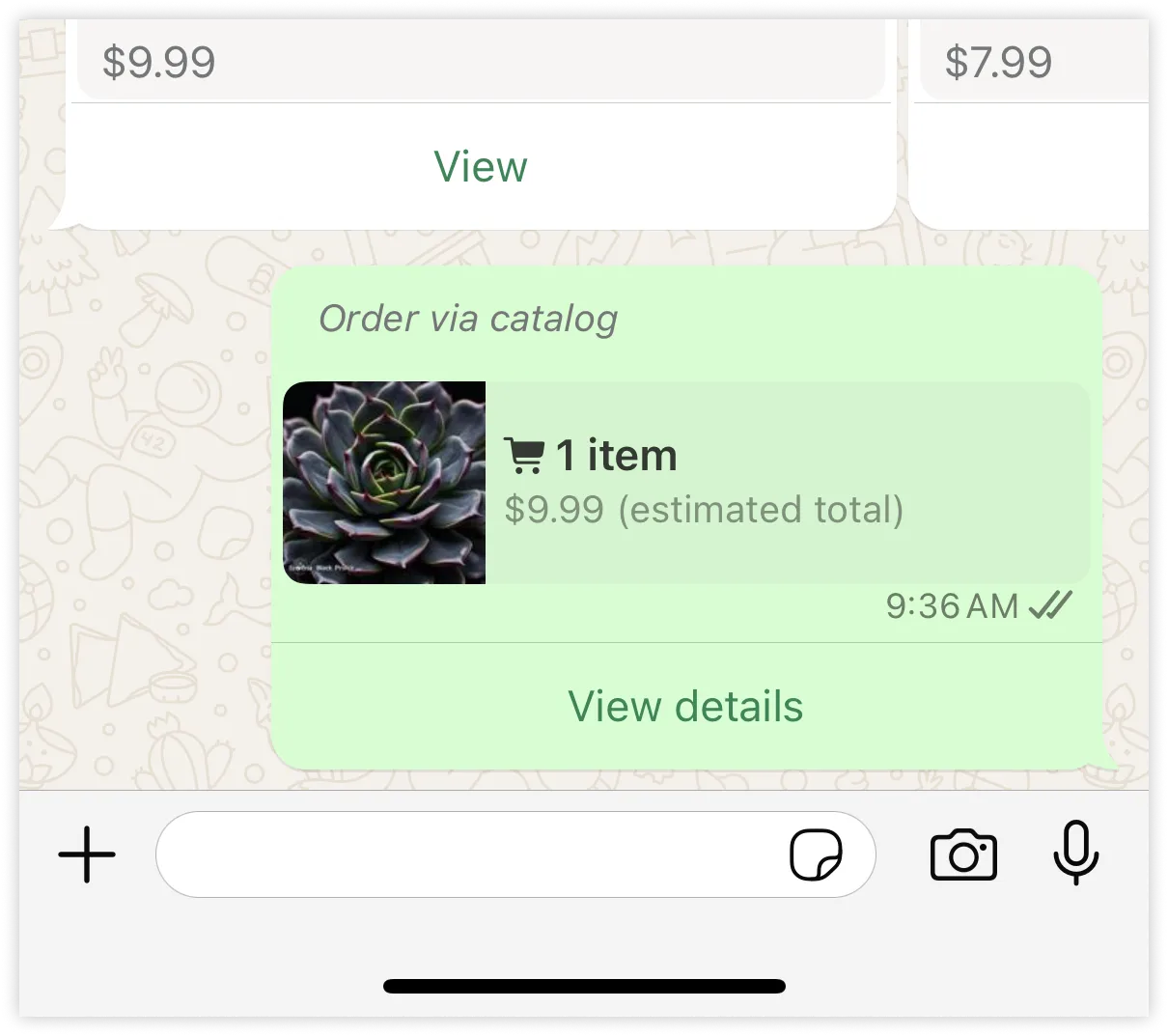
Users who have placed an order can see the contents of the order by tapping the **View details** button.
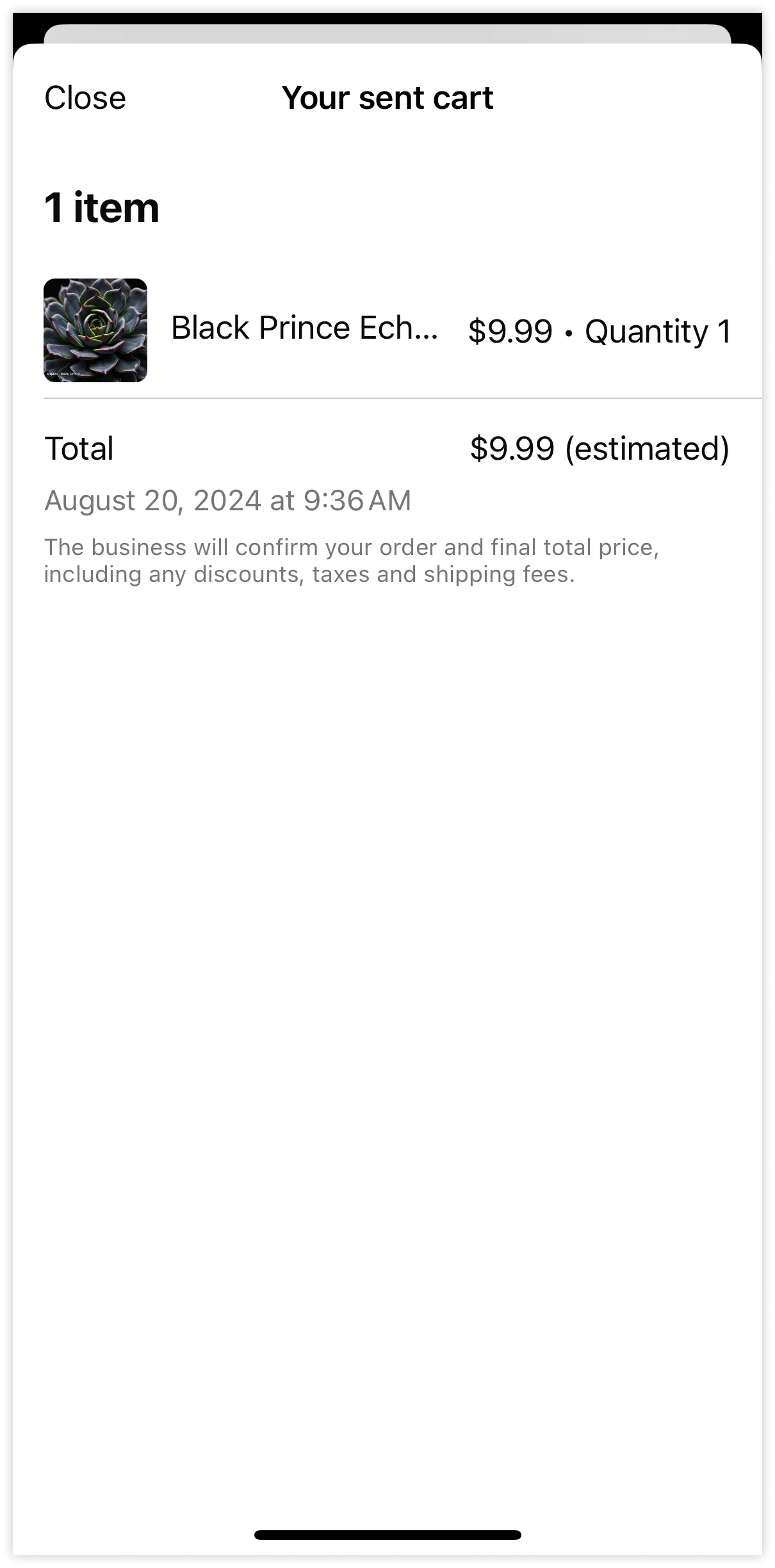
Instead of **View** buttons you may wish to use **URL** buttons. When a WhatsApp user taps a URL button to buy a product, the URL mapped to the button is loaded in the device's default web browser, which takes the user out of the WhatsApp client experience. This can be useful if, for example, you wish to load the product in your mobile checkout page where users can add promo codes and find related products.
With URL button flows, since order placement happens outside of the WhatsApp client, webhooks describing the order are not triggered.
To use product card carousel templates, you must have an ecommerce product catalog, with inventory, connected to your WhatsApp Business Account. See the Cloud API [Commerce](/books/meta-whatsapp/page/catalogs-overview-developer-documentation) guide to learn more about connecting a catalog to your account.
## Single-product messages
Updated: Mar 3, 2026
Single-Product Messages are interactive messages that display a single product from your catalog, allowing customers to view product details, add the item to a cart, and send an order — all within WhatsApp.
*Single-Product message example:*
*Product Detail Page example:*
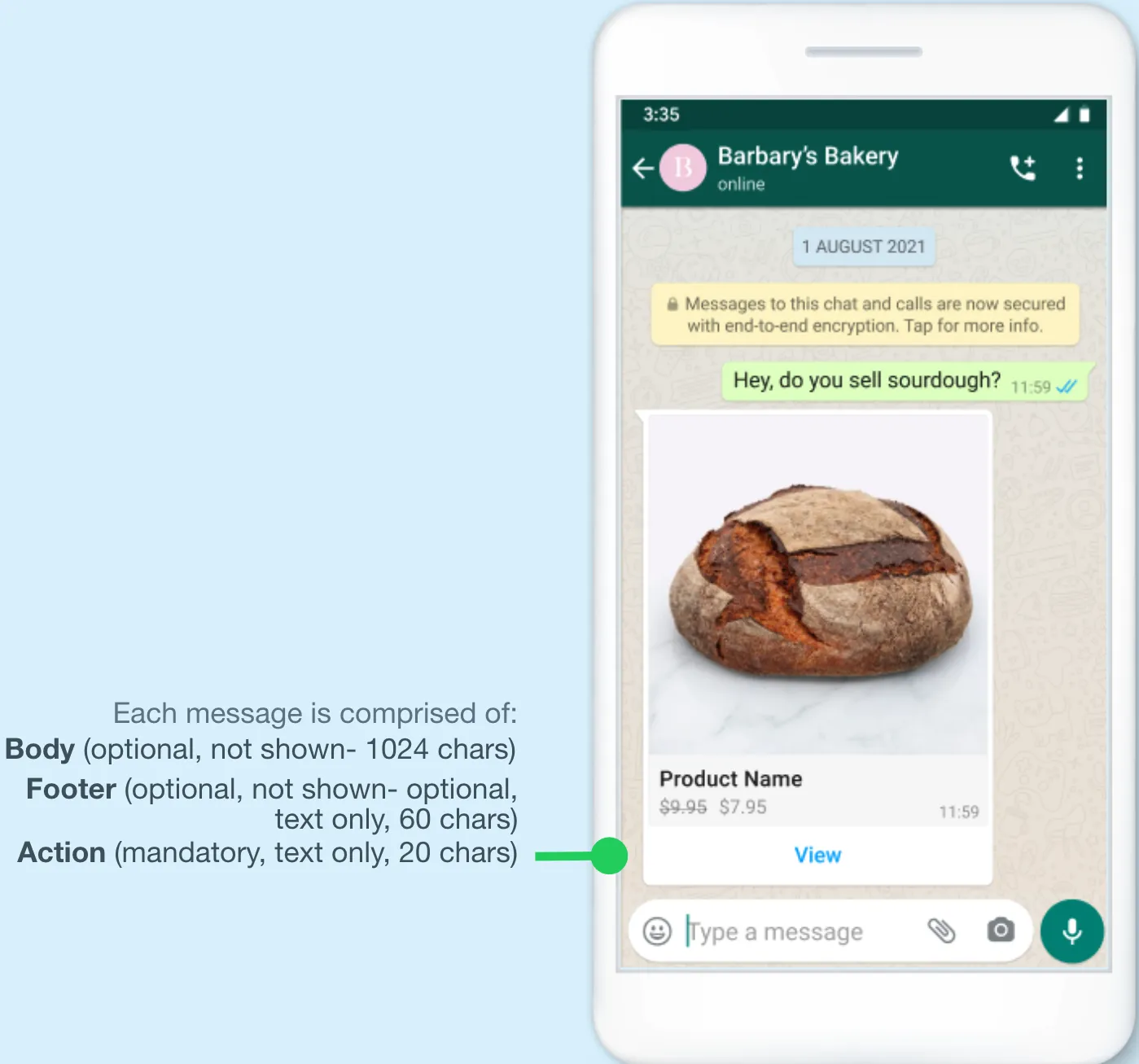
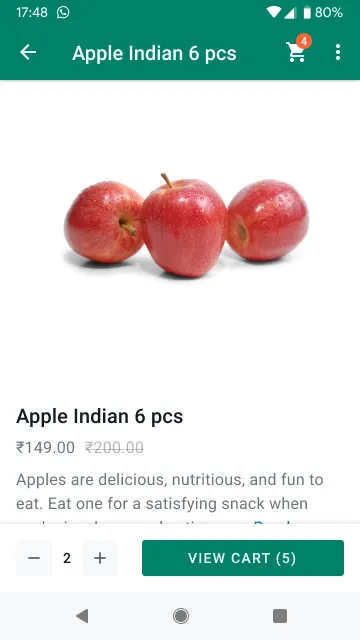
Customers that receive Single-Product Messages can perform 3 main actions:
View the product: Whenever a customer clicks on the item, the product’s latest info is fetched and the product displays in a Product Detail Page (PDP) format. Currently, PDPs only support product images — any videos or GIFs added to the product won’t be displayed in the PDP.Add the product to a cart: Whenever a user adds a product to the shopping cart, the item’s latest info is fetched. If there has been a state change, a dialog saying “One or more items in your cart have been updated” is displayed — see [Product updates](/books/meta-whatsapp/page/share-products-with-whatsapp-users-developer-documentation) for more information. A cart persists in a chat thread between you and your customer until the cart is sent to you — see [Shopping cart experience](/books/meta-whatsapp/page/share-products-with-whatsapp-users-developer-documentation) for details.Send a shopping cart to you: After adding items, customers can send their cart to you. After that, you can define the next steps, such as requesting delivery info or giving payment options.If your customer has multiple devices linked to their account, Single-Product Messages will be synced between devices. However, the shopping cart is local to each specific device. See [Shopping cart experience](/books/meta-whatsapp/page/share-products-with-whatsapp-users-developer-documentation) for details.
Currently, Single-Product Messages can be received on the following platforms:
iOS: 2.21.210Android: 2.21.19Web: The web client supports this feature.If the customer’s app version does not support Single-Product Messages, they will instead receive a message explaining that they were unable to receive a message because they are using an outdated version of WhatsApp. You also receive a webhook notification indicating the message was unable to be delivered due to the customer using an outdated version of WhatsApp.
Single-Product Messages can be:
Forwarded by one user to another.Reopened by a user within the same chat thread.Single-Product Messages cannot be:
Sent as notifications. They can only be sent as part of existing chat threads.Single-Product Messages are best for guiding customers to one specific item from your inventory, offering quick responses from a limited set of options, such as:
Responding to a customer’s specific request.Providing a recommendation.Reordering a previous item.Single-Product Messages can also be used as part of a human agent flow. However, you need to build the tooling to allow the human agent to generate a Single-Product Message in thread.
#### Why you should use them
Single-Product Messages lend themselves best to user experiences that are simple and personalized, where it’s a better experience to guide the customer to a specific item most relevant to them, rather than browsing your full inventory.
Interactive messages do not require templates or pre-approvals. They are generated in real-time and will always reflect the latest item details, pricing and stock levels from your inventory.
### Send a single-product message
Before sending product messages, follow the get started best suited for your needs:
[Direct developers](/books/meta-whatsapp/page/get-started-developer-documentation)[Solution providers](/books/meta-whatsapp/page/solution-providers-developer-documentation)All API calls mentioned in this guide must be authenticated with an access token. You can authenticate your API calls with the access token generated in the **App Dashboard** > **WhatsApp** > **API Setup** panel. If you are a solution provider, you must authenticate with an access token with the [whatsapp\_business\_messaging](https://developers.facebook.com/docs/permissions/reference/whatsapp_business_messaging) permission.
#### Step 1: Assemble the interactive object
To send a Single-Product Message, assemble an `interactive` object of type `product` with the following components:
| Required Components | Optional Components |
|---|
Action Object — Must include both catalog\_id and product\_retailer\_id. | Body ObjectFooter Object |
See [Messages, Interactive Object](/books/meta-whatsapp/page/sending-messages-developer-documentation) for full information. By the end of the process, the interactive object should look something like this:
If none of the items provided in the API call matches a product from your product catalog, an error message is sent and the Single-Product Message is not sent to the user.
## Single-product message templates
Updated: Mar 3, 2026
This document describes single-product message (SPM) templates, their uses, and how to use them.
SPM templates are marketing templates that allow you to present a single product from your ecommerce catalog, accompanied by a product image, product title, and product price (all pulled from your product within your catalog), along with customizable body text, optional footer text, and an interactive **View** button.
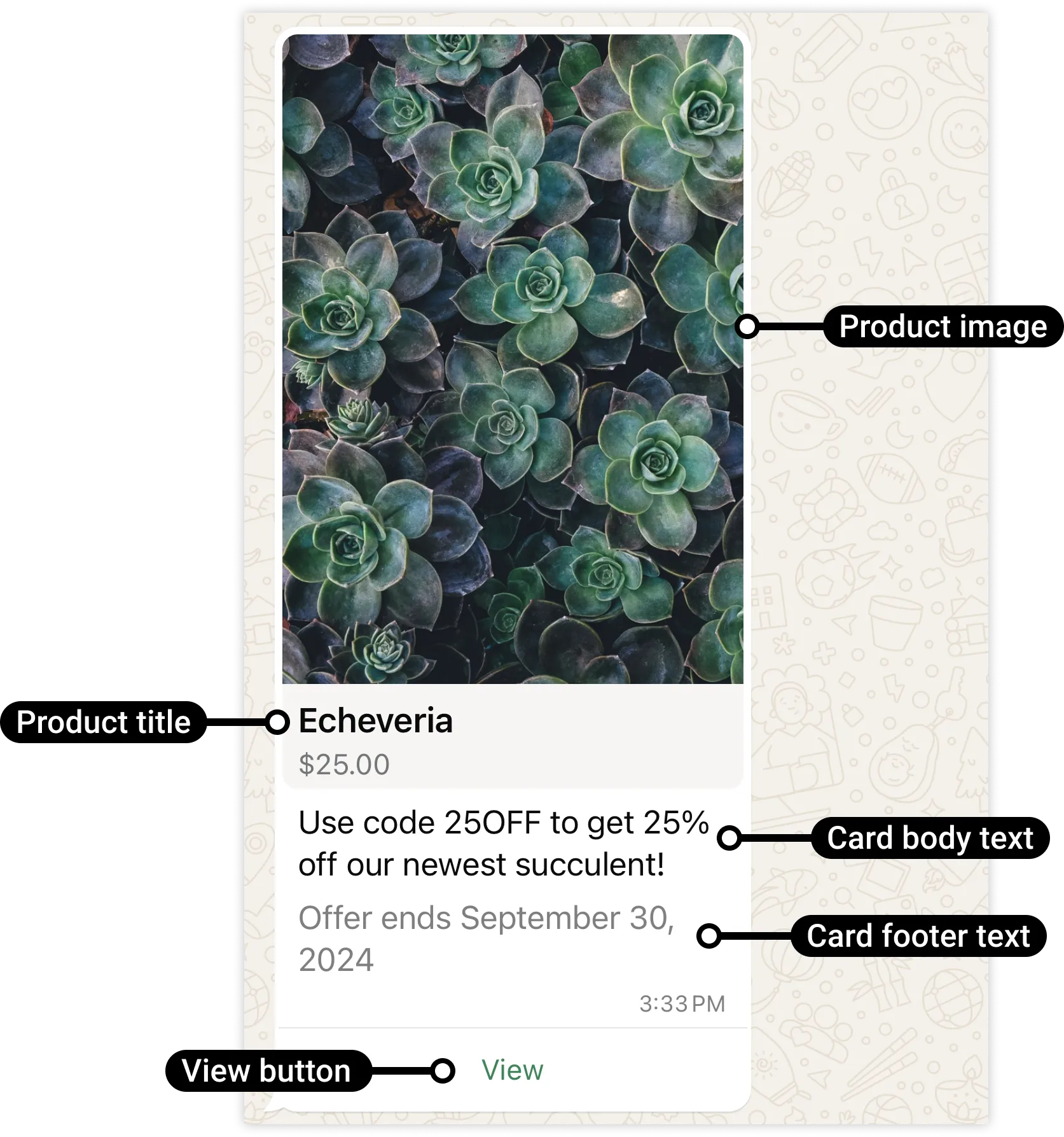
WhatsApp users can tap the button to see details about the product, and can add or remove the product from the WhatsApp shopping cart:
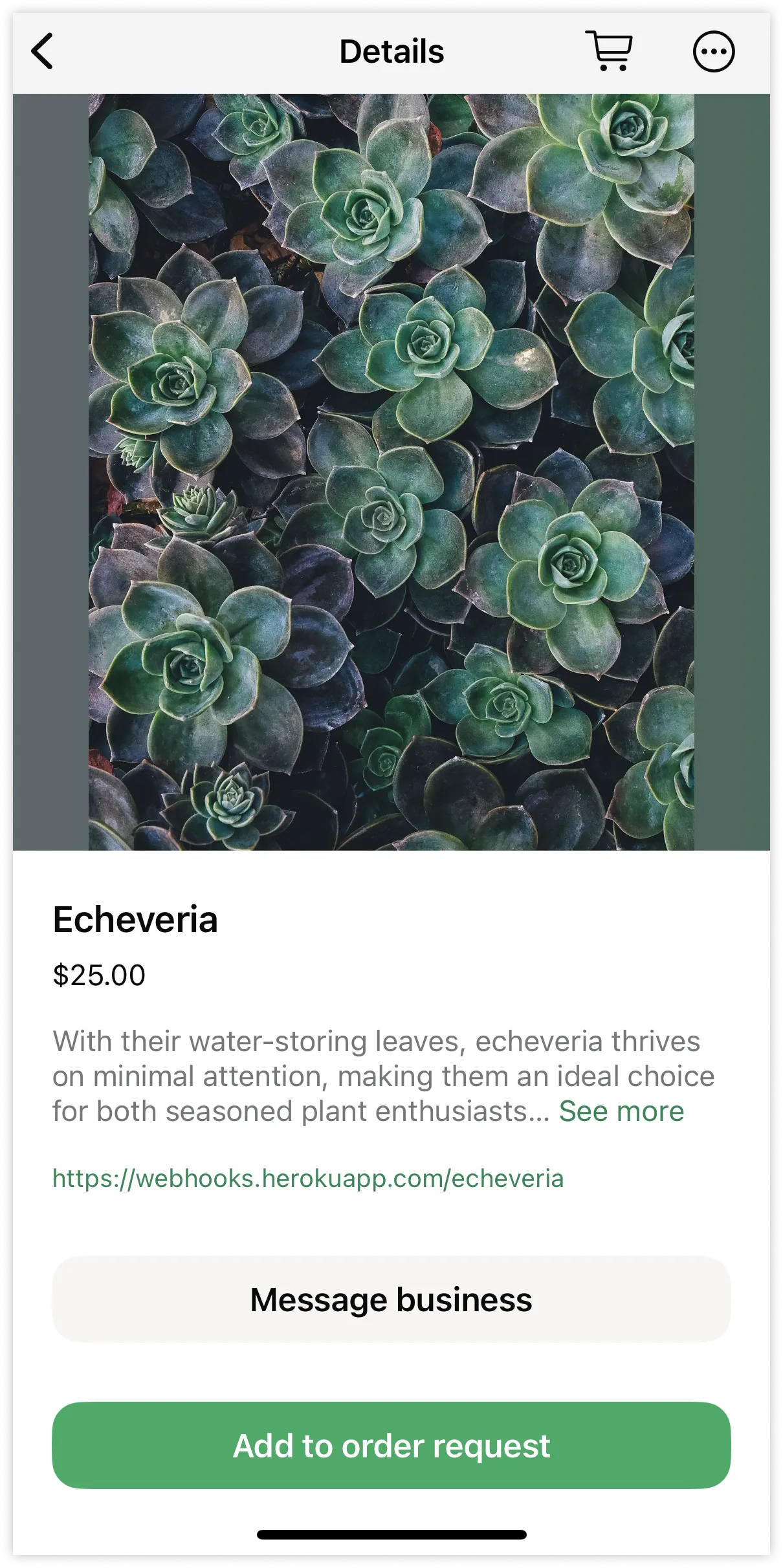
If the WhatsApp user adds the product to the cart and submits an order, you will be notified via webhook and the user will see that an order has been placed:
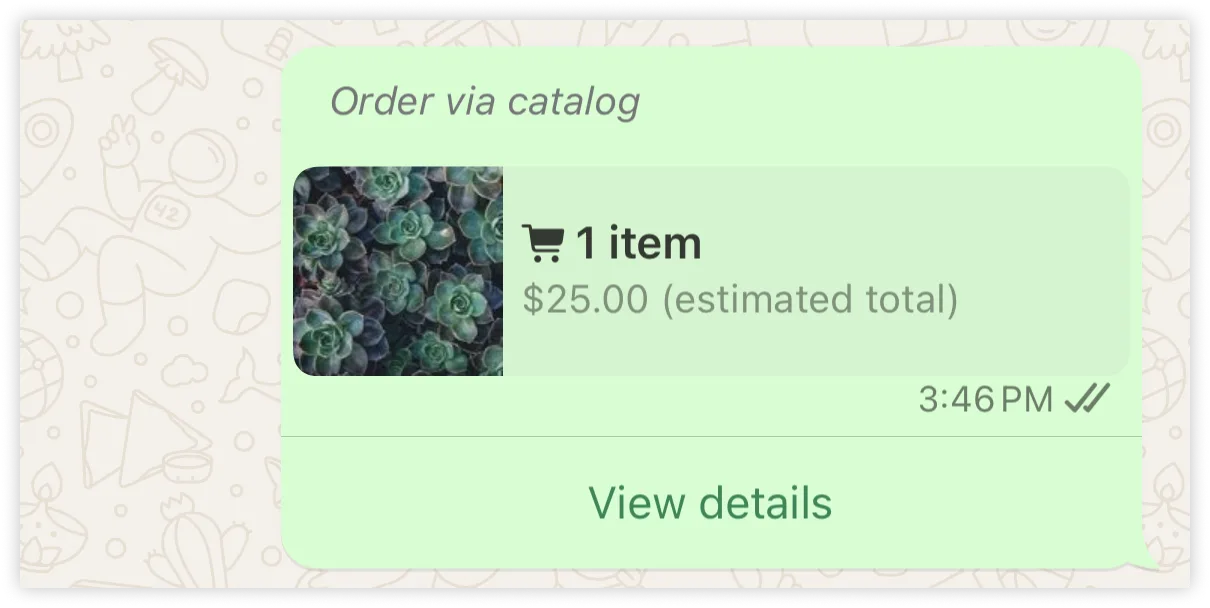
Users who place an order are also able to use the View details button to see information about the order:
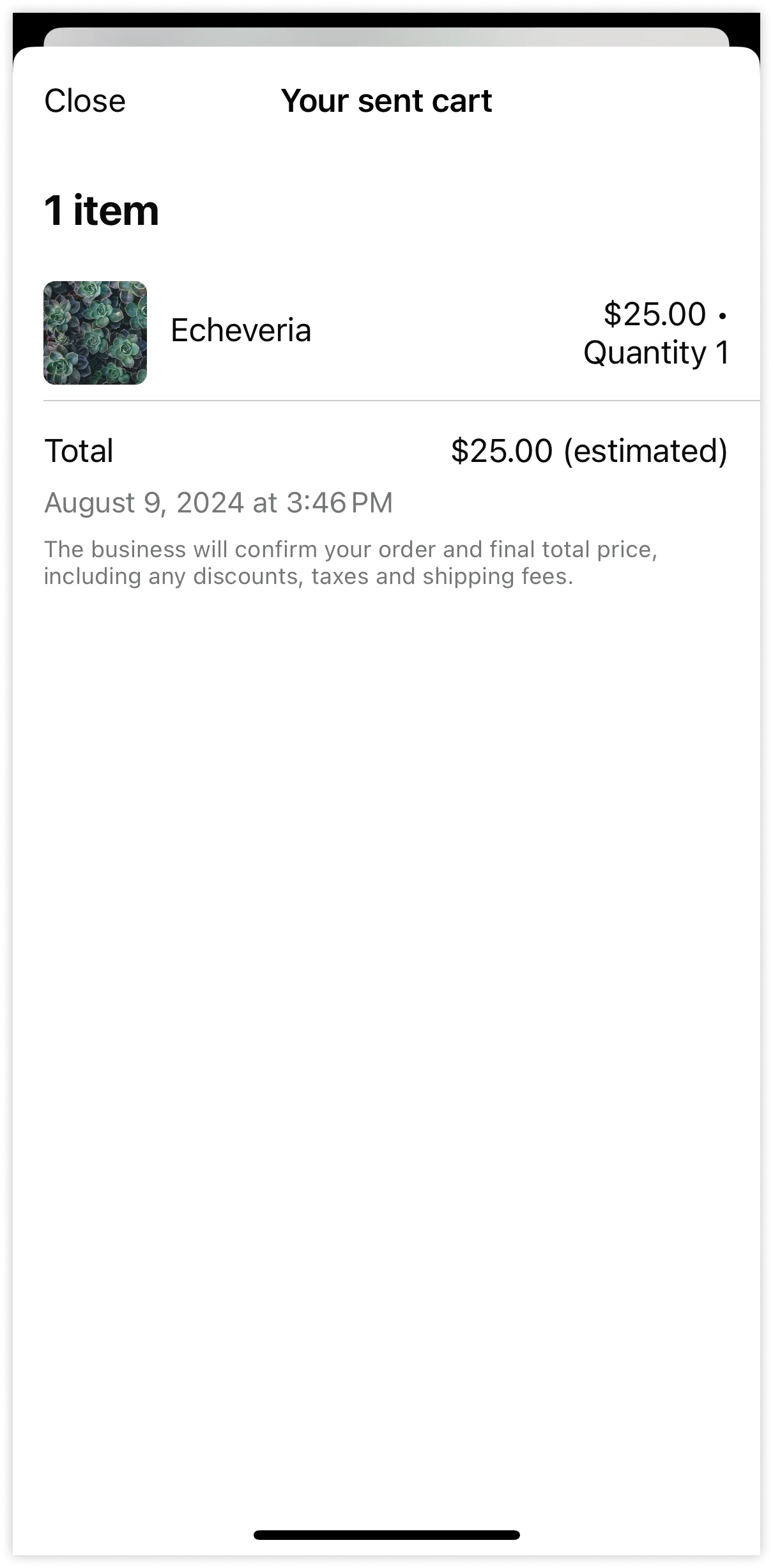
Customers must be using WhatsApp v2.22.24 or greater.Message forwarding is disabled for SPM templates.You must have an ecommerce product catalog, with inventory, connected to your WhatsApp Business Account. See the Cloud API [Commerce](/books/meta-whatsapp/page/catalogs-overview-developer-documentation) guide to learn more about connecting a catalog to your account.